# Adding the "Volunteer" constituent category
> Source: https://support.associationsphere.com/adding-the-volunteer-constituent-category | Updated: 2026-07-15T20:55:27Z
The first step in creating a volunteer management program is identifying constituents who participate in volunteer activities. Adding a constituent category of "Volunteer" and adding it to your volunteer's constituent profile record will allow you to quickly identify your volunteers in the constituent grid.
Having a Volunteer constituent category is also a requirement for seeing volunteer hours in the Volunteer module's Time Tracking grid. This is intended to allow organizations to use the Time Tracking grid in the CRM module to track many types of time including volunteer hours, education or training hours, and client service hours. The Volunteer module's Time Tracking grid will only show time related to constituent's who have the Volunteer constituent category, and not show time for constituents who are not volunteers.
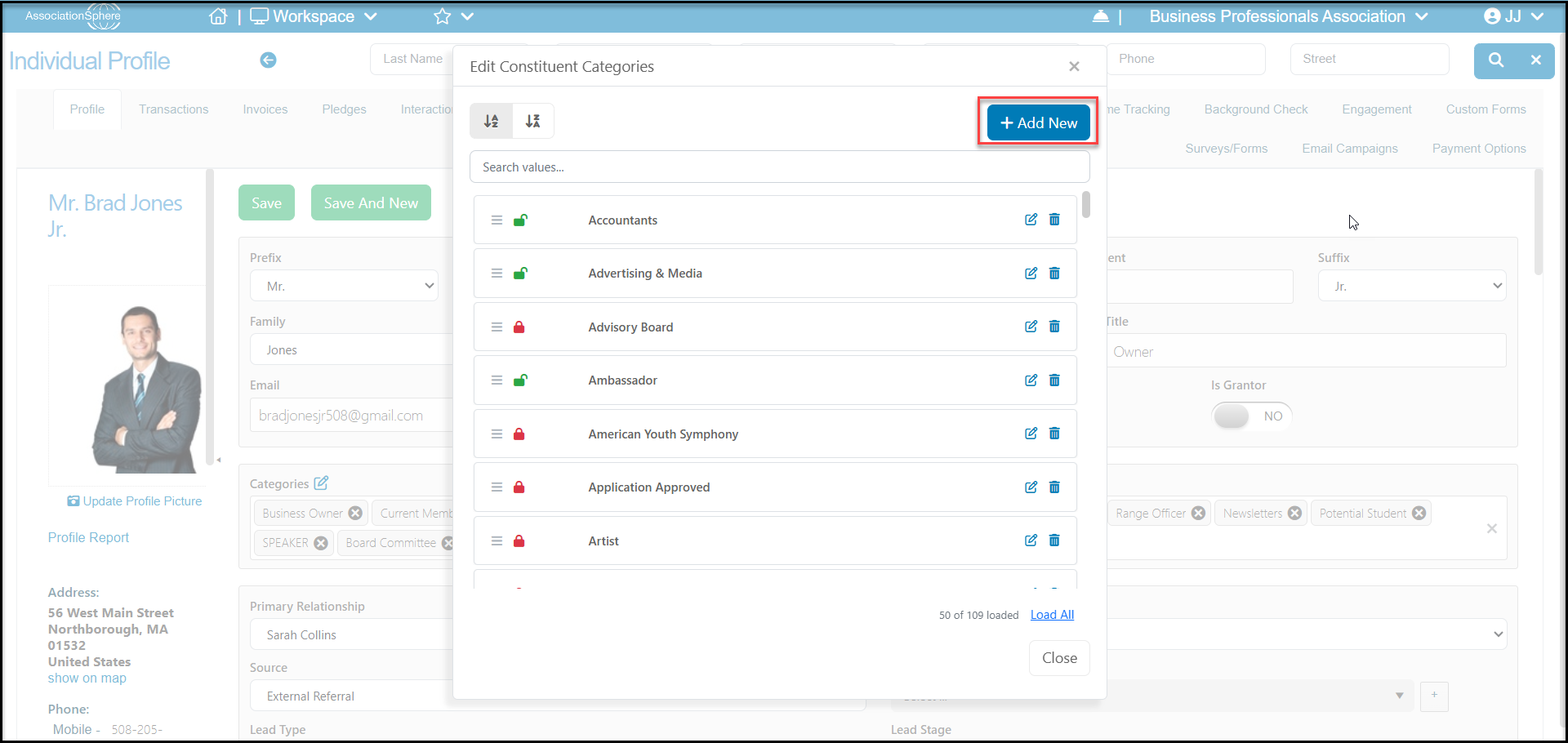
To create a Volunteer constituent category, open any constituent's record and click on the edit icon next to the **Categories** field.
You can **Search values** to see if the category is already on your list. If it is not yet available, click on **+Add New** to create it.
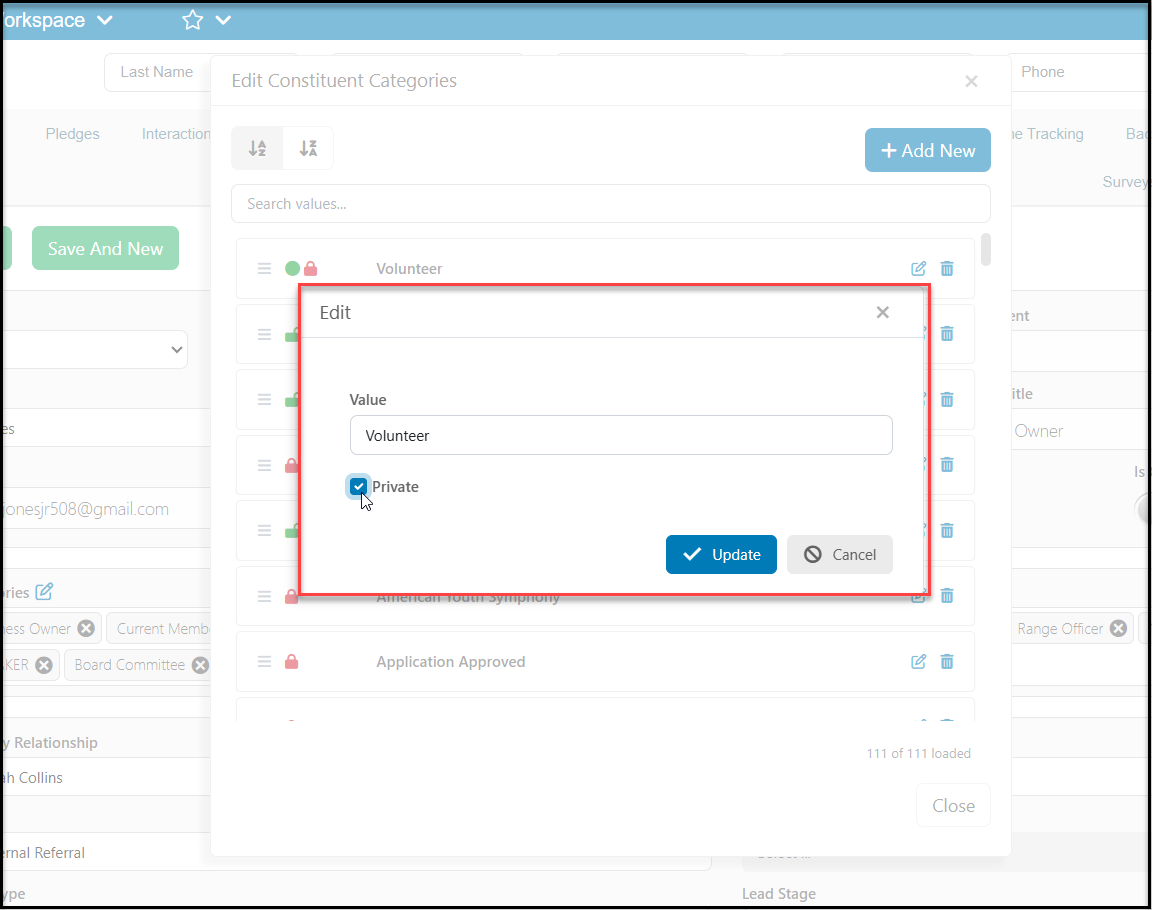
 In the new window, enter Volunteer. It must be spelled exactly the same way in order to sync with the Volunteer module. If you have a Membership Directory you share publicly and do not wish your volunteers to be a searchable field for the directory, you can check **Private** to hide this category from your search list. Click **Update** to create the new category.
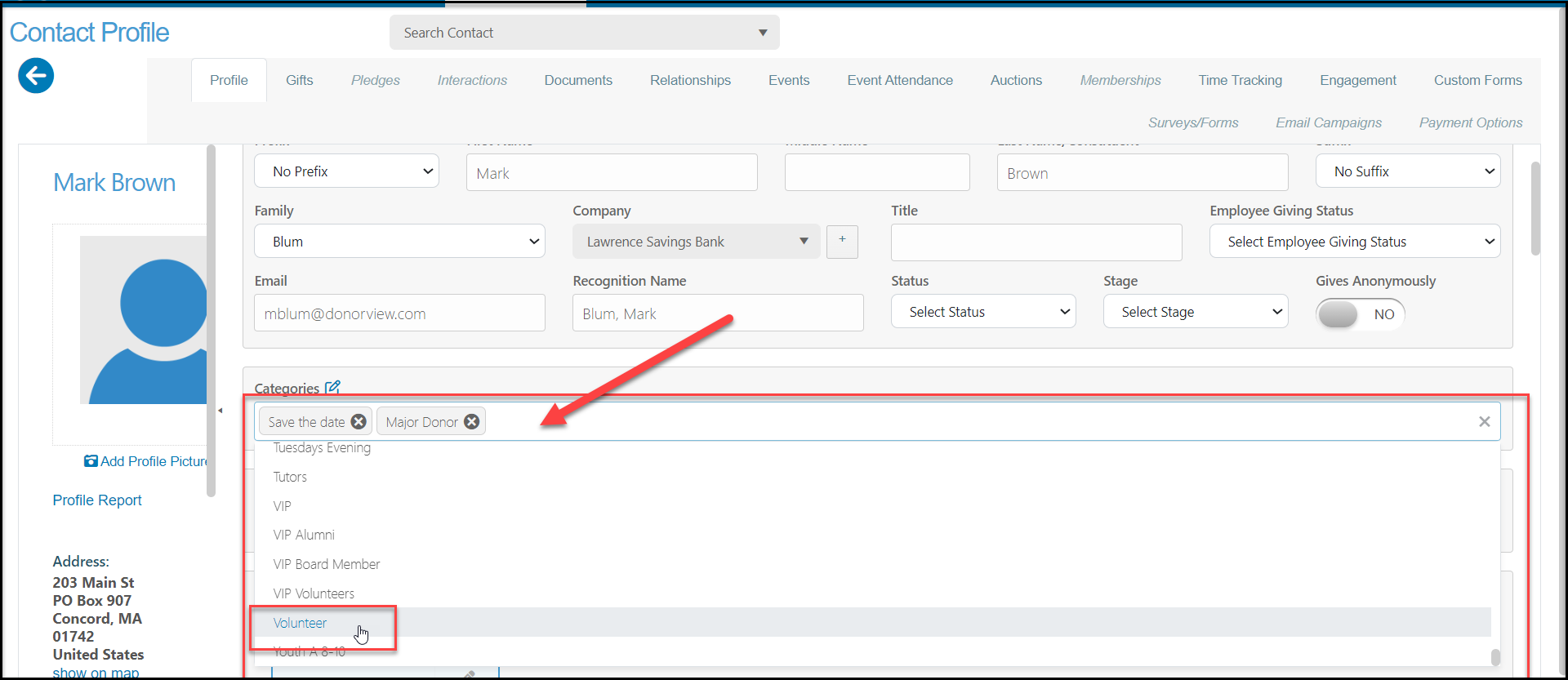
 After the category is created, you can add it to a constituent's record by clicking the in the white space under the **Categories** field and selecting "Volunteer." After adding the category, be sure to click **Save** at the top or bottom of the screen to save the changes.