# Auction Items: Buy Now Only vs. Add-Ons
> Source: https://support.associationsphere.com/auction-items-buy-now-only-vs-add-ons | Updated: 2024-10-23T13:41:51Z
Both items can be set up with standard price and quantity available, but are purchased and managed in different ways. Add-on prices can also be edited, where Buy Now only item prices are fixed.
**Buy Now Only items**
These items can be listed on the auction webpage and are "for sale." This is used for selling multiple items that have a fixed price and no bidding needs to occur.
Buy Now Only items **can only be selected (purchased) from the auction webpage**. They cannot be entered from the Auctions grid.
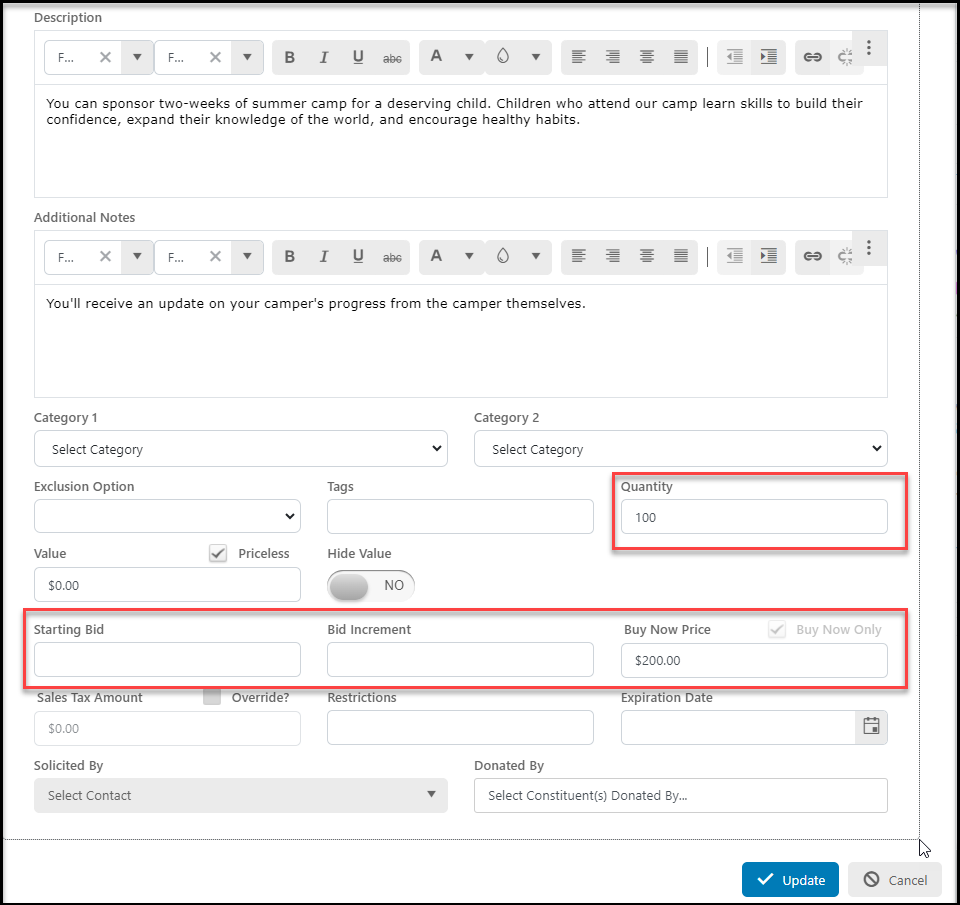
Buy Now Only items are set up like auction items via the Auction Set Up tab. Do not enter a Starting Bid or Bid Increment amount. Check Buy Now Only and enter the Buy Now Price and Quantity available.
 **Add-On items**
These items are **only available internally** to DonorView users in **Workspace > Auctions > Auctions** and are entered exclusively through the desktop version of the software. Add-on items are set up with the Auction page in the Auction Set Up tab.
**Add-On items**
These items are **only available internally** to DonorView users in **Workspace > Auctions > Auctions** and are entered exclusively through the desktop version of the software. Add-on items are set up with the Auction page in the Auction Set Up tab.
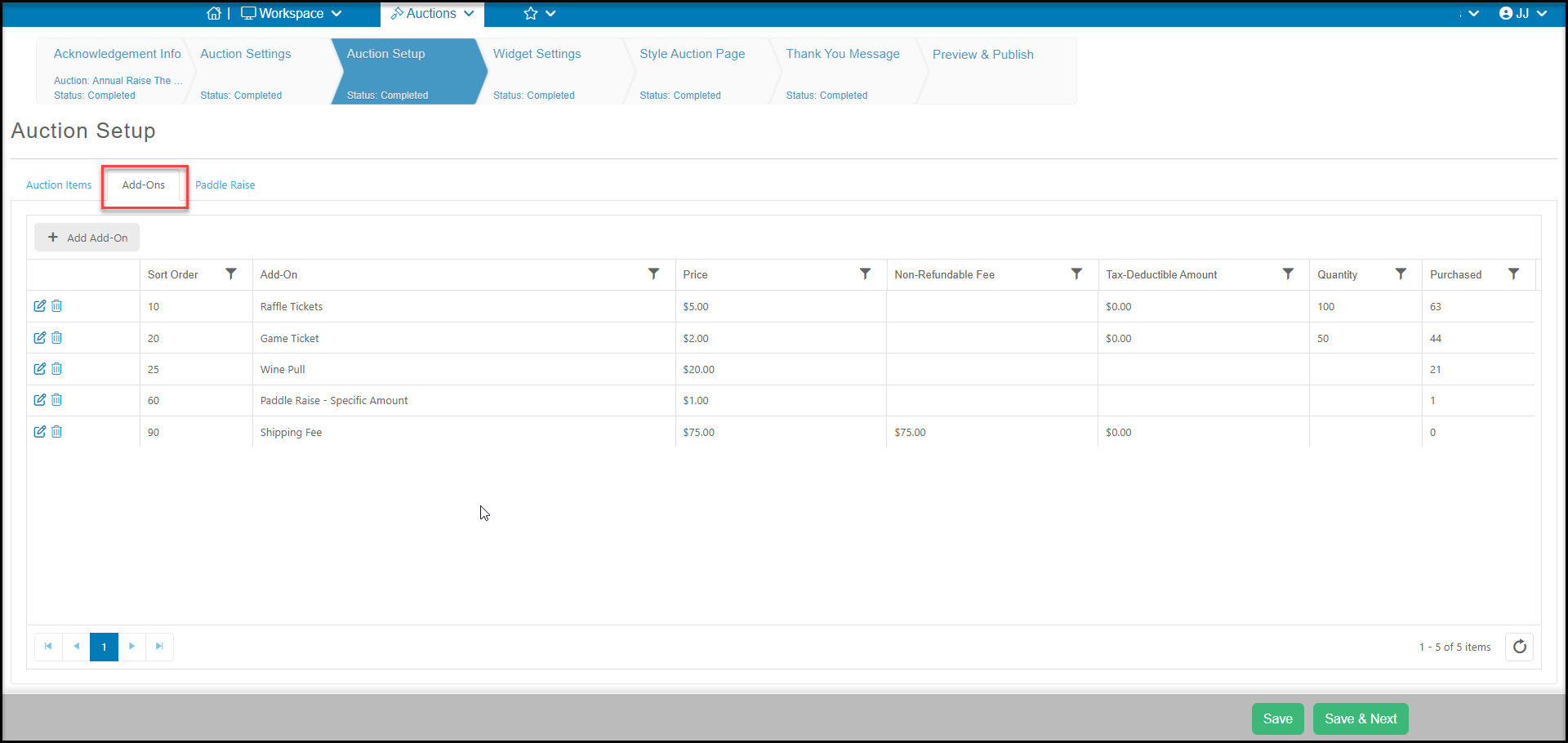 Add-ons prices can be edited when recording the transaction. So if you have variable price items that are not going to bid on, you can make them add-ons. Typical add-ons are things like raffle tickets, 50-50 raffle, game tickets, or wine pull chances.
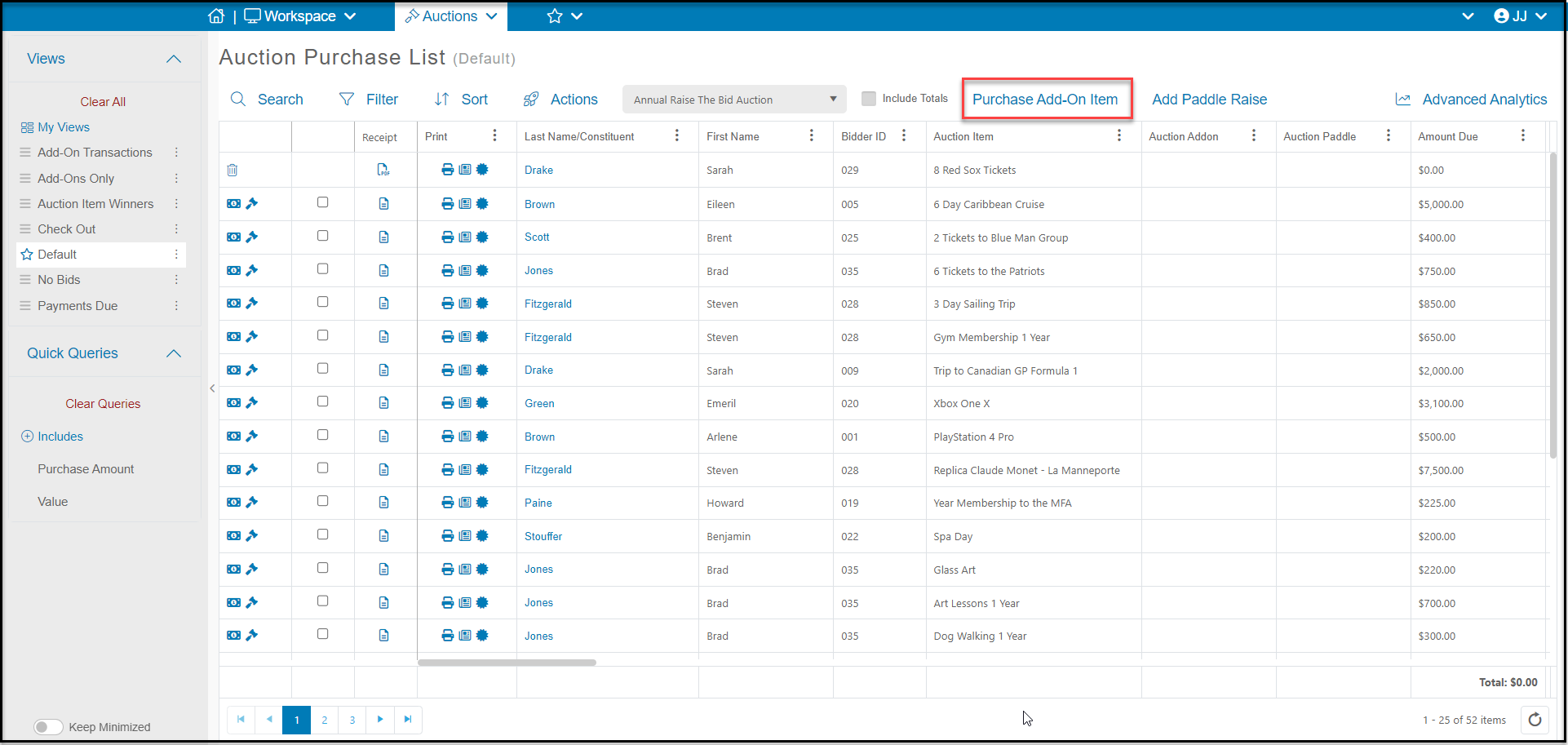
To record an add-on purchase for a bidder, click on the **Purchase Add-On** Item link at the top of the Auctions grid.
Add-ons prices can be edited when recording the transaction. So if you have variable price items that are not going to bid on, you can make them add-ons. Typical add-ons are things like raffle tickets, 50-50 raffle, game tickets, or wine pull chances.
To record an add-on purchase for a bidder, click on the **Purchase Add-On** Item link at the top of the Auctions grid.
 The add-on purchase can be entered as Pay Later, allowing all of the add-ons to be entered first before processing payments. This will also allow you to do a single check out for each guest including any auction items, add-ons, and paddle raises in a single transaction. When recording a pay later add-on transaction, check the **Suppress the Thank You Email**box to wait to send confirmations until the payment has been processed.
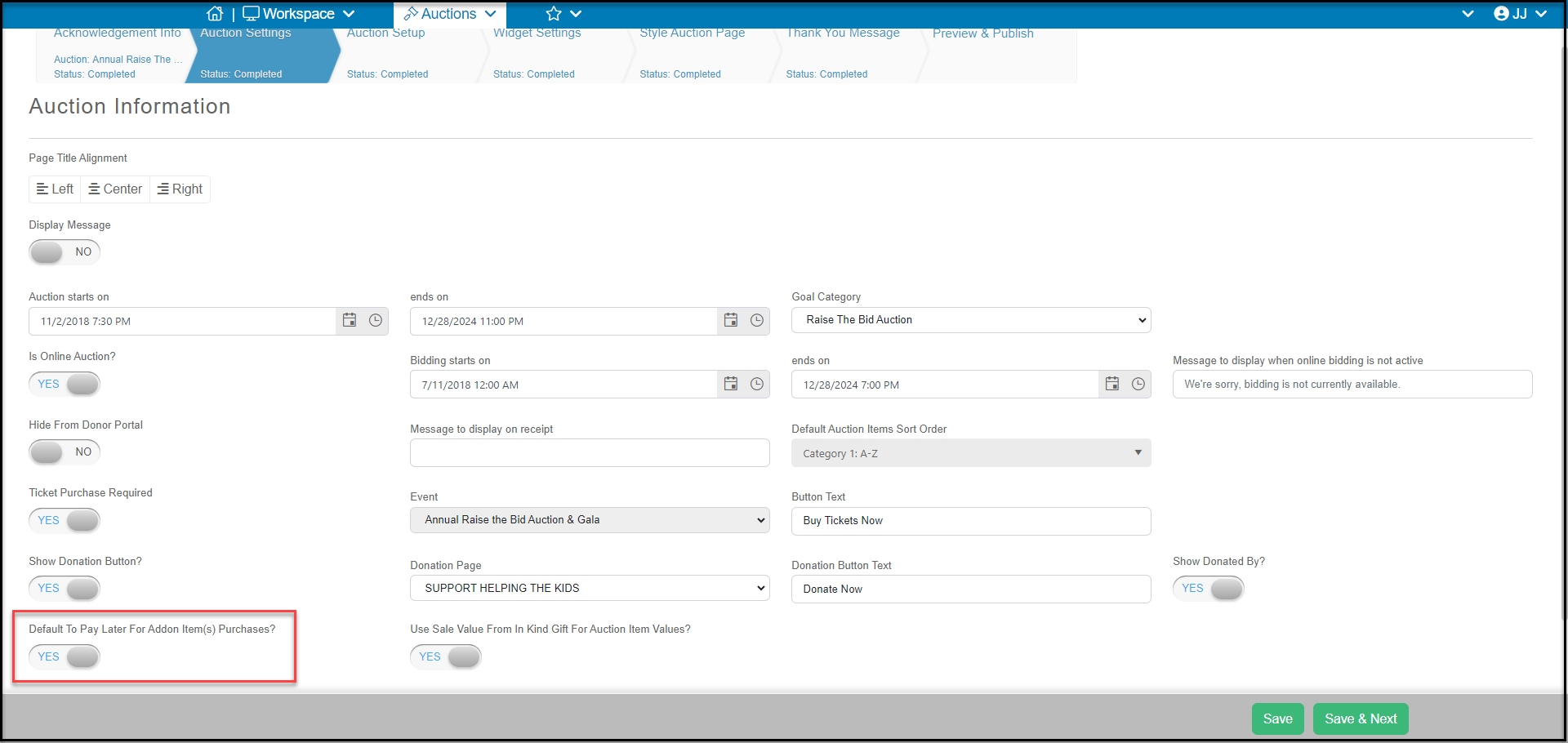
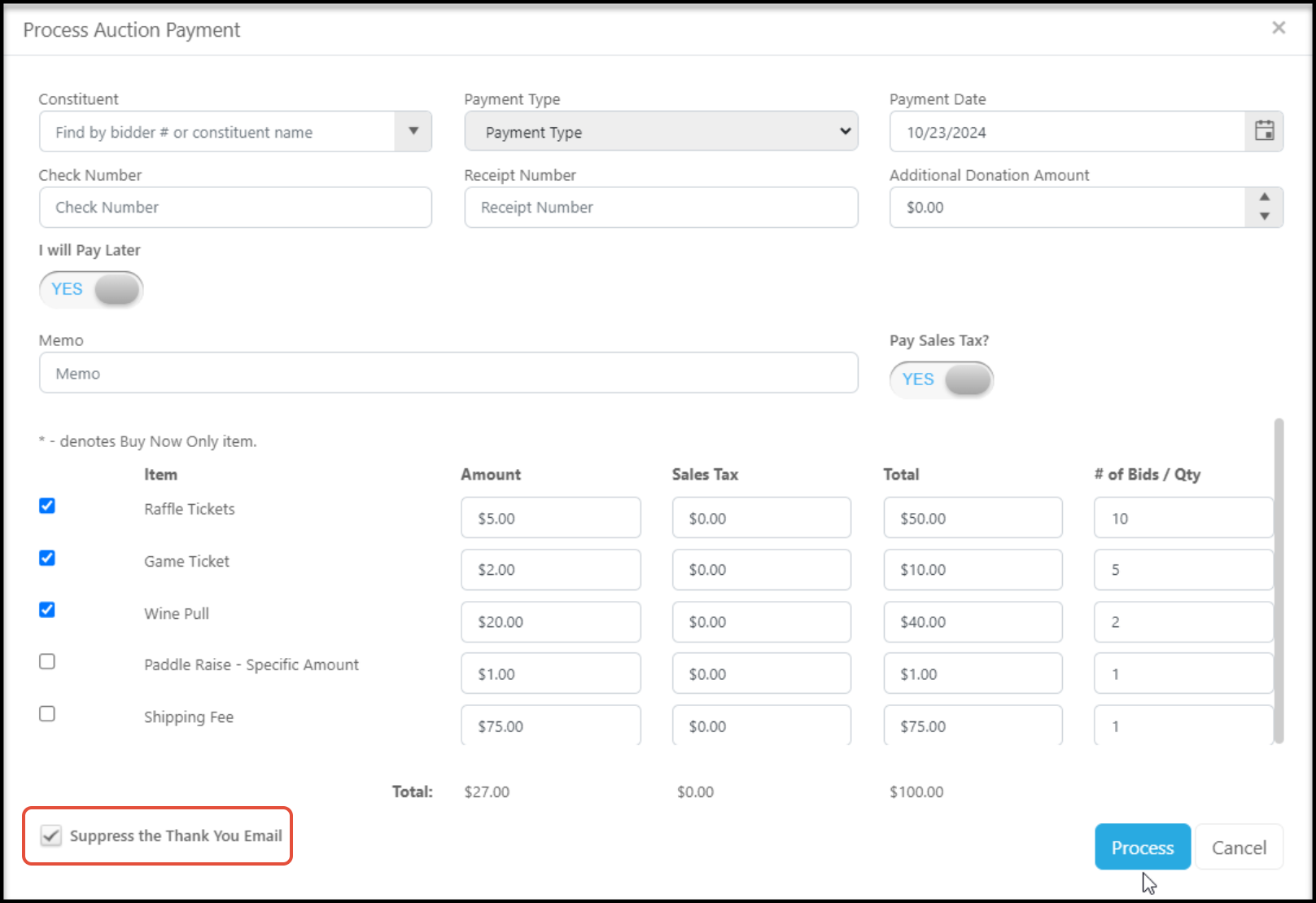 On the Auction page wizard's Auction Settings step,**Default To Pay Later For Addon Item(s) Purchases?** can be set to **YES** to automatically have the field set when entering an add-on purchase.