# Batch Update Records - Time Tracking
> Source: https://support.associationsphere.com/batch-update-records-time-tracking | Updated: 2024-07-08T22:57:50Z
When selecting Batch Update Records from an Action menu, you can update information for the constituents shown on your grid, up to a maximum of 500 records, all at once.
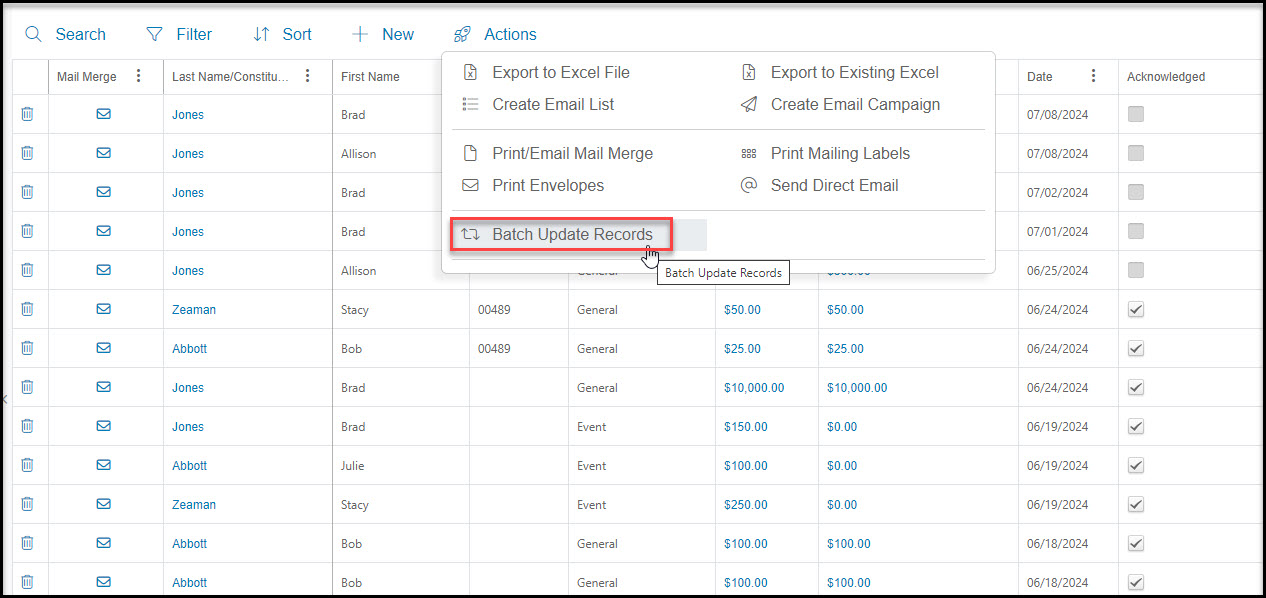
Begin by filtering the grid for the constituents you would like to update, ensuring that your view includes no more than 500 records. Select the Actions menu and click on **Batch Update Records.**
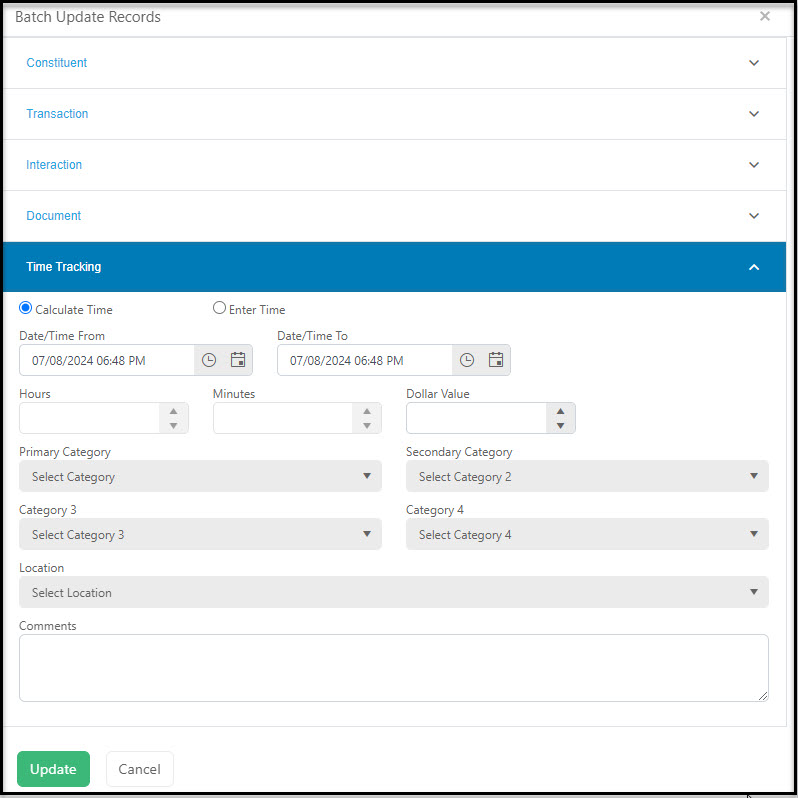
 You can add time tracking information into all the records by selecting the Time Tracking section from the Batch Update Records window. Here you can:
- Select **Calculate Time** if you would like the software to automatically calculate the number of hours and minutes or time based on the Date/Time From and To entered
- Select **Enter Time** if you prefer to record the date or date range and manually enter the hours and minutes
- Enter a **Dollar Value** for the time recorded if desired
- Identify up to four time tracking **Categories** to assign this time
- Identify a **Location** for this time
- Add **Comments** about the time
Click **Update** to save this time tracking information in all of the constituent records shown on the grid.
You can add time tracking information into all the records by selecting the Time Tracking section from the Batch Update Records window. Here you can:
- Select **Calculate Time** if you would like the software to automatically calculate the number of hours and minutes or time based on the Date/Time From and To entered
- Select **Enter Time** if you prefer to record the date or date range and manually enter the hours and minutes
- Enter a **Dollar Value** for the time recorded if desired
- Identify up to four time tracking **Categories** to assign this time
- Identify a **Location** for this time
- Add **Comments** about the time
Click **Update** to save this time tracking information in all of the constituent records shown on the grid.