# Can a partial payment be accepted for an invoice?
> Source: https://support.associationsphere.com/can-a-partial-payment-be-accepted-for-an-invoice | Updated: 2026-08-24T20:45:43Z
A partial payment for an invoice can be accepted if it was originally set up for partial payments. Partial payments allow the constituent to pay a lesser amount, but there is no payment schedule feature. So the constituent can pay any amount desired.
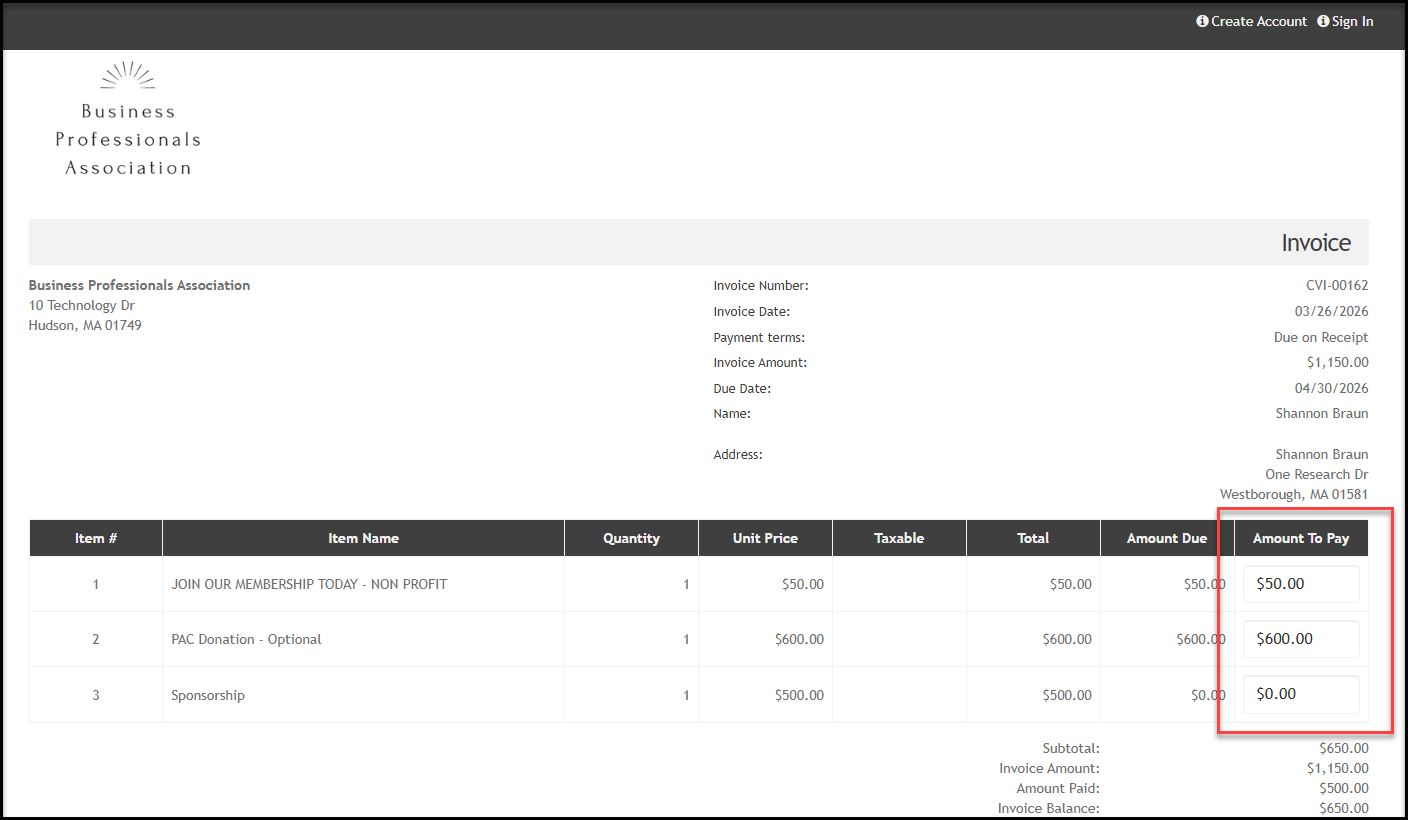
The constituent will see the option to enter a different amount on their invoice under the **Amount to Pay** column when they pay by credit card.
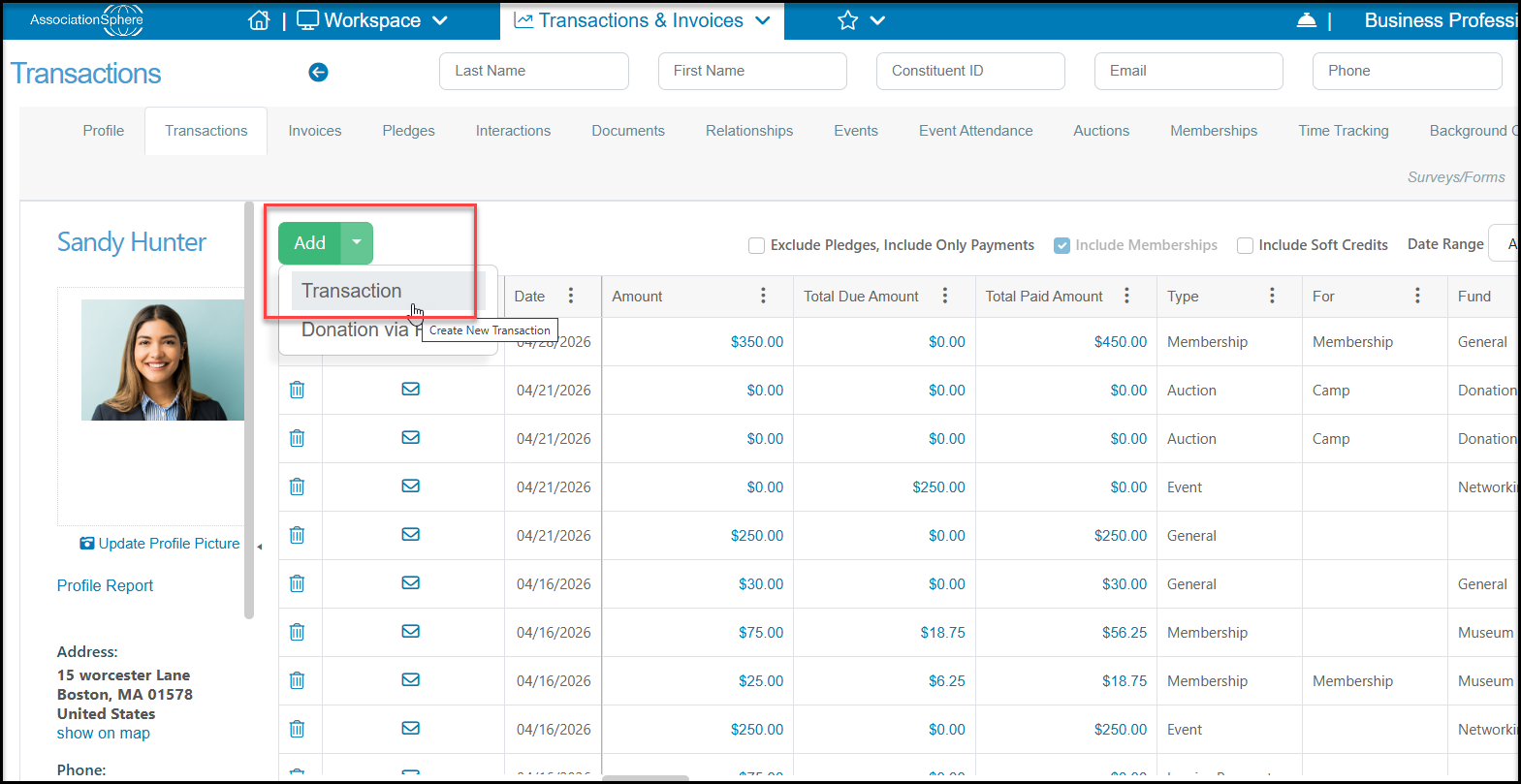
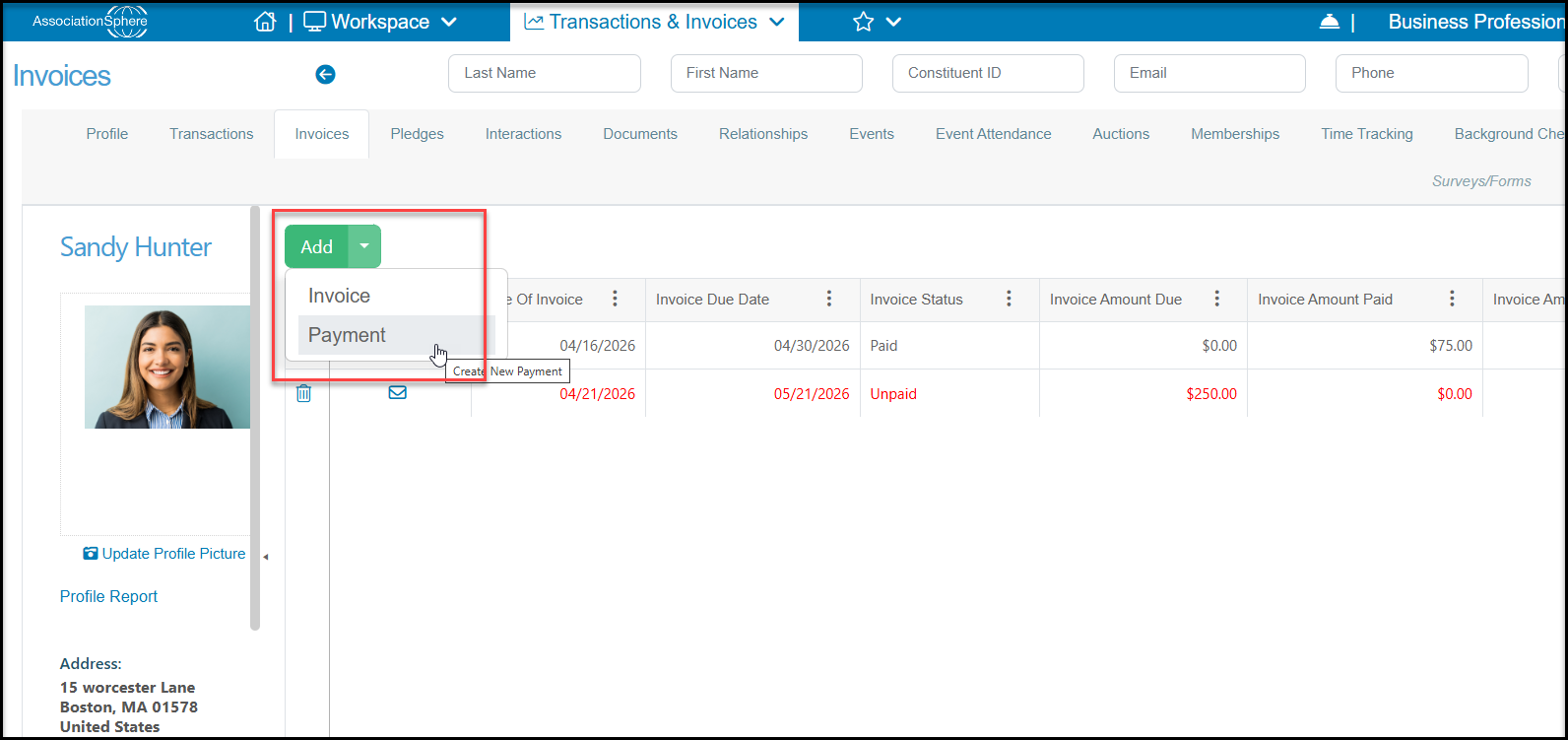
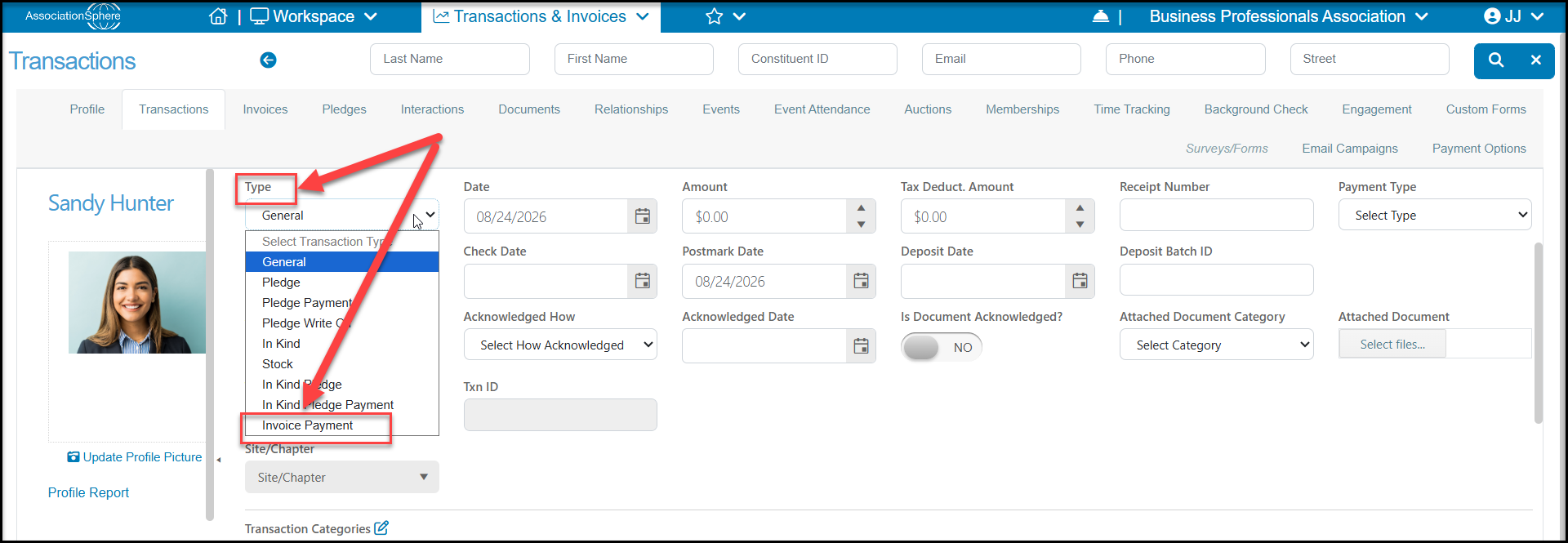
 To manually record a partial payment, create a new transaction or, from the constituent's Invoices Tab, click on **Add**, then **Invoice Payment**.
 Be sure that the**Type**is set to**Invoice Payment**to be able to select the appropriate invoice.
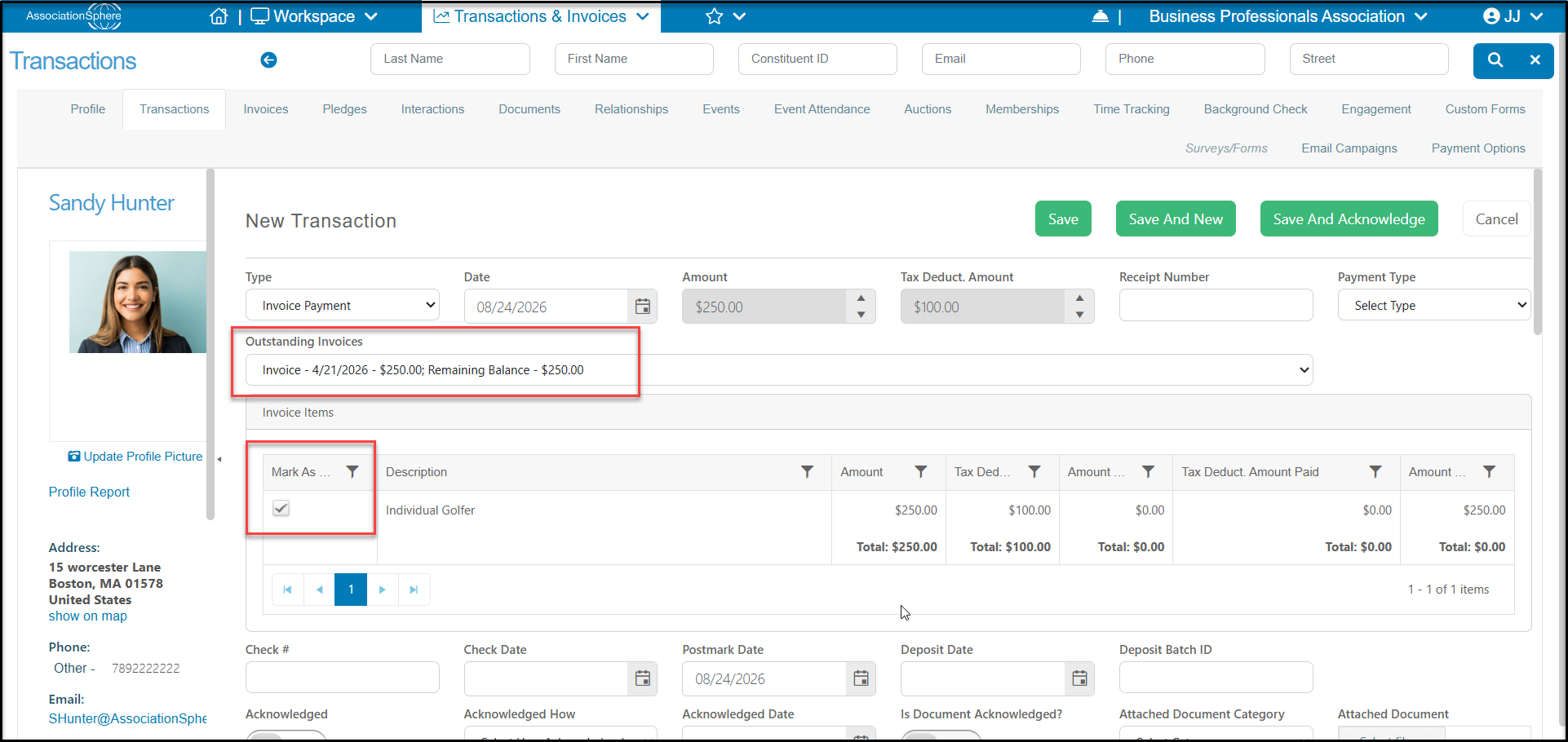
 With the Type set to Invoice Payment, you will be able to select the appropriate invoice from the**Outstanding Invoices** pull down list.
If there are multiple rows, one or more rows can be checked to process just the payment for those rows that are checked **Mark as Paid.**
With the Type set to Invoice Payment, you will be able to select the appropriate invoice from the**Outstanding Invoices** pull down list.
If there are multiple rows, one or more rows can be checked to process just the payment for those rows that are checked **Mark as Paid.**
 If an invoice was originally set up to allow partial payments, a new column will appear called "**Amount To Pay**." You will still need to check the **Mark as Paid** box for that row, then enter the amount of the payment.
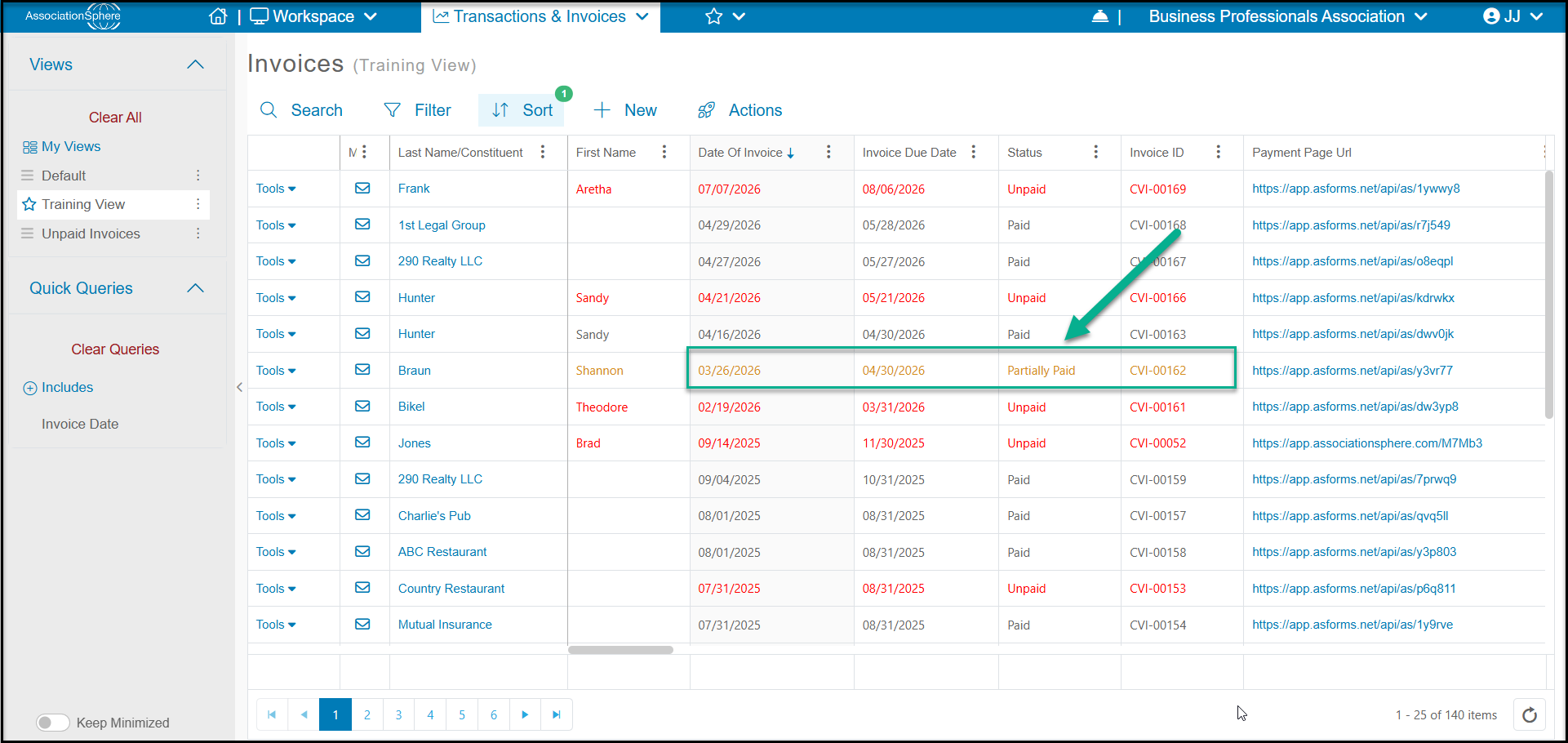
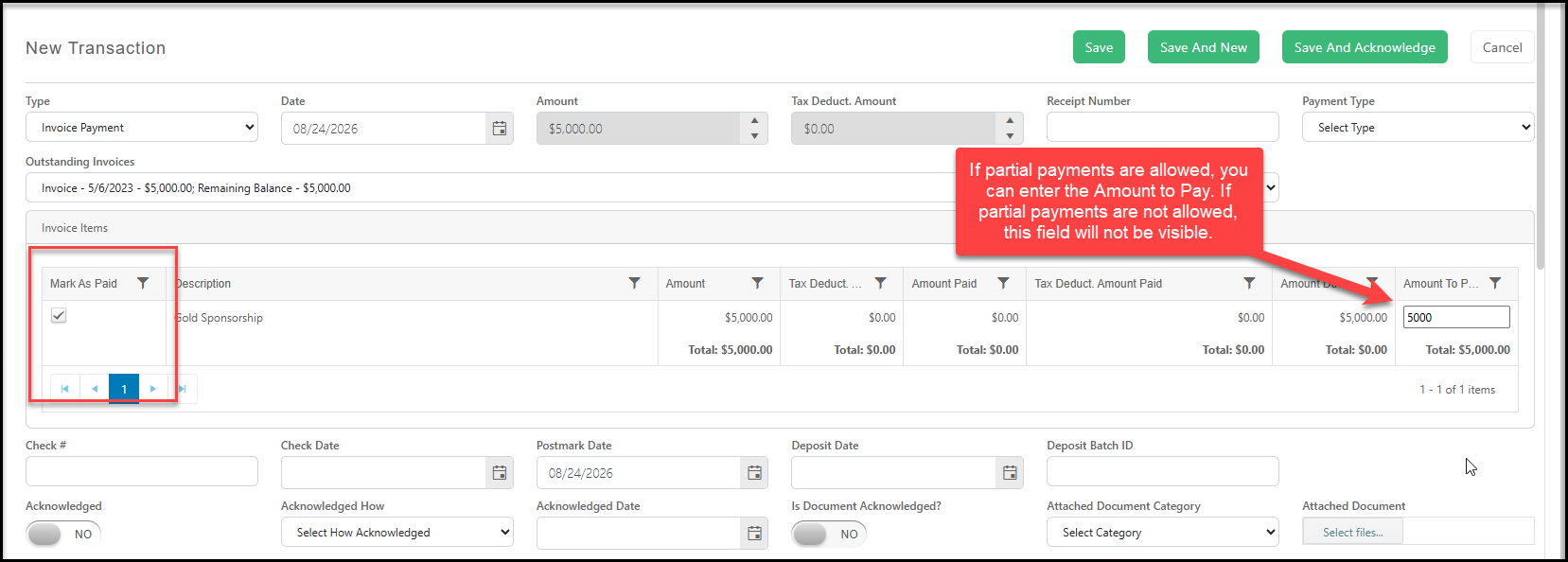 When finished entering all of the information, click **Save** to complete the transaction or **Save and New** to create a new transaction. You can also acknowledge the partial payment by selecting**Save And Acknowledge**. The partial payments will show in the main Invoices grid or the constituent's Invoices Tab with orange text and the Status "**Partially Paid**."