# Can I allow portal users to update their personal information?
> Source: https://support.associationsphere.com/can-i-allow-portal-users-to-update-their-personal-information | Updated: 2026-06-05T14:06:23Z
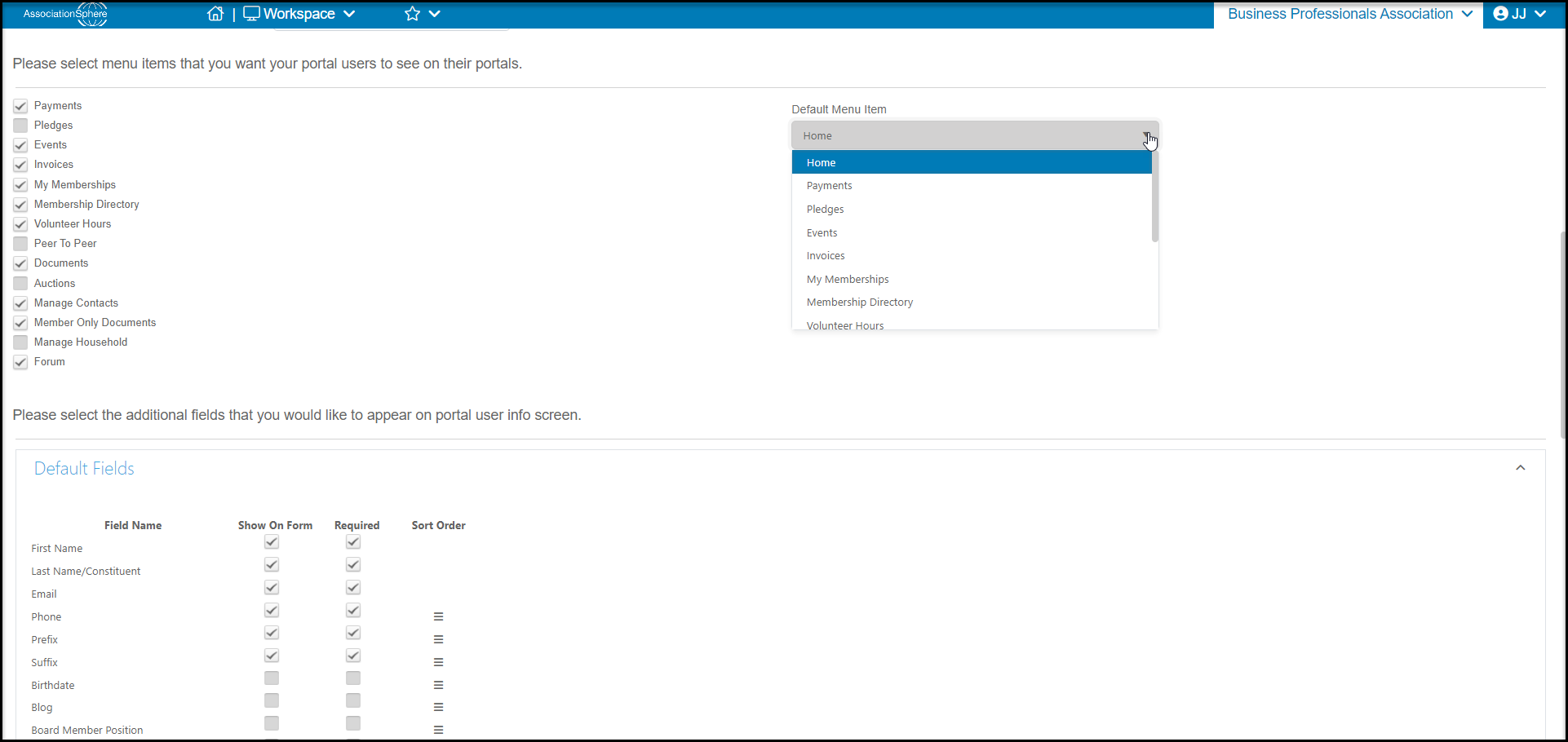
Yes. You can select which fields within a constituent's record you would like your constituents to be able to update and manage through the portal. Go to the **Portal Info** page, which is access from the menu under your organization's name in the top right corner of the screen.
Scroll to the bottom of the page to see the list of**Default Fields** from the constituent's profile page. You can check the box next to the fields you'd like to be visible for your portal users. If the information is required, you can check the **Required** box. Those fields marked as required must be completed prior to saving the page. You can change the order that the fields will show on the user's page by hovering over the three lines under **Sort Order.**A small hand will appear over the lines to allow you to move the fields into the desired order.
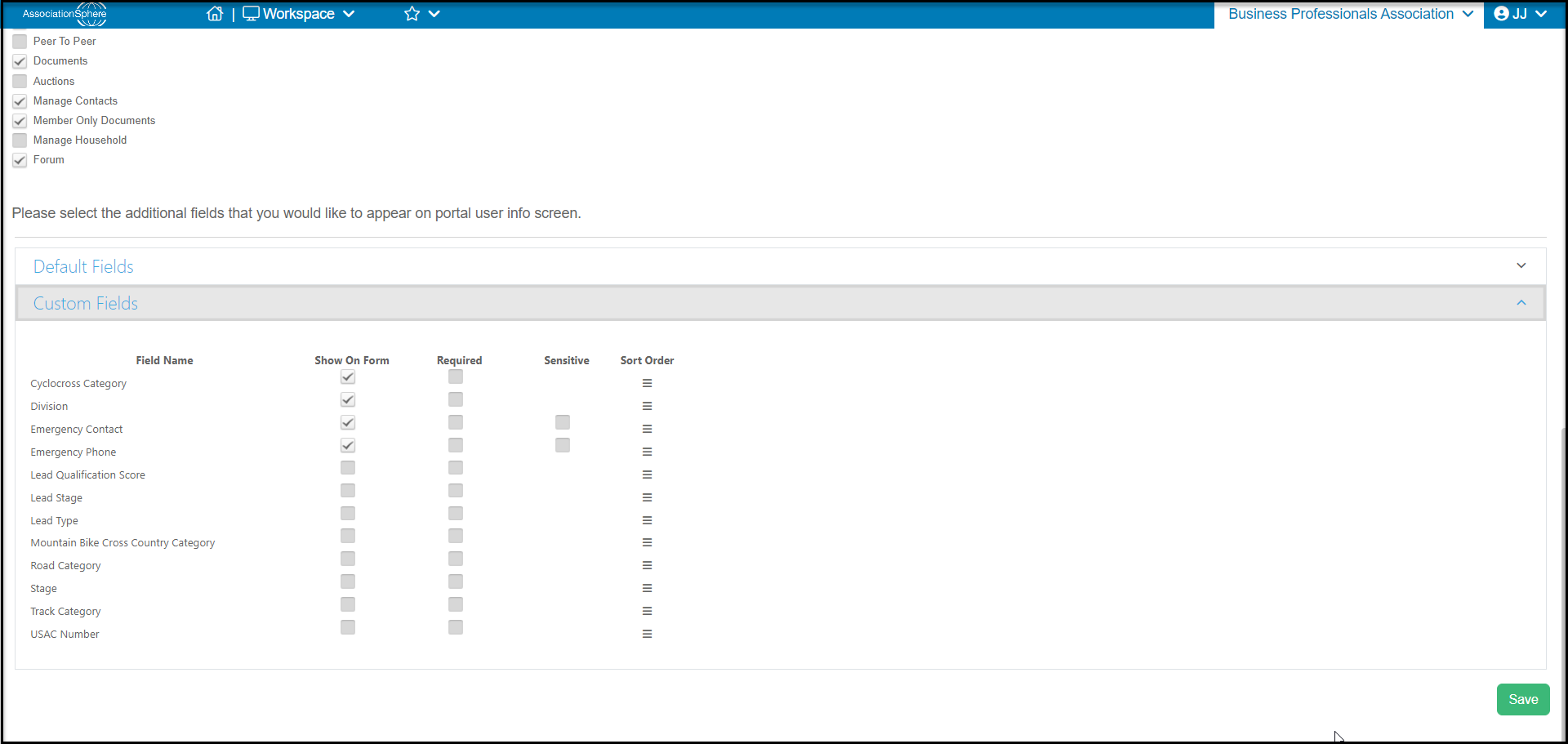
 Below the Default Fields are any custom fields you have created in your constituent profile pages. Click on the grey bar titled **Custom Fields** to reveal the options available to include for the portal user to complete. If any of these fields contain sensitive information, such as social security or drivers license number, you can check the box under the column labeled **Sensitive**. The portal user can enter or update that information, but after they click **Save**, the information will be shown as "Sensitive Information." You can also change the order that the custom fields are shown by hovering over **Sort Order**to move them into the desired position. Be sure to click the green **Save** button in the bottom right corner to complete the changes.
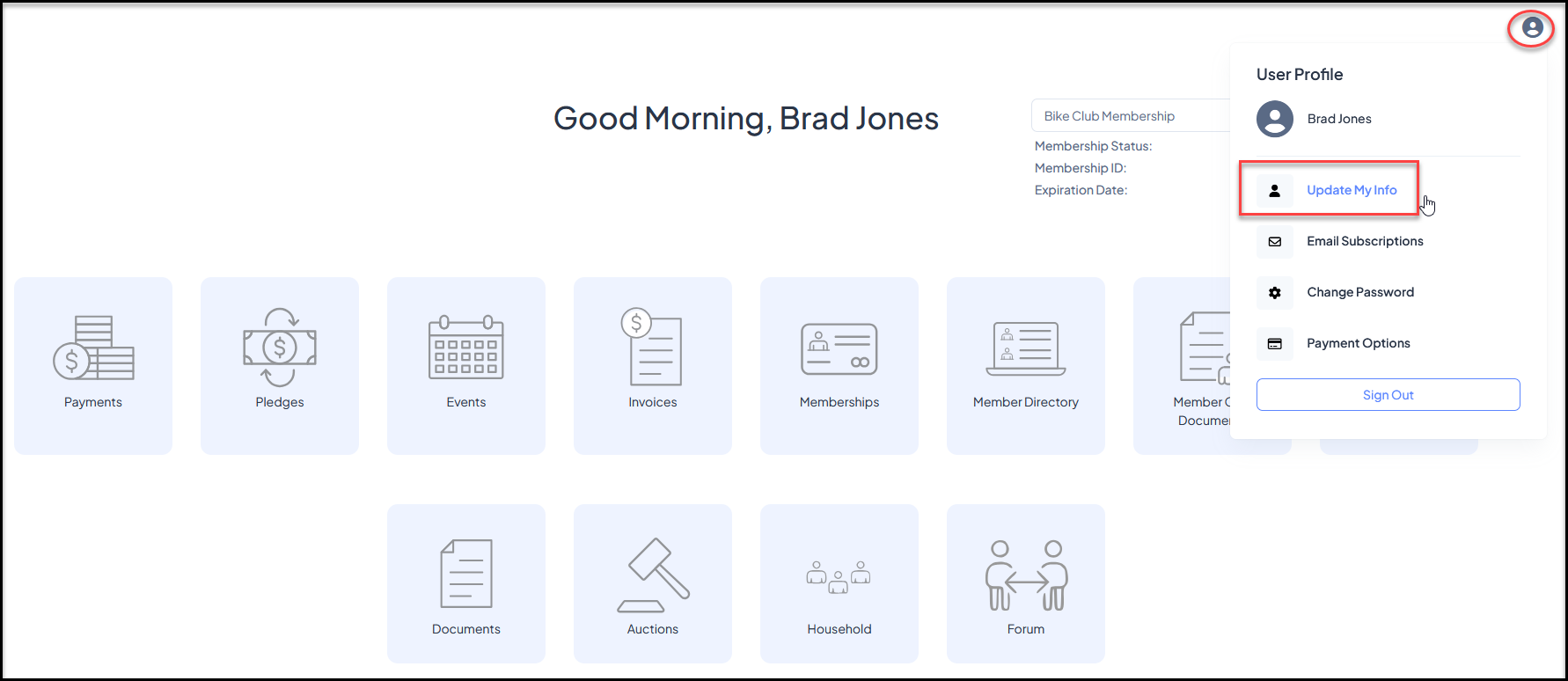
 From the portal user's perspective, after signing in they can click on the profile icon in the top right corner to see the **Update My Info**option.
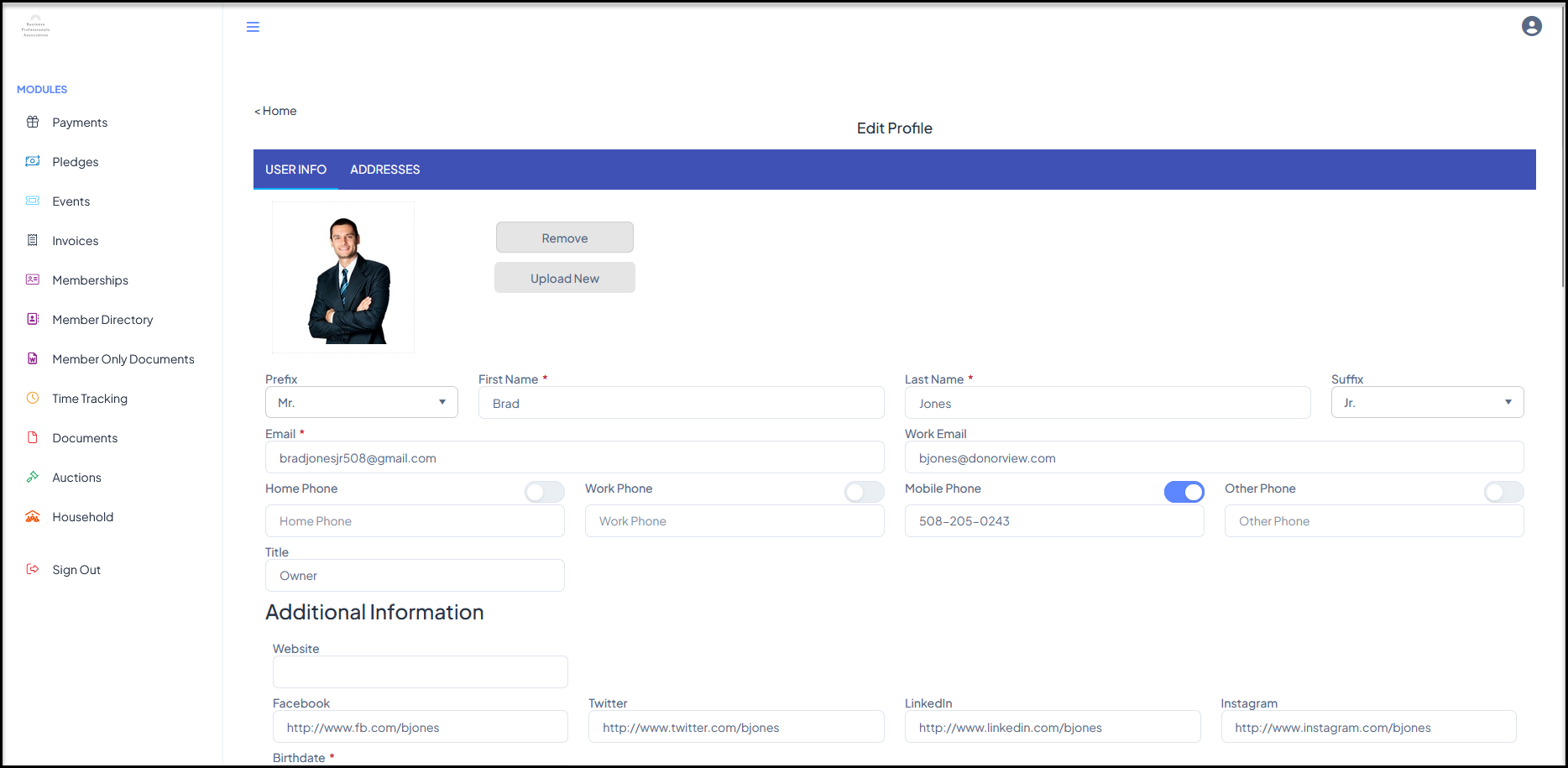
 Clicking on Update My Info will open the window to allow them to update their contact information as well as any of the other default or custom fields you have selected. This information will automatically update the software when they click the **Save** button at the bottom of the window.