# Can I edit the invoice?
> Source: https://support.associationsphere.com/can-i-edit-the-invoice | Updated: 2026-08-21T18:01:22Z
Yes, however changing the amount which is linked to an event or membership purchase requires different steps (see below.)
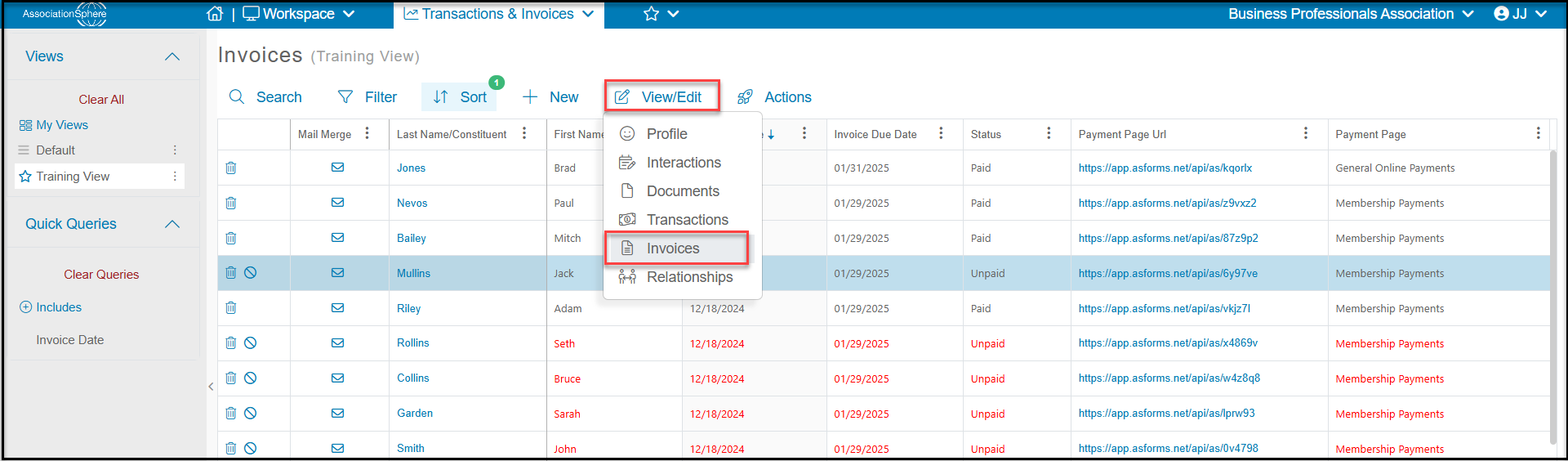
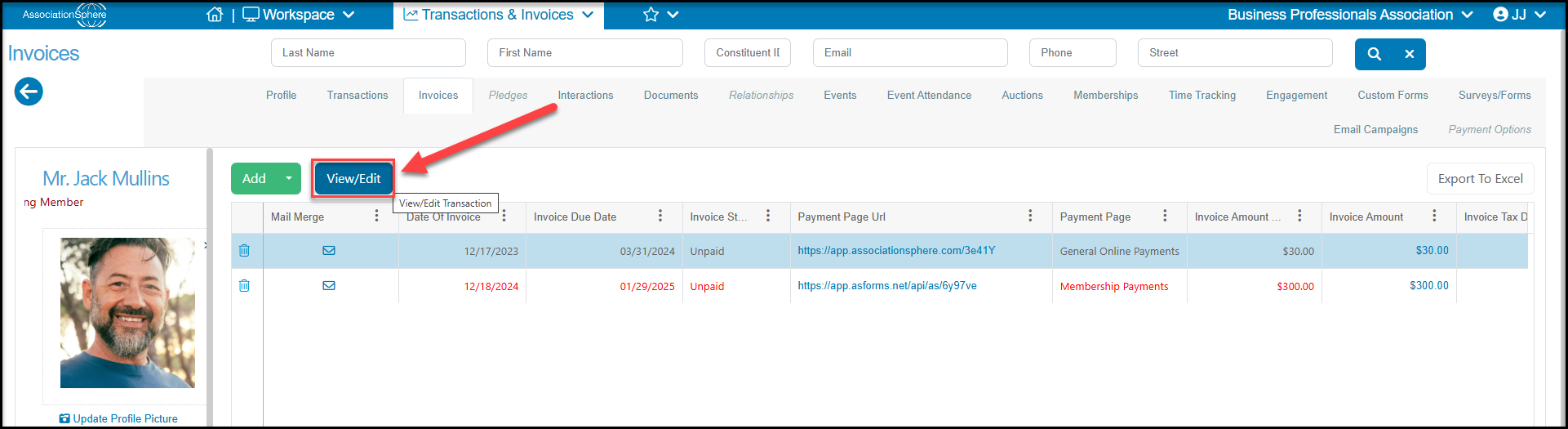
You can edit the content or add items to an invoice from the main Invoice Grid under the Transactions & Invoices Module and click on the row with the invoice to edit. Click on **View/Edit**, then select **Invoice** to open the invoice. Or from an constituent's record under their Invoices Tab. Click on the row and click **View/Edit** to go to the invoice.
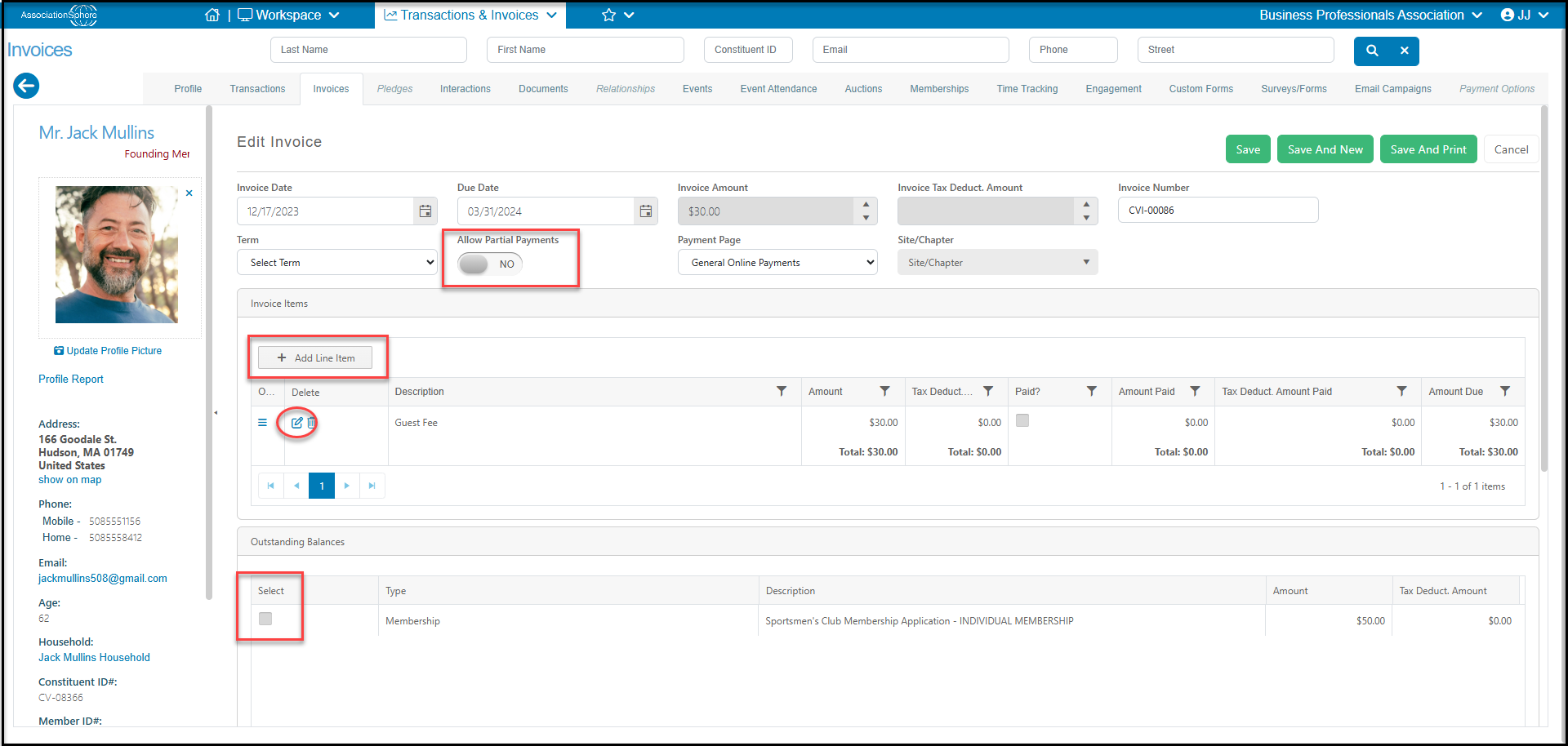
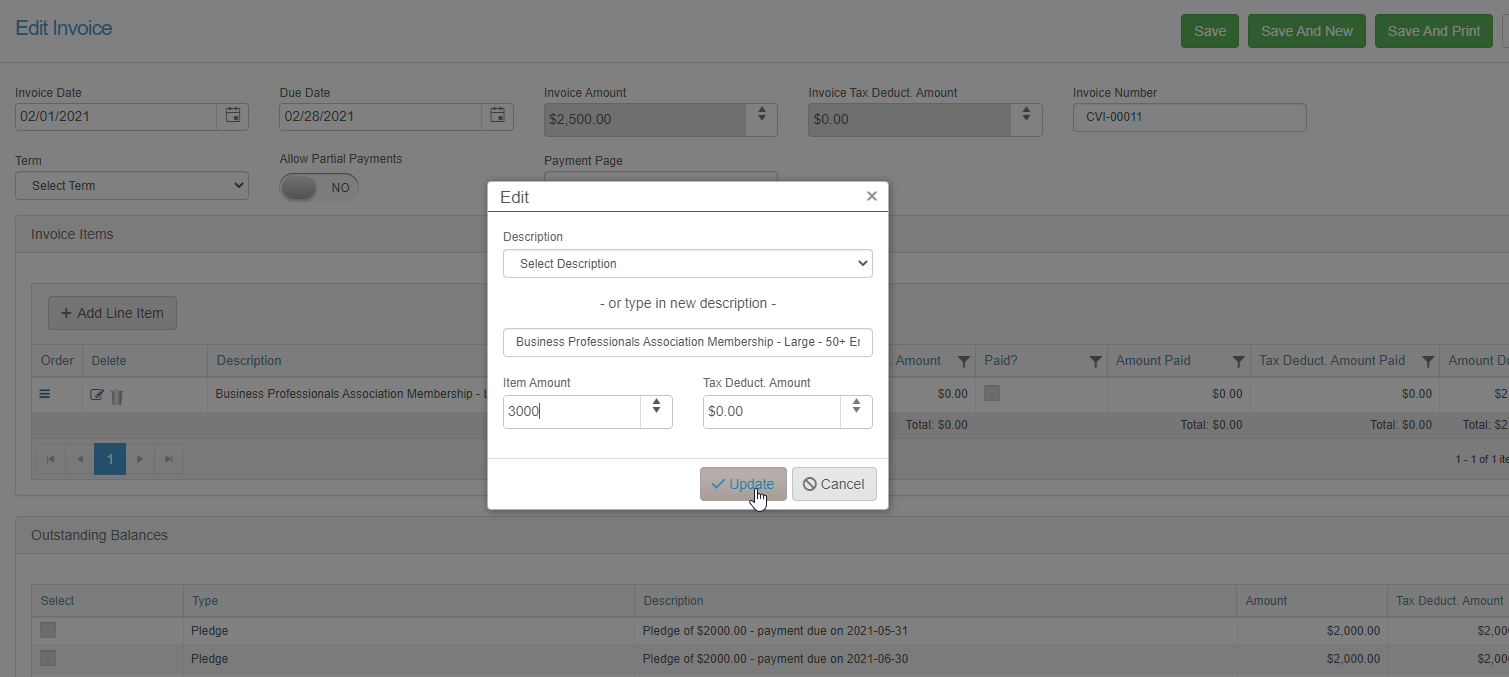
 From the invoice page you can change the due date, allow partial payments, add new line items or outstanding balances to the invoice. You can also edit an individual line item (not associated with a membership or event transaction) by clicking on the **Edit Icon.**A new window will open to edit the information for that line item. Click **Update** to close the pop up window, then click **Save** or **Save and Print** to complete the edit.
**NOTE: Do not edit a line item that is linked to a membership or event purchase. Doing so will affect whether that transaction is shown as paid in full. See instructions below for editing these types of transactions.**
From the invoice page you can change the due date, allow partial payments, add new line items or outstanding balances to the invoice. You can also edit an individual line item (not associated with a membership or event transaction) by clicking on the **Edit Icon.**A new window will open to edit the information for that line item. Click **Update** to close the pop up window, then click **Save** or **Save and Print** to complete the edit.
**NOTE: Do not edit a line item that is linked to a membership or event purchase. Doing so will affect whether that transaction is shown as paid in full. See instructions below for editing these types of transactions.**
 **Editing Invoices for Membership or Event Transactions**
You can add items to an existing invoice for a membership or event transaction, such as a late fee. However you cannot edit the line item amount associated with the membership or event transaction itself. Doing so does not change the amount due field for that transaction, creating a discrepancy. For memberships this would also result in the Current Status showing as "Pending" instead of changing to "Active" when the payment is made. There are a few options for addressing necessary changes to membership or event transactions.
**Option 1 - For Events Only - Reducing the ticket cost by applying a coupon**
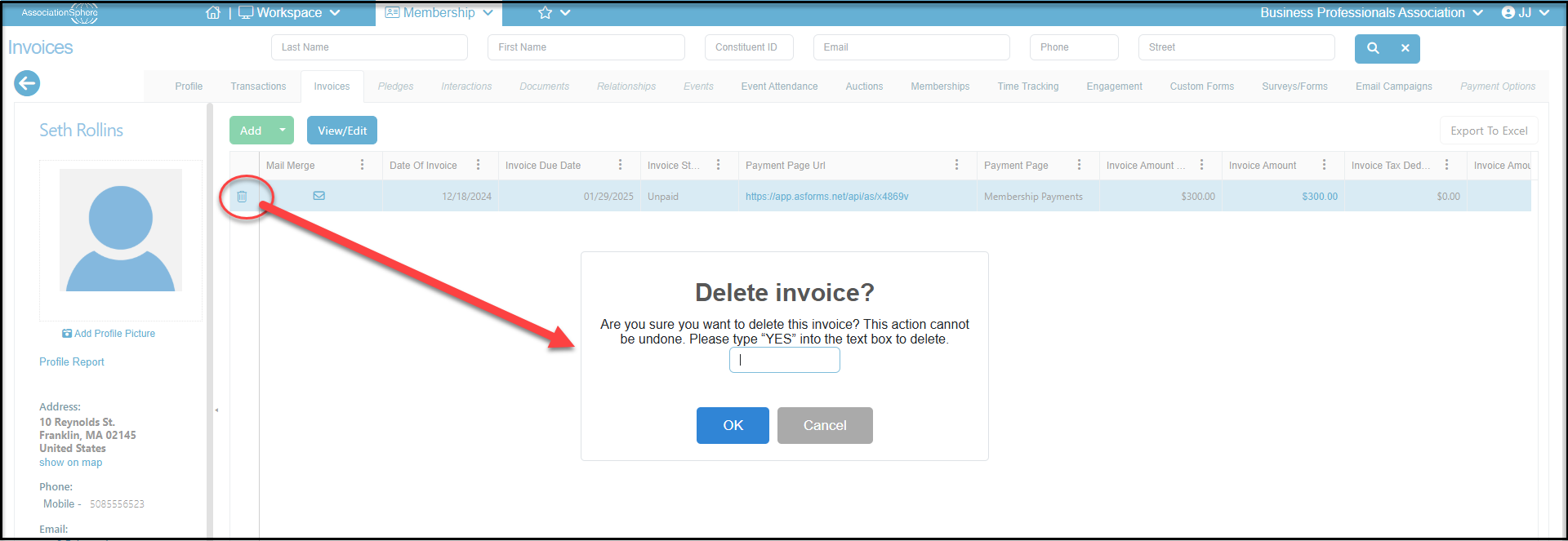
If you have an event purchaser who was supposed to get a discount, but forgot to apply the coupon at the time of checkout, and they have already sent their check, you can delete the invoice from the Invoices grid using the Tools menu or from the constituent's Invoices tab by clicking on the trash can icon on the left side of the row. Enter "**Yes**" in the dialog box and click **OK**.
**Editing Invoices for Membership or Event Transactions**
You can add items to an existing invoice for a membership or event transaction, such as a late fee. However you cannot edit the line item amount associated with the membership or event transaction itself. Doing so does not change the amount due field for that transaction, creating a discrepancy. For memberships this would also result in the Current Status showing as "Pending" instead of changing to "Active" when the payment is made. There are a few options for addressing necessary changes to membership or event transactions.
**Option 1 - For Events Only - Reducing the ticket cost by applying a coupon**
If you have an event purchaser who was supposed to get a discount, but forgot to apply the coupon at the time of checkout, and they have already sent their check, you can delete the invoice from the Invoices grid using the Tools menu or from the constituent's Invoices tab by clicking on the trash can icon on the left side of the row. Enter "**Yes**" in the dialog box and click **OK**.
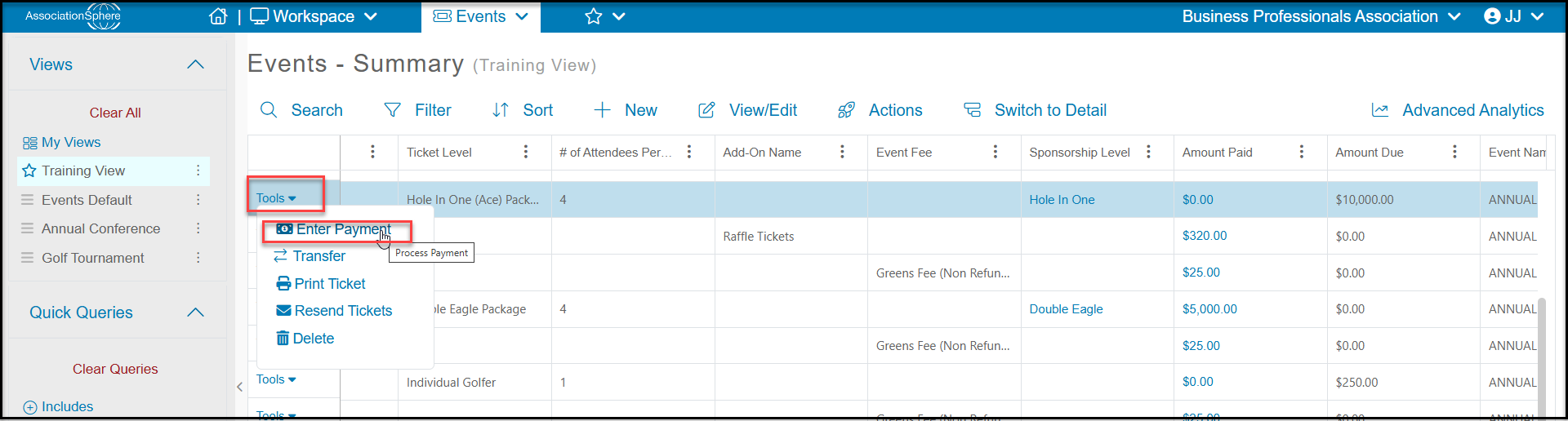
 Once the invoice has been deleted, you can manually record a payment using the Events grid or the constituent's Events tab. From the grid, select the row, click on **Tools**on the left side of the row and select **Enter Payment.**
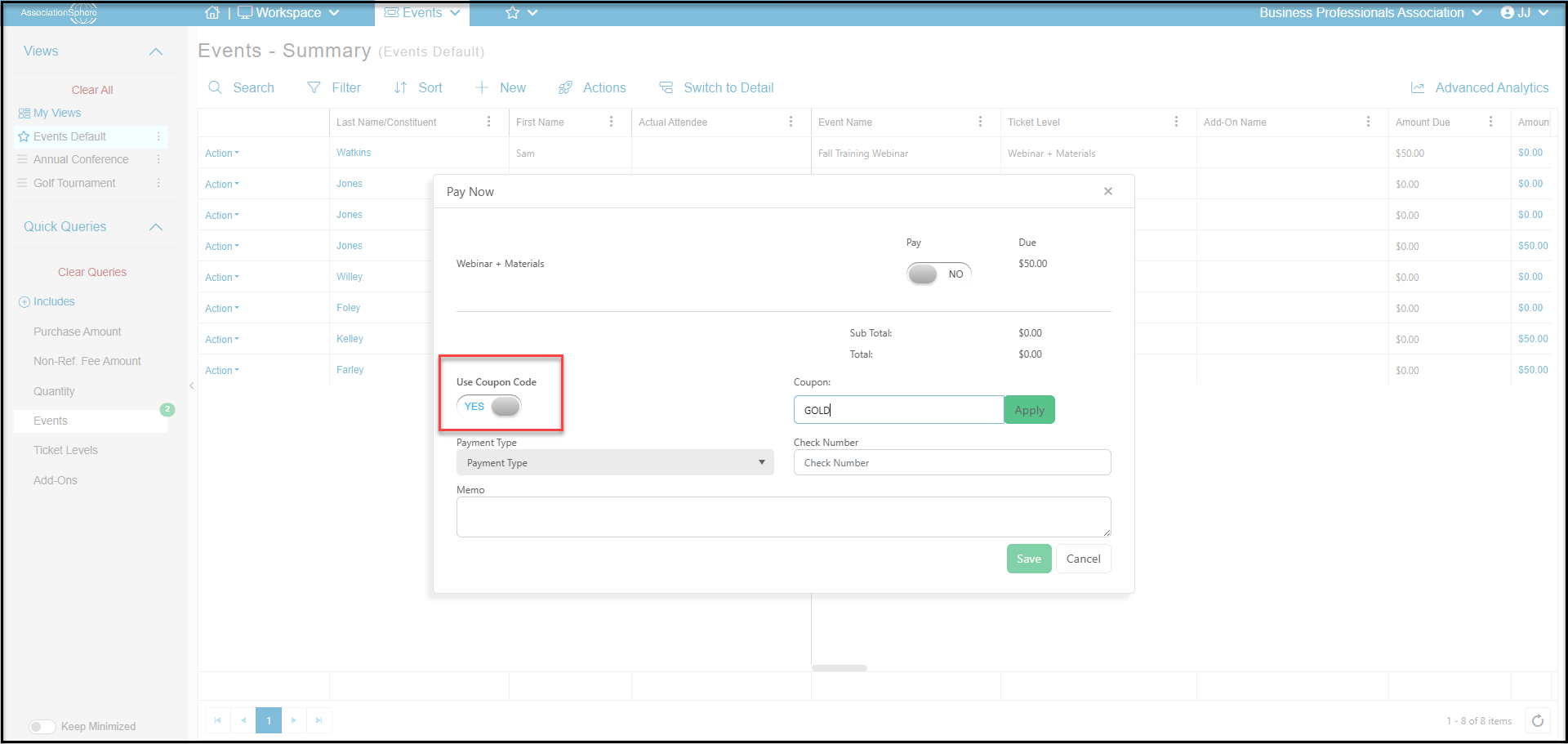
 On the payment window you can apply a coupon to the amount due with **Use Coupon Code**entering the **Coupon** and clicking **Apply**. Select the **Payment Type** to record the payment and click **Save**.
If the purchaser wished to pay with a credit card instead of a check, you will need to use Option 2 below.
On the payment window you can apply a coupon to the amount due with **Use Coupon Code**entering the **Coupon** and clicking **Apply**. Select the **Payment Type** to record the payment and click **Save**.
If the purchaser wished to pay with a credit card instead of a check, you will need to use Option 2 below.
 **Option 2 - For Events or Memberships - Delete the invoice and transaction**
If the transaction was entered incorrectly or needs to be changed, the invoice must be deleted first, then the transaction itself is deleted from the Event or Memberships grid using the trash can icon. The transaction can then be re-enter with the correct amount. For memberships you can also use the Membership Internal feature for any customization to the level, expiration date and price. For events, you can use coupon codes to adjust the pricing as necessary. If you have the pay later option activated for the page, you can automatically generate your new invoice. Otherwise, you can manually create an invoice and choose to add the outstanding balance to the invoice.
**Option 2 - For Events or Memberships - Delete the invoice and transaction**
If the transaction was entered incorrectly or needs to be changed, the invoice must be deleted first, then the transaction itself is deleted from the Event or Memberships grid using the trash can icon. The transaction can then be re-enter with the correct amount. For memberships you can also use the Membership Internal feature for any customization to the level, expiration date and price. For events, you can use coupon codes to adjust the pricing as necessary. If you have the pay later option activated for the page, you can automatically generate your new invoice. Otherwise, you can manually create an invoice and choose to add the outstanding balance to the invoice.