# Can I see how my template looks before I distribute it?
> Source: https://support.associationsphere.com/can-i-see-how-my-template-looks-before-i-distribute-it | Updated: 2026-07-08T20:00:48Z
There are a few ways to review your template before sending it out:
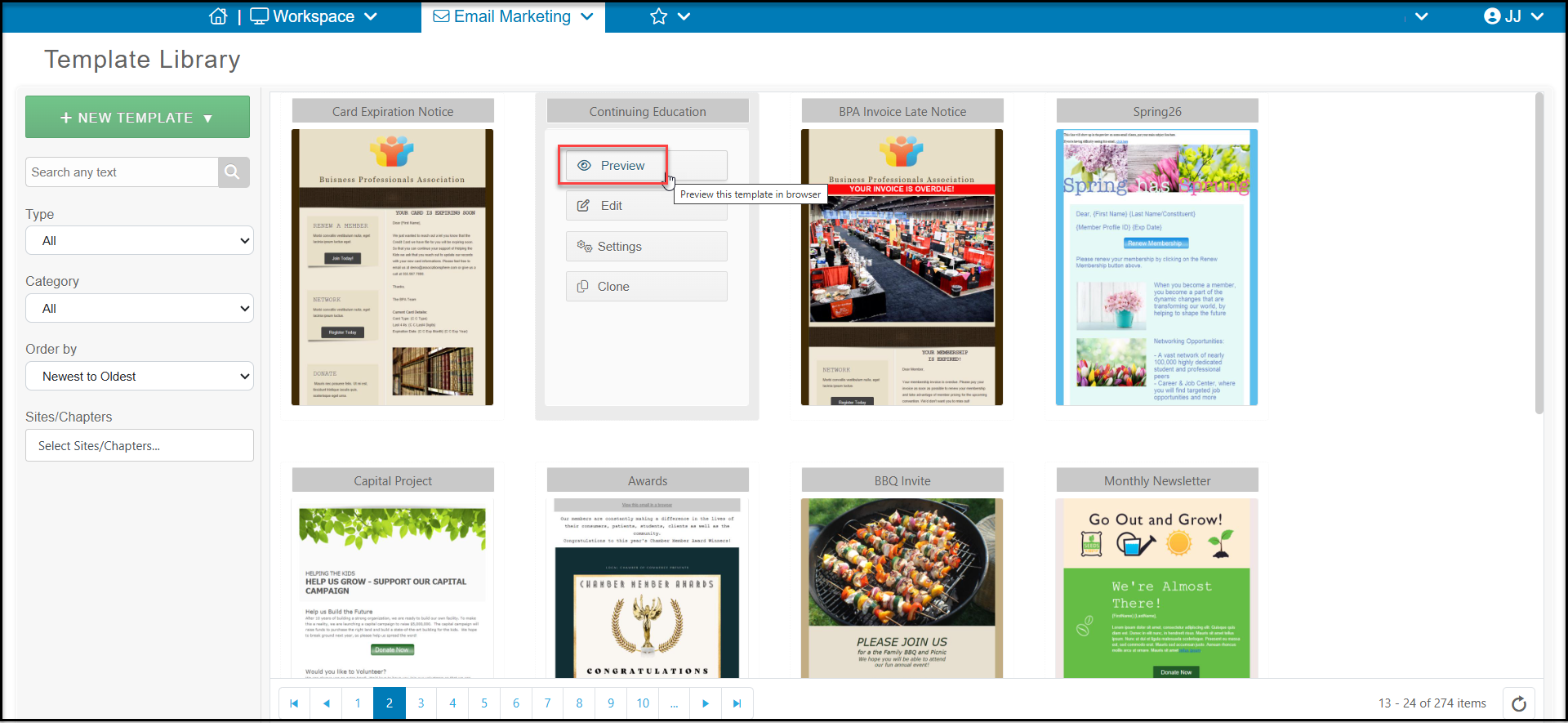
- You can preview the template from within the template library by hovering over a template and clicking on **Preview**. This will open a preview of the template in your browser.
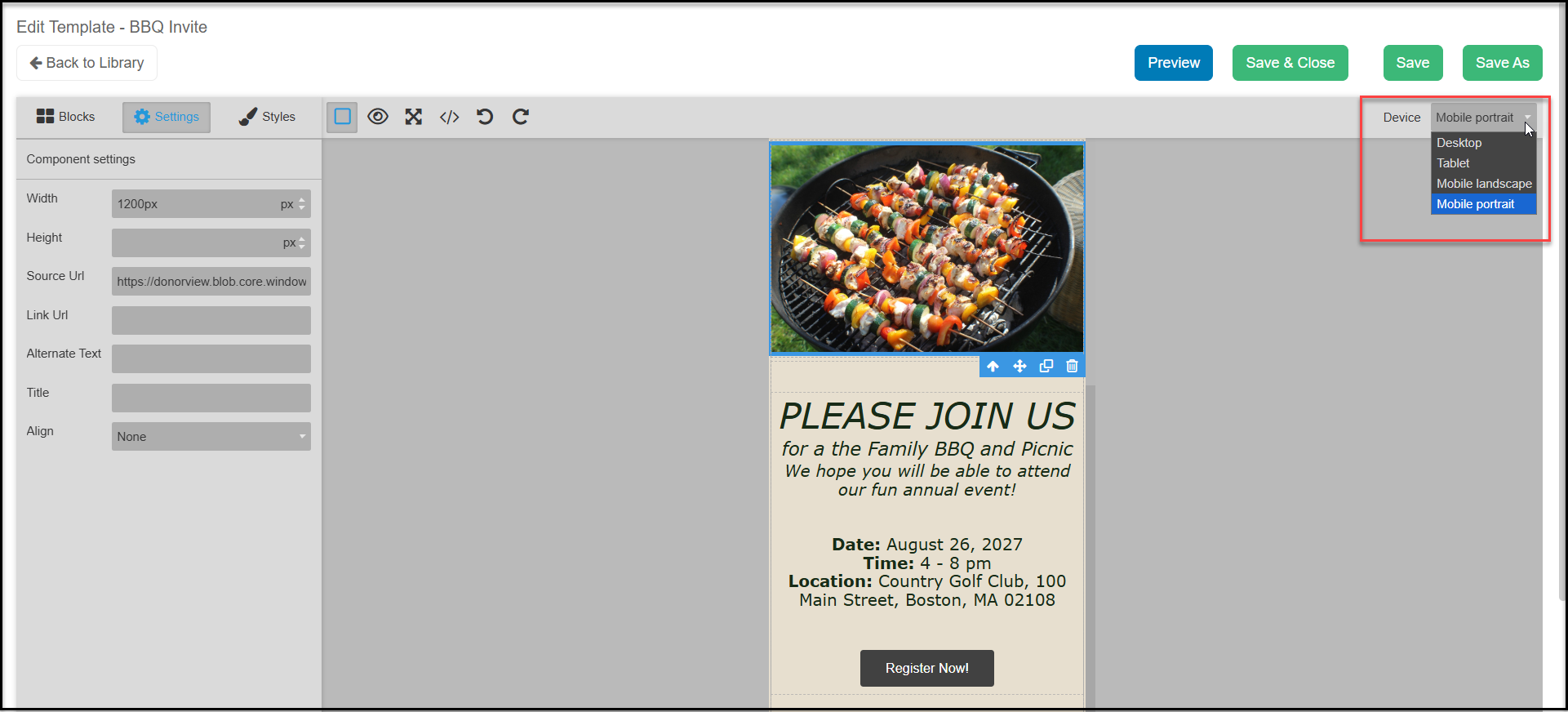
 - While creating or editing a template from the template library or within a campaign setup, you can preview the email using the blue **Preview** button or the "eye" icon above the template on the left. You can also change the device view so that you can see how your email looks on desktop, tablet or mobile devices.
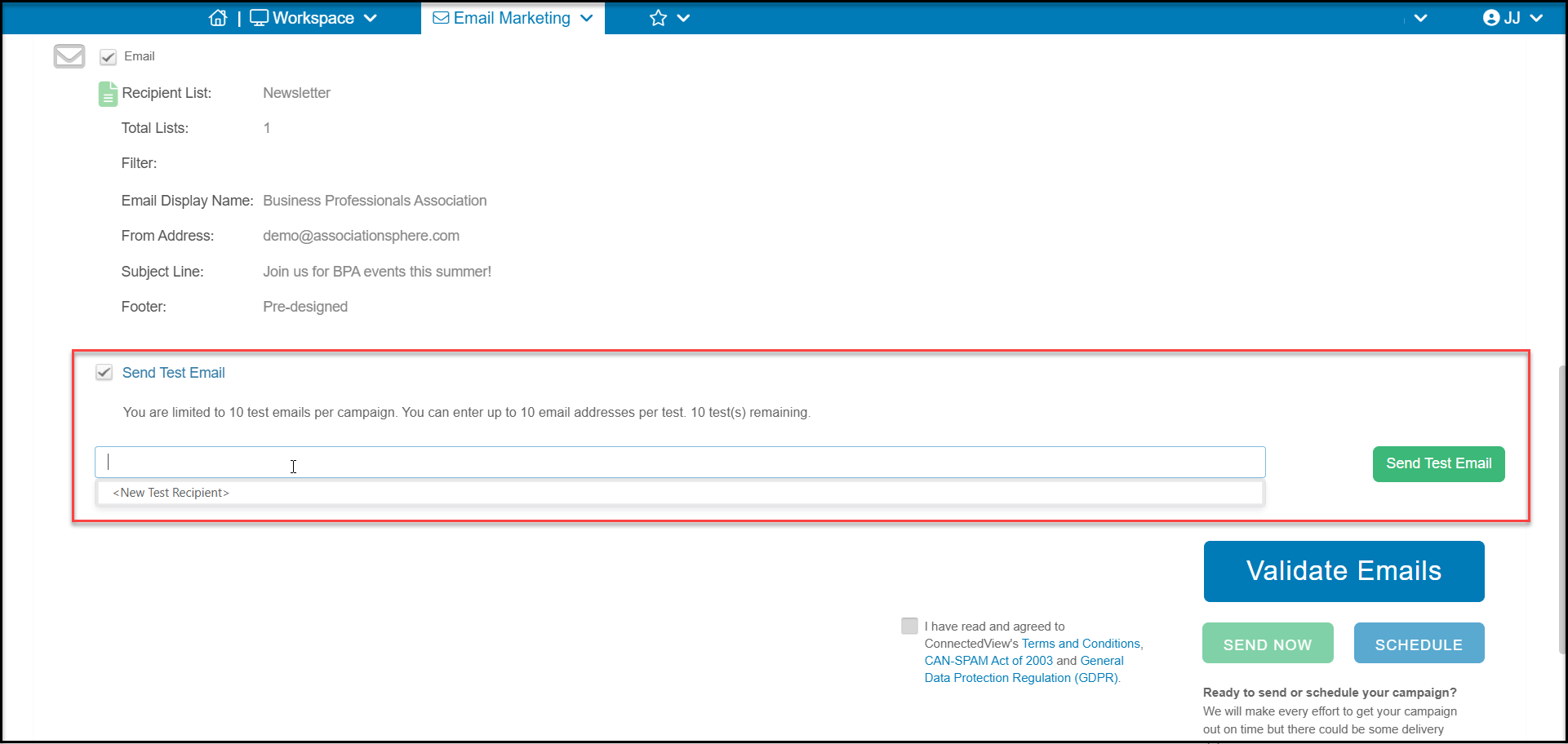
 - You can also send a test email to yourself or your team from the Schedule or Send step in the campaign wizard. You can send up to 10 test emails prior to sending the email to the recipients.
- If this is your first time sending a test, you will need to create at least one test recipient by clicking on **** to add the new name and email.
- If the email address is new in the database, a new constituent record will be created. If the email already exists, it will not create a new record.
- Once your test recipients are created, you can click **Send Test Email** to send the test. It can take up to 30 minutes for the email to be delivered.
- If you do not see the message in your email, check your spam or junk folder.
- Note that test message do not include merge fields, these will be blank since there is no data behind a test email.
- You can also send a test email to yourself or your team from the Schedule or Send step in the campaign wizard. You can send up to 10 test emails prior to sending the email to the recipients.
- If this is your first time sending a test, you will need to create at least one test recipient by clicking on **** to add the new name and email.
- If the email address is new in the database, a new constituent record will be created. If the email already exists, it will not create a new record.
- Once your test recipients are created, you can click **Send Test Email** to send the test. It can take up to 30 minutes for the email to be delivered.
- If you do not see the message in your email, check your spam or junk folder.
- Note that test message do not include merge fields, these will be blank since there is no data behind a test email.