# Can volunteers record their own time?
> Source: https://support.associationsphere.com/can-volunteers-record-their-own-time | Updated: 2026-09-08T02:58:49Z
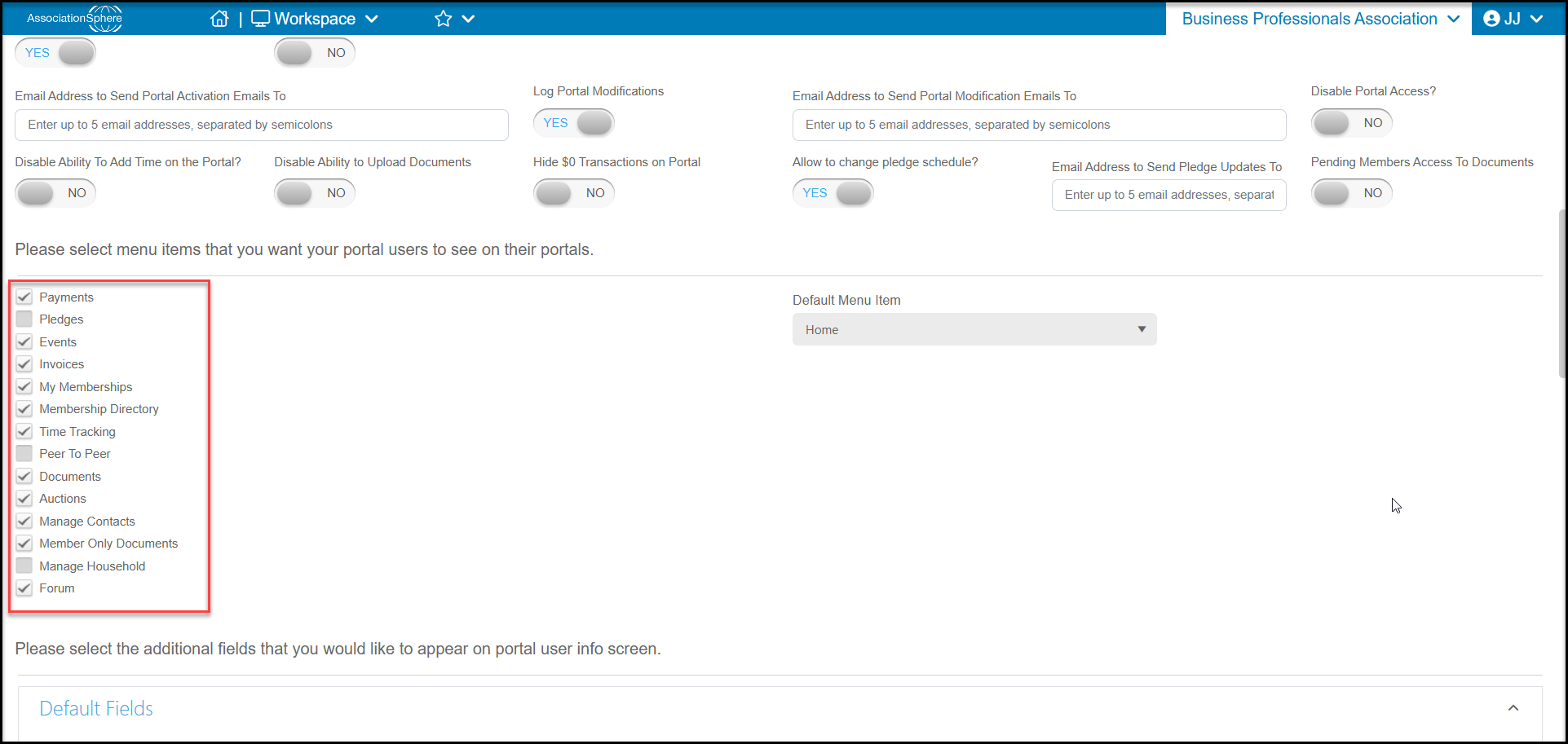
Yes, if you have the Advanced Constituent Portal activated, you can invite your volunteers to create a portal account to log their own time. You will need to ensure that you have selected **Time Tracking** in the list of options available for the portal. Your constituents will be able to see their time tracking history and add new time if you have not disallowed that on the Portal Info page.
Your constituents will need to create a portal account. Portal accounts are not automatically created, the constituent must register themselves using the same name and email as you have in your database. You can learn more about inviting your constituents to create an account in this article "How do I invite constituents to sign up for the portal?"
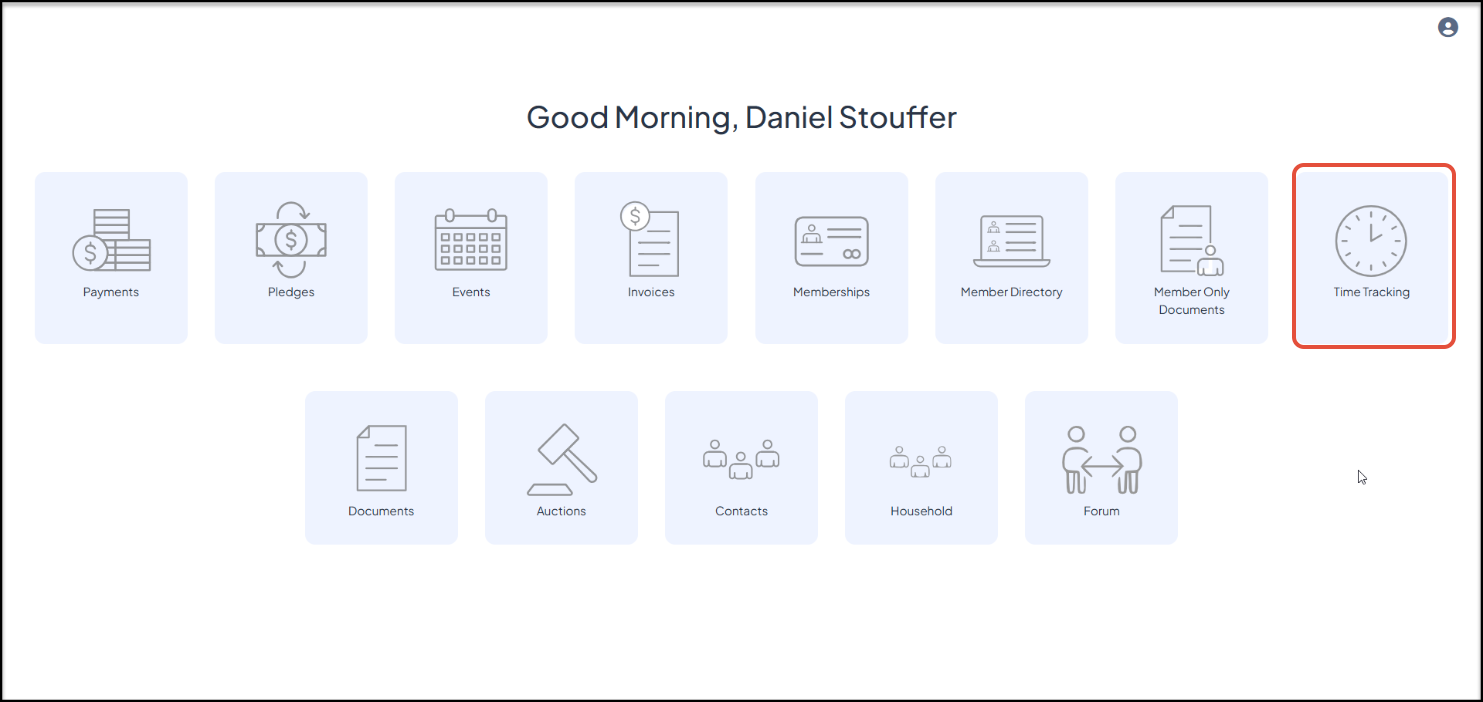
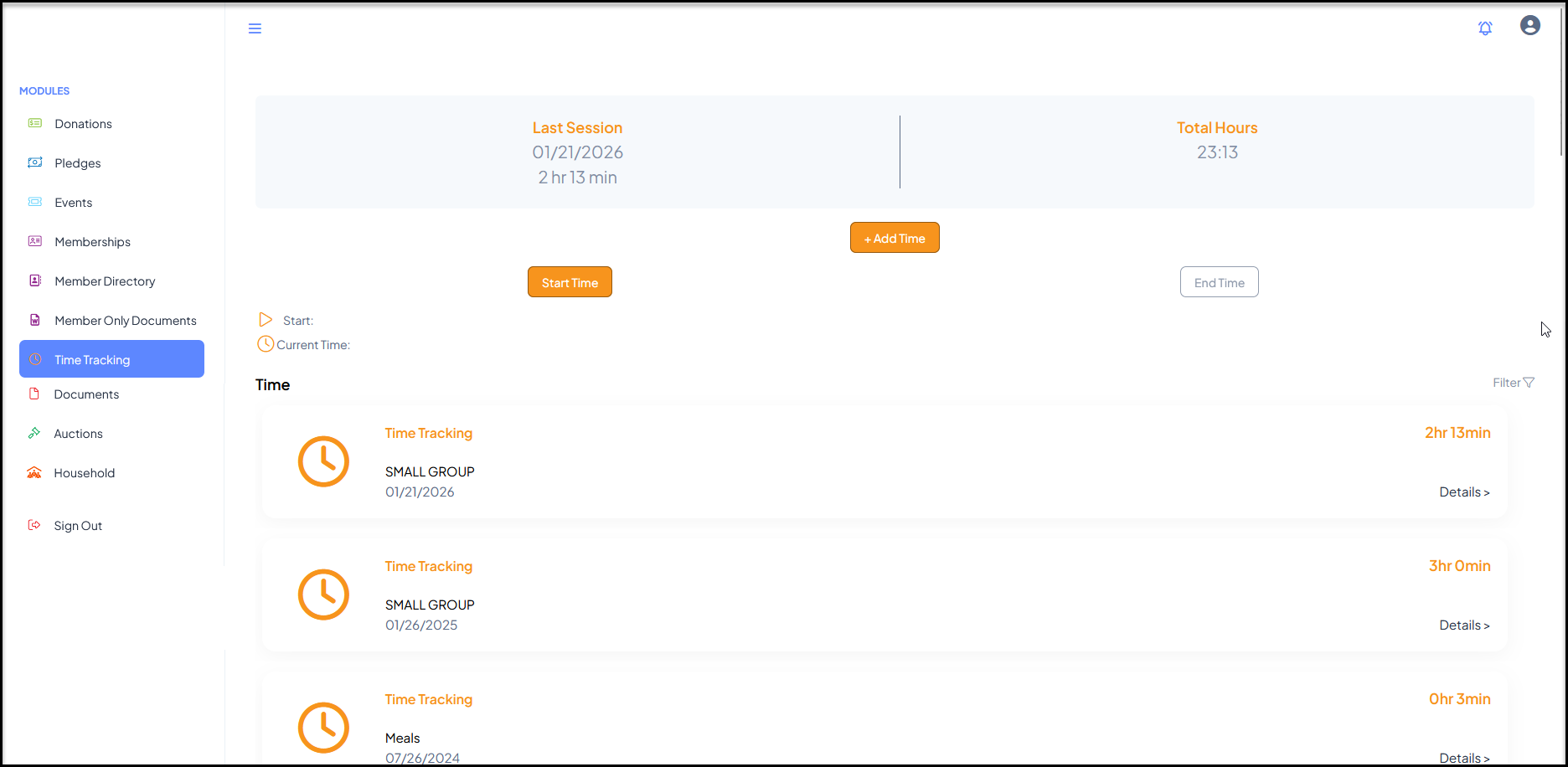
 Once logged into their portal account, the constituent can click on the **Time Tracking** icon to open the page to show the constituent's time tracking history. The**Last Session**date and time as well as the constituent's **Total Hours**are shown on the top of the page.
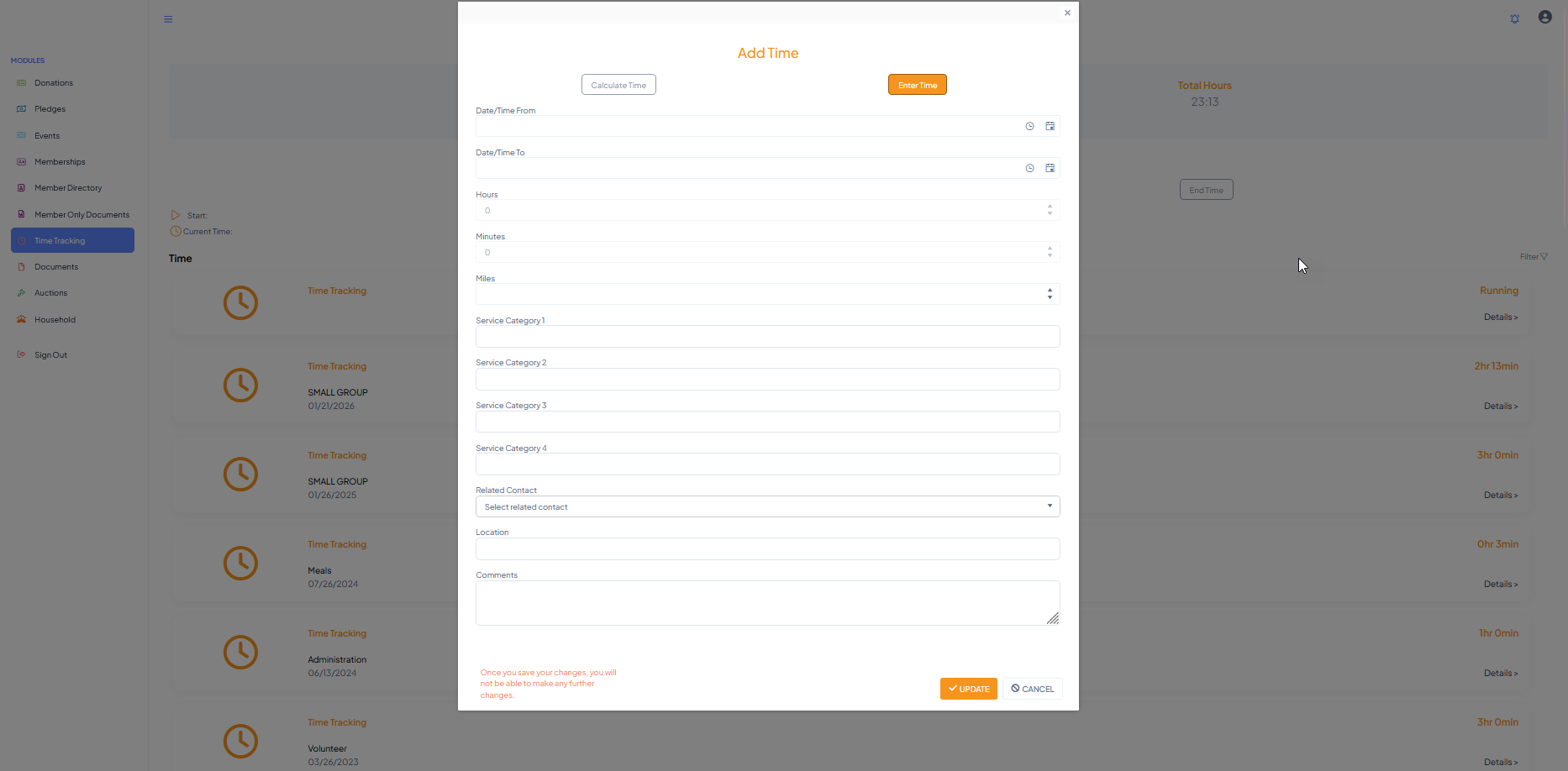
 If you have authorized it in the Constituent Portal settings, the constituent can add their own time tracking. They have two options, the first is to click on **+Add Time**.
 In the new window they can allow the software to calculate the time for them by entering the dates and times, or they can click on **Enter Time** to manually enter the date and number of hours and minutes.
They have access to all the same fields as internal users do and can assign the applicable **Service Categories, Related Contact, Location**, and add **Comments**.
When they click **Update**the record will be saved in the database. Only an authorized internal user can edit the information.
In the new window they can allow the software to calculate the time for them by entering the dates and times, or they can click on **Enter Time** to manually enter the date and number of hours and minutes.
They have access to all the same fields as internal users do and can assign the applicable **Service Categories, Related Contact, Location**, and add **Comments**.
When they click **Update**the record will be saved in the database. Only an authorized internal user can edit the information.
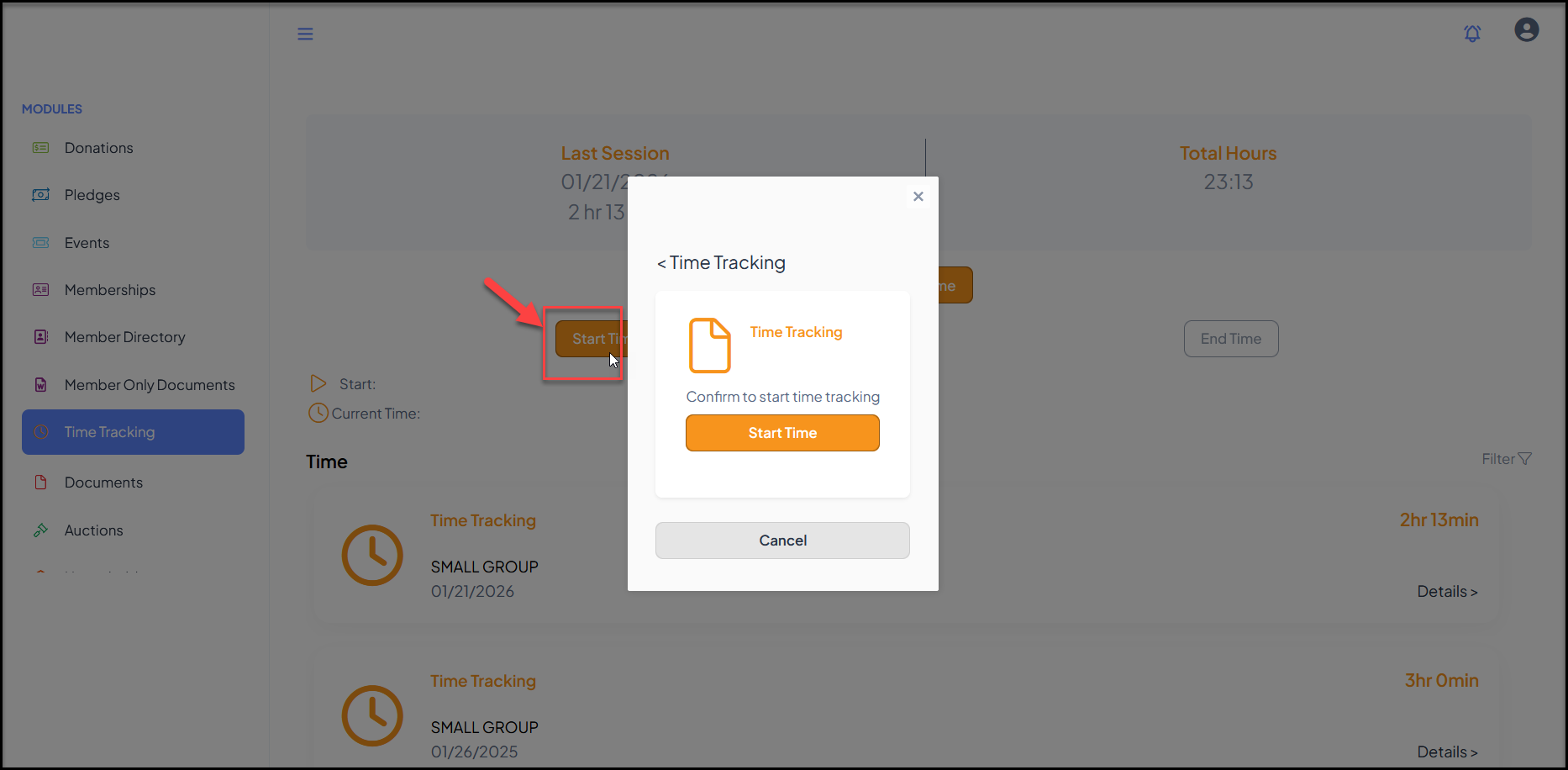
 Constituents can also use a timer feature to turn on and off time tracking from the portal. Clicking on **Start Time**will open a pop up window. Clicking on**Start Time** again will start the timer.
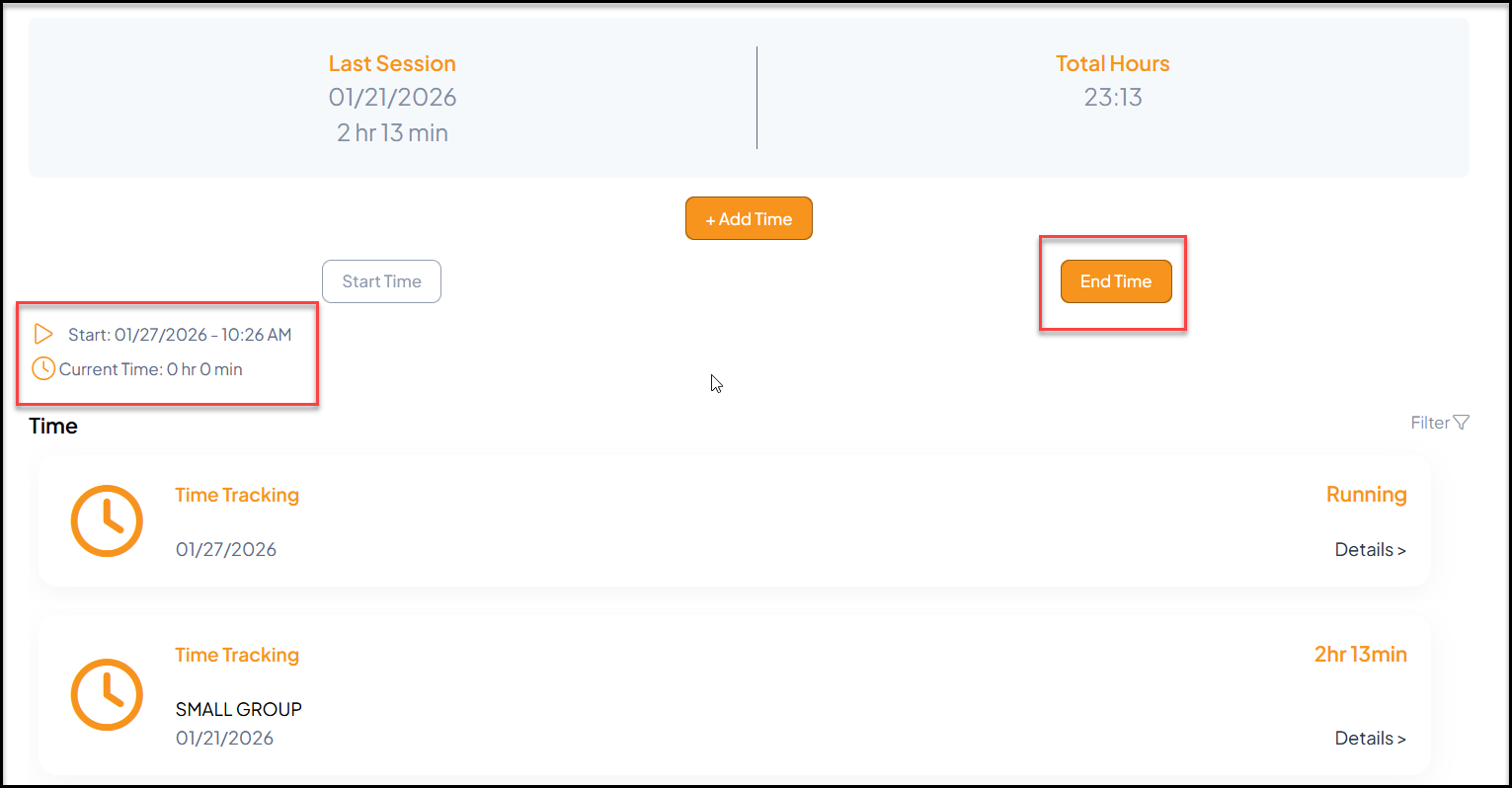
 The timer will show the start time and how many hours and minutes have currently elapsed. To stop the timer, the constituent will click on **End Time.**
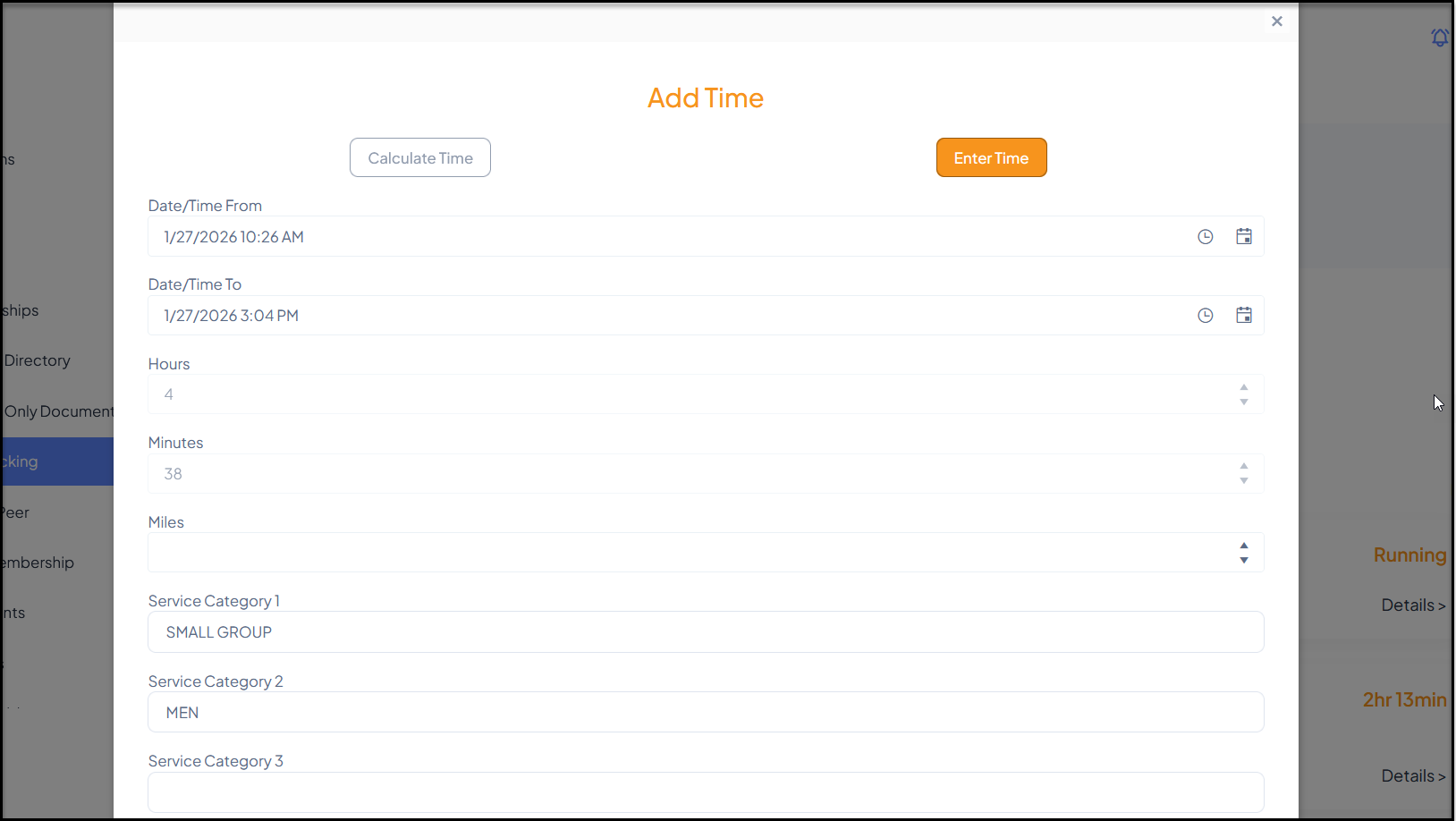
 The time tracking entry window will open again with the hours and minutes automatically entered. This information can be edited as needed and the constituent will assign the other fields as needed. They will click**Update** at the bottom of the window to save the record.
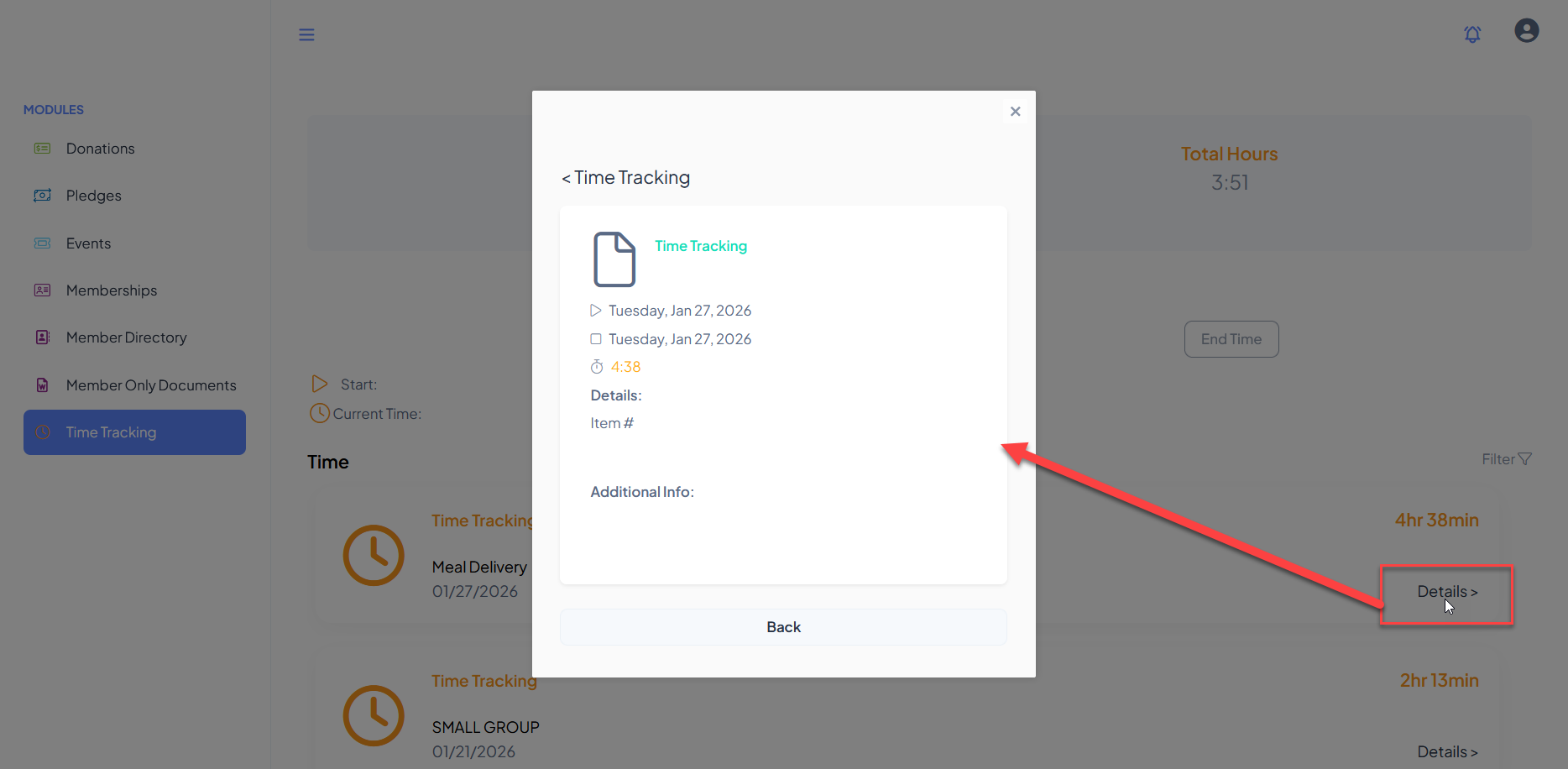
 Clicking on the**Details** link for any time record will provide a quick reference for the day and hours as well as any details or additional info.