# Cancelling Event Levels and Add-Ons
> Source: https://support.associationsphere.com/cancelling-event-levels-and-add-ons | Updated: 2025-03-30T21:05:41Z
An Event Level or Add-On with a Cancellation/Refund Policy set up offers two different options for cancellation:
### **Option 1: Cancellation via the Advanced Portal**
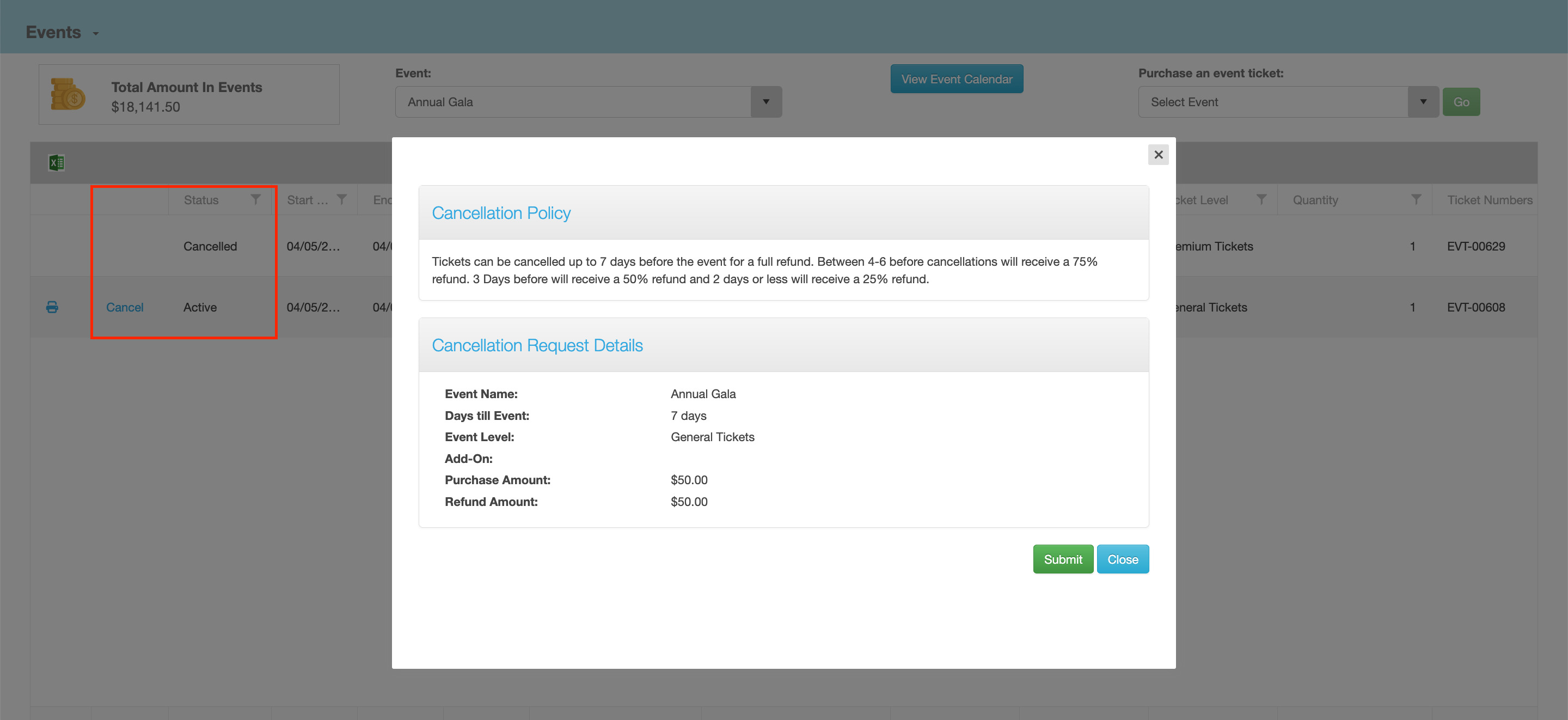 Event registrants can log in to their Advanced Portal account and navigate to the **Events** module. There, they can select the desired event. If available, they will see a column displaying a **“Cancel”** option next to their Event Levels and Add-Ons.
Clicking the **“Cancel”** link for any Level or Add-On will launch a dialog box displaying the details of the Cancellation/Refund Policy configured for that item. The following information is shown:
- Policy text
- Event Name
- Number of days until the event starts
- Name of the Level or Add-On
- Original Purchase Amount
- Refund Amount
The refund amount is determined based on the conditions set within the Cancellation/Refund Policy and the number of days remaining before the event starts. After reviewing the dialog, the event registrant can submit their cancellation request. A confirmation message will appear upon submission.
A notification email will then be sent to:
- The event registrant
- Any email addresses listed in the event setup to receive transaction notifications
In both the Advanced Portal and the main **Events** grid inside the software, the **Status** of that Level or Add-On will update from **“Active”** to **“Cancelled.”**
> A cancelled Level or Add-On will remove the registrant from the **Attendance List** and recycle the item so it can be resold to the public.
**Important:** Submitting a cancellation does **not** automatically process a refund. The user must go to the **Transactions** grid and manually issue the refund from the registrant’s event transaction.
---
### **Option 2: Manual Cancellation in the Event Grid**
Event registrants can log in to their Advanced Portal account and navigate to the **Events** module. There, they can select the desired event. If available, they will see a column displaying a **“Cancel”** option next to their Event Levels and Add-Ons.
Clicking the **“Cancel”** link for any Level or Add-On will launch a dialog box displaying the details of the Cancellation/Refund Policy configured for that item. The following information is shown:
- Policy text
- Event Name
- Number of days until the event starts
- Name of the Level or Add-On
- Original Purchase Amount
- Refund Amount
The refund amount is determined based on the conditions set within the Cancellation/Refund Policy and the number of days remaining before the event starts. After reviewing the dialog, the event registrant can submit their cancellation request. A confirmation message will appear upon submission.
A notification email will then be sent to:
- The event registrant
- Any email addresses listed in the event setup to receive transaction notifications
In both the Advanced Portal and the main **Events** grid inside the software, the **Status** of that Level or Add-On will update from **“Active”** to **“Cancelled.”**
> A cancelled Level or Add-On will remove the registrant from the **Attendance List** and recycle the item so it can be resold to the public.
**Important:** Submitting a cancellation does **not** automatically process a refund. The user must go to the **Transactions** grid and manually issue the refund from the registrant’s event transaction.
---
### **Option 2: Manual Cancellation in the Event Grid**
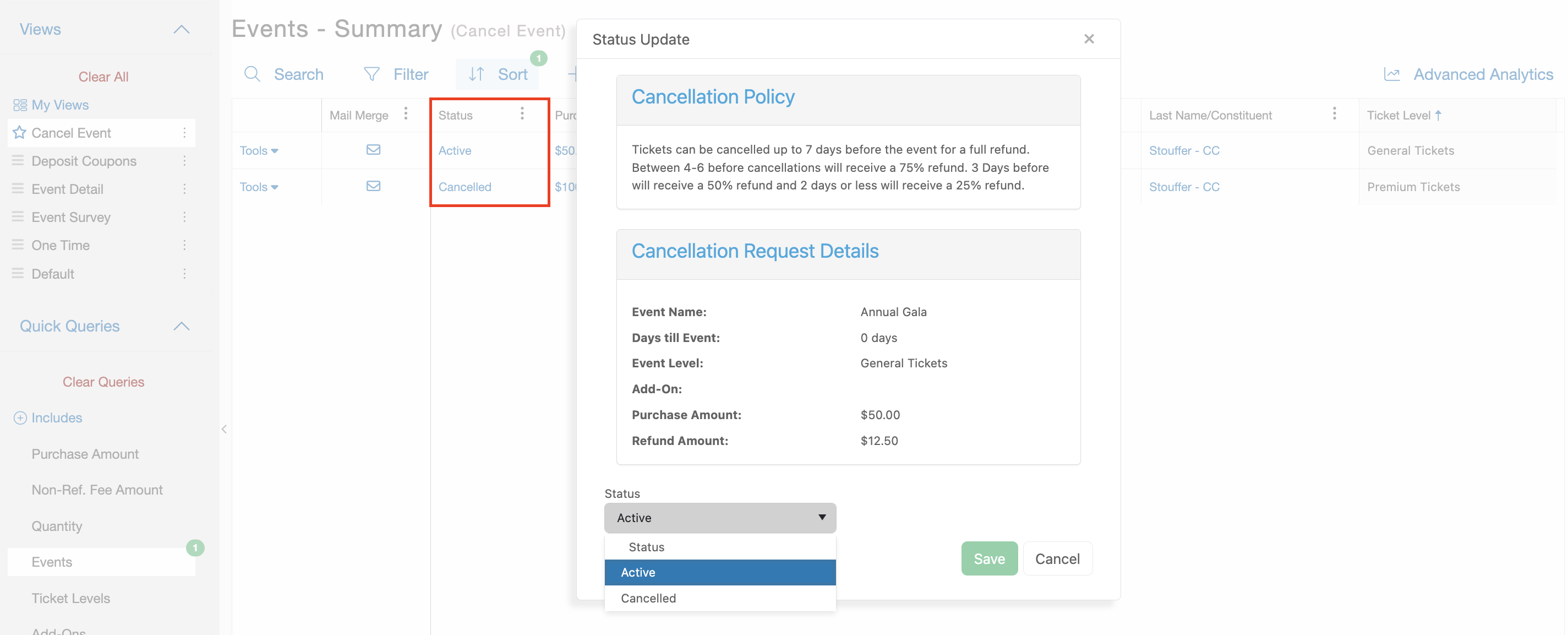 The second option is to update the **Status** of the Level or Add-On directly within the software. On the Event grid, clicking the **“Active”** status for any Level or Add-On allows you to switch it to **“Cancelled.”**
This action will:
- Remove the registrant from the Attendance List
- Recycle the Level or Add-On so it can be resold
- Send a email notification to the event registrant and any email addresses listed in the event setup.
**Important:**Submitting a cancellation does not automatically process a refund. The user must go to the **Transactions** grid and manually issue the refund from the registrant’s event transaction.
The second option is to update the **Status** of the Level or Add-On directly within the software. On the Event grid, clicking the **“Active”** status for any Level or Add-On allows you to switch it to **“Cancelled.”**
This action will:
- Remove the registrant from the Attendance List
- Recycle the Level or Add-On so it can be resold
- Send a email notification to the event registrant and any email addresses listed in the event setup.
**Important:**Submitting a cancellation does not automatically process a refund. The user must go to the **Transactions** grid and manually issue the refund from the registrant’s event transaction.