# Connected your Outlook Email Account to AssociationSphere
> Source: https://support.associationsphere.com/connected-your-outlook-email-account-to-associationsphere | Updated: 2024-07-24T16:12:21Z
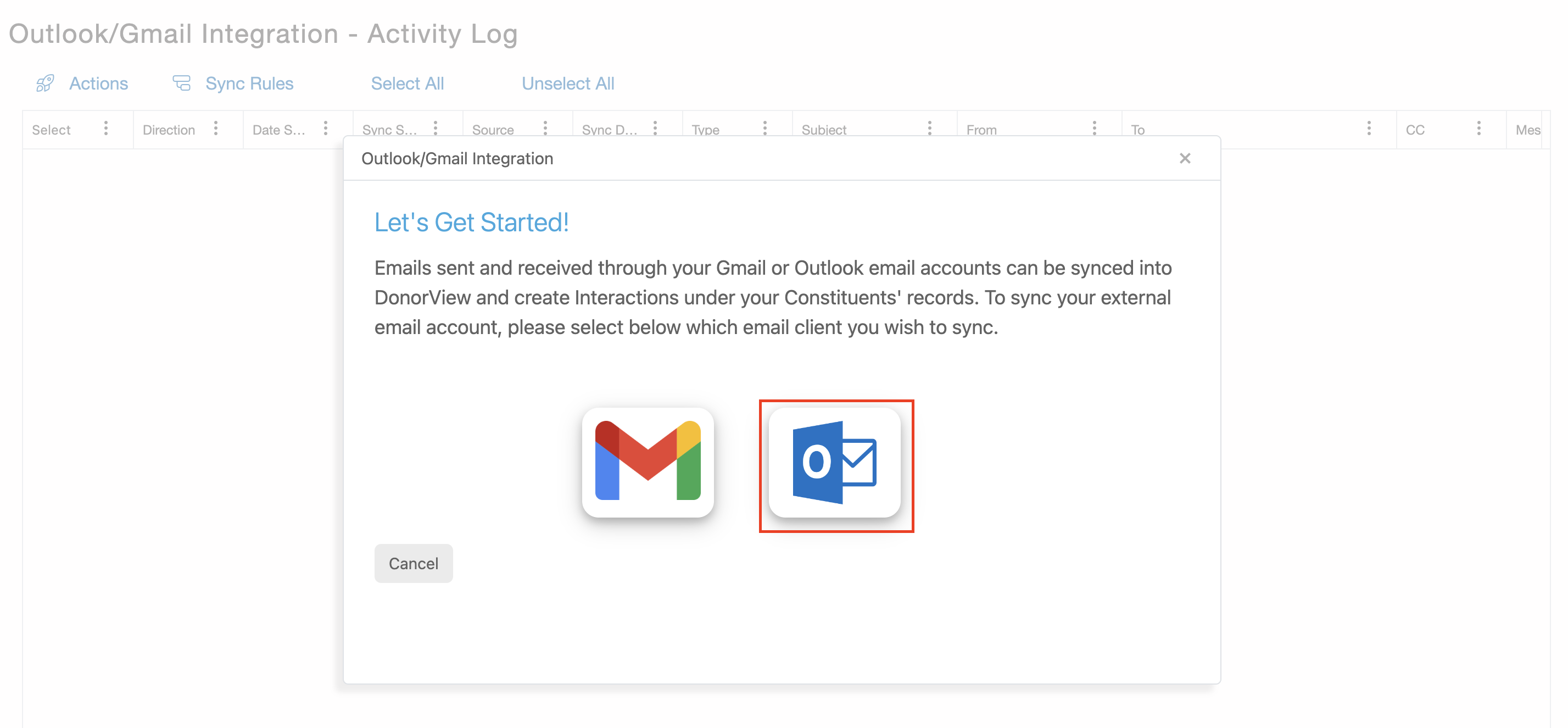
Users who want to be able to sync their Outlook email communication with AssociationSphere can navigate to Workspace>CRM>Outlook/Gmail Integration. If this is your first time visiting this page you will be prompted with a “Let’s Get Started!” message where you can select which email client you wish to integrate with and be taken to the instructions to setup that connection.
 Watch the video for how to connect your Outlook email account to AssociationSphere.
**Requirements:**
It must be one of the supported applications for Web add-ins.
- Outlook 2013 or later on Windows
- Outlook 2016 or later on Mac
- Outlook on iOS
- Outlook on Android
- Outlook on the web for Exchange 2016 or later
- Outlook on the web for Exchange 2013
- Outlook.com
Your Outlook must be connected to an Exchange server or Microsoft 365 using a direct connection. When configuring your Outlook, you must choose an Exchange, Office, or Outlook.com account type. If it is configured to connect with POP3 or IMAP, add-ins will not load.
**How to Install:**
1) Download the AssociationSphere Add-in (See the attachment below)
2) Office 365 Admin can install AssociationSphere Add-in for all of the employees.
3) Click to and copy and paste the Registration key from your AssociationSphere account into your Outlook.
Watch the video for how to connect your Outlook email account to AssociationSphere.
**Requirements:**
It must be one of the supported applications for Web add-ins.
- Outlook 2013 or later on Windows
- Outlook 2016 or later on Mac
- Outlook on iOS
- Outlook on Android
- Outlook on the web for Exchange 2016 or later
- Outlook on the web for Exchange 2013
- Outlook.com
Your Outlook must be connected to an Exchange server or Microsoft 365 using a direct connection. When configuring your Outlook, you must choose an Exchange, Office, or Outlook.com account type. If it is configured to connect with POP3 or IMAP, add-ins will not load.
**How to Install:**
1) Download the AssociationSphere Add-in (See the attachment below)
2) Office 365 Admin can install AssociationSphere Add-in for all of the employees.
3) Click to and copy and paste the Registration key from your AssociationSphere account into your Outlook.