# Connecting your Gmail Account to AssociationSphere
> Source: https://support.associationsphere.com/connecting-your-gmail-account-to-associationsphere | Updated: 2025-01-29T15:30:53Z
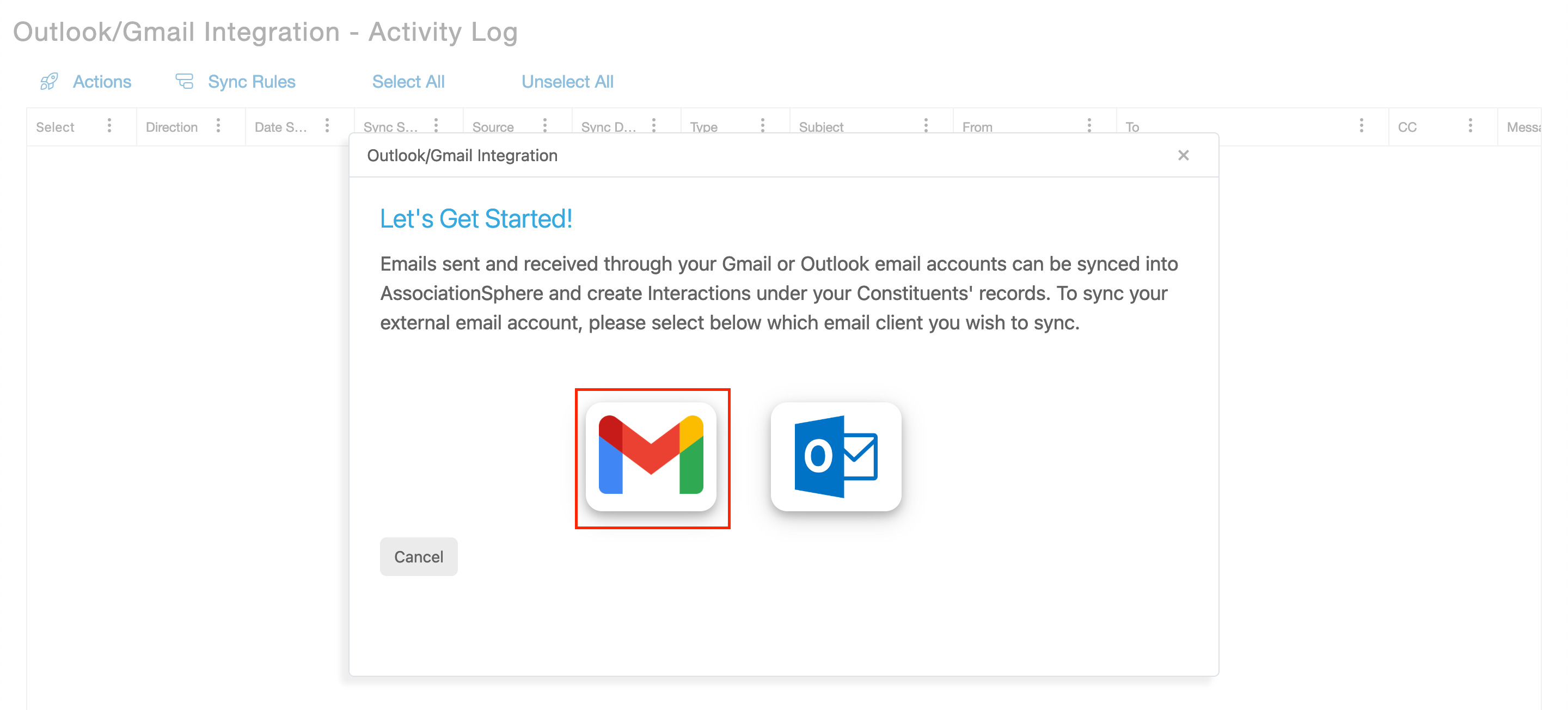
User who want to be able to sync their Gmail communication with AssociationSphere can navigate to Workspace>CRM>Outlook/Gmail Integration. If this is your first time visiting this page you will be prompted with a “Let’s Get Started!” message where you can select which email client you wish to integrate with and be taken to the instructions to setup that connection.
 Watch the video on how to connect your Gmail account to AssociationSphere.
There are two ways to install Google Add-on
Option 1) Google Workspace for Business
If your organization uses Google Workspace (formerly G Suite) for business, you'll quickly install add-ons for all your employees.
Option 2 ) Single Account Installation
1. Make sure you are signed on your google account you would like to install.
2. Download the AssociationSphere Gmail Add-on. Then install AssociationSphere Add-on.
3. If you need to uninstall AssociationSphere Add-on, go to AssociationSphere Gmail Add-on and click Uninstall.
4. Get Registration key from inside your AssociationSphere account under the Actions>Download Gmail Add-In and copy and paste the key into Gmail.
Watch the video on how to connect your Gmail account to AssociationSphere.
There are two ways to install Google Add-on
Option 1) Google Workspace for Business
If your organization uses Google Workspace (formerly G Suite) for business, you'll quickly install add-ons for all your employees.
Option 2 ) Single Account Installation
1. Make sure you are signed on your google account you would like to install.
2. Download the AssociationSphere Gmail Add-on. Then install AssociationSphere Add-on.
3. If you need to uninstall AssociationSphere Add-on, go to AssociationSphere Gmail Add-on and click Uninstall.
4. Get Registration key from inside your AssociationSphere account under the Actions>Download Gmail Add-In and copy and paste the key into Gmail.