# Double the Donation
> Source: https://support.associationsphere.com/double-the-donation | Updated: 2025-03-31T14:18:31Z
**Integrating Double the Donation with Your Online Donation Forms**
Double the Donation can now be integrated into your Simple and Advanced online donation forms. Before the integration is ready for use, there are a few requirements:
### Requirements
1. **Advanced Analytics Subscription**
AssociationSphere users must be subscribed to the **Advanced Analytics** plan. For details on what's included, https://www.donorview.com/addon#Analyticsclick here. To activate the subscription, go to any main grid, hover over the **Advanced Analytics** menu, and click to activate the subscription.
2. **Double the Donation Subscription**
Users must have an active subscription with **Double the Donation**. For more details on their offering, click here.
3. **API Keys**
You will need your **Public** and **Private API Keys** from your Double the Donation account. These can be found under the **Settings** menu by clicking **API Key**.
---
### Connecting Double the Donation to AssociationSphere
Once you’ve confirmed all three items:
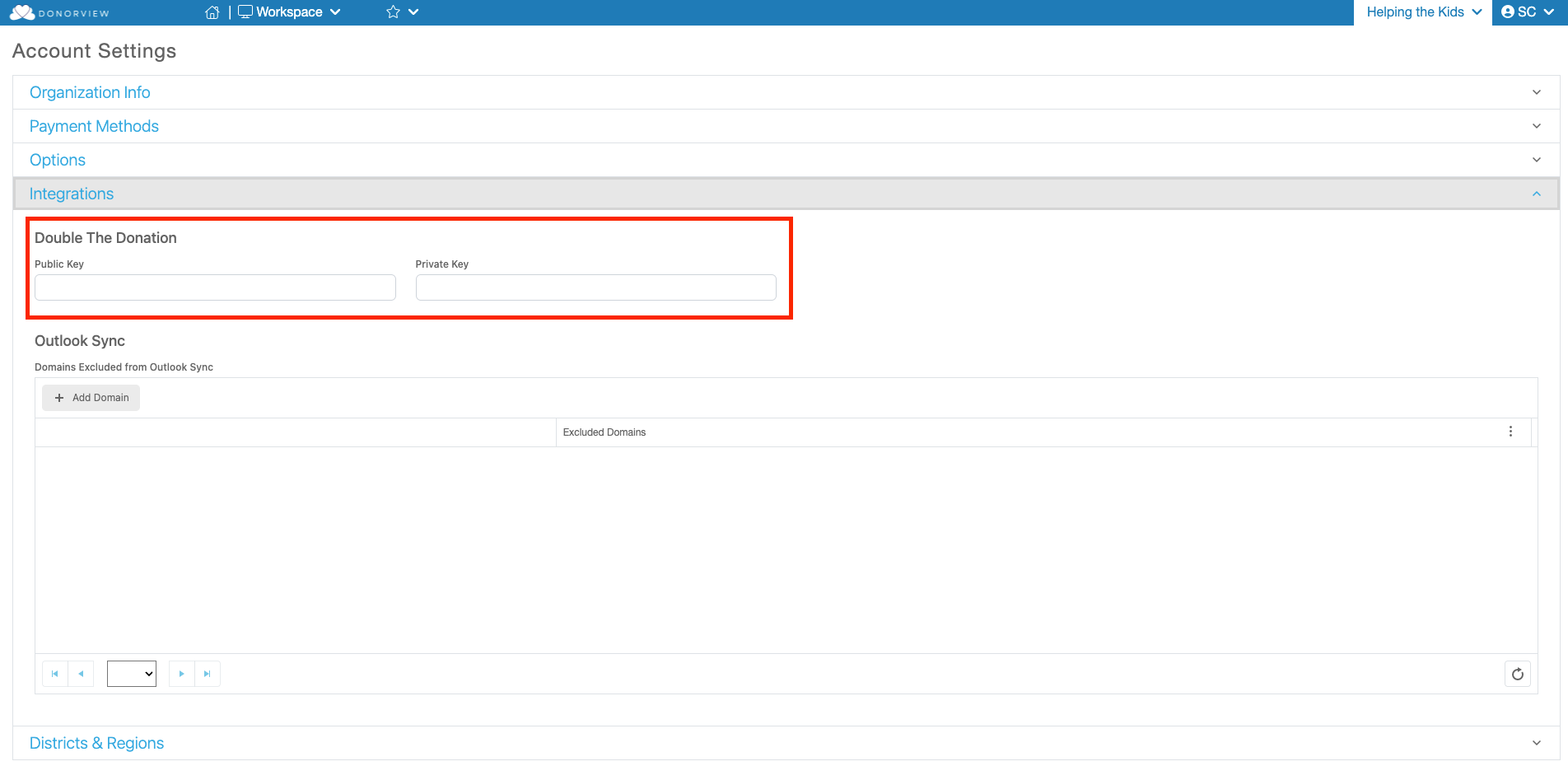
1. Go to your **Account Settings** in AssociationSphere (hover over your organization’s name and click **Account Settings**).
2. Click the **Integration** section.
3. Enter your **Public Key** and **Private Key** from Double the Donation into the respective fields.
4. Click the green **Save** button at the bottom of the page.
 ---
### Enabling Double the Donation on Your Donation Forms
Navigate to:
**Workspace > Fundraising > Donation Page**
You can either create a new donation page or edit an existing one.
####
#### If you're using a **Simple Donation Page**:
1. Continue through the standard setup until you reach the **Donation Page Settings** step.
2. Scroll down to the **Additional Options** section.
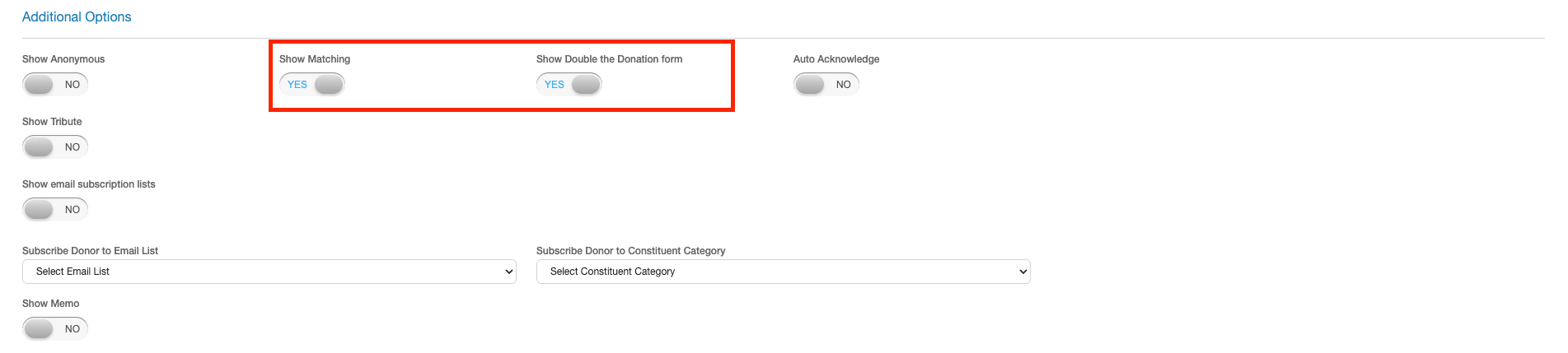
3. Toggle **Show Matching** to **Yes**.
- Once enabled, an additional toggle titled **Show Double the Donation Form** will appear.
- If this toggle does **not** appear, double-check your API keys in your Account Settings.
- With only **Show Matching** set to "Yes," AssociationSphere will use standard matching fields, and no data will be sent to Double the Donation.
- When **Show Double the Donation Form** is also set to "Yes," AssociationSphere will communicate with your Double the Donation account. Donors will be able to enter their employer, and Double the Donation will provide instructions for that company’s matching workflow.
---
### Enabling Double the Donation on Your Donation Forms
Navigate to:
**Workspace > Fundraising > Donation Page**
You can either create a new donation page or edit an existing one.
####
#### If you're using a **Simple Donation Page**:
1. Continue through the standard setup until you reach the **Donation Page Settings** step.
2. Scroll down to the **Additional Options** section.
3. Toggle **Show Matching** to **Yes**.
- Once enabled, an additional toggle titled **Show Double the Donation Form** will appear.
- If this toggle does **not** appear, double-check your API keys in your Account Settings.
- With only **Show Matching** set to "Yes," AssociationSphere will use standard matching fields, and no data will be sent to Double the Donation.
- When **Show Double the Donation Form** is also set to "Yes," AssociationSphere will communicate with your Double the Donation account. Donors will be able to enter their employer, and Double the Donation will provide instructions for that company’s matching workflow.
 Continue setting up the donation form as usual.
For more details on setting up a donation form, click here.
---
#### If you're using an **Advanced Donation Form**:
1. Proceed through the setup until you reach the **Page Designer** step.
2. Add the **Matching** widget to the design board.
- This will enable AssociationSphere’s standard matching fields.
- To enable Double the Donation functionality:
1. Click the three-dot menu on the Matching widget.
2. Select **Widget Settings**.
3. Toggle **Show Double the Donation Form** to **Yes**.
Continue setting up the donation form as usual.
For more details on setting up a donation form, click here.
---
#### If you're using an **Advanced Donation Form**:
1. Proceed through the setup until you reach the **Page Designer** step.
2. Add the **Matching** widget to the design board.
- This will enable AssociationSphere’s standard matching fields.
- To enable Double the Donation functionality:
1. Click the three-dot menu on the Matching widget.
2. Select **Widget Settings**.
3. Toggle **Show Double the Donation Form** to **Yes**.
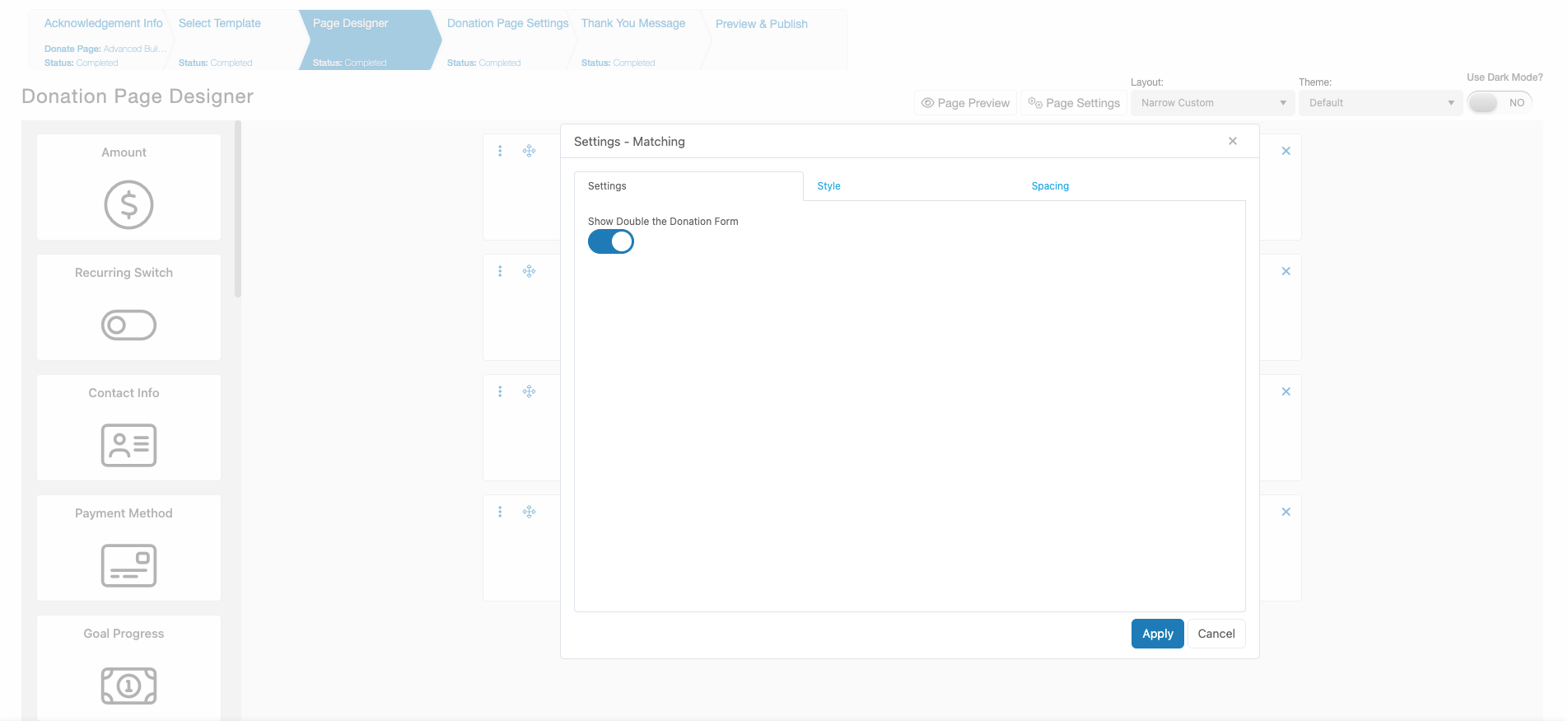 As with the Simple setup, this will allow donors to enter their employer and trigger company-specific matching instructions provided by Double the Donation.
Continue setting up the form as usual.
For more details on setting up a donation form, click here.
---
### What Donors Will See
When **Show Double the Donation Form** is active:
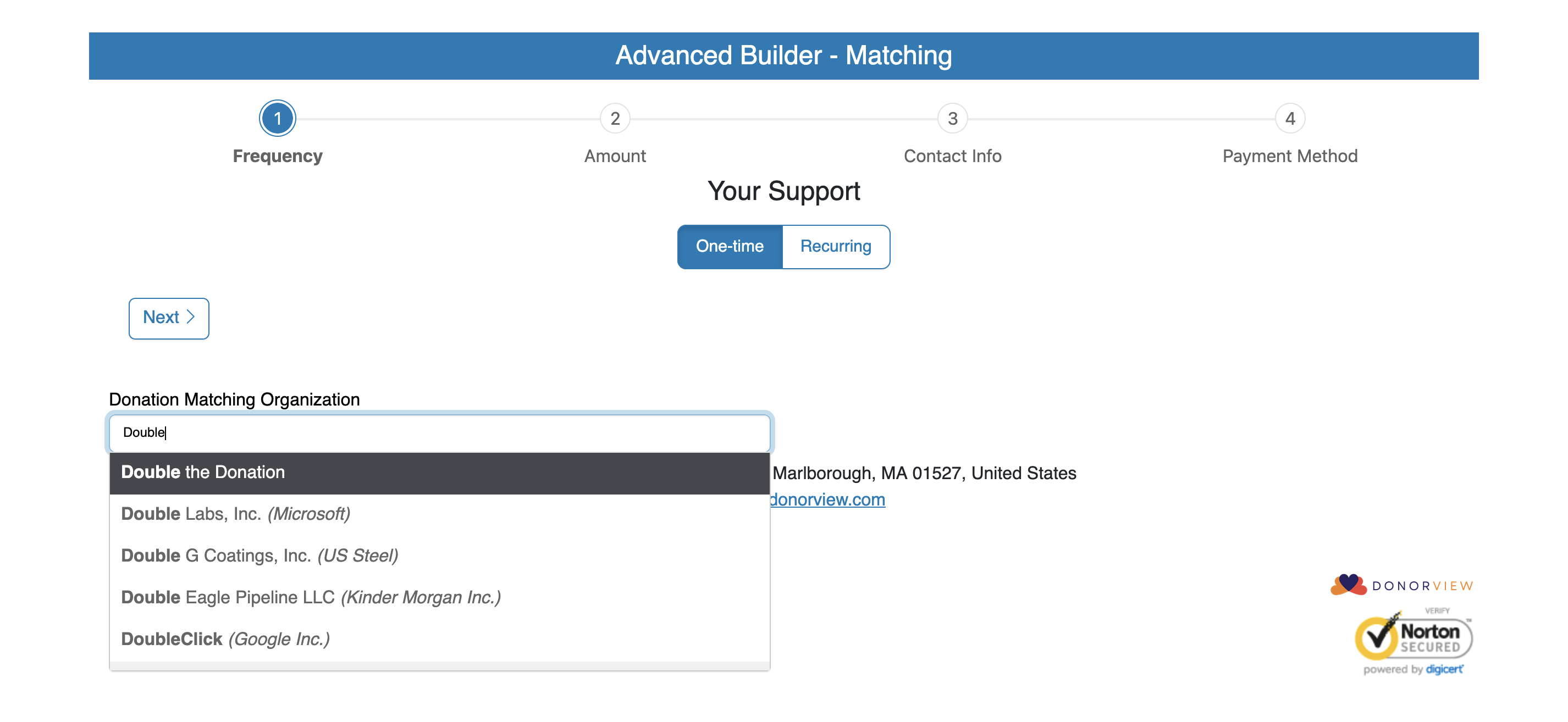
- A **“Donation Matching Organization”** field will appear on the form.
- Donors can enter their employer to receive tailored instructions for that company’s matching process.
- These instructions will automatically display in the on-screen **Thank You** message after the donation is submitted.
As always, donation details will be recorded in AssociationSphere and available in your Double the Donation account.
As with the Simple setup, this will allow donors to enter their employer and trigger company-specific matching instructions provided by Double the Donation.
Continue setting up the form as usual.
For more details on setting up a donation form, click here.
---
### What Donors Will See
When **Show Double the Donation Form** is active:
- A **“Donation Matching Organization”** field will appear on the form.
- Donors can enter their employer to receive tailored instructions for that company’s matching process.
- These instructions will automatically display in the on-screen **Thank You** message after the donation is submitted.
As always, donation details will be recorded in AssociationSphere and available in your Double the Donation account.