# Event Auto Reminders
> Source: https://support.associationsphere.com/event-auto-reminders | Updated: 2025-10-10T21:52:36Z
You can set up reminders to be sent to your event attendees using the Event Auto Reminders page. The Auto Reminders page is accessed in the Events module.
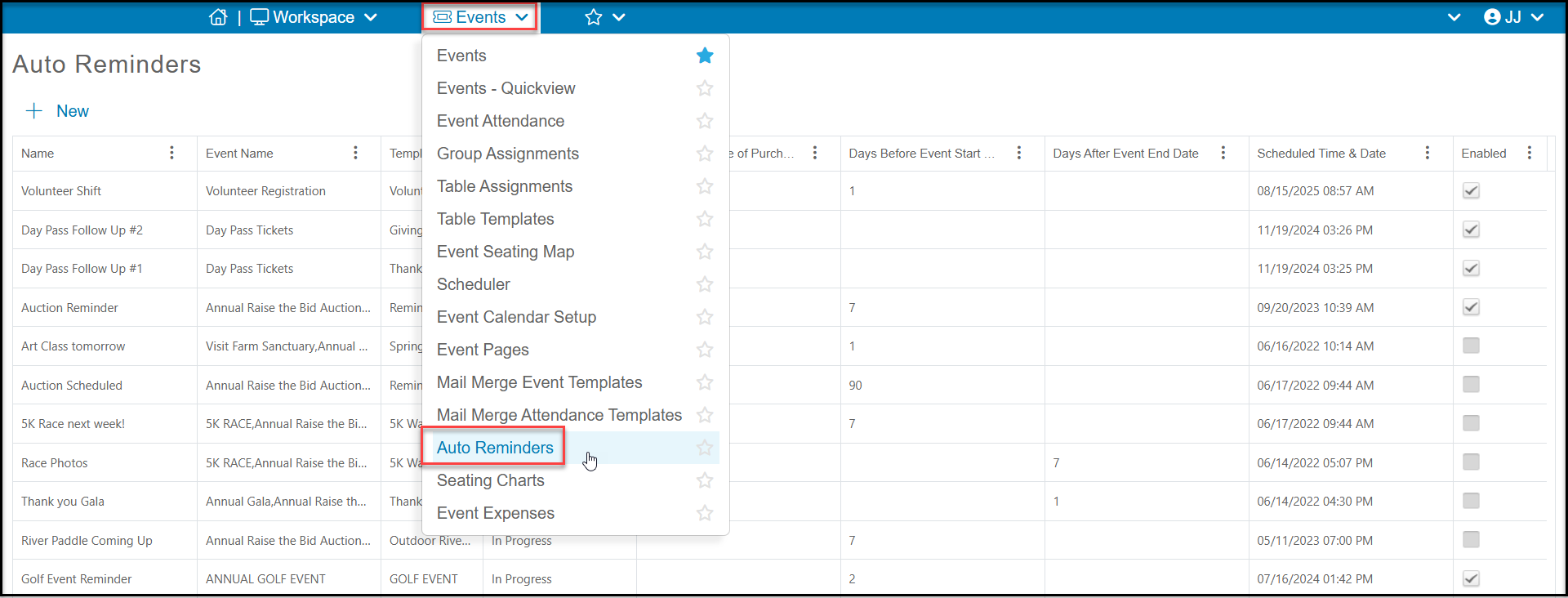 On the page you can see a list of all the auto reminders that have been created, including the **Name** of the reminder, the **Event Name** it is associated with, which email marketing **Template** is used, and other details about each reminder.
1. To create a new auto reminder, click on **+New**and then **Auto Reminder**.
On the page you can see a list of all the auto reminders that have been created, including the **Name** of the reminder, the **Event Name** it is associated with, which email marketing **Template** is used, and other details about each reminder.
1. To create a new auto reminder, click on **+New**and then **Auto Reminder**.
 2. To edit or view and existing auto reminder, click on that row to reveal an new View/Edit menu option. Click on **Auto Reminder** to open it.
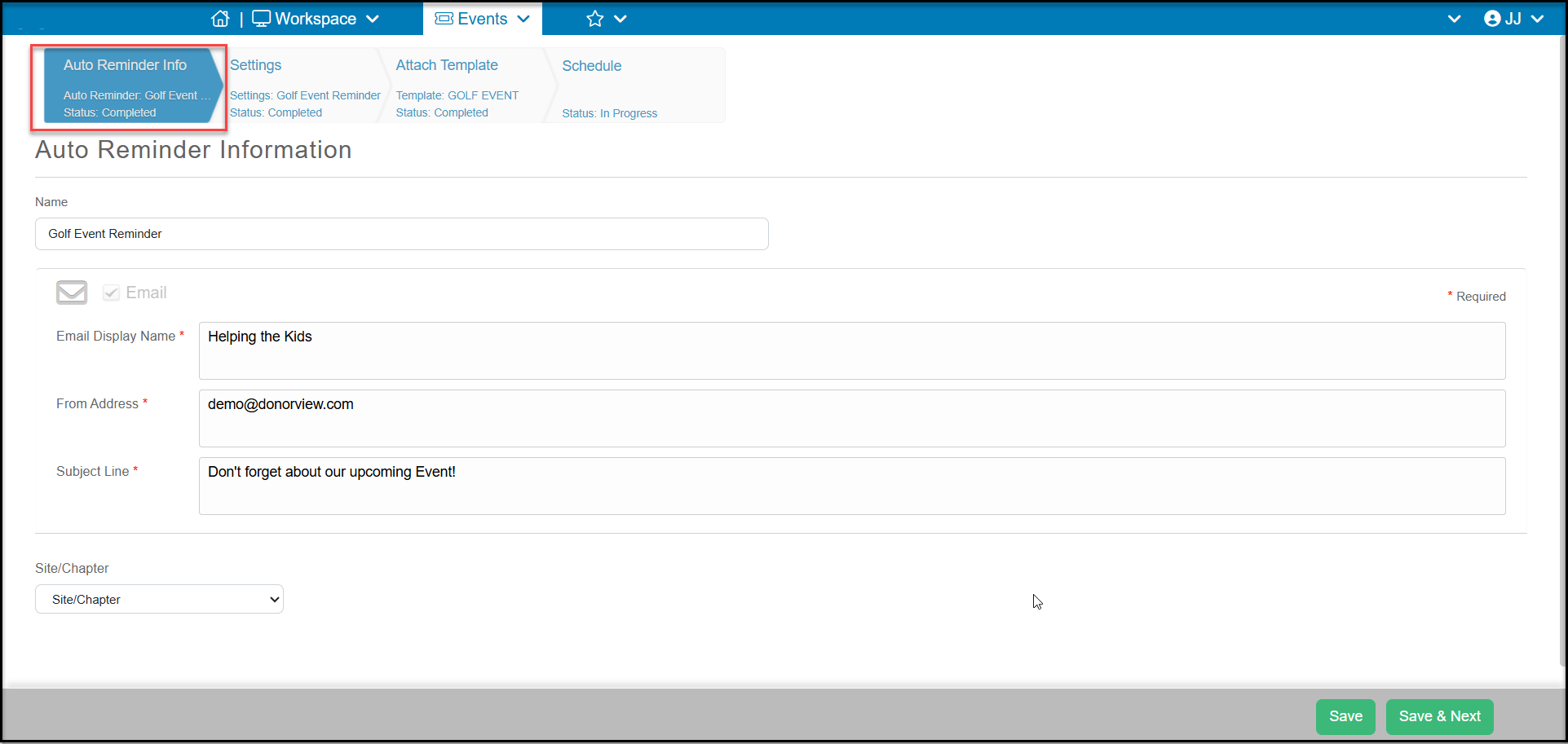
 3. The first step is the Auto Reminder Info tab. Here you will:
- Add a **Name**for your event reminder.
- Enter the email sender information.
- Click **Save & Next** to go to the next step.
3. The first step is the Auto Reminder Info tab. Here you will:
- Add a **Name**for your event reminder.
- Enter the email sender information.
- Click **Save & Next** to go to the next step.
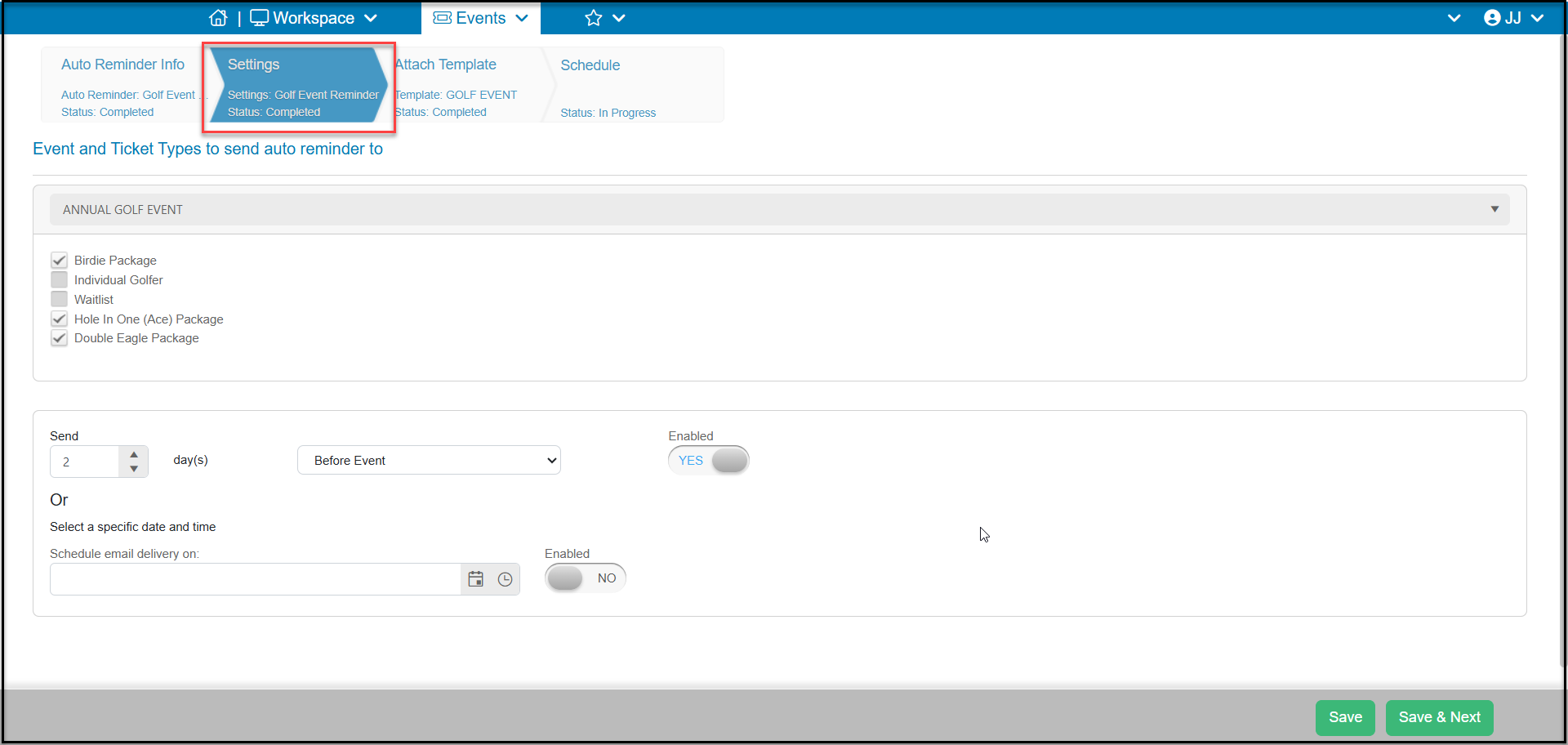
 4. In the next tab, Settings, you will select the event from the dropdown list.
5. After the event is selected, you can choose the levels which will receive this message. Any levels which are not checked will not receive this auto reminder. This allows you to customize your messaging based on level. For example, maybe your VIP and Sponsors will be invited to a special pre-gala cocktail party and you wish only those levels to receive information about that.
6. Choose the number of days under **Send**and select either **Before Event** or **After Event** as the trigger to send the message.
7. You could also choose to send it on a specific day under **Select a specific date and time.**
8. Be sure to mark the send trigger as **Enabled**to activate the message.
9. The software uses the Event Start date associated with the ticket level, so if you have a recurring event, a reminder will be sent for each event occurrence.
4. In the next tab, Settings, you will select the event from the dropdown list.
5. After the event is selected, you can choose the levels which will receive this message. Any levels which are not checked will not receive this auto reminder. This allows you to customize your messaging based on level. For example, maybe your VIP and Sponsors will be invited to a special pre-gala cocktail party and you wish only those levels to receive information about that.
6. Choose the number of days under **Send**and select either **Before Event** or **After Event** as the trigger to send the message.
7. You could also choose to send it on a specific day under **Select a specific date and time.**
8. Be sure to mark the send trigger as **Enabled**to activate the message.
9. The software uses the Event Start date associated with the ticket level, so if you have a recurring event, a reminder will be sent for each event occurrence.
 10. In the Attach Template tab, you select the email template to send.
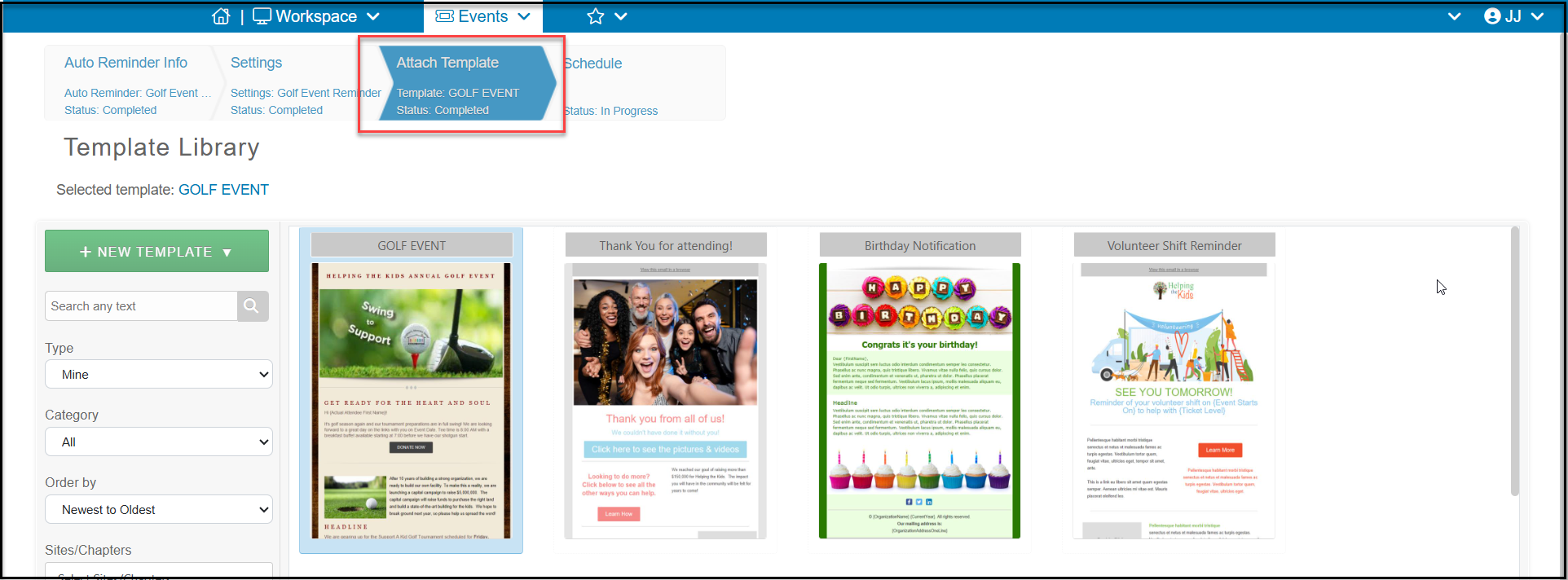 11. Here you can do one of the following:
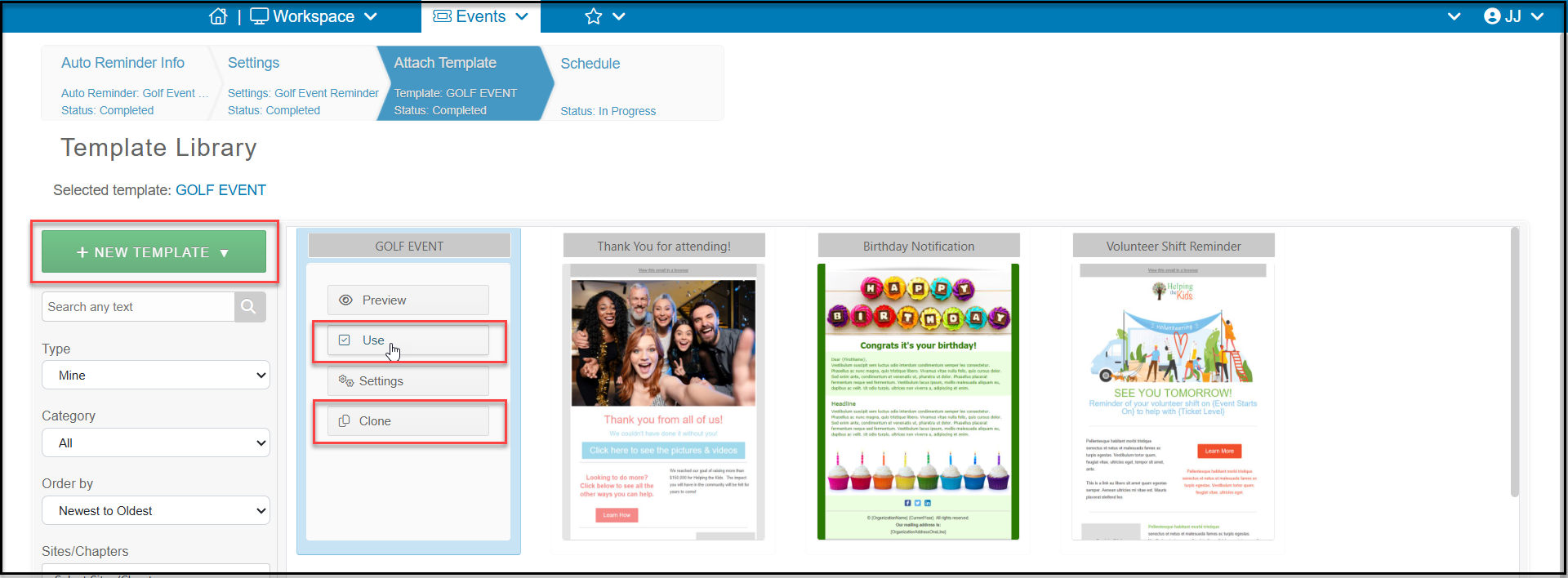
- Create a brand new template from scratch by clicking on **+New Template.**
- Search for a specific template using the **Search any text, Type,** or **Category** field. Once you identify the template, clickon **Use** to open the template and customize as needed.
- You can also make an exact copy of an existing template with **Clone**and give it a new name.
11. Here you can do one of the following:
- Create a brand new template from scratch by clicking on **+New Template.**
- Search for a specific template using the **Search any text, Type,** or **Category** field. Once you identify the template, clickon **Use** to open the template and customize as needed.
- You can also make an exact copy of an existing template with **Clone**and give it a new name.
 12. You can include merge fields in your message so that each is personalized for the recipient.
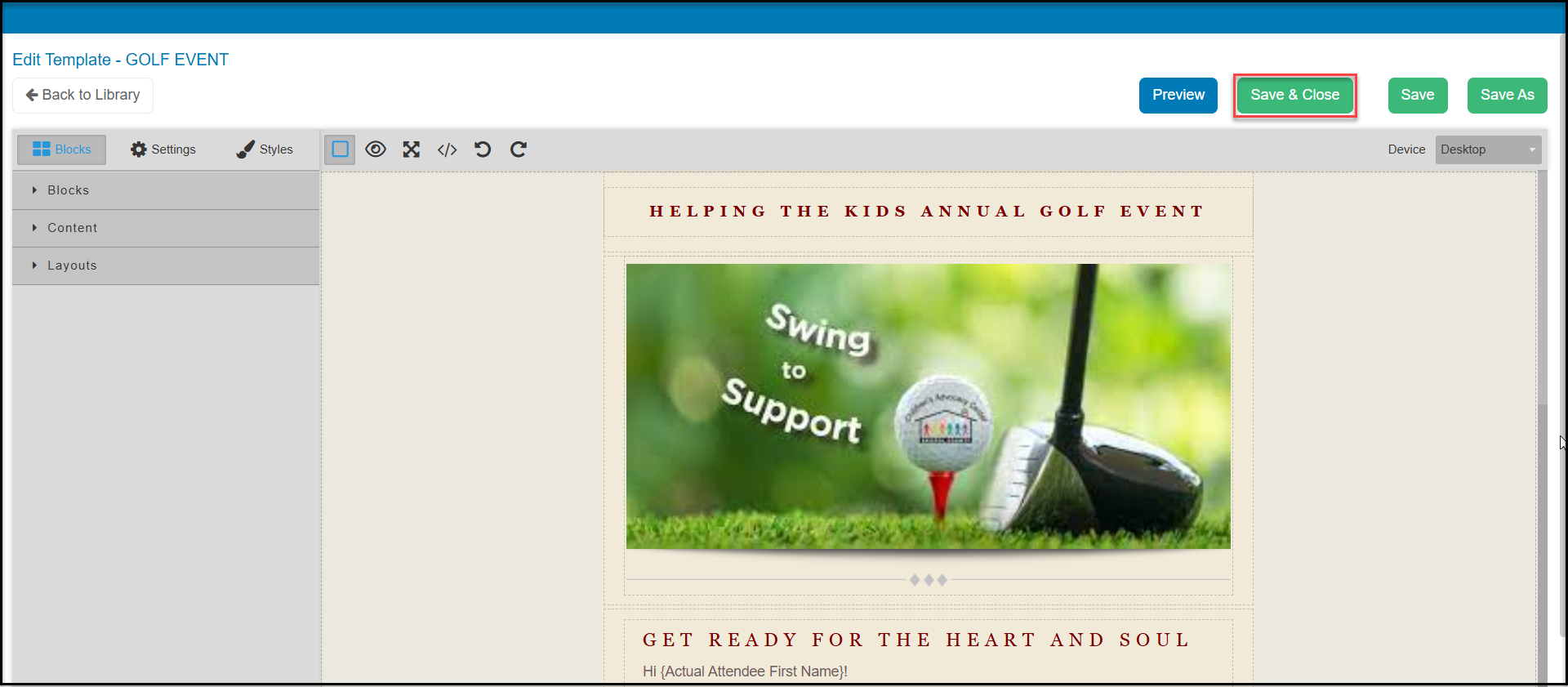
13. Click **Save & Close** to return to the auto reminder set up.
12. You can include merge fields in your message so that each is personalized for the recipient.
13. Click **Save & Close** to return to the auto reminder set up.
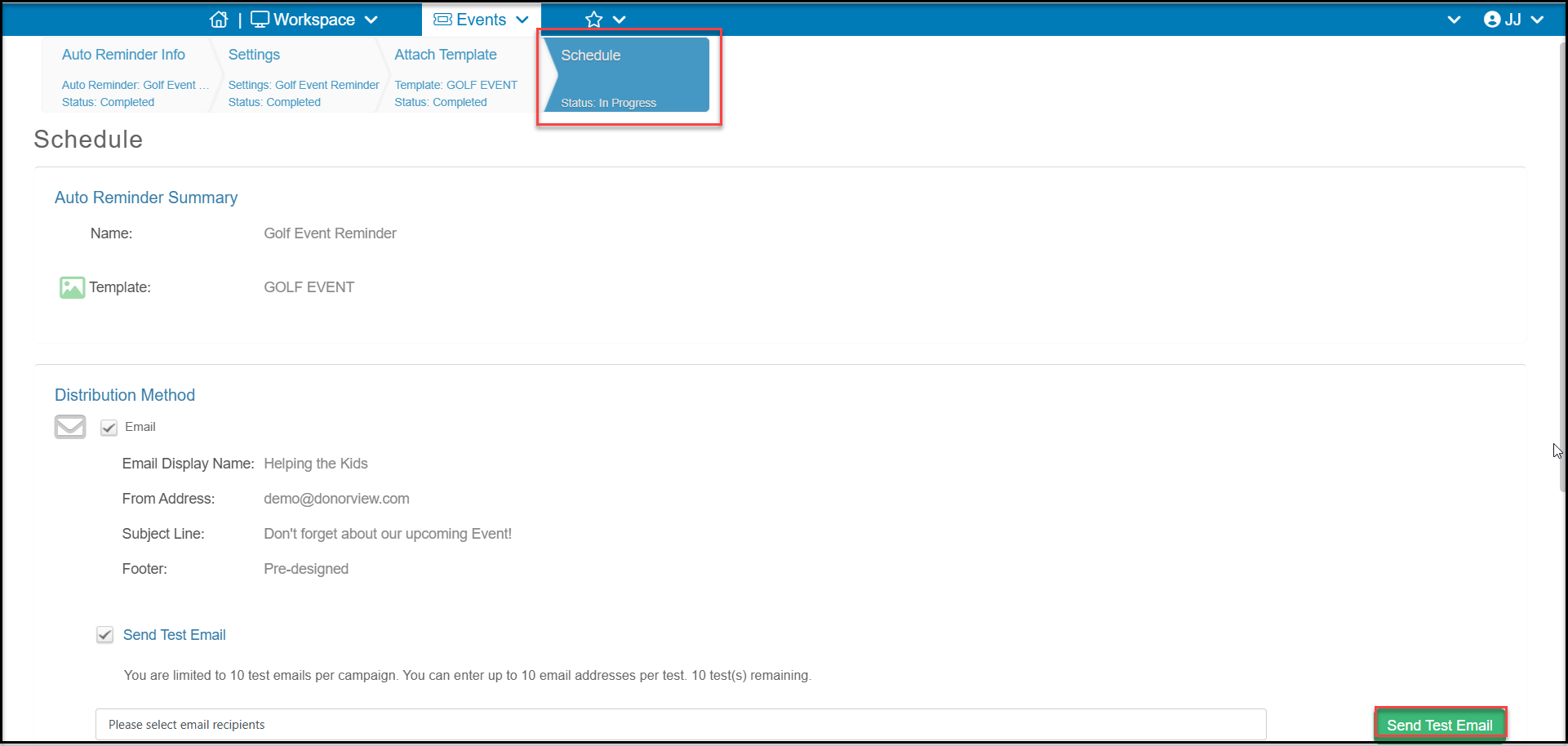
 14. In the last tab, **Schedule**, you can confirm all your previous settings.
15. You can also check **Send Test Email** to send a sample of the message. Enter the test recipient email and click on **Send Test Email** button to send the test. Note that test emails do not include mail merge fields since there is no data included for test emails.
14. In the last tab, **Schedule**, you can confirm all your previous settings.
15. You can also check **Send Test Email** to send a sample of the message. Enter the test recipient email and click on **Send Test Email** button to send the test. Note that test emails do not include mail merge fields since there is no data included for test emails.