# Event Level and Add-On Cancellations Setup
> Source: https://support.associationsphere.com/event-level-and-add-on-cancellations-setup | Updated: 2026-09-08T02:58:44Z
You can set up a Cancellation/Refund Policy directly within the setup of your Event Level or Add-On.
Please note that this feature is currently only available for Single Day and "Recurring Event, pick Registration for 1 or More Days" Event Pages. It is not available for "Recurring Event, 1 Registration Covers All Days" events, or events using seating charts.
During the setup of an Event Level or Add-On, you will see a tab titled **"Cancellation/Refund."** After completing the setup in the "Level" or "Add-On Info" tabs, switch to the **"Cancellation/Refund"** tab. To activate this feature for a specific Level or Add-On, toggle the **"Allow Event Level Refunds/Cancellations"** switch to **“YES.”**
**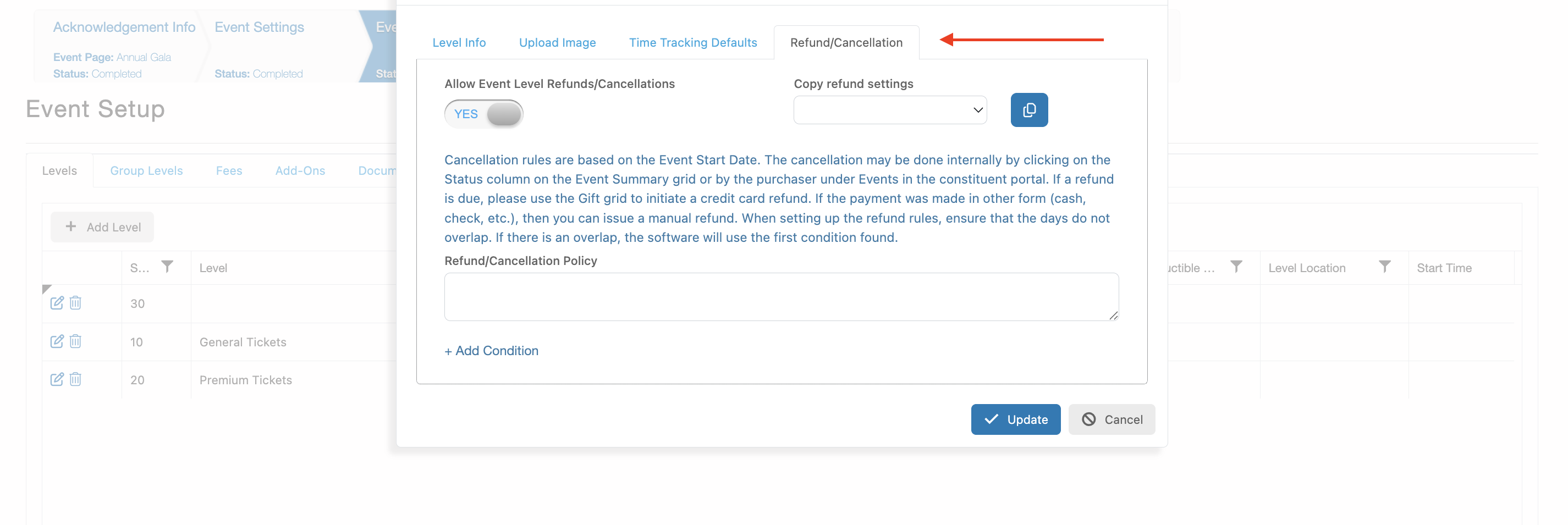 **
Once activated, you will have the option to either:
- Copy refund settings from another Level or Add-On, or
- Set up new settings from scratch.
### **Creating a Refund Policy**
The **Cancellation/Refund** settings allow you to input a policy that will be shown when a registrant requests a cancellation. You will also define criteria that determine how much money can be refunded based on the start date of the Event Level or Add-On.
Click the **“+ Condition”** button to input the first condition. Your options for criteria are:
- Is greater than
- Is greater than or equal to
- Between
- Equal to
- Is less than
- Is less than or equal to
**
Once activated, you will have the option to either:
- Copy refund settings from another Level or Add-On, or
- Set up new settings from scratch.
### **Creating a Refund Policy**
The **Cancellation/Refund** settings allow you to input a policy that will be shown when a registrant requests a cancellation. You will also define criteria that determine how much money can be refunded based on the start date of the Event Level or Add-On.
Click the **“+ Condition”** button to input the first condition. Your options for criteria are:
- Is greater than
- Is greater than or equal to
- Between
- Equal to
- Is less than
- Is less than or equal to
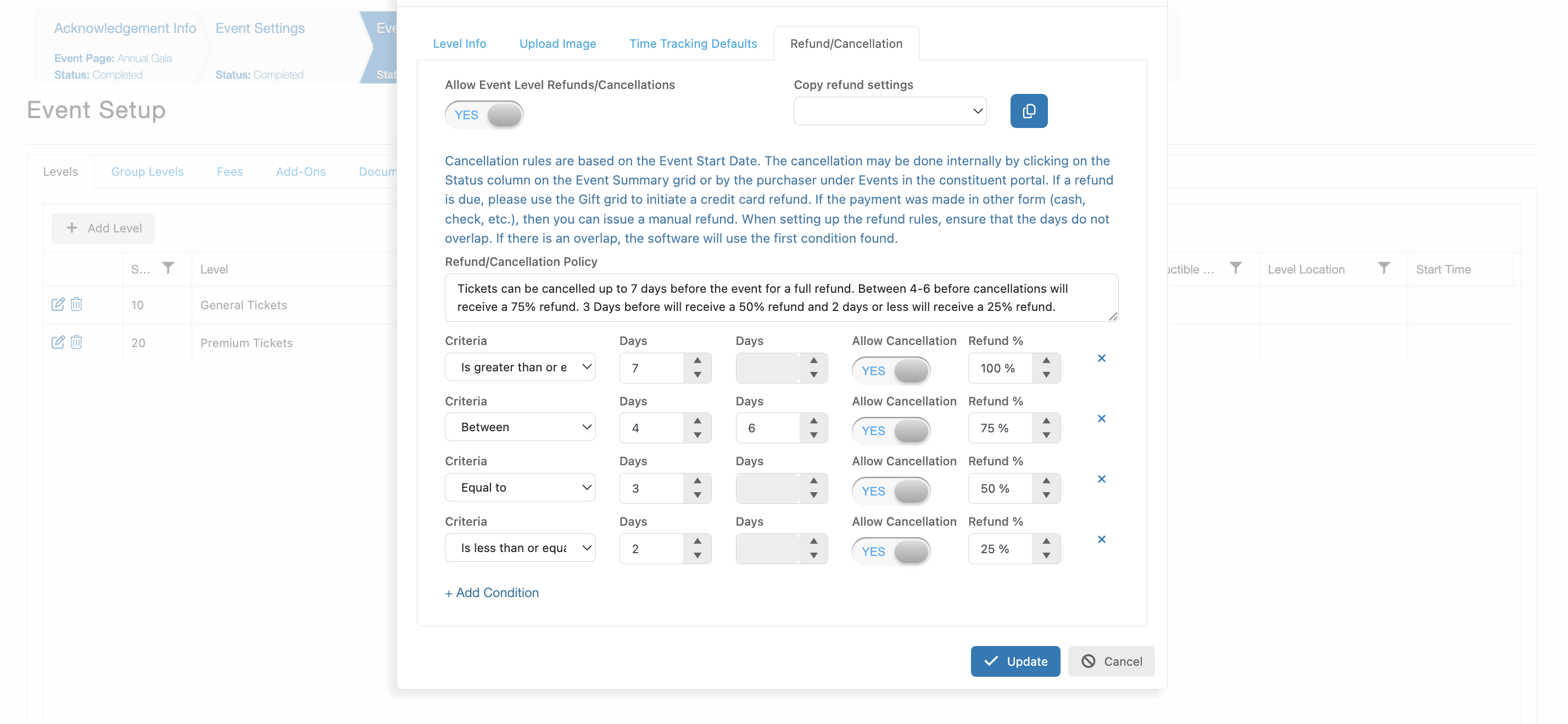 After selecting a criterion, you will input the number of days that apply. The software will apply the selected condition to the cancellation request using the start date of the ticket or Add-On being canceled.
> **Note:** If multiple conditions apply to the same number of days, the software will use the first applicable condition.
After entering the number of days, toggle the **“Cancellation”** switch to activate the field where you can enter the **percentage** of the Event Level or Add-On amount to be refunded under that condition.
You may add more conditions by clicking **“+ Condition”** again. To remove a condition, click the blue **“X”** to the right of that row’s **"Refund %"** field.
### **Applying Policies Across Levels or Add-Ons**
Repeat this process for each Event Level and Add-On you wish to configure. Once you’ve created and saved a policy for an Event Level, you can copy that policy to other Levels. While setting up a new Level, use the **“Copy refund settings”** dropdown to select a Level with an existing policy. Then click the blue **“Copy”** button to apply the settings.
The same process applies to Event Add-Ons: once a policy is created for one Add-On, it can be copied across all other Add-Ons under that event.
### **After Publishing Your Event**
Once your event is published and registrations are underway, registrants will be able to submit cancellation requests through the **Advanced Portal** or by contacting you directly. Canceled tickets will remove the registrant from the **Attendance List** and recycle the associated ticket level or Add-On, making it available for resale.
Learn more about cancelling Event Levels or Add-Ons by clicking here.
After selecting a criterion, you will input the number of days that apply. The software will apply the selected condition to the cancellation request using the start date of the ticket or Add-On being canceled.
> **Note:** If multiple conditions apply to the same number of days, the software will use the first applicable condition.
After entering the number of days, toggle the **“Cancellation”** switch to activate the field where you can enter the **percentage** of the Event Level or Add-On amount to be refunded under that condition.
You may add more conditions by clicking **“+ Condition”** again. To remove a condition, click the blue **“X”** to the right of that row’s **"Refund %"** field.
### **Applying Policies Across Levels or Add-Ons**
Repeat this process for each Event Level and Add-On you wish to configure. Once you’ve created and saved a policy for an Event Level, you can copy that policy to other Levels. While setting up a new Level, use the **“Copy refund settings”** dropdown to select a Level with an existing policy. Then click the blue **“Copy”** button to apply the settings.
The same process applies to Event Add-Ons: once a policy is created for one Add-On, it can be copied across all other Add-Ons under that event.
### **After Publishing Your Event**
Once your event is published and registrations are underway, registrants will be able to submit cancellation requests through the **Advanced Portal** or by contacting you directly. Canceled tickets will remove the registrant from the **Attendance List** and recycle the associated ticket level or Add-On, making it available for resale.
Learn more about cancelling Event Levels or Add-Ons by clicking here.