# Global Membership Directory
> Source: https://support.associationsphere.com/global-membership-directory | Updated: 2026-09-08T02:58:48Z
A global membership directory is now available allowing users to display members across multiple membership forms. To setup a Global Membership Directory for your membership you can mouse over the Workspace main and navigate to the General Membership module clicking on the Global Membership Directory menu option. There you will see a grid that will display any Global Directories that were previously created.
To create a new global directory mouse over the “+New” menu and click “Membership Directory”. Once you are inside the setup you will see the following fields and options. Between each of the steps below make sure to click “Save” or “Save & Next” to continue on to the next step.
 **1. Acknowledgement Info**
**Name** – Enter the name of this membership directory
**1. Acknowledgement Info**
**Name** – Enter the name of this membership directory
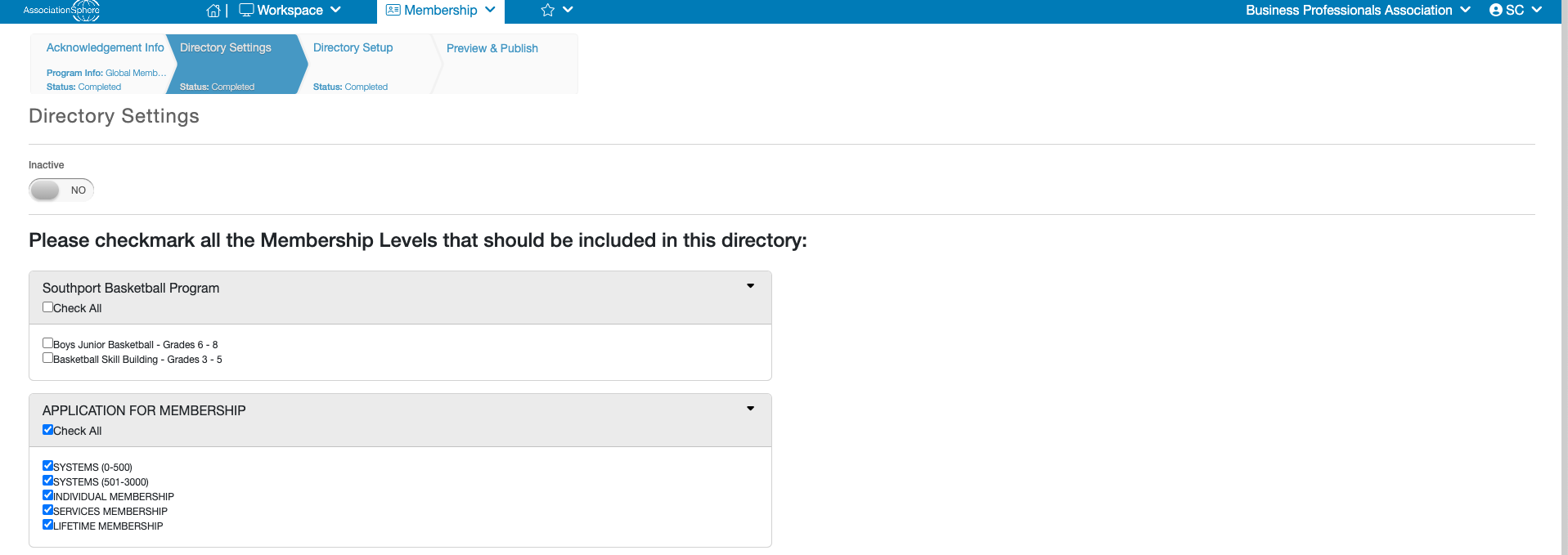 **2. Directory Settings**
**Inactive** – Set to “YES” if you wish to deactivate this directory from being seen.
**Membership Levels**– Select all the Levels of membership you wish to have visible on this directory.
**2. Directory Settings**
**Inactive** – Set to “YES” if you wish to deactivate this directory from being seen.
**Membership Levels**– Select all the Levels of membership you wish to have visible on this directory.
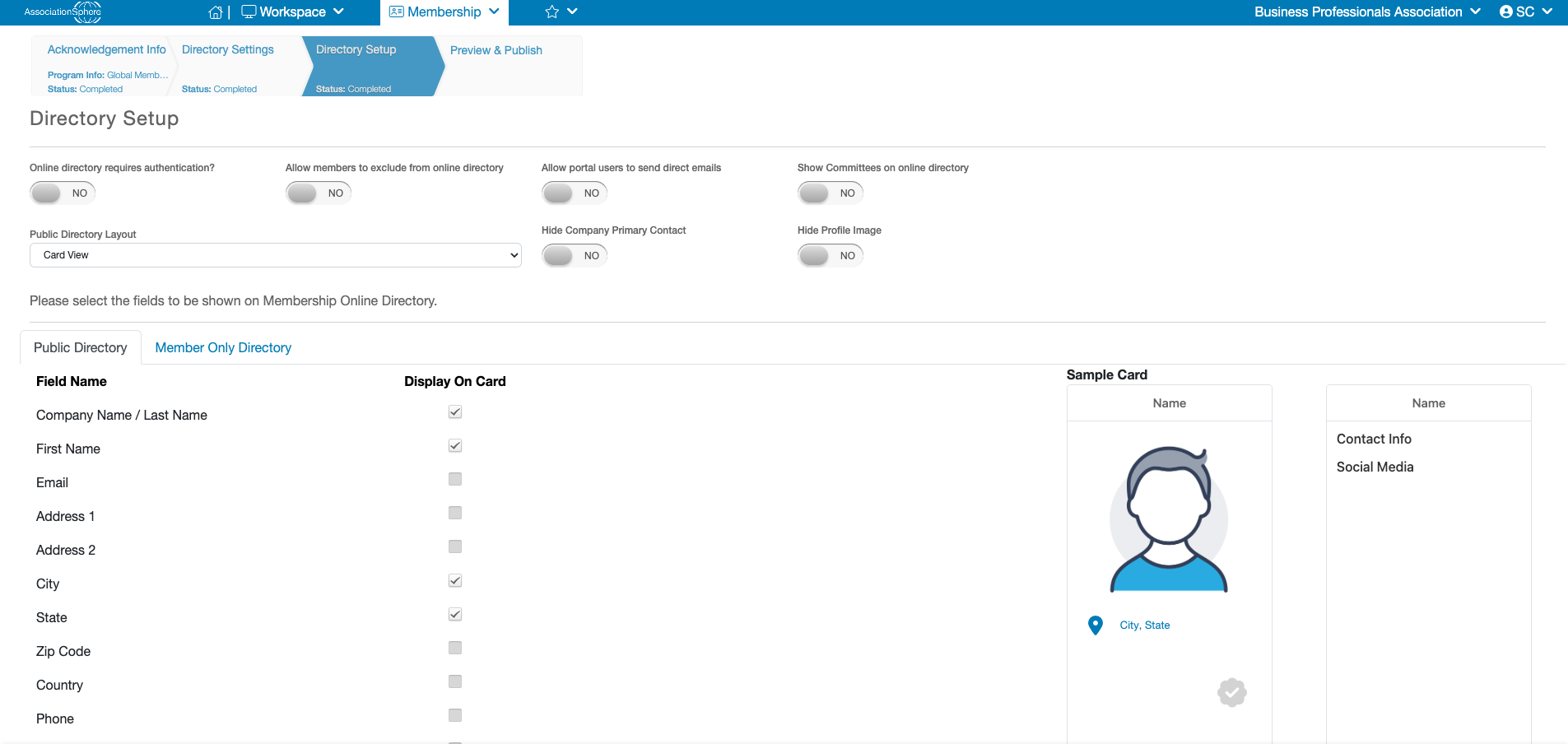 **3. Directory Setup**
The setup is the same as the normal directory, to learn more about those features please click here.
**3. Directory Setup**
The setup is the same as the normal directory, to learn more about those features please click here.
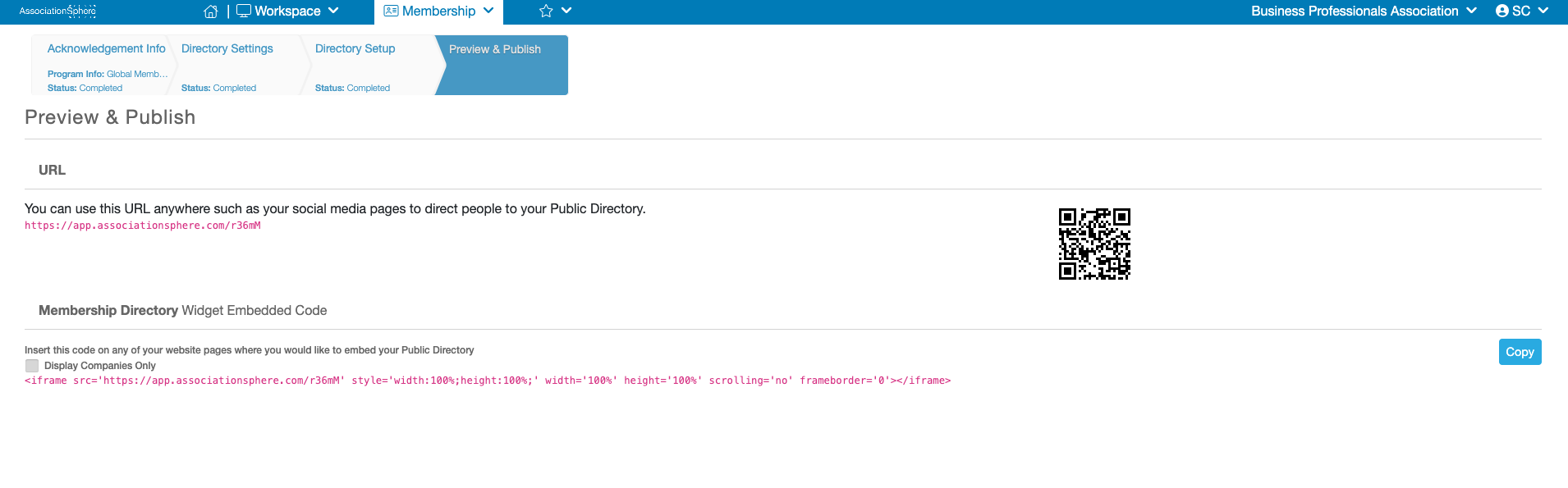 **4. Preview & Publish**
Here you will find the URL, QR Code and Embed code to give public access to this directory.
**4. Preview & Publish**
Here you will find the URL, QR Code and Embed code to give public access to this directory.
 After the setup of your global membership directory is complete you can always return to the grid, select the directories row and click the “View/Edit” button to modify it. You can also delete the directory using the trashcan icon on the grid. Or go into the setup to make it “Inactive” if you don’t wish to completely delete it.