# How can I create an invoice for an event transaction?
> Source: https://support.associationsphere.com/how-can-i-create-an-invoice-for-an-event-transaction | Updated: 2026-09-08T02:58:45Z
There are two ways to generate invoices for event transactions - automatically from an event page and manually after an event transaction with the Pay Later option.
**Automatic Invoices for Events**
The automatic invoicing option is located on the applicable event page. Create a new page or edit an existing page.
Proceed to the Event Settings Tab.
Under the Financial Information Section, switch **Allow Purchaser to Pay Later** to "**YES**."
Below that switch **Automatically Create Invoice if Pay Later** to "**YES**."
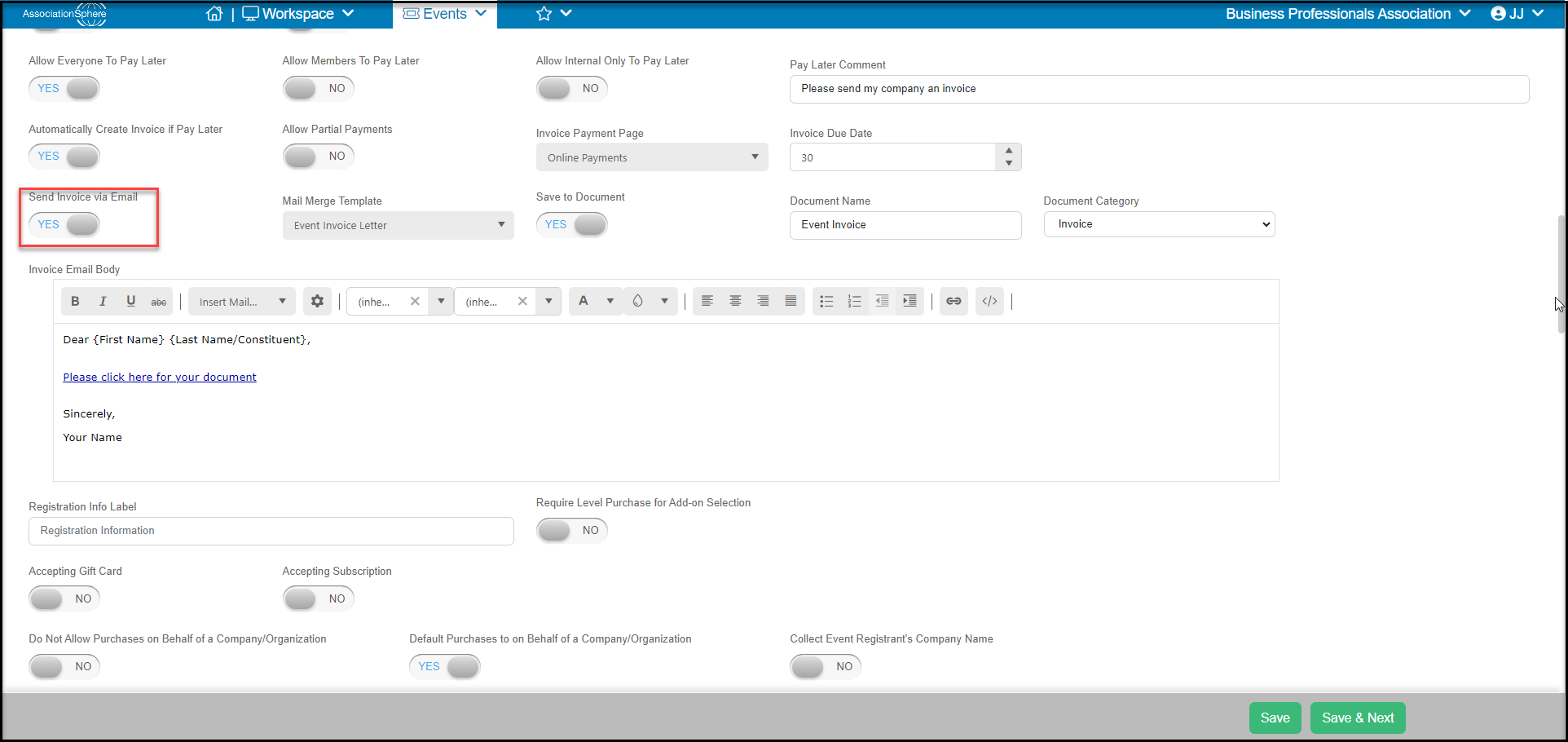
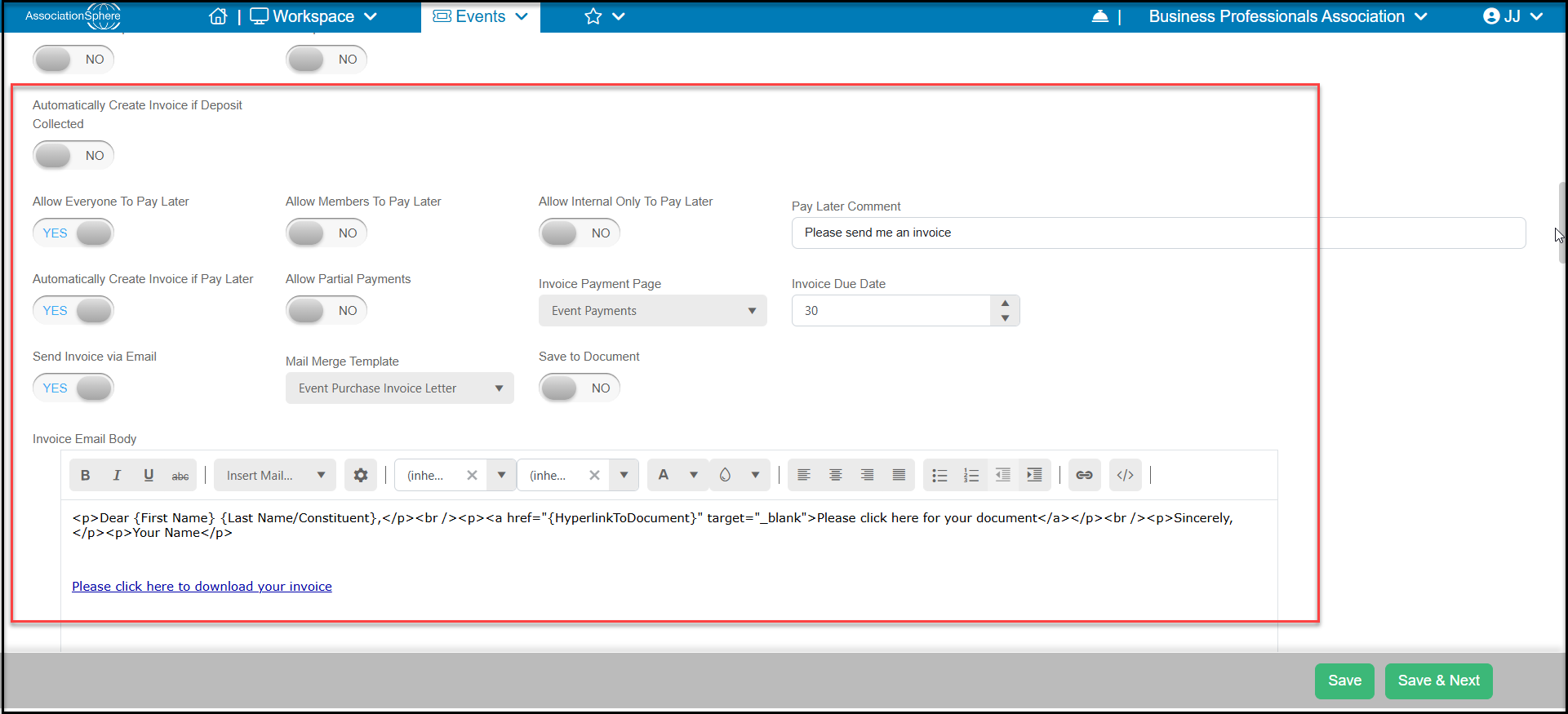 You can also automatically send the invoice once it is created by toggling **Send Invoice via Email** to **YES.** You can choose the mail merge invoice template, archive it to the purchaser's documents and customize the email message.
 Make your other applicable choices and click **Save & Next** to proceed. Once all the sections and tab are complete and the page is active, an invoice will be generated along with each Pay Later transaction.
**Manual Invoices for Events**
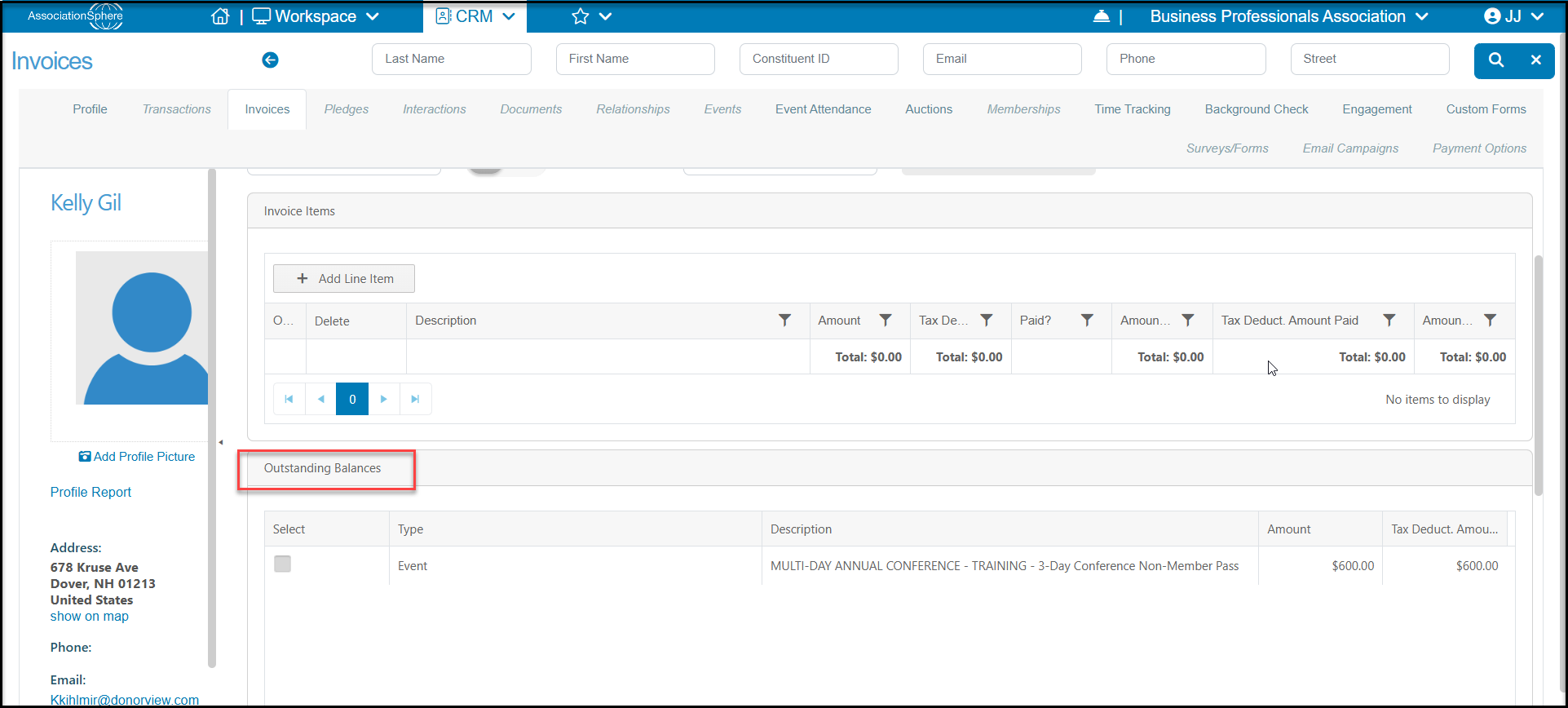
If the automatic invoice option is not turned on and an event transaction is processed as "**Pay Later**," the event purchase status will be Pending. To create an invoice for an event transaction with an outstanding payment due, you will create a new invoices from the main Invoices Grid in the Transactions & Invoices module, click on **+New**then select **Invoice**, or from the constituent's Invoices Tab, click on**Add**, then **Invoice**. Check the box next to the event levels and add-ons from the **Outstanding Balances** section and complete the rest of the fields. Click **Save** to complete the invoice, **Save and New** to complete and start another, or **Save and Print** to complete and open the Print/Email Mail Merge window.
Note that if the event transactions are not listed in the Outstanding Balances section, there may already be an invoice created or the transactions have already been paid.
For more information see the article ["How do I create an invoice manually?"](./how-do-i-create-an-invoice-manually)
Make your other applicable choices and click **Save & Next** to proceed. Once all the sections and tab are complete and the page is active, an invoice will be generated along with each Pay Later transaction.
**Manual Invoices for Events**
If the automatic invoice option is not turned on and an event transaction is processed as "**Pay Later**," the event purchase status will be Pending. To create an invoice for an event transaction with an outstanding payment due, you will create a new invoices from the main Invoices Grid in the Transactions & Invoices module, click on **+New**then select **Invoice**, or from the constituent's Invoices Tab, click on**Add**, then **Invoice**. Check the box next to the event levels and add-ons from the **Outstanding Balances** section and complete the rest of the fields. Click **Save** to complete the invoice, **Save and New** to complete and start another, or **Save and Print** to complete and open the Print/Email Mail Merge window.
Note that if the event transactions are not listed in the Outstanding Balances section, there may already be an invoice created or the transactions have already been paid.
For more information see the article ["How do I create an invoice manually?"](./how-do-i-create-an-invoice-manually)