# How can I print volunteer name badges or tags?
> Source: https://support.associationsphere.com/how-can-i-print-volunteer-name-badges-or-tags | Updated: 2026-07-15T20:44:17Z
You can print individual name badges/tags one at a time, or you can use the Actions menu to print many at once.
**Printing a Single Name Tag or Badge**
The Tools menu will also allow you to print a single name tag or badge.
- A name tag include just the attendee's first and last name.
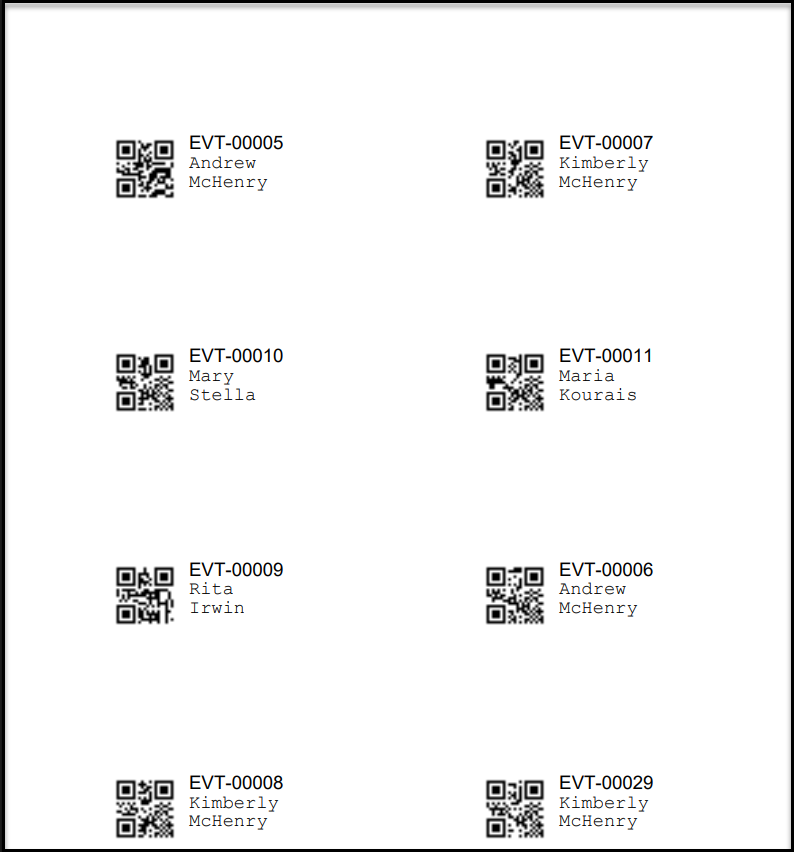
- A badge includes the attendee's first and last name, the Ticket #, and the QR code for the ticket number which can be scanned to check the person into the event.
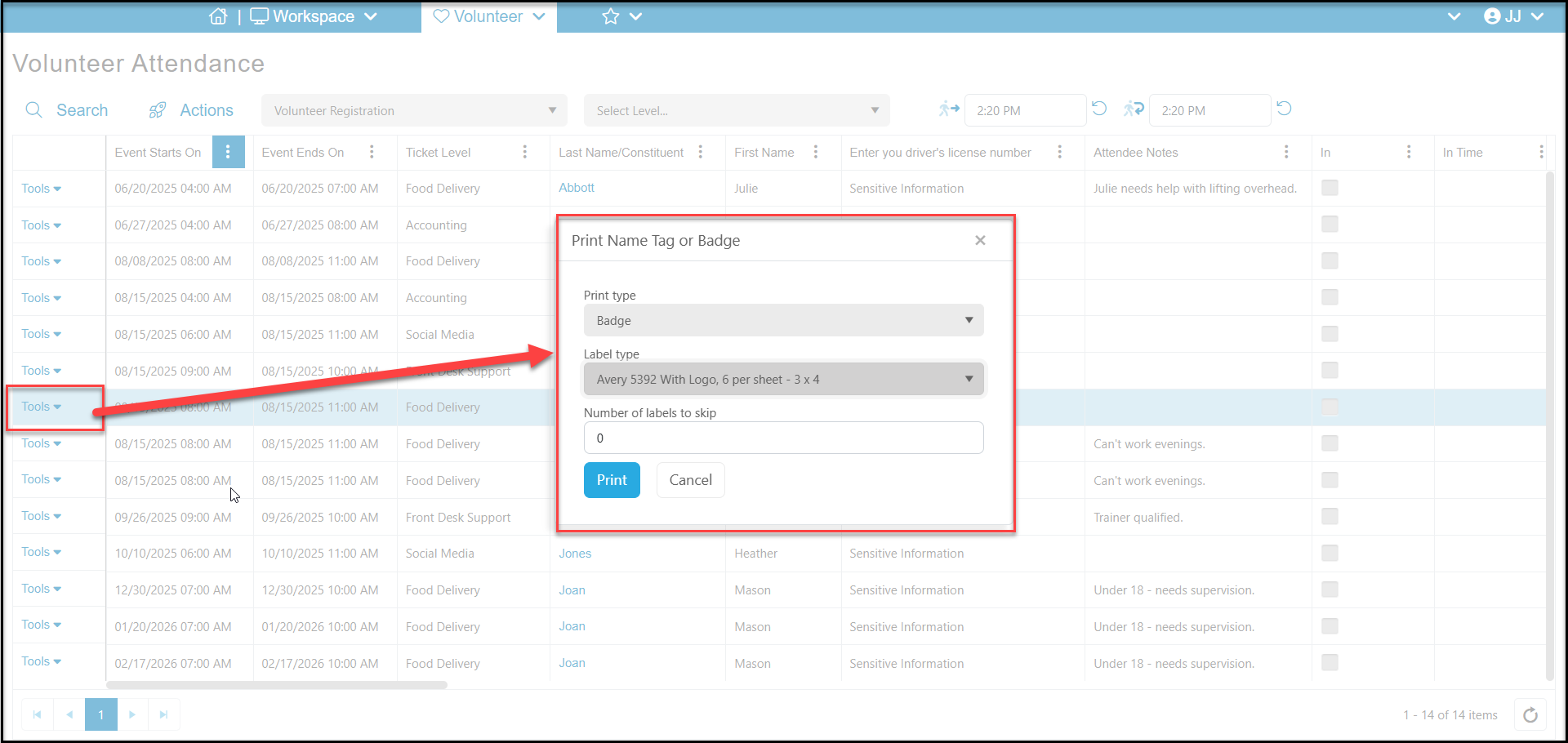
To print a single badge or name tag:
1. From the **Tools** menu, click on **Print**.
2. In the new window, select Name Tag or Badge from the dropdown under**Print type.**
3. Choose the type of label to print on from the dropdown under **Label type.**
4. Click **Print**to create a pdf file that you can open from your Downloads folder to print.
 **Printing Multiple Name Tags or Badges**
From the Actions menu, select **Print Name Tags** or **Print Badges.**
**Printing Multiple Name Tags or Badges**
From the Actions menu, select **Print Name Tags** or **Print Badges.**
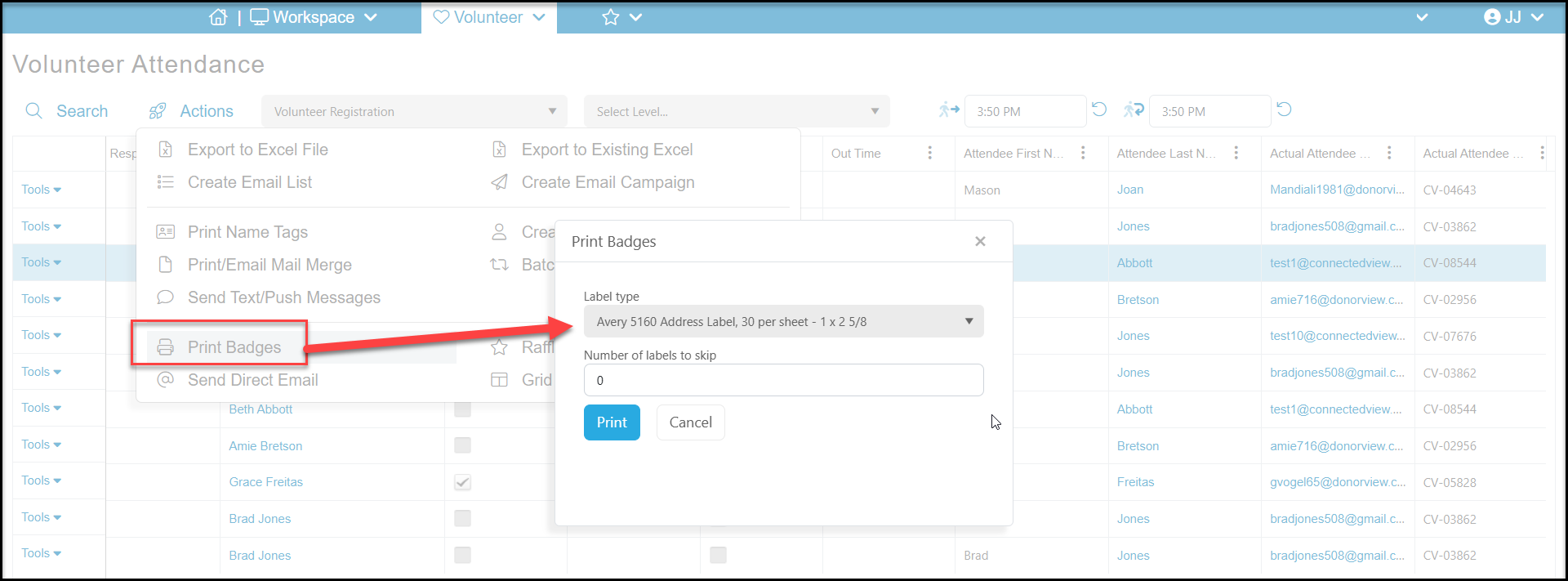
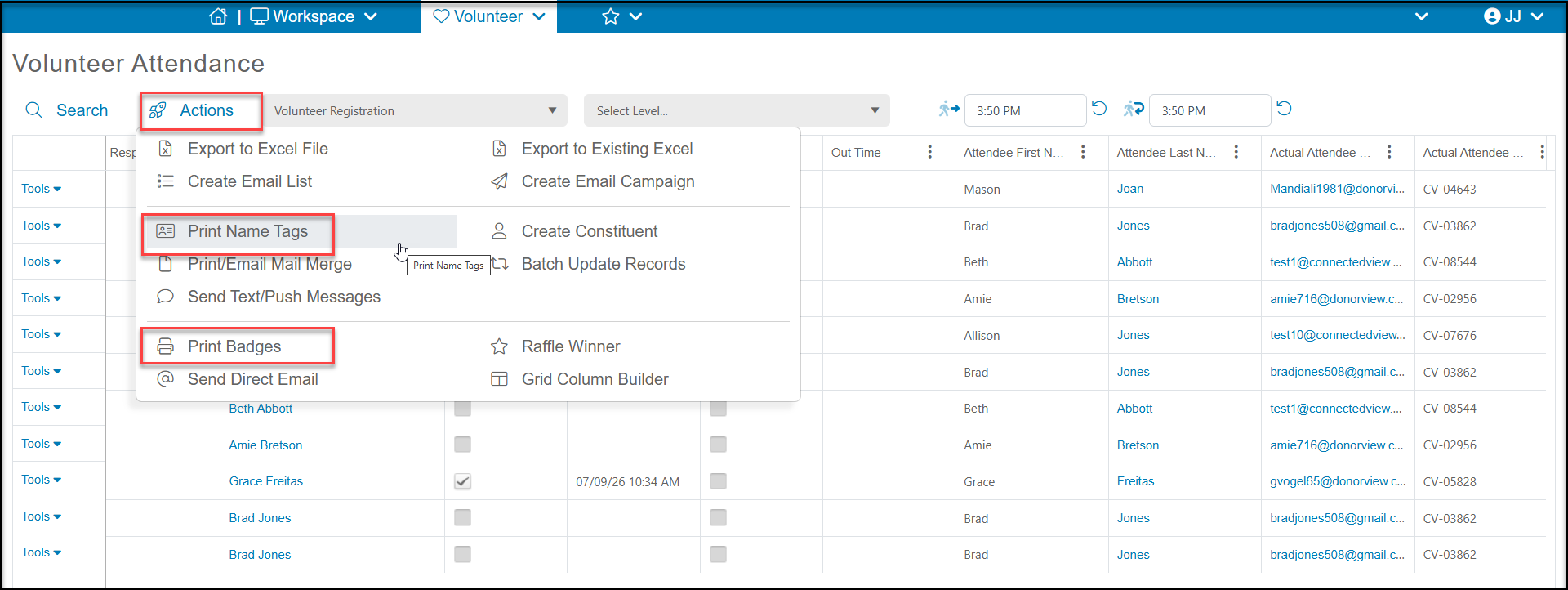 1. In the new window, select the **Label Type**.
2. If you wish to skip some of the labels on your page, you can choose **Number of labels to skip**. This would be used if you have already used the first four labels, enter "4" for example, and wish to start printing on the 5th label on the page.
3. Click **Print**to download a pdf file.
1. In the new window, select the **Label Type**.
2. If you wish to skip some of the labels on your page, you can choose **Number of labels to skip**. This would be used if you have already used the first four labels, enter "4" for example, and wish to start printing on the 5th label on the page.
3. Click **Print**to download a pdf file.
 The name tags print first and last name (you also have the option to include their Company (employer). Note that is someone in attending for multiple shifts, their name will be printed for each record (row) showing in your view.
 Badges include the ticket level number, the first name, last name, and a QR code that can be used for check in.