# How do bidders sign up for the online auction at the event?
> Source: https://support.associationsphere.com/how-do-bidders-sign-up-for-the-online-auction-at-the-event | Updated: 2024-04-08T19:25:49Z
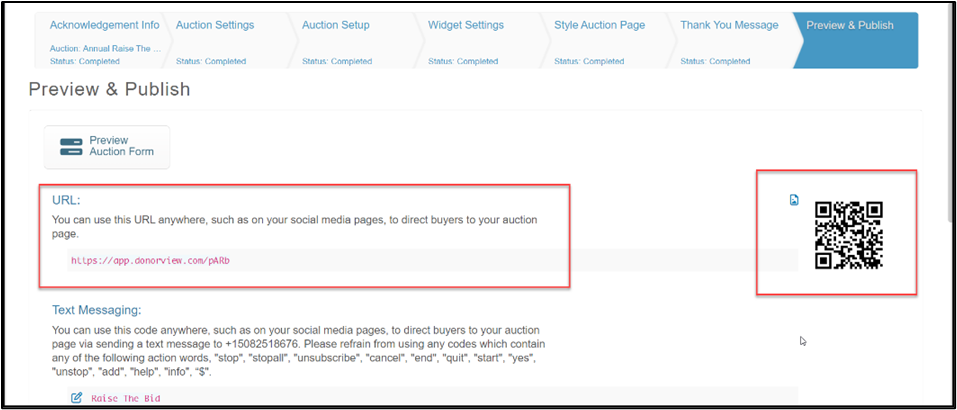
1. Bidders can access the auction from the URL link or a by scanning the QR code. Many organizations will download the QR code and add it to the event program, create posters, or table stands for guests to scan with their mobile phones.
2. The QR code is found on the Preview and Publish tab of the auction page.
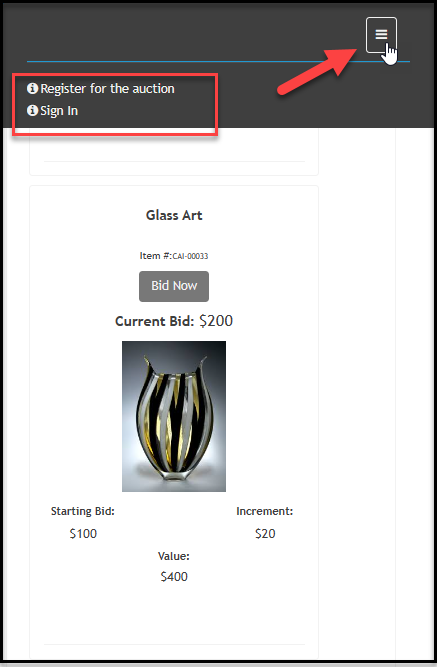
 3. From a mobile device on the auction page, auction bidders will click on the three lines in the top right corner to reveal the Register or Sign in options.
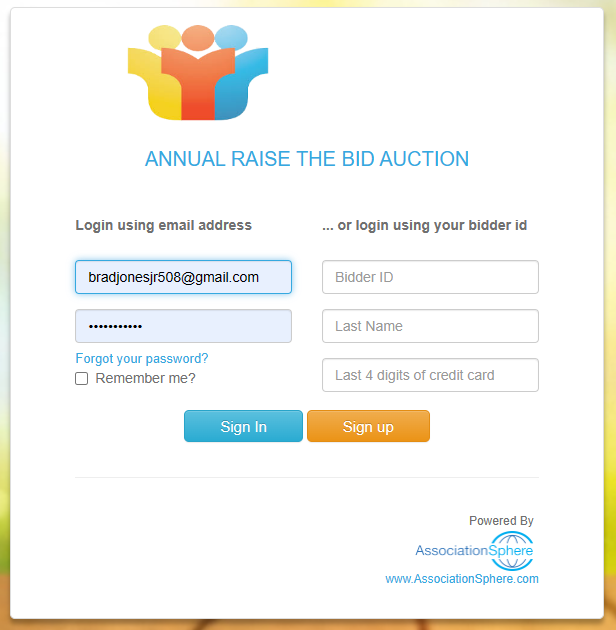
 4. If they have a portal account or have a bidder ID and credit card on file already, they can use the Sign In link and this this login:
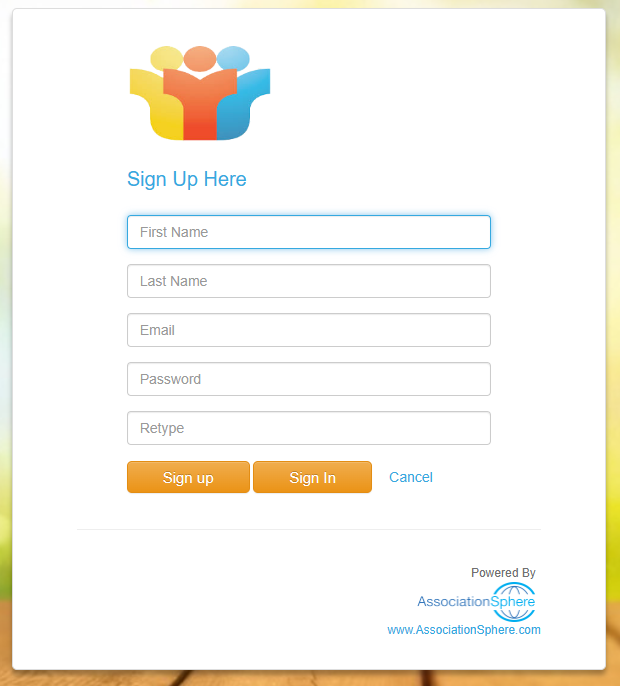
 5. If they do not have a portal account yet, or if they don't know, they can use the Sign Up link to see this screen:
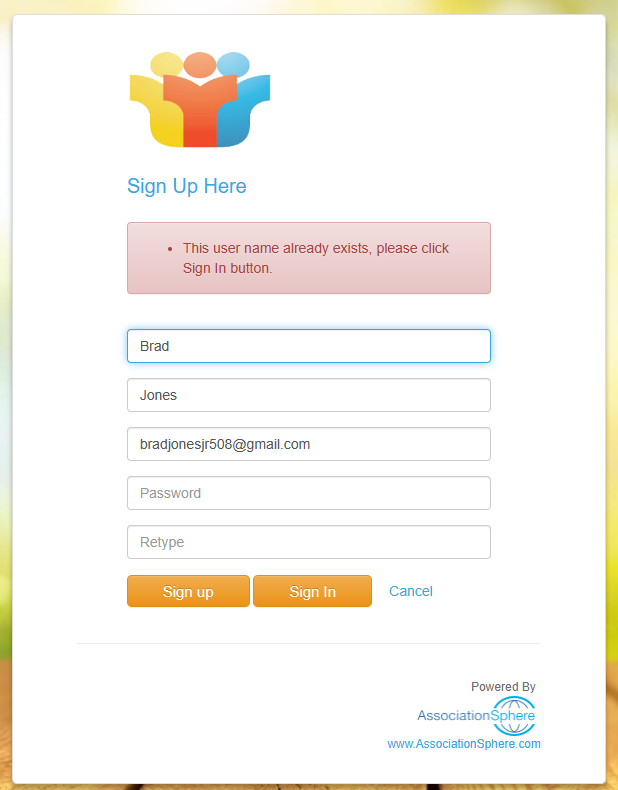
 6. If account has already been created with that email address, they will get this message and will instead click **Sign In.**
 7. If they forgot their password, they can reset it by clicking on **Forgot Password** on the sign in screen.
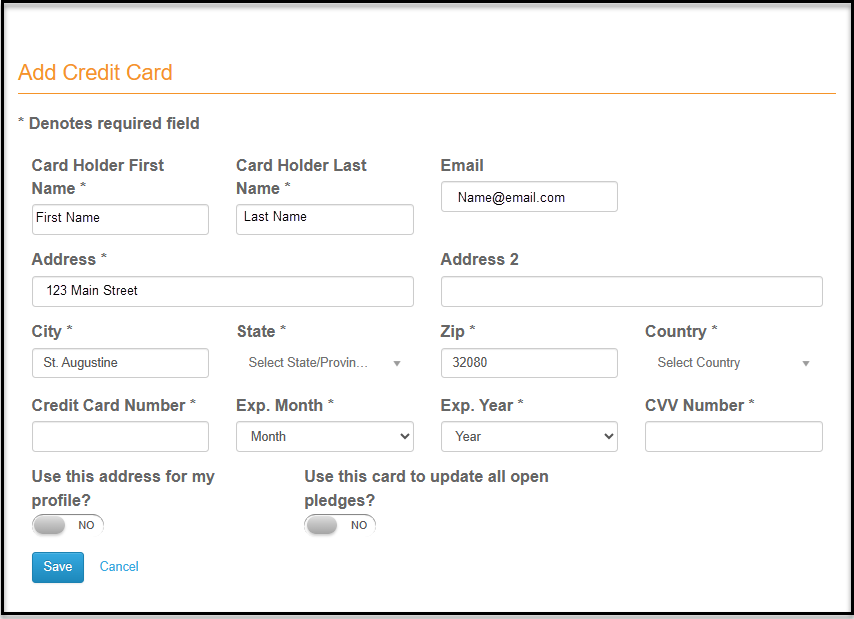
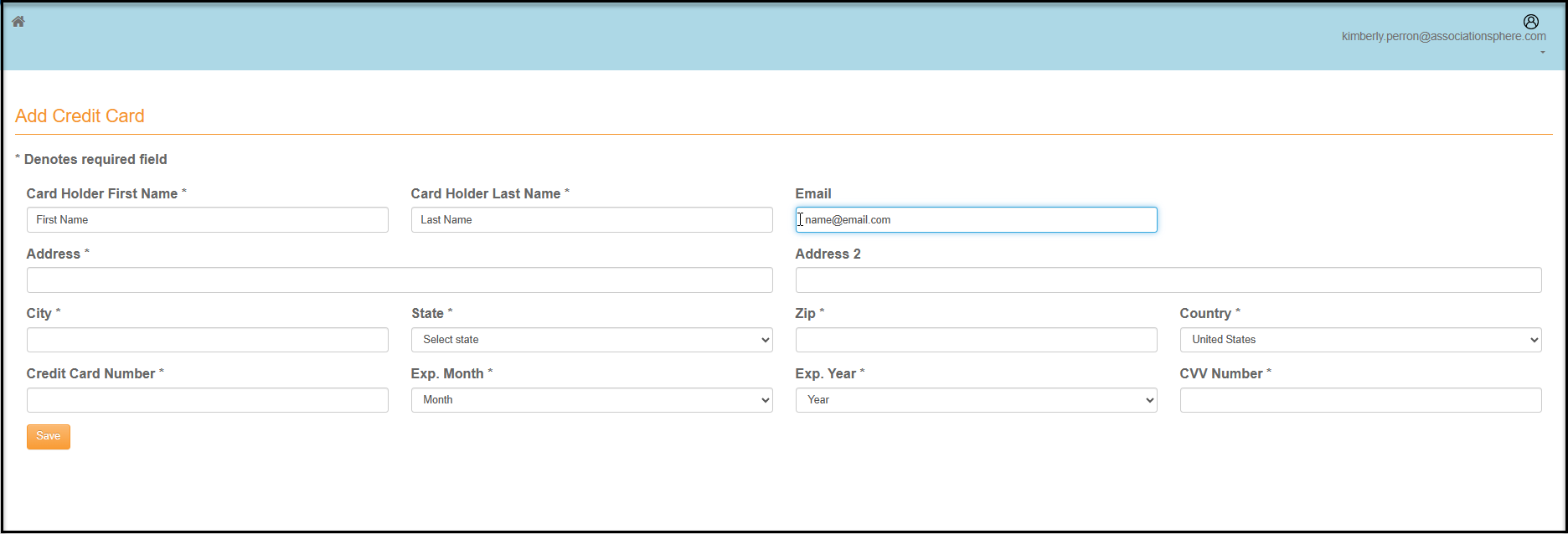
8. If the use the Sign Up feature and an account has not already been created, they will be directed to this screen to add their credit card or confirm their information.
7. If they forgot their password, they can reset it by clicking on **Forgot Password** on the sign in screen.
8. If the use the Sign Up feature and an account has not already been created, they will be directed to this screen to add their credit card or confirm their information.
 9. Bidders who have a portal account, but do not have a credit card on file will be asked to provide the information if they attempt to place a bid. They can click on **Payment Options** to open their account.
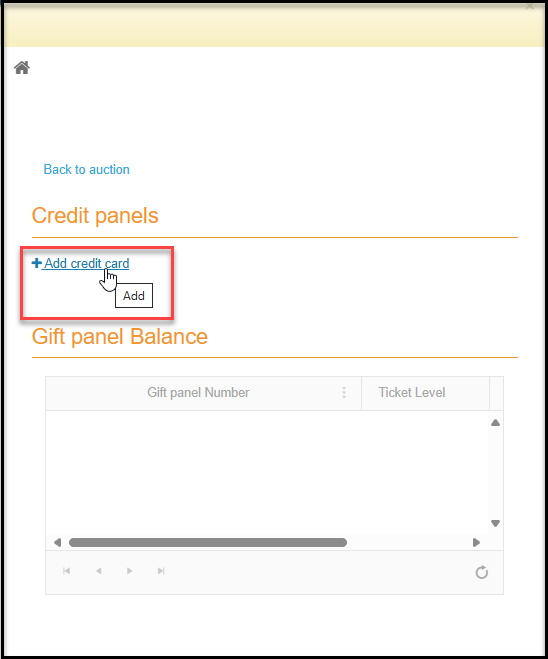
 10. This will take them to a screen to add a credit card and they will click on **+Add credit card.**
 11. They will enter their address information if missing and the credit card number.
12. AssociationSphere accepts Visa, Mastercard, Discover, and American Express.
13. They will click on the blue **Save**button to update the information.
11. They will enter their address information if missing and the credit card number.
12. AssociationSphere accepts Visa, Mastercard, Discover, and American Express.
13. They will click on the blue **Save**button to update the information.