# How do generic question types work in a survey or form?
> Source: https://support.associationsphere.com/how-do-generic-question-types-work-in-a-survey-or-form | Updated: 2026-06-22T20:35:02Z
Generic question types allow you to collect information and responses to questions that will not update or affect a constituents record. They include:
- Currency
- Document Upload
- Email Address
- Image
- Instruction
- Multiple Lines of Text
- Multi-Select Checkboxes
- Multi-Select Table
- Numeric Scale
- Numeric Value with Decimal Places
- Numeric Value without Decimal Places
- Percent
- Signature
- Single Line of Text
- Single-Select Checkbox
- Single-Select Drop Down
- Single-Select Option Buttons
- Single-Select Table
- Specific Date
- Star Rating
Examples of the various generic questions are shown below.
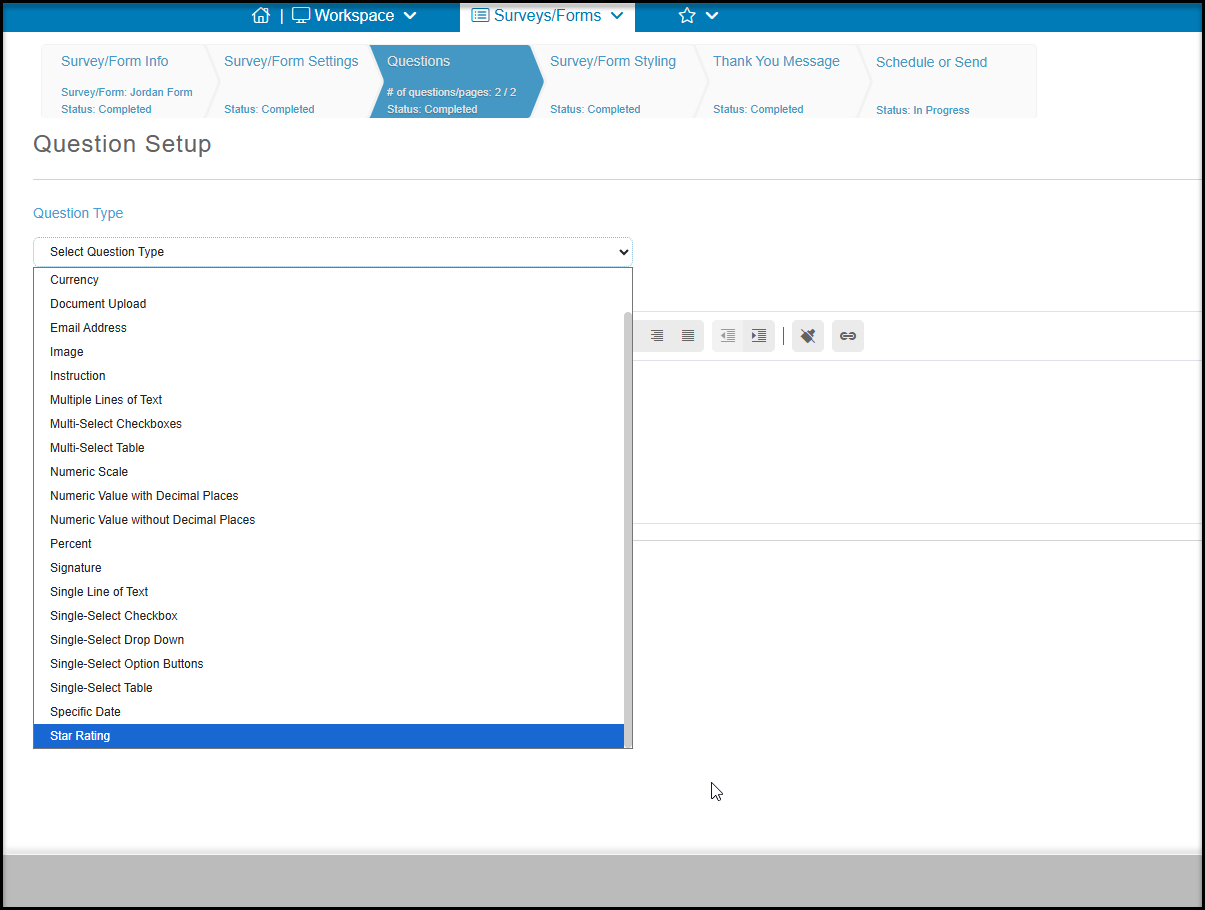 **Currency**
The currency question type allows you to ask for a number that will be converted into a currency with two decimal places. This could be used to ask about the value of an item, for example. The **Question Text** area is where you enter the question being asked.
When you are finished setting up your question, click on **Save Question** at the bottom of the page to add this question to your survey.
**Currency**
The currency question type allows you to ask for a number that will be converted into a currency with two decimal places. This could be used to ask about the value of an item, for example. The **Question Text** area is where you enter the question being asked.
When you are finished setting up your question, click on **Save Question** at the bottom of the page to add this question to your survey.
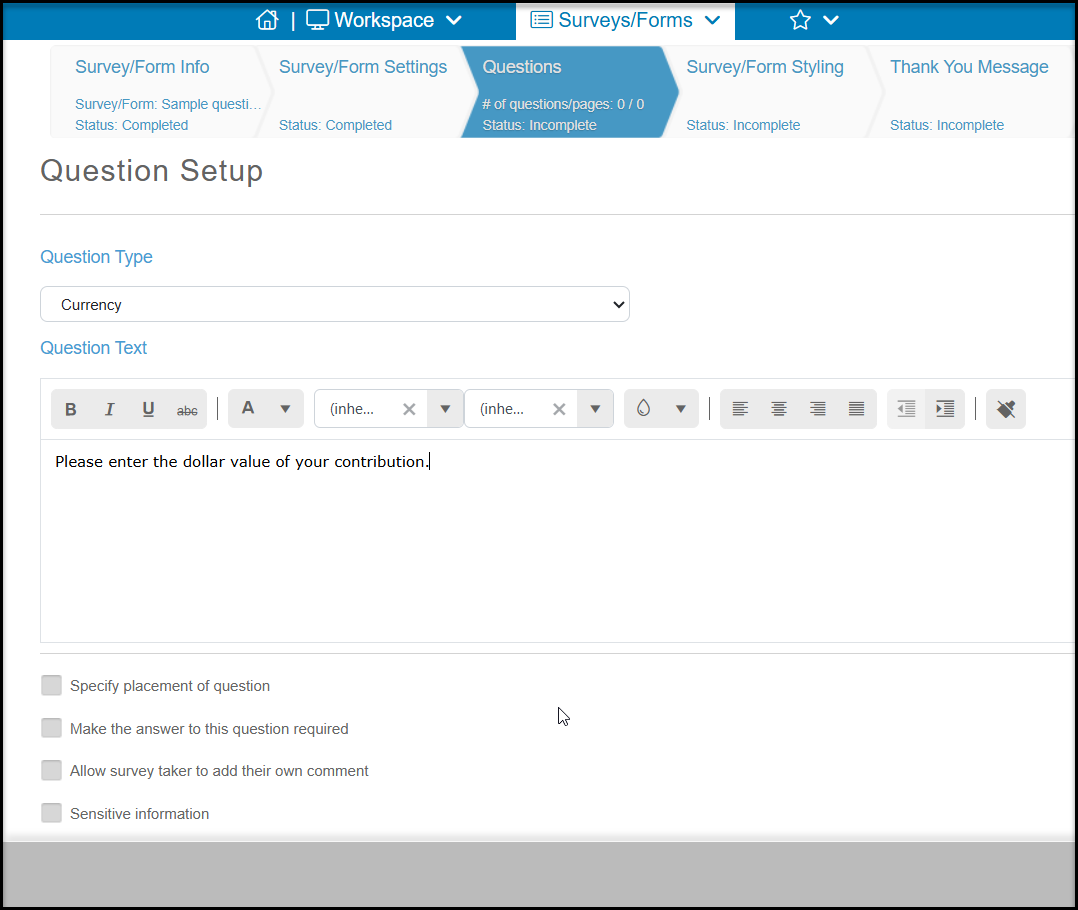 On the survey, the respondent will see the question text shown above the box where the respondent enters a number. Once they enter their number, it will automatically be updated to a currency display.
 **Document Upload**
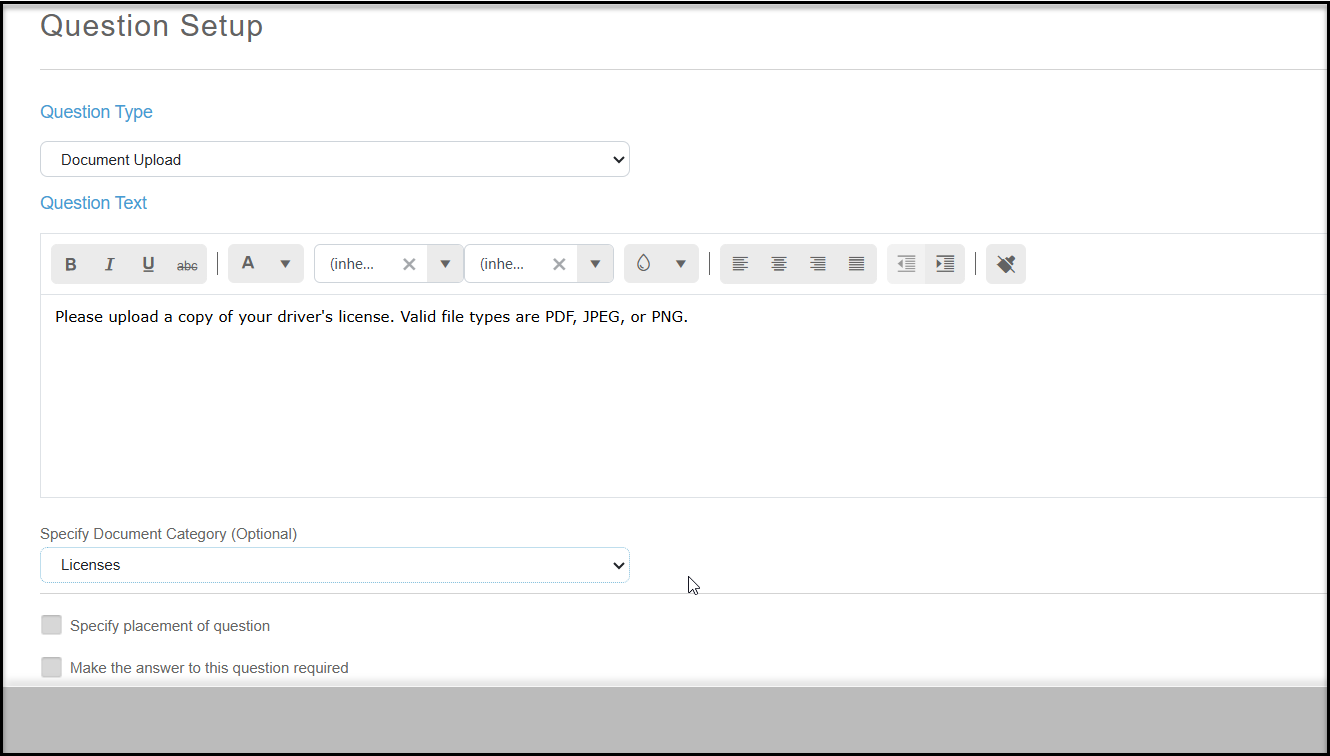
The Document Upload question type allows you to ask the respondent to upload a document. You can also specify a Document Category, which is helpful if you are linking the survey to a constituent record. If Constituent Field questions are included, like Name and Email, the uploaded document will also be saved in the constituent's Documents tab and the Documents grid in the CRM module.
**Document Upload**
The Document Upload question type allows you to ask the respondent to upload a document. You can also specify a Document Category, which is helpful if you are linking the survey to a constituent record. If Constituent Field questions are included, like Name and Email, the uploaded document will also be saved in the constituent's Documents tab and the Documents grid in the CRM module.
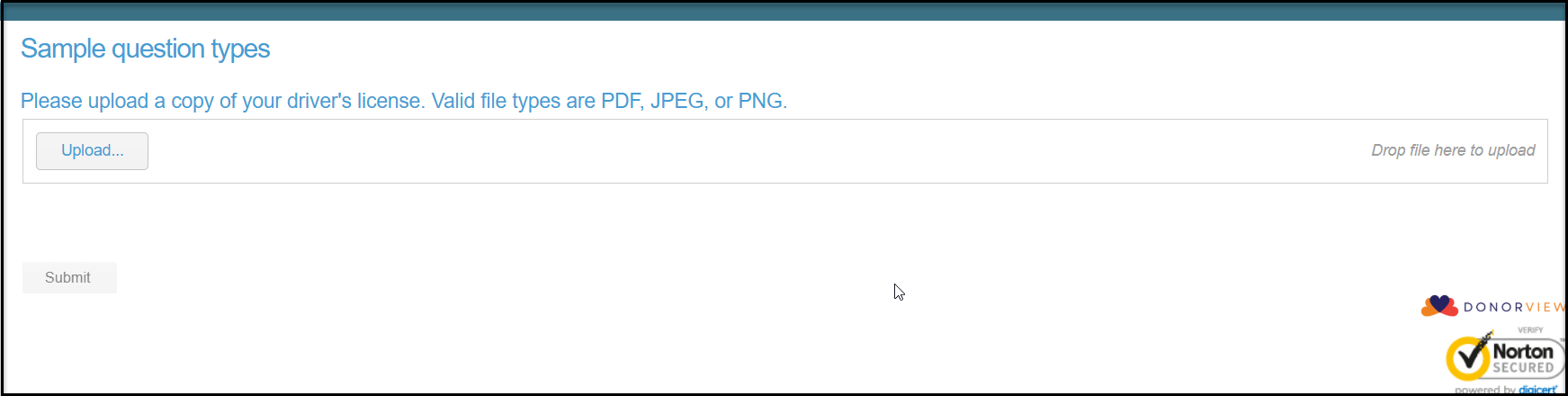
 On the survey, the respondent will click on **Upload**to open their computer files and select the document to upload.
 **Email Address**
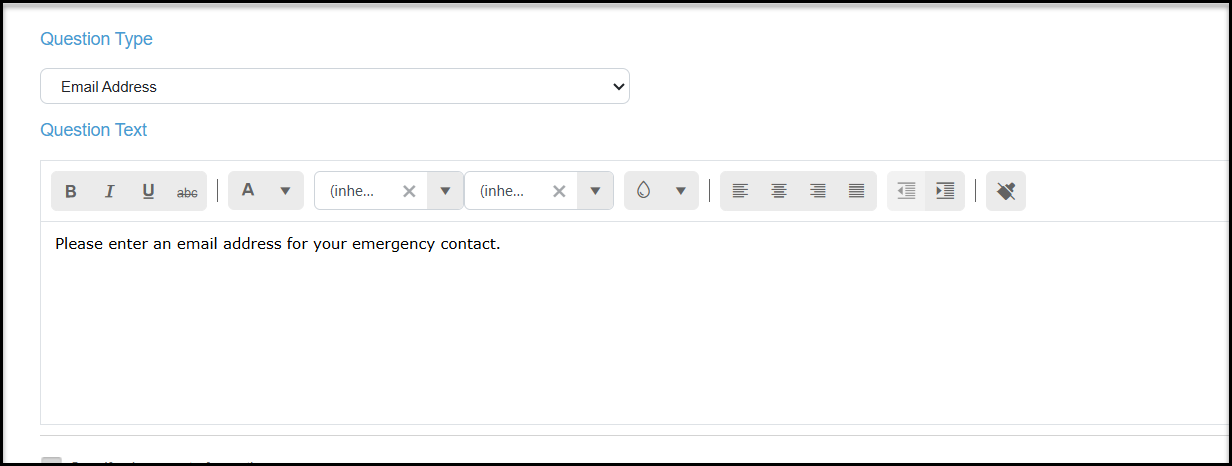
The Email Address question type does not update any fields on the constituent's record, it is simply a text field with a mask applied to ensure the respondent properly formats the field with “@” and a domain name. This question type is used to collect additional email addresses or email addresses not specifically for the constituent, as in the example below.
**Email Address**
The Email Address question type does not update any fields on the constituent's record, it is simply a text field with a mask applied to ensure the respondent properly formats the field with “@” and a domain name. This question type is used to collect additional email addresses or email addresses not specifically for the constituent, as in the example below.
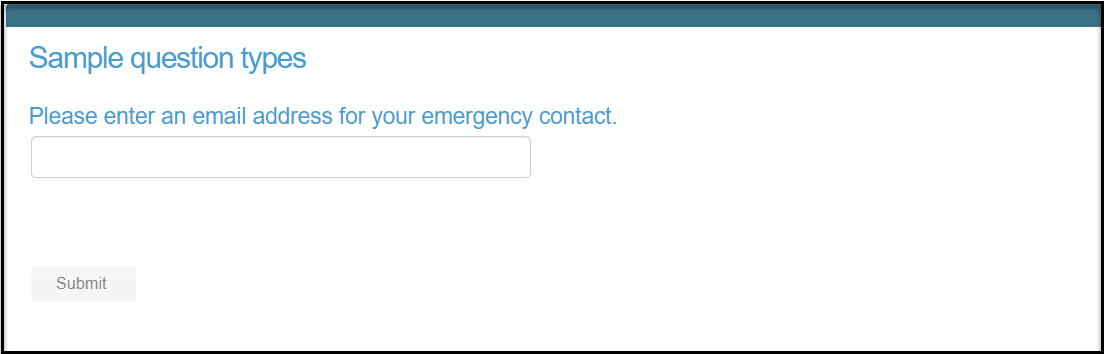
 On the survey the respondent will see the box to enter the email address. If they don't enter a proper email address, they will get an error message.
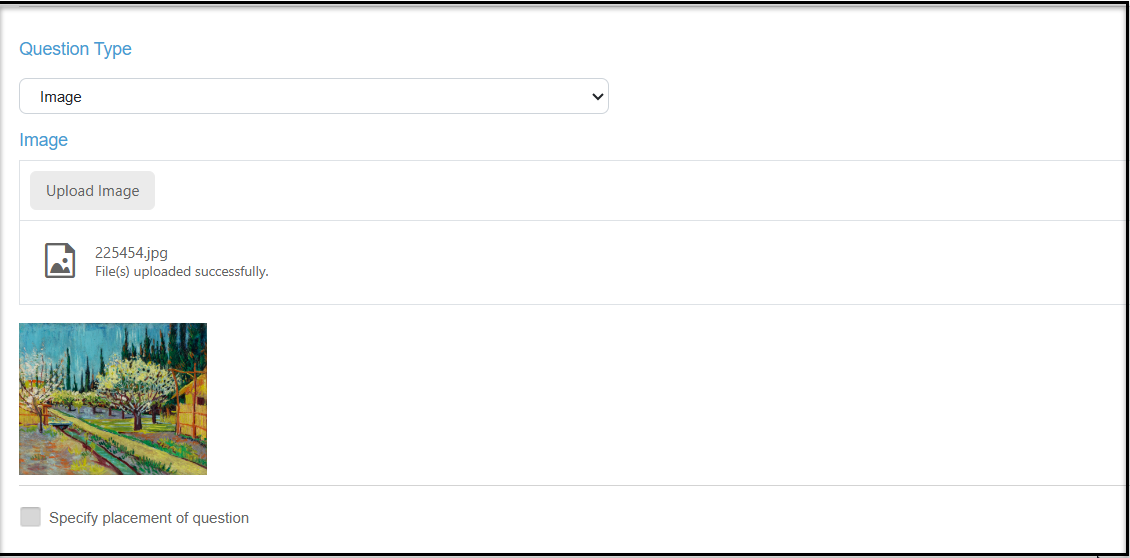
 **Image**
If you wish to add an image into your survey, you can choose the Image question type. This will insert the image in the order of your placement. If you wish it to be at the top of your survey, simply make it your first “question.”
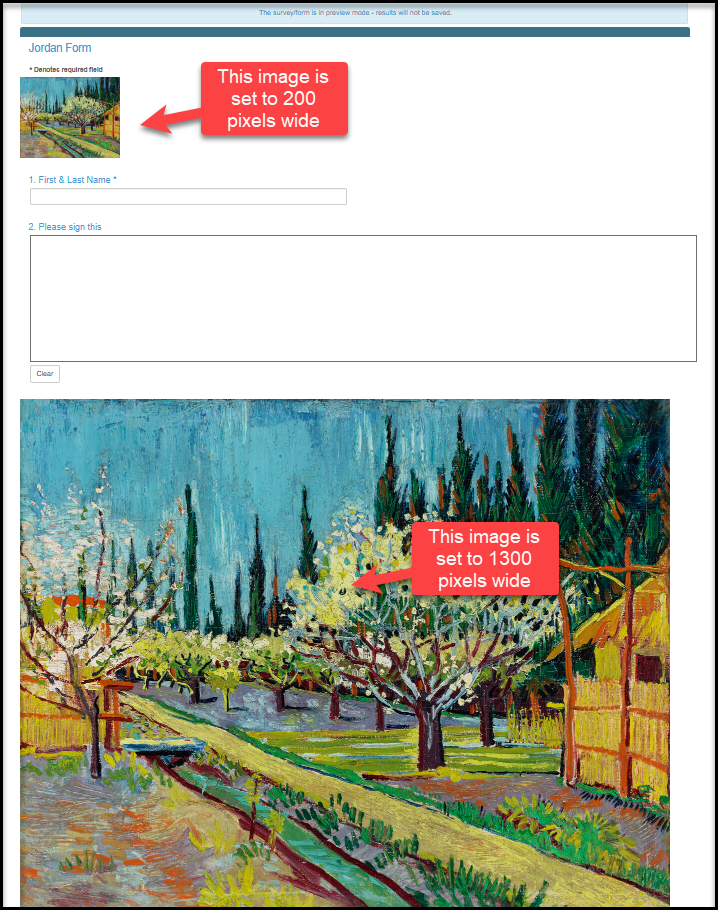
Click on Upload image to choose the image to add. Image sizes are limited to 10Mb. Be sure to crop or size the image prior to your upload. The maximum display width is the full page, or 1800 pixels. The images will left aligned and cannot be centered at this time.
**Image**
If you wish to add an image into your survey, you can choose the Image question type. This will insert the image in the order of your placement. If you wish it to be at the top of your survey, simply make it your first “question.”
Click on Upload image to choose the image to add. Image sizes are limited to 10Mb. Be sure to crop or size the image prior to your upload. The maximum display width is the full page, or 1800 pixels. The images will left aligned and cannot be centered at this time.
 An example of the image added to the survey is shown below.
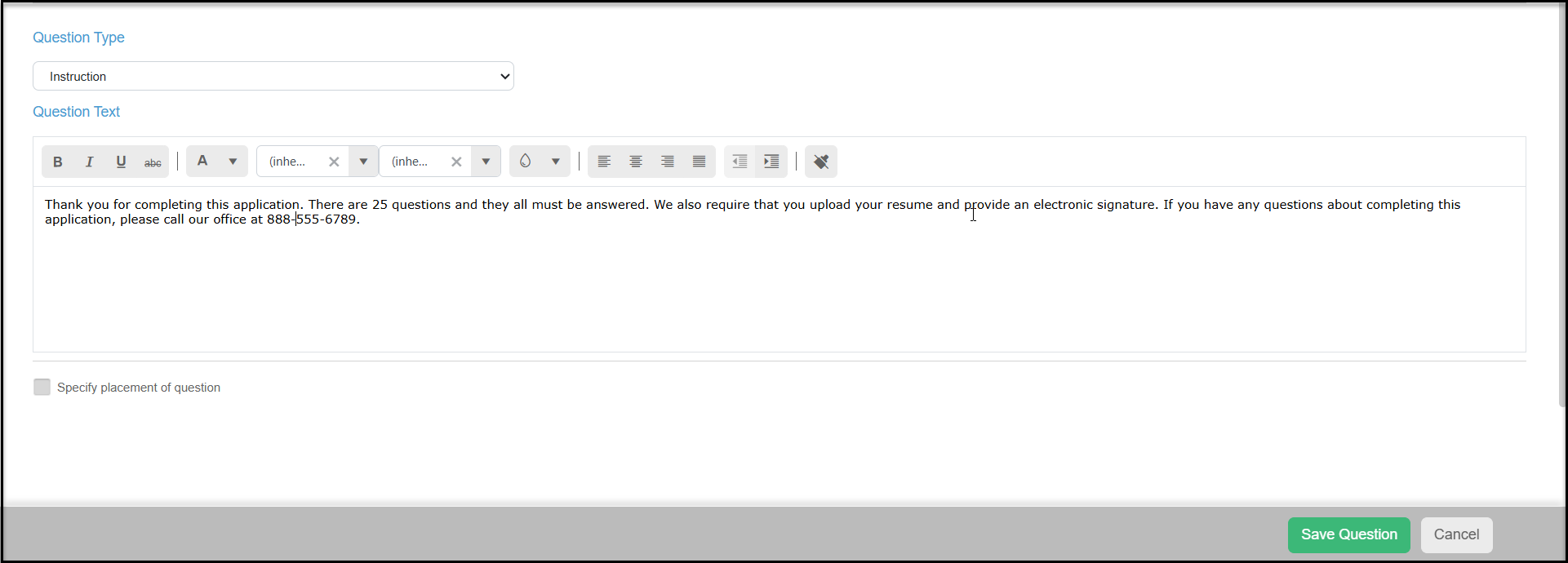
 **Instruction**
The instruction question type allows you to add instructions to your survey, but does not require a response.
**Instruction**
The instruction question type allows you to add instructions to your survey, but does not require a response.
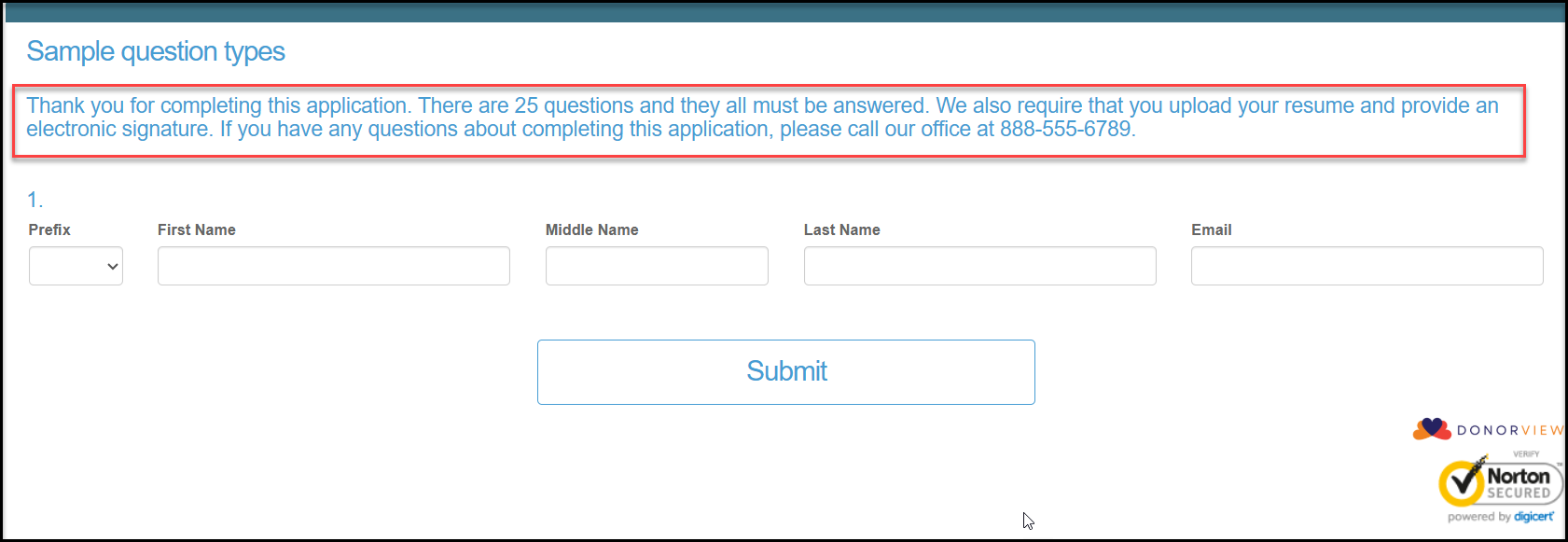
 The box in red below is the instruction, and then the next question can be seen below.
 **Multiple Lines of Text**
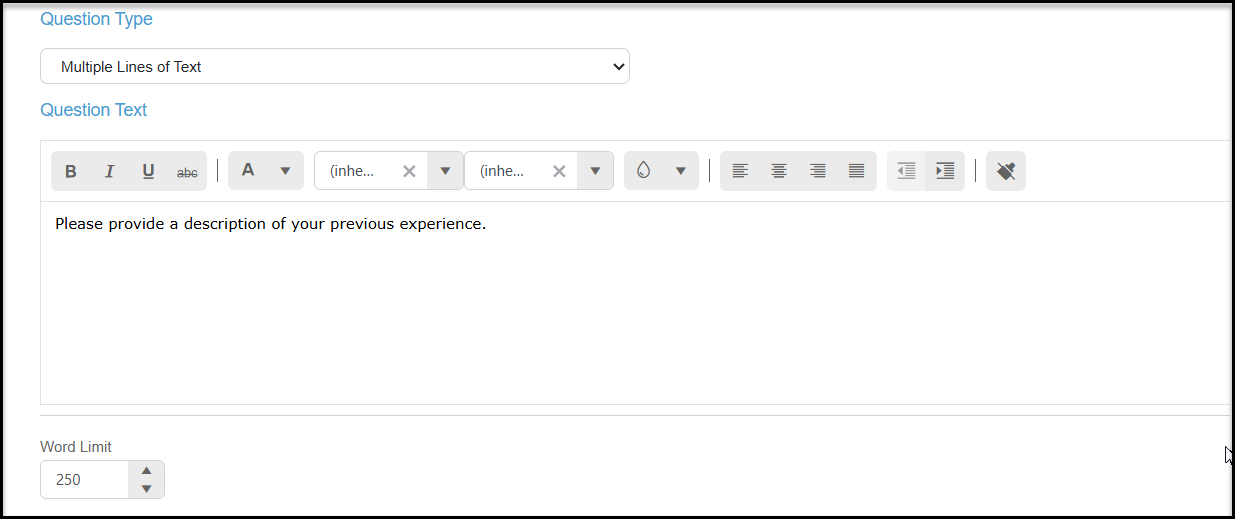
Multiple Lines of Text allows you to ask your respondents for paragraphs of information. You can add a Word Limit as desired.
**Multiple Lines of Text**
Multiple Lines of Text allows you to ask your respondents for paragraphs of information. You can add a Word Limit as desired.
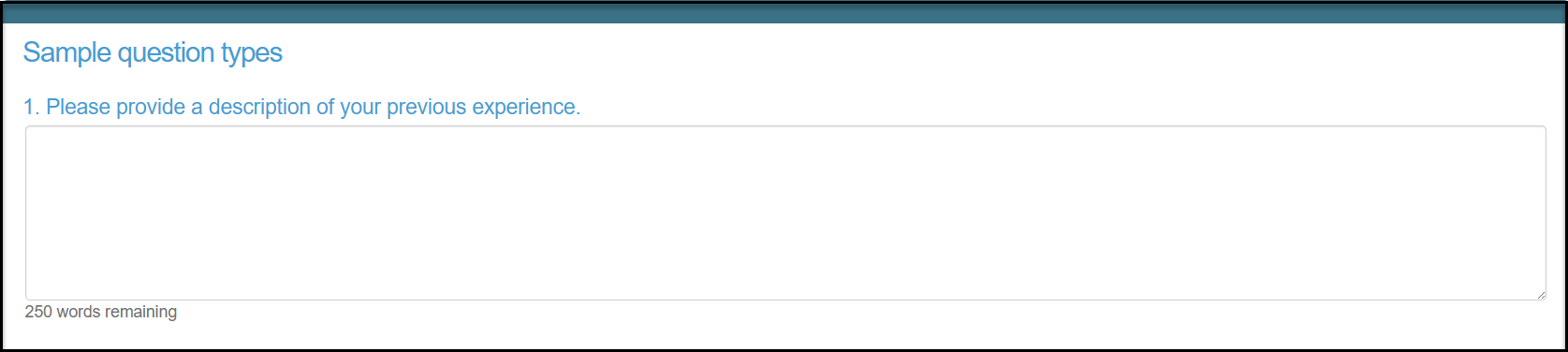
 On the survey the respondent will see a text box which will keep a count of words remaining.
 **Multi-Select Checkbox**
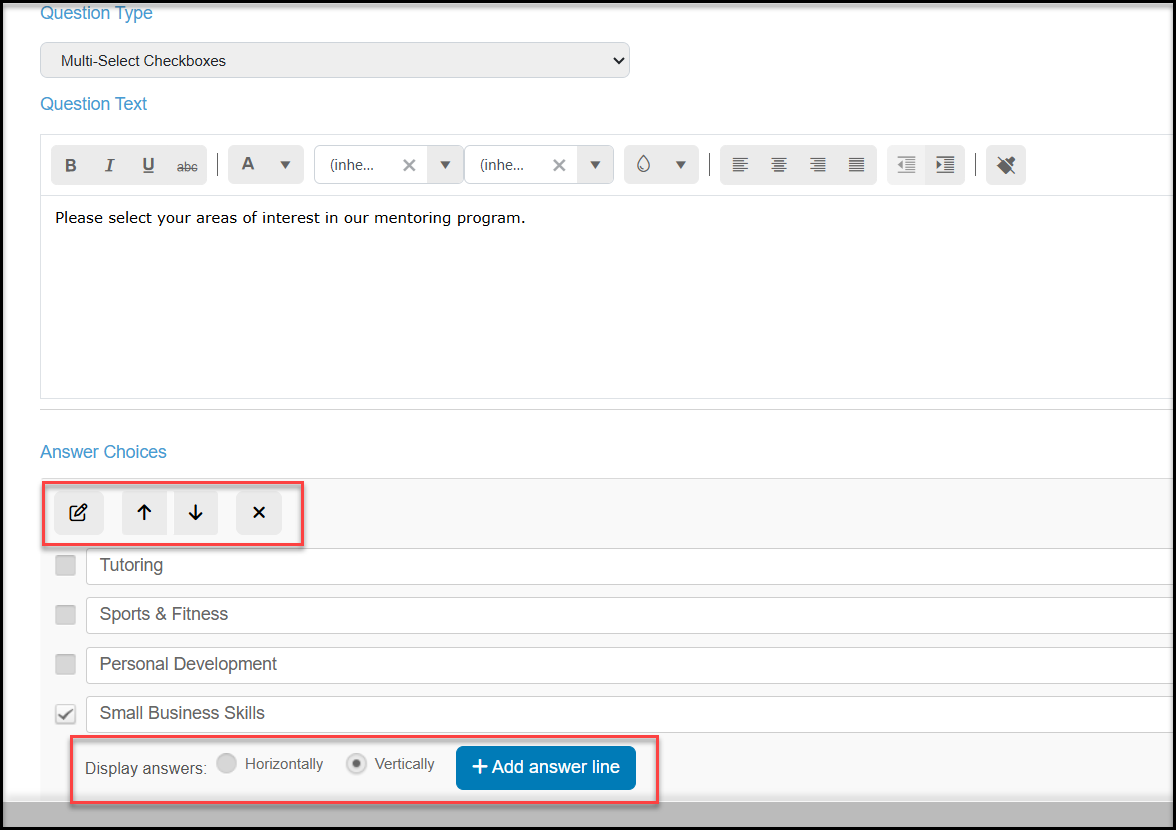
Multi-select checkboxes allow your respondent to choose multiple options. Start by clicking on **+Add answer line** to add you first choice. Continue to add additional answer options.
Once you have added your options, you can rearrange them by check the box next to one you would like to move and use the arrow icons to move it up or down the list.
Click on the edit icon (pencil and paper) to edit a selected response.
Click on the delete (x) icon to remove a choice from the list.
**Multi-Select Checkbox**
Multi-select checkboxes allow your respondent to choose multiple options. Start by clicking on **+Add answer line** to add you first choice. Continue to add additional answer options.
Once you have added your options, you can rearrange them by check the box next to one you would like to move and use the arrow icons to move it up or down the list.
Click on the edit icon (pencil and paper) to edit a selected response.
Click on the delete (x) icon to remove a choice from the list.
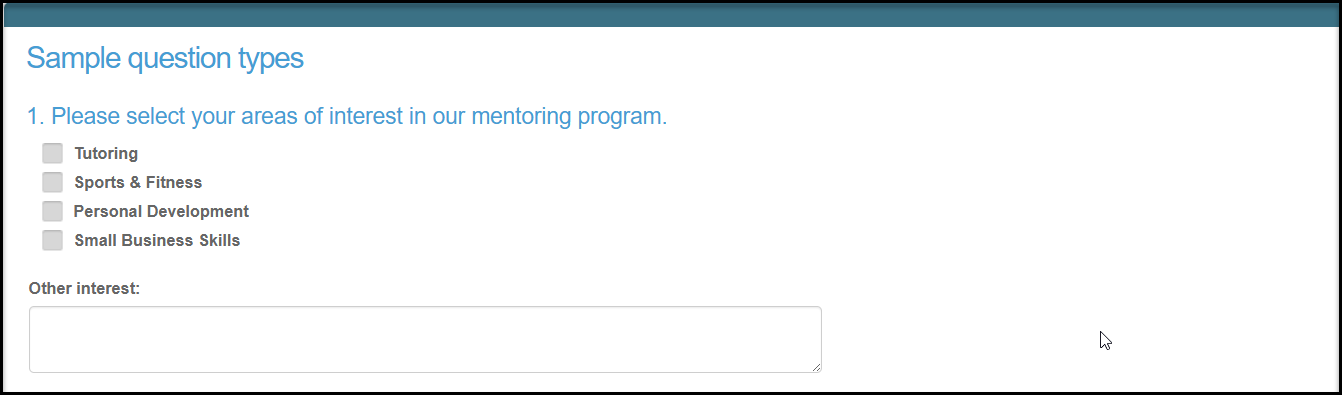
 On the survey the respondent will see the options available and can select multiple choices. If you have checked the box for “Allow survey taker to provide their own response” you would see that option listed below the choices.
 **Multi-Select Table**
A multi-select table allows your respondent to select multiple choices at once.
**Multi-Select Table**
A multi-select table allows your respondent to select multiple choices at once.
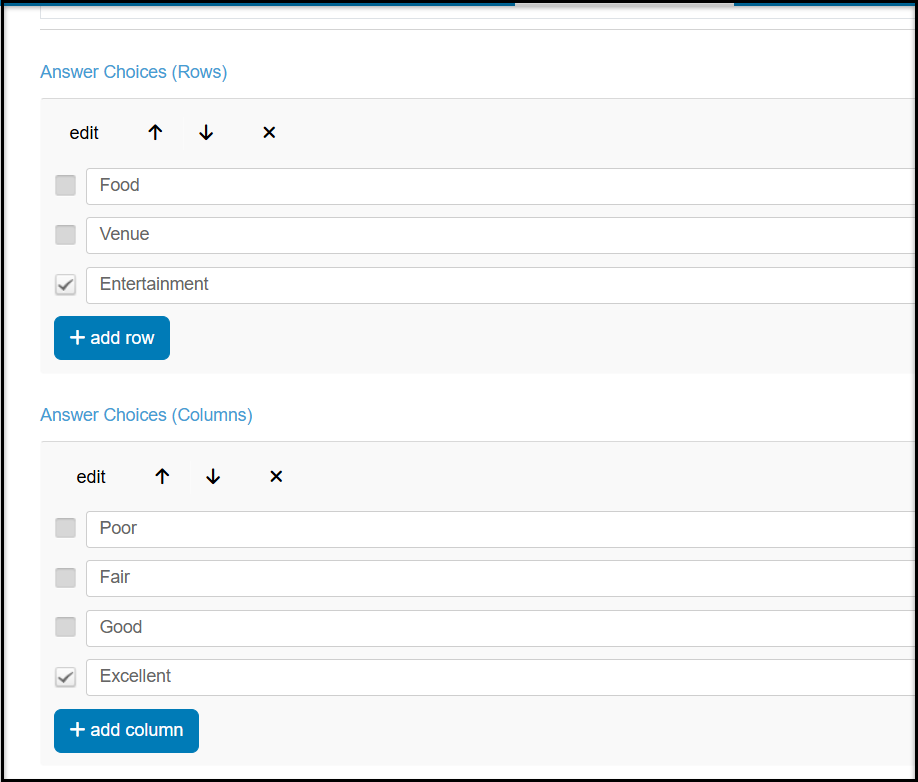
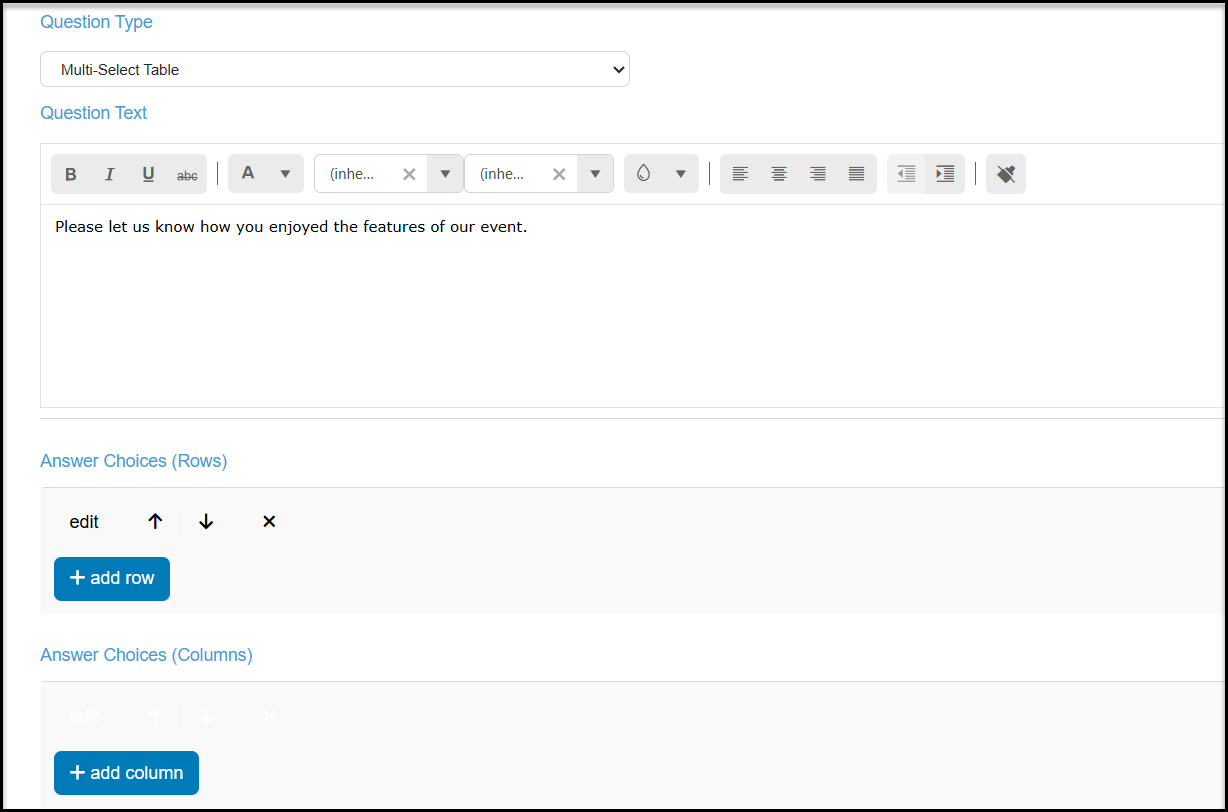 It requires the creation of rows and columns.
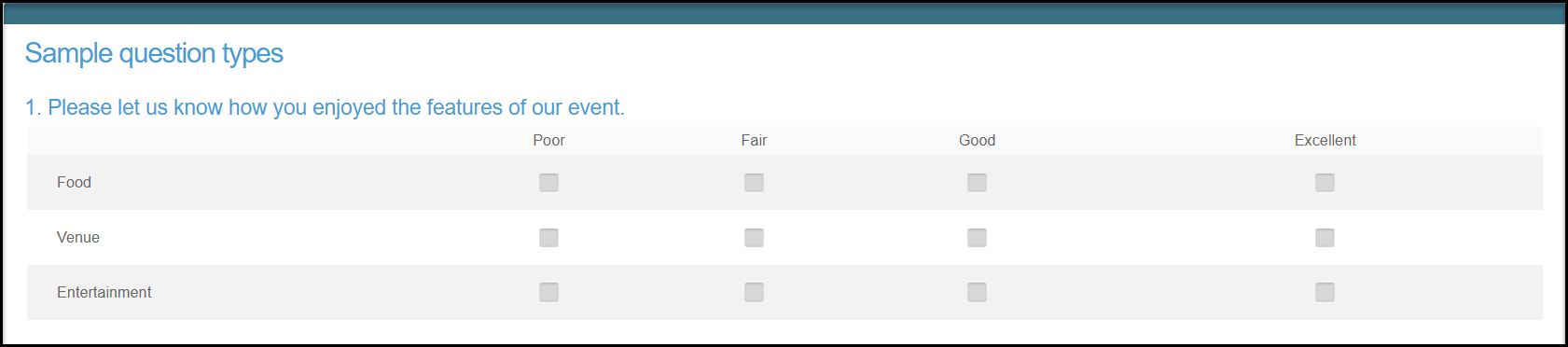
 Note that on the survey, the respondent could select both Poor and Excellent for their ratings at the same time. If you wish to limit the responses to one choice, you will use the single-select table option described below.
 **Numeric Scale**
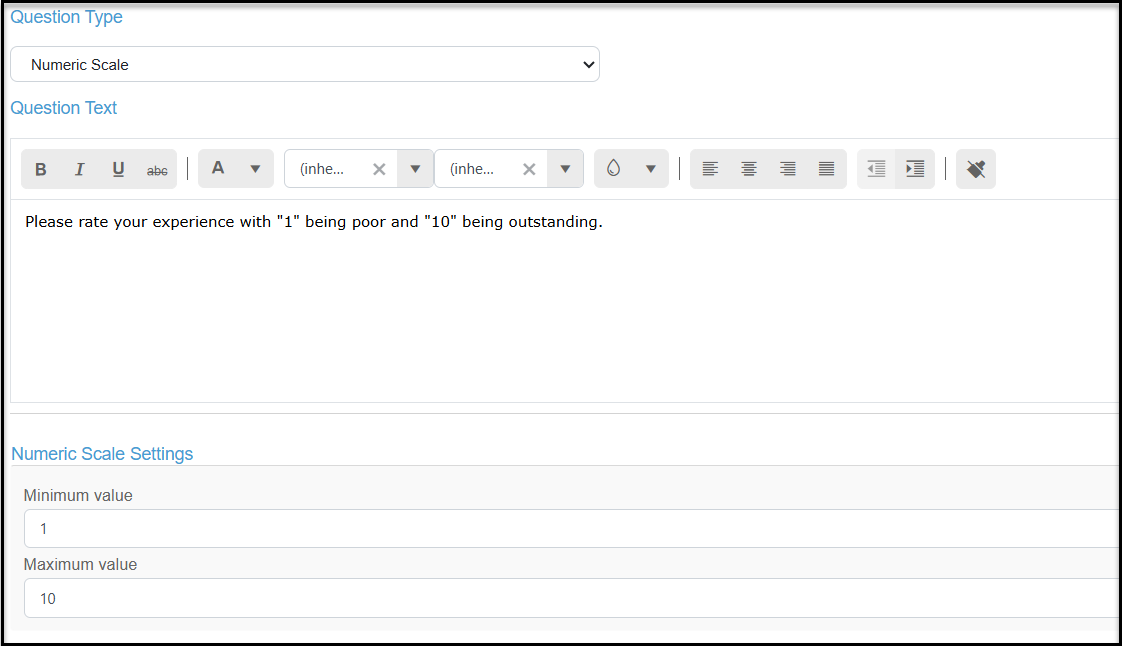
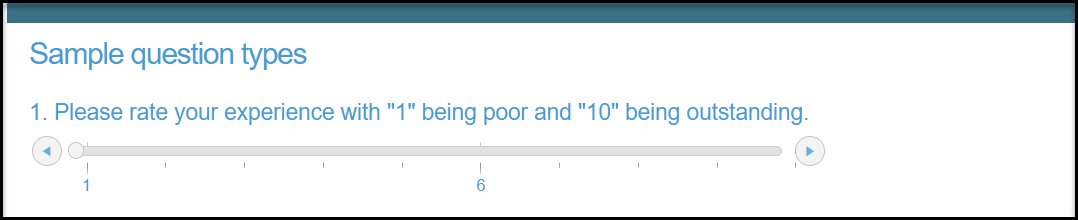
The numeric scale allows your respondents to assign a numeric value to their response. For example, rating something from 1 to 10. You will need to let the respondent know what the values mean in the Question Text.
**Numeric Scale**
The numeric scale allows your respondents to assign a numeric value to their response. For example, rating something from 1 to 10. You will need to let the respondent know what the values mean in the Question Text.
 On the survey, the question will appear with a number line and the respondent can choose the number rating in whole numbers only.
 **Numeric Value With or Without Decimal Places**
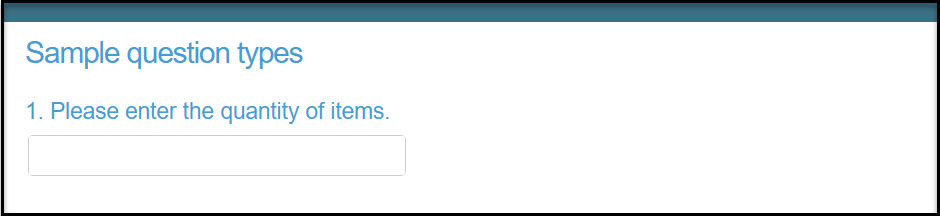
There are two options when asking numeric questions, with or without decimal places. With decimal places default to add two decimal places after the submission. Without decimal places will round up any responses to whole numbers only. This field can be used to request quantities or things like a graduation year.
**Numeric Value With or Without Decimal Places**
There are two options when asking numeric questions, with or without decimal places. With decimal places default to add two decimal places after the submission. Without decimal places will round up any responses to whole numbers only. This field can be used to request quantities or things like a graduation year.
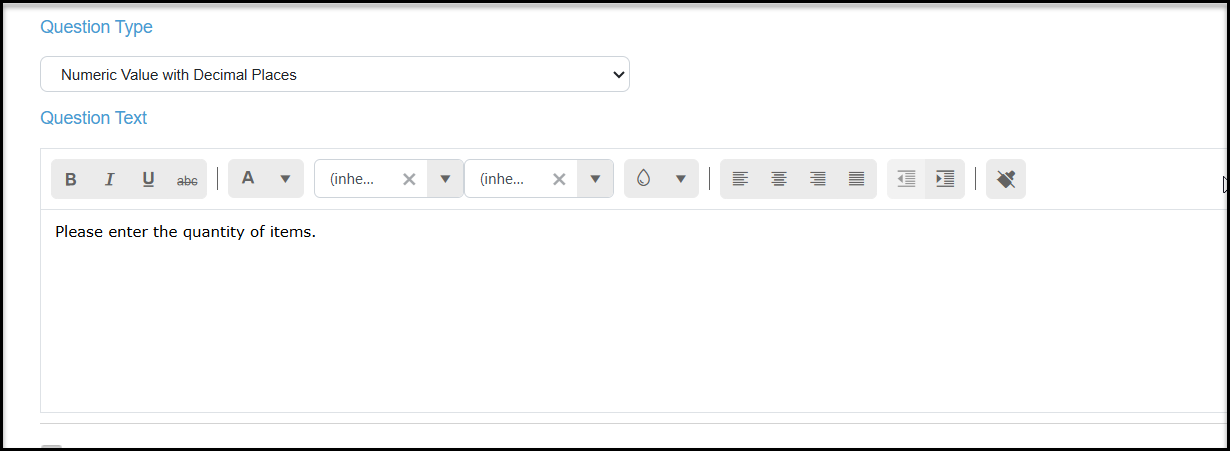 On the survey, the question appears at the top with the box to enter the number below.
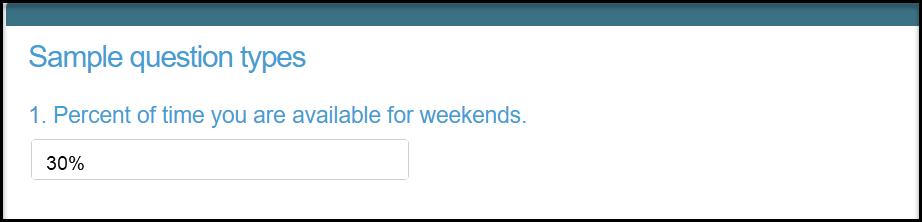
 **Percent**
Similar to the numeric fields, the percent field will add a mask to the response to show it as a percentage.
**Percent**
Similar to the numeric fields, the percent field will add a mask to the response to show it as a percentage.
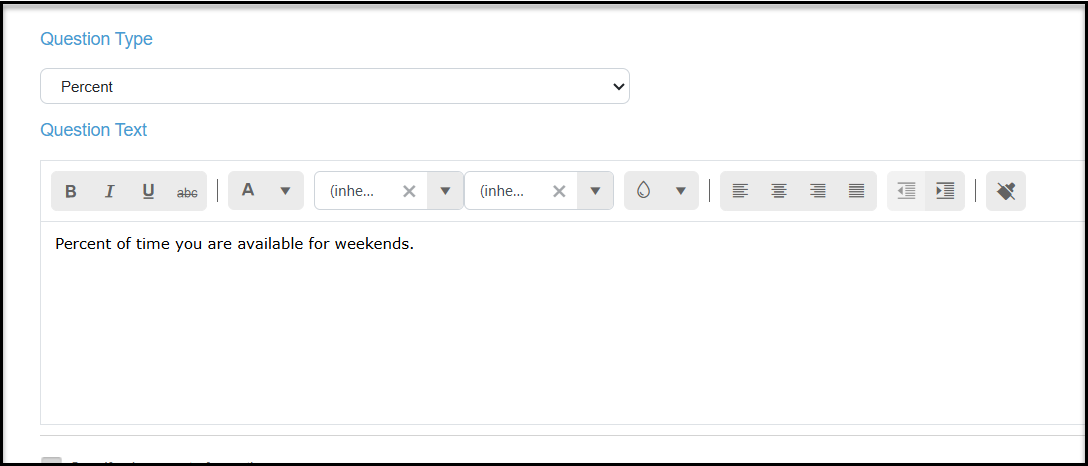 When the respondent enters the number in their survey it will update to show the number as a percent.
 **Signature**
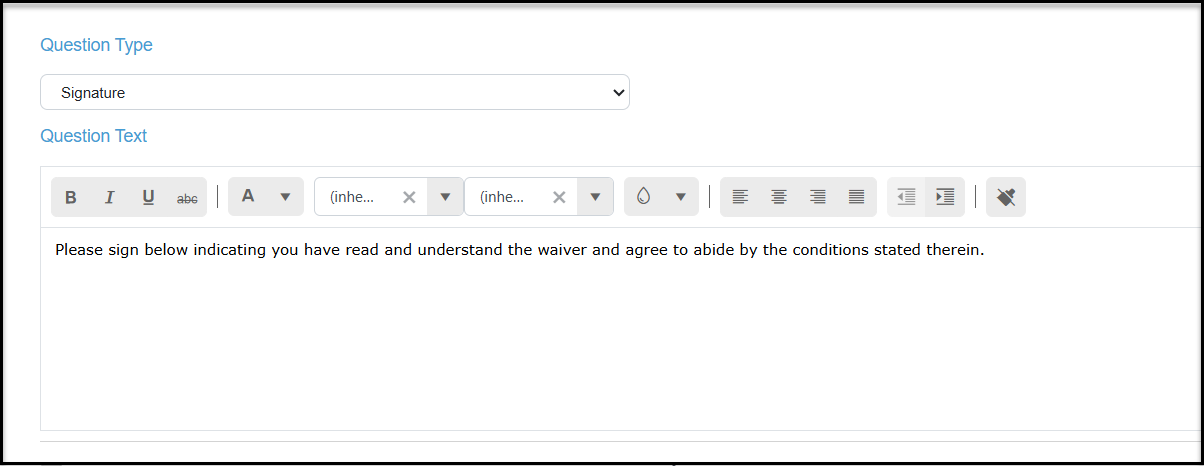
The signature question allows you to add a block where the respondent can enter their signature. In the Question Text area you can add your information about the signature, for example a waiver or other statement.
**Signature**
The signature question allows you to add a block where the respondent can enter their signature. In the Question Text area you can add your information about the signature, for example a waiver or other statement.
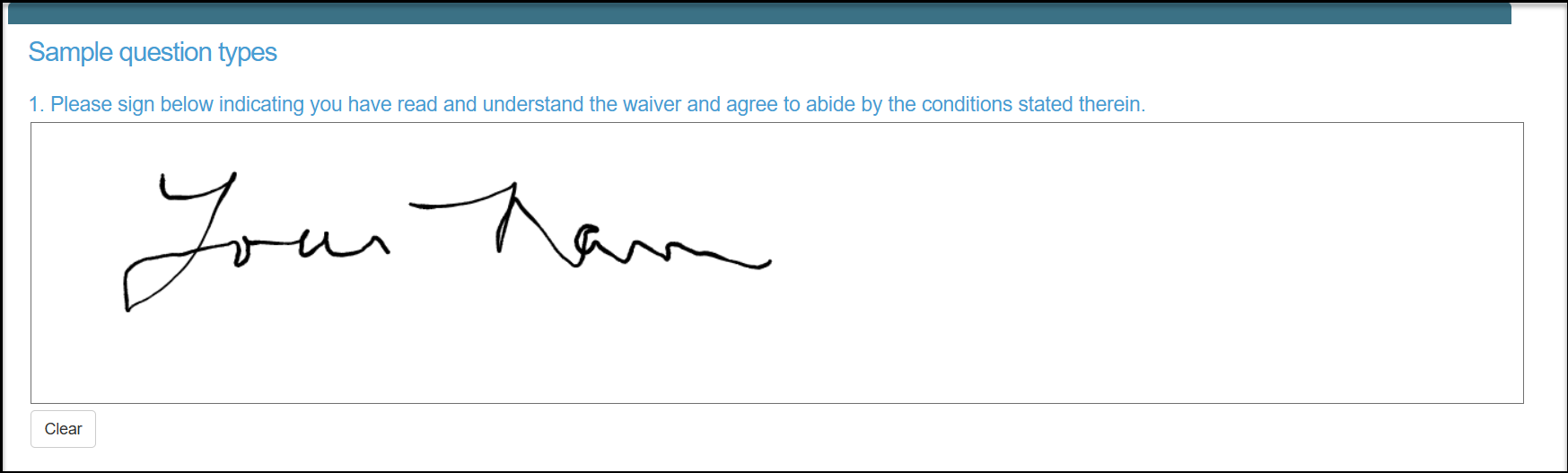
 On the survey the respondent will be able to use their mouse or touch screen to add their signature. If they would like to re-enter their signature, they can click the **Clear** button at the bottom left of the box and try again.
 **Single Line of Text**
The single line of text allows for simple text responses. You can also add a **Word Limit** at the bottom of question.
**Single Line of Text**
The single line of text allows for simple text responses. You can also add a **Word Limit** at the bottom of question.
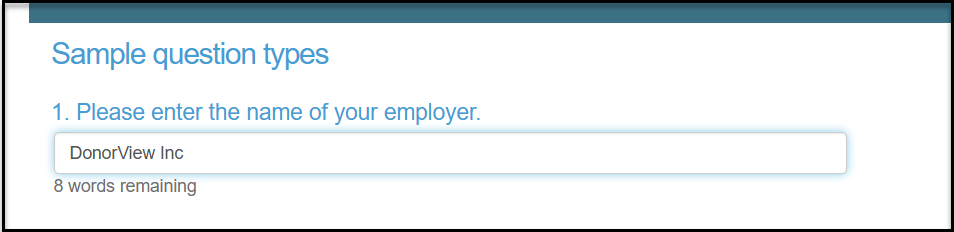
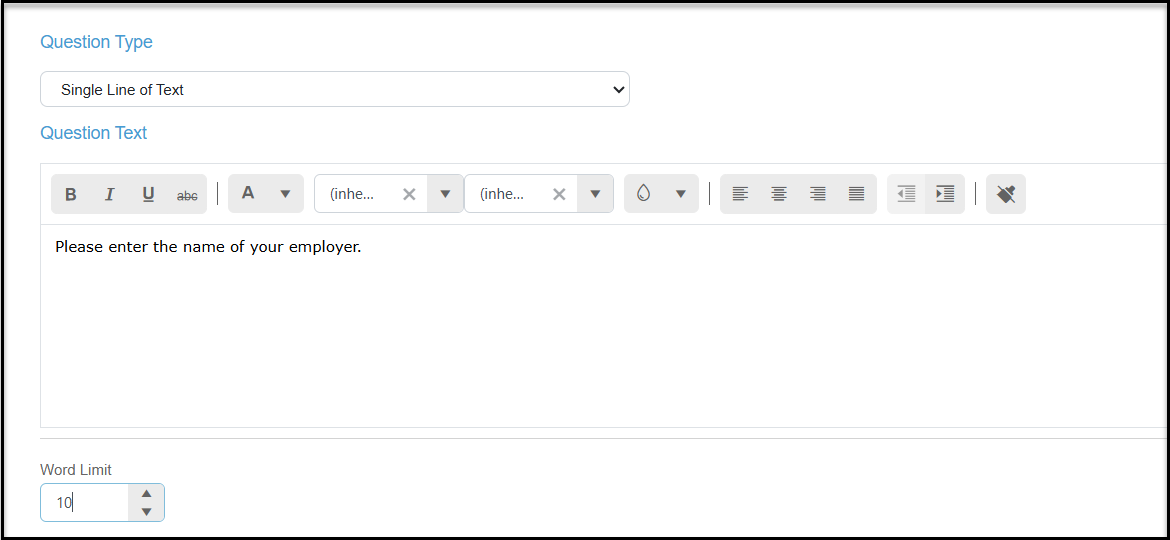 On the survey, the text space will appear as one line, with a word count at the bottom of the box.
 **Single-Select Checkbox**
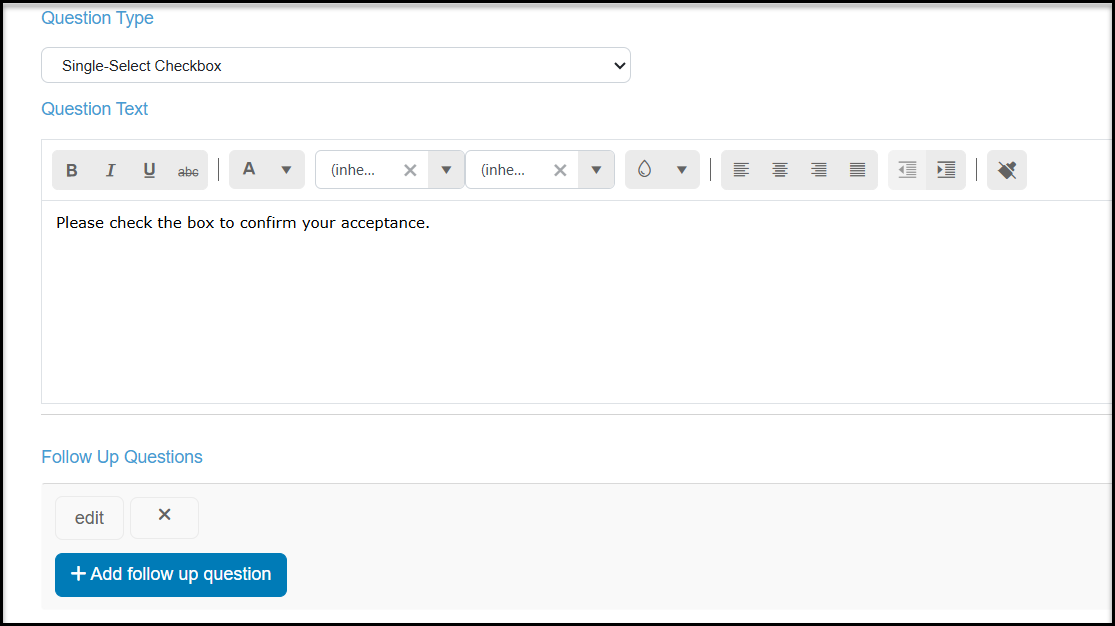
A single-select checkbox provides a single checkbox after your question, usually used to indicate agreement with the statement or interest in an activity.
**Single-Select Checkbox**
A single-select checkbox provides a single checkbox after your question, usually used to indicate agreement with the statement or interest in an activity.
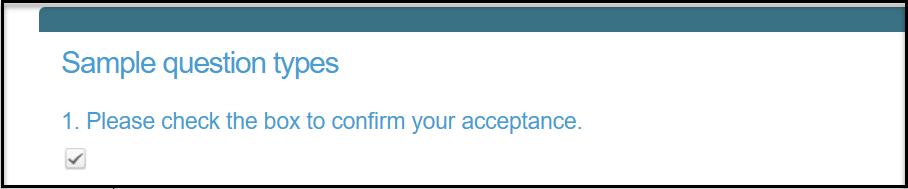
 On the survey, the respondent will see the question with a single checkbox below the question.
 **Single-Select Dropdown**
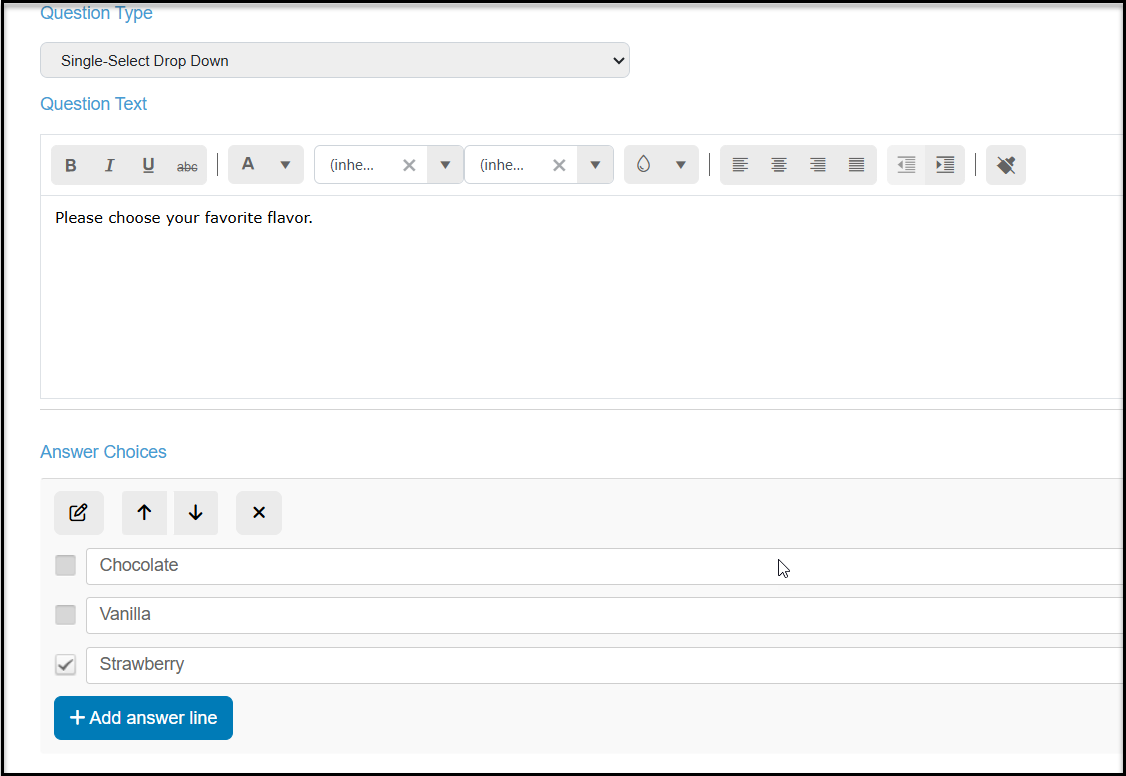
Similar to the Multi-Select Dropdown you can add your Question Text, then click on **+Add answer line** to add your responses. The respondent will only be able to select one from the list.
**Single-Select Dropdown**
Similar to the Multi-Select Dropdown you can add your Question Text, then click on **+Add answer line** to add your responses. The respondent will only be able to select one from the list.
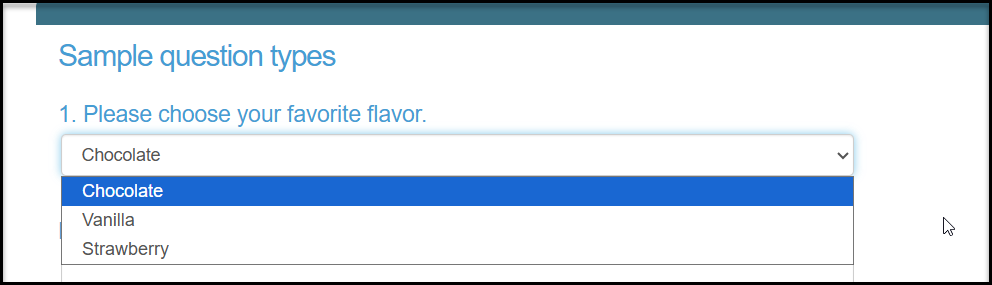
 On the survey, the default answer will be the one at the top of the list. The respondent will use the arrow on the right side of the field to reveal all the choices and make their selection.
 **Single-Select Option Buttons**
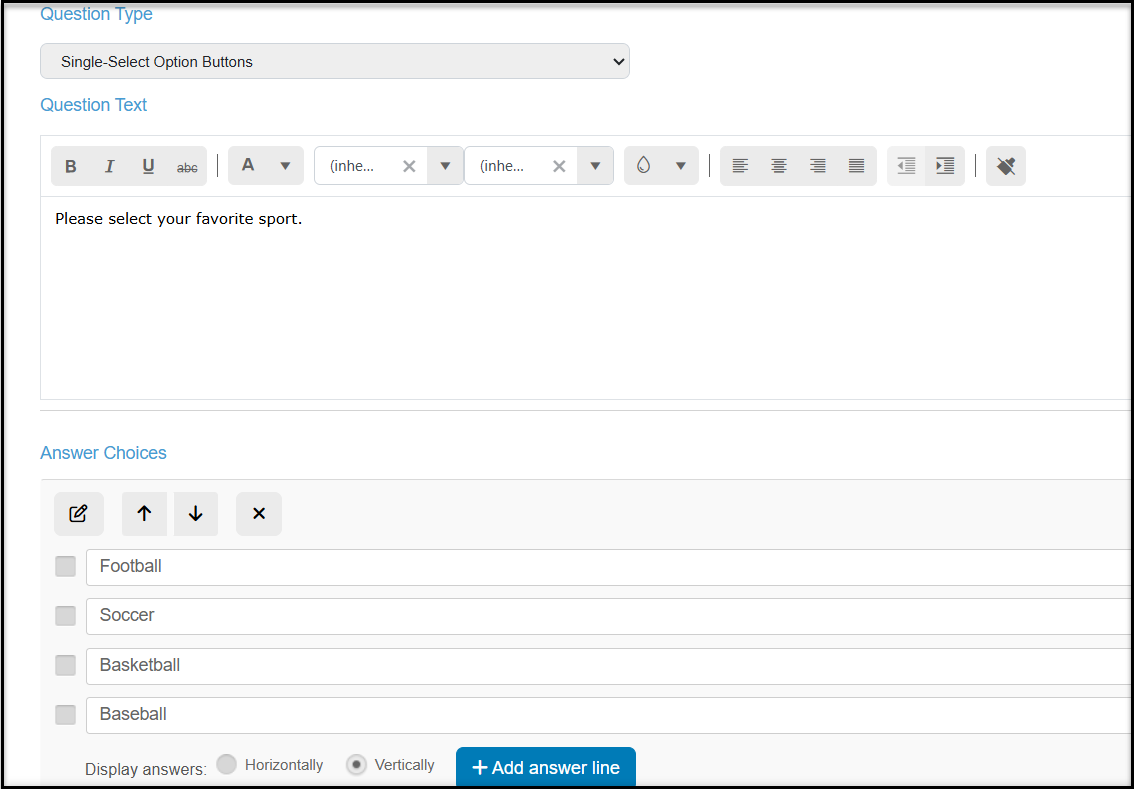
Similar the the single-select dropdown, respondents will only be able to make one choice, however with option buttons, they can see all the options displayed. Click on **+Add answer line** to add the answer choices.
**Single-Select Option Buttons**
Similar the the single-select dropdown, respondents will only be able to make one choice, however with option buttons, they can see all the options displayed. Click on **+Add answer line** to add the answer choices.
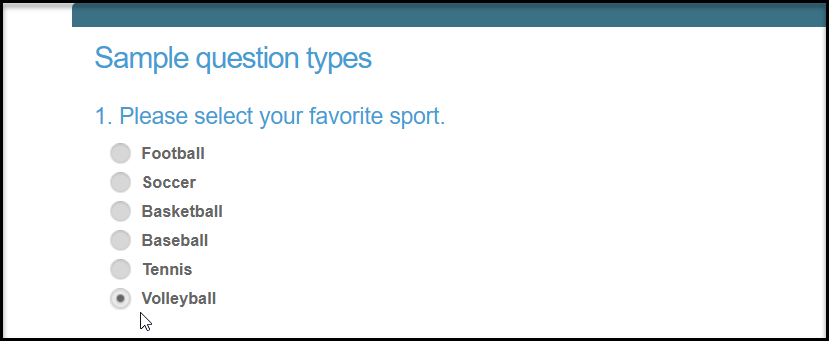
 On the survey, the respondent can only choose one of the answers.
 **Single-Select Table**
The single select table option allows you to add several questions into one, which can be helpful if response options are repetitive, for example asking event attendees to rate different aspects of your event.
**Single-Select Table**
The single select table option allows you to add several questions into one, which can be helpful if response options are repetitive, for example asking event attendees to rate different aspects of your event.
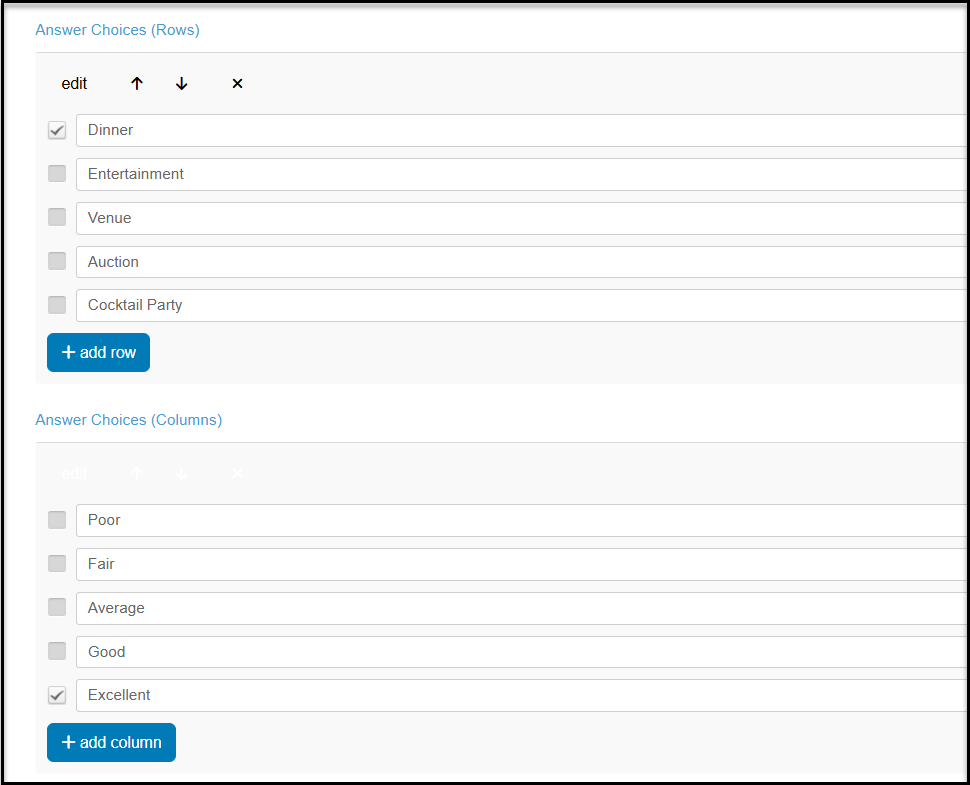
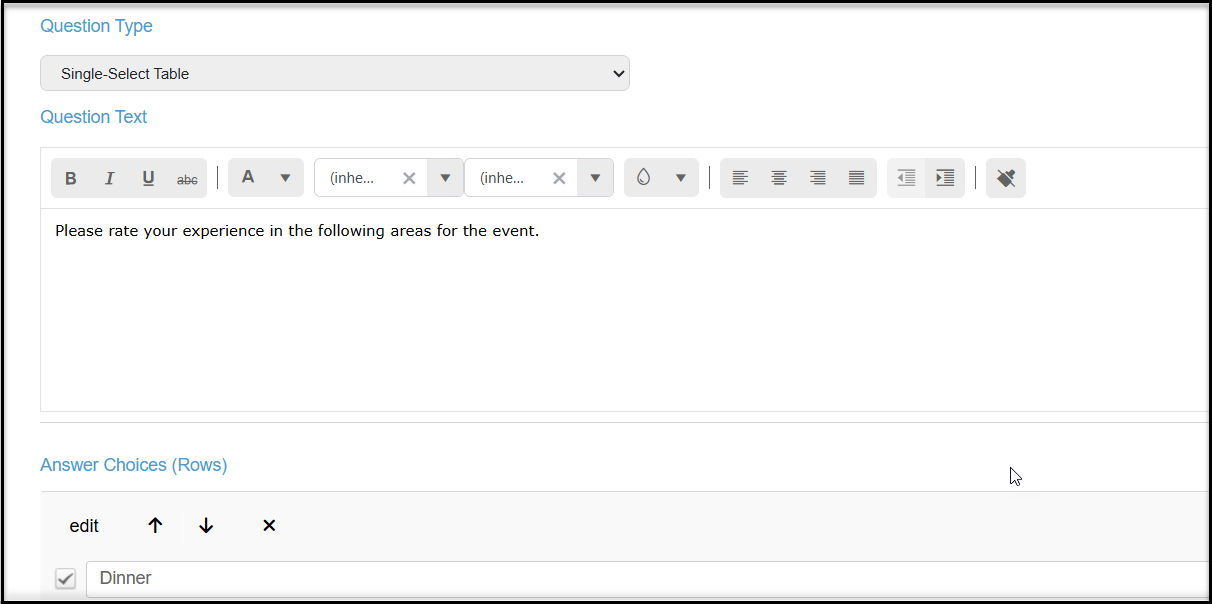 After adding your **Question Text**, click on **+add row**to add the items to be evaluated. Then click on **+add column**to add the evaluation options.
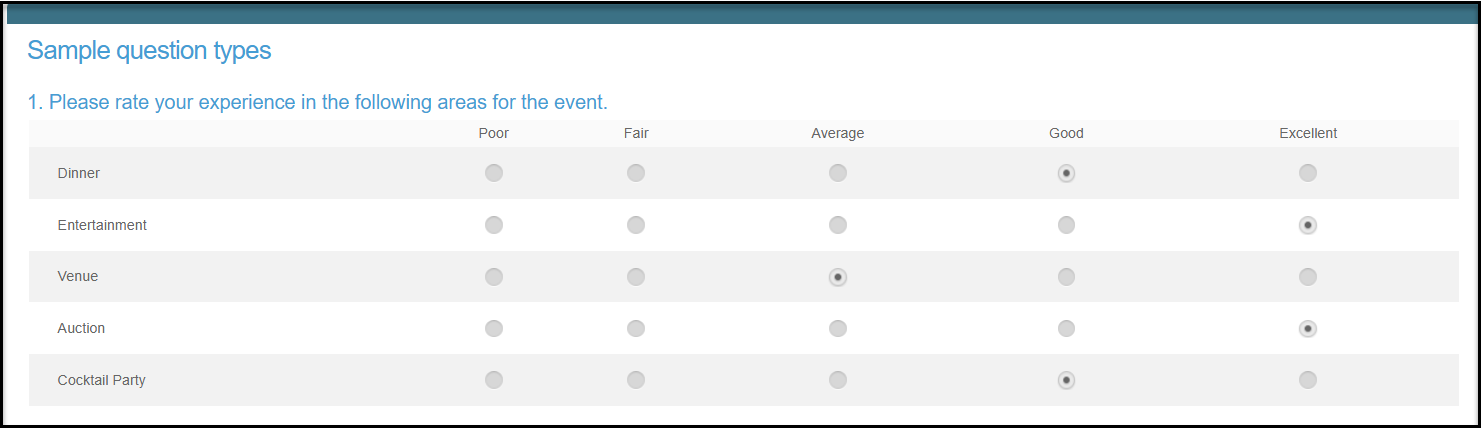
 On the survey, the respondent can choose only one option for each row. However, they can make the same selections on each row, for example rating two aspects of the event both as “excellent.”
 **Specific Date**
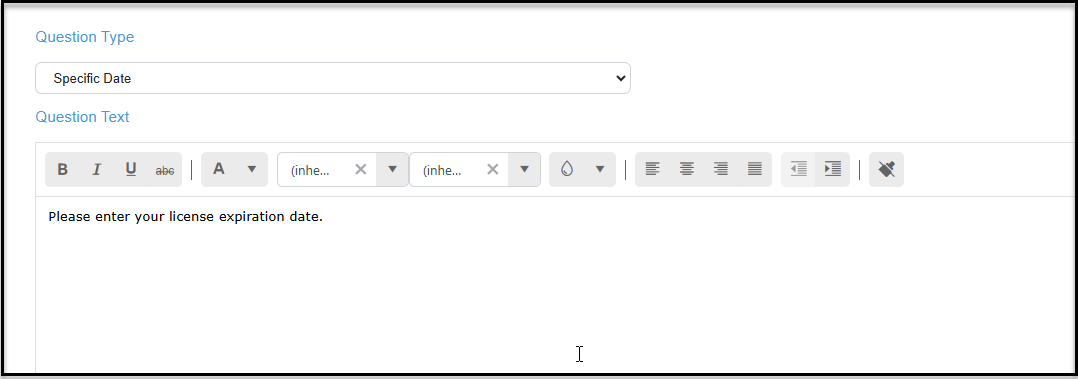
You can request a specific date and add the context of the date in the **Question Text**.
**Specific Date**
You can request a specific date and add the context of the date in the **Question Text**.
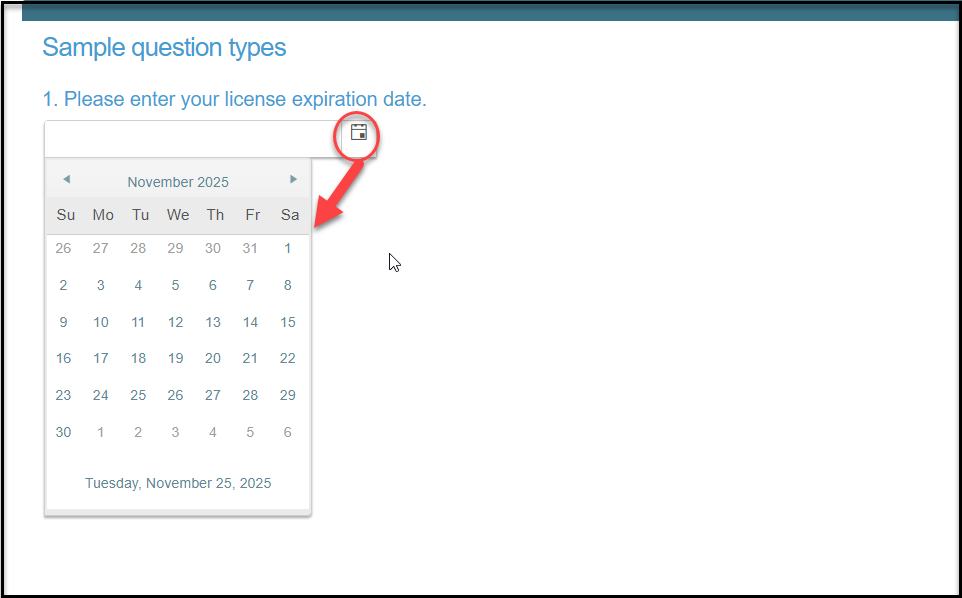
 On the survey, the respondent will see the box to either type in the date or click on the calendar icon to reveal a calendar to choose the date.
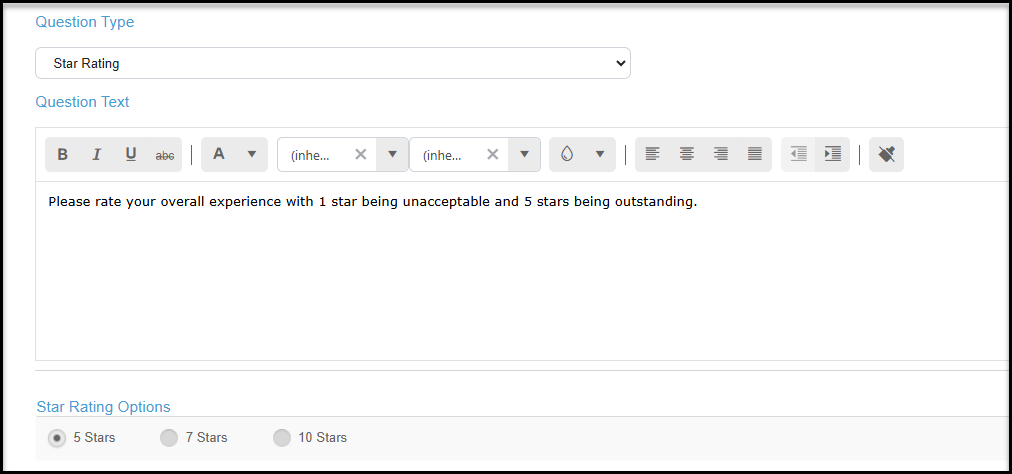
 **Star Rating**
The final generic question option is star rating. You can choose from 5, 7 or 10 star options. Be sure to include a reference to what the ratings indicate as needed.
**Star Rating**
The final generic question option is star rating. You can choose from 5, 7 or 10 star options. Be sure to include a reference to what the ratings indicate as needed.
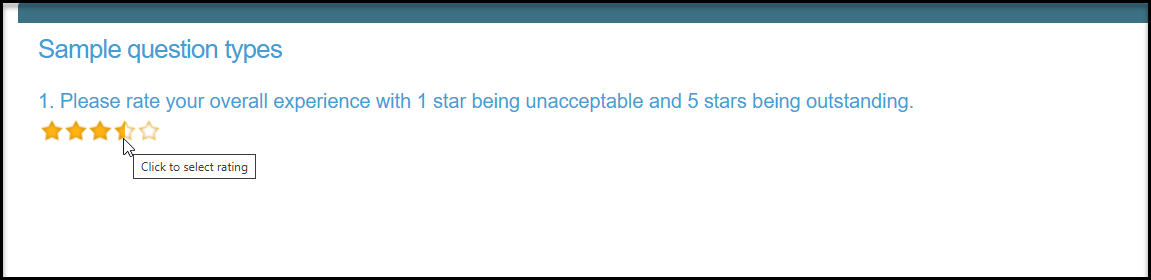
 On the survey the respondent will see blank stars. They can use their mouse to click on the star rating, including half-stars.