# How do I acknowledge a transaction?
> Source: https://support.associationsphere.com/how-do-i-acknowledge-a-transaction | Updated: 2026-09-08T02:58:45Z
Transactions that are general type and are entered through a donation or payment page will automatically generate a thank you email. Any membership, event or auction purchases through a page will also generate an automated thank you message. To learn more about these automatic emails, "How do I send or print a receipt for a transaction?" ./how-do-i-send-or-print-a-receipt-for-a-transaction
In order to manually send a thank you message, you must first create at least one acknowledgement letter in the Mail Merge Gift Templates. You can learn the steps of creating the letter in this article "How do I create a Mail Merge Template." In this example we will review sending an acknowledgement for a General type of transaction. These same steps can be applied for any type of transaction, you will just need to ensure you have an appropriate mail merge letter created for the type of transaction you wish to acknowledge.
For manual acknowledgements you can do them three ways:
1. **Immediate**- Immediately after entering or editing the transaction information from the transaction entry page.
2. **Single Acknowledgement** - One at a time from the Transactions grid or the constituent's Transactions tab.
3. **Batch Acknowledgement** - In a batch with several similar type transactions that will use the same letter.
**Immediate**
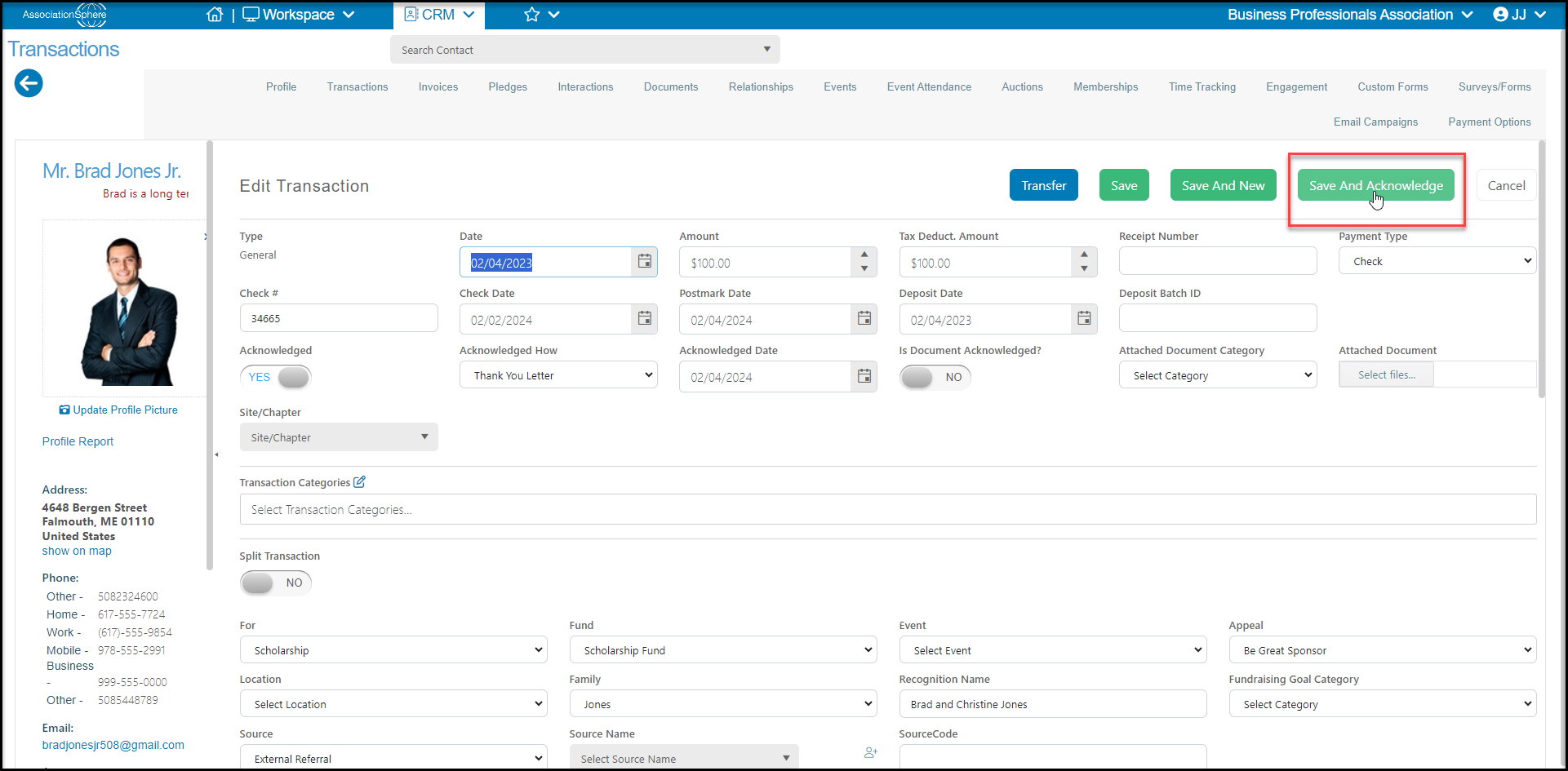
While entering or editing a transaction entry, when you are finished entering the data, click on **Save And Acknowledge.**
 This will open a new window that allows you to select your **Mail Merge Template.** This is a selection of one of the templates created in the Mail Merge Gift Templates page. The green **View/Edit**button next to the list will allow you to open the letter and make edits, just note that those edits will also apply to any future acknowledgements.
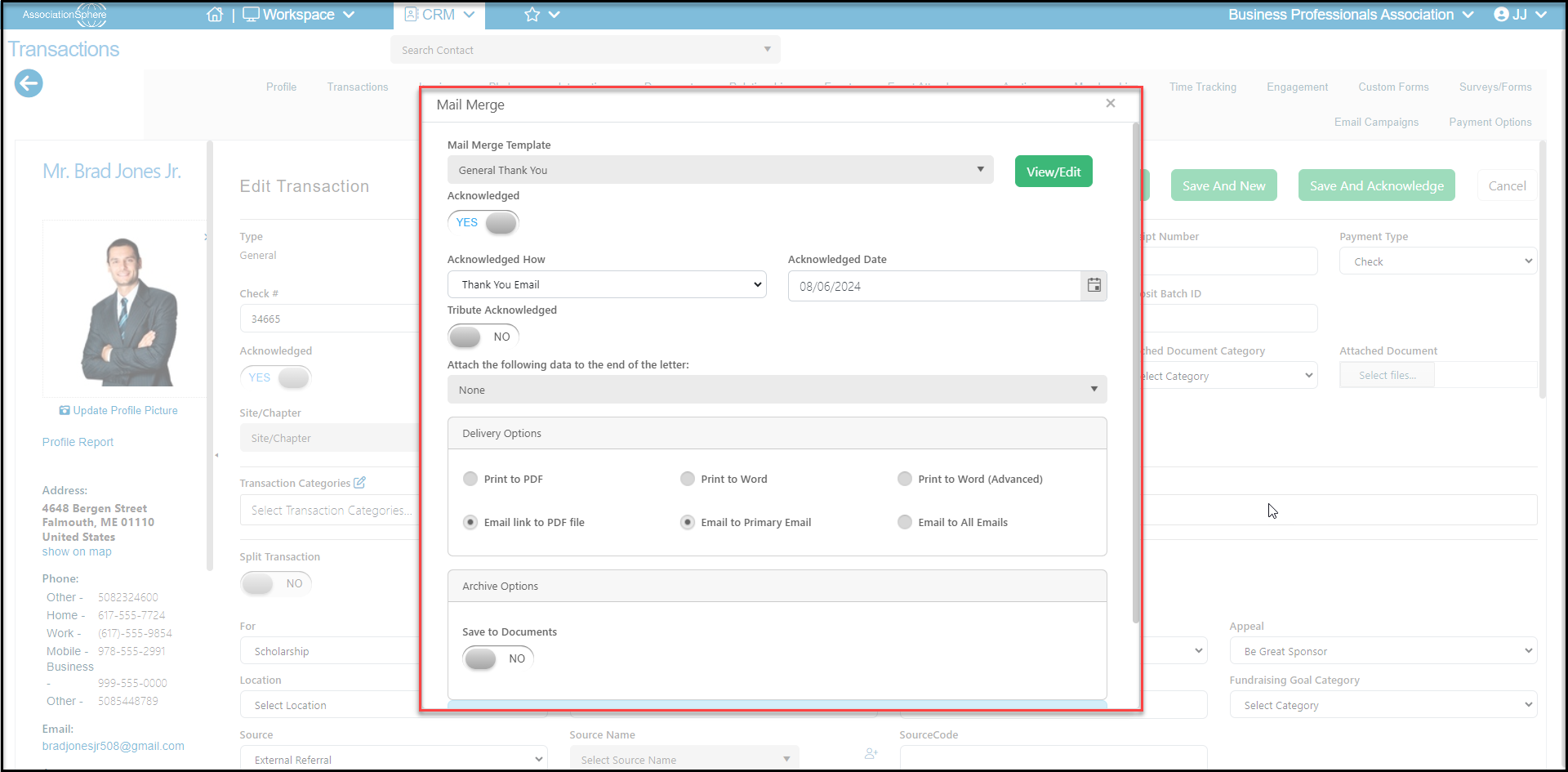 The next button is **Acknowledged**. Selecting this **YES** will add a checkmark in the Acknowledged column on the Gifts grid. You will also have the option of selecting the method under **Acknowledged How** and the **Acknowledged Date**, which defaults to today's date.
The **Tribute Acknowledged**button will remain **NO**for general acknowledgements. It is only used for sending statement notifications to families for tributes.
The **Attach the following to the end of the letter** is also only used for tribute statements and should be left as **None.**
Next you can choose your Delivery Options.
- **Print to PDF** will produce a pdf file of the letter and open it in a new tab on your browser.
- **Print to Word**will produce a Word document and download it to your computer. Be sure that your pop-up blocker is off for your browser.
- **Print to Word (Advanced)** will also produce a Word document and download it to your computer, but it is only used for documents which contain complex features like tables and charts.
- **Email Link to PDF file** will open a new window once you click on OK at the bottom of the window. You can choose to send **Email to Primary Email** or **Email to All Emails** which would send a copy to all emails in the constituent's profile.
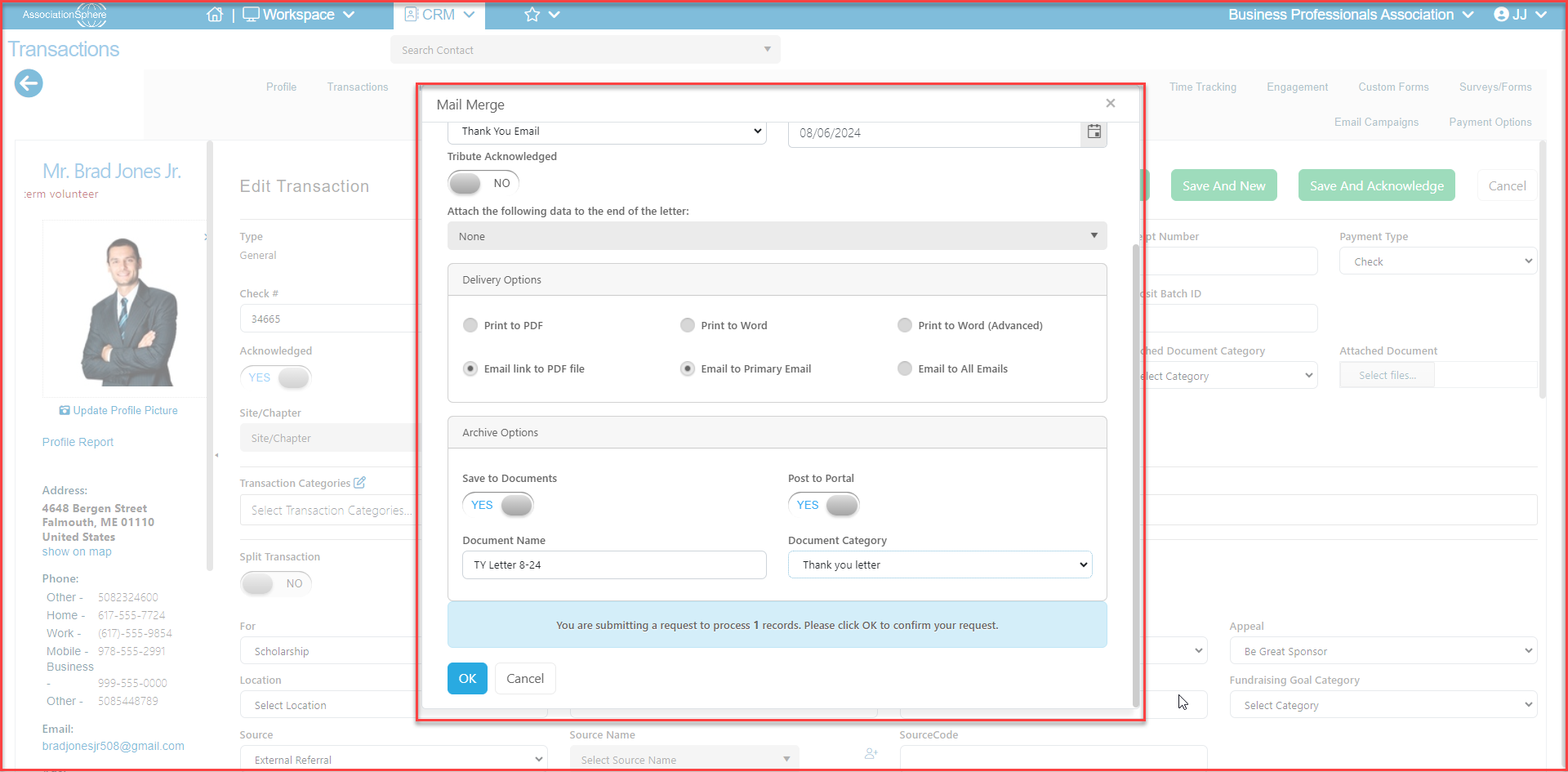
In the Archive Options, you can choose to save a copy of this letter in the constituent's Documents tab and the CRM Documents grid by marking **Save to Documents** as **YES**.
- With this marked YES, you also have the option to post this document to the portal for the constituent to view if you have activated the Advanced Portal.
- You should enter a **Document Name** that makes it easy to identify the document.
- You can also assign it to a **Document Category**. This picklist is editable click on the **** option in the list.
The last step is click **OK** to generate the letter. For letters that are printed, the PDF file will open or the Word document will download. Clicking**Cancel** will close the window without generating the acknowledgement.
The next button is **Acknowledged**. Selecting this **YES** will add a checkmark in the Acknowledged column on the Gifts grid. You will also have the option of selecting the method under **Acknowledged How** and the **Acknowledged Date**, which defaults to today's date.
The **Tribute Acknowledged**button will remain **NO**for general acknowledgements. It is only used for sending statement notifications to families for tributes.
The **Attach the following to the end of the letter** is also only used for tribute statements and should be left as **None.**
Next you can choose your Delivery Options.
- **Print to PDF** will produce a pdf file of the letter and open it in a new tab on your browser.
- **Print to Word**will produce a Word document and download it to your computer. Be sure that your pop-up blocker is off for your browser.
- **Print to Word (Advanced)** will also produce a Word document and download it to your computer, but it is only used for documents which contain complex features like tables and charts.
- **Email Link to PDF file** will open a new window once you click on OK at the bottom of the window. You can choose to send **Email to Primary Email** or **Email to All Emails** which would send a copy to all emails in the constituent's profile.
In the Archive Options, you can choose to save a copy of this letter in the constituent's Documents tab and the CRM Documents grid by marking **Save to Documents** as **YES**.
- With this marked YES, you also have the option to post this document to the portal for the constituent to view if you have activated the Advanced Portal.
- You should enter a **Document Name** that makes it easy to identify the document.
- You can also assign it to a **Document Category**. This picklist is editable click on the **** option in the list.
The last step is click **OK** to generate the letter. For letters that are printed, the PDF file will open or the Word document will download. Clicking**Cancel** will close the window without generating the acknowledgement.
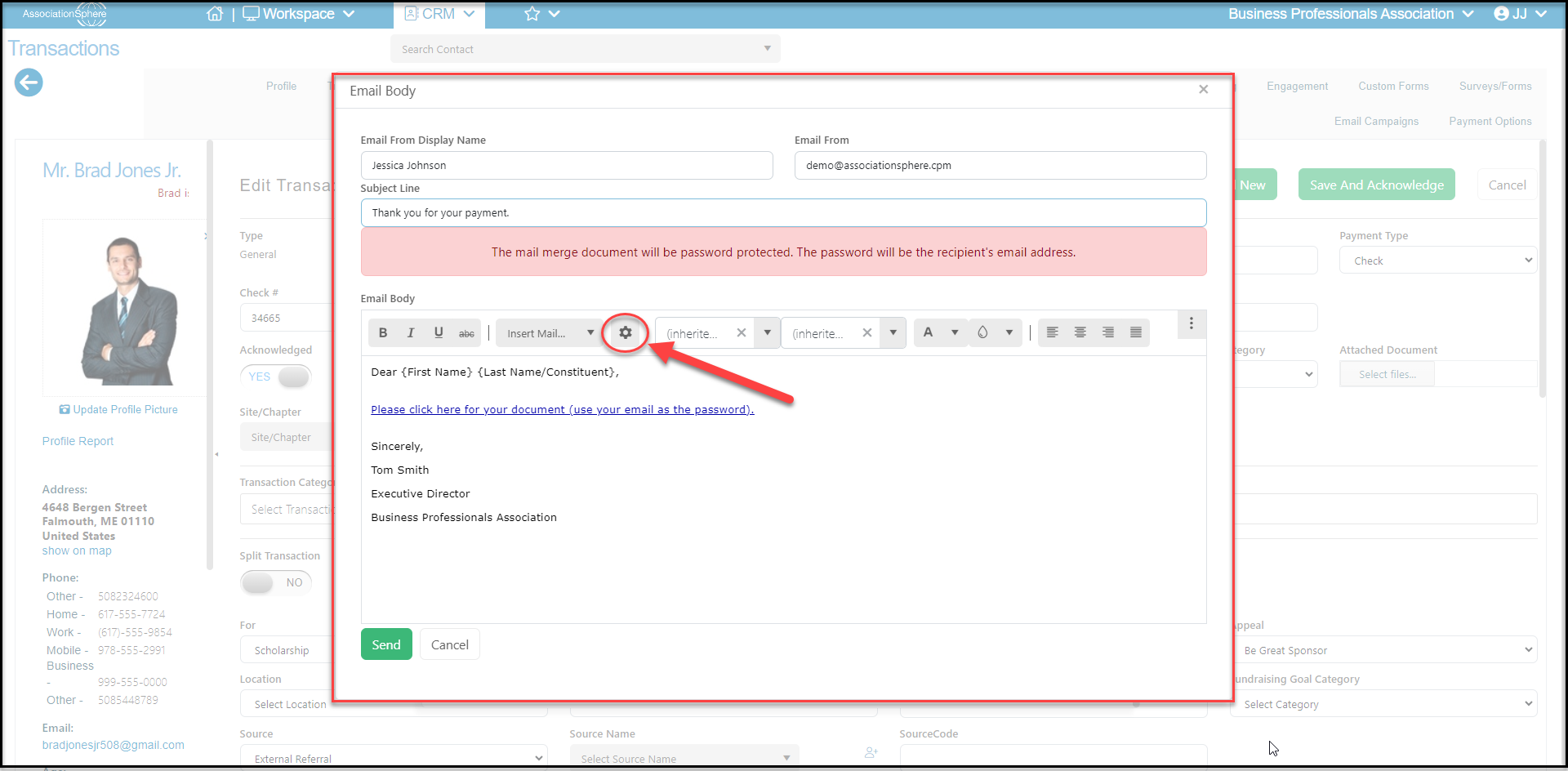
 For sending via email, a new window opens as shown below.
- The **Email From Display Name**auto populates with your user name and **Email From** auto populates with your user email address. You can edit as needed.
- You can customize the **Subject Line** as desired.
- For security, the donor will be asked to enter their email address in order to view the document.
- You can customize the **Email Body** with merge fields and font preferences.
- A default link will be inserted for the donor to click to download their document as a pdf. If this link is accidentally deleted, you can insert a new one by clicking on the gear icon and entering new text for the link.
- When you have completed the email body, you can click **Send**to send the email. **Cancel** will close the window without sending the email.
For sending via email, a new window opens as shown below.
- The **Email From Display Name**auto populates with your user name and **Email From** auto populates with your user email address. You can edit as needed.
- You can customize the **Subject Line** as desired.
- For security, the donor will be asked to enter their email address in order to view the document.
- You can customize the **Email Body** with merge fields and font preferences.
- A default link will be inserted for the donor to click to download their document as a pdf. If this link is accidentally deleted, you can insert a new one by clicking on the gear icon and entering new text for the link.
- When you have completed the email body, you can click **Send**to send the email. **Cancel** will close the window without sending the email.
 **Single Acknowledgement**
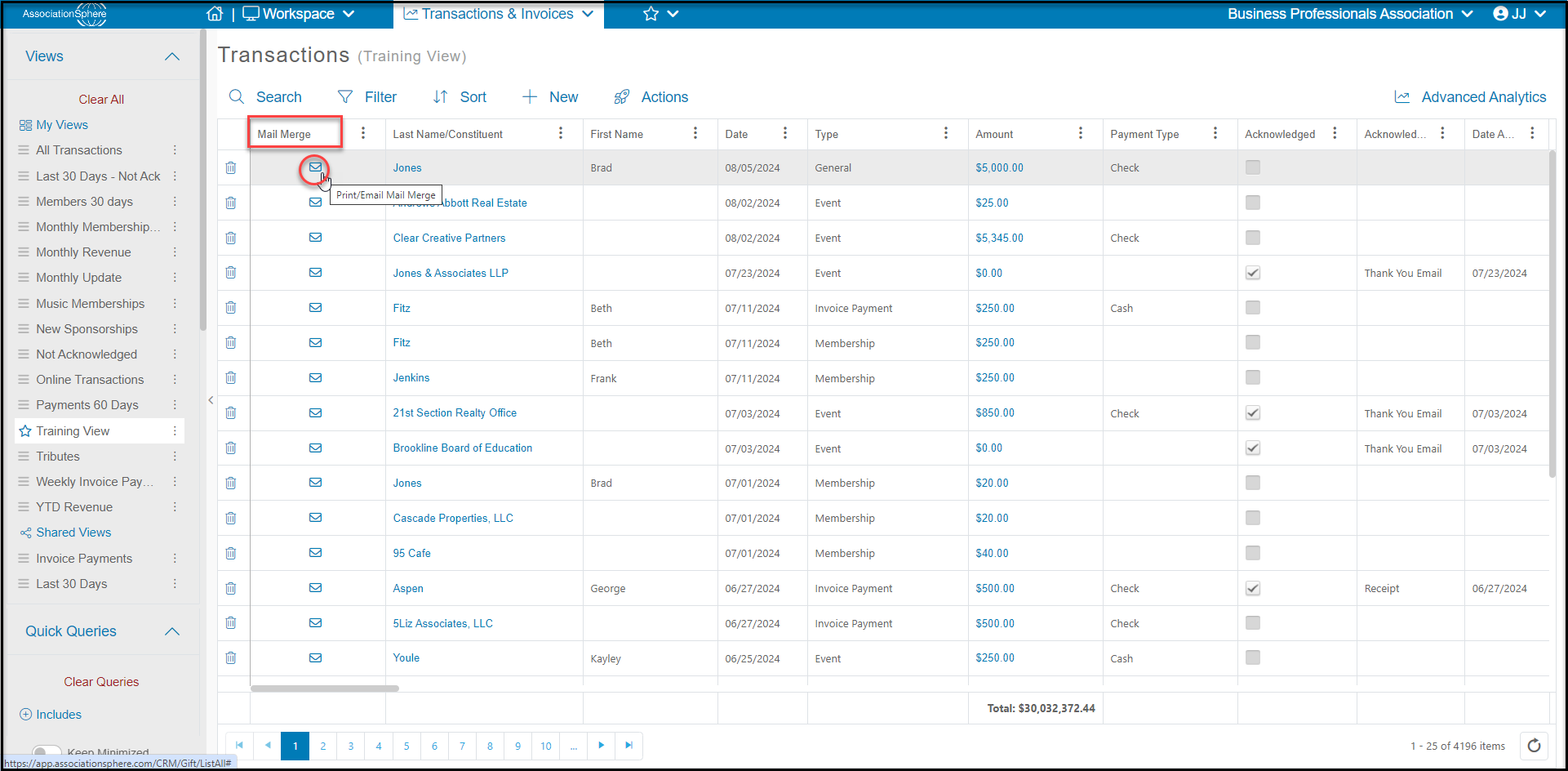
You can use the Mail Merge icon found on the Transactions grid or Transactions Gift tab to generate a single letter for a single acknowledgement. This will open the same window described above and you will follow the same process to send the acknowledgement.
**Single Acknowledgement**
You can use the Mail Merge icon found on the Transactions grid or Transactions Gift tab to generate a single letter for a single acknowledgement. This will open the same window described above and you will follow the same process to send the acknowledgement.
 **Batch Acknowledgement**
You will begin by filtering the Transactions grid to identify those transactions you wish to acknowledge. You can add queries like Date, Fund, or filter the Acknowledged column for "False" to show just those transactions which have not been marked as acknowledged.
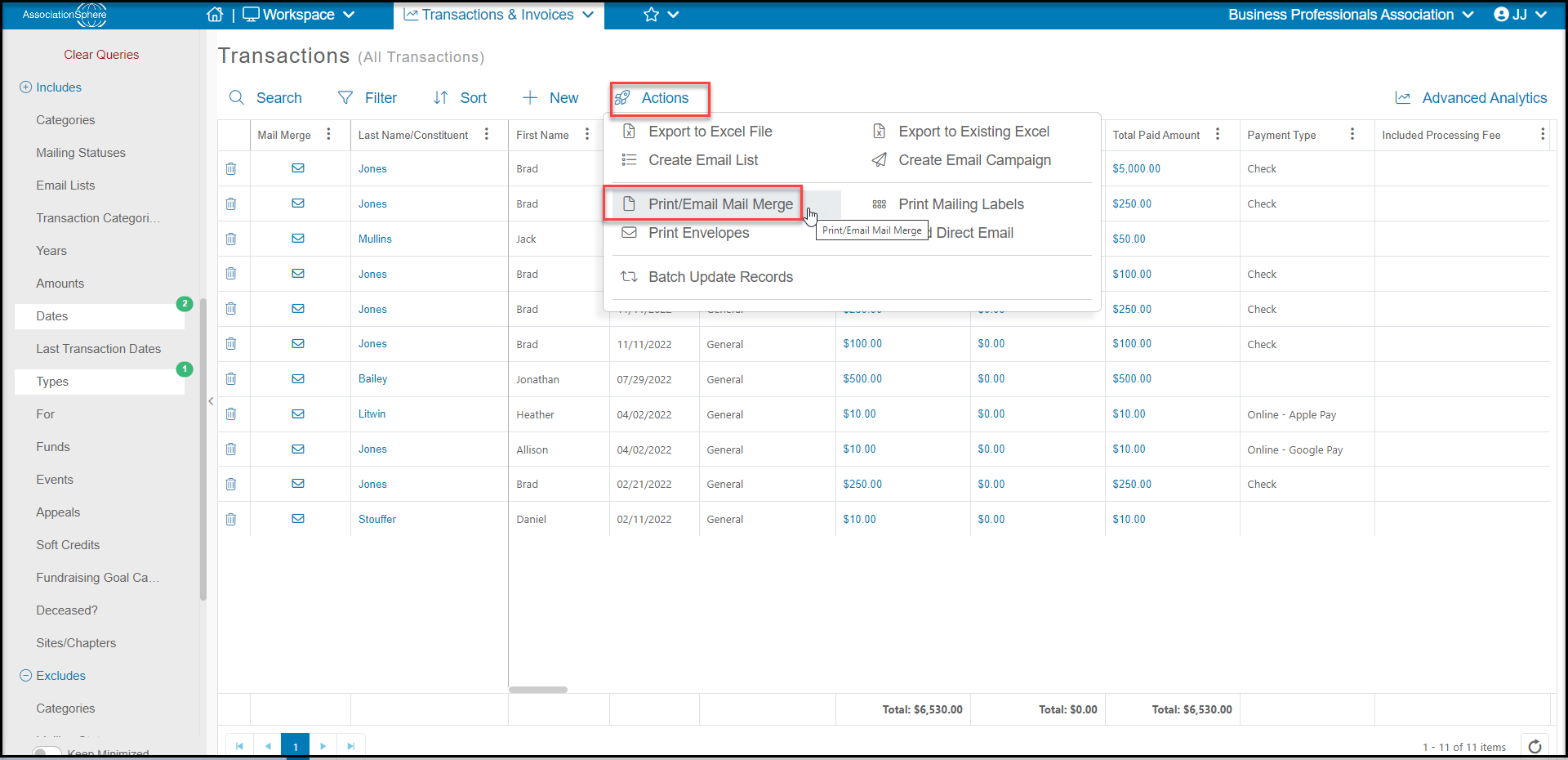
With your filtered list, use the Actions menu and select Print/Email Mail Merge. This will open the same window as described above but it will create a separate letter for each constituent.
**Batch Acknowledgement**
You will begin by filtering the Transactions grid to identify those transactions you wish to acknowledge. You can add queries like Date, Fund, or filter the Acknowledged column for "False" to show just those transactions which have not been marked as acknowledged.
With your filtered list, use the Actions menu and select Print/Email Mail Merge. This will open the same window as described above but it will create a separate letter for each constituent.
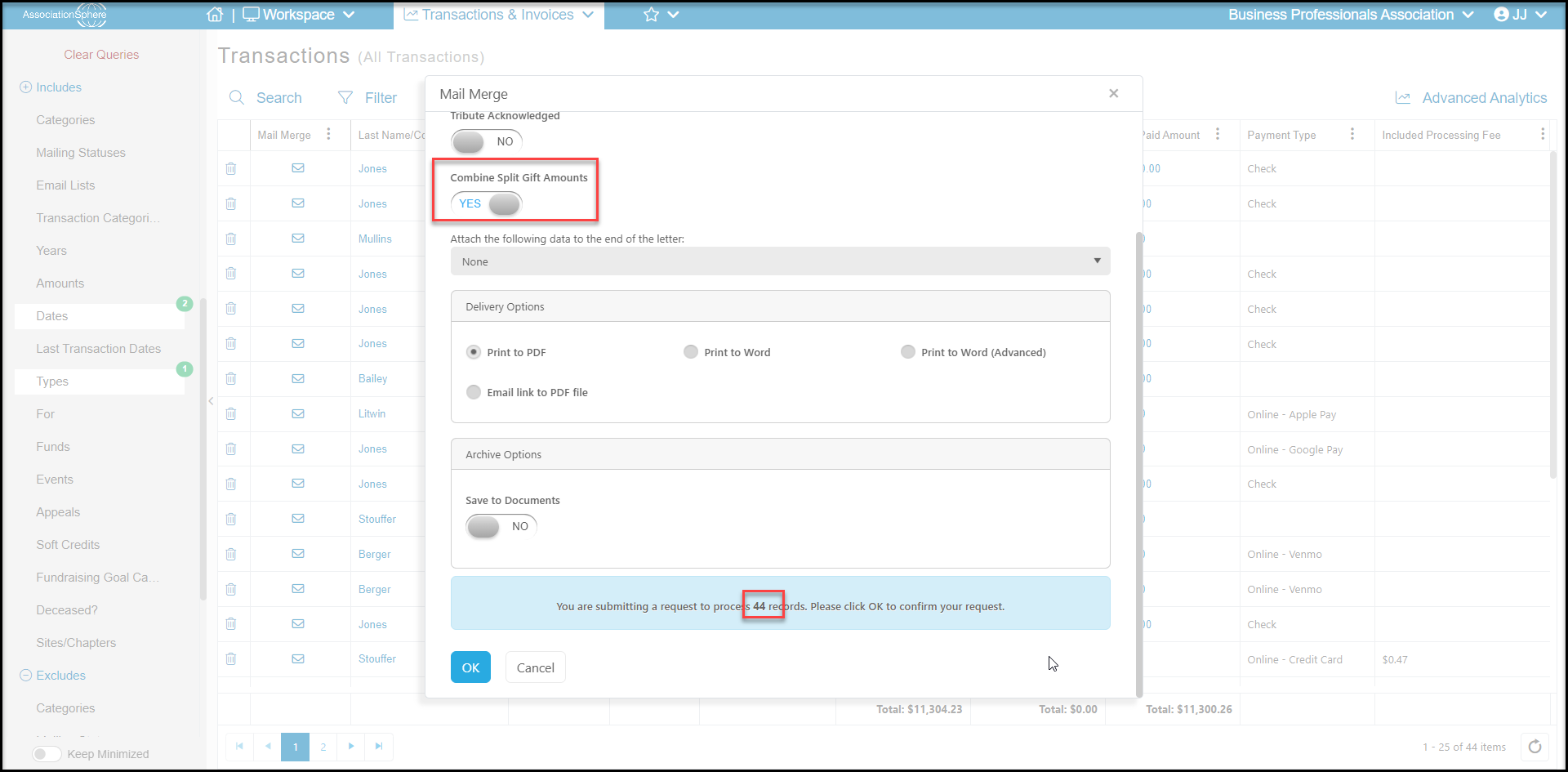
 If any of the transactions in your list are Split Gifts, you will also see an option to **Combine Split Gift Amounts**. Selecting this to **YES** will combine the total gift into one letter. Setting it to **NO** will create letters for each split amount.
As described above, printed letters will produce a multi page PDF or Word document, while those sending via Email will open the new window to customize the email message. Each constituent will only receive their own acknowledgement letter. Note that you should ensure that all your constituents have an email address when choosing to send the acknowledgements via email.
If any of the transactions in your list are Split Gifts, you will also see an option to **Combine Split Gift Amounts**. Selecting this to **YES** will combine the total gift into one letter. Setting it to **NO** will create letters for each split amount.
As described above, printed letters will produce a multi page PDF or Word document, while those sending via Email will open the new window to customize the email message. Each constituent will only receive their own acknowledgement letter. Note that you should ensure that all your constituents have an email address when choosing to send the acknowledgements via email.