# How do I add a Grant Proposal?
> Source: https://support.associationsphere.com/how-do-i-add-a-grant-proposal | Updated: 2026-09-04T16:16:51Z
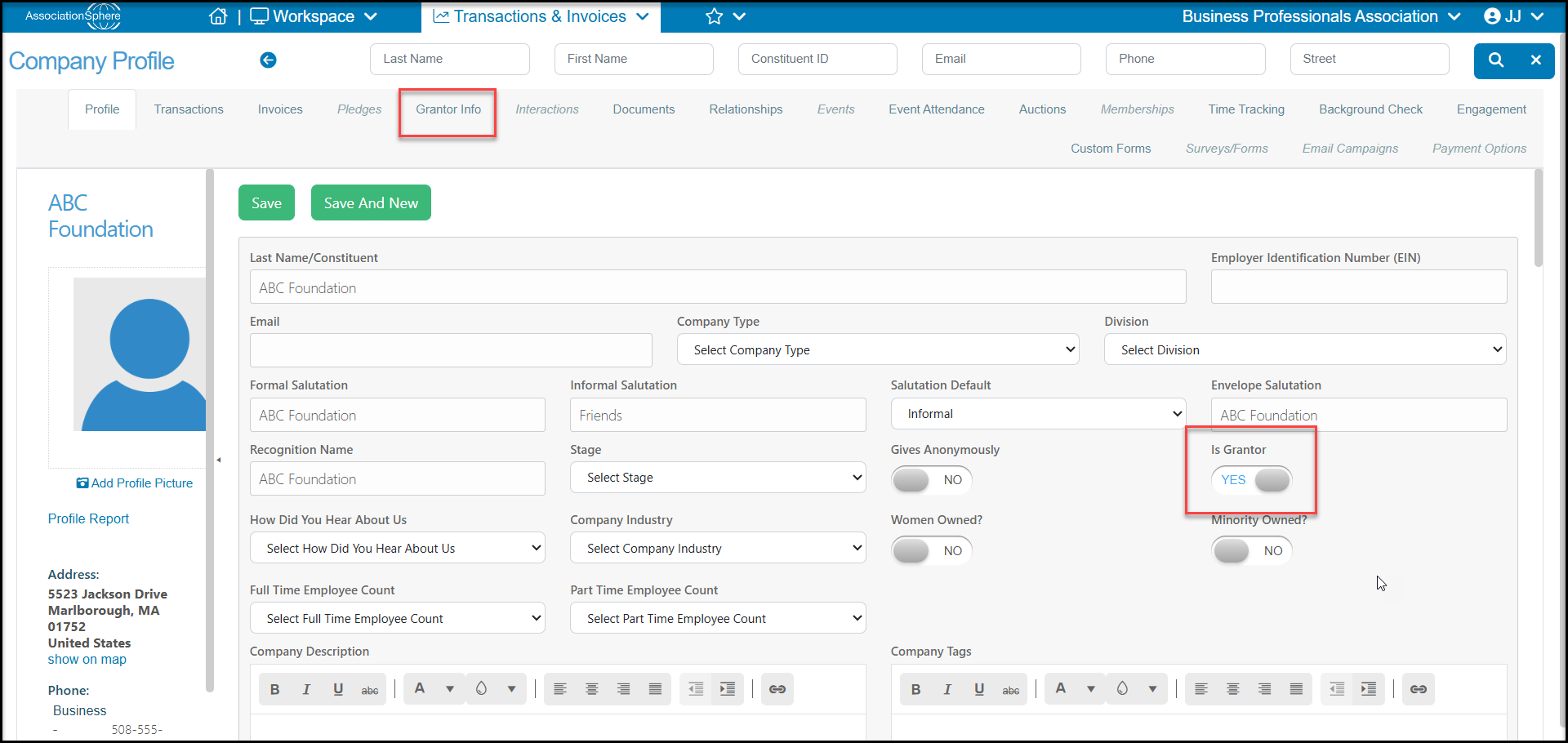
To add a proposal, the constituent must first be identified as a Grantor on their profile page. Once they are identified as a Grantor, a new tab will appear called Grantor Info.
 When the new Grantor is set up, you can add information about the type of granting organization they are, their grant cycle, award ranges and priorities.
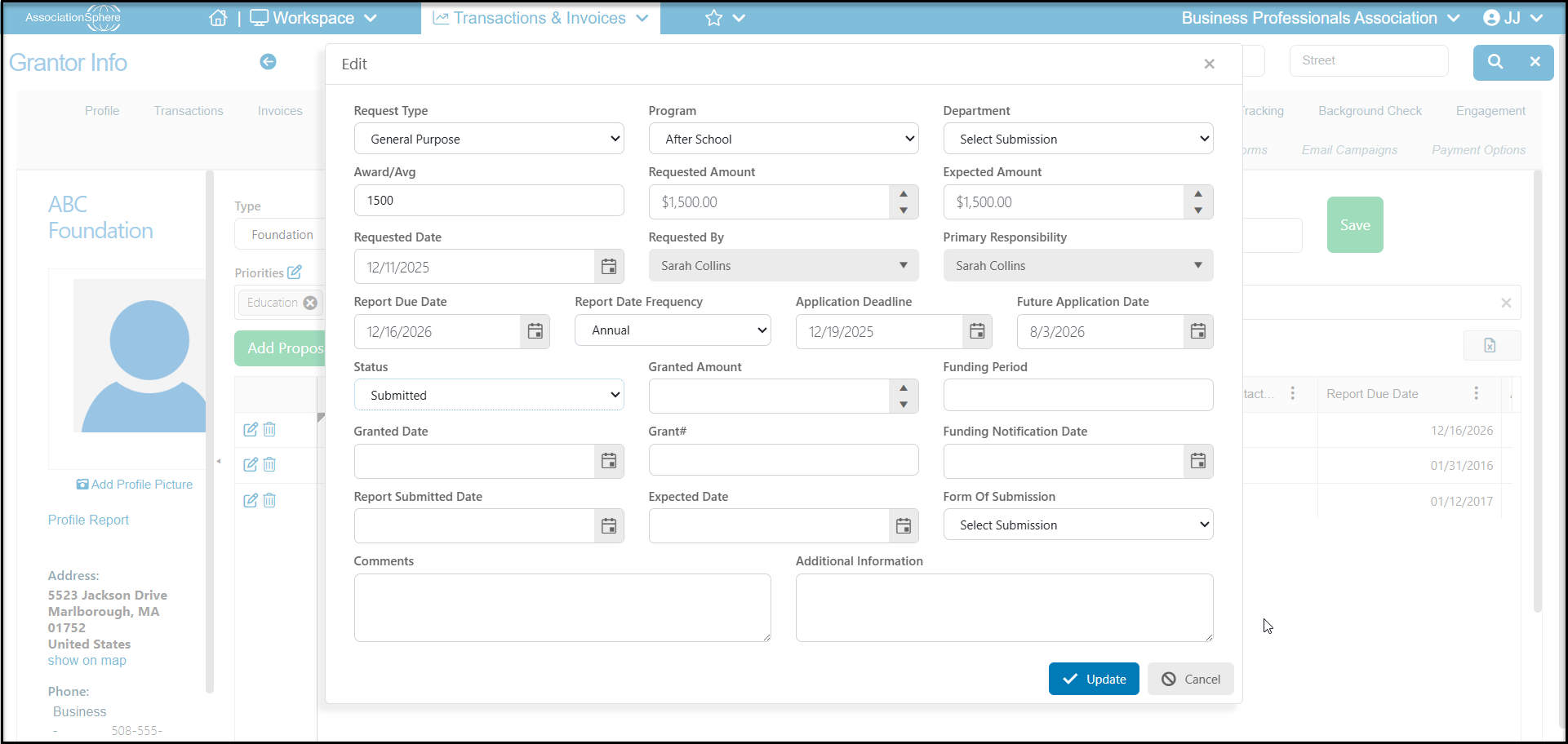
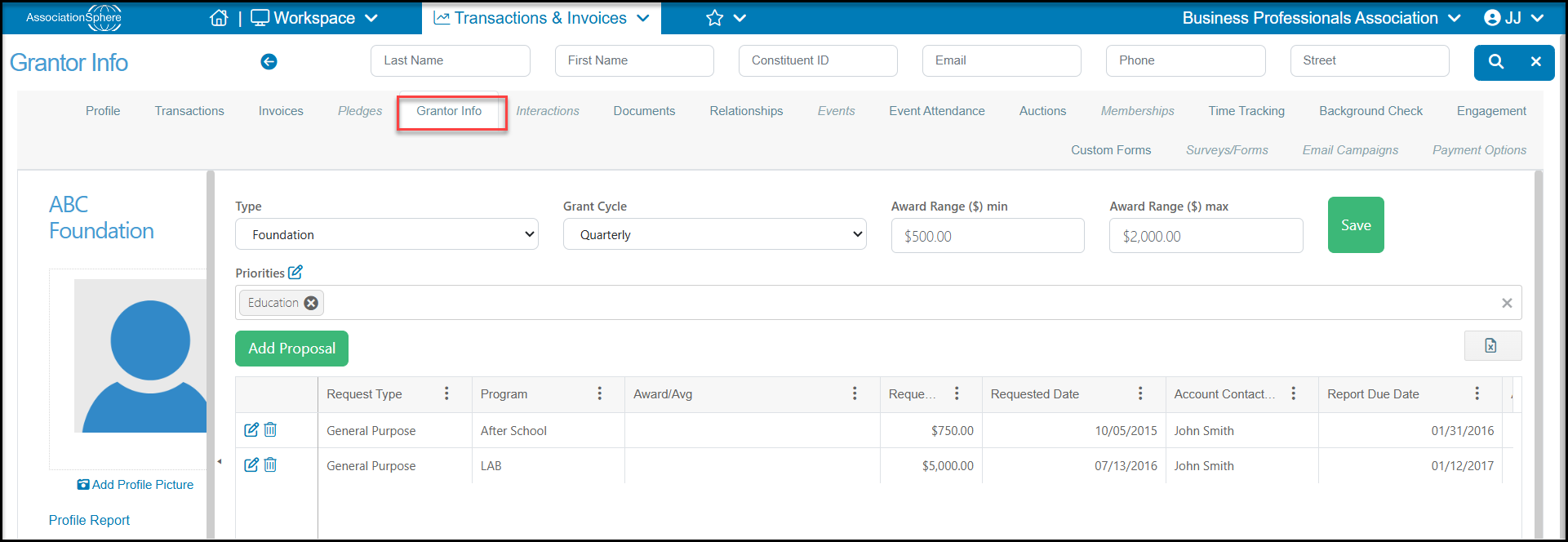 When you have a proposal to add, click on the **Add Proposal** button to open a new window and enter the appropriate information.
Fields include:
- **R****equest Type** - an editable drop down list to identify what type of request for support you are making, for example Matching Grant or Capital Campaign.
- **Program** - an editable drop down list for you to include your organization's program to be supported with this proposal.
- **Department**- an editable drop down list for your to identify your organization's department that will be utilizing this grant funding.
- **Award/Avg**- enter what this grantor's average award amount is for this type of proposal.
- **Requested Amount**- enter the amount you have requested.
- **Expected Amount** - enter the amount you expect to receive from the grantor.
- **Requested Date** - enter the date the proposal was submitted.
- **Requested By** - enter who in your organization submitted the request.
- **Primary Responsibility**- enter who in your organization will be responsible for managing the grant.
- **Report Due Date** - enter the date the next report is due. You may need to update this field over time if multiple reports are due.
- **Report Date Frequency** - an editable drop down list to identify the report frequency.
- **Application Deadline** - enter the date the application is due, if applicable.
- **Future Application Date** - enter another potential application date, if applicable.
- **Status**- by default this field is a drop down list containing:
- **Denied -** the proposal was declined by the grantor
- **Funded** - the proposal was accepted and funded by the grantor \*\* ***Do not edit this field as it will be tied to the gift entry form to recording the grant funds when received***
- **Open** - you are waiting for a response from the grantor
- You can add additional options if desired
- **Granted Amount** - the actual amount awarded from the grantor
- **Funding Period** - you can enter a date range covered by this grant, such as October 2026 - September 2027
- **Granted Date** - the start date of the grant award
- **Grant #** - a number assigned by the grantor, or your organization if you assign numbers internally
- **Funding Notification Date** - enter the date you were notified of the grant award
- **Report Submitted Date** - the date you submitted your report, note you may have to update this field if multiple reports are required
- **Expected Date** - expected date to receive the funds
- **Form of Submission**- an editable drop down field to identify how the grant proposal was submitted
- **Comments** - a text field to add comments about the grant
- **Additional Information**- an additional text field for information about the grant proposal, award, reports, or other information as desired.
Click **Update** when you have updated the desired fields.
When you have a proposal to add, click on the **Add Proposal** button to open a new window and enter the appropriate information.
Fields include:
- **R****equest Type** - an editable drop down list to identify what type of request for support you are making, for example Matching Grant or Capital Campaign.
- **Program** - an editable drop down list for you to include your organization's program to be supported with this proposal.
- **Department**- an editable drop down list for your to identify your organization's department that will be utilizing this grant funding.
- **Award/Avg**- enter what this grantor's average award amount is for this type of proposal.
- **Requested Amount**- enter the amount you have requested.
- **Expected Amount** - enter the amount you expect to receive from the grantor.
- **Requested Date** - enter the date the proposal was submitted.
- **Requested By** - enter who in your organization submitted the request.
- **Primary Responsibility**- enter who in your organization will be responsible for managing the grant.
- **Report Due Date** - enter the date the next report is due. You may need to update this field over time if multiple reports are due.
- **Report Date Frequency** - an editable drop down list to identify the report frequency.
- **Application Deadline** - enter the date the application is due, if applicable.
- **Future Application Date** - enter another potential application date, if applicable.
- **Status**- by default this field is a drop down list containing:
- **Denied -** the proposal was declined by the grantor
- **Funded** - the proposal was accepted and funded by the grantor \*\* ***Do not edit this field as it will be tied to the gift entry form to recording the grant funds when received***
- **Open** - you are waiting for a response from the grantor
- You can add additional options if desired
- **Granted Amount** - the actual amount awarded from the grantor
- **Funding Period** - you can enter a date range covered by this grant, such as October 2026 - September 2027
- **Granted Date** - the start date of the grant award
- **Grant #** - a number assigned by the grantor, or your organization if you assign numbers internally
- **Funding Notification Date** - enter the date you were notified of the grant award
- **Report Submitted Date** - the date you submitted your report, note you may have to update this field if multiple reports are required
- **Expected Date** - expected date to receive the funds
- **Form of Submission**- an editable drop down field to identify how the grant proposal was submitted
- **Comments** - a text field to add comments about the grant
- **Additional Information**- an additional text field for information about the grant proposal, award, reports, or other information as desired.
Click **Update** when you have updated the desired fields.