# How do I add a Paddle Raise Level?
> Source: https://support.associationsphere.com/how-do-i-add-a-paddle-raise-level | Updated: 2024-09-12T18:04:42Z
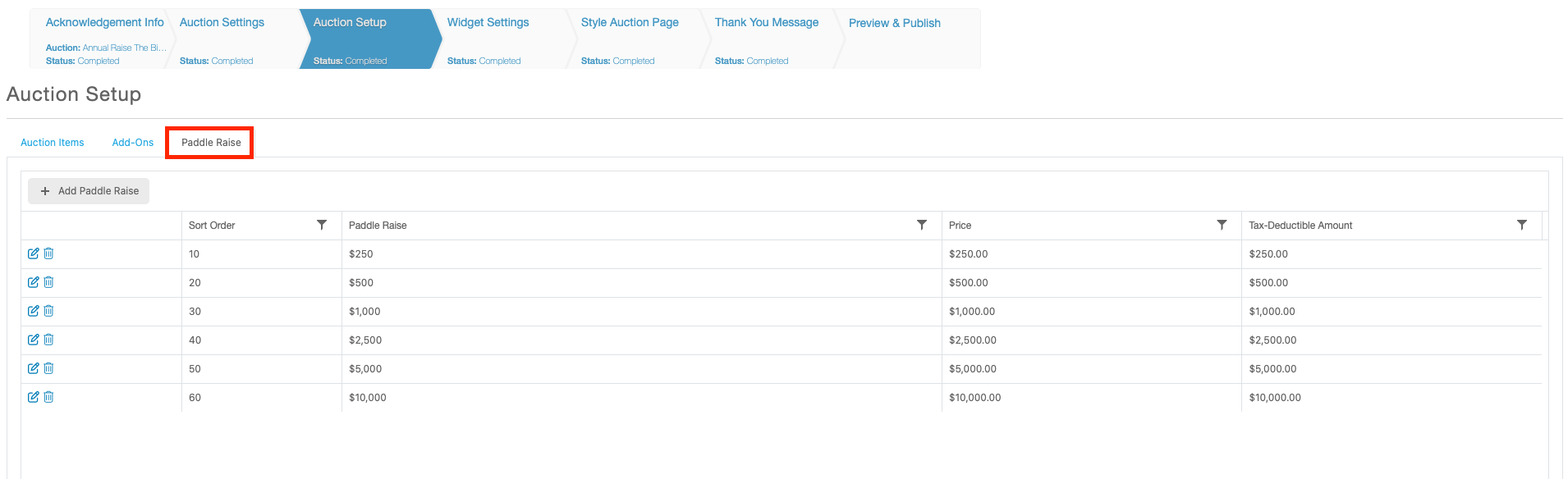 The setup of Paddle Raise level will take place on the “Auction Setup” page within the setup of your Auction. Directly next to the “Level” and “Add-on” sub-tabs you will see the “Paddle Raise” option. Once on that sub-tab you will be able to add, edit or removal Paddle Raise level under your Auction. To add a new Paddle Raise level click the “+Add Paddle Raise” button above the grid. You will then be able to populate the following fields:
**Sort Order** – Enter a number that will determine the order you wish this Paddle Raise level to appear in the selection picklist. The lower the number the higher it will appear in the picklist.
**Name**– Enter the display name of this Paddle Raise level.
**Description**– Enter any text you want to internally describe this Paddle Raise level.
**Price**– Enter the total Amount of this Paddle Raise level.
**Tax-Deductible Amount** – Enter the total Amount of the Paddle Raise level that is Tax-Deductible.
**Default For, Fund, Event, Appeal**– Select which designation(s) you wish to assign to the Paddle Raise transaction.
**Gift Category**– Select a category you wish to assign to the transaction record for this Paddle Raise.
**Fundraising Goal Category**– Select which Goal Category this transaction should be assign to. This will allow for the own or paid balance to appear on a fundraising goal widget graphic.
The setup of Paddle Raise level will take place on the “Auction Setup” page within the setup of your Auction. Directly next to the “Level” and “Add-on” sub-tabs you will see the “Paddle Raise” option. Once on that sub-tab you will be able to add, edit or removal Paddle Raise level under your Auction. To add a new Paddle Raise level click the “+Add Paddle Raise” button above the grid. You will then be able to populate the following fields:
**Sort Order** – Enter a number that will determine the order you wish this Paddle Raise level to appear in the selection picklist. The lower the number the higher it will appear in the picklist.
**Name**– Enter the display name of this Paddle Raise level.
**Description**– Enter any text you want to internally describe this Paddle Raise level.
**Price**– Enter the total Amount of this Paddle Raise level.
**Tax-Deductible Amount** – Enter the total Amount of the Paddle Raise level that is Tax-Deductible.
**Default For, Fund, Event, Appeal**– Select which designation(s) you wish to assign to the Paddle Raise transaction.
**Gift Category**– Select a category you wish to assign to the transaction record for this Paddle Raise.
**Fundraising Goal Category**– Select which Goal Category this transaction should be assign to. This will allow for the own or paid balance to appear on a fundraising goal widget graphic.
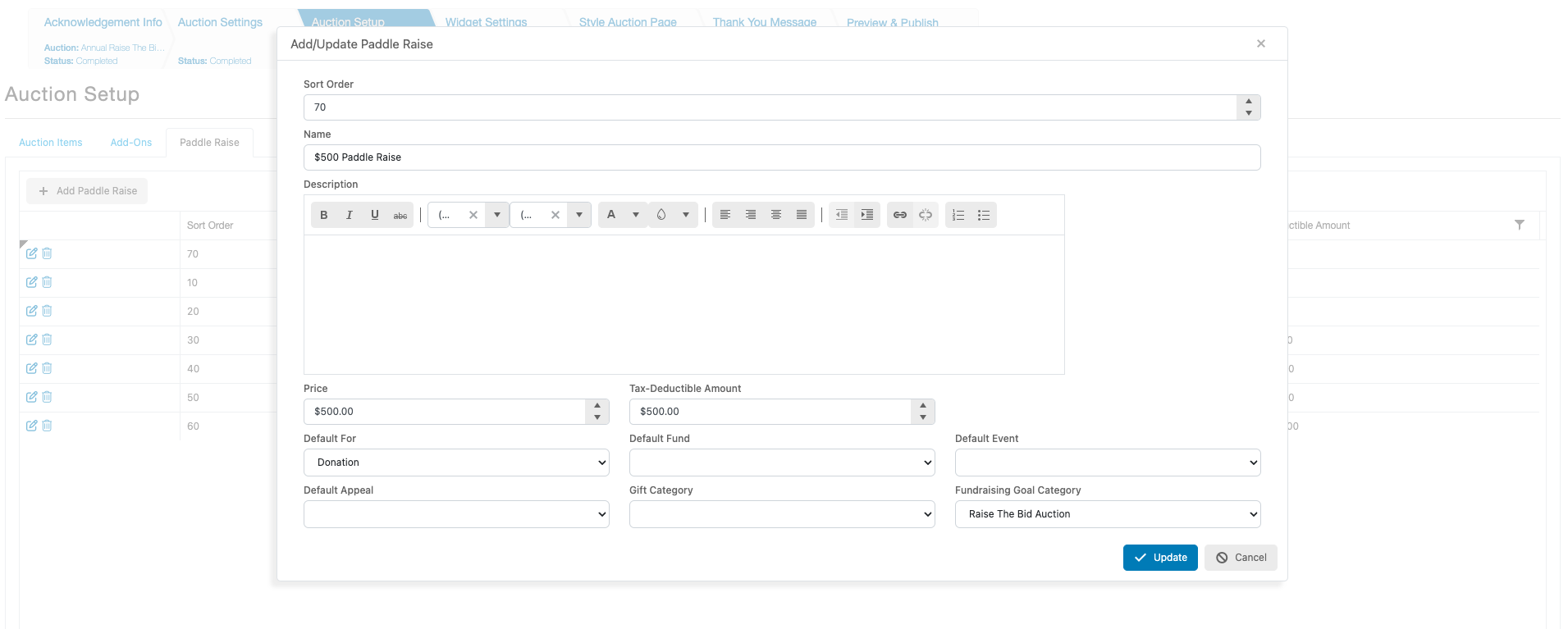 Once you have completed this setup click the blue “Update” button. You can then repeat this process for each of the Paddle Raise levels you wish to add. After adding a Paddle Raise you can then click the pencil and paper icon to edit its setup. Or click the Trash-can icon to remove it.