# How do I add an interaction?
> Source: https://support.associationsphere.com/how-do-i-add-an-interaction | Updated: 2024-07-21T17:38:05Z
There are multiple ways to create a new interaction. From the Constituents, Gift, Interactions or Documents grids, you can highlight the constituent, click on the **+New**button at the top of the grid and select Interaction.
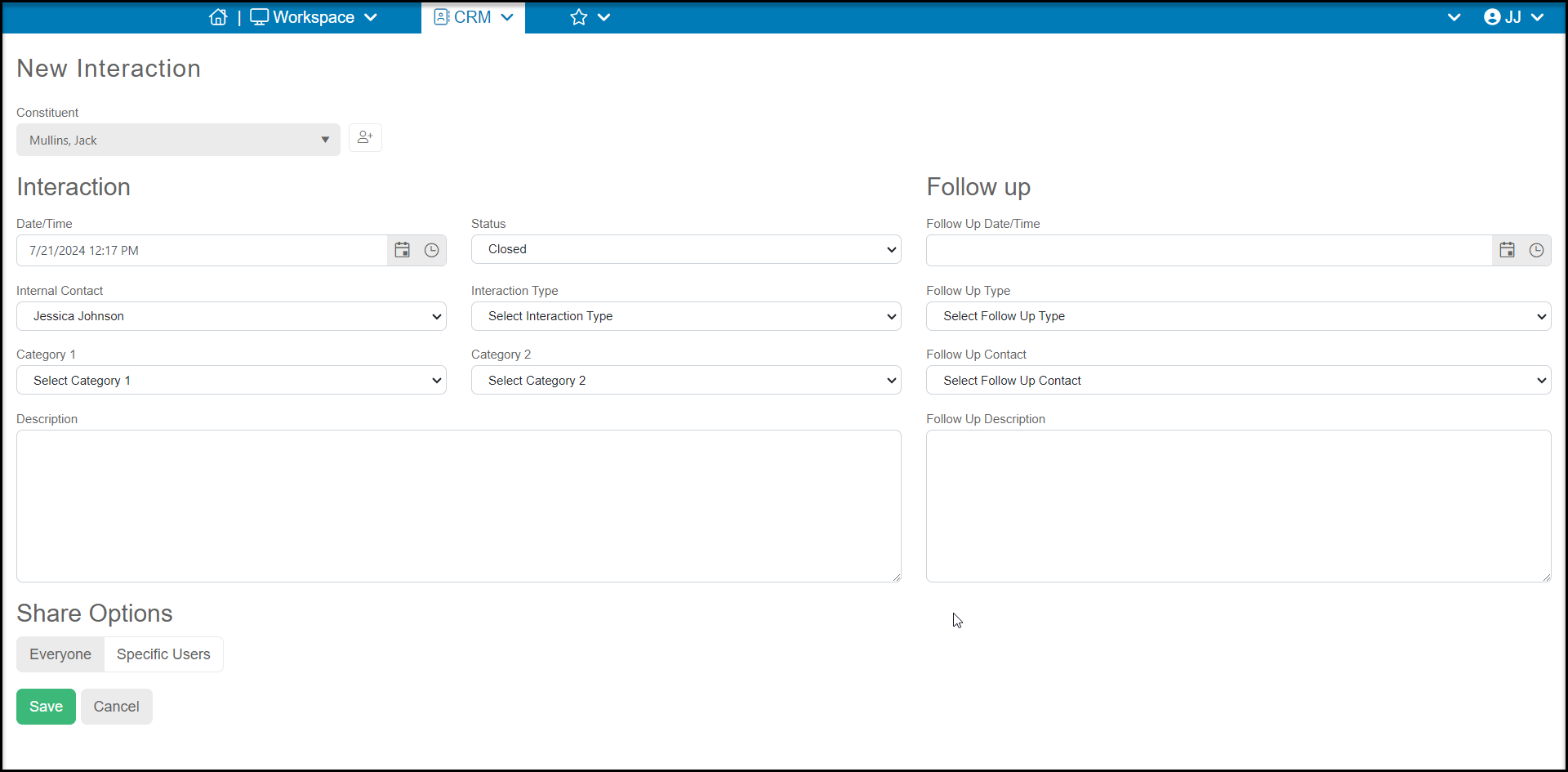
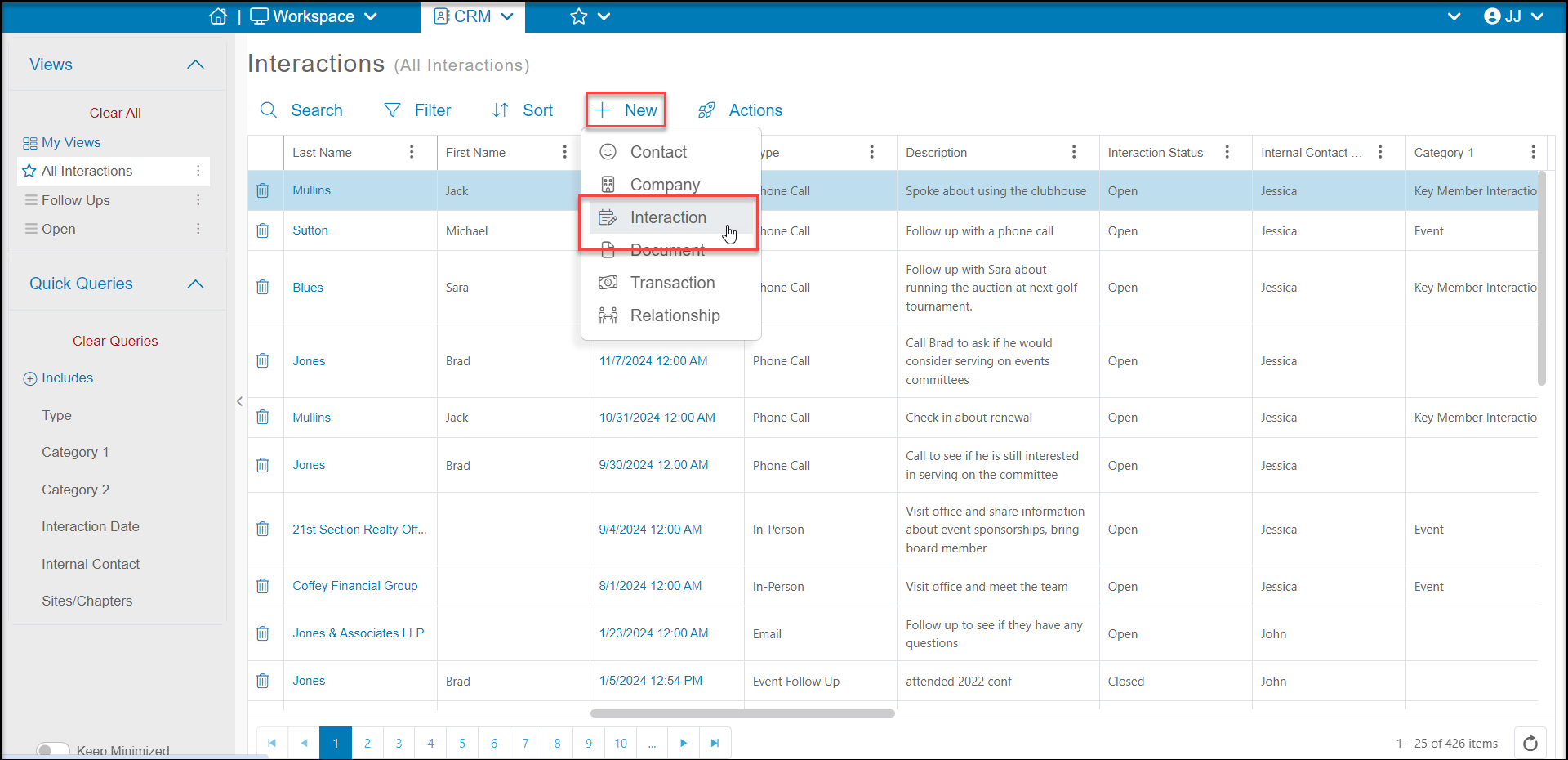 You will be redirected to an interaction entry form.
1. The **Constituent**will default to the one you had selected from the grid, or you can choose another constituent using the arrow to the right of the constituent's name. You can also add a new constituent using the **Add Constituent**icon just to the right of the field.
2. The **Date/Time** will default to today's data and current time, but this can be edited with the **Calendar** and **Clock** icons at the right of the field. You can also manually type in the information.
3. The **Status** can either be **Open** or **Closed**. There are no edits available for these options.
4. The **Internal Contact**will default to the person who is initiating this interaction record. It can be modified using the arrow on the right side of the box.
5. The **Interaction Type** is an editable drop down list that can be modified using the **** selection at the top of the drop down list. Examples include phone call, email, and in-person visit.
6. There is also an interactions **Category 1** and **Category 2** which are also editable drop down lists. You can categorize your interactions in any manner and these categories are independent of each other.
7. In the **Description** field you can record any details about the interaction.
8. If this interaction requires further action, you can assign a **Follow up** on the right side of the window.
9. For follow ups, you can assign the date and time the activity is due in the **Follow Up Date/Time**field.
10. You can choose which user will be assigned the activity in the **Follow Up Contact** drop down list. Whoever is assigned will see this activities in the My Follows Up grid in the CRM module.
11. You can also add details about what needs to be accomplished in the follow up in the **Follow Up Description**text box.
12. Under the Share Options area, this will default to making this interaction visible to all users who have access to the CRM module. If you select **Specific Users**, you can choose specific specific users who will be able to view this interaction on both the global Interactions grid or on the constituent's Interactions tab.
13. Click **Save**to save the interaction. This will close the window and open the Interaction tab for the constituent. Click **Cancel**to return to the grid without saving.
You will be redirected to an interaction entry form.
1. The **Constituent**will default to the one you had selected from the grid, or you can choose another constituent using the arrow to the right of the constituent's name. You can also add a new constituent using the **Add Constituent**icon just to the right of the field.
2. The **Date/Time** will default to today's data and current time, but this can be edited with the **Calendar** and **Clock** icons at the right of the field. You can also manually type in the information.
3. The **Status** can either be **Open** or **Closed**. There are no edits available for these options.
4. The **Internal Contact**will default to the person who is initiating this interaction record. It can be modified using the arrow on the right side of the box.
5. The **Interaction Type** is an editable drop down list that can be modified using the **** selection at the top of the drop down list. Examples include phone call, email, and in-person visit.
6. There is also an interactions **Category 1** and **Category 2** which are also editable drop down lists. You can categorize your interactions in any manner and these categories are independent of each other.
7. In the **Description** field you can record any details about the interaction.
8. If this interaction requires further action, you can assign a **Follow up** on the right side of the window.
9. For follow ups, you can assign the date and time the activity is due in the **Follow Up Date/Time**field.
10. You can choose which user will be assigned the activity in the **Follow Up Contact** drop down list. Whoever is assigned will see this activities in the My Follows Up grid in the CRM module.
11. You can also add details about what needs to be accomplished in the follow up in the **Follow Up Description**text box.
12. Under the Share Options area, this will default to making this interaction visible to all users who have access to the CRM module. If you select **Specific Users**, you can choose specific specific users who will be able to view this interaction on both the global Interactions grid or on the constituent's Interactions tab.
13. Click **Save**to save the interaction. This will close the window and open the Interaction tab for the constituent. Click **Cancel**to return to the grid without saving.
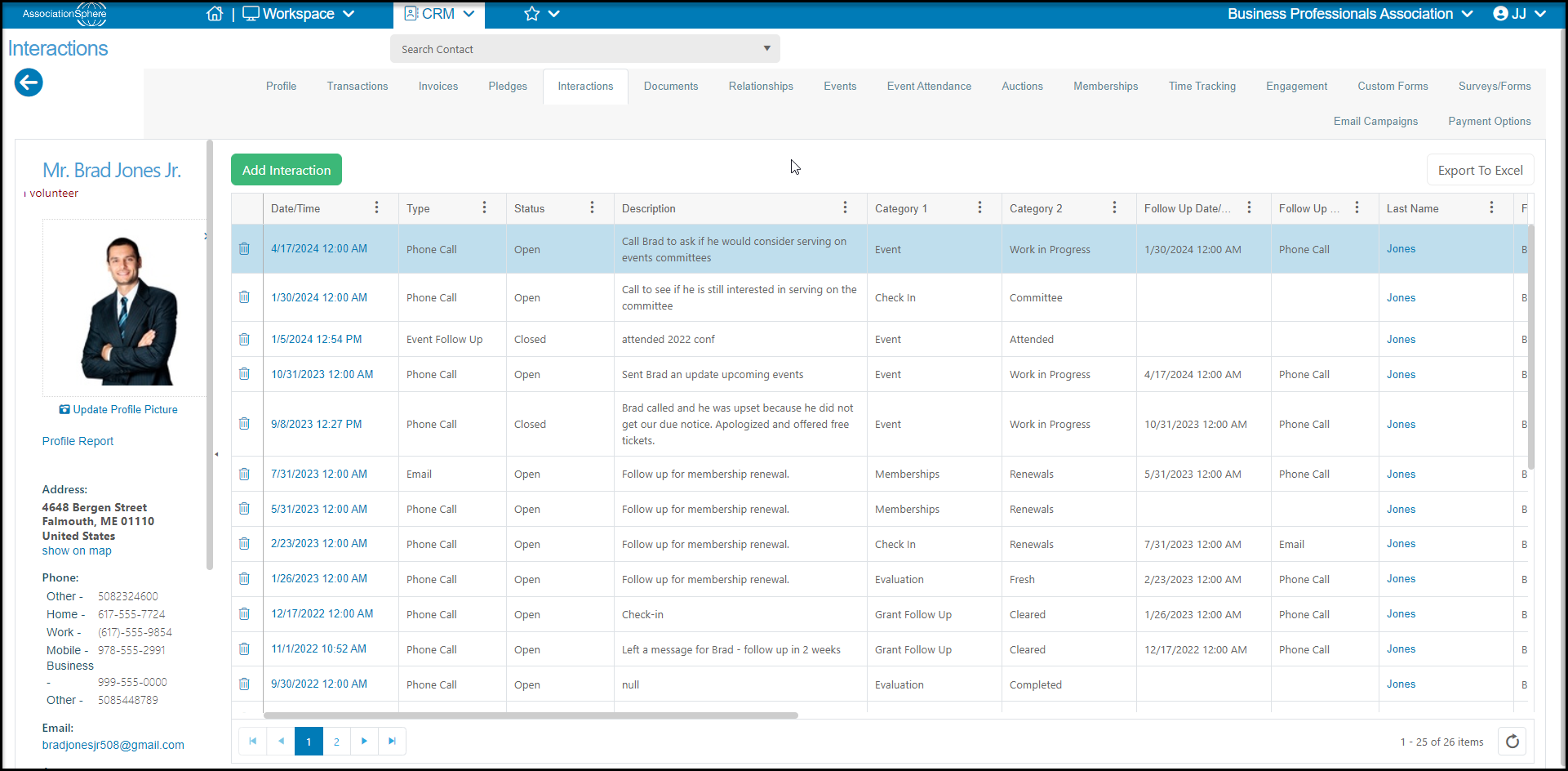
 From within a constituent record, you can click on their Interactions tab to add an interaction using the **Add Interaction** button. A new window will open and you can enter a new interaction as described above. You can also click on the data/time of any interaction to view or edit the interactions.