# How do I add mail merge fields to my email campaign?
> Source: https://support.associationsphere.com/how-do-i-add-mail-merge-fields-to-my-email-campaign | Updated: 2026-07-08T20:20:34Z
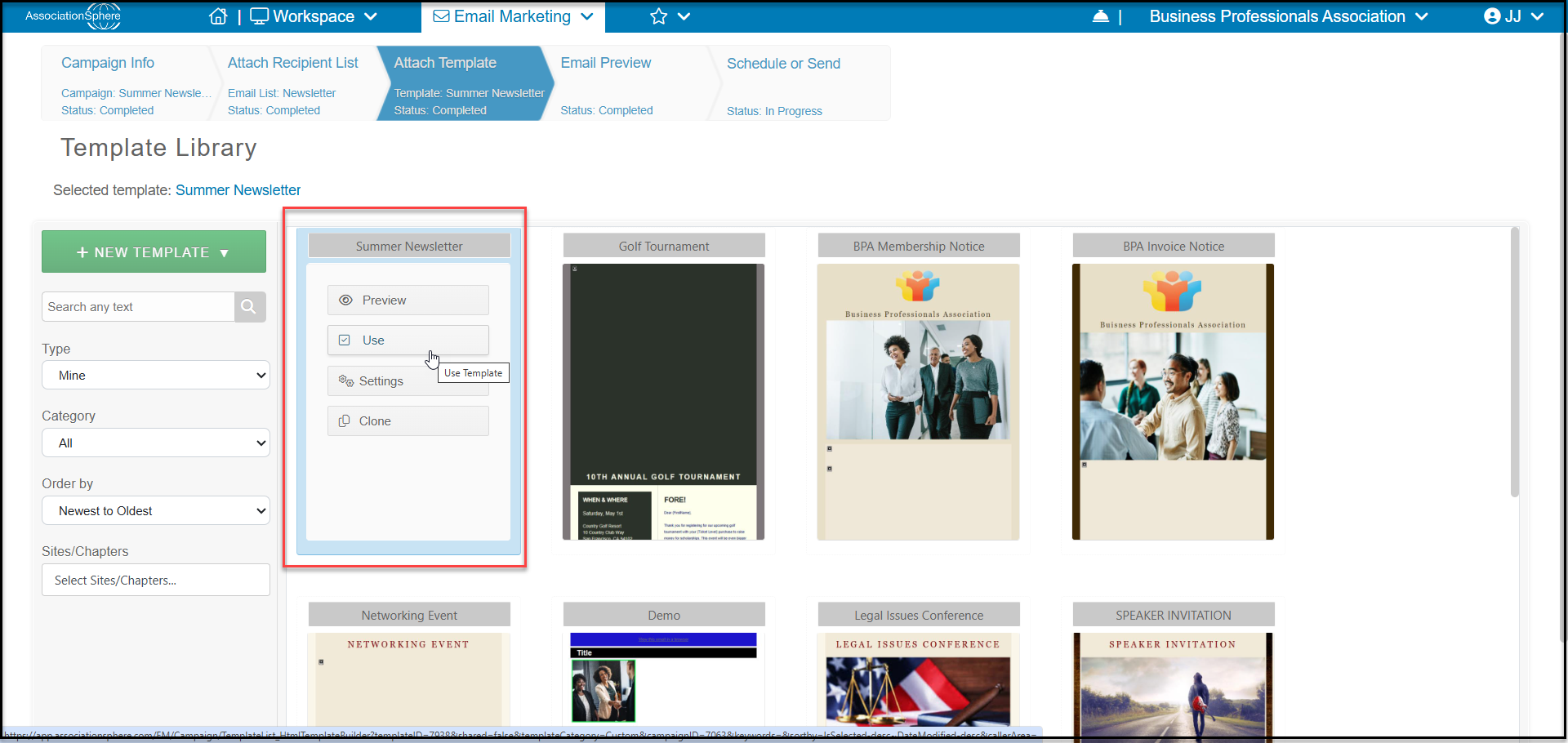
In **Workspace > Email Marketing > Campaigns**, edit the campaign and on the **Attach Template** step click Use (Use Template) for the template to send with the email campaign.
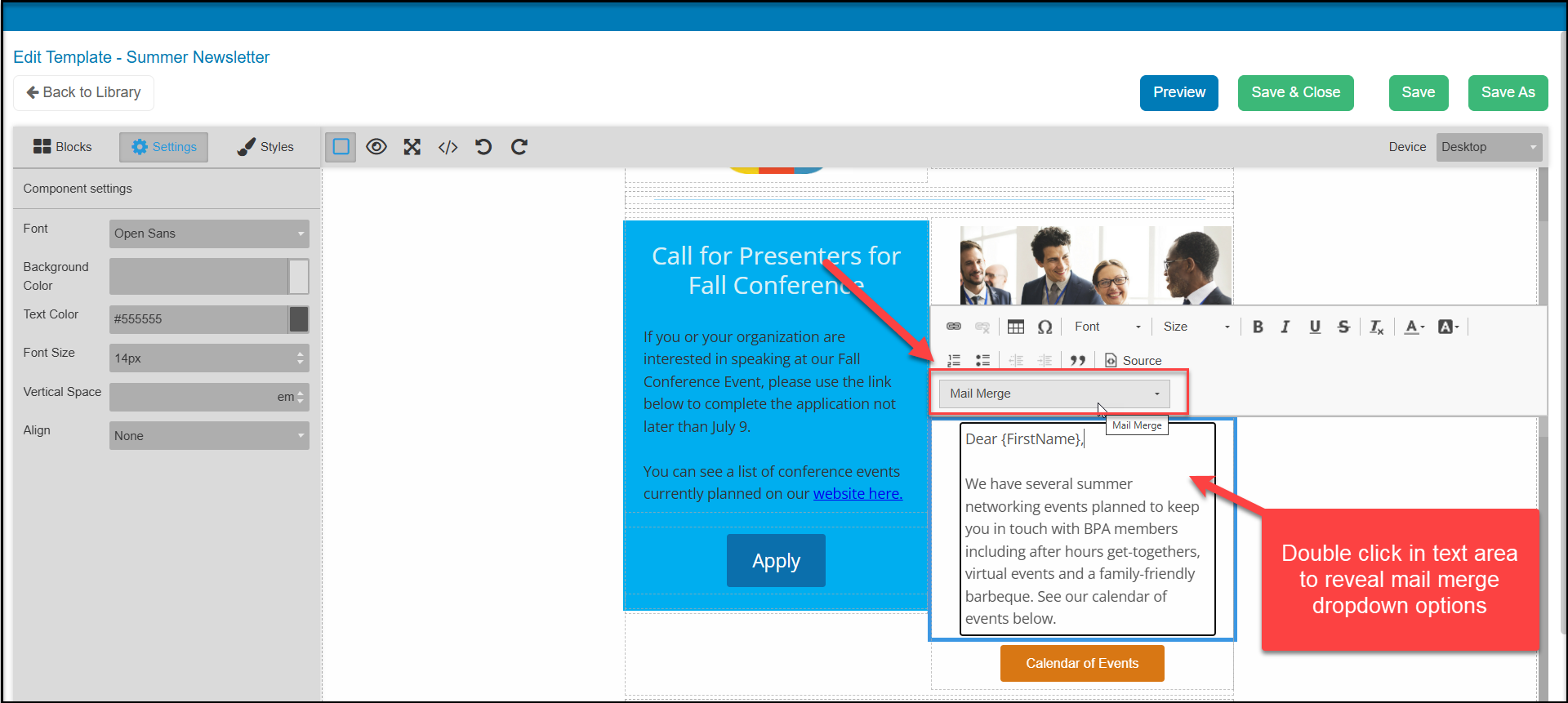
 In the template, double-click the Text content where you wish to add merge fields to place it in Edit mode and select the Mail Merge field(s) from the drop-down list.
 **NOTE:** Mail Merge fields are based on the mailing list(s) attached to the campaign (**Attach Recipient List** step).
For example, if a mailing list were created from the Memberships grid, membership data will be available.
If a mailing list is imported, it will have First Name, Last Name and Email available.
If multiple mailing lists are attached to the campaign, fewer mail merge fields may be available in the
campaign than the individual mailing lists themselves.
**Summary:**
A simple email list or imported list will only include the First Name, Last Name and Email mail merge fields.
If a mailing list is created from a grid using **Actions > Create Email List**, additional mail merge fields will be available. The data (except for name and email) on this type of mailing list is static. If updated data is needed, a new mailing list should be created.
Attaching multiple mailing lists to an email campaign may affect which mail merge fields are available as well.
In **Workspace > Email Marketing > Contacts**, select the mailing list and run **Actions > Export to Excel File** to see which mail merge fields are available, and the data populated for the mail merge fields.
**NOTE:** Mail Merge fields are based on the mailing list(s) attached to the campaign (**Attach Recipient List** step).
For example, if a mailing list were created from the Memberships grid, membership data will be available.
If a mailing list is imported, it will have First Name, Last Name and Email available.
If multiple mailing lists are attached to the campaign, fewer mail merge fields may be available in the
campaign than the individual mailing lists themselves.
**Summary:**
A simple email list or imported list will only include the First Name, Last Name and Email mail merge fields.
If a mailing list is created from a grid using **Actions > Create Email List**, additional mail merge fields will be available. The data (except for name and email) on this type of mailing list is static. If updated data is needed, a new mailing list should be created.
Attaching multiple mailing lists to an email campaign may affect which mail merge fields are available as well.
In **Workspace > Email Marketing > Contacts**, select the mailing list and run **Actions > Export to Excel File** to see which mail merge fields are available, and the data populated for the mail merge fields.