# How do I add Unsubscribe and Manage Subscription links?
> Source: https://support.associationsphere.com/how-do-i-add-unsubscribe-and-manage-subscription-links | Updated: 2024-12-20T23:29:37Z
To add the unsubscribe and/or manage subscription links to your email template, follow the steps below.
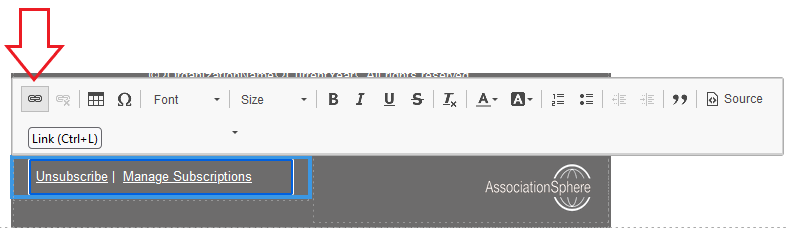
 In a Text content area, add or edit the text by double-clicking the section. Place your cursor where the new text/link will be added or on the text to be edited, and click the Link icon.
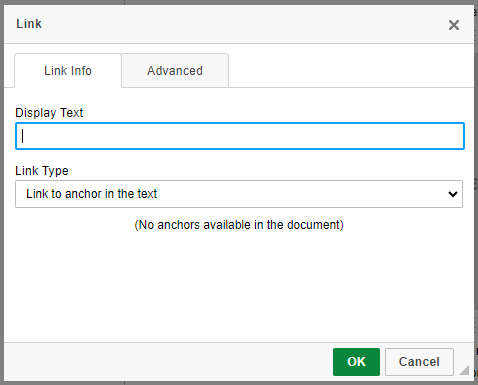
 Select the Link Type as Link to anchor in the text, and enter the Display Text for your link.
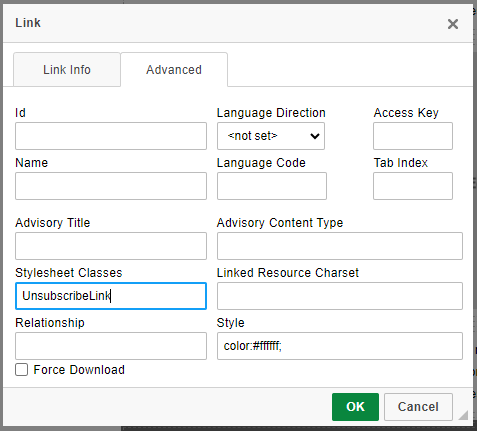
 On the Advanced tab, set the Stylesheet Classes field as follows:
a) for Unsubscribe, UnsubscribeLink
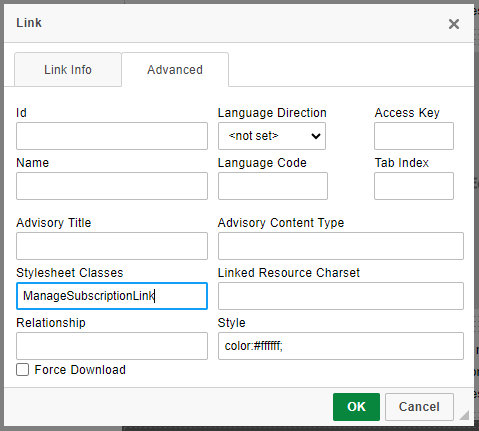
On the Advanced tab, set the Stylesheet Classes field as follows:
a) for Unsubscribe, UnsubscribeLink
 b) for Manage Subscriptions, ManageSubscriptionLink