# How do I create a Raffle Ticket Event?
> Source: https://support.associationsphere.com/how-do-i-create-a-raffle-ticket-event | Updated: 2024-08-25T15:05:21Z
*Be sure to check into the laws and rules regarding conducting raffles in your state prior to setting up a raffle.*
There are multiple ways to set up an event to include raffle tickets.
1. You can provide raffle tickets to all attendees and allow the software to randomly choose a winner.
2. You can also make raffle tickets a level to be purchased, then allow the software to randomly choose a winner.
3. You can sell raffle tickets as an add-on item. You can then manually draw names from those who purchased the add-on item or put those names on raffle tickets and add them to the drawing with raffle tickets purchased at an in-person event.
4. You can sell raffle tickets as an add-on to an auction for an in-person event. These would also be manually drawn in a traditional paper ticket auction. The software does not draw names for add-ons.
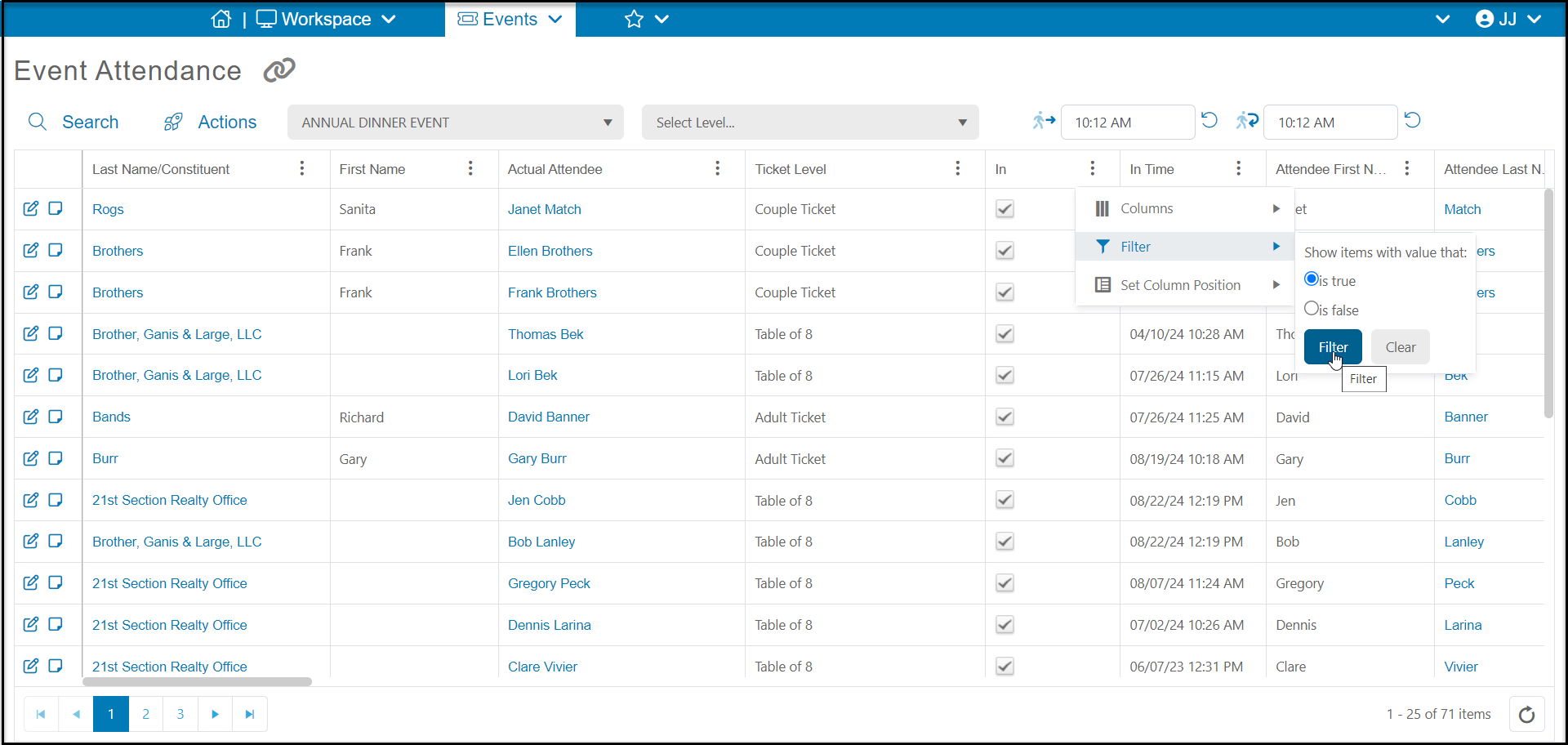
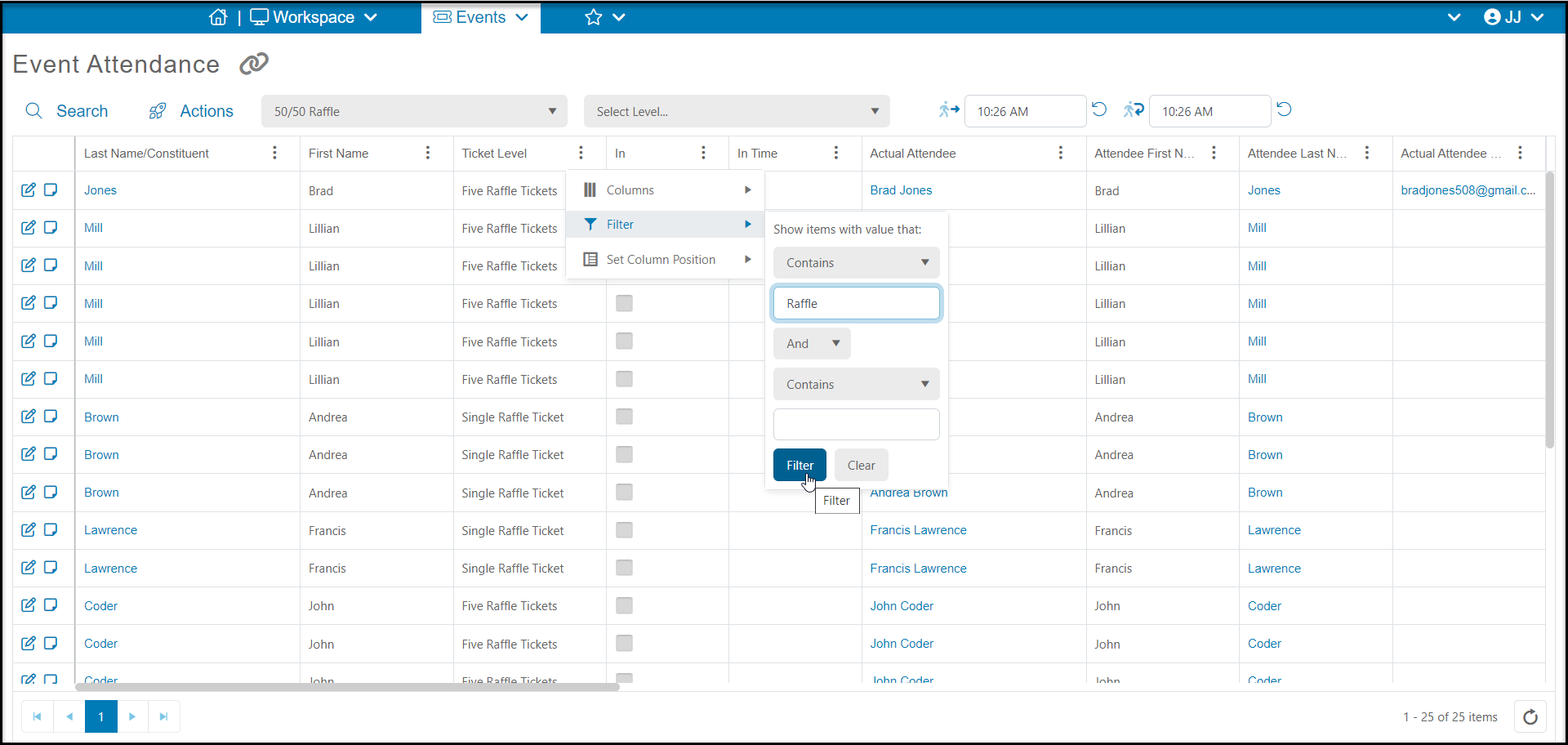
**For Option 1**, if everyone attending your event will be included in a drawing, you can use the software to randomly draw a winner for you. Open the Event Attendance grid in the Events Module and select your event. If you checked in your guests, you can filter the list for those who are checked in, or you can select a winner from the entire list.
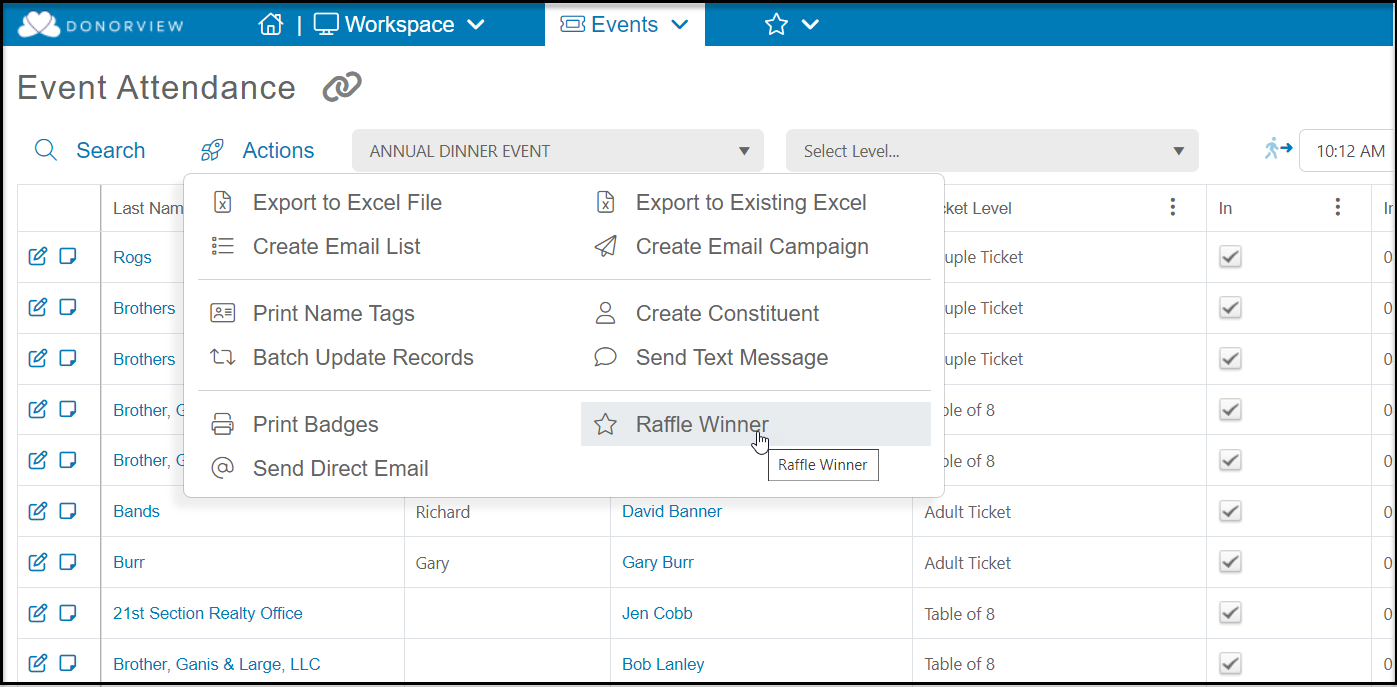
 Under the Actions on the left side of the screen, click on **Raffle Winner**.
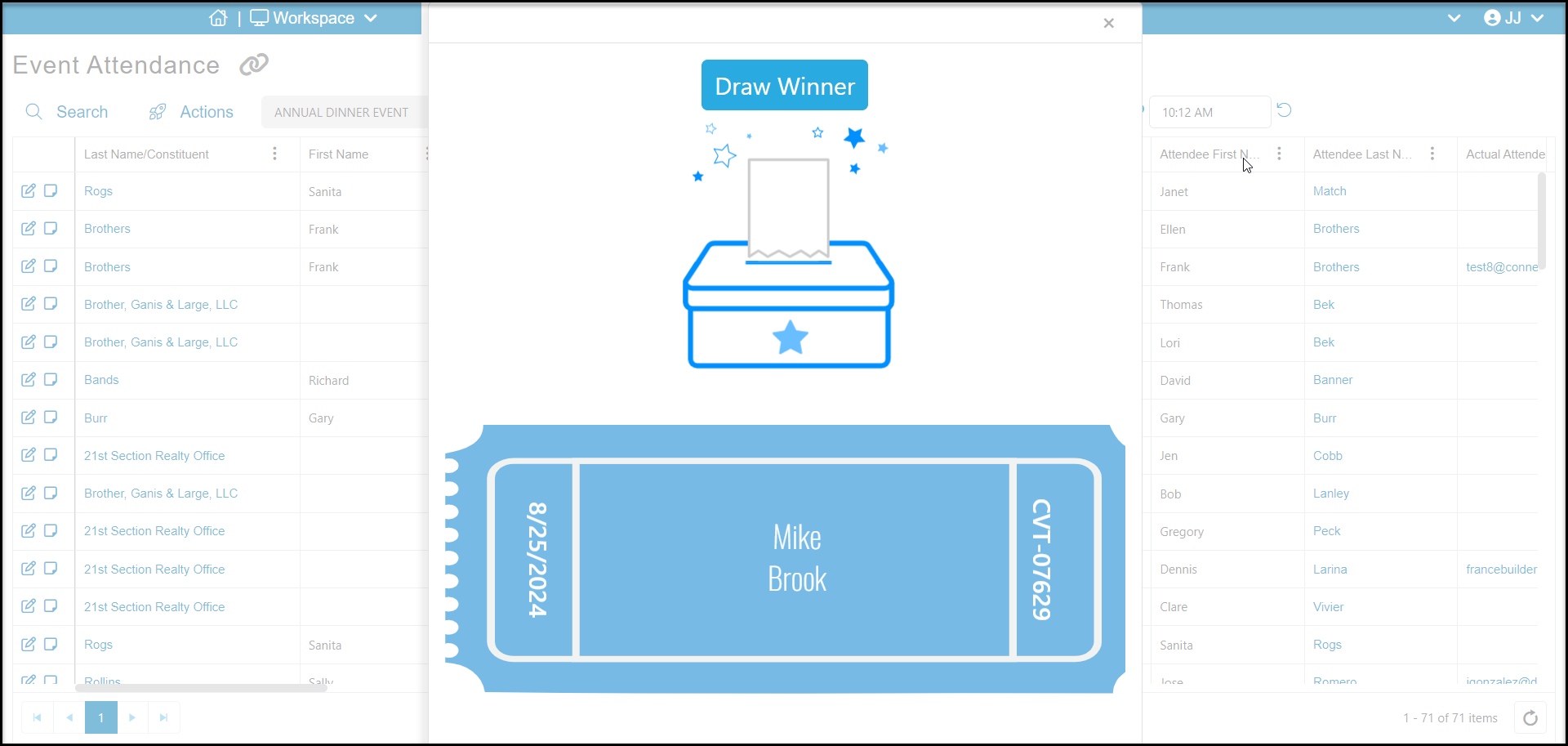
 A new window will pop up. Click on **Draw Winner** to randomly select a name from the Actual Attendee Column in your list. You can click the button again to draw another winner.
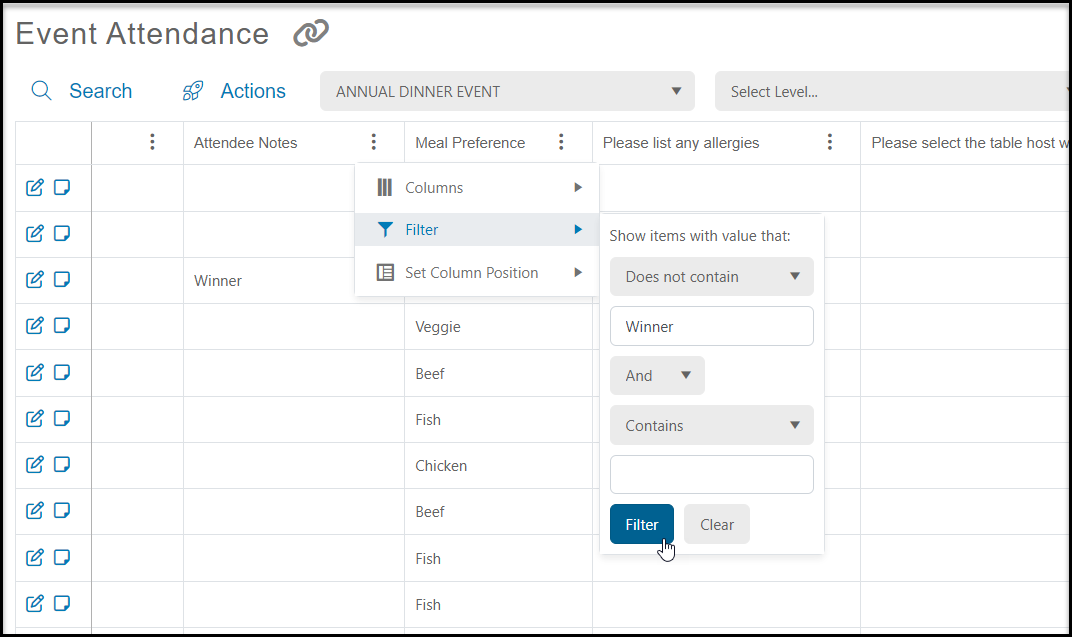
 **NOTE:** If you will have multiple prize winners, in order to*not select the exact same winner* for the second and third prize (i.e. the same raffle ticket wins again), the ticket/attendee can be edited and text added to the Attendee Notes (for example, Winner) and the column filtered before drawing the next winner.
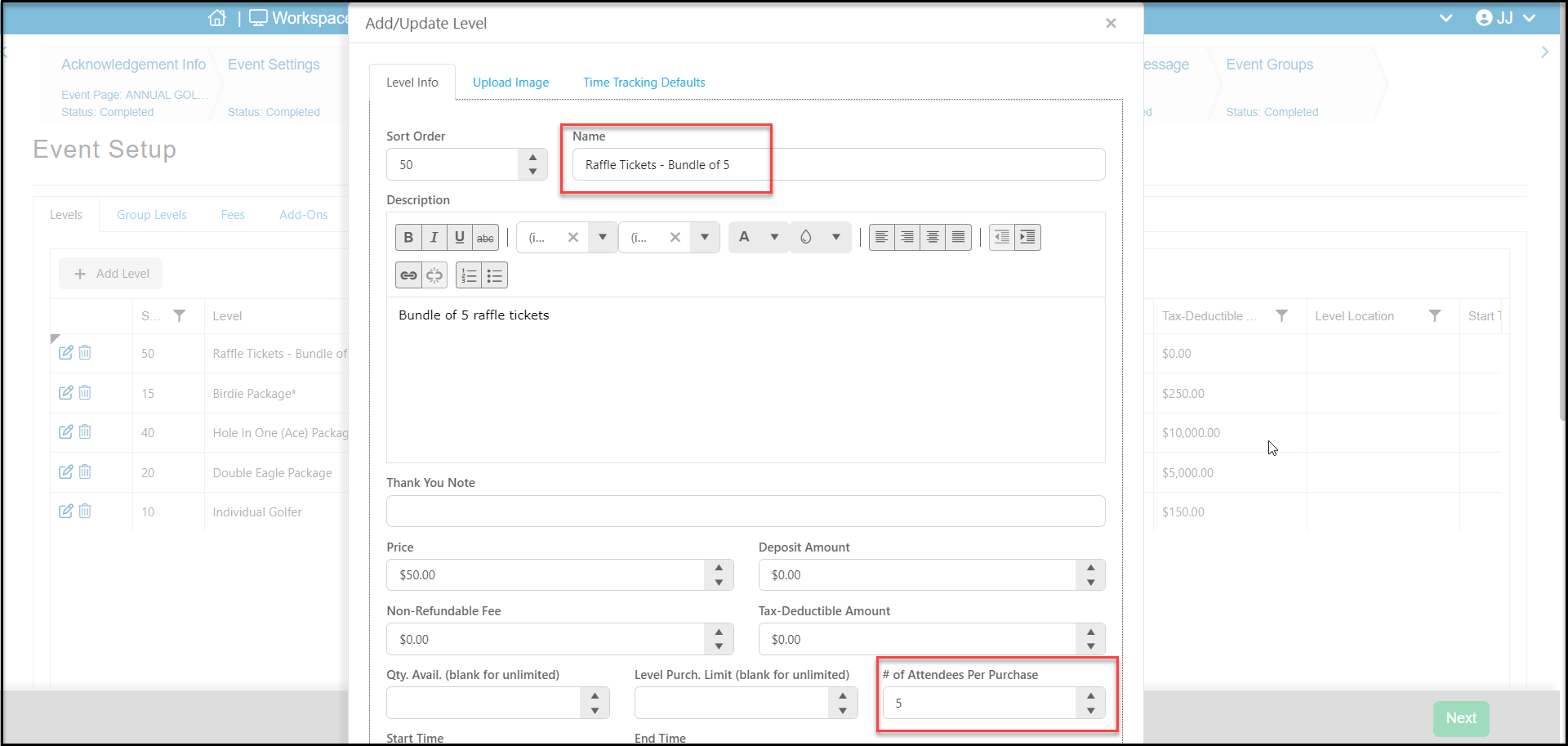
 **For Option 2**, selling raffle tickets as an event level, will require adding a level for the raffle tickets. On the Event Setup tab and click on **Add Level.** Enter the information about the raffle in the new window, including the price per ticket and the quantity available if there is a limit. You can sell individual raffle tickets and set the **# of Attendees Per Purchase**to "1" or create bundles of tickets, for example a bundle of 5 Tickets would have the**# of Attendees Per Purchase** set to "5." Click **Update** on the bottom to save.
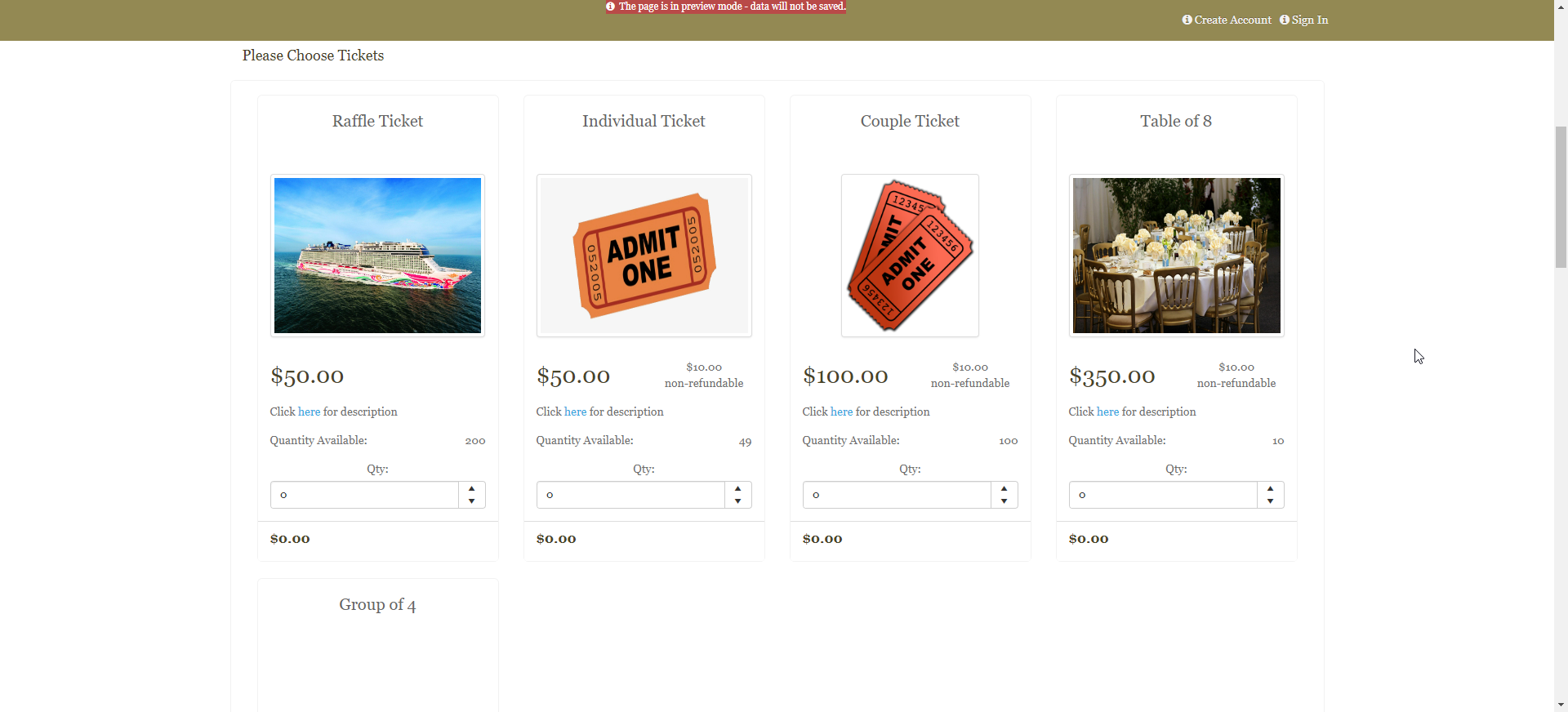
 The event can just be for raffle ticket sales, or it can be part of an event with multiple types of tickets for purchase as shown in the example below on the Event Form.
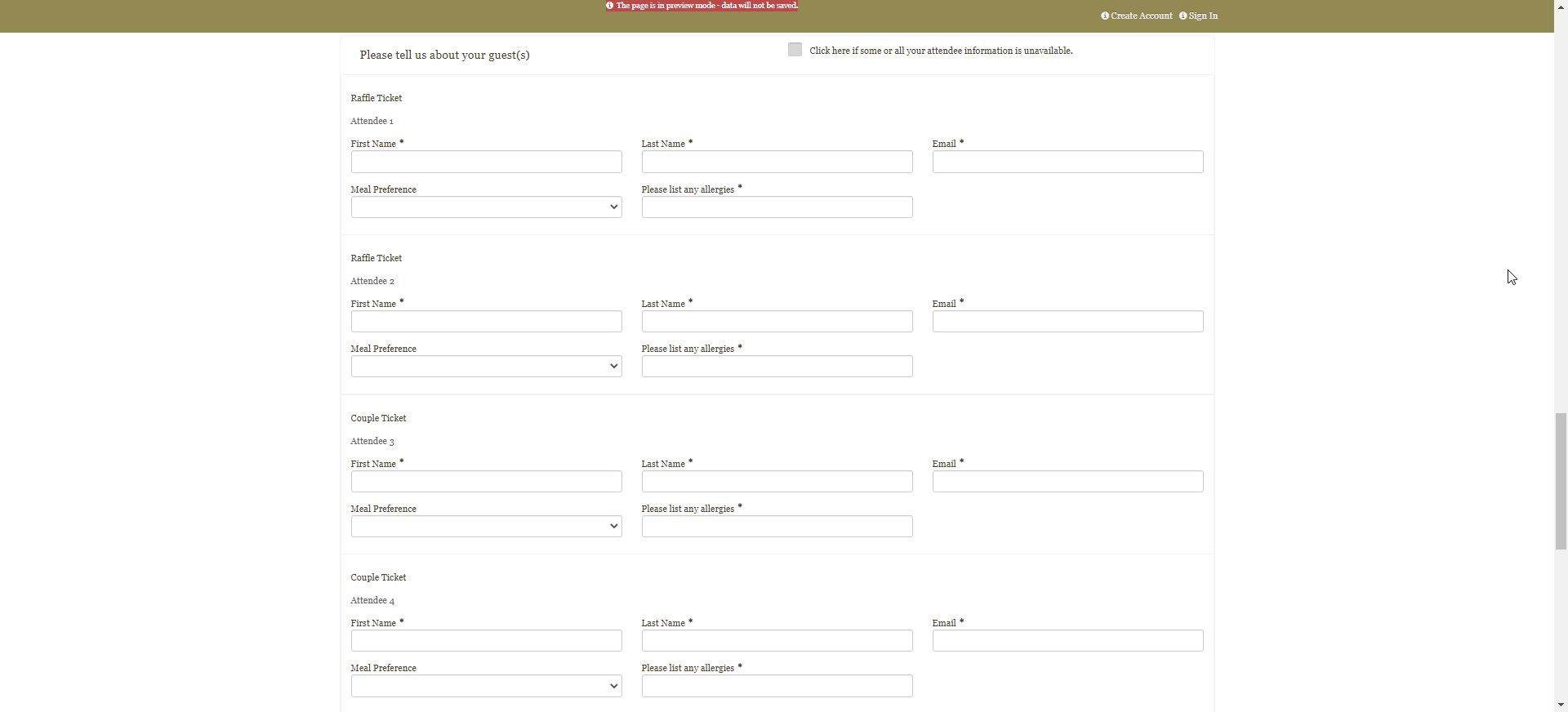
 The purchaser can enter the names for the raffle drawing as well as other attendees on the form.
 Anyone who purchases the level for raffle tickets will be shown in the Events Grid and Event Attendance Page in the Events Module with that level. You can filter the list for that level, then use the Actions menu to do the drawing.
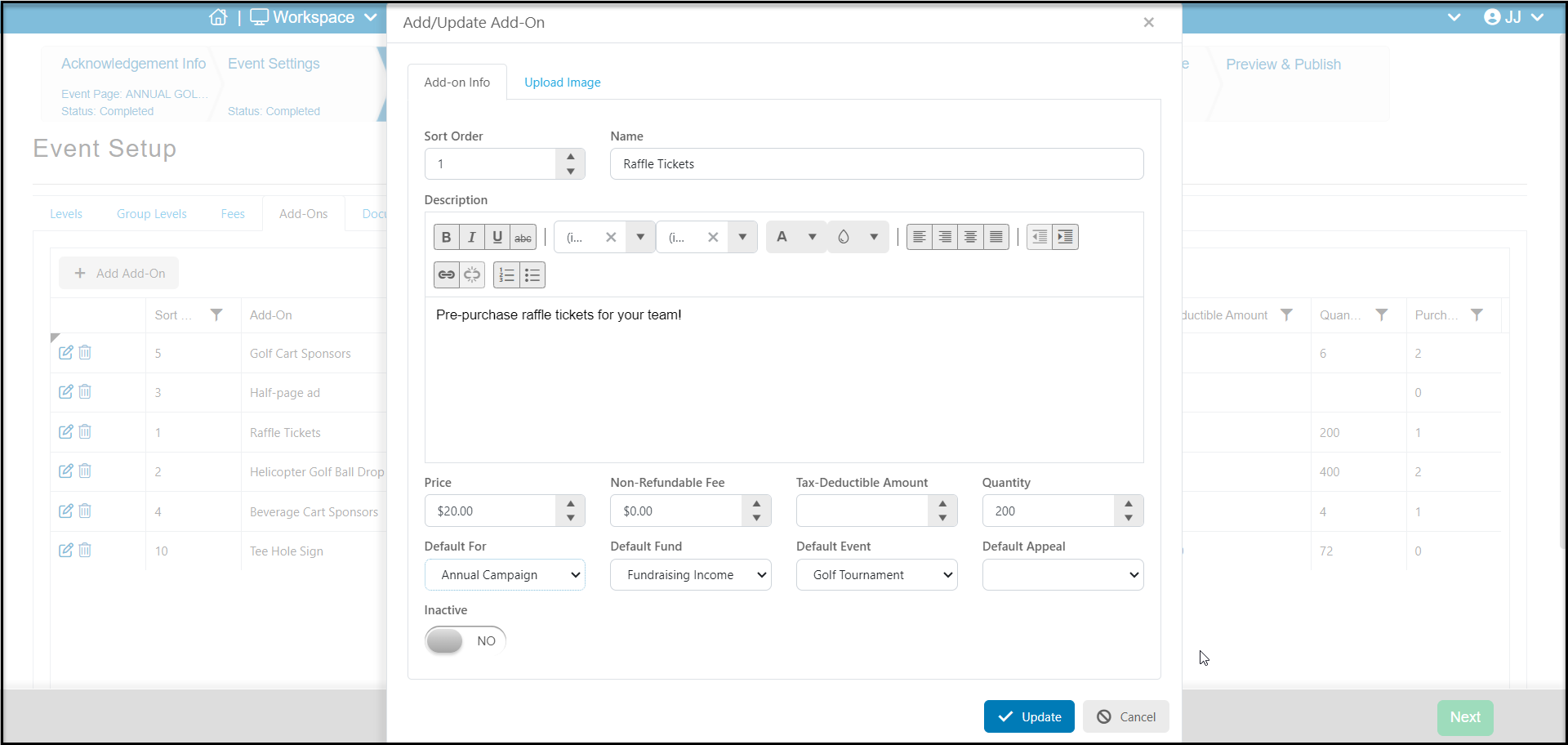
 **For Option 3**, selling tickets as an add-on item for a traditional raffle, create a new or edit an existing event page and proceed to the Event Setup Tab. This will require a manual name draw using traditional tickets. Click on **+****Add Add-On**. In the new window, enter the information about the raffle tickets and click **Update** to save.
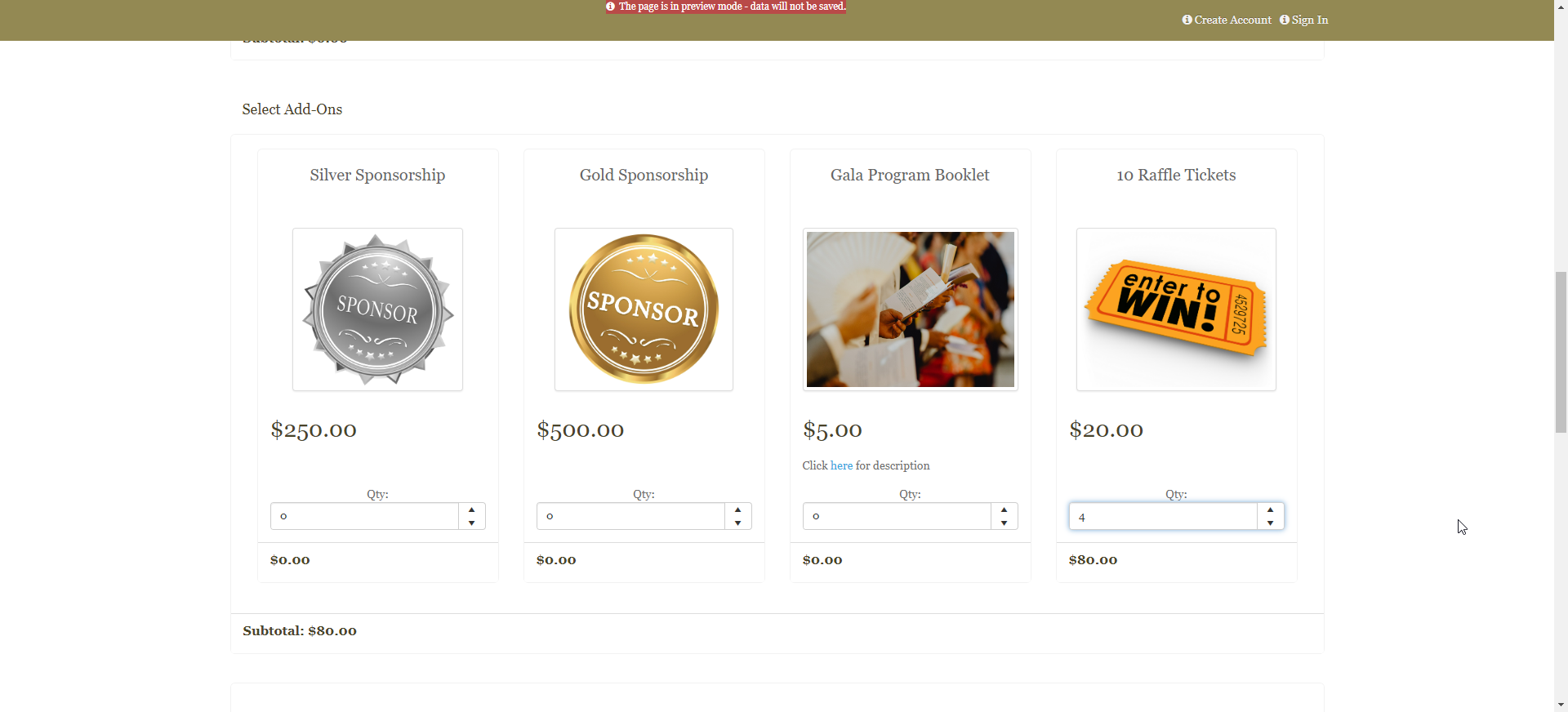
 The raffle tickets will now be shown as an add-on item on the Event Form.
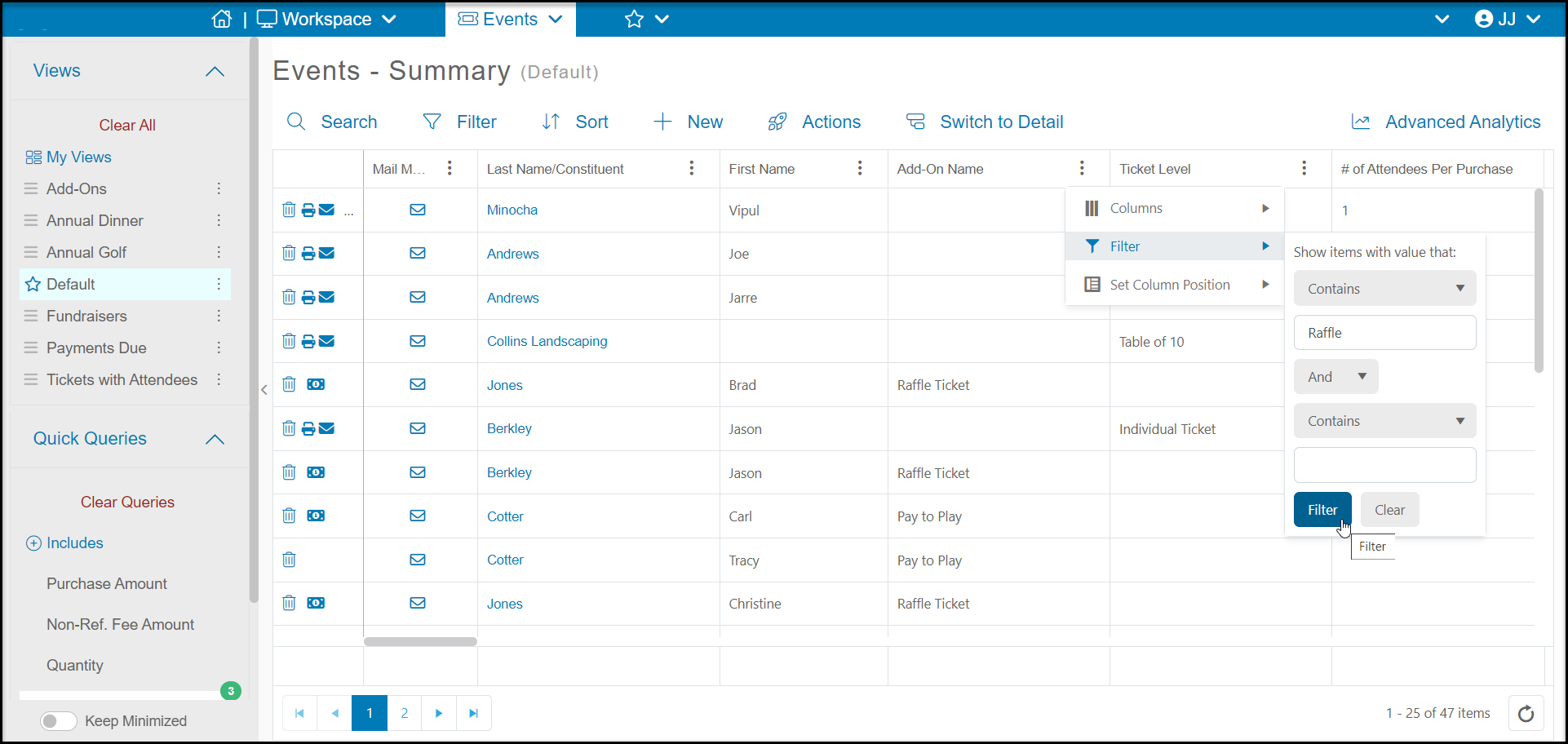
 Once the transaction is made, the add-on items will be shown only in the Events Grid in the Events Module. You select the event from the Side Bar and then filter the Add-Ons column to find the raffle ticket purchasers. You can export that list of names to Excel using the Actions menu and create the tickets for these purchasers.
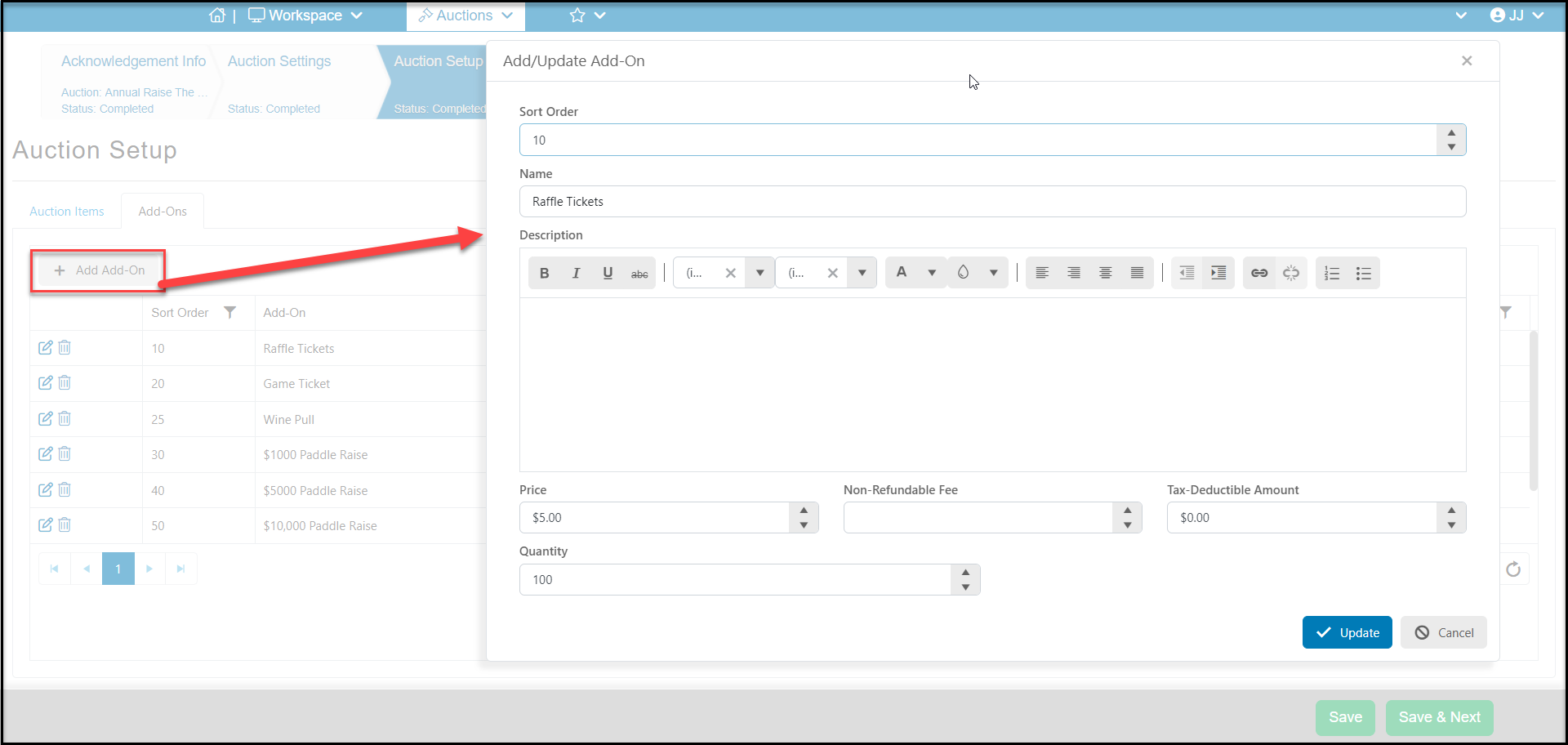
 **For Option 4**, selling traditional raffle tickets as part of an auction-event, requires creating add-on items to the auction page. Open the auction page an on the Auction Setup tab, click the Add-On sub tab. You can add a new items by clicking on **+Add Add-On.** This will open a new window to enter the **Name**of the raffle item, enter a **Price** and you can limit the number available in the **Quantity**field.
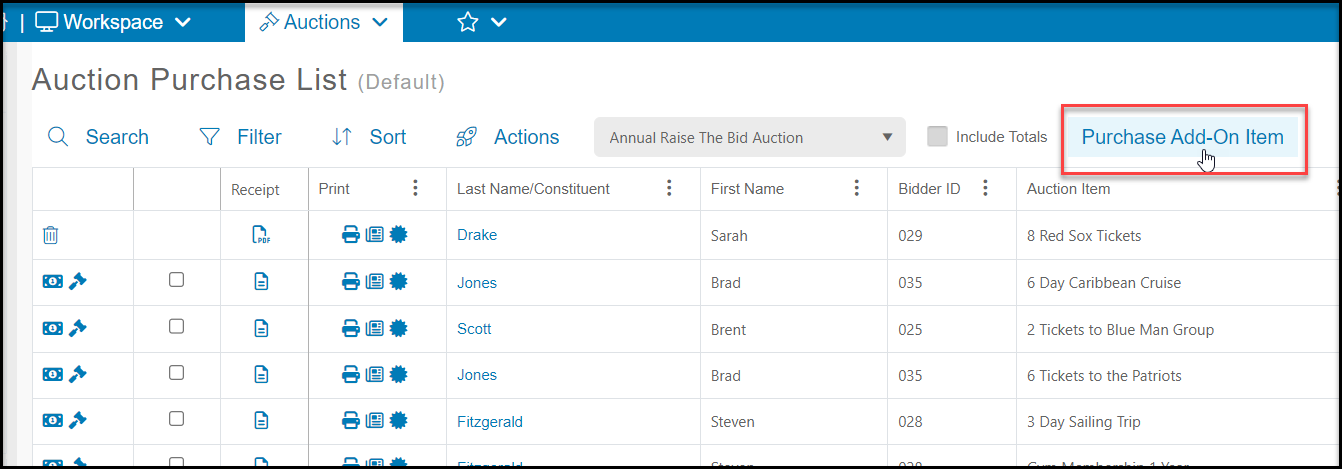
 Auction add-on items can only be enter in the software by a DonorView user. The purchases are recorded in the Auctions grid by selecting the appropriate auction, then clicking on **Purchase Add-On Item.**
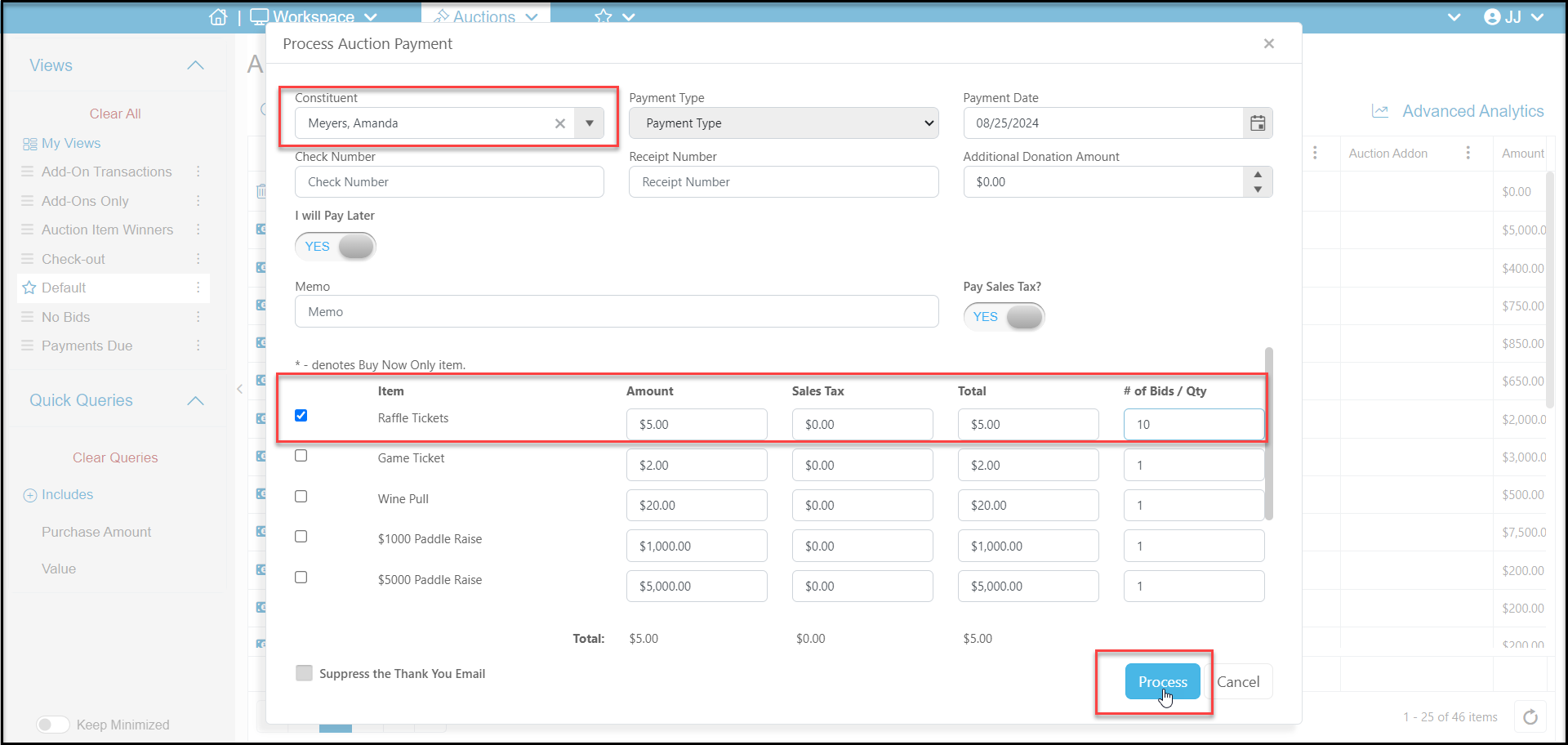
 In the new window, select the **Constituent,** and place a mark in the checkbox next to the **Item**. You can sell multiples by entering the number sold under **# of Bids/Qty**. If the sale is being recorded for checkout later with auction items, paddle raises, etc. set the toggle for**I will Pay Later** to **YES**. If the payment is being recorded and charged immediately, leave this toggle **NO** and enter the **Payment Type**and other pertinent information for the sale. Click **Process**to record for later or process the transaction.