# How do I create a Sponsorship?
> Source: https://support.associationsphere.com/how-do-i-create-a-sponsorship | Updated: 2026-09-04T14:28:45Z
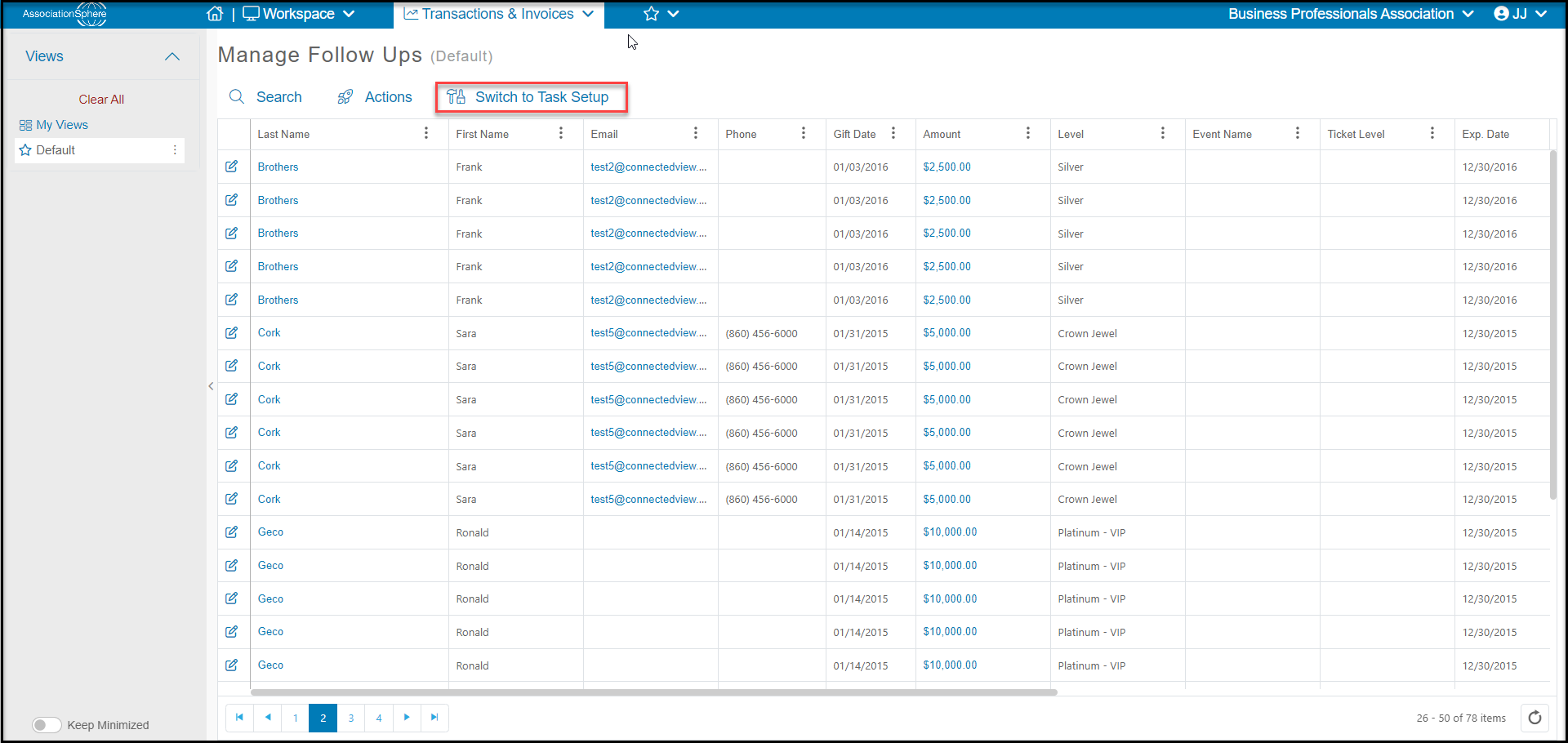
o create a sponsorship, go to the Fundraising Module and select Sponsorships from the menu. The default view will be the Manage Follow Ups grid which shows all the tasks (or deliverables) that have already been assigned through sponsorship purchases or transactions.
You can add new sponsorship levels and tasks by clicking on **Switch to Task Setup**.
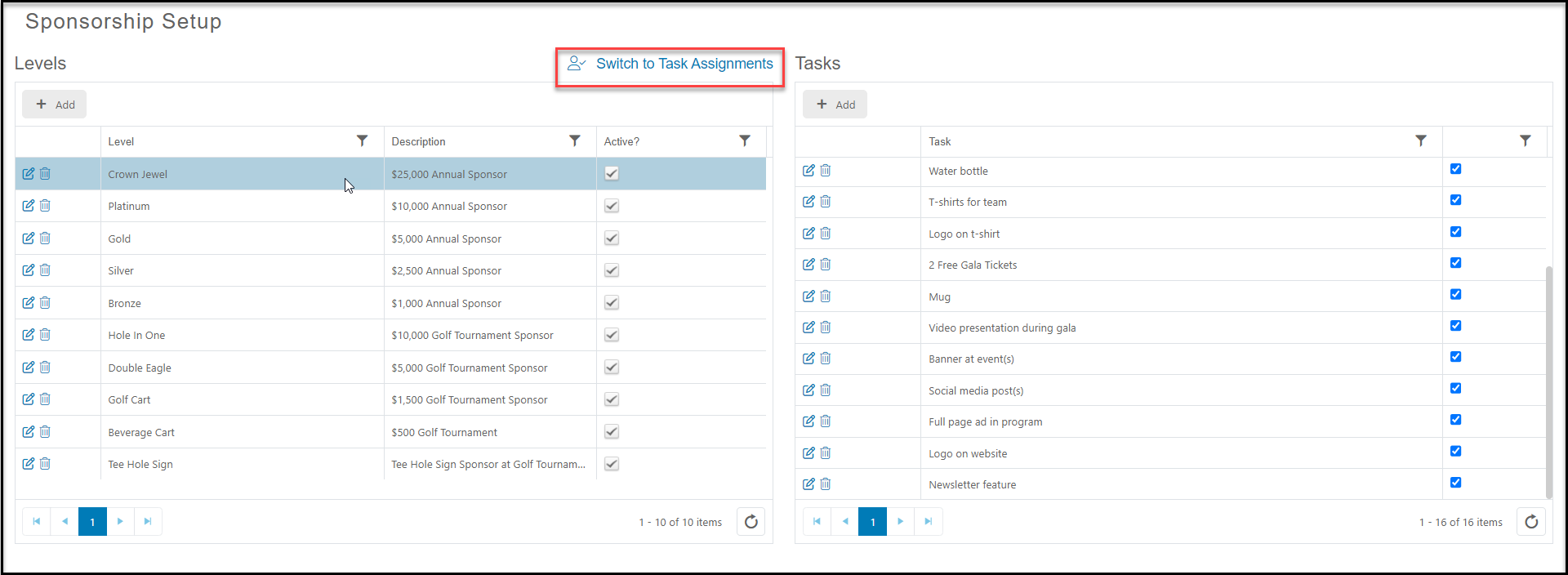
 On the Sponsorship Setup page, you can see a list of sponsorships on the left, and a list of tasks that have already been created on the right.
To see what tasks have been assigned to a sponsorship level, click on the row with that level to reveal the checkmarks on the tasks. You may need to use the scroll bar on the right side of the tasks grid to see all the tasks.
To switch back to the Manage Follow Ups grid, click on**Switch to Task Assignments.**
On the Sponsorship Setup page, you can see a list of sponsorships on the left, and a list of tasks that have already been created on the right.
To see what tasks have been assigned to a sponsorship level, click on the row with that level to reveal the checkmarks on the tasks. You may need to use the scroll bar on the right side of the tasks grid to see all the tasks.
To switch back to the Manage Follow Ups grid, click on**Switch to Task Assignments.**
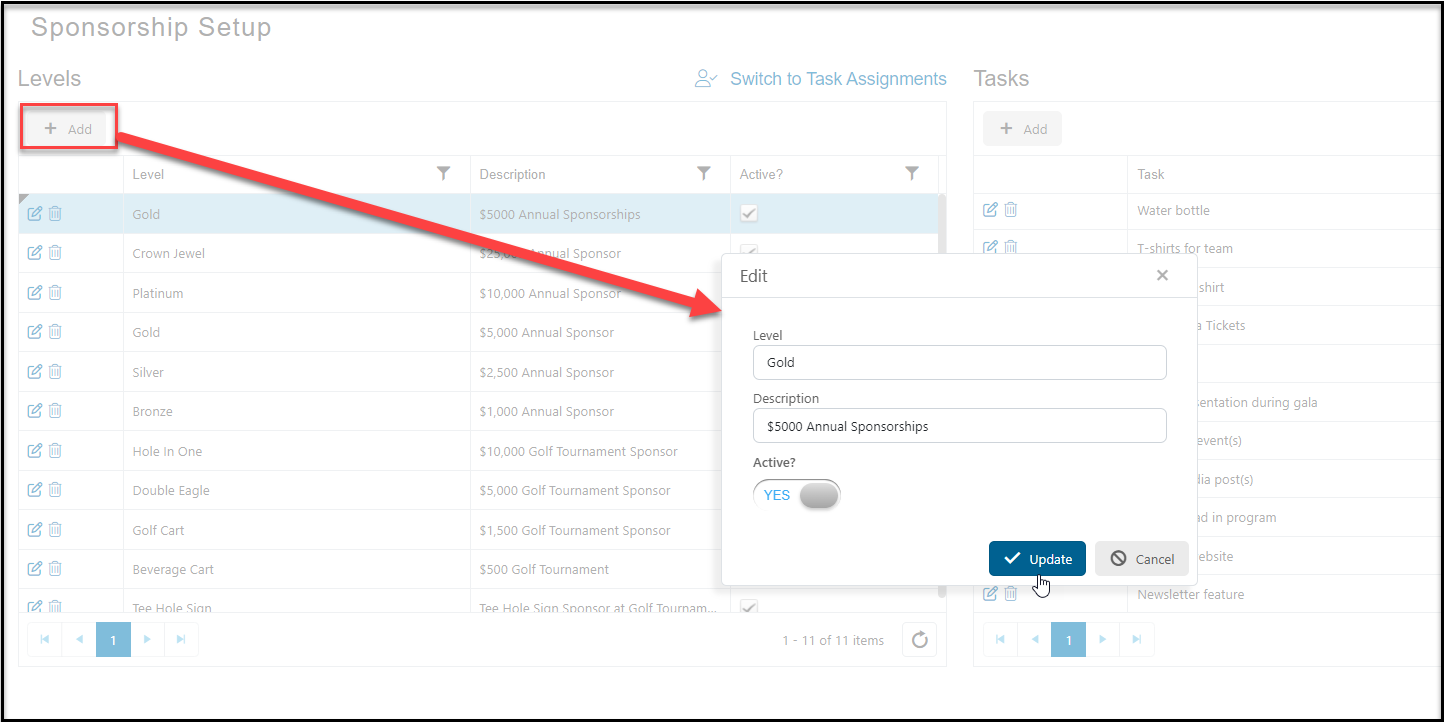
 To create a new sponsorship, click on **+Add** and enter the information in the new window.
Enter the name of your sponsorship in **Level**, a short description in **Description**, and mark **Active?** as **YES** if you want this sponsorship to be active and selectable from various pages and entry forms.
Click the blue **Update**button to save the new sponsorship.
To create a new sponsorship, click on **+Add** and enter the information in the new window.
Enter the name of your sponsorship in **Level**, a short description in **Description**, and mark **Active?** as **YES** if you want this sponsorship to be active and selectable from various pages and entry forms.
Click the blue **Update**button to save the new sponsorship.
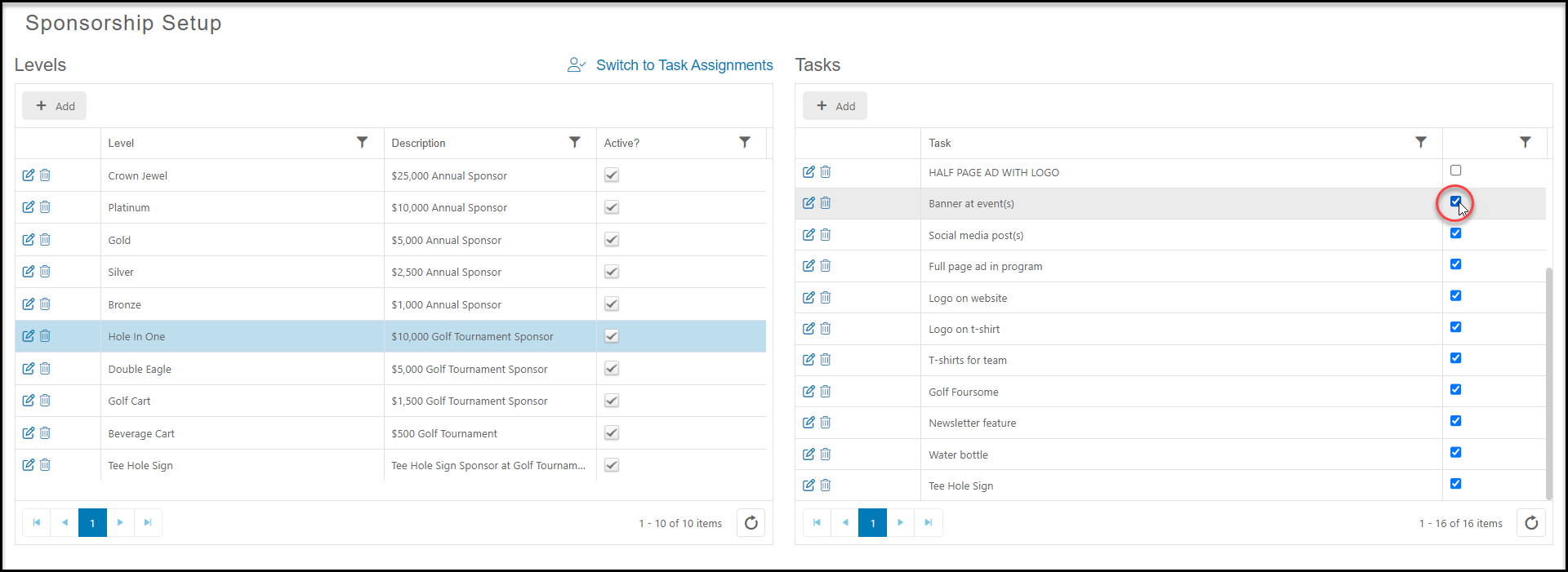
 Once the Sponsorship is set up, Tasks (deliverables) can be added to fulfill any recognition or benefits.
Highlight the row of the sponsorship with a single click, then check the box next to an existing Task to add it as a benefit for that sponsorship or click on **+Add** to create a new task.
Once the Sponsorship is set up, Tasks (deliverables) can be added to fulfill any recognition or benefits.
Highlight the row of the sponsorship with a single click, then check the box next to an existing Task to add it as a benefit for that sponsorship or click on **+Add** to create a new task.
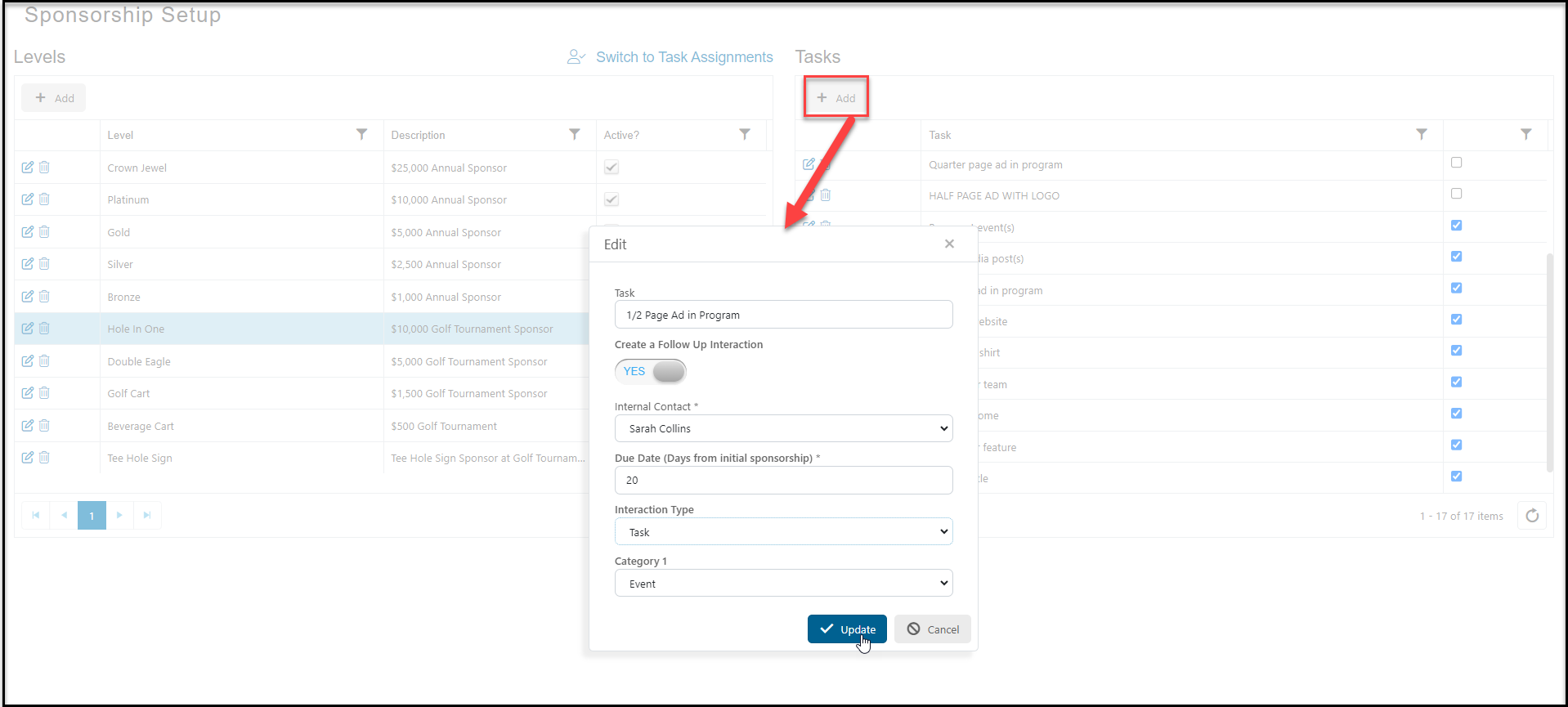
 For new tasks, you can enter the name of the task under Task and if you would like to link this to a follow up activity, turn the toggle under **Create a Follow Up Interaction** to**YES**.
With this activated you can assign the follow-up to any database user, enter a **Due Date** with a number of days the follow up will be due after the transaction is recorded, and identify the **Interaction Type** and Interaction **Category 1**. Click**Update** to save.
For new tasks, you can enter the name of the task under Task and if you would like to link this to a follow up activity, turn the toggle under **Create a Follow Up Interaction** to**YES**.
With this activated you can assign the follow-up to any database user, enter a **Due Date** with a number of days the follow up will be due after the transaction is recorded, and identify the **Interaction Type** and Interaction **Category 1**. Click**Update** to save.
 When a sponsorship is entered for a transaction or purchased as part of an event or membership level, the tasks will automatically be assigned in the Manage Follow Ups grid.