# How do I create an Add-On?
> Source: https://support.associationsphere.com/how-do-i-create-an-add-on | Updated: 2026-04-06T16:29:00Z
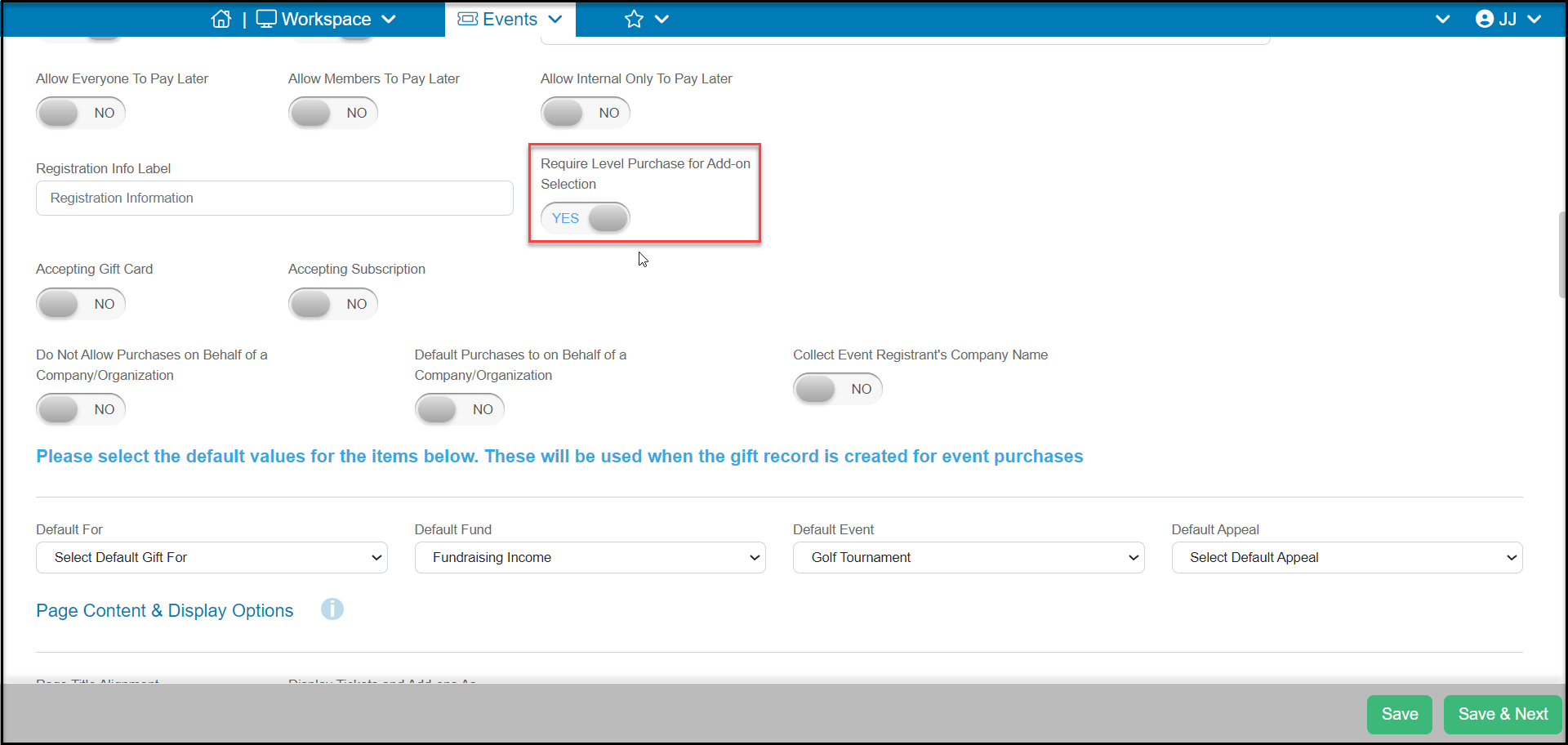
Add-ons are items that can be purchased as part of an event, but add-ons do not include admission to the event. Add-on purchases are shown as a separate transaction on the Events grid and are not shown on the Event Attendance grid. You can set add-ons to be available only for ticket level purchasers or available to anyone. To restrict add-ons to ticket buyers only, on the Event Settings page in the Financial Information section, toggle **Require Level Purchases for Add-on Section** to **YES.**
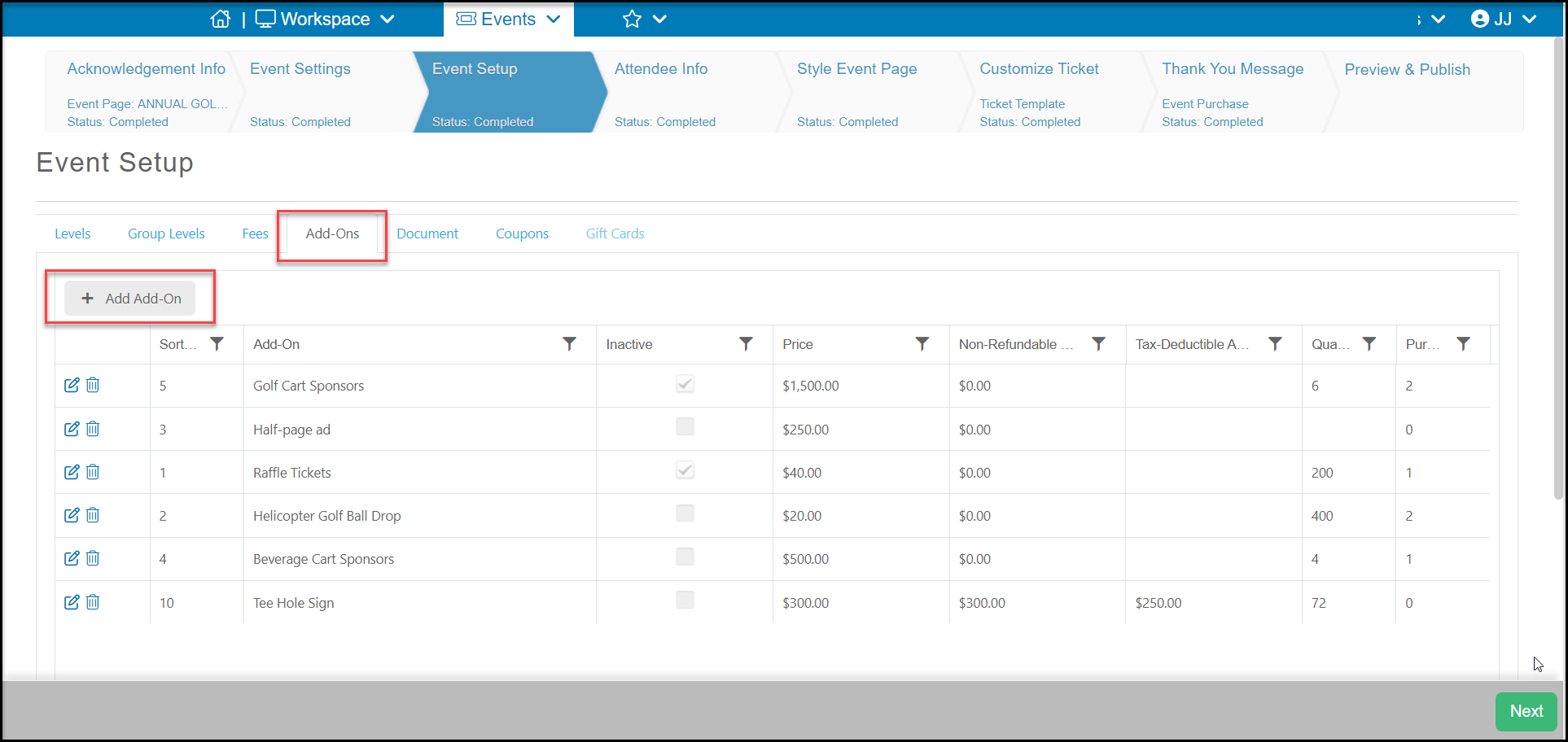
 Add-Ons are created on the Event Setup tab within the setup of an Event. Once there you can click on the Add-Ons sub tab and select **+ Add Add-On**.
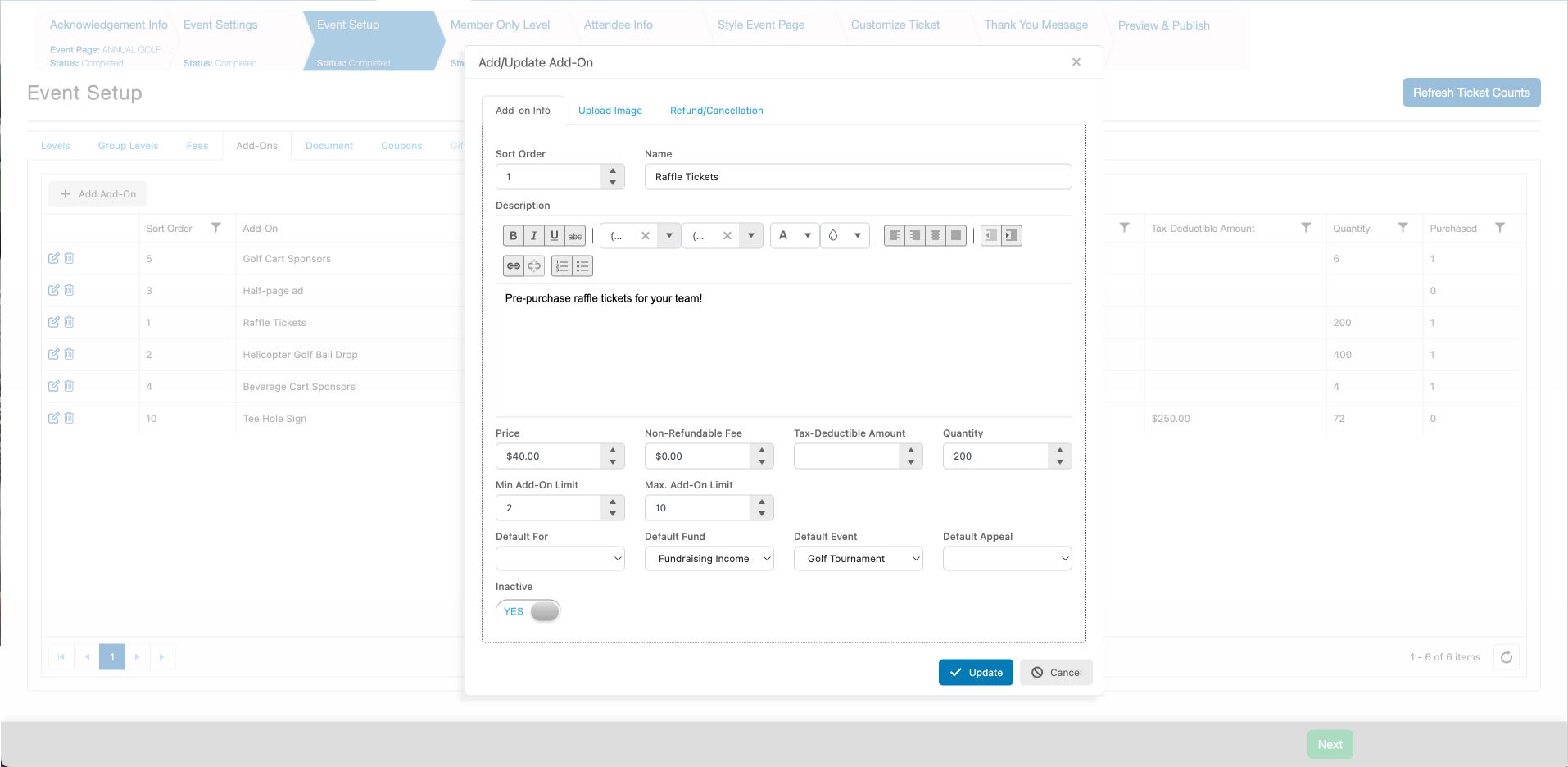
 When setting up a new event add-on you have several fields and settings to choose from:
1. **Sort Order** - This allows you to select the order the add-on's appear in on the page, the lower the number the higher it appears. By default the software will assign them as 10, then 20, etc.
2. **Name** - Enter the name of the add-on.
3. **Description** - Provide a description of what is included with their purchase.
4. **Price** - Enter the price of the add-on.
5. **Non-Refundable Fee** - Enter the amount that will not be refunded if the purchaser requests a refund.
6. **Tax Deductible Amount** - If any part of the purchase is tax-deductible, you can enter it here.
7. **Quantity** - How many of this item are available. Once this number of add-ons have been sold, it will be shown as Sold Out on the event page.
8. **Min Add-On Limit**– Enter the minimum amount of this add-on that must be selected to register/purchase it. Note if the remaining quantity of the add-on is below the minimum quantity set then the add-on will display on the online Event form.
**Max. Add-On Limit** – Enter the maximum amount of this add-on that can be selected during a registration/purchase. This limit will stop the registrant from exceeding that maximum amount during a single transaction.
9. **Default For-Fund-Event-Appeal** - If this add-on has different For-Fund-Event-Appeal selections than the default values on the Event Settings page, you can select those that apply to this add-on.
10. **Inactive** - When set to **YES**, this add-on will not be visible on the event page.
When setting up a new event add-on you have several fields and settings to choose from:
1. **Sort Order** - This allows you to select the order the add-on's appear in on the page, the lower the number the higher it appears. By default the software will assign them as 10, then 20, etc.
2. **Name** - Enter the name of the add-on.
3. **Description** - Provide a description of what is included with their purchase.
4. **Price** - Enter the price of the add-on.
5. **Non-Refundable Fee** - Enter the amount that will not be refunded if the purchaser requests a refund.
6. **Tax Deductible Amount** - If any part of the purchase is tax-deductible, you can enter it here.
7. **Quantity** - How many of this item are available. Once this number of add-ons have been sold, it will be shown as Sold Out on the event page.
8. **Min Add-On Limit**– Enter the minimum amount of this add-on that must be selected to register/purchase it. Note if the remaining quantity of the add-on is below the minimum quantity set then the add-on will display on the online Event form.
**Max. Add-On Limit** – Enter the maximum amount of this add-on that can be selected during a registration/purchase. This limit will stop the registrant from exceeding that maximum amount during a single transaction.
9. **Default For-Fund-Event-Appeal** - If this add-on has different For-Fund-Event-Appeal selections than the default values on the Event Settings page, you can select those that apply to this add-on.
10. **Inactive** - When set to **YES**, this add-on will not be visible on the event page.
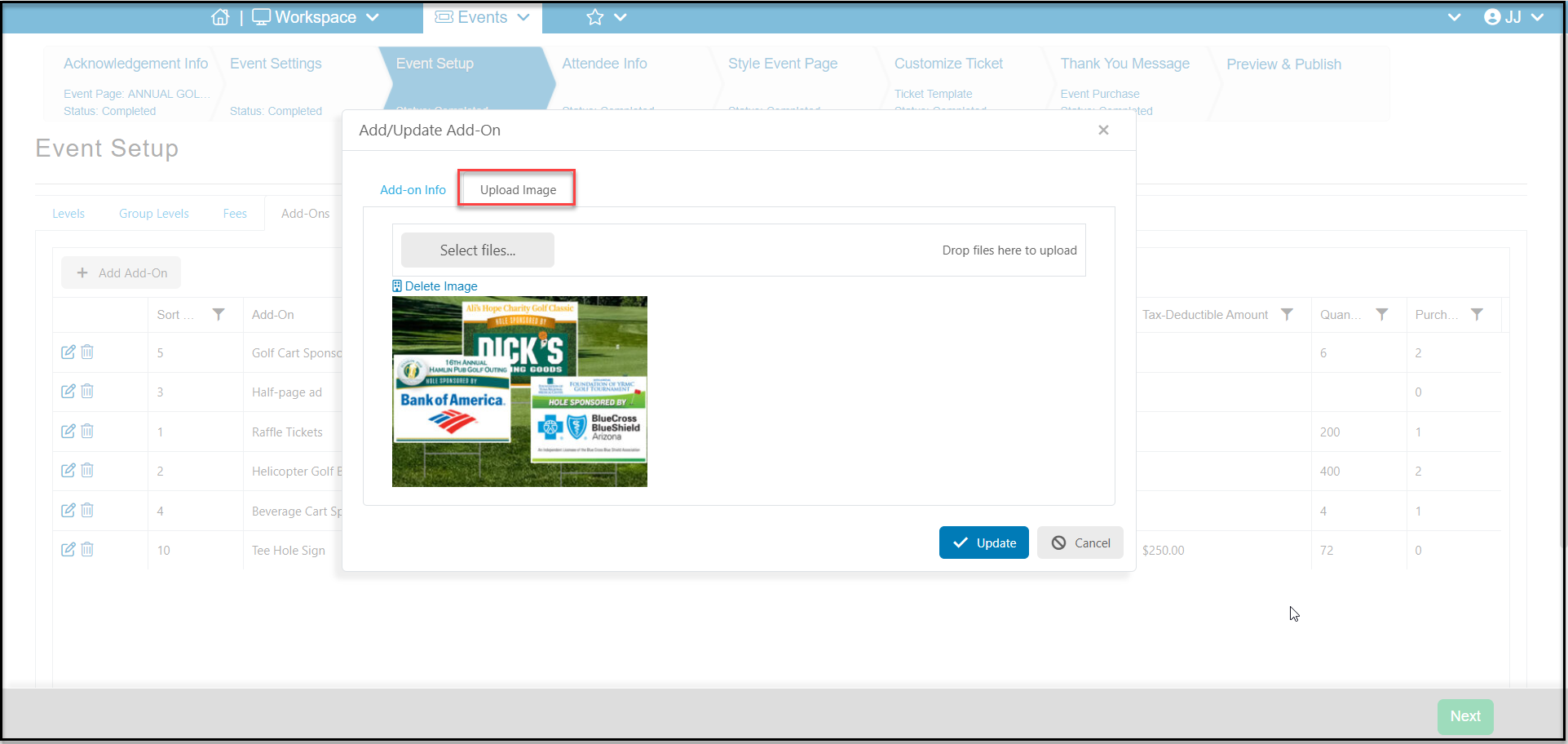
 If you are using the tile view on the event page, you can upload an image to display with the add-on using the Upload Image tab. Click on **Select files...** to choose the image. The image size shown on the page 200 px wide x 125 px high.