# How do I create an event coupon code?
> Source: https://support.associationsphere.com/how-do-i-create-an-event-coupon-code | Updated: 2026-08-20T20:02:40Z
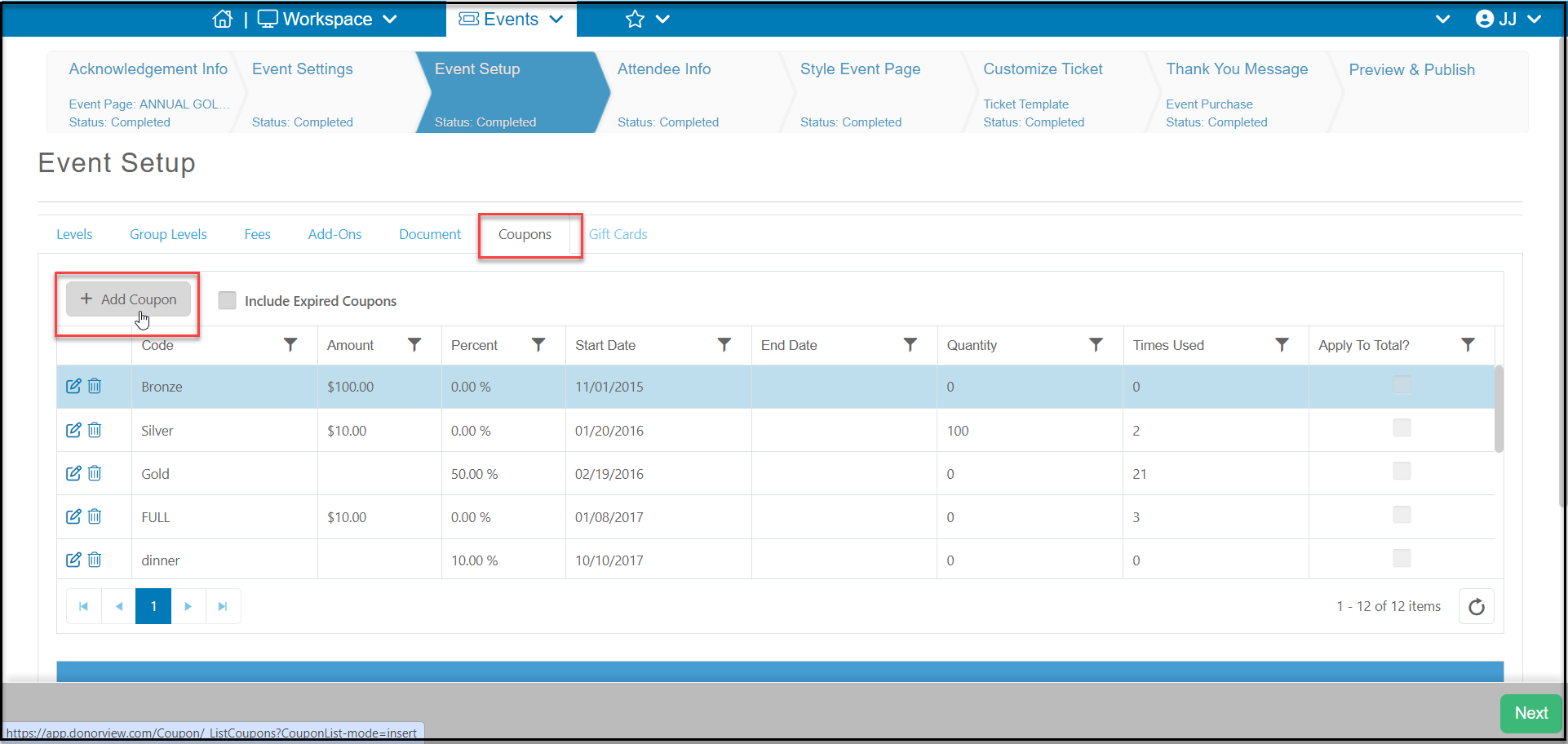
Coupon codes can be created and applied to events and memberships. For an event, on the Event Setup tab, go to the Coupons sub-tab and click on **+Add Coupon.**
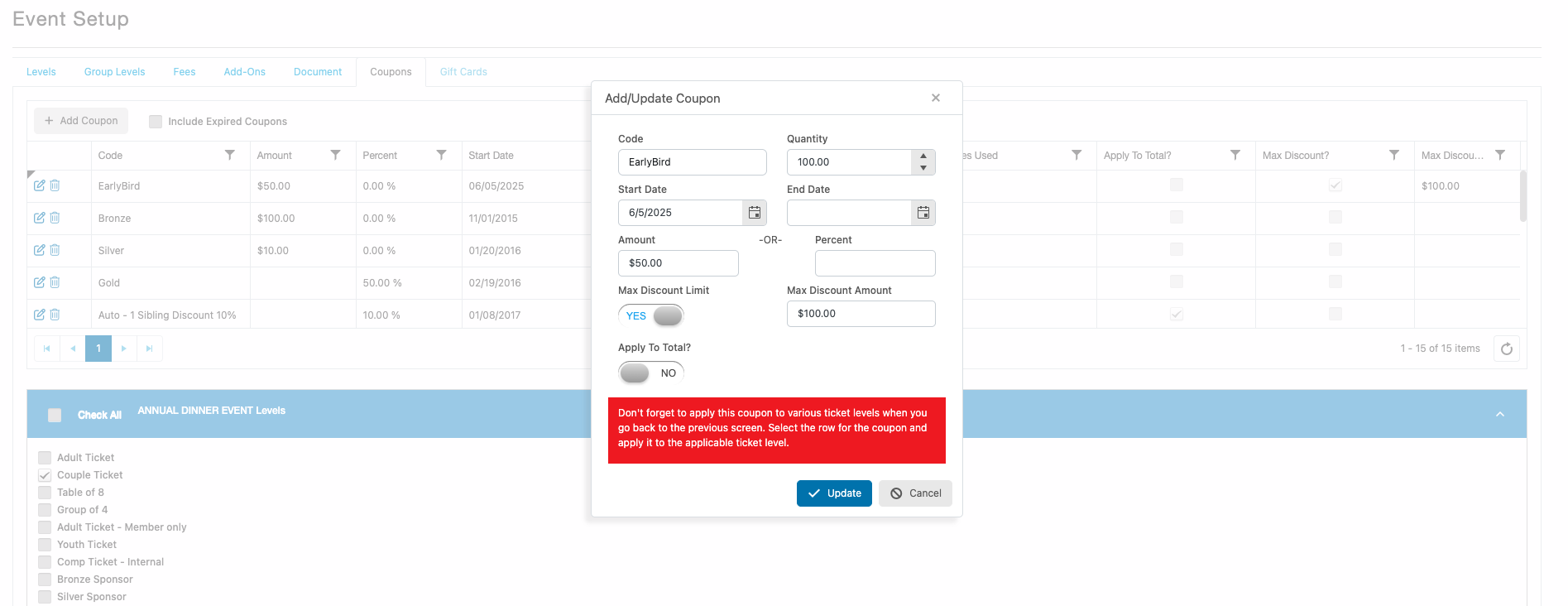
 In the new widow, enter the following:
**Code** - Enter the code the purchaser would have to enter to use the coupon. This should be an alpha-numeric code with no spaces or special characters.
**Quantity**- If you only want a specific number of coupons to be available enter the number here. Otherwise, leave the amount as "0".
**Start Date** - This field will default to today's date, but you can change that to any date you wish.
**End Date** - If you would like the coupon to become inactive after a certain date, enter the day which the coupon would be inactive. For example, if you wish the coupon to be valid through 3/10/2026, enter the End Date as 3/11/2026.
**Amount or Percent** - Enter either a specific amount or the percentage you would like to be deducted from that level's price. Do not enter information in both fields, choose one or the other.
**Max Discount Limit** - When enabled you can set a Max Discount Amount which limits the total discount a event registrant can receive on a single transaction using this coupon code.
**Max Discount Amount** - Enter the total discount amount a registrant can receive using this coupon code.
**Apply To Total?** - If marked **NO**, you will select which ticket levels this coupon can be applied to. If marked **YES**, the coupon will automatically apply to all ticket levels.
**NOTE:** Coupon codes do not apply to Fees, Add-Ons, Donations, Recurring (shopping chart) events, or Seating Chart events.
Click **Update** to save the coupon or any changes you have made. Click **Cancel**to abandon the coupon or changes and return to the coupons grid.
In the new widow, enter the following:
**Code** - Enter the code the purchaser would have to enter to use the coupon. This should be an alpha-numeric code with no spaces or special characters.
**Quantity**- If you only want a specific number of coupons to be available enter the number here. Otherwise, leave the amount as "0".
**Start Date** - This field will default to today's date, but you can change that to any date you wish.
**End Date** - If you would like the coupon to become inactive after a certain date, enter the day which the coupon would be inactive. For example, if you wish the coupon to be valid through 3/10/2026, enter the End Date as 3/11/2026.
**Amount or Percent** - Enter either a specific amount or the percentage you would like to be deducted from that level's price. Do not enter information in both fields, choose one or the other.
**Max Discount Limit** - When enabled you can set a Max Discount Amount which limits the total discount a event registrant can receive on a single transaction using this coupon code.
**Max Discount Amount** - Enter the total discount amount a registrant can receive using this coupon code.
**Apply To Total?** - If marked **NO**, you will select which ticket levels this coupon can be applied to. If marked **YES**, the coupon will automatically apply to all ticket levels.
**NOTE:** Coupon codes do not apply to Fees, Add-Ons, Donations, Recurring (shopping chart) events, or Seating Chart events.
Click **Update** to save the coupon or any changes you have made. Click **Cancel**to abandon the coupon or changes and return to the coupons grid.
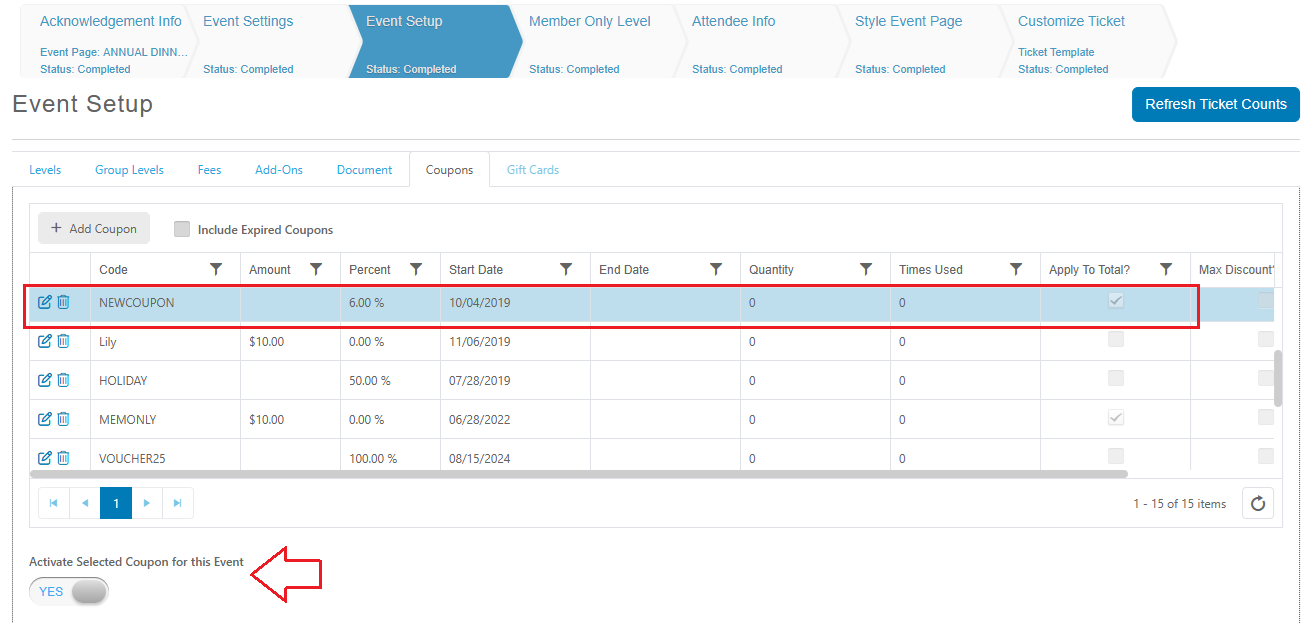
 If Apply to Total? set to YES for the coupon code, click on the row with the coupon code and set Activate Selected Coupon for this Event to YES.
 If you did not select Apply to Total?, click on the row with the coupon code and add a check-mark next to the event levels that are eligible to use this coupon.
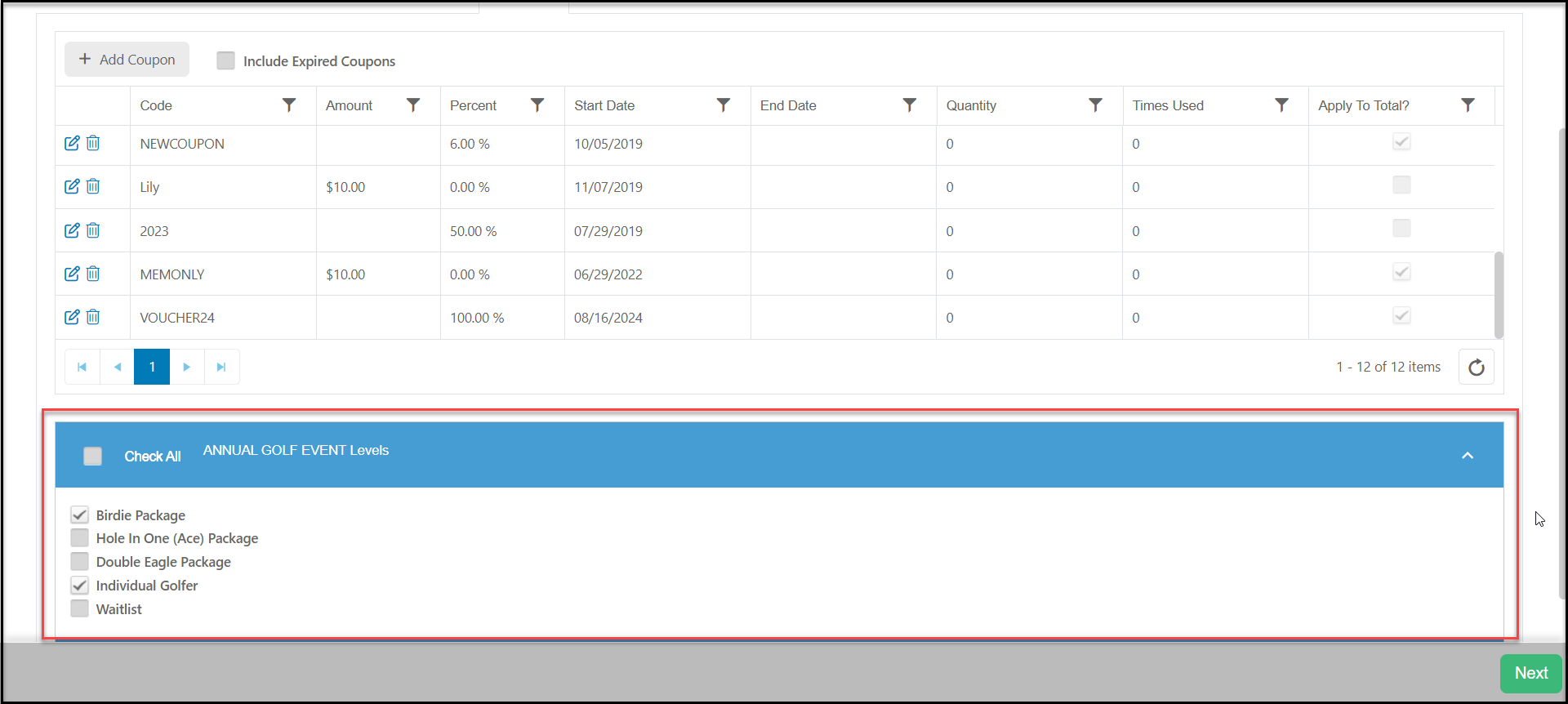 If you would like to use a previously created coupon for this event, you can do so by clicking on the row with the coupon and adding a check-mark next to the event levels that are eligible to use this coupon or click the edit icon on the row to mark the coupon as "Apply to Total?" YES.