# How do I create email lists for my membership?
> Source: https://support.associationsphere.com/how-do-i-create-email-lists-for-my-membership | Updated: 2024-09-06T12:44:36Z
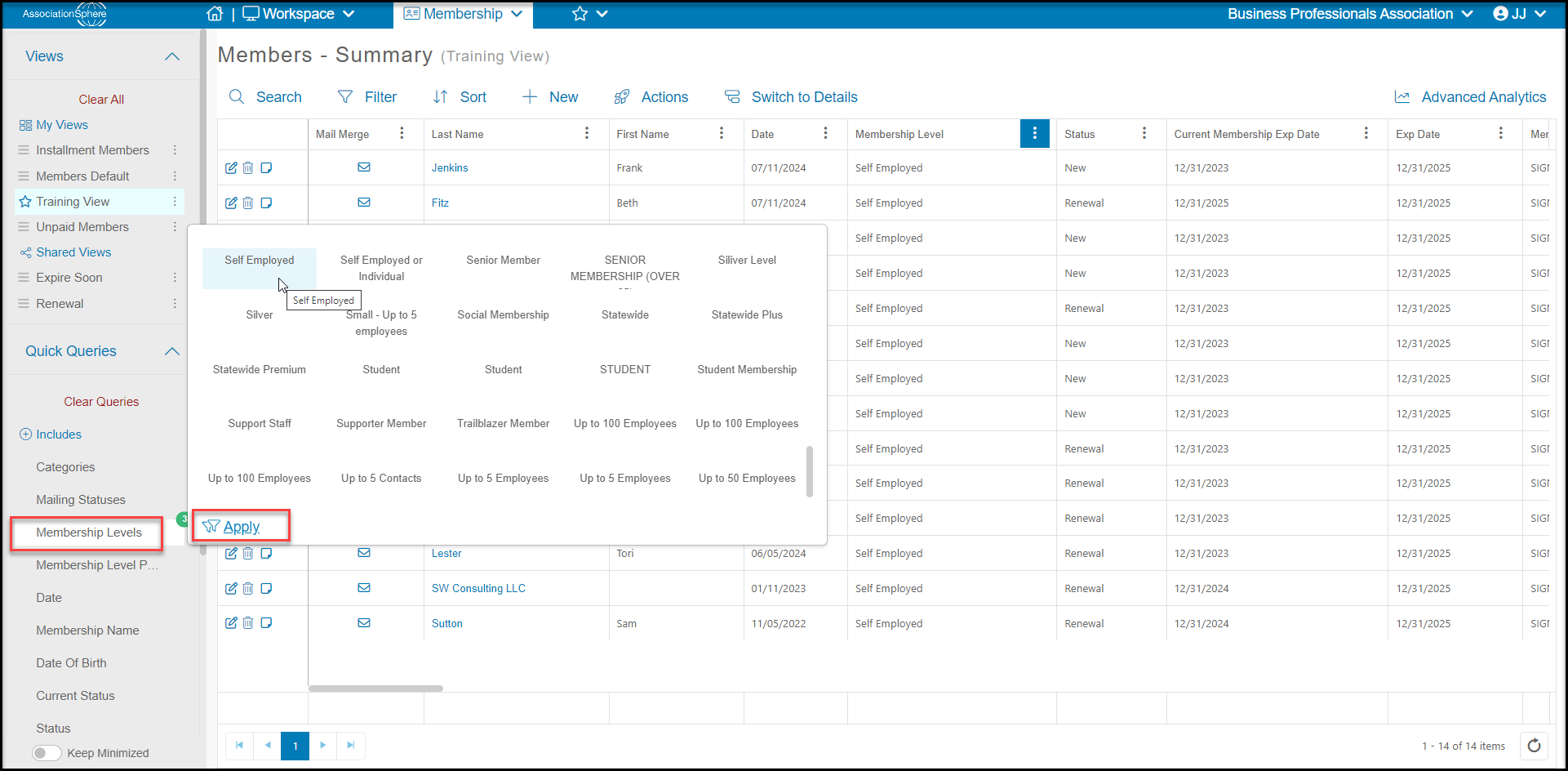
You can create email lists for your members using the Membership grid's Actions menu. If you would like to create different lists based on their levels or status you can add filters to the list first, or use the Quick Queries to identify the group.
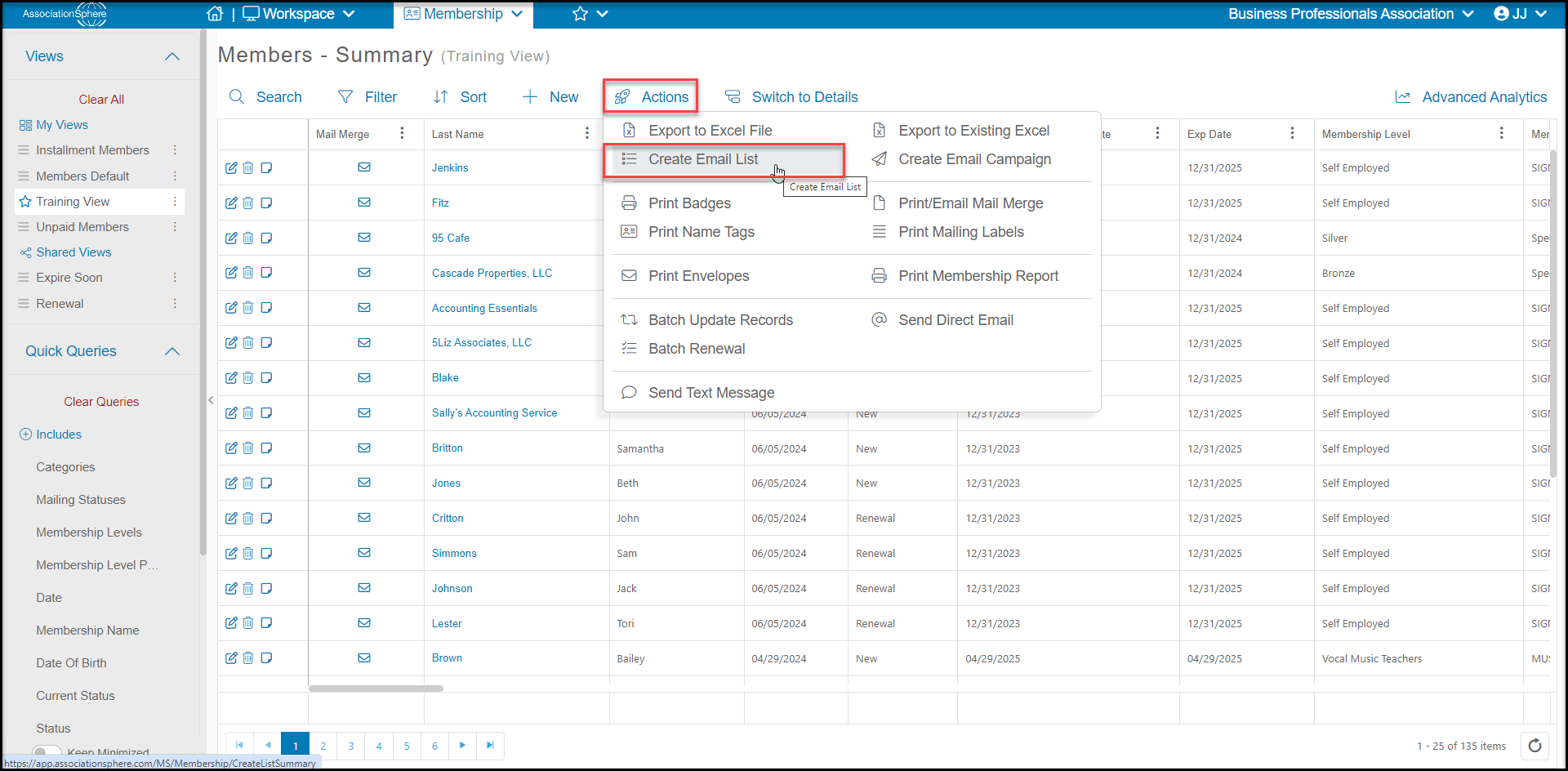
 With the grid filtered as needed, you can hover over the **Actions** menu, then click on **Create Email List.**
 You have the option of creating a brand new email list by toggling **Create New List** to **YES**. You will enter the name of your new list and then select a **List Category**. You can create new List Categories by clicking on ****. Click **Save** to create your email list.
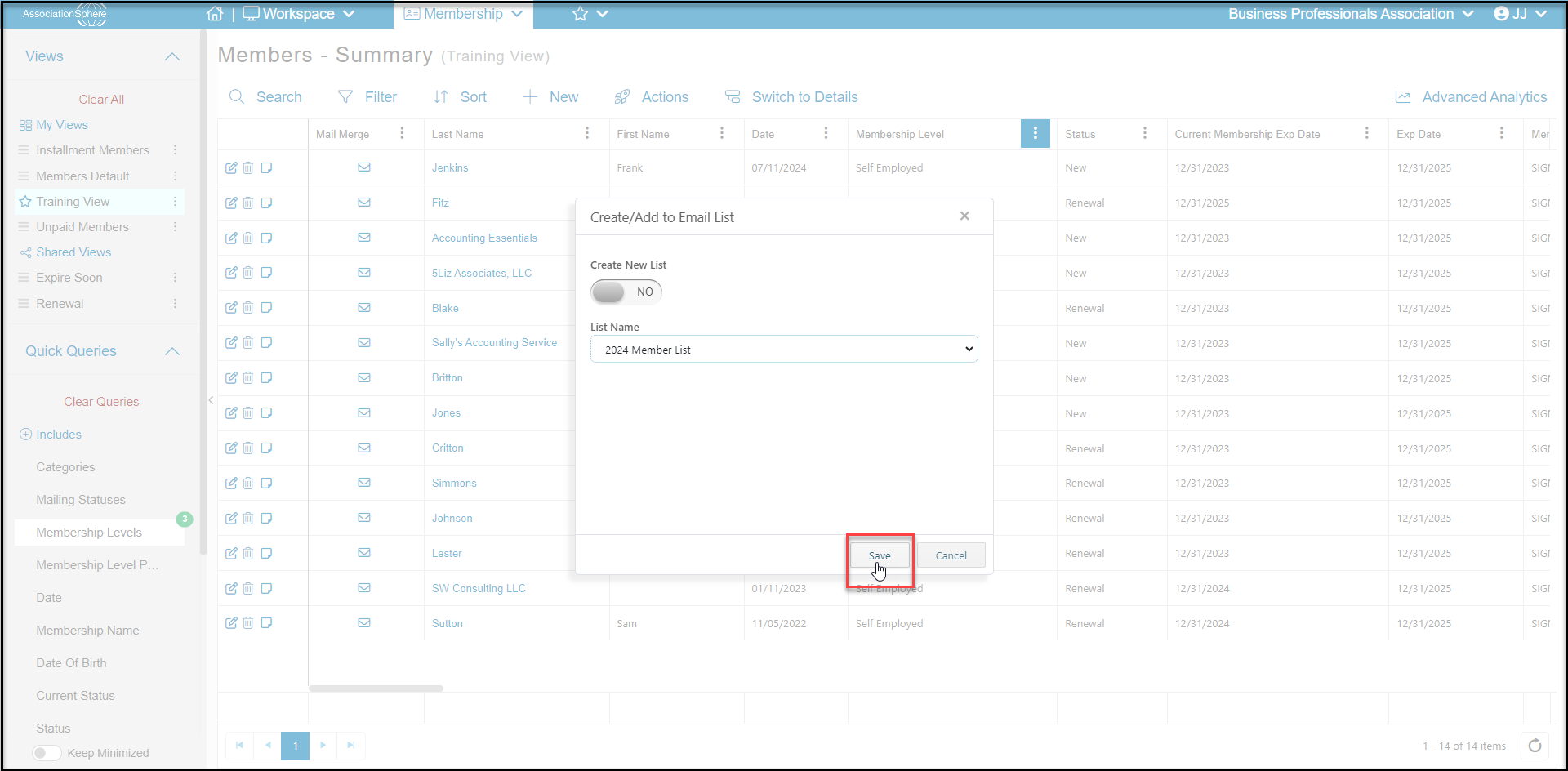
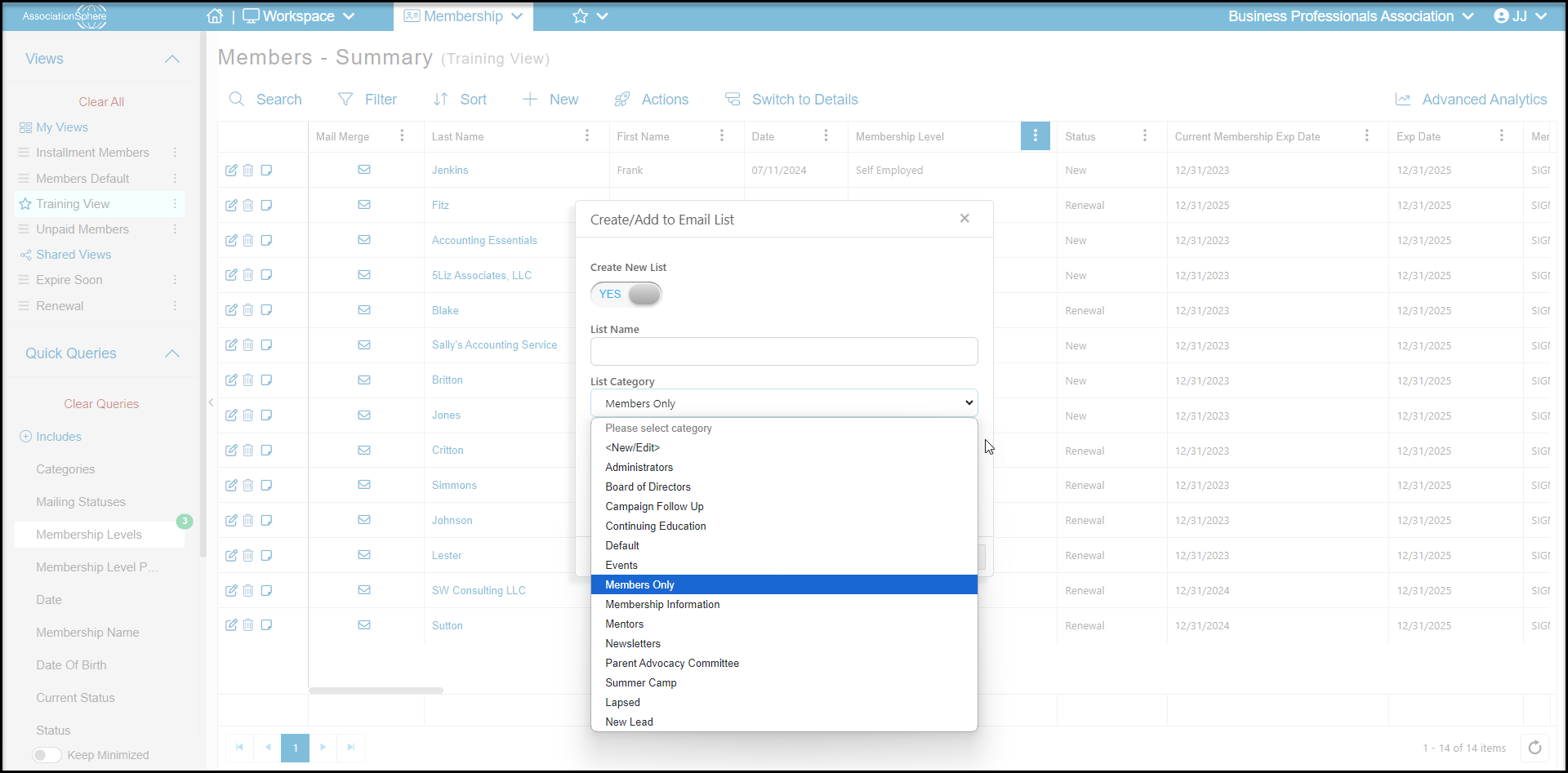 You also have the option of adding everyone on the grid to an existing email list. Select a list from the **List Name** pull down menu and click **Save.** If a member was already on the list, they will not be added to the list again, it will only add those members who were not already on the existing list.
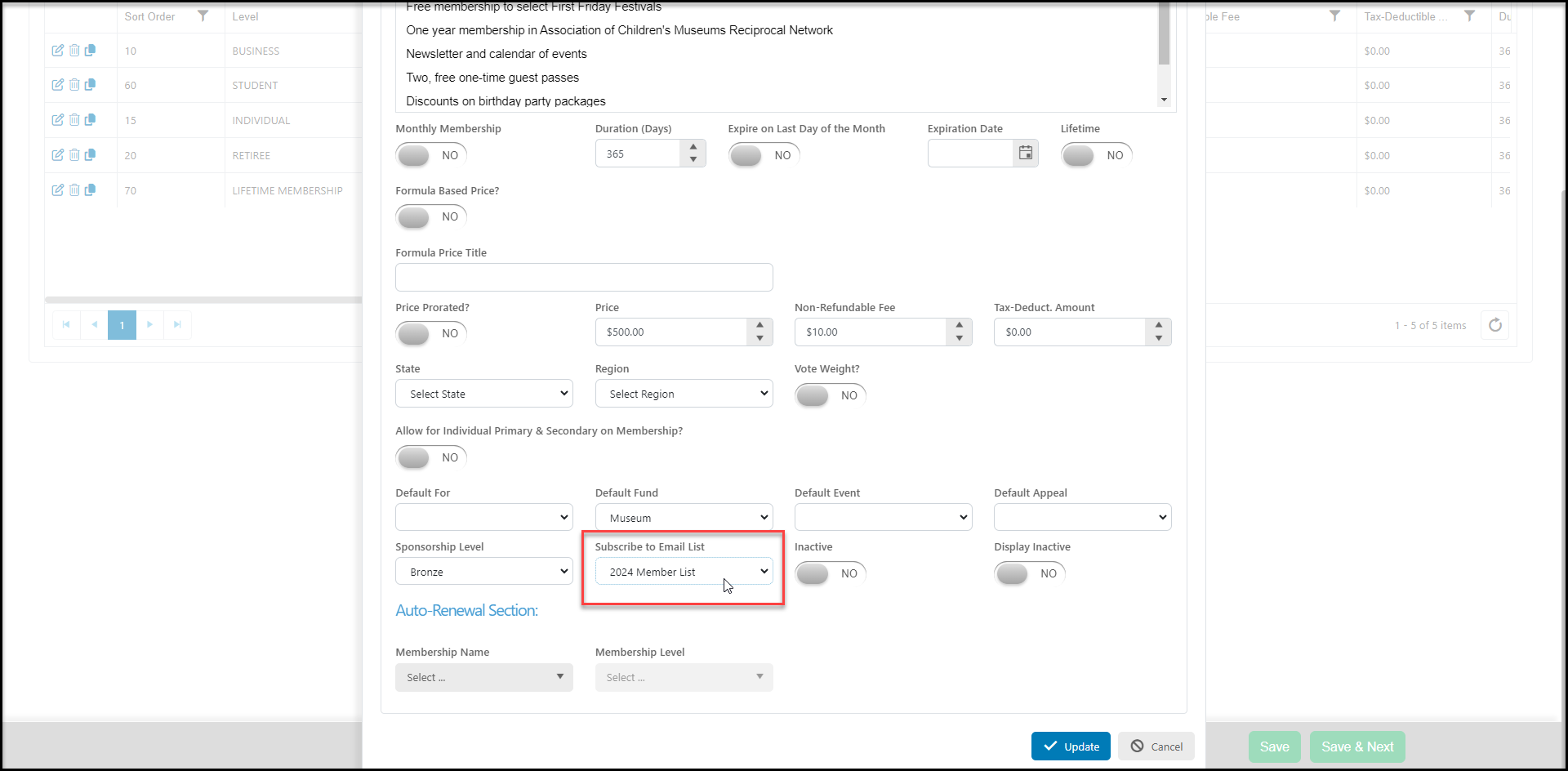
 You also have the option of automatically adding any new or renewing members to an email list when they or you complete their membership transaction from the membership page. On the membership page, on the Membership Set Up tab, you can edit a level and enter the applicable email list under **Subscribe to Email List.** Be sure to click **Update** to save your changes.