# How do I customize the pledge payment schedule?
> Source: https://support.associationsphere.com/how-do-i-customize-the-pledge-payment-schedule | Updated: 2026-09-03T14:23:25Z
When entering a new pledge or editing an existing pledge, the payment schedule is fully customizable.
For a brand new pledge, from the new transaction entry page, start by selecting the transaction type of pledge and enter the date the pledge was made.
- Note that total pledge amount and total tax deductible amount are automatically updated based on the payment schedule created.
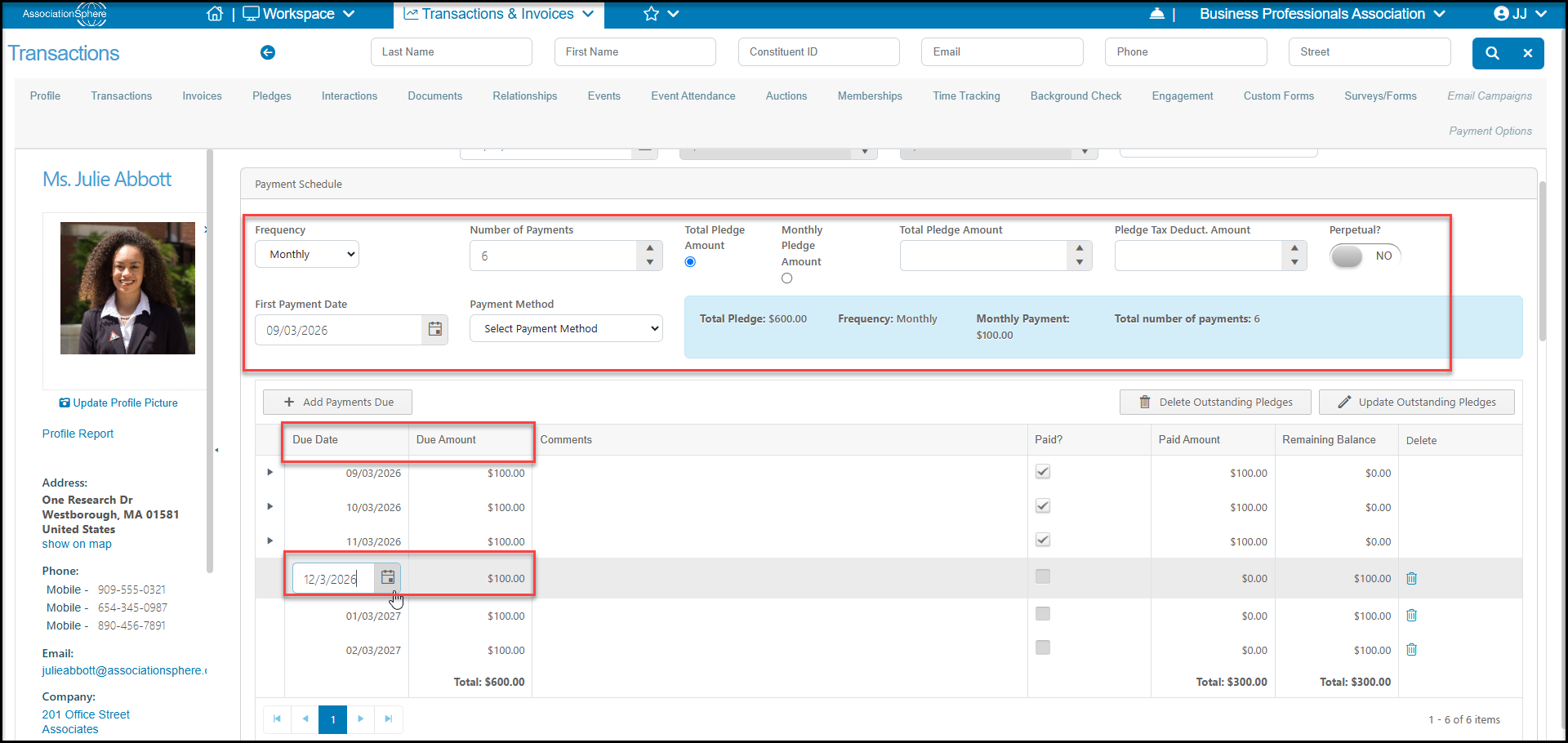
- Choose the**Frequency**of the payments, the **Number of Payments**, and then choose whether to begin the payment schedule by entering the **Total Pledge Amount** or the payments made on the selected frequency, for example the **Yearly Pledge Amount**as shown below.
- If the pledge will be **Perpetual**, you can toggle this to YES. Note that perpetual pledges will automatically renew on the same payment schedule when the last payment is made.
- You can choose the **First Payment Date**and the software will automatically set up the payment schedule based on the first date.
- The **Payment Method**is left Select Payment Method for payment made via check. For those made automatically via a credit card, be sure the credit card information has been saved in the Payment Options tab, then the appropriate card can be selected from the drop down menu. You can change what cards are charged to an open pledge by selecting the new card from the drop down menu.
- The payment **Due Dates**and **Due Amounts**will auto-populate from the **Frequency, Number of Payments, Pledge Amount** and **First Due Date** entered above. You can edit specific payment dates or amounts in the schedule by clicking on the **Due Date**and/or **Due****Amount**. Changes to any of the Amount fields will automatically update the **Pledge Amount**at the top of the page.
- Additional payments can be added with the **+Add Payments Due** button at the top of the payment schedule grid. This will add payments on the frequency and amount originally created.
- Complete the rest of the transaction entry form and when finished, click the green**Save** button at the top of the page to save the changes.
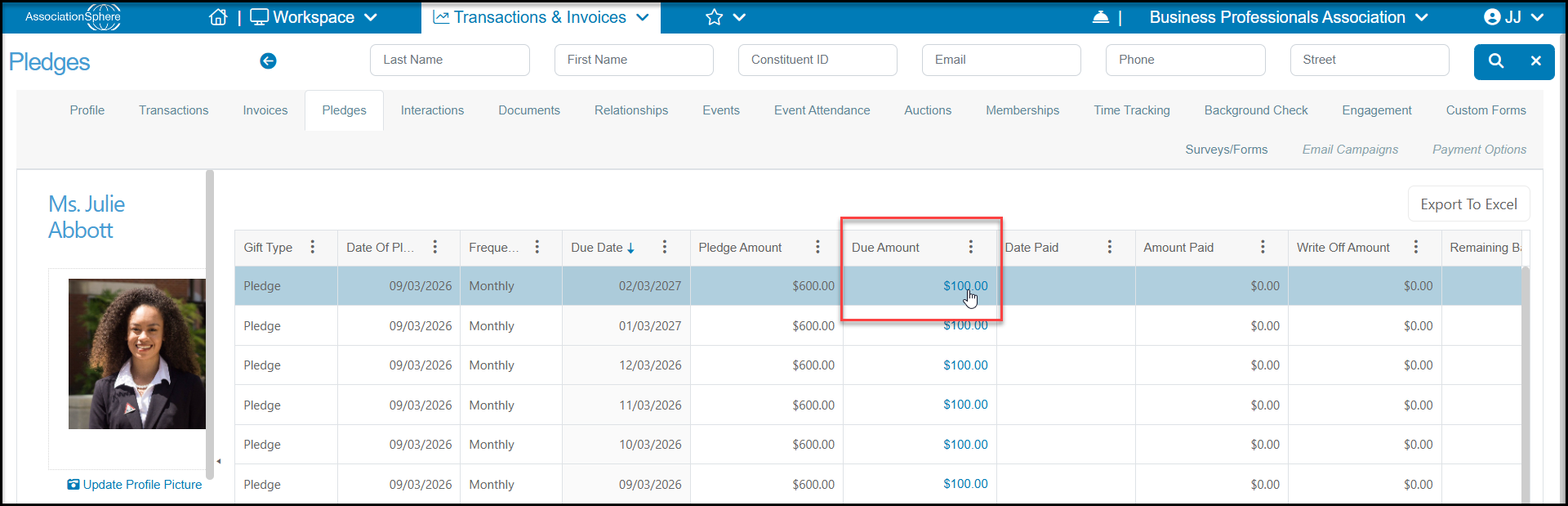
 To edit a payment schedule, first open the pledge by clicking on a **Due Amount** for the specific pledge from the constituent's Pledges tab or from the main Pledges grid.
 - You can edit specific payment dates or amounts in the schedule by clicking on the **Due Date**and/or **Due Amount**. Changes to any of the Due Amount fields will automatically update the **Pledge Amount**at the top of the page.
- Additional payments can be added with the **+Add Payments Due** button at the top of the payment schedule grid. This will add payments on the frequency and amount originally created.
- For editing a pledge, you can also use **Delete Outstanding Pledges**to remove any unpaid pledge payments. You also have the option of **Updating Outstanding Pledges**to update the due date or amount due on remaining pledge payments.
- Click the green**Save** button to save the changes.
- You can edit specific payment dates or amounts in the schedule by clicking on the **Due Date**and/or **Due Amount**. Changes to any of the Due Amount fields will automatically update the **Pledge Amount**at the top of the page.
- Additional payments can be added with the **+Add Payments Due** button at the top of the payment schedule grid. This will add payments on the frequency and amount originally created.
- For editing a pledge, you can also use **Delete Outstanding Pledges**to remove any unpaid pledge payments. You also have the option of **Updating Outstanding Pledges**to update the due date or amount due on remaining pledge payments.
- Click the green**Save** button to save the changes.