# How do I do a refund back onto a credit card?
> Source: https://support.associationsphere.com/how-do-i-do-a-refund-back-onto-a-credit-card | Updated: 2025-04-23T20:26:36Z
To issue a refund, you can submit a request for a refund which will be processed by our accounting team.
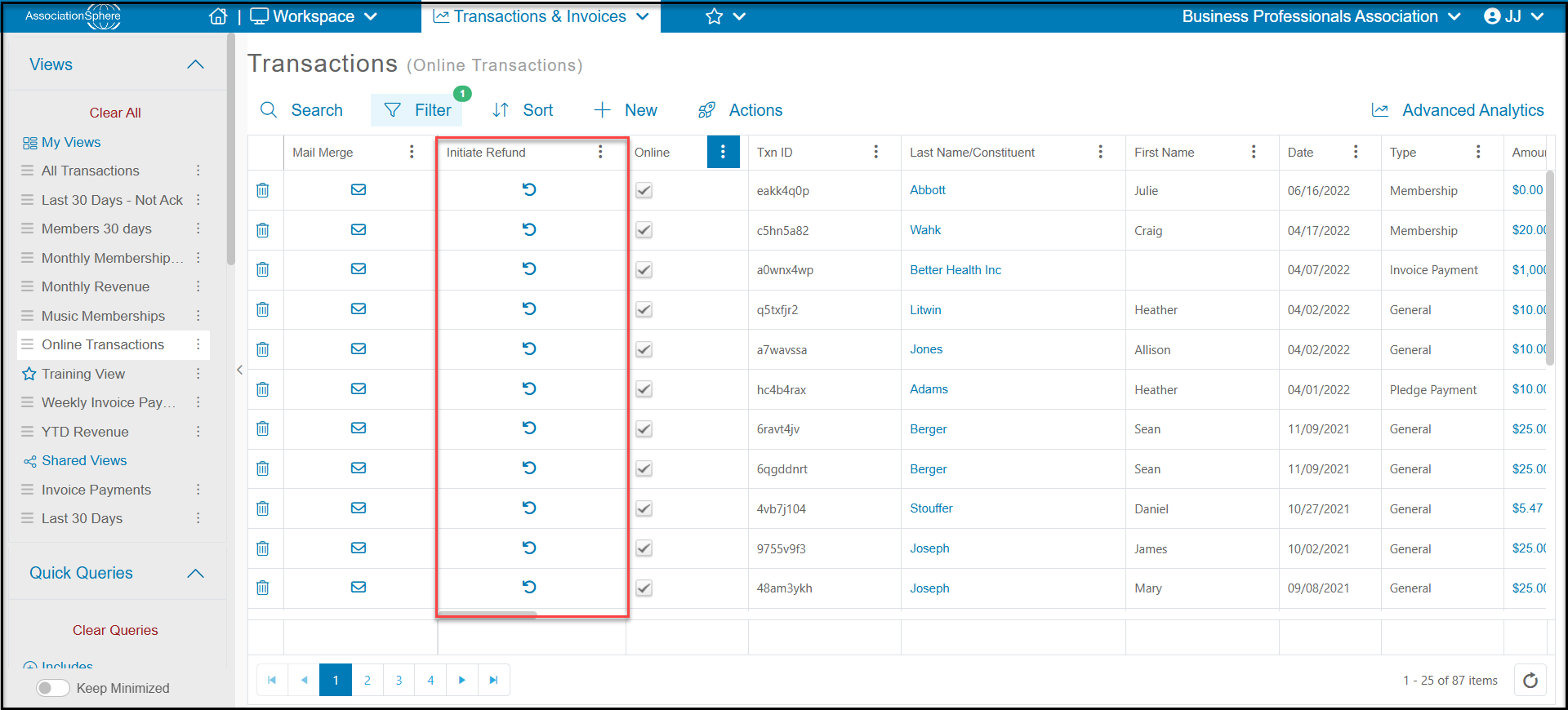
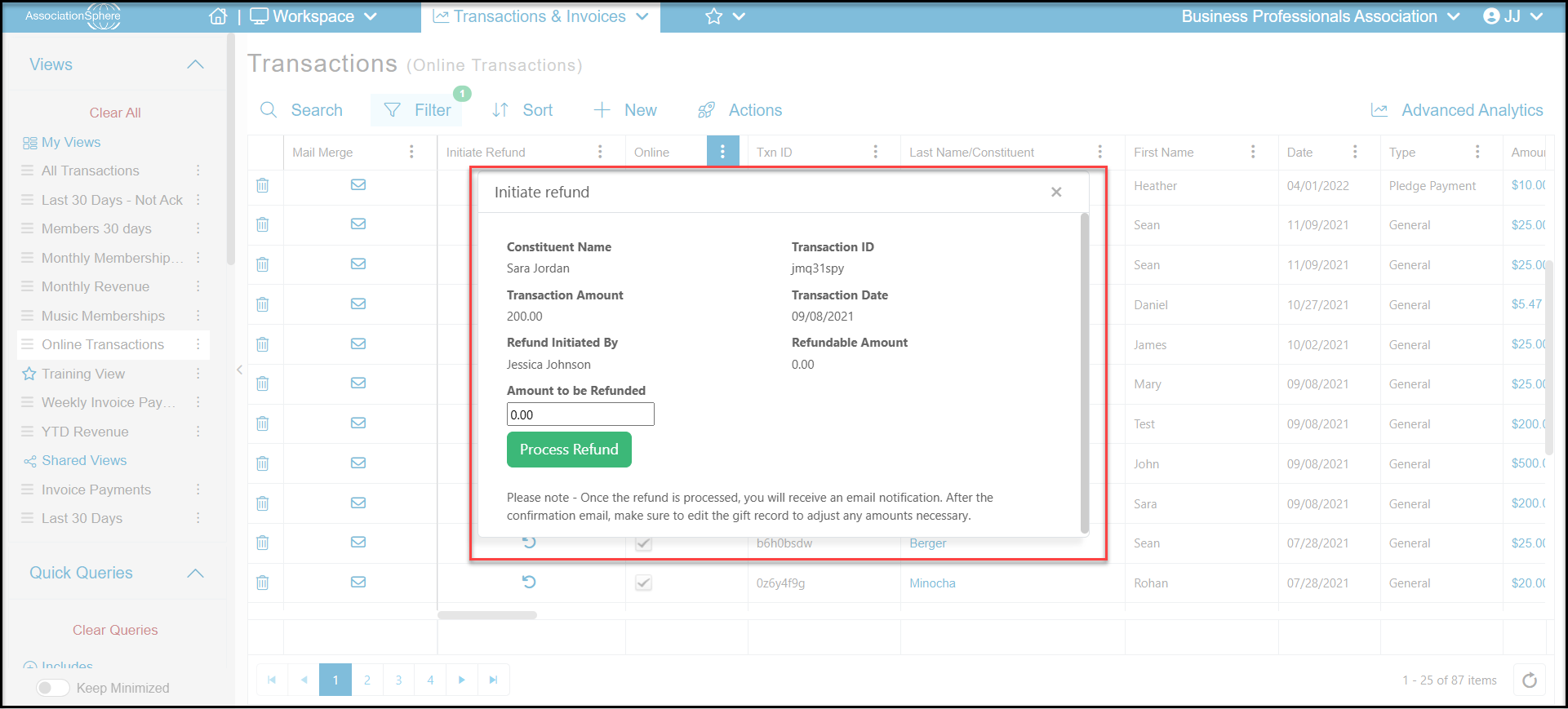
Go to **Workspace > Transactions & Invoices > Transactions** and locate the transaction. Under the Initiate Refund ***(1)*** column, click on the arrow icon. You will be prompted to enter the Amount to be Refunded.
 After we have submitted the refund on your behalf, we will send you a confirmation and you can delete the transaction from your account, or edit the transaction record to adjust the amount based on the refund.
Refunds generally post to the user's credit card in a few business days.
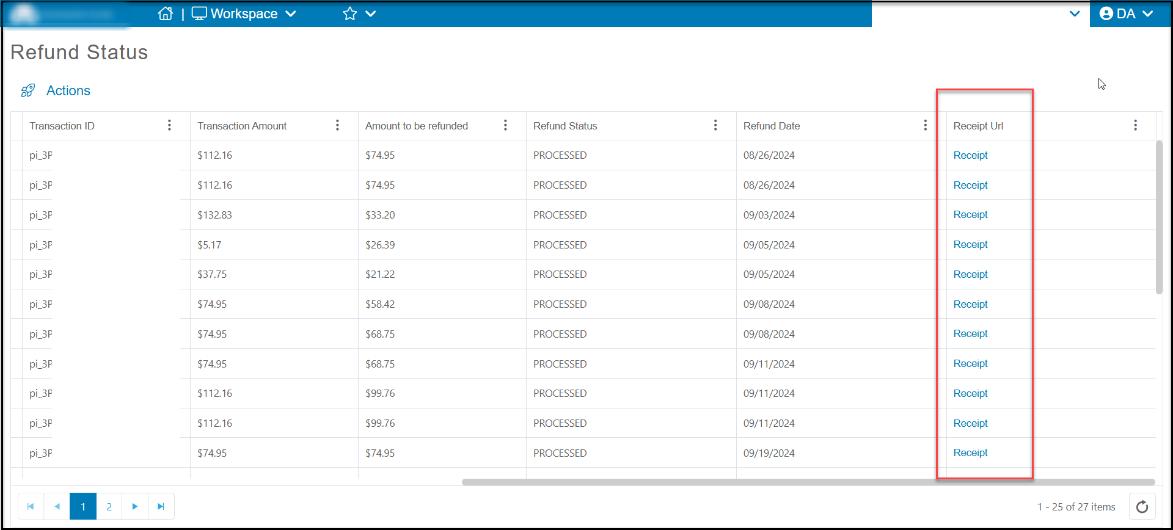
Under the account name menu go to **Account > Refund Status** to see the status of the refund and download a receipt for the refund by clicking on the Receipt link in the Receipt Url column.
After we have submitted the refund on your behalf, we will send you a confirmation and you can delete the transaction from your account, or edit the transaction record to adjust the amount based on the refund.
Refunds generally post to the user's credit card in a few business days.
Under the account name menu go to **Account > Refund Status** to see the status of the refund and download a receipt for the refund by clicking on the Receipt link in the Receipt Url column.
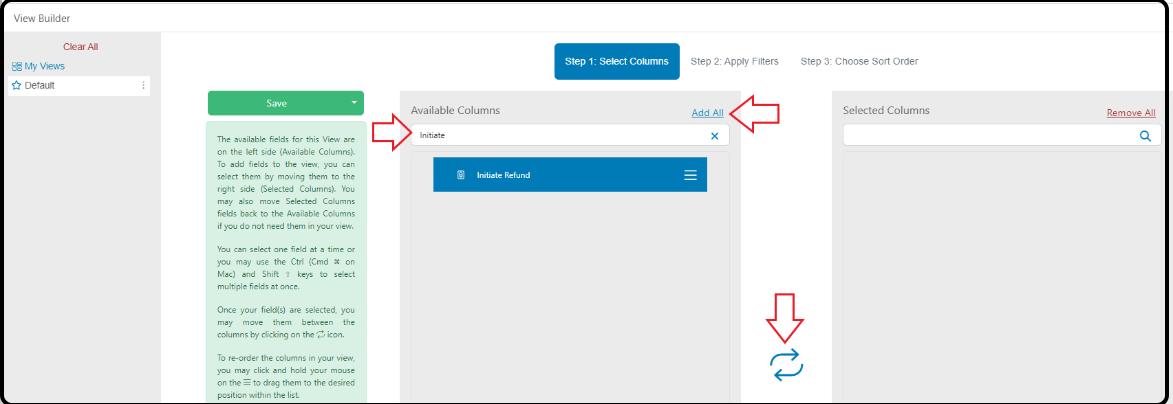
 ***(1)*** **The Initiate Refund column can be added to the View** by clicking the view menu (three dots) and selecting Open Builder.
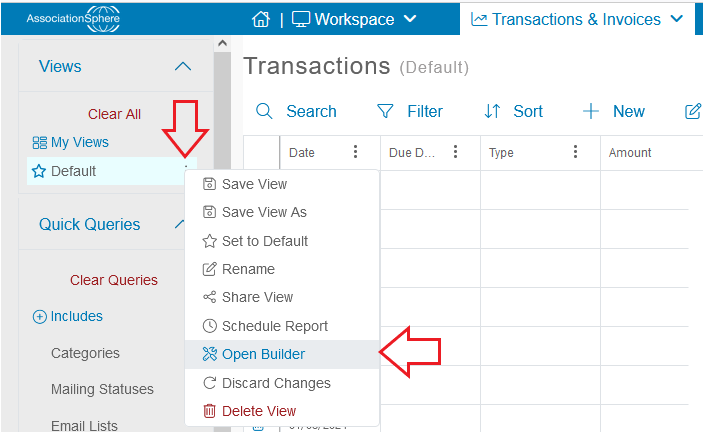 Search for the column and select it; then click Add All or the arrows icon to move the column to the Selected Columns. Save.