# How do I run a report on my memberships?
> Source: https://support.associationsphere.com/how-do-i-run-a-report-on-my-memberships | Updated: 2026-09-08T16:25:02Z
You can create custom reports using the Queries, Filters, and Sorts features on the Summary and Details grid. You can also find report features in the View Builder, Actions menu, Dashboard and a special option for First Membership Date from the Constituents grid.
### **View Builder**
The View Builder includes several pre-made views that can be used for reporting. The View Builder is accessed from the Views menu by clicking on the three dots next to your current view and selecting **Open Builder**.
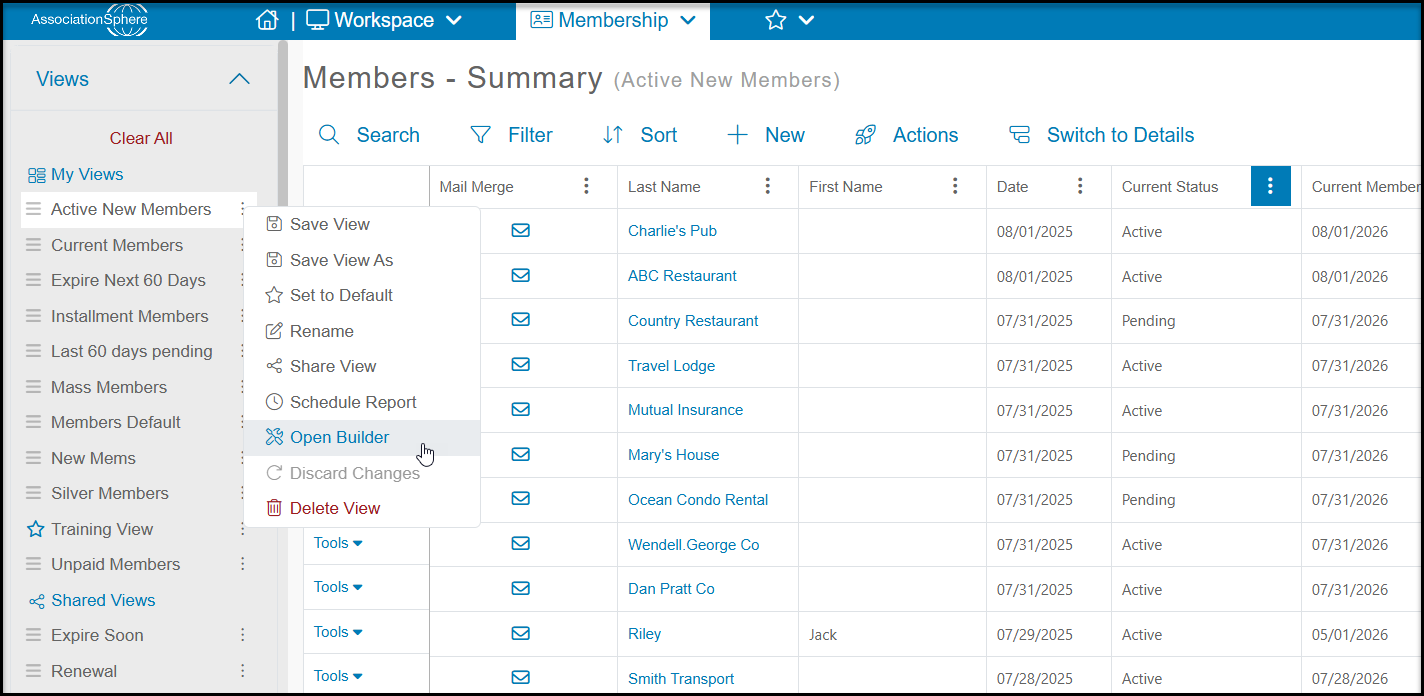
Under the Views Library, you will find views for reporting including:
- **Active New Members** - Includes all members with a Current Status = Active or Pending and a Status = New.
- **Active Renewed Members** - Includes all members with a Current Status = Active or Pending and a Status = Renewal.
- **All Active Members** - Includes all members with a Current Status = Active or Pending.
- **All Inactive Members** - Includes all members with a Current Status = Inactive.
- **Auto-Renew Memberships** - Includes all members with a current membership set to auto-renew.
- **Company Members** - Includes only members with a blank first name field, company-type profiles do not have a first name field, and a Current Status = Active or Pending.
- **Expire Next 30 Days** - Identifies memberships expiring between 1 and 30 days using the **# Days from Expiration** field.
- **Expire Next 60 Days** - Identifies memberships expiring between 1 and 60 days using the **# Days from Expiration** field.
- **Installment Members** - Shows a list of all recurring memberships (membership payments made over time) with a checkmark in the Installments column.
- **Lifetime Members** - Shows all Lifetime memberships which have a checkmark in the **Is Lifetime** column.
- **Membership This Month** - List of all membership transactions initiated in the current month.
- **Recently Expired** - List memberships that expired in the last 30 days using the **# Days from Expiration** field.
- **Renewals This Month** - Lists memberships recorded in the current month with a Status = Renewal.
- **Unpaid Members** - Shows active members who have a balance due, this will include recurring memberships being paid in installments.
- **New - Last 30 Days** - Shows a list of all membership transactions in the last 30 days with a Status = New.
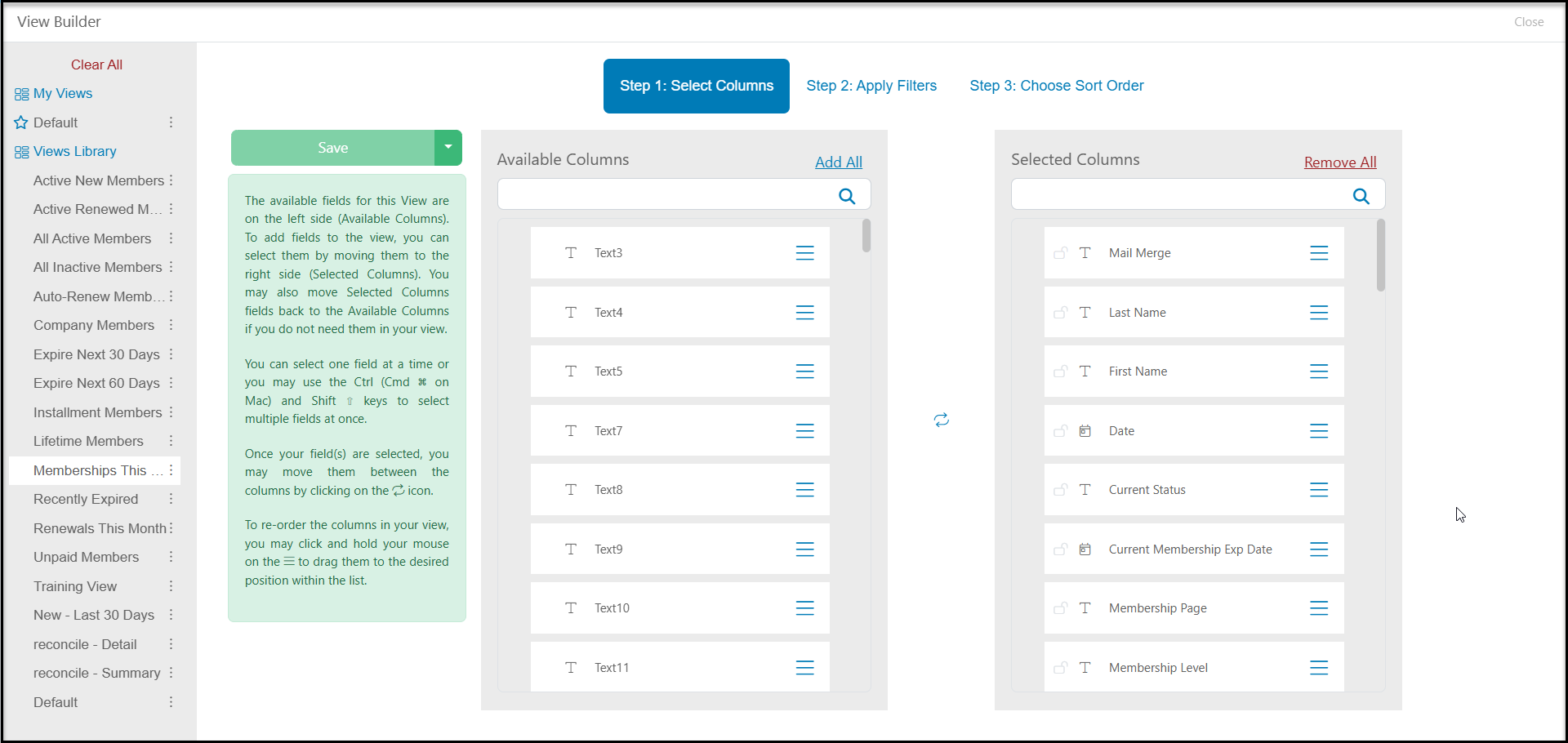
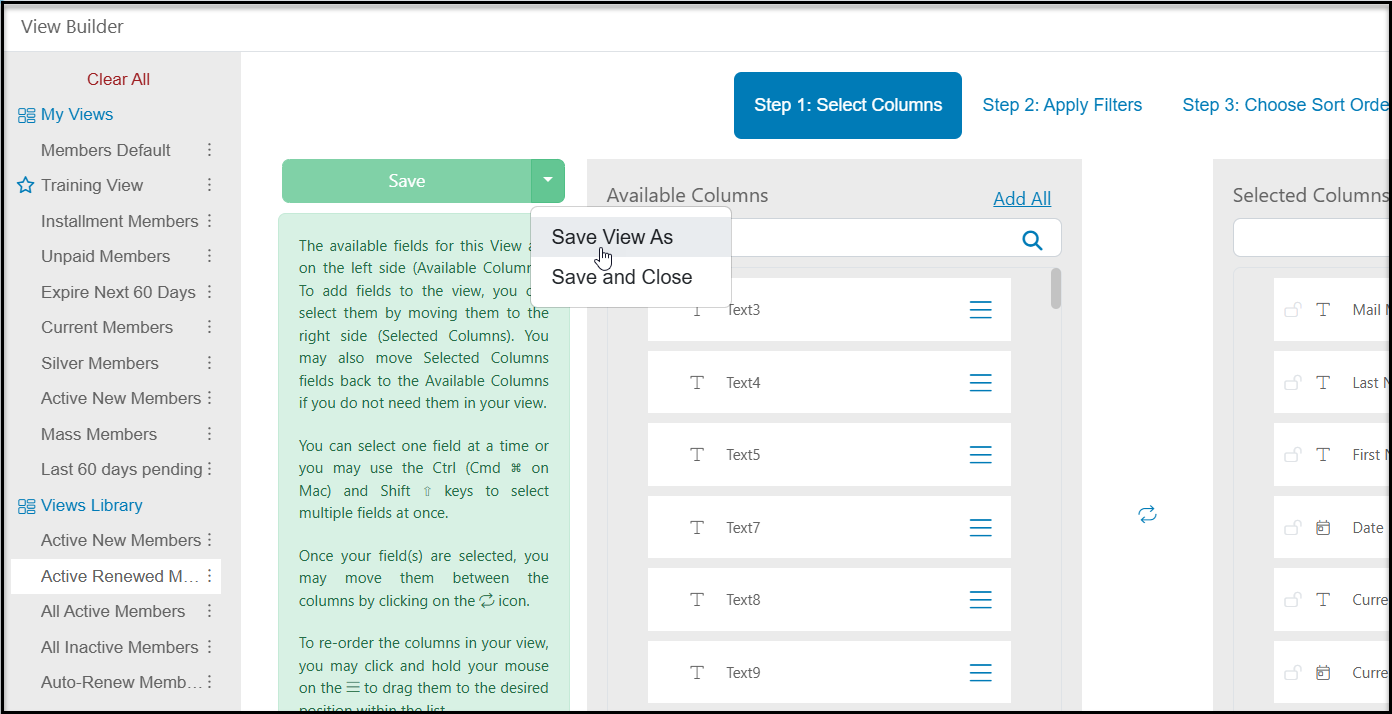
You can use any of the built-in views by clicking on the name, then clicking on the down arrow next to **Save.**
Choose **Save View As** and enter the name of your view in the new window and then clicking **Save** to add the view to your list of My Views.
Once saved you can selected it anytime and make any modifications to the view as desired.
### **Actions Menu - Print Membership Report**
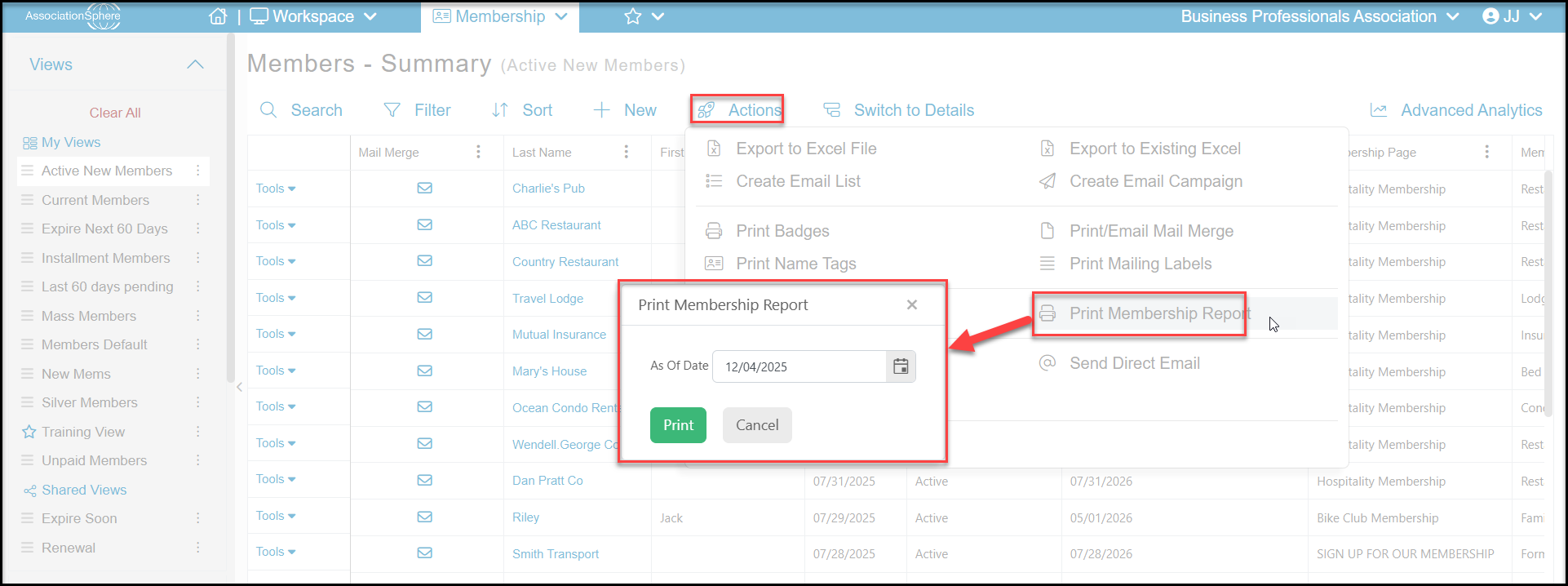
From the Actions grid you can select Print Membership Report to launch a prompt window that allows you to enter in an **As of Date** for the report. Click **Print** and a PDF report will launch in a new browser window. The report details statistics about your overall membership program such as total new or active members and other statistics about overdue members as of the date you entered.
This report will provide a snapshot of memberships on that specific day. It will show:
**Active Memberships** - counts for each membership level, sorted by Membership page. Memberships must have a Current Status = Active. This counts memberships, not members. Group memberships may have multiple members, but this is only counting the membership.
**New Memberships** - In the last fiscal year (FY), calendar year (CY) and 30 days.
**Renewal Memberships** - In the last fiscal year (FY), calendar year (CY) and 30 days.
**Overdue Memberships** - Memberships that have expired in the last 30, 60, 90, 120, 180 days and more than 180 days.
**Lapsed Renewals** - Memberships that were expired, but renewed after they expired in the last fiscal year (FY), calendar year (CY)
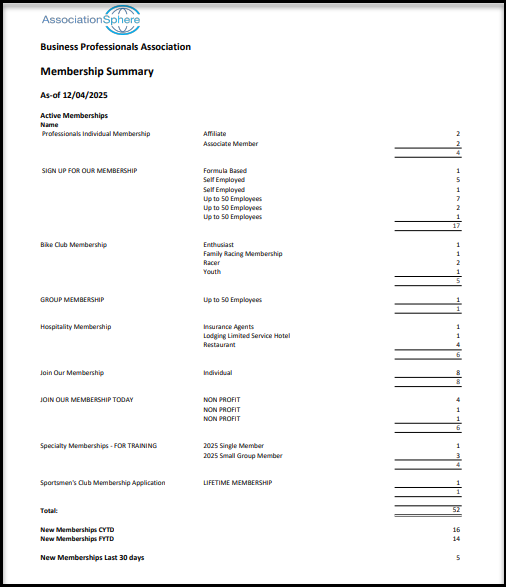
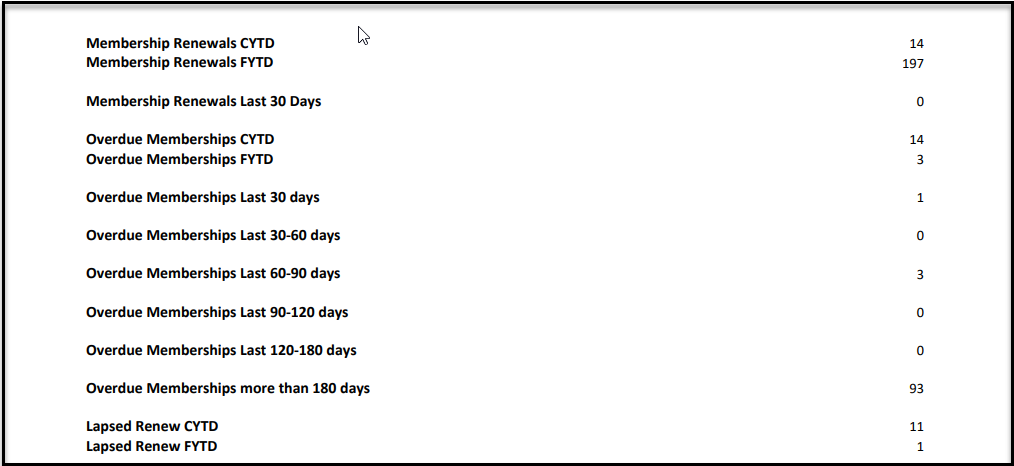
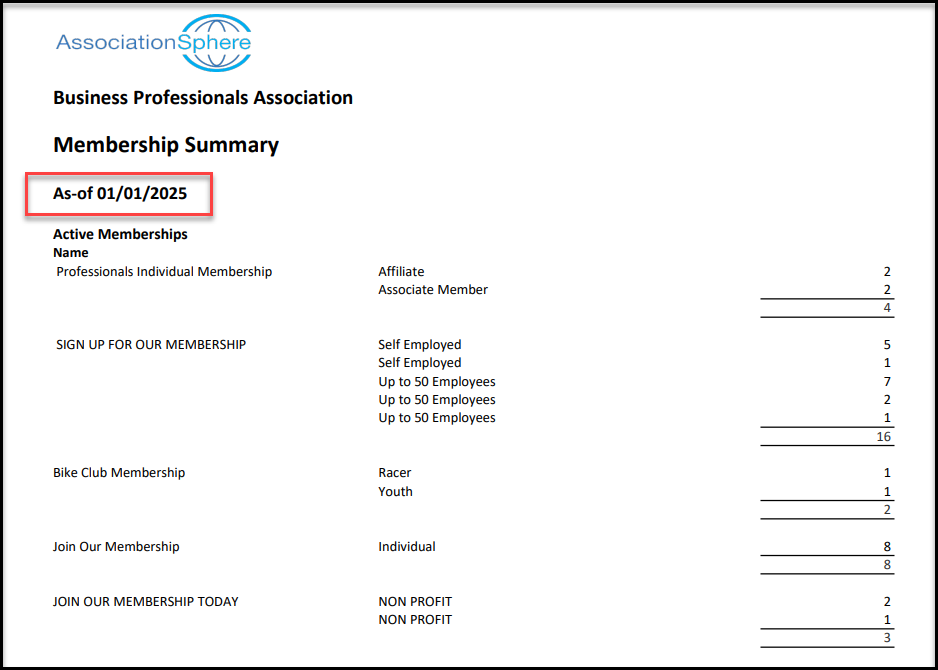
The above report shows data as of 12/4/2025. If I entered 1/1/2025 for the run date, it will produce report showing me the status of memberships on that day. You can see the changes to the number of active members as of 1/1 versus 11/5.
### **Membership Dashboard**
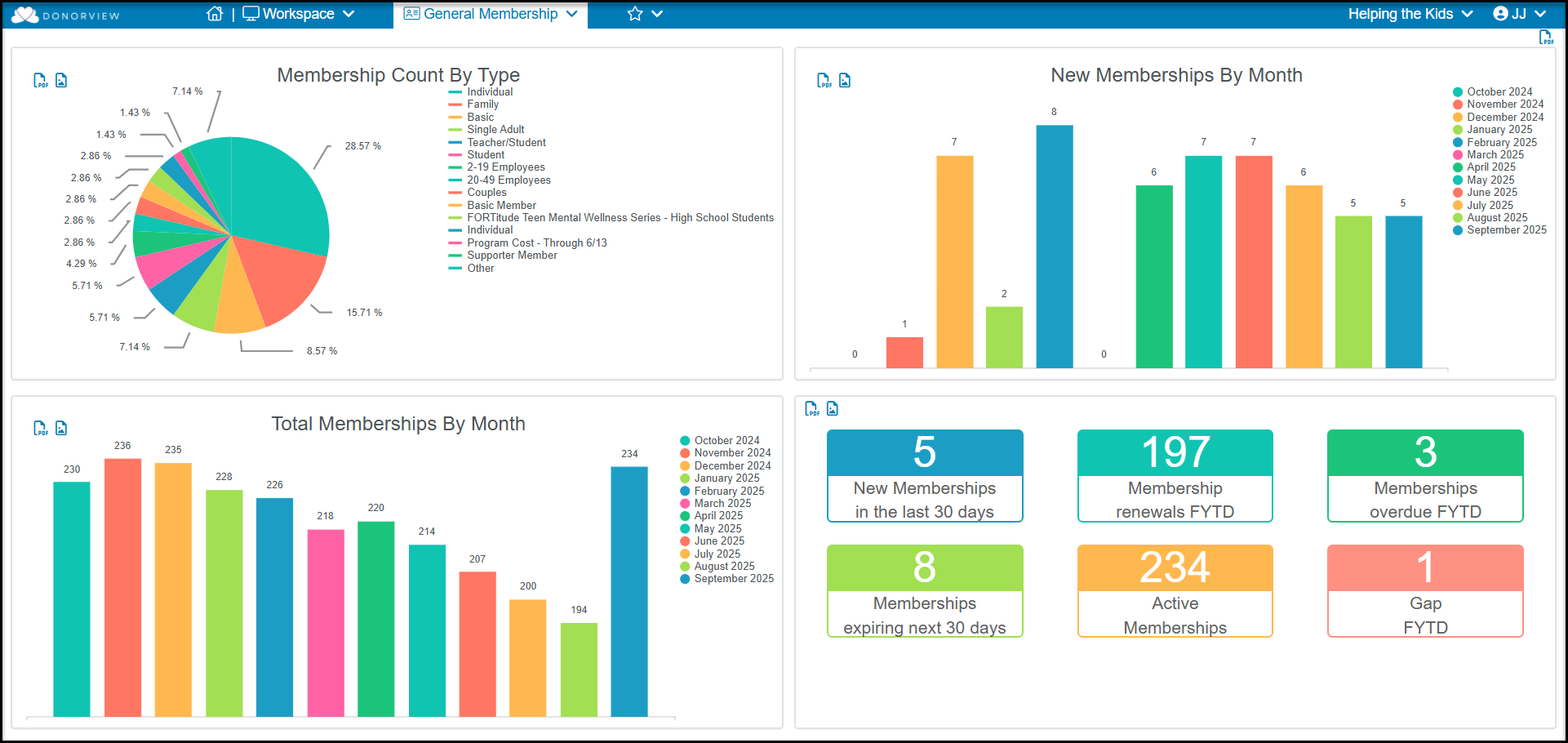
The Membership Dashboard shows statistics for your memberships and is access when you click on General Memberships under the Workspace menu. You can download the entire dashboard as a pdf file by clicking on the pdf icon in the top right corner of the dashboard, or you can download the individual graphics as image (png) or pdf files by clicking on the icons in the top left corner of each of the graphics. The statistics include:
- The **top left quadrant** will display a pie chart showing the percentage of memberships broken down by the membership level. You can click on a pie slice to open a view on the Membership grid to display the data.
- The **upper right quadrant** will show the number of new membership transactions recorded for each month in the last 12 months. You can click on a bar to open a view on the Membership grid to display the data. The Status of the transaction must be “New” to be counted in the list.
- The **bottom left quadrant** will show the total number of membership transactions each month for the last twelve months. This will include memberships with both “New” or “Renewal” membership statuses. You can click on a bar to open a view on the Membership grid to display the data.
- The **bottom right quadrant** will show summary information for memberships including how many new memberships were recorded in the last 30 days, how many membership renewals in the fiscal year, how many overdue memberships (expired) in the last fiscal year, and how many upcoming membership are expiring in the next 30 days.
- There is also a field showing the total number of Active memberships. This number is calculated using the Current Status field, which is only updated once per day overnight. So if new memberships were added or renewals happened after the expiration date, those transactions will not show on the dashboard until tomorrow morning.
- The final statistic is Gap FYTD which calculates how many memberships were renewed after their original expiration date.
### **Constituents Grid**
The Constituents grid only has two fields/columns related to memberships, the **First Membership Date** and the **Current Membership Expiration Date**. These fields can be used to produce reports on how long someone has been a member. Along with a column like **Cumulative Payment Count**, which counts the total number of transactions recorded for this person, you can get a picture of how involved this member has been with your organization.
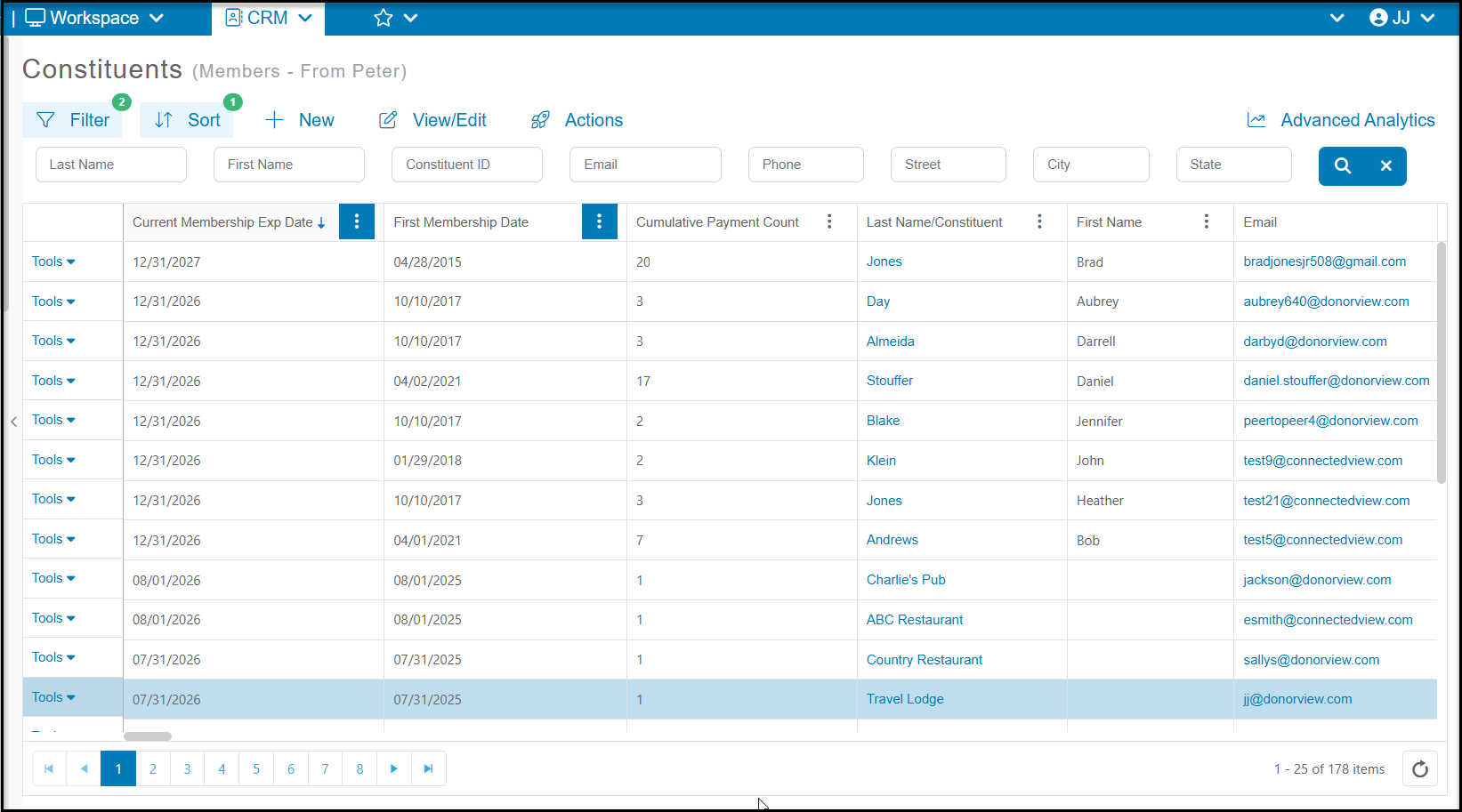
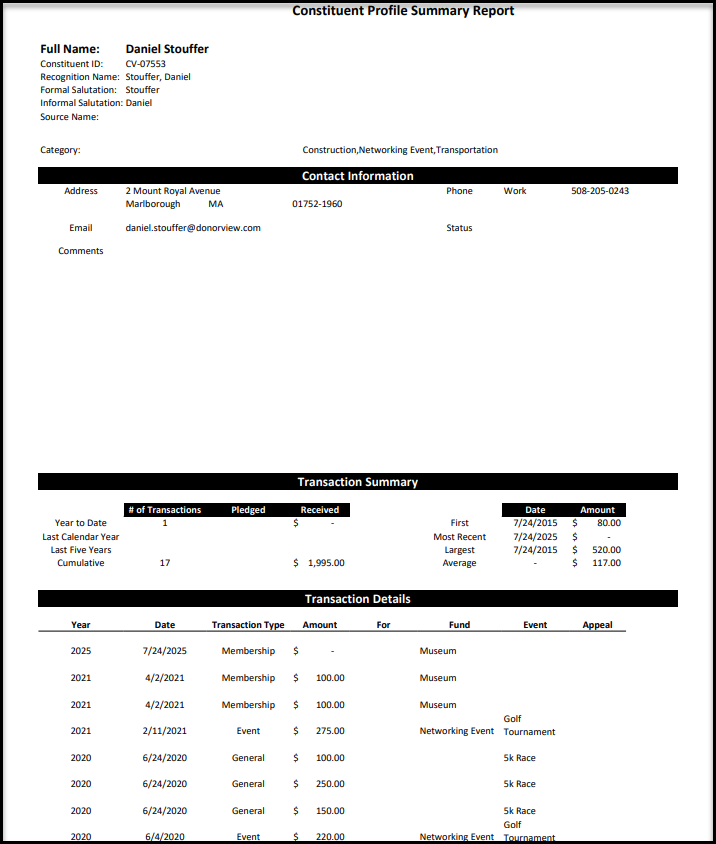
There is also a column on the grid to print a profile summary for a specific constituent. This **Profile Report** link is also available on the constituent's profile page under their profile picture.
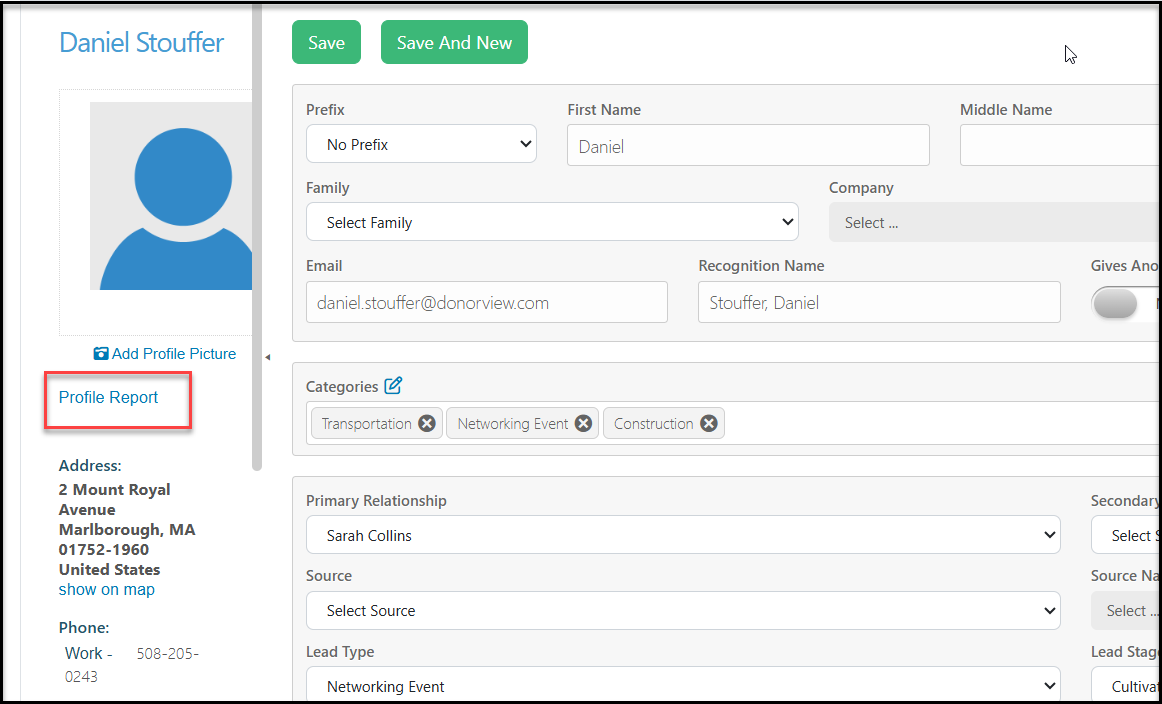
The profile report will include details about all their transactions over the years.