# How do I send a Test Email?
> Source: https://support.associationsphere.com/how-do-i-send-a-test-email | Updated: 2026-07-08T20:09:53Z
You can send a test email from the final step of the Email Campaign on the Schedule or Send tab.
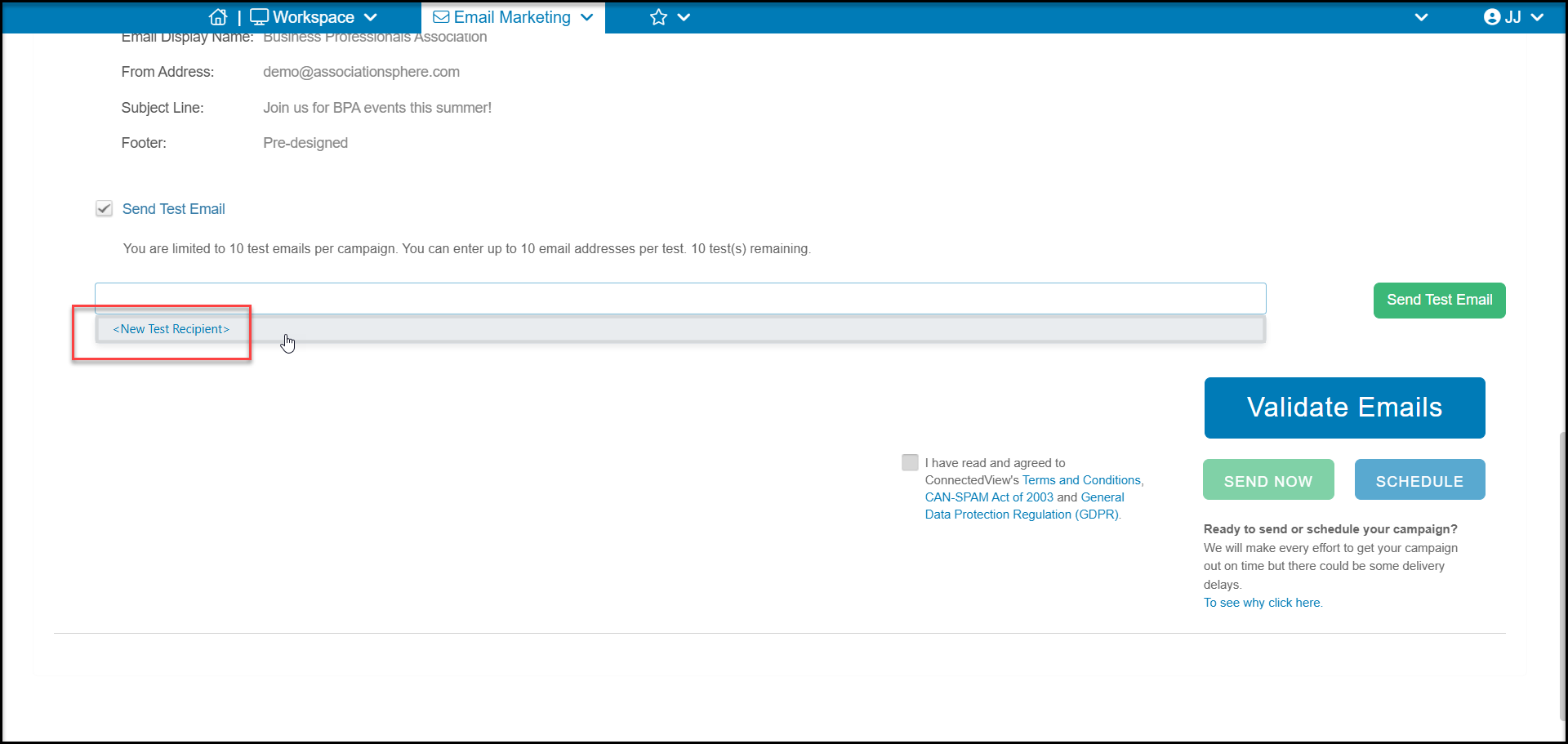
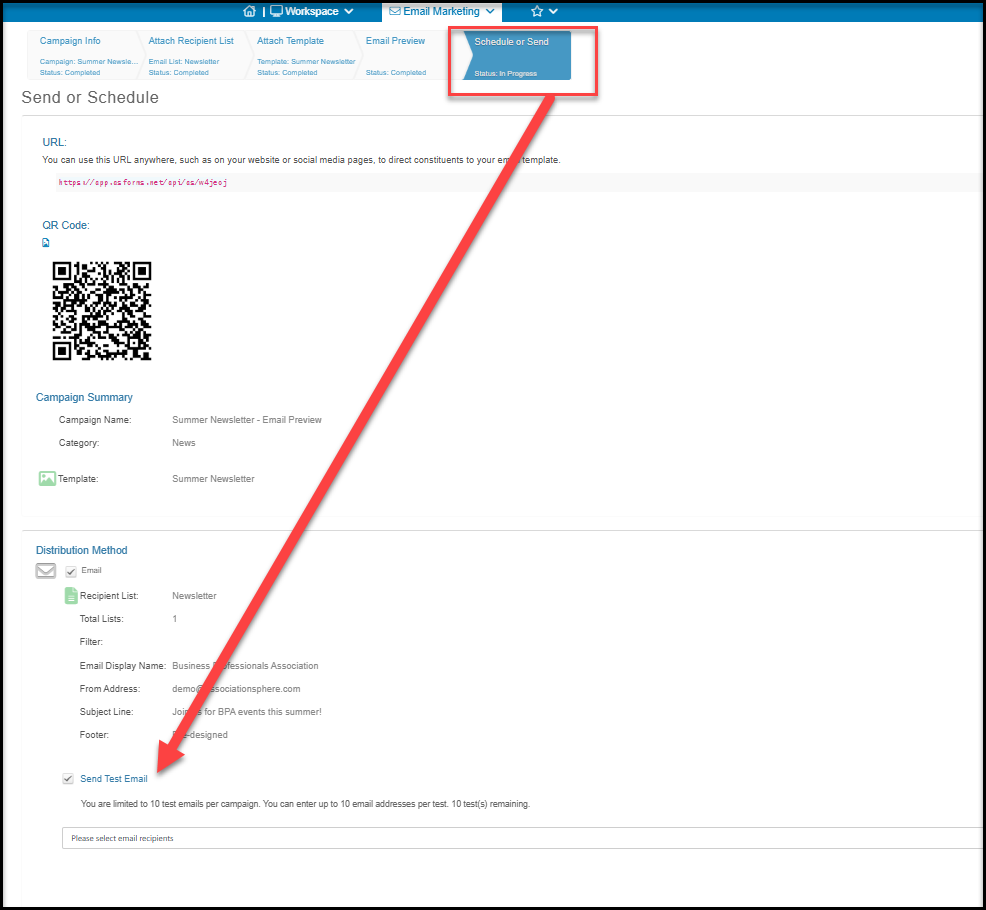 Check the box next to **Send Test Email** to select the recipients to receive the test message. If you do not have any previously set up test recipients, you can create a new one by clicking on ****.
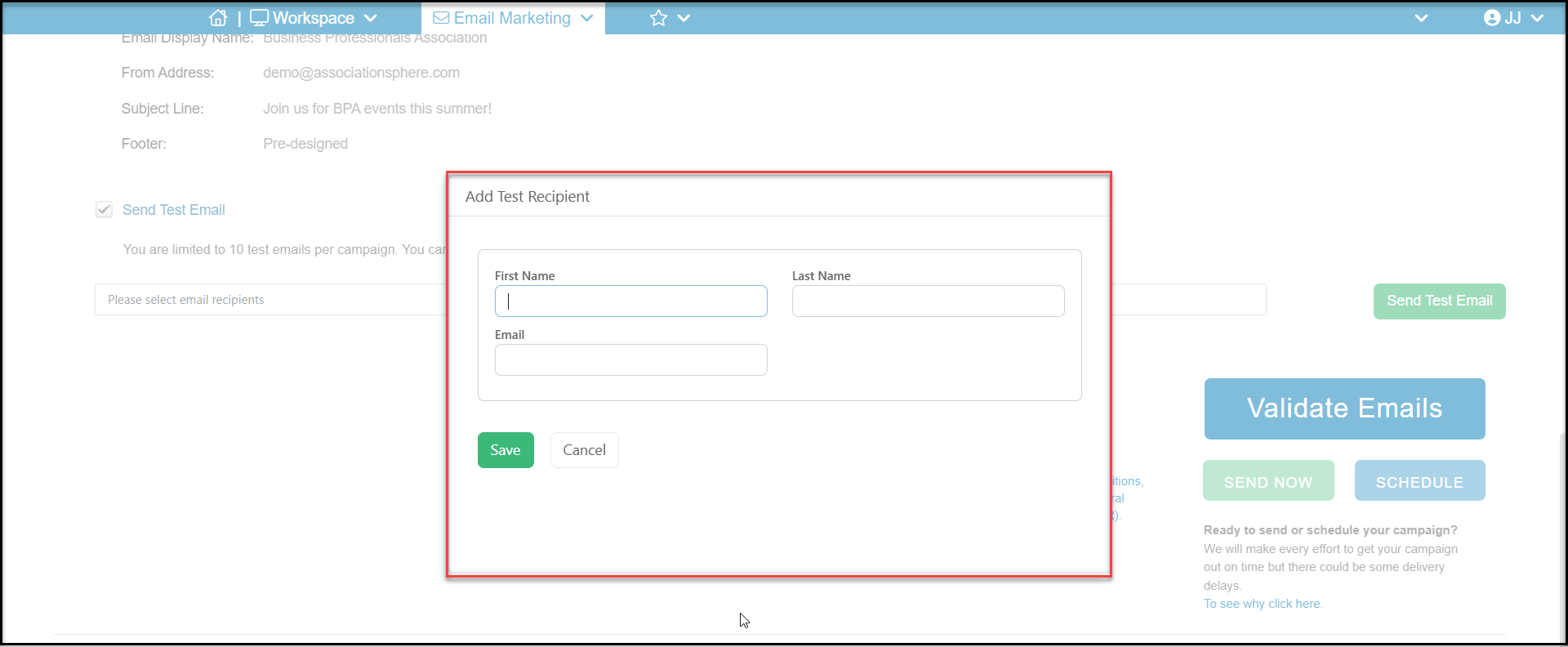
 In the new window enter a**First Name, Last Name**and **Email**for the test recipient. If no matching constituent is found in the database, this will create a new constituent record. A constituent record is required to send an email to them from the software.
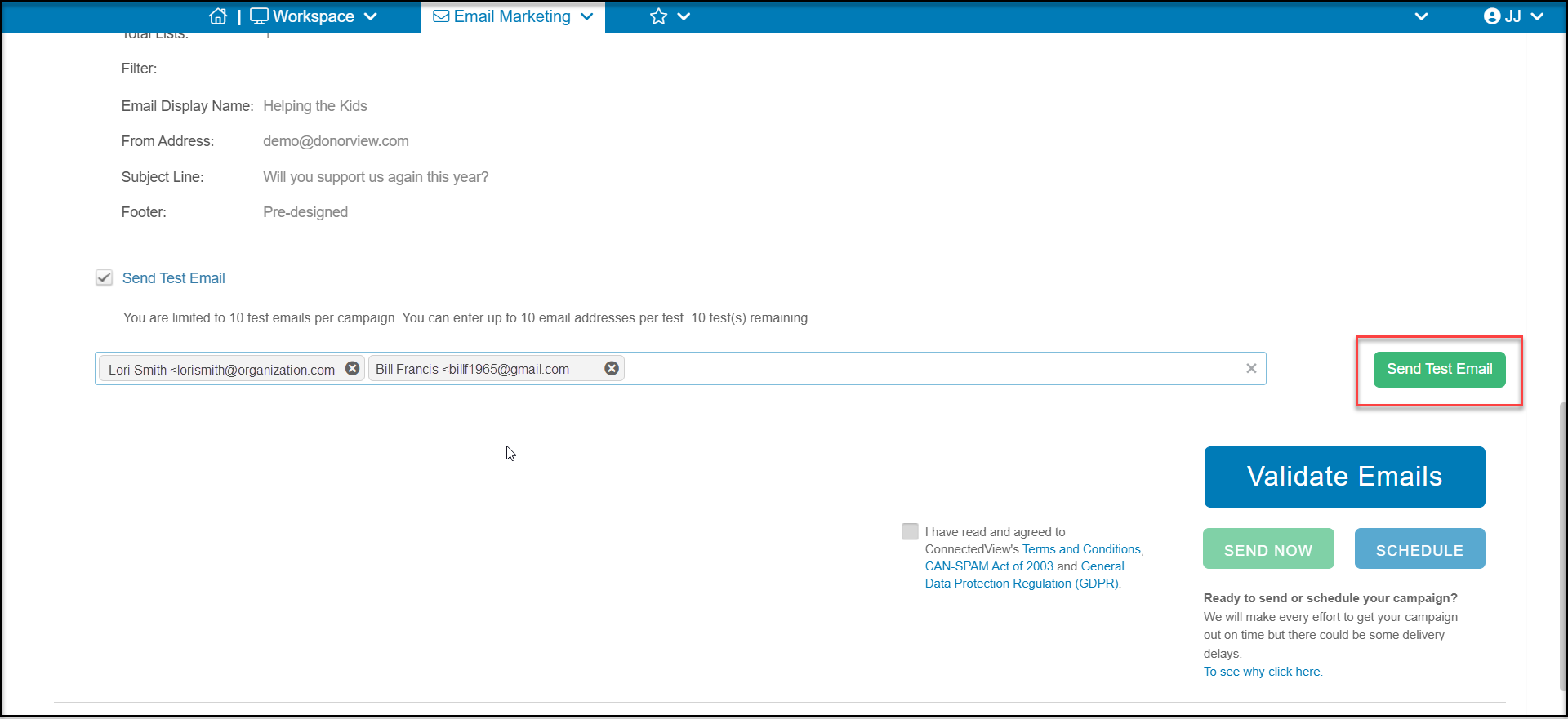
 Once the new test recipients are added, you can select them from the list. You can enter up to 10 emails per test and you can send up to 10 tests. Click**Send Test Email** to send the test. Keep in mind that test emails will not include merge fields since there is no data behind a test message, so some fields will show as blank in the message if you have included merge fields in the text areas.
If your test email does not appear in your inbox within 30 minutes, be sure to check your spam or junk folder.
Once the new test recipients are added, you can select them from the list. You can enter up to 10 emails per test and you can send up to 10 tests. Click**Send Test Email** to send the test. Keep in mind that test emails will not include merge fields since there is no data behind a test message, so some fields will show as blank in the message if you have included merge fields in the text areas.
If your test email does not appear in your inbox within 30 minutes, be sure to check your spam or junk folder.