# How do I send or print a receipt for a transaction?
> Source: https://support.associationsphere.com/how-do-i-send-or-print-a-receipt-for-a-transaction | Updated: 2026-09-08T02:58:45Z
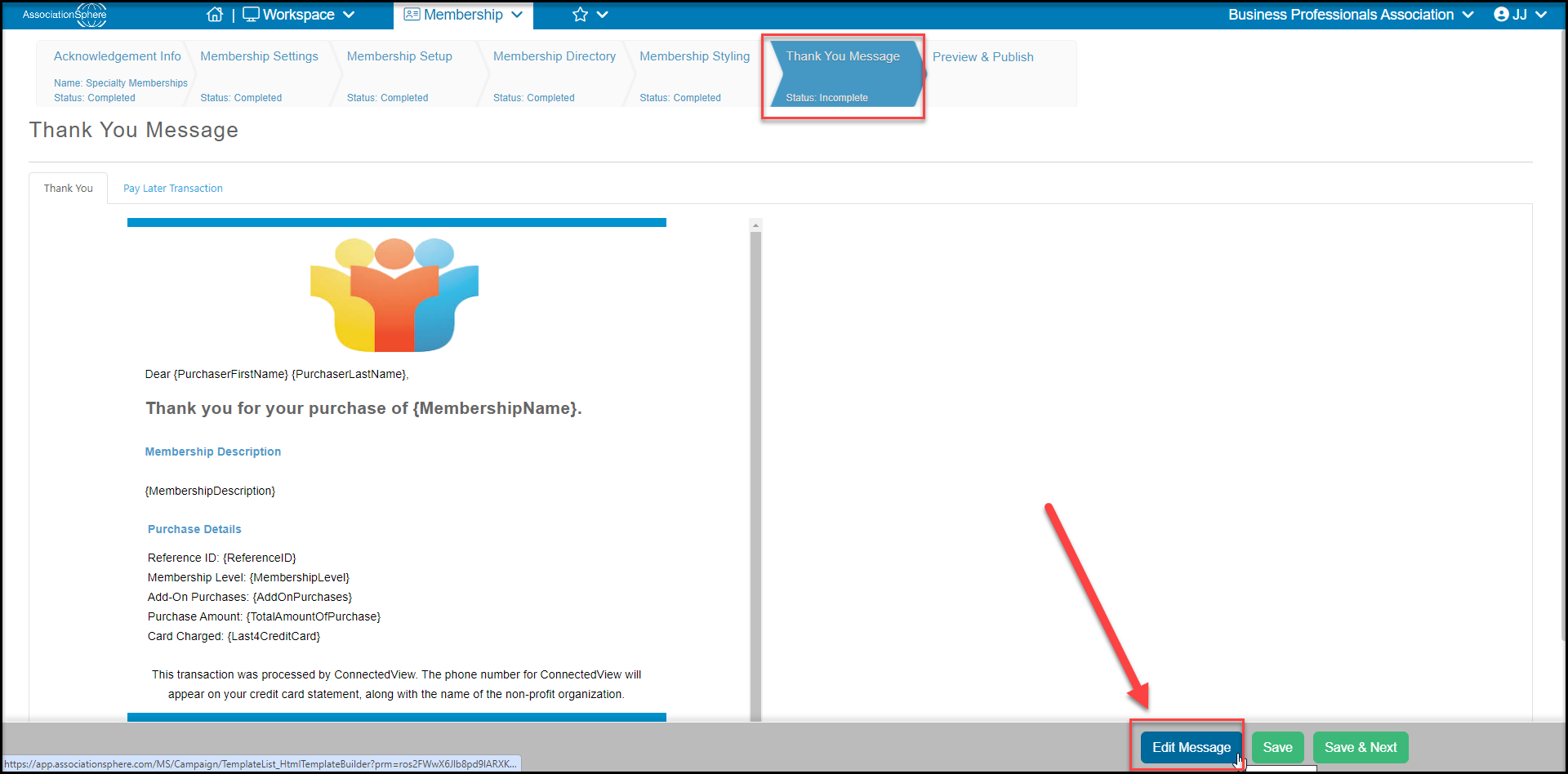
A thank you email with transaction information is sent automatically for memberships, events, donations and other transactions entered through a page created in AssociationSphere. You can edit this thank you email on the Thank You Message tab. Thank you emails are edited using the Email Editor and you can watch the video here.
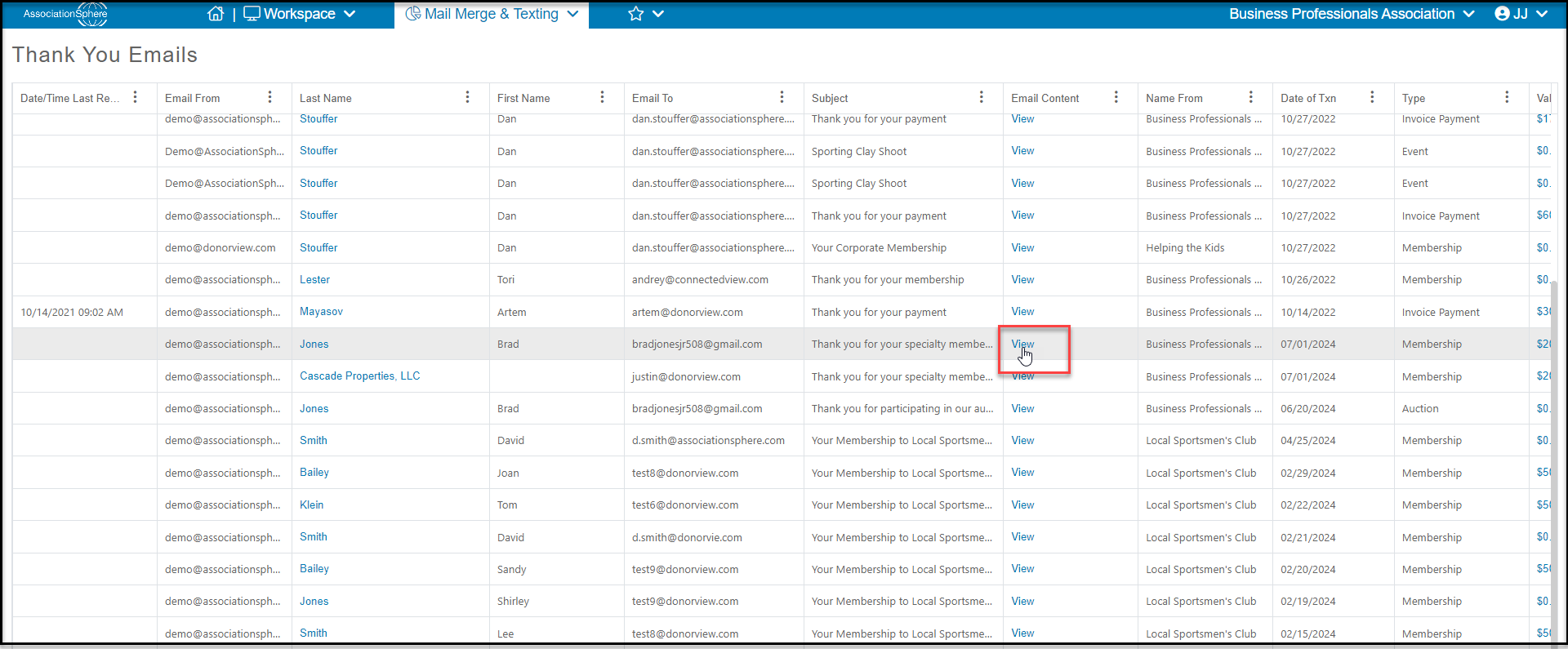
 If you need to recover the automatic email that was sent, you can find a copy in the Mail Merge & Texting module, on the Thank You Emails grid.
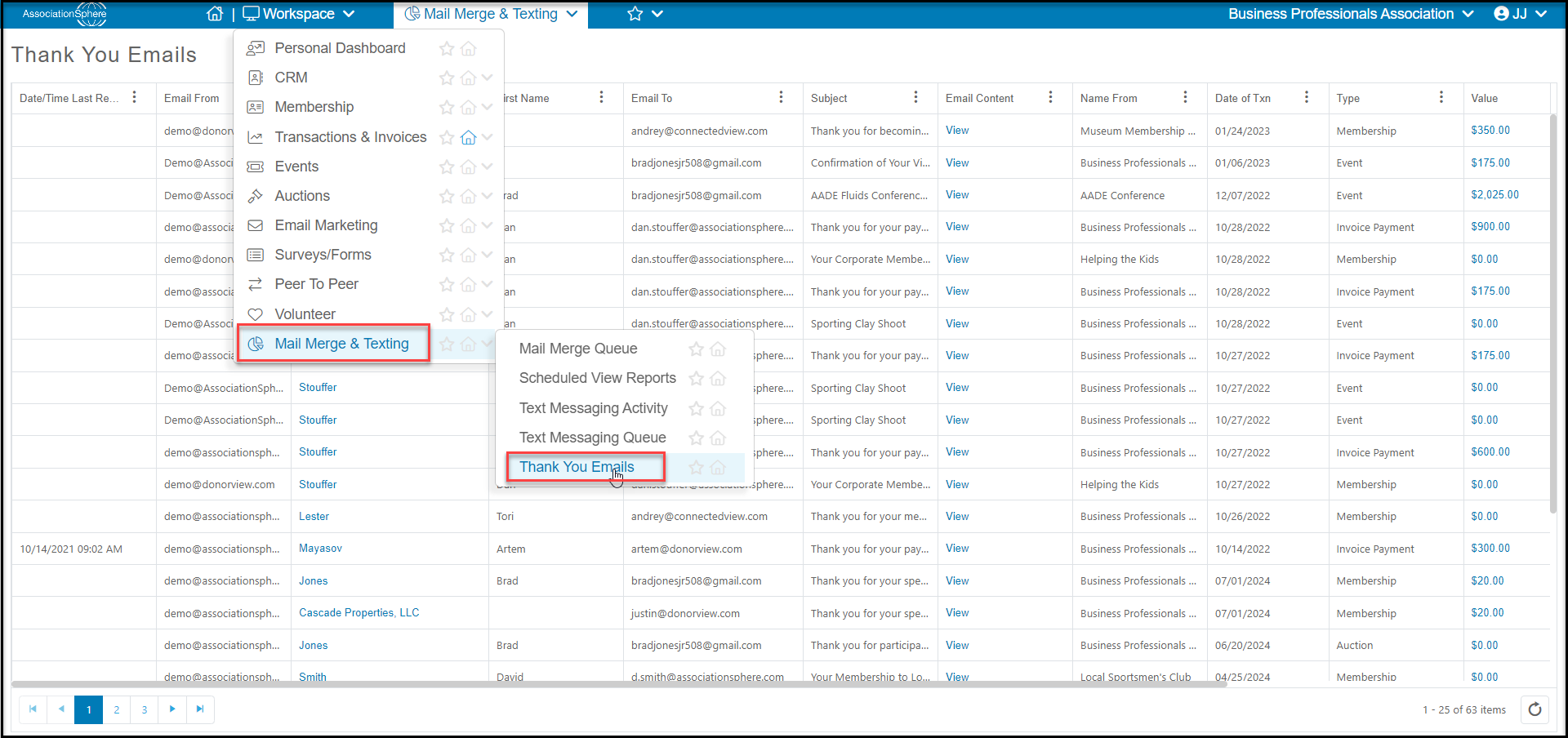 The grid displays the name of the constituent under **Last Name**, date of the transaction under **Date of Txn**, the **Type**of transaction, and the **Amount** to help you locate the record. Click on **View** in the Email Content column.
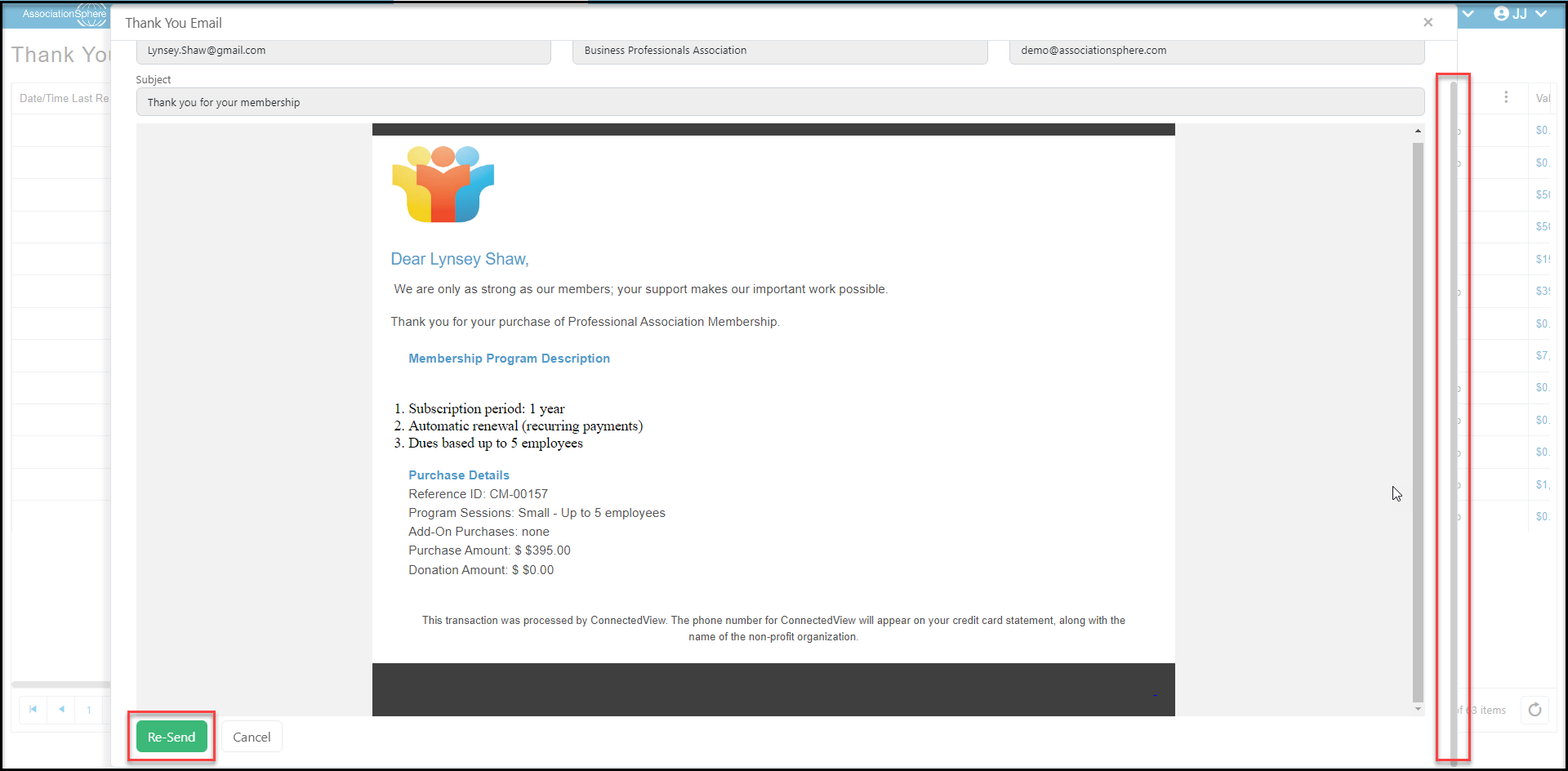
 This will open the email and scrolling to the bottom of the message (be sure to use the outside scroll bar) you can click the **Re-Send** button to send the message again to the same email address.
 For manual receipts, you will use the Mail Merge feature on the applicable grid. An acknowledgement letter or receipt must first be created in Mail Merge Templates for that module. You can learn more about creating mail merge letter templates here.
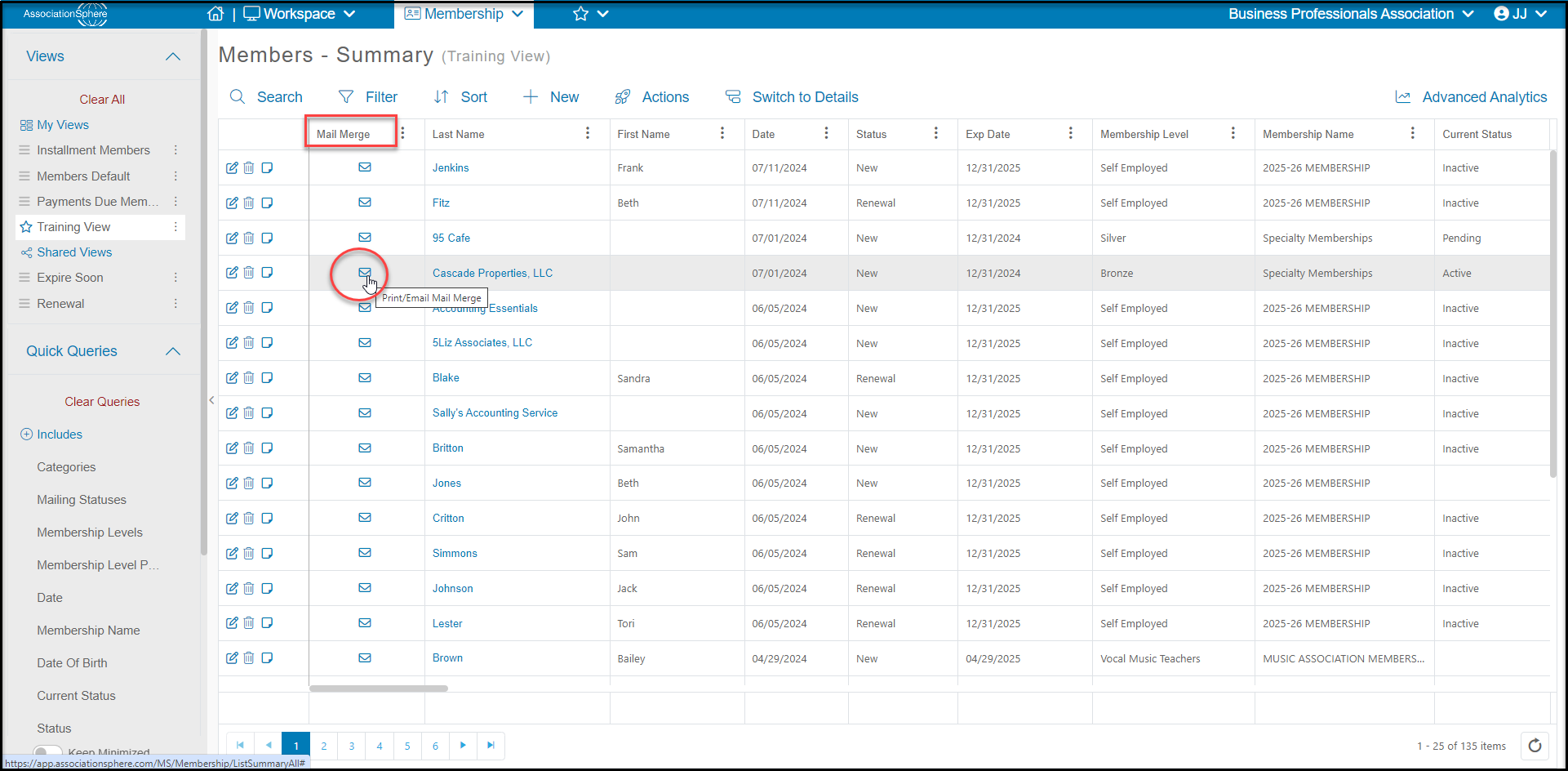
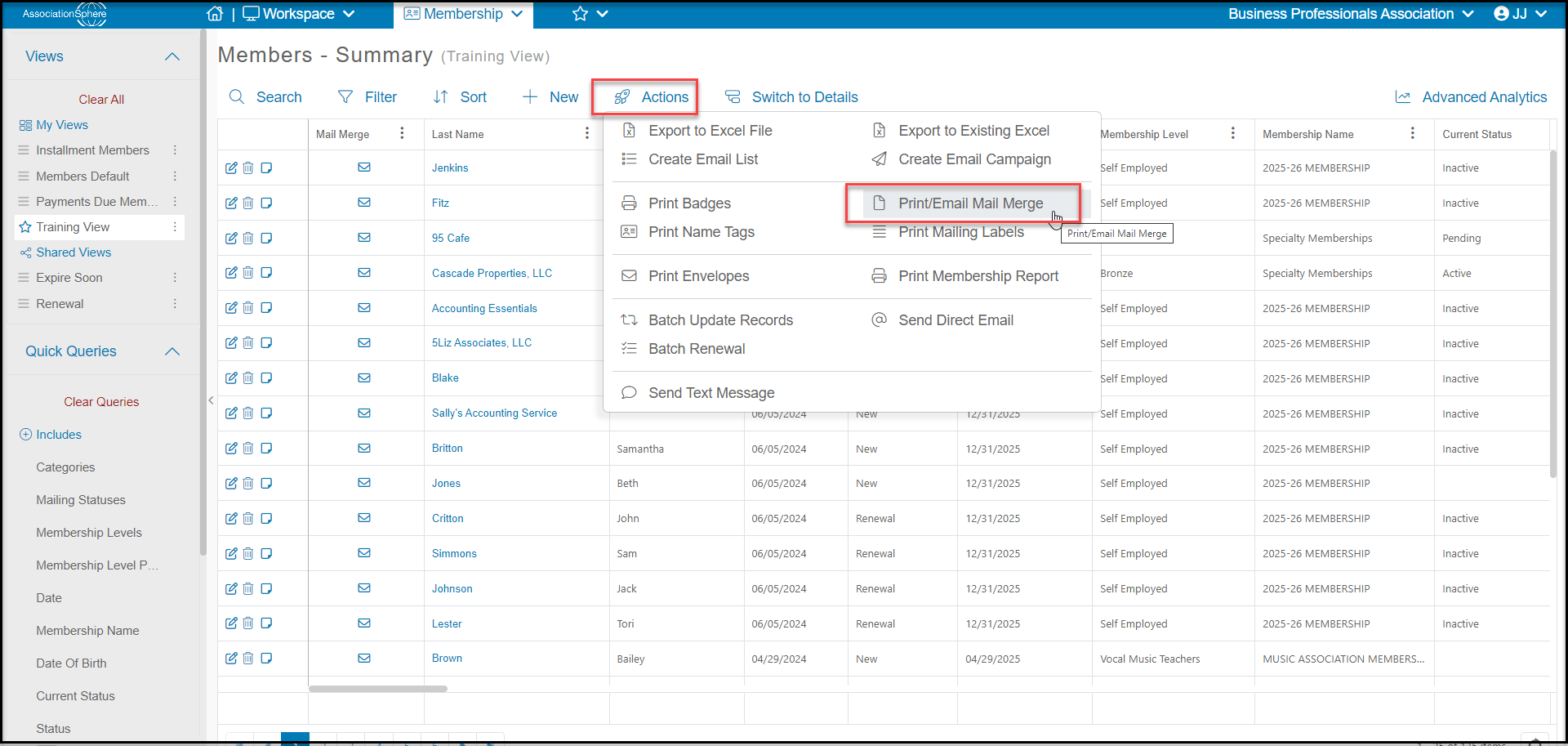
To send a single letter, locate the Mail Merge column with the envelope icons. Click on the **envelope icon**on the row of the constituent you wish to send the letter to. Or, if you wish to send to several constituents, filter the list and use the Actions menu and select Print/Email Mail Merge. Both options will open the mail merge window to allow you to choose the letter and delivery methods. For more information about sending mail merge letters, see this article: https://support.donorview.com/en/support/solutions/articles/9000211042-how-do-i-acknowledge-a-membership-transaction-./how-do-i-acknowledge-a-membership-transaction href="./how-do-i-acknowledge-a-transaction" target="_blank">"How do I acknowledge a transaction?"
For manual receipts, you will use the Mail Merge feature on the applicable grid. An acknowledgement letter or receipt must first be created in Mail Merge Templates for that module. You can learn more about creating mail merge letter templates here.
To send a single letter, locate the Mail Merge column with the envelope icons. Click on the **envelope icon**on the row of the constituent you wish to send the letter to. Or, if you wish to send to several constituents, filter the list and use the Actions menu and select Print/Email Mail Merge. Both options will open the mail merge window to allow you to choose the letter and delivery methods. For more information about sending mail merge letters, see this article: https://support.donorview.com/en/support/solutions/articles/9000211042-how-do-i-acknowledge-a-membership-transaction-./how-do-i-acknowledge-a-membership-transaction href="./how-do-i-acknowledge-a-transaction" target="_blank">"How do I acknowledge a transaction?"