# How do I send pledge payment reminders?
> Source: https://support.associationsphere.com/how-do-i-send-pledge-payment-reminders | Updated: 2026-09-08T02:58:45Z
Pledge payment reminders are only necessary for constituents who are paying by check for their pledges. Pledges assigned to a credit card for their **Payment Method**happen automatically and do not require a reminder. Constituents with an auto pay pledge will receive an acknowledgement for their payment if the recurring gift was set up through a donation page.
For pledges which are being paid manually with a check, you can generate a reminder letter from the Fundraising Module's Pledges - Detail grid. It is the default grid.
1. Ensure you have a letter created for your pledge reminders in the Mail Merge Pledge Template letter library.
2. Filter the grid for**Due Date**using the Quick Queries menu, for example next month.
3. Next add a filter for either **Date Paid**“Is Empty” OR you could also choose the**Balance Due** is “Greater than or equal to” $1.00. Either option will produce a list of pledge payments that have not been made yet.
4. Then you will filter the grid for those pledges that are NOT set up to auto charge a credit card by choosing the filter “Is Empty” for the **Payment Method**field.
5. This will show you a list of pledge payments that are due but will not be auto-charged to a credit card.
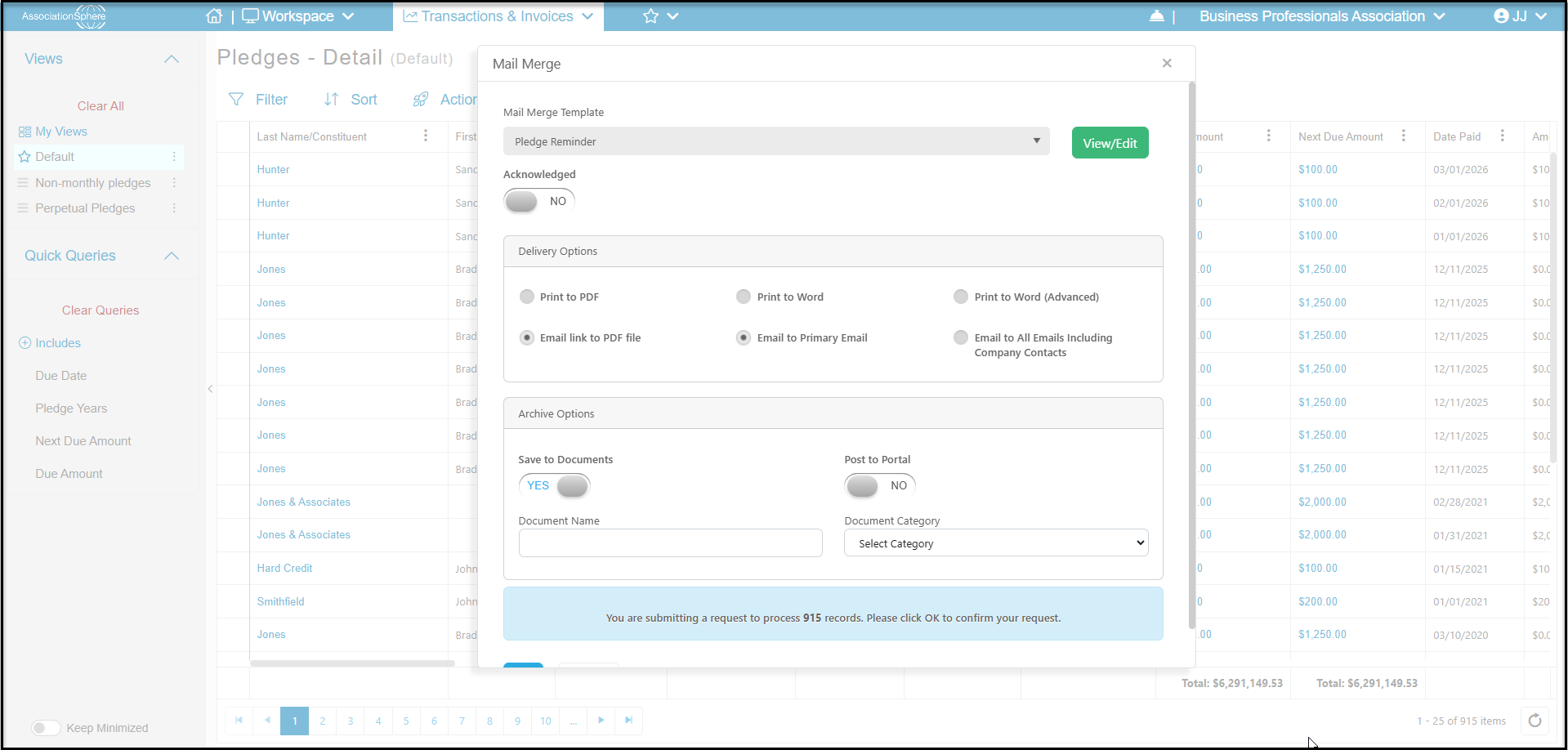
6. You can use the **Actions**menu to select the **Print/Email Mail Merge** feature and email or mail them a reminder.
7. In the new window, choose the **Mail Merge Template**to send.
8. **Acknowledged**- Leave this set to No.
9. **Delivery Options**:
- **Print to PDF** will print the letter in PDF format and open in a new browser window so you can review the letter prior to sending or printing.
- **Print to Word**will download the letter. If your letter does not download, be sure you have turned OFF your browser's pop up blocker.
- **Print to Word (Advanced)** is not used for acknowledgement letters.
- **Email Link to PDF file**will open an email to send once the rest of your selections are made.
- **Email to Primary Email** - sends just one email to the primary email address for this constituent
- **Email to All Emails including Company Contacts** will send a copy of the email to all email addresses on file for this constituent.
10. **Archive Options:**
- **Save to Documents** if set to **YES** a copy of the letter will be saved in the constituent's Documents.
- **Post to Portal**is used with the Advanced Portal only and would allow the constituent to download a copy of the letter from their portal account.
- **Document Name**is any name you would like to give the document.
- **Document Category** is a dropdown list to choose the appropriate category for this acknowledgement document.
11. Click **OK** to generate the letter or open the email to edit the message prior to sending.