# How do I update an Email List?
> Source: https://support.associationsphere.com/how-do-i-update-an-email-list | Updated: 2024-07-08T22:42:14Z
You can utilize the Actions menu from several grids including Constituents, Gifts, Memberships, Events, P2P Dashboard, and Auctions to add groups of constituents to an email list. You can also use Batch Update in the Actions menu to remove names from an email list.
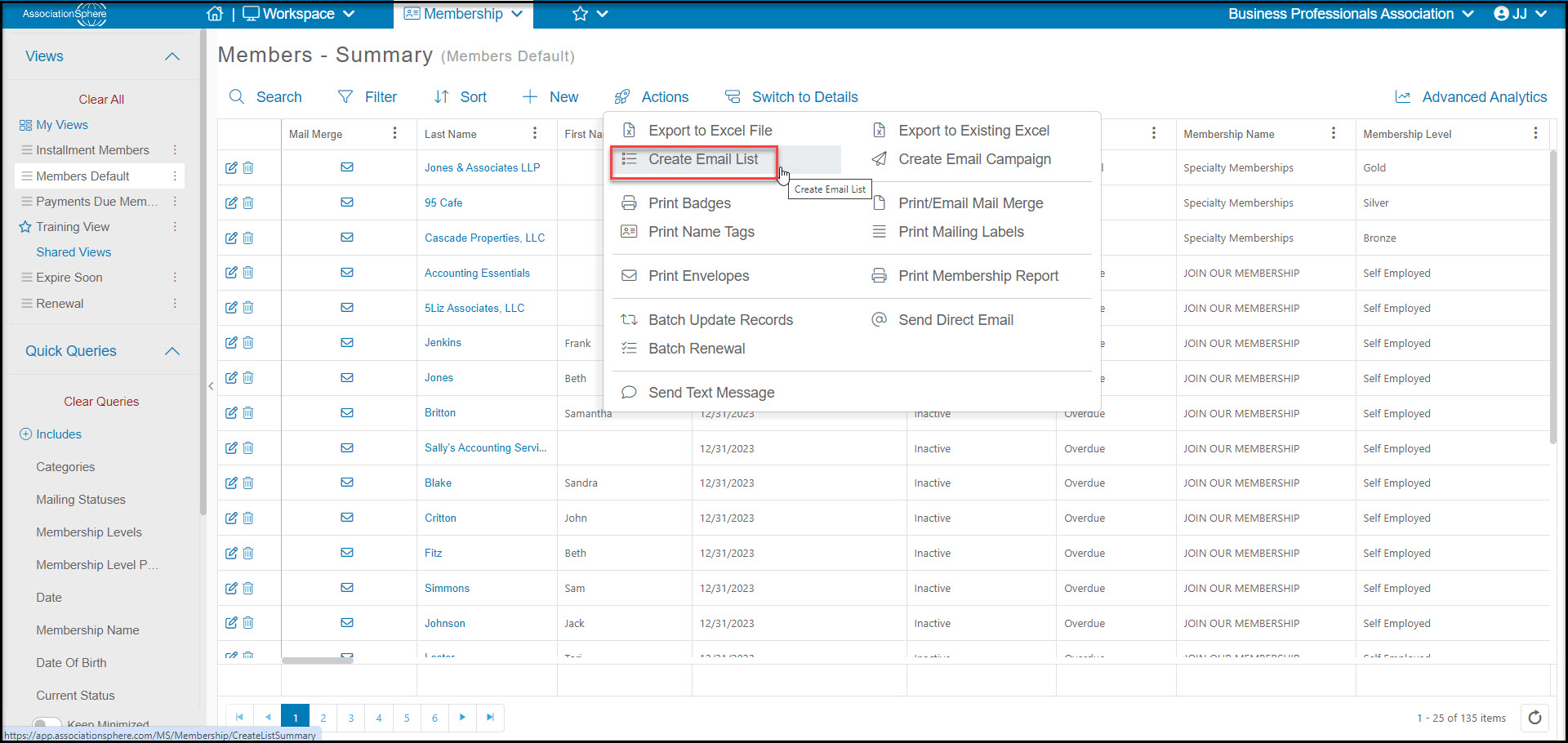
For example, let's say I want to ensure all my current members are on my Museum Members email list. I would first filter my grid to show the constituents I want to ensure are on the list. Then I select the **Actions** menu and click on **Create Email List**.
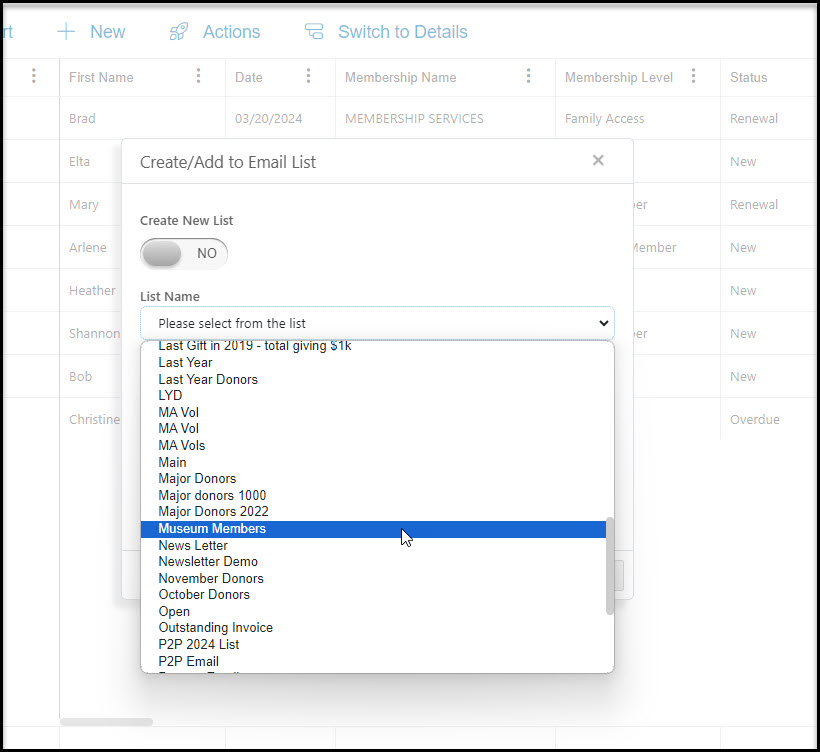
 A new window will open which allows me to choose which list to add this group of constituents to. Once the list is selected, click **Save** and those constituents who are not already on the list will be added to it. Those who were already on the list will not be added twice.
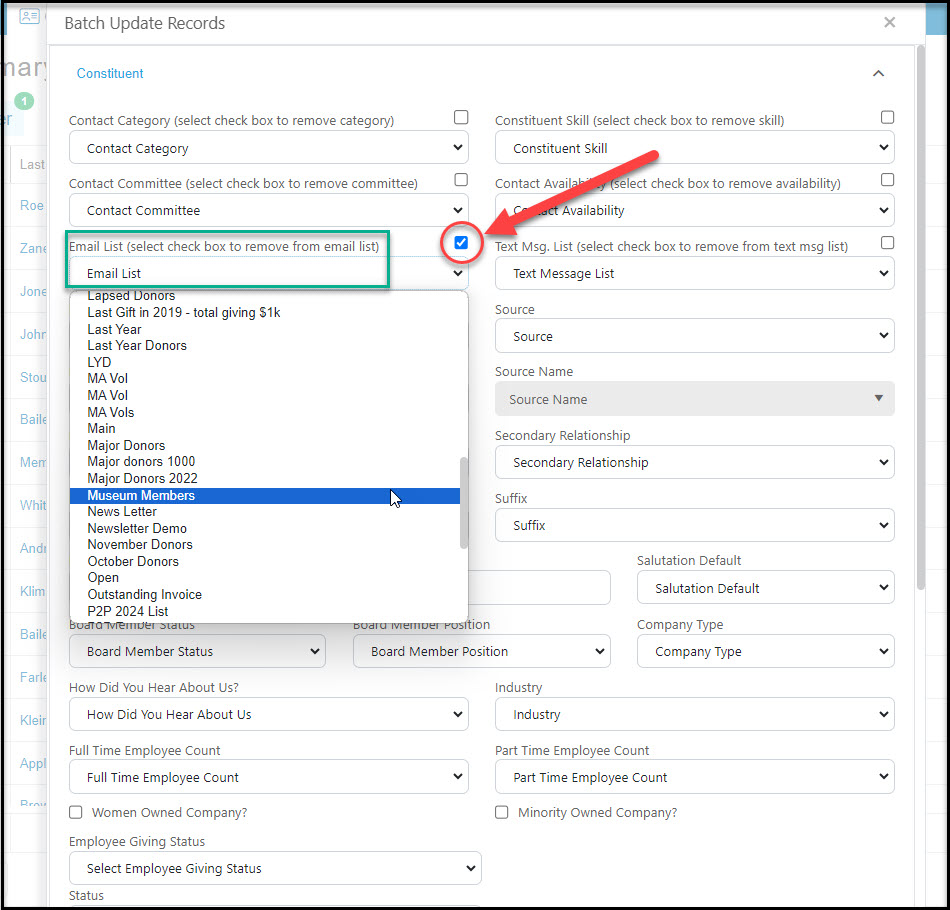
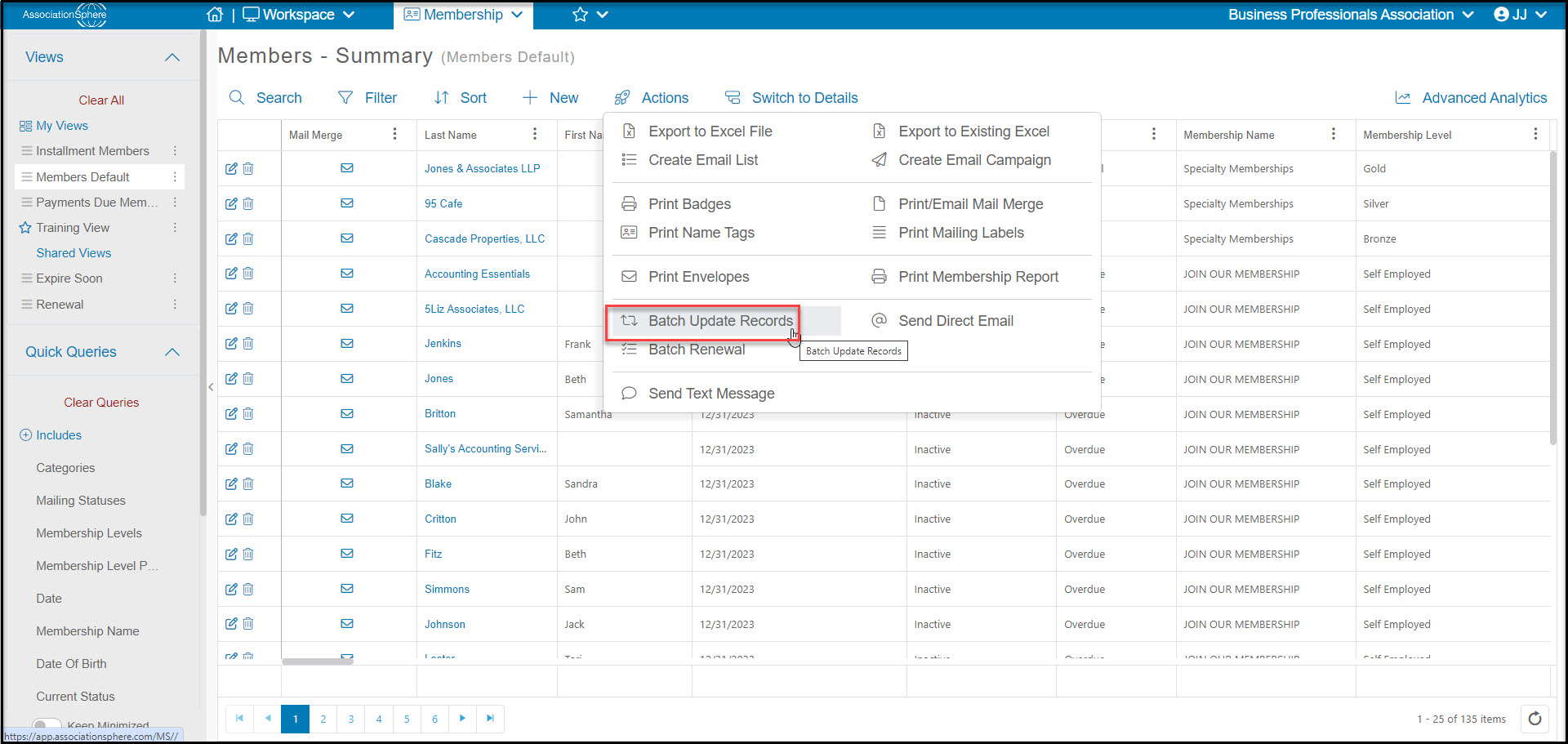
 If I want to remove constituents from an email list, I again filter my list for those I want to remove. For example, from the Membership grid, I might want to remove all members with a **Current Status** of **Inactive**. Once my grid is filter, I can select Actions, then Batch Update.
 A new window will open and I can check the box next to **Email List** to remove constituents from the list I select. Once the box is checked and the list is selected, click on **Update** at the bottom of the window to save the changes.