# How do you make an event goal based on quantity?
> Source: https://support.associationsphere.com/how-do-you-make-an-event-goal-based-on-quantity | Updated: 2024-08-25T00:40:39Z
Goal displays on event pages can be based on the amount of money raised or number of ticket level and add-on transactions. On the **Event Settings** tab, scroll down to the **Page Content & Display Options.**
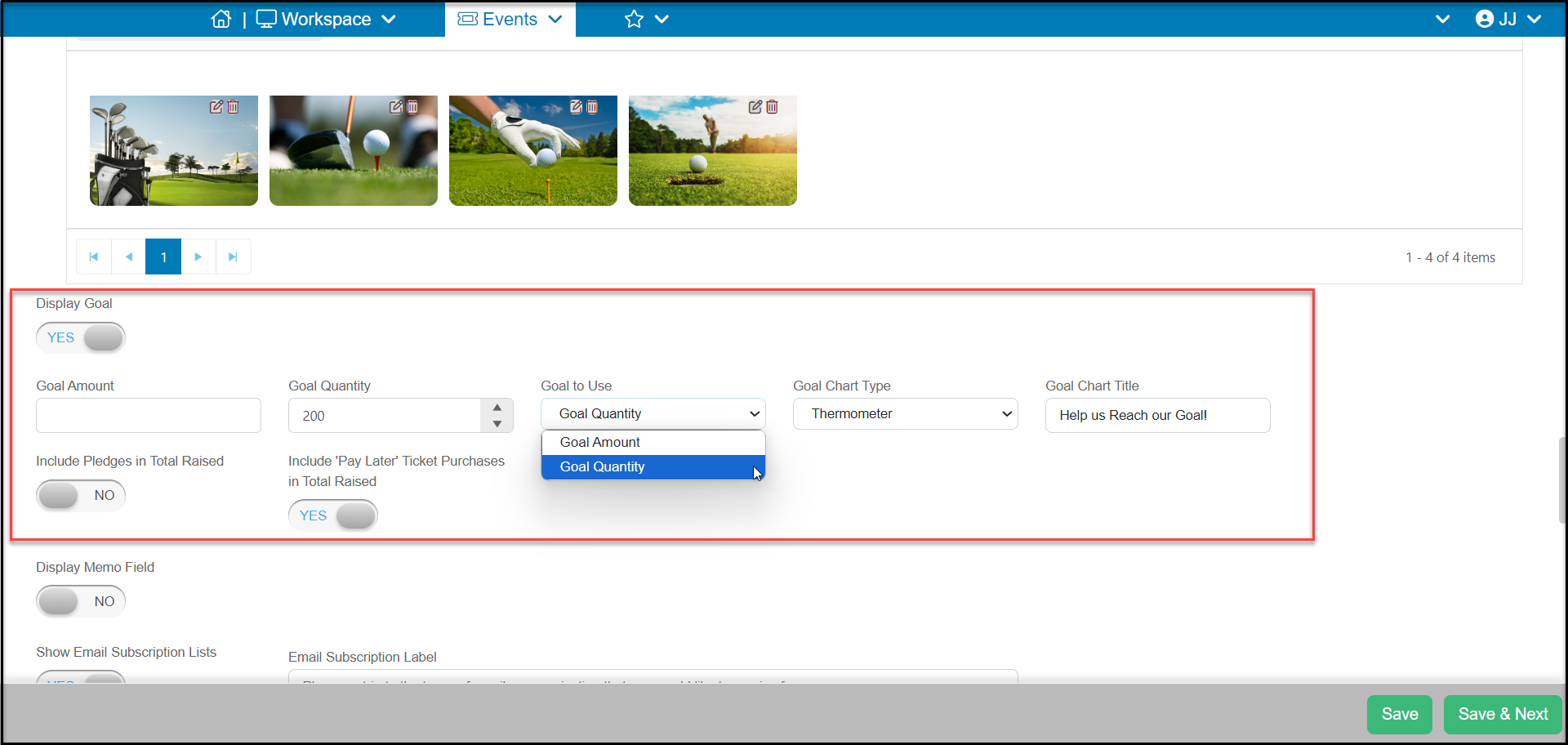
To add the goal progress display to your event page turn the **Display Goal** toggle to **YES**. The new fields will appear and choose Goal Amount or Goal Quantity.
- **Goal Amount** - enter in revenue or fundraising amount from the transactions processed on this page.
- **Goal Quantity** - enter in the number of transactions that is the goal. Note that this is only counting the number of ticket level and add-on transactions, not attendees, fees, or individual tickets.
- **Goal to Use** - use the picklist to select which option to display on the page.
- **Goal Chart Type** - use the picklist to choose Thermometer, Donut or Bar Chart.
- **Goal Chart Title** - enter the title you want to display above your progress chart.
- **Include Pledges in Total Raised** - would include any pay later donations in the total amount raised.
- **Include "Pay Later" ticket Purchases in Total Raised** - includes any pay later ticket purchases
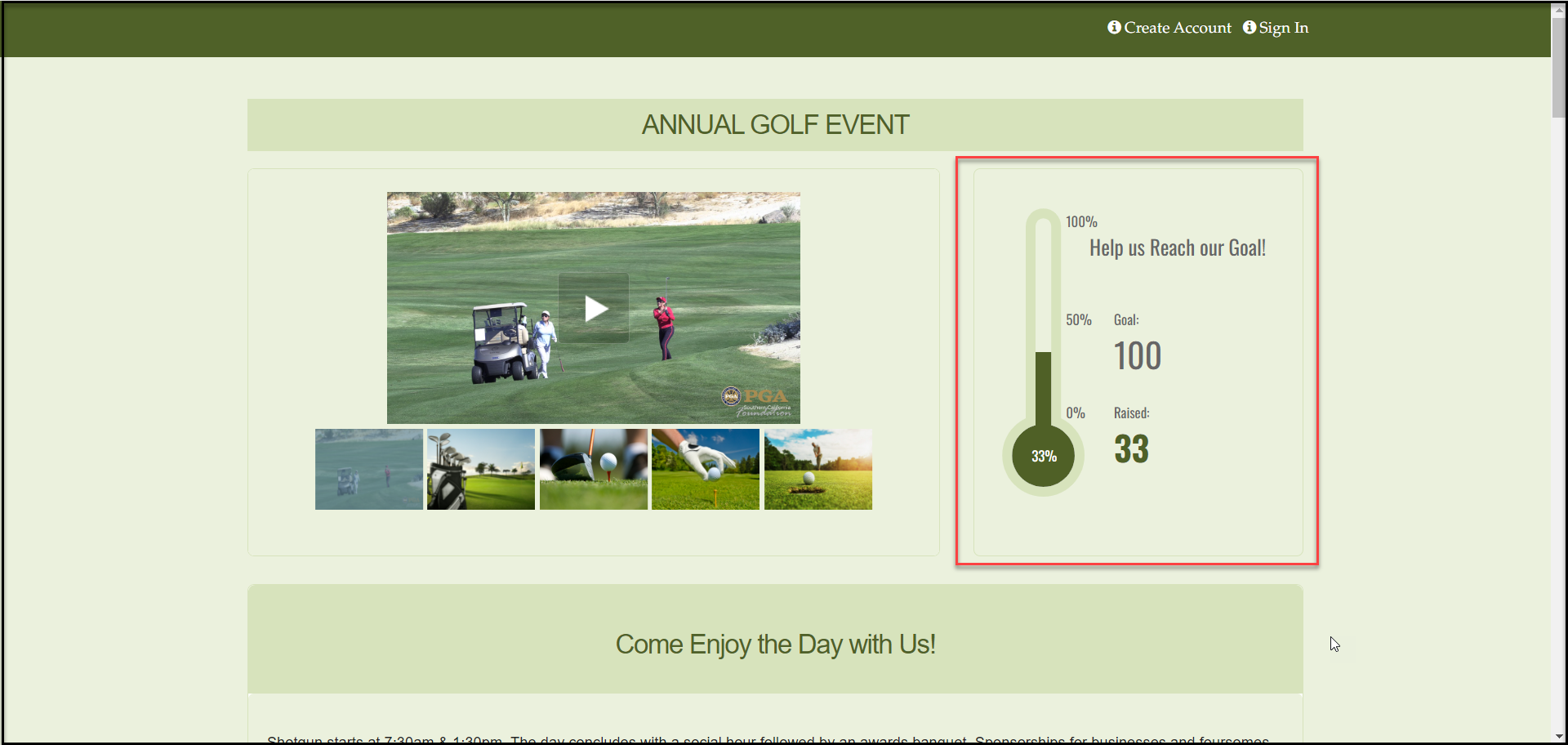
 With Display Goal activated, the progress will be displayed beside the images included on the page.