# How to add anchors to your email template
> Source: https://support.associationsphere.com/how-to-add-anchors-to-your-email-template | Updated: 2025-06-23T15:30:00Z
In this example, a table of contents was created with three anchors to jump to, with the anchors allowing you to jump back to the table of contents. Article 3 is much farther down the text content, so it is not seen in the screenshot below.
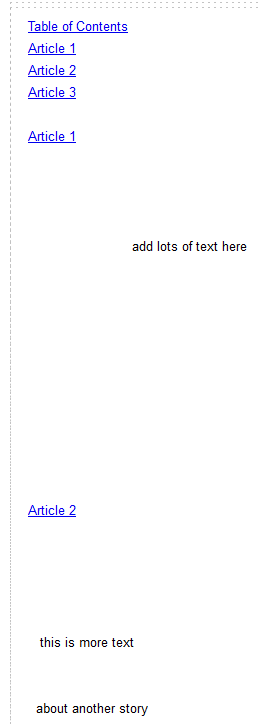 **Note:** Anchors work within the same text content area, and not across text content.
*The steps are performed in a specific order.*
**1)** Double-click the text content area to go into edit mode.
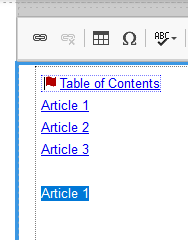
**2)** Highlight the text and click the Link icon to add an anchor.
**Note:** Anchors work within the same text content area, and not across text content.
*The steps are performed in a specific order.*
**1)** Double-click the text content area to go into edit mode.
**2)** Highlight the text and click the Link icon to add an anchor.
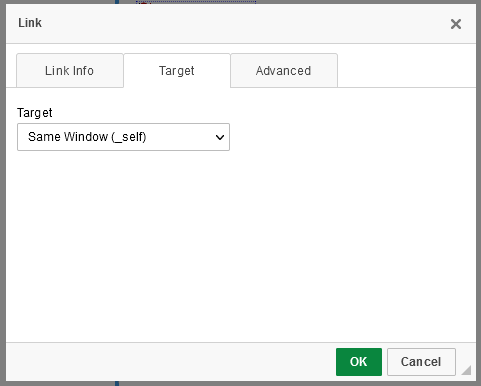
 ****3)****Go to the Target tab and select Same Window (\_self).
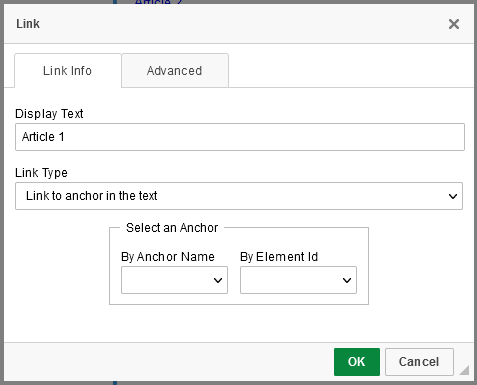
 ****4)****Go to the Link Info tab and change Link Type to "Link to anchor in the text".
 ****5)****If this is just an anchor to jump back to, in this example, Table of Contents, then go to the Advanced tab and add a Name for this anchor.
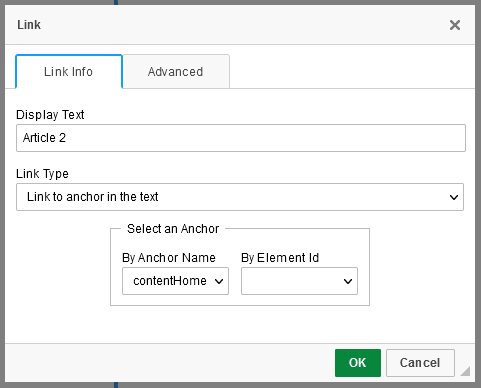
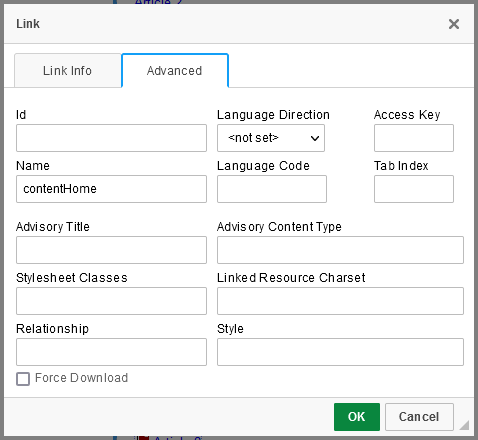 ****6)****Set up the anchors you want to jump to first. Perform steps 3-5; and if you want to jump back to Table of Contents, select that on the Link Info tab.
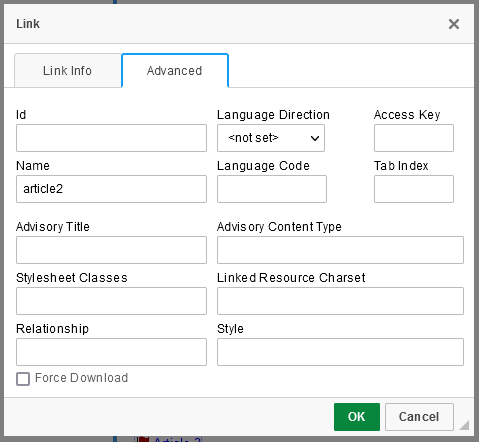
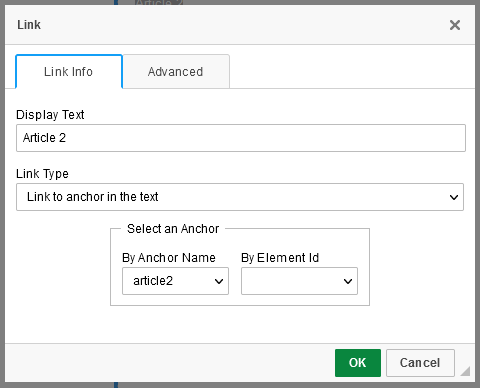
 Lastly, add the links (in this example, the table of contents "Article" text) to jump to the anchors.
**7)** Perform steps 3-4, then on the Link Info tab Select an Anchor; there is no need to add a Name on the Advanced tab in this instance.
Lastly, add the links (in this example, the table of contents "Article" text) to jump to the anchors.
**7)** Perform steps 3-4, then on the Link Info tab Select an Anchor; there is no need to add a Name on the Advanced tab in this instance.
 Click here to watch a short video of this example shown in Outlook and the web browser.