# How to add the Guest Form/Survey to your Thank You Message
> Source: https://support.associationsphere.com/how-to-add-the-guest-formsurvey-to-your-thank-you-message | Updated: 2024-08-24T21:49:12Z
In order for the event registrant (purchaser) to see the link to the Guest Form, you will need to insert that link into your Thank You Message. This survey will only be connected to the record of the registrant, not any of their guests.
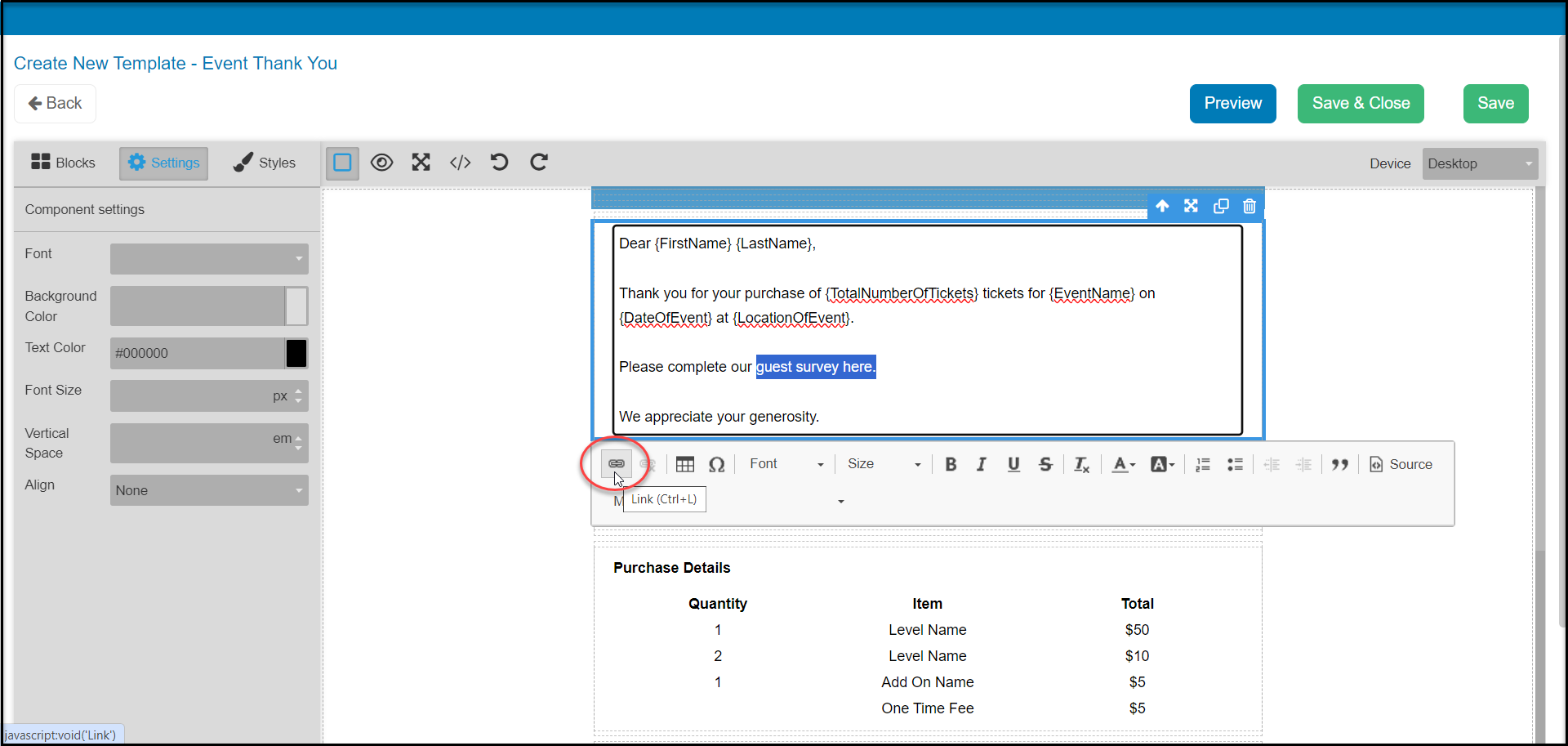
Open your thank you message in the email template editor. You can add the link as a hyperlink in text or as a button. For a hyperlink in text, double click on the text box to edit. Highlight the text to insert the hyperlink and click on the hyperlink icon.
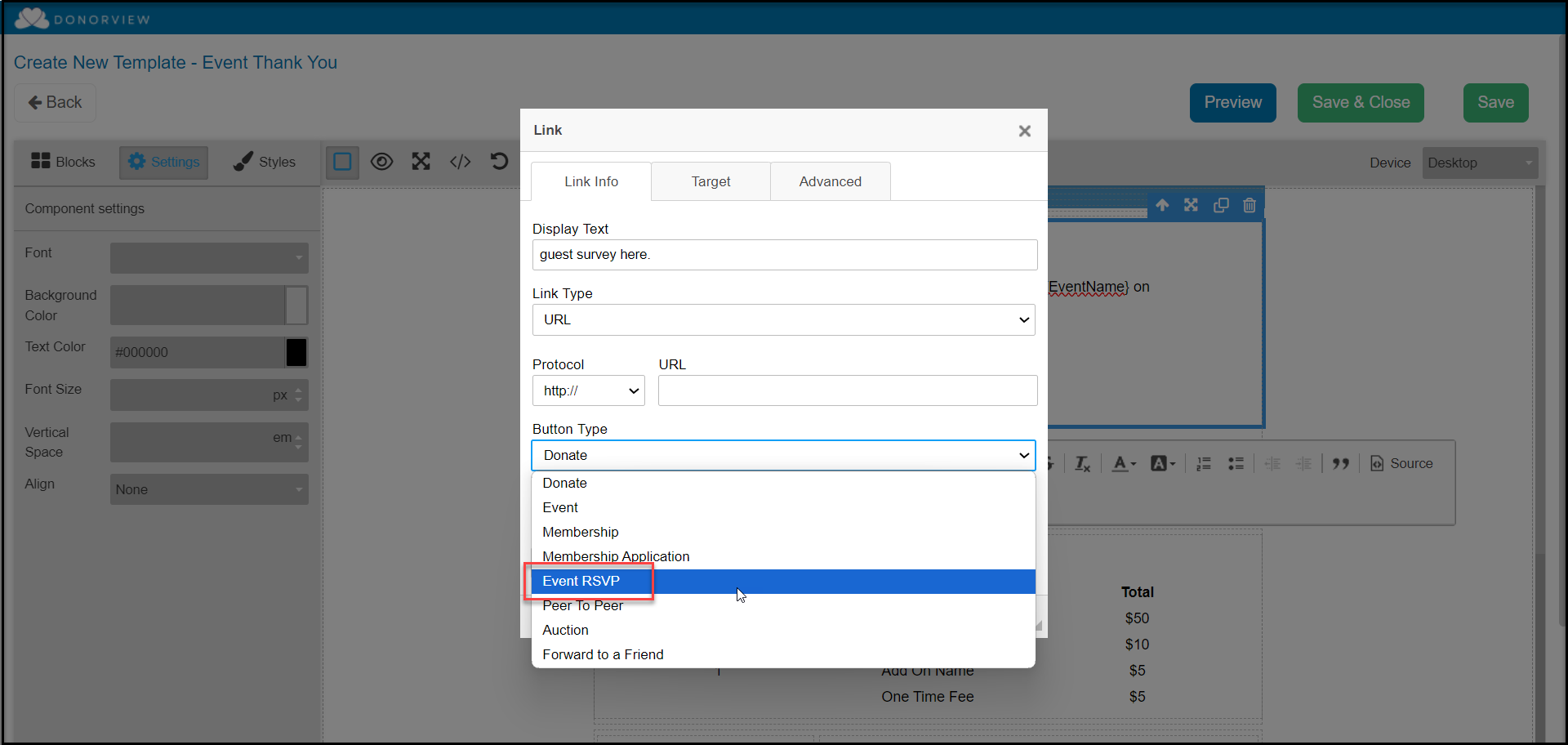
 This will launch a new dialog box. Click on the Button Type dropdown towards the bottom dialog and select **Event RSVP** from the picklist.
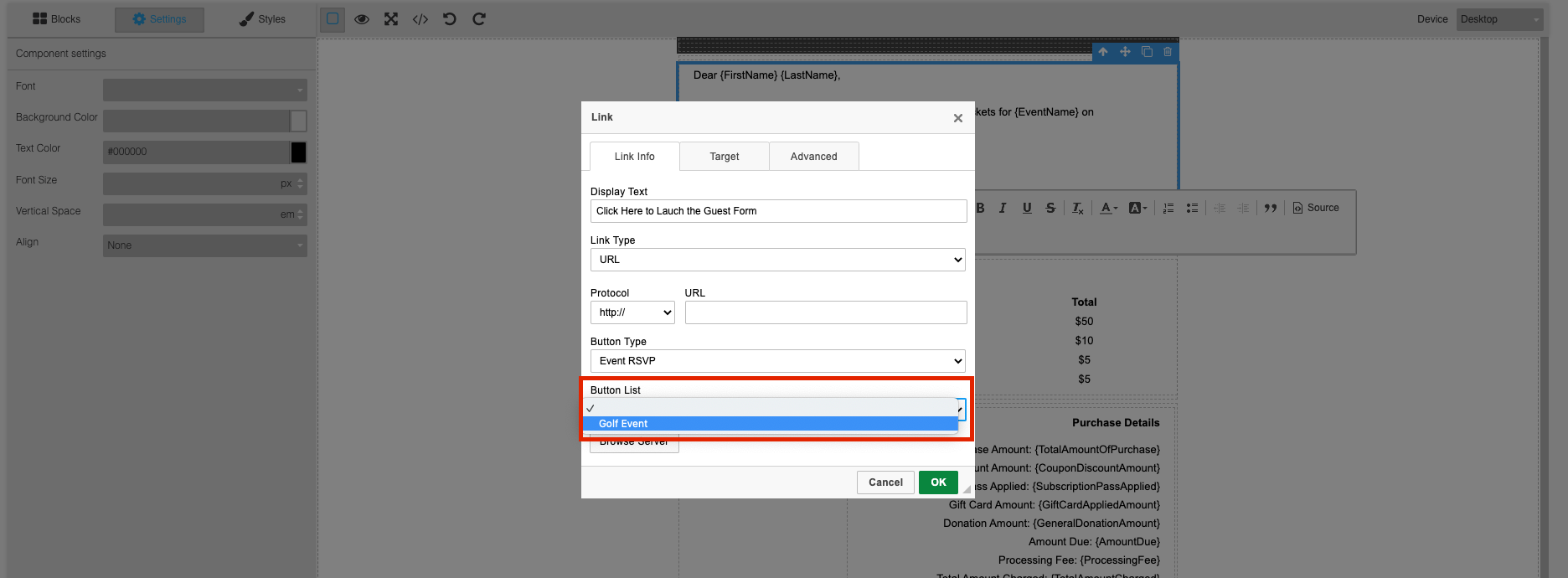
 In the next dropdown titled Button List you will need to select the option with the name that matches your event. The URL for that Guest Form will then be automatically populated into the URL field and once you click OK it will be inserted into your Thank You Message.
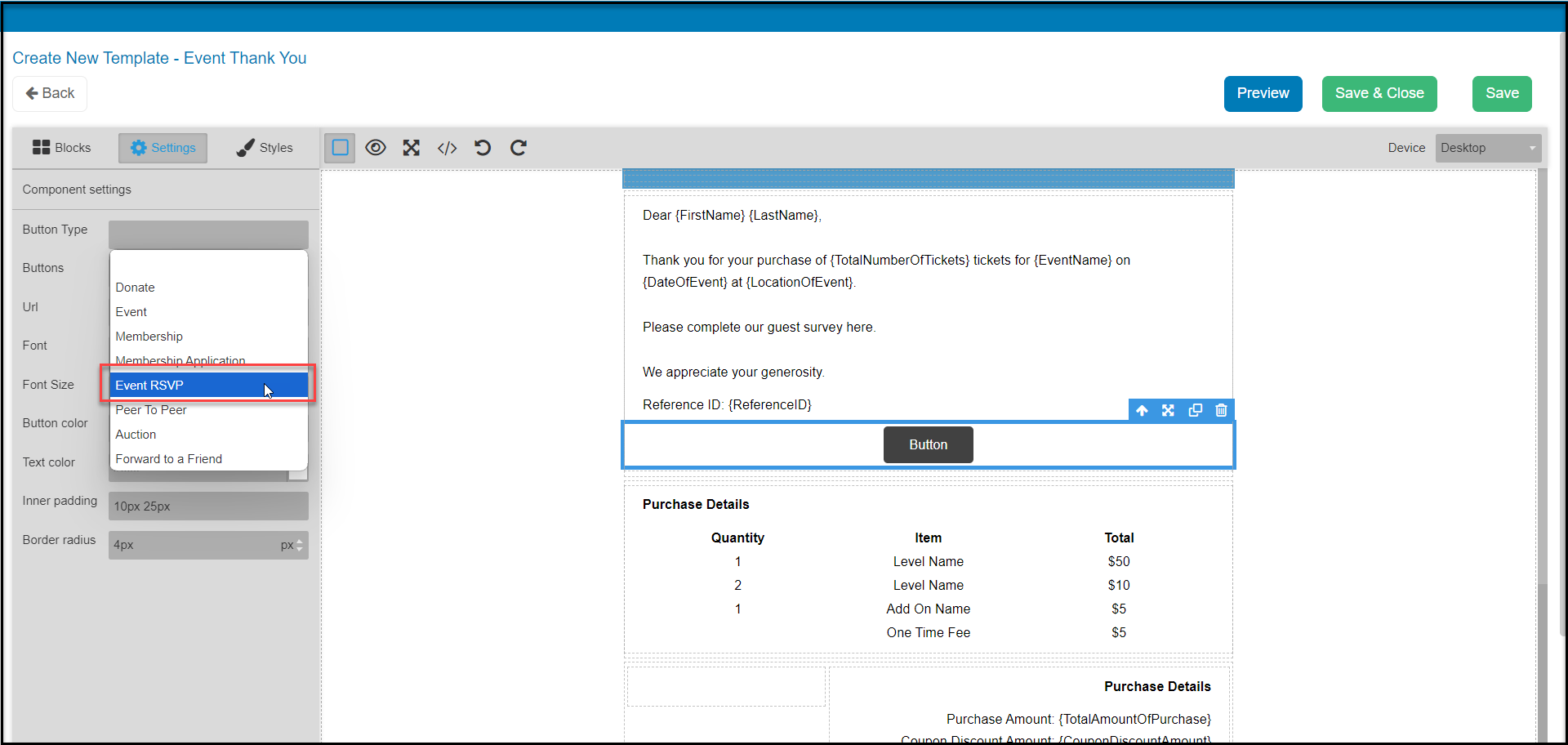
 If you choose to insert of button using the Content, you will using the settings to choose the Event RSVP for the button link.
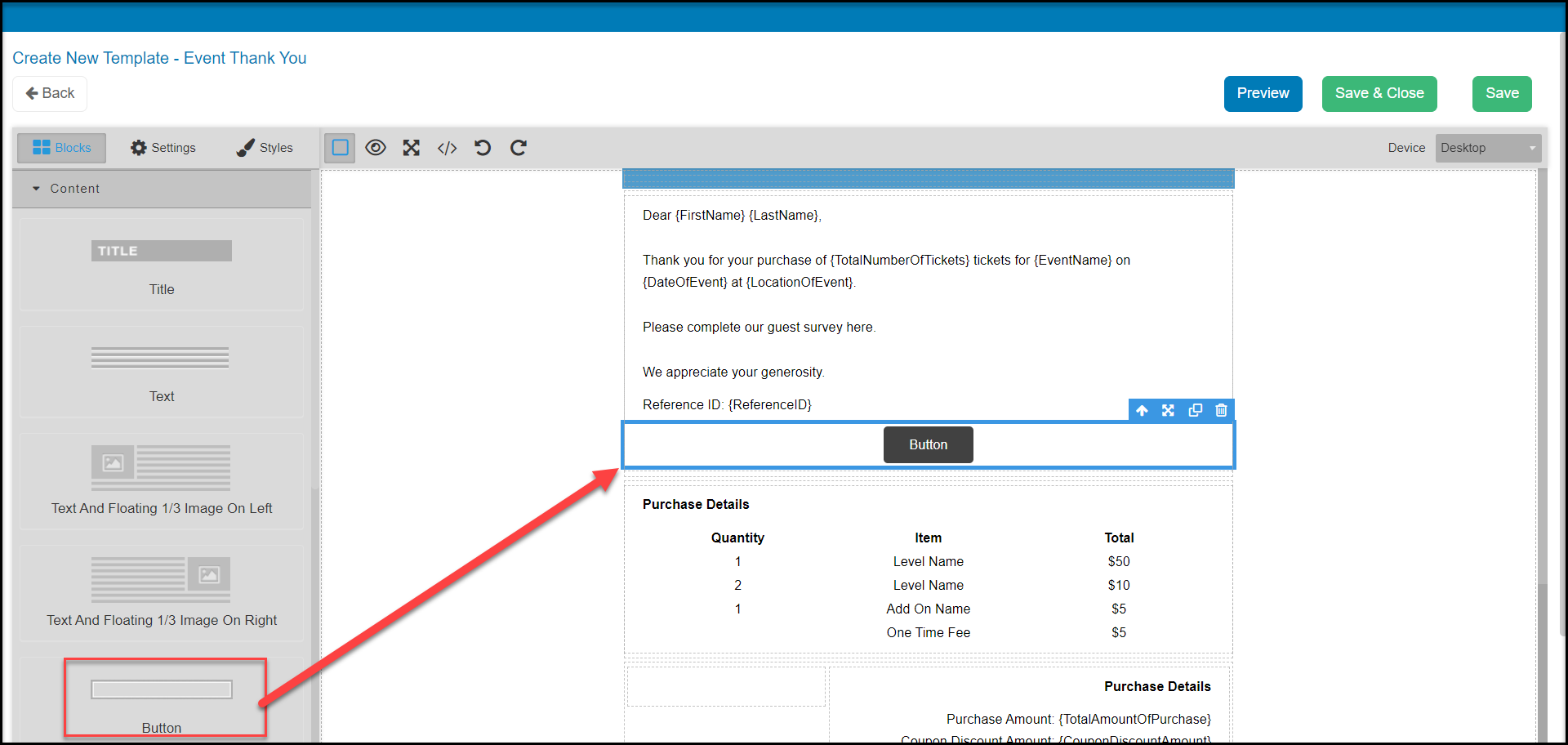 Select the button, and under **Button Type** select **Event RSVP**.
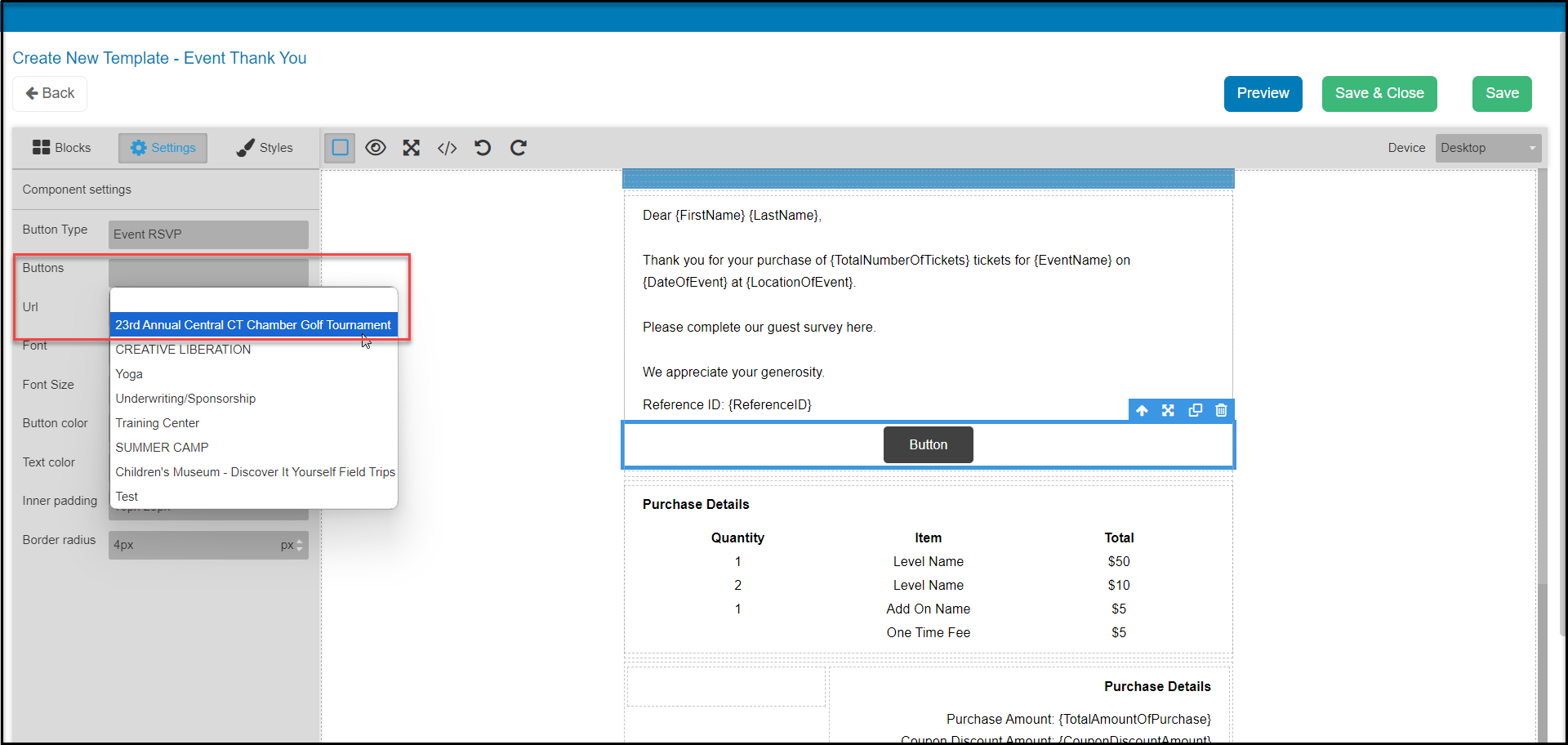
 Next under **Buttons**, select the event. It will only show events which have a guest survey activated.
 When finished editing the thank you message, click **Save and Close**.