# Importing In-Kind Donations into Auction Items
> Source: https://support.associationsphere.com/importing-in-kind-donations-into-auction-items | Updated: 2024-04-08T18:24:02Z
If you are recording donations to your auctions as in-kind transactions, you can get a head-start on your auction item by identifying them as potential auction items.
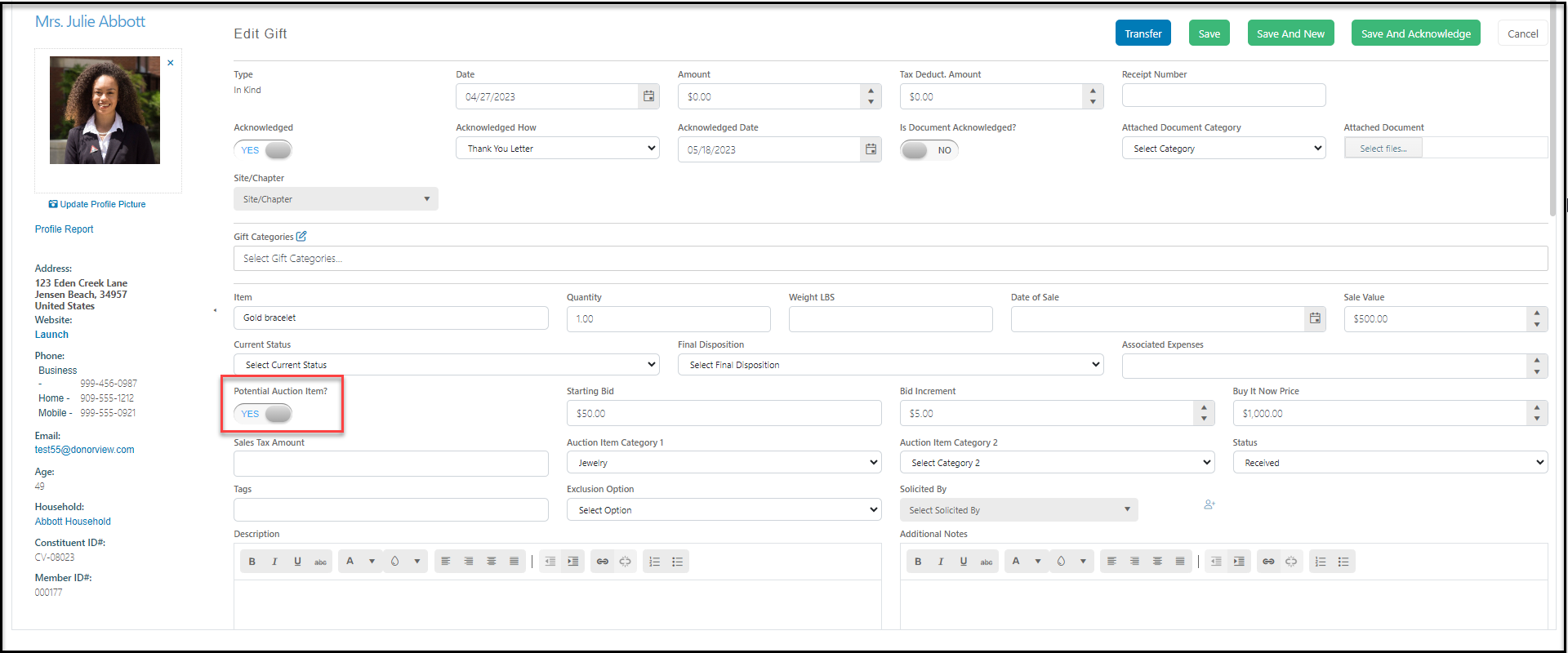
Begin by entering the donation as an in-kind transaction type and toggling the **Potential Auction Item**to **YES**. You can enter information about the item including a starting bid, bid increments, and Buy It Now price. Enter the **Sale Value** to be used as the value of the item and it can also be used to calculate the sales tax on the item.
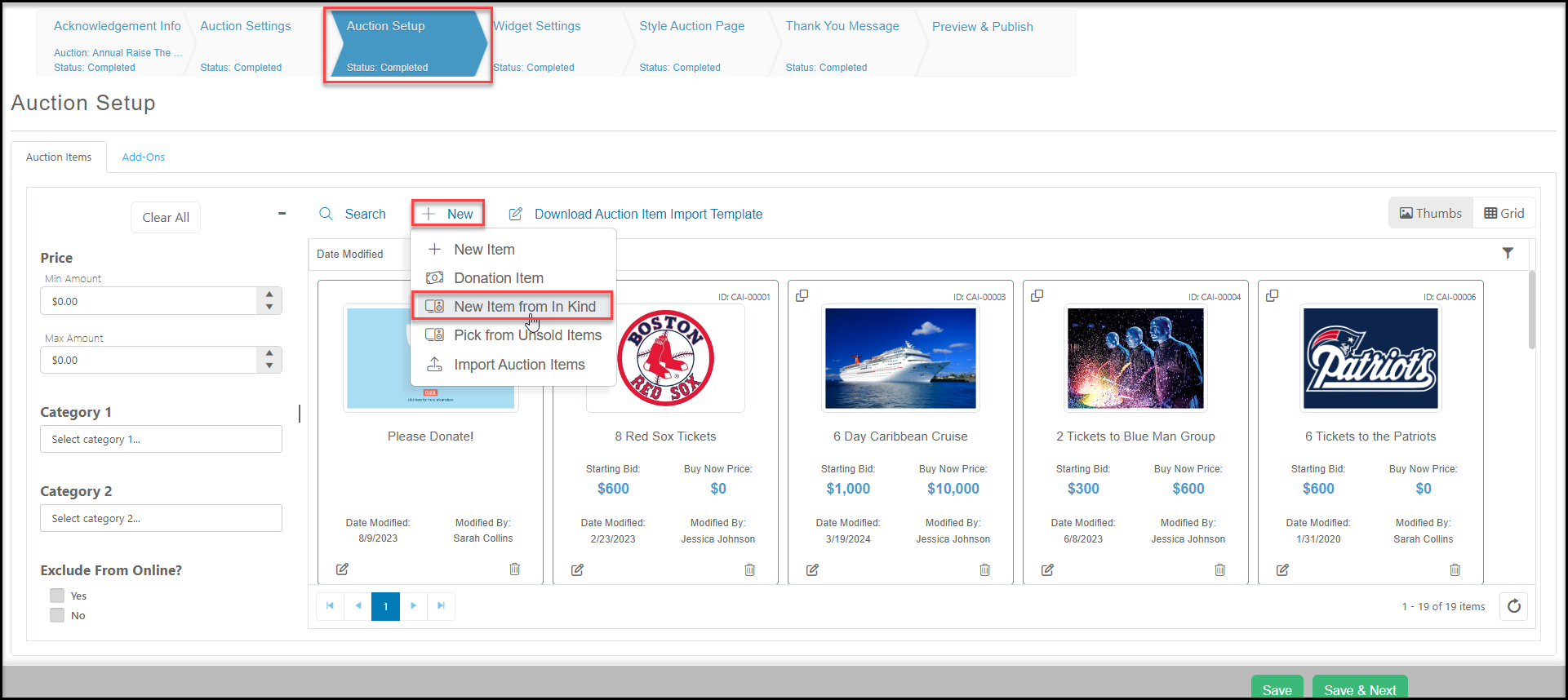
 Once the donation has been saved, you can open the auction page and go to the Auction Setup tab. Click on **+New** and select **New Item from In-Kind**to import your previously recorded in-kind donations.
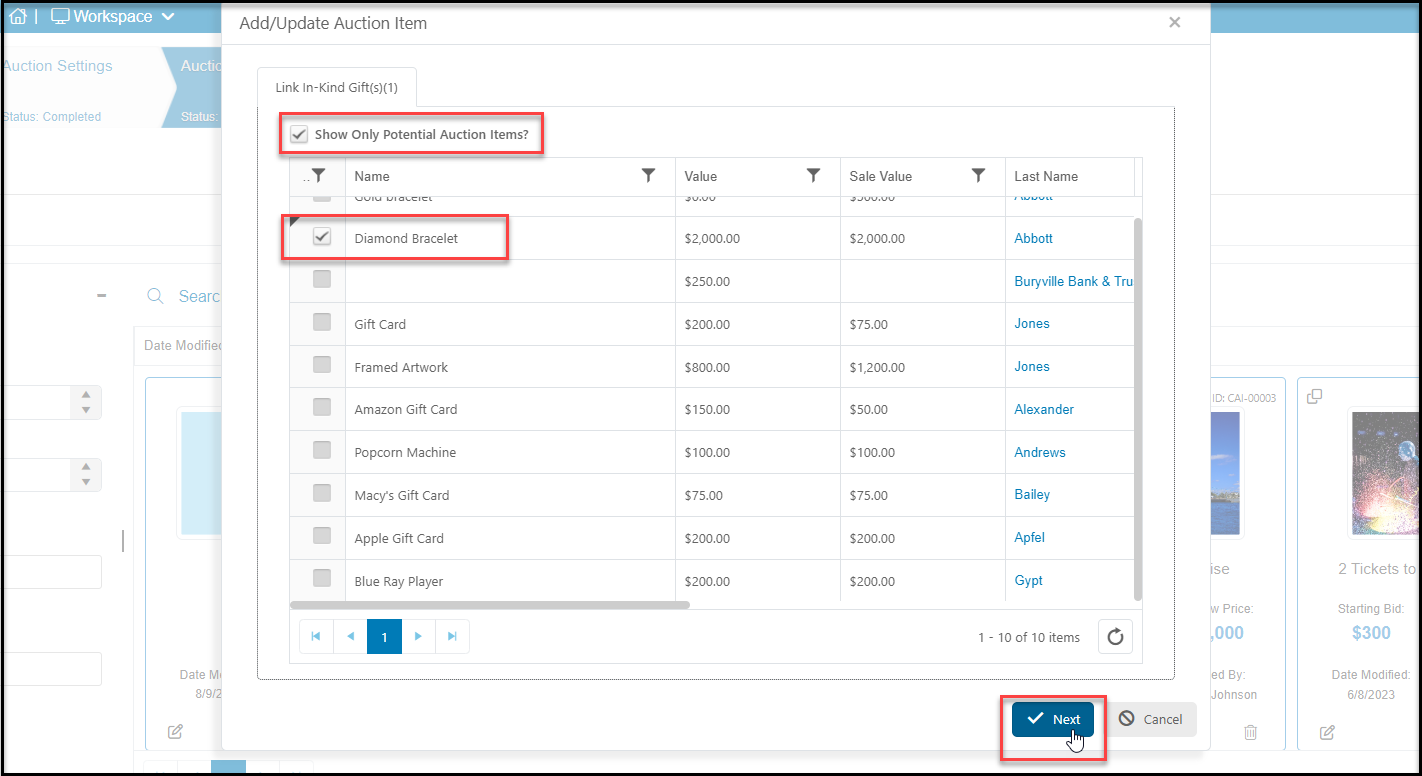
 You can select from any in-kind donation entered, or you can check the box next to **Show Only Potential Auction Items?** to narrow down the list. Check the box next to the item or items you would like to include in this auction item. You can select multiples, such as creating a gift card basket with several gift cards, and will have the opportunity to update the descriptions and other information when you click **Next.**
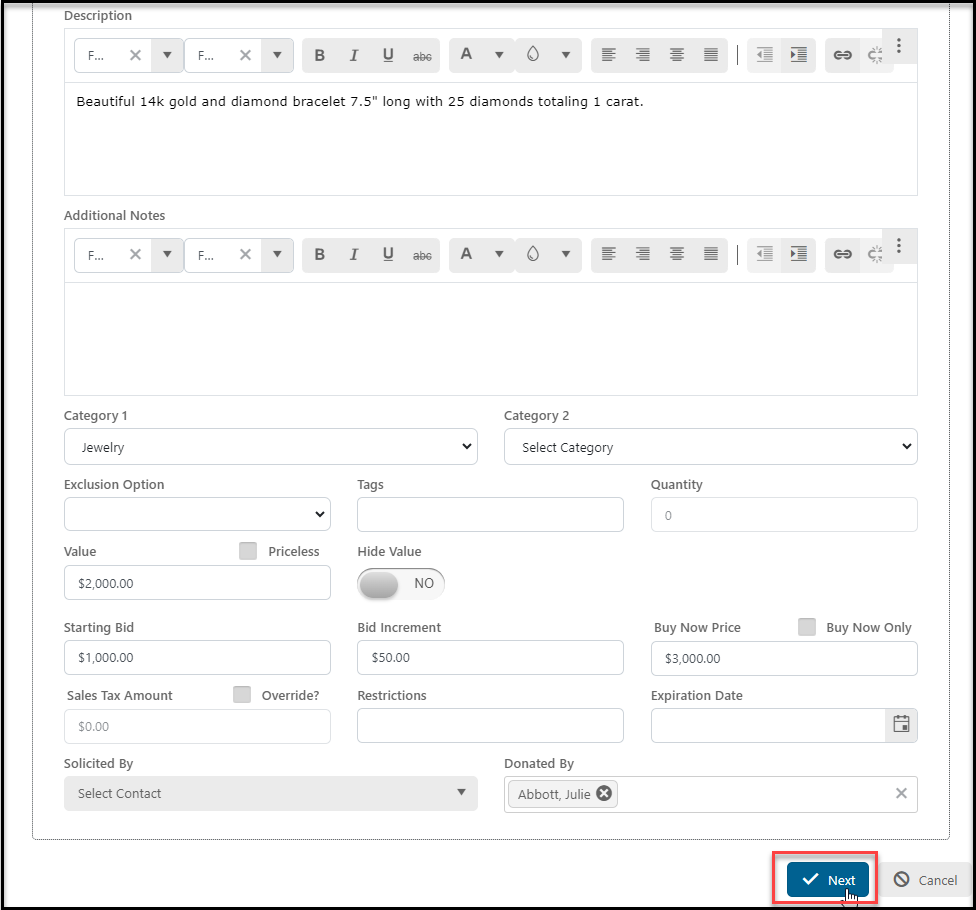
 Update any of the fields as needed, and click **Next** to add images to your item(s).
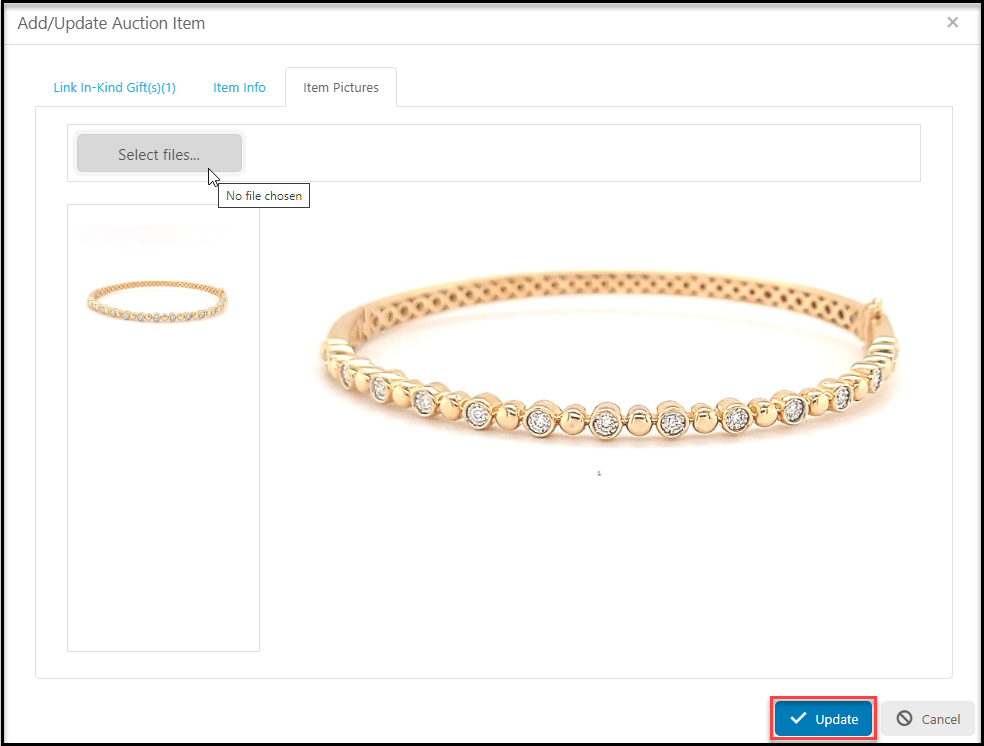
 Once you have added the images, click **Update** to create the new auction item.