# Invoice Auto Reminders
> Source: https://support.associationsphere.com/invoice-auto-reminders | Updated: 2026-09-01T16:03:16Z
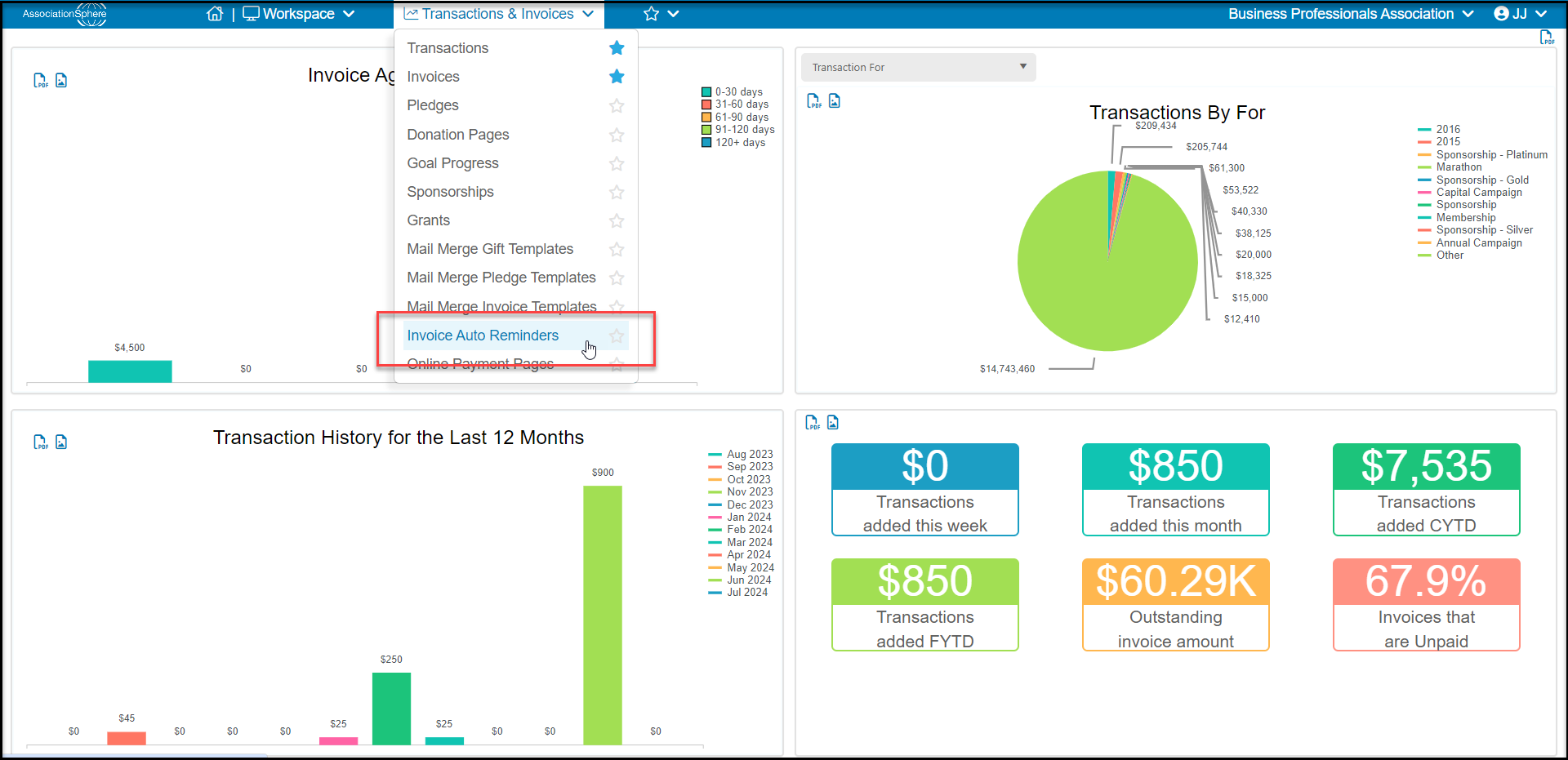
You can set up invoice auto reminders sent via email. From the Transactions & Invoices module menu, select **Invoice Auto Reminders.**
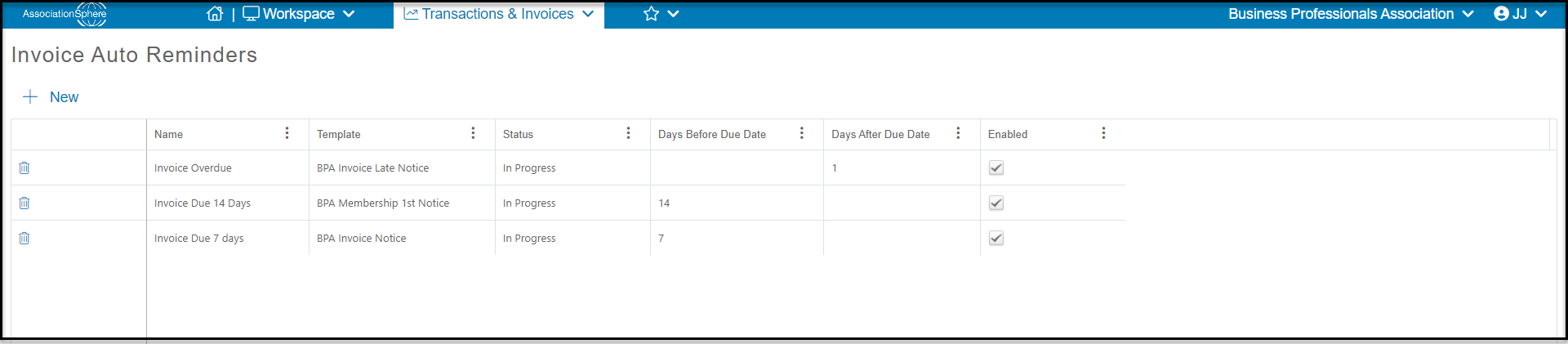
 From the grid you can select **+ New** to add a new invoice auto reminder or select an existing reminder and click **View/Edit**to make edits.
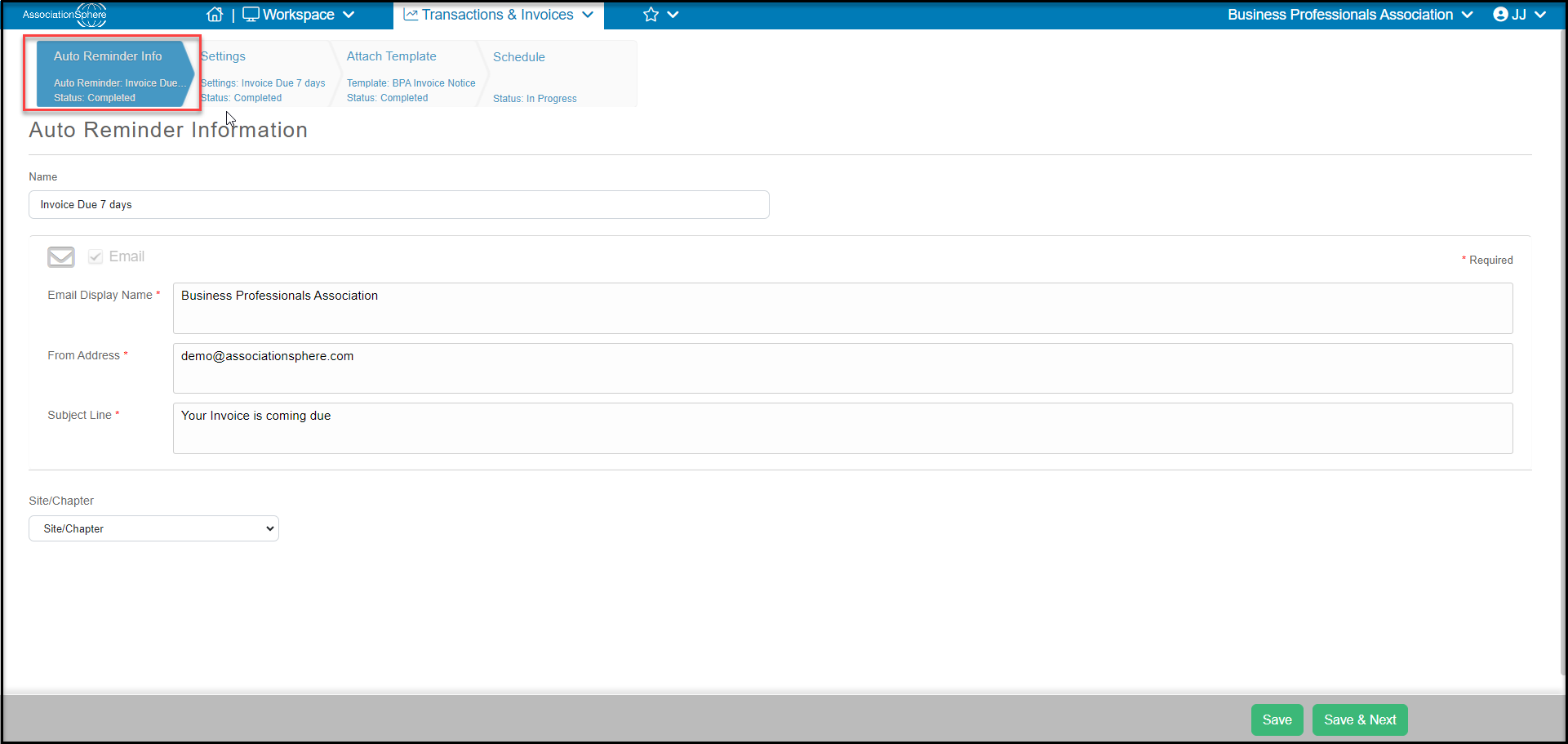
 In the first tab, enter the **Name** of the invoice auto reminder, then the email sender's information in **Email Display Name**, **From Address** (the email address) and **Subject Line**. Click on **Save & Next**to go to the next step.
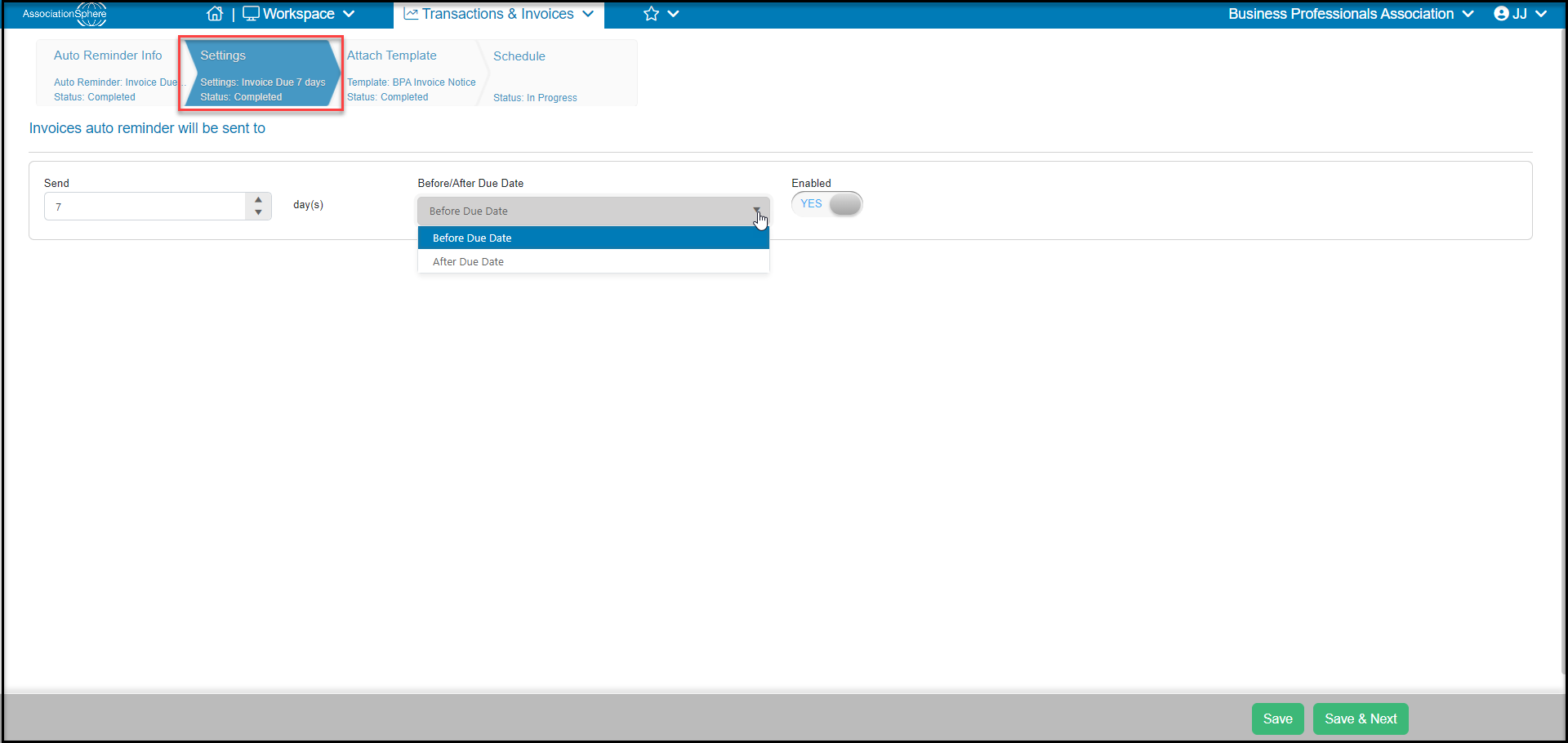
 In the second tab, you will select the number of days in the **Send** field **Before/After Due Date** to send the reminder. Be sure to toggle **Enabled**to **YES**. Use a number of 1 or greater. Do not use 0.
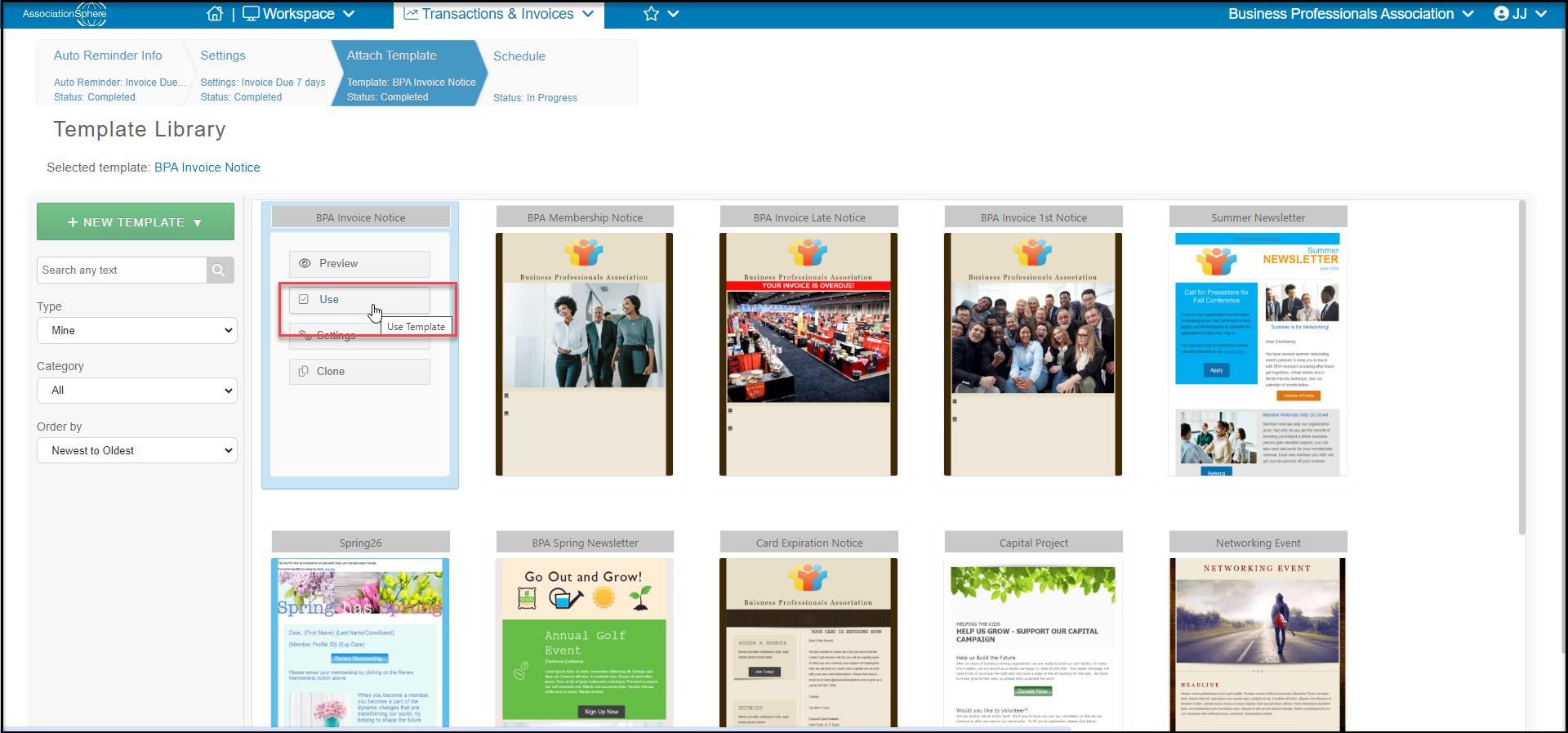
 In the third tab, you will select the email template to use for your message by hovering over the choice and selecting **Use**. You also can create a new template with **+New Template**.
The merge fields available include all fields shown on the Invoices grid, including the unique **Invoice Page URL**, which the member can use to pay their invoice with a credit card.
When you are finished making your edits, click **Save & Close**to go to the last step.
In the third tab, you will select the email template to use for your message by hovering over the choice and selecting **Use**. You also can create a new template with **+New Template**.
The merge fields available include all fields shown on the Invoices grid, including the unique **Invoice Page URL**, which the member can use to pay their invoice with a credit card.
When you are finished making your edits, click **Save & Close**to go to the last step.
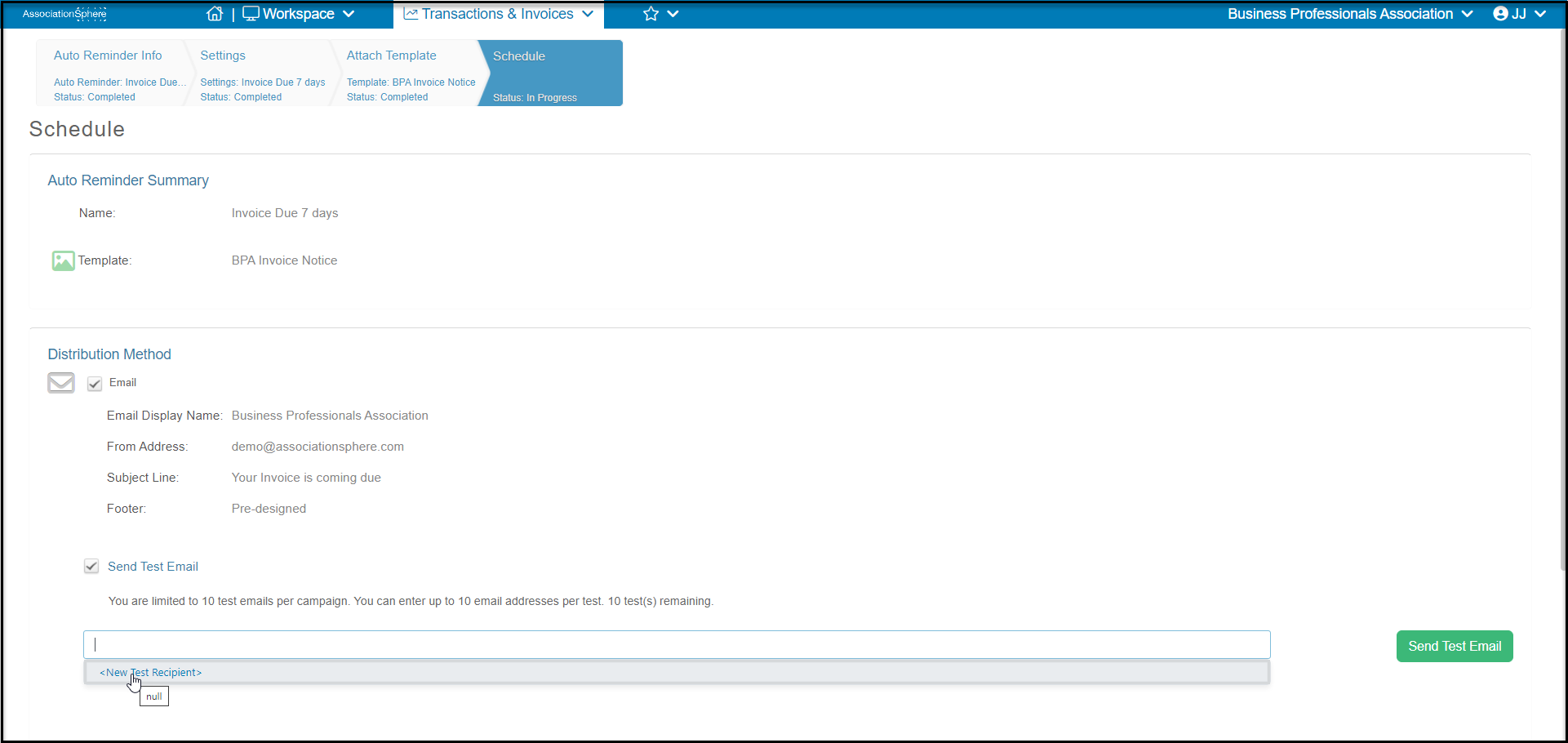
 On the Schedule tab you have the option of sending a test email if you would like to check your images and links. Note that merge fields will be blank since there is no data behind a test message.
You invoice auto reminders will now send automatically on the schedule you set up to constituents with emails and any unpaid or partially paid invoices. Once the invoice is paid, no additional reminders will be sent.
On the Schedule tab you have the option of sending a test email if you would like to check your images and links. Note that merge fields will be blank since there is no data behind a test message.
You invoice auto reminders will now send automatically on the schedule you set up to constituents with emails and any unpaid or partially paid invoices. Once the invoice is paid, no additional reminders will be sent.