# Login Passwords & Two-Factor Authentication
> Source: https://support.associationsphere.com/login-passwords-two-factor-authentication | Updated: 2026-08-20T13:15:02Z
**Logging in for the First Time**
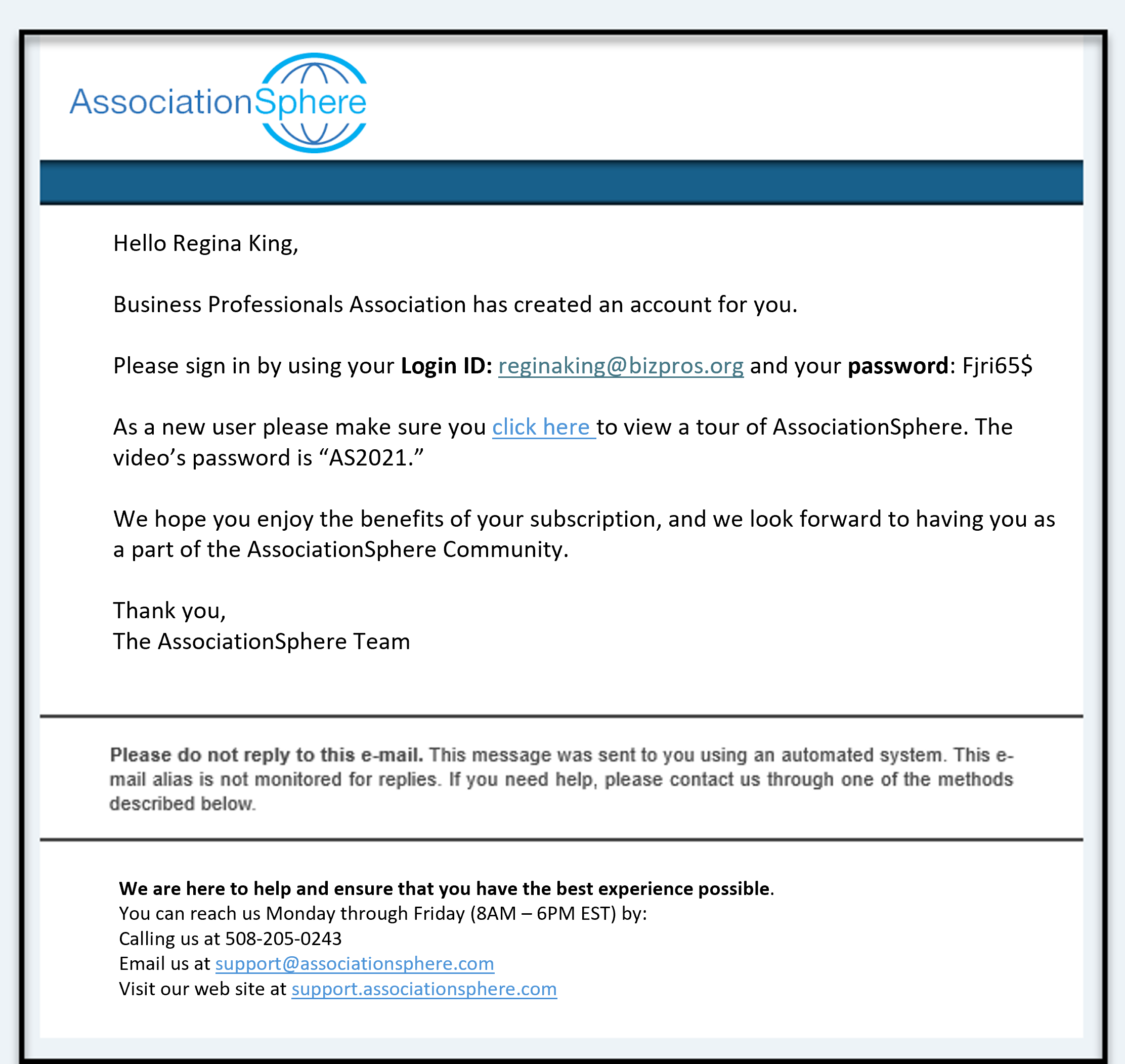
When you have been invited to access your AssociationSphere account, you will be assigned an initial password.
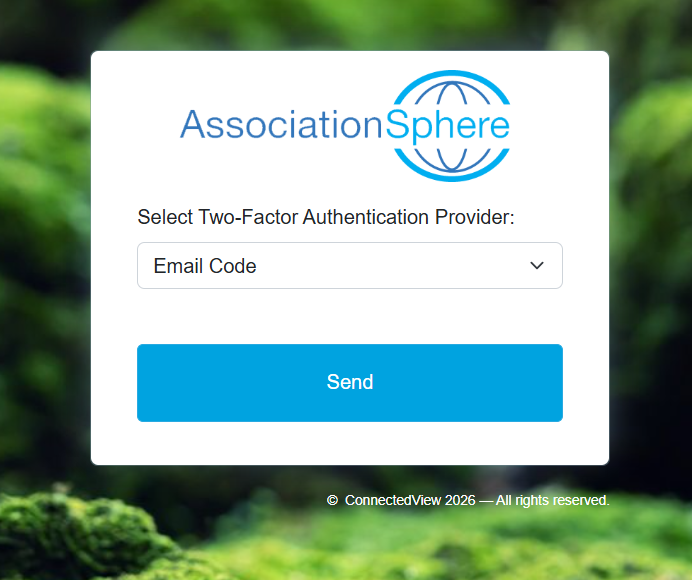
 Once you login, you will be asked to complete as Two-Factor Authentication. Click on **Send** to receive your confirmation code. The code will only be valid for 5 minutes.
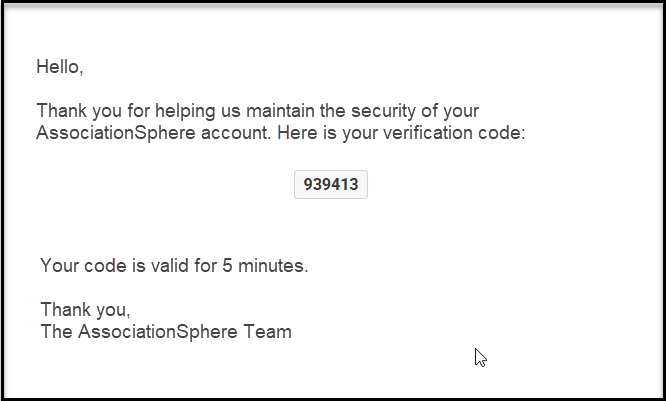
 From your email, you can copy the six-digit code provided. If you haven't received your email in your inbox within a few minutes, be sure to check your spam or junk folder for the message.
 You will return to the previous window to enter the code. You can check the box next to "**Remember this browser?"**so that you will not need to perform the two-factor authentication for each login.
---
### **Optional: Add a Mobile Phone Number**
You can choose to receive your validation code via **text message** instead of email.
To add a mobile number:
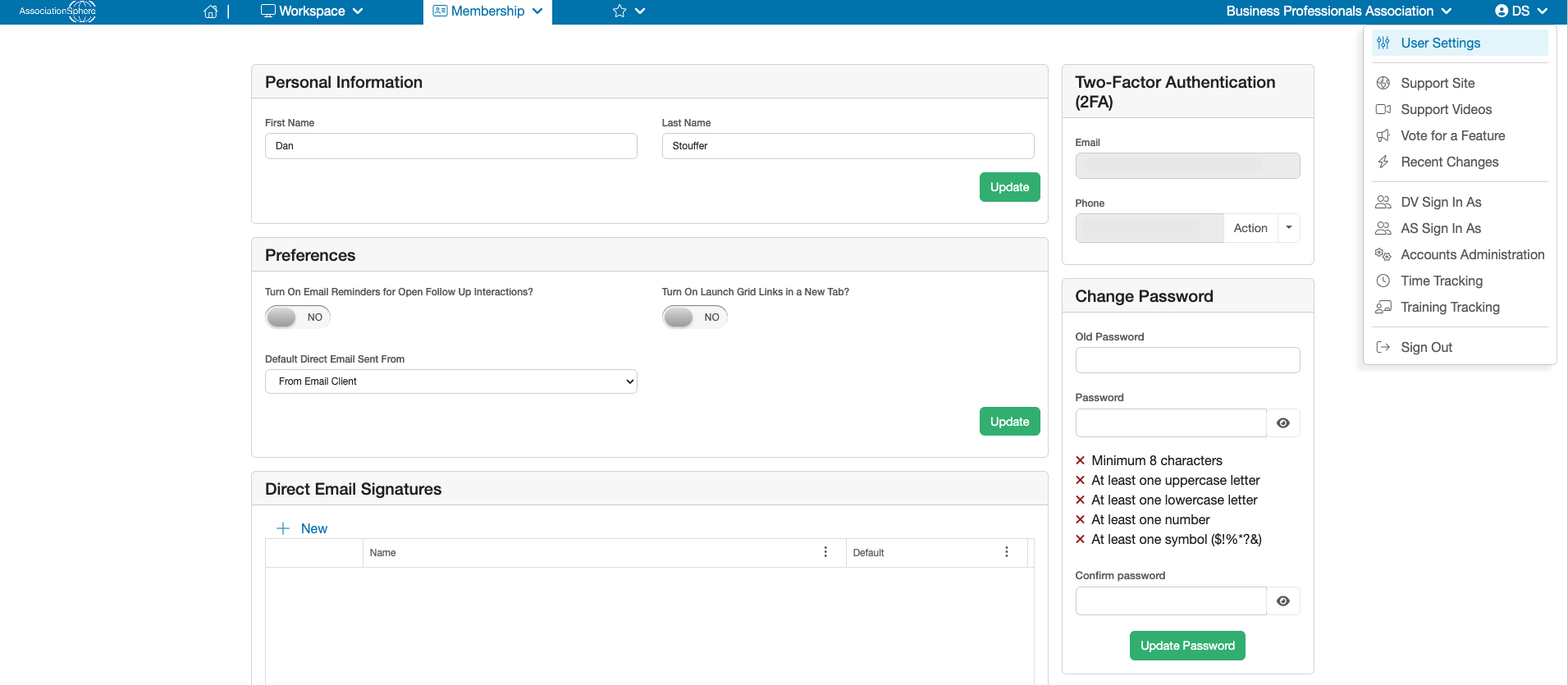
1. Mouse over your initials in the top-right corner of the software.
2. Click **User Settings**.
3. On the right side of the screen, under the **Two-Factor Authentication (2FA)** section, you’ll find the option to **add your mobile phone number**.
You will return to the previous window to enter the code. You can check the box next to "**Remember this browser?"**so that you will not need to perform the two-factor authentication for each login.
---
### **Optional: Add a Mobile Phone Number**
You can choose to receive your validation code via **text message** instead of email.
To add a mobile number:
1. Mouse over your initials in the top-right corner of the software.
2. Click **User Settings**.
3. On the right side of the screen, under the **Two-Factor Authentication (2FA)** section, you’ll find the option to **add your mobile phone number**.
 **Resetting Your Password**
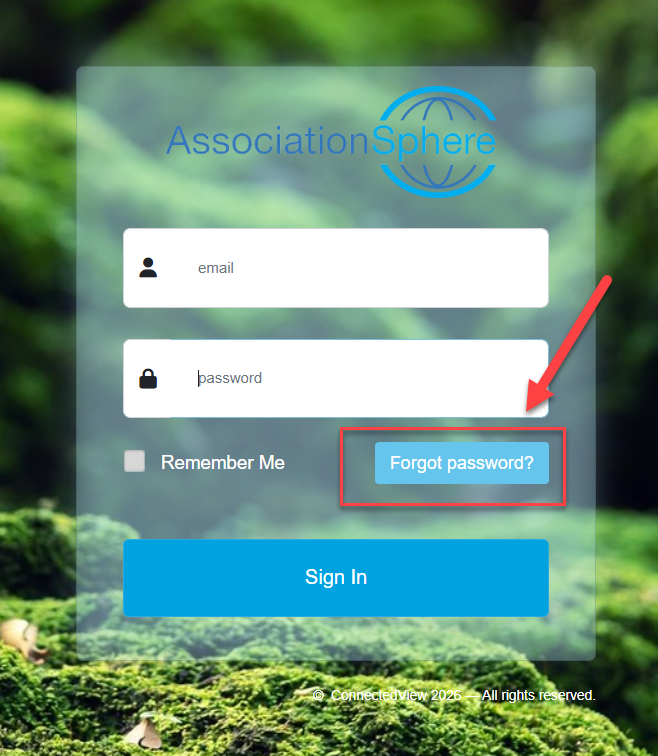
If you already have a login, but you have forgotten your password, you can click on **Forgot Password** to initiate a password reset.
**Resetting Your Password**
If you already have a login, but you have forgotten your password, you can click on **Forgot Password** to initiate a password reset.
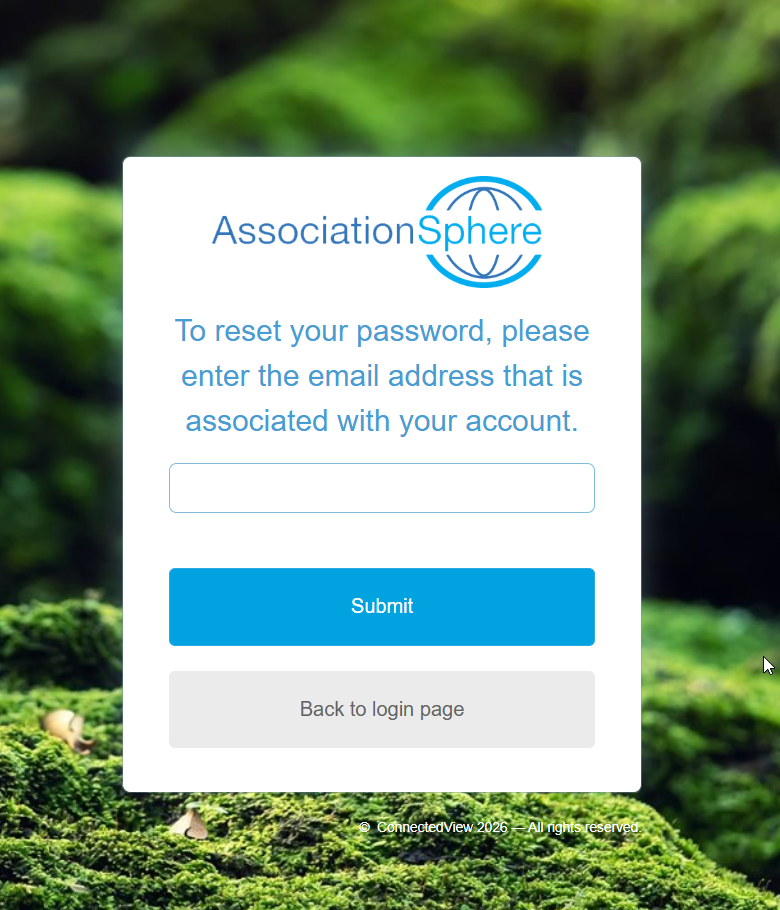
 The software will ask you to enter the email address associated with your account. Enter your email address in the space provided and click **Submit**to receive the reset link.
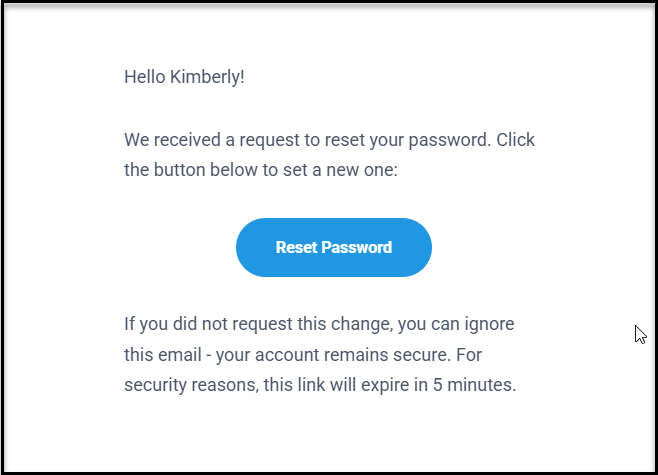
 You will receive an email with the link to reset your password. If you have not received the link within a few minutes, be sure to check your spam or junk folder for the message. Click **Reset Password**to be taken to AssociationSphere to create a new password.
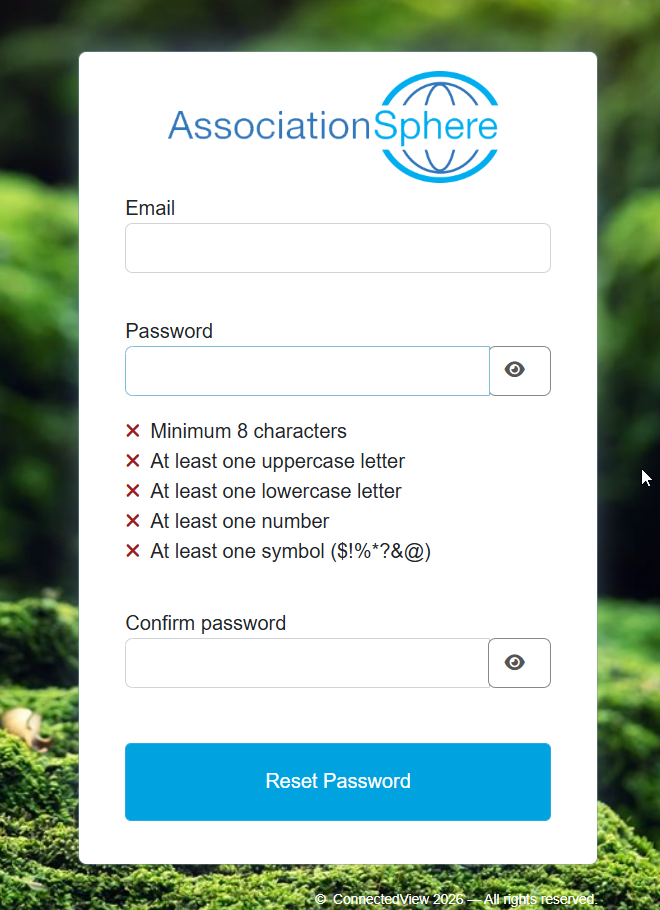
 In the password reset window your email should be auto-populated in the Email field and then you can enter your new **Password** and enter it again under **Confirm Password**. You can view what you have typed by clicking on the "eye" on the right side of the fields.
The software will confirm that your new password meets the following criteria:
- Minimum of **8 characters**
- At least **one uppercase letter**
- At least **one lowercase letter**
- At least **one number**
- At least **one symbol** (e.g., `$!%*?&`)
Once you have created your new password, click on Reset Password to be taken back to the login page where you can enter your email address and new password.
In the password reset window your email should be auto-populated in the Email field and then you can enter your new **Password** and enter it again under **Confirm Password**. You can view what you have typed by clicking on the "eye" on the right side of the fields.
The software will confirm that your new password meets the following criteria:
- Minimum of **8 characters**
- At least **one uppercase letter**
- At least **one lowercase letter**
- At least **one number**
- At least **one symbol** (e.g., `$!%*?&`)
Once you have created your new password, click on Reset Password to be taken back to the login page where you can enter your email address and new password.