# Membership Status Renewal Settings
> Source: https://support.associationsphere.com/membership-status-renewal-settings | Updated: 2024-12-20T20:51:19Z
**Default Renewal Settings:**
By default, for a membership transaction to be identified with the **Status** of **Renewal** an existing constituent with a membership needs to submit a new purchase of the same membership level as they purchased during their previous membership transaction.
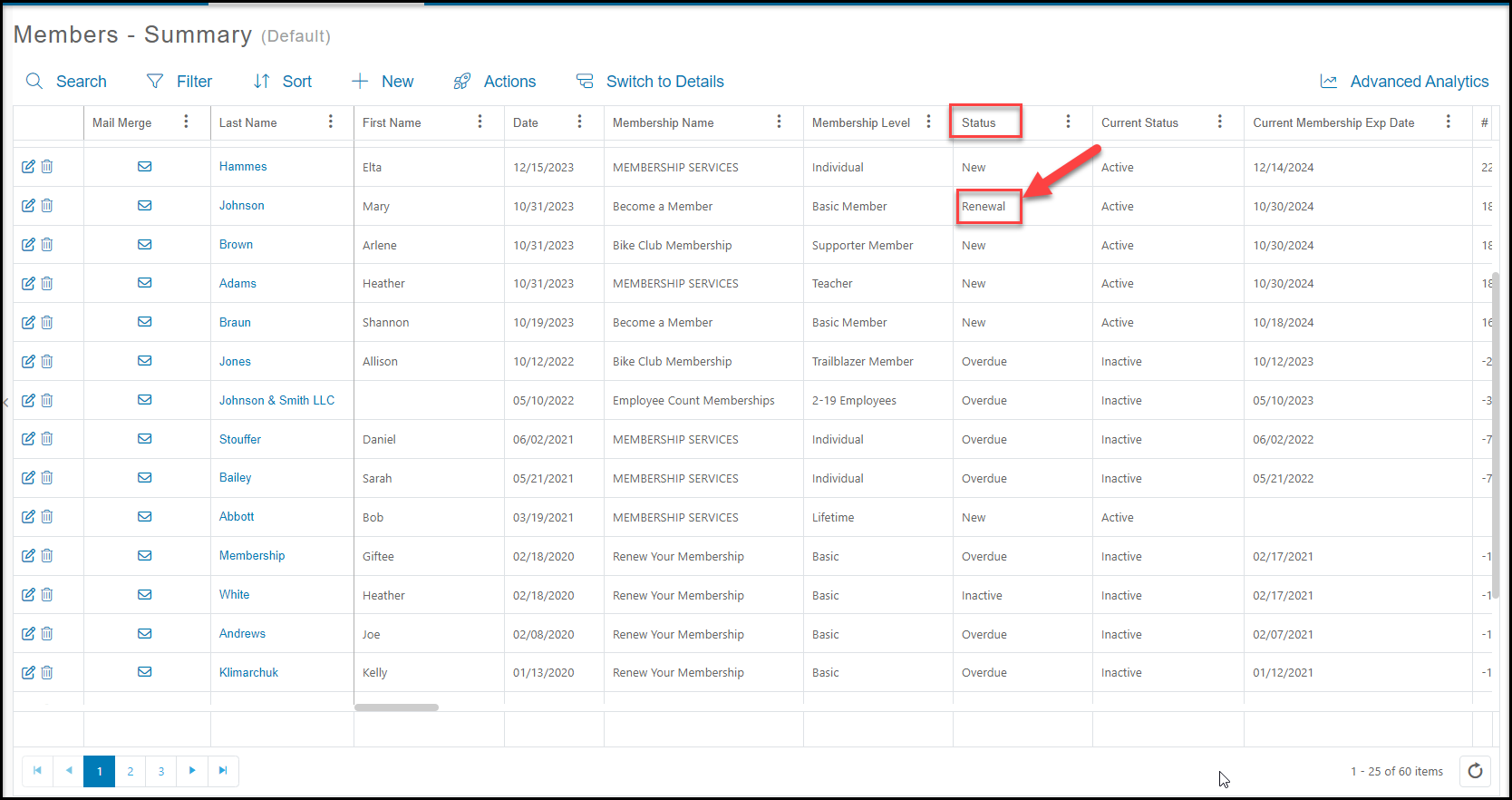 For example, if a member renews a month before the expiration date of their current membership, then their **Status** will be **Renewa****l** and the new expiration date will extend based on the original date. Again, by default this requires the purchase of the same membership level.
**Original Silver Level Membership:**
Purchased 11/15/2022 – Expires 11/15/2023 Status: New
**Renewal Silver Level Membership:**
Purchased 10/22/2023 – Expires 11/15/2024 Status: Renewal
In this same example, if the constituent renewed AFTER their expiration date and maintained the same membership level, the **Status** would still be **Renewal**, however the expiration date would change to be tied to the new purchase date.
**Original Silver Level Membership:**
Purchased 11/15/2022 – Expires 11/15/2023 Status: New
**Renewal Silver Level Membership:**
Purchased 12/27/2023 – Expires 12/27/2024 Status: Renewal
Continuing with the same example, regardless of when the renewal was made, if the constituent changes to a new membership level (upgrade or downgrade), the new **Status** will be **New,** and the expiration date will be tied to the new purchase.
**Original Silver Level Membership:**
Purchased 11/15/2022 – Expires 11/15/2023 Status: New
**Renewal Early – but upgraded to Gold Level Membership**
Purchased 10/22/2023 – Expires 10/22/2024 Status: New
**Renewal Late – but upgraded to Gold Level Membership**
Purchased 02/05/2024 – Expires 02/05/2025 Status: New
**Custom Renewal Settings:**
However, you might consider the purchase of any membership level by an existing member constituent to be a renewal. You can turn on this feature in the Account Settings. Note that this will only affect transactions going forward, not historical transactions.
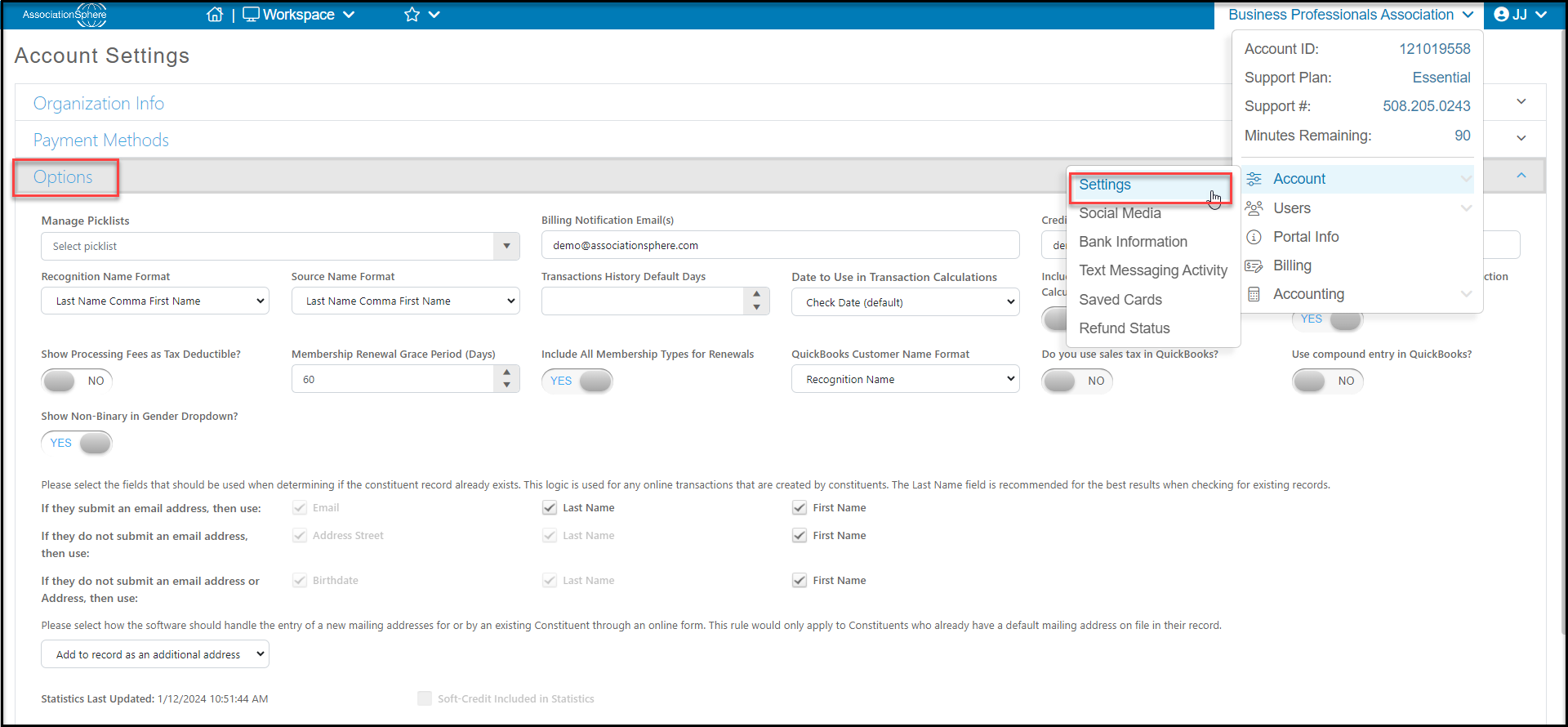
- In the menu under your organization’s name in the top right corner, select **Account** and then **Settings**.
- In Account Settings, go to the **Options**tab.
- Turn **Include All Membership Types for Renewals** toggle to **YES**.
For example, if a member renews a month before the expiration date of their current membership, then their **Status** will be **Renewa****l** and the new expiration date will extend based on the original date. Again, by default this requires the purchase of the same membership level.
**Original Silver Level Membership:**
Purchased 11/15/2022 – Expires 11/15/2023 Status: New
**Renewal Silver Level Membership:**
Purchased 10/22/2023 – Expires 11/15/2024 Status: Renewal
In this same example, if the constituent renewed AFTER their expiration date and maintained the same membership level, the **Status** would still be **Renewal**, however the expiration date would change to be tied to the new purchase date.
**Original Silver Level Membership:**
Purchased 11/15/2022 – Expires 11/15/2023 Status: New
**Renewal Silver Level Membership:**
Purchased 12/27/2023 – Expires 12/27/2024 Status: Renewal
Continuing with the same example, regardless of when the renewal was made, if the constituent changes to a new membership level (upgrade or downgrade), the new **Status** will be **New,** and the expiration date will be tied to the new purchase.
**Original Silver Level Membership:**
Purchased 11/15/2022 – Expires 11/15/2023 Status: New
**Renewal Early – but upgraded to Gold Level Membership**
Purchased 10/22/2023 – Expires 10/22/2024 Status: New
**Renewal Late – but upgraded to Gold Level Membership**
Purchased 02/05/2024 – Expires 02/05/2025 Status: New
**Custom Renewal Settings:**
However, you might consider the purchase of any membership level by an existing member constituent to be a renewal. You can turn on this feature in the Account Settings. Note that this will only affect transactions going forward, not historical transactions.
- In the menu under your organization’s name in the top right corner, select **Account** and then **Settings**.
- In Account Settings, go to the **Options**tab.
- Turn **Include All Membership Types for Renewals** toggle to **YES**.
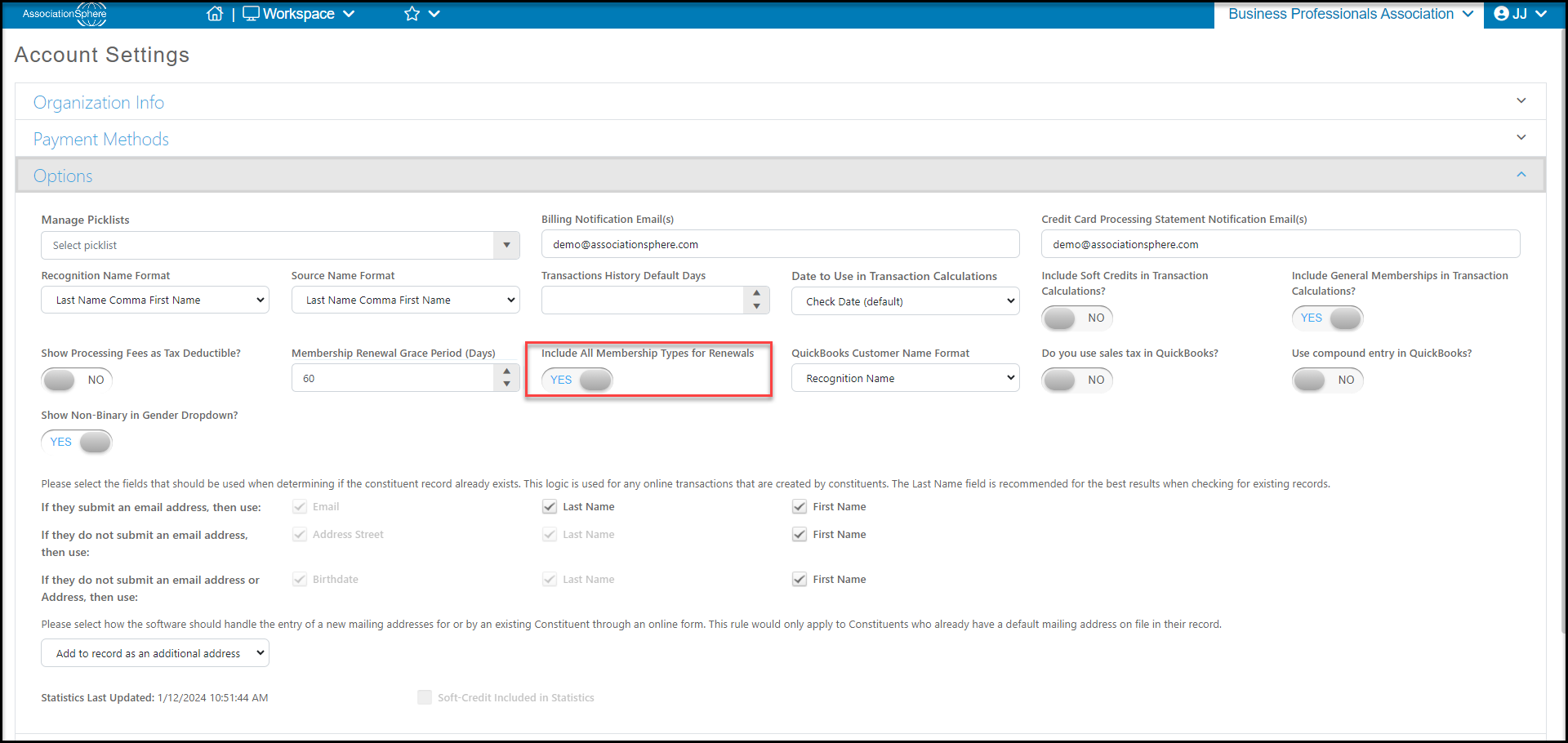 With this setting enabled, when a constituent with an existing membership renews anytime for any level, that membership transaction **Status** will be **Renewal.** In the case of our example above, if they renew prior to the expiration date, it will keep the original expiration date's month/day as the extended date. If they renew AFTER the expiration date, it will still show as a **Renewal**, however it will be using the new purchase date to determine the new expiration date.
**Original Silver Level Membership:**
Purchased 11/15/2022 – Expires 11/15/2023 Status: New
**Renewal Early – but upgraded to Gold Level Membership**
Purchased 10/22/2023 – Expires 11/15/2024 Status: Renewal
**Renewal Late – but upgraded to Gold Level Membership**
Purchased 02/05/2024 – Expires 02/05/2025 Status: Renewal
There is another option if you would like to keep the expiration date and have a grace period. A grace period allows you to link membership transactions that happen after the expiration date back to the original transaction over a defined period of days. To establish a grace period:
- In the menu under your organization’s name in the top right corner, select **Account** and then **Settings**.
- In Account Settings, go to the **Options**tab.
- Enter a number of days for your grace period in the **Membership Renewal Grace Period (Days)** field.
With this setting enabled, when a constituent with an existing membership renews anytime for any level, that membership transaction **Status** will be **Renewal.** In the case of our example above, if they renew prior to the expiration date, it will keep the original expiration date's month/day as the extended date. If they renew AFTER the expiration date, it will still show as a **Renewal**, however it will be using the new purchase date to determine the new expiration date.
**Original Silver Level Membership:**
Purchased 11/15/2022 – Expires 11/15/2023 Status: New
**Renewal Early – but upgraded to Gold Level Membership**
Purchased 10/22/2023 – Expires 11/15/2024 Status: Renewal
**Renewal Late – but upgraded to Gold Level Membership**
Purchased 02/05/2024 – Expires 02/05/2025 Status: Renewal
There is another option if you would like to keep the expiration date and have a grace period. A grace period allows you to link membership transactions that happen after the expiration date back to the original transaction over a defined period of days. To establish a grace period:
- In the menu under your organization’s name in the top right corner, select **Account** and then **Settings**.
- In Account Settings, go to the **Options**tab.
- Enter a number of days for your grace period in the **Membership Renewal Grace Period (Days)** field.
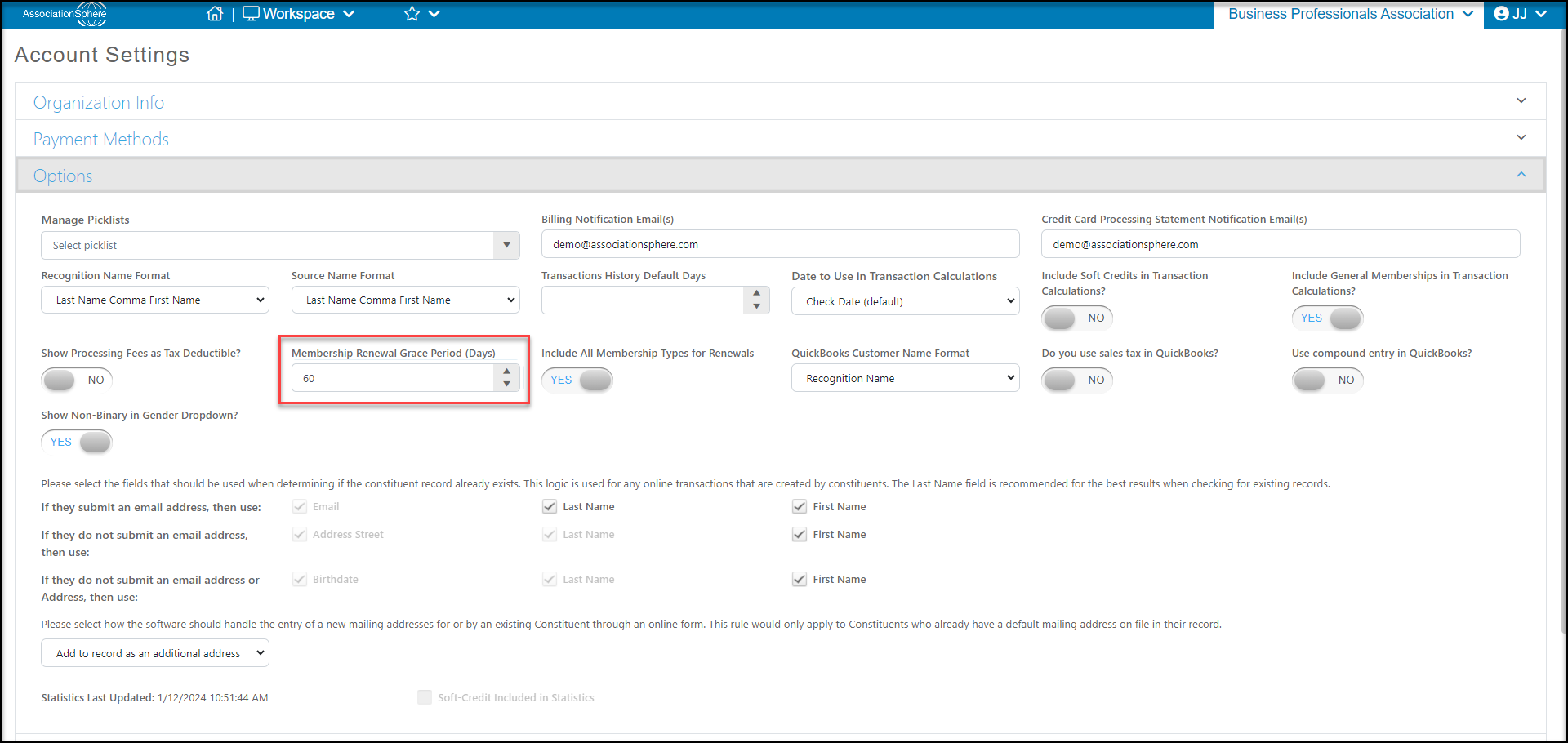 Let’s say you would like to give all your members at least 60 days after their expiration date to renew and keep the same month/day for their expiration date. With a grace period of 60 days entered, your members will maintain their original expiration date as long as they renew within the 60 day grace period. In our ongoing example, as long as the member renews within the grace period window, they will keep that same month/day expiration date.
The grace period does not keep memberships active after the expiration date. The Status will change to Overdue and the Current Status will change to Inactive the day after the membership expires. The grace period only affects renewals, allowing you to maintain the month/day for expiration dates.
**Original Silver Level Membership:**
Purchased 11/15/2022 – Expires 11/15/2023 Status: New
**Renewal Late but within Grace Period - Silver Level Membership**
Purchased 12/21/2023 – Expires 11/15/2024 Status: Renewal
**Renewal Late but AFTER the Grace Period - Silver Level Membership**
Purchased 02/05/2024 – Expires 02/05/2025 Status: Renewal
If you activate BOTH the Include **All Membership Types in Renewals** and the **Grace Period** features, you can keep your members in the same renewal cycles year after year, regardless of if they change levels, as long as they renew within your grace period.
Let’s say you would like to give all your members at least 60 days after their expiration date to renew and keep the same month/day for their expiration date. With a grace period of 60 days entered, your members will maintain their original expiration date as long as they renew within the 60 day grace period. In our ongoing example, as long as the member renews within the grace period window, they will keep that same month/day expiration date.
The grace period does not keep memberships active after the expiration date. The Status will change to Overdue and the Current Status will change to Inactive the day after the membership expires. The grace period only affects renewals, allowing you to maintain the month/day for expiration dates.
**Original Silver Level Membership:**
Purchased 11/15/2022 – Expires 11/15/2023 Status: New
**Renewal Late but within Grace Period - Silver Level Membership**
Purchased 12/21/2023 – Expires 11/15/2024 Status: Renewal
**Renewal Late but AFTER the Grace Period - Silver Level Membership**
Purchased 02/05/2024 – Expires 02/05/2025 Status: Renewal
If you activate BOTH the Include **All Membership Types in Renewals** and the **Grace Period** features, you can keep your members in the same renewal cycles year after year, regardless of if they change levels, as long as they renew within your grace period.