# Pledge Reports
> Source: https://support.associationsphere.com/pledge-reports | Updated: 2026-09-03T17:39:12Z
**Pledge Reports from the Transactions Grid**
Anytime a new pledge, pledge payment or pledge write off is recorded, you will immediately see that information on the Transactions grid in the Transactions & Invoices Module as well as on the constituent's Transactions tab.
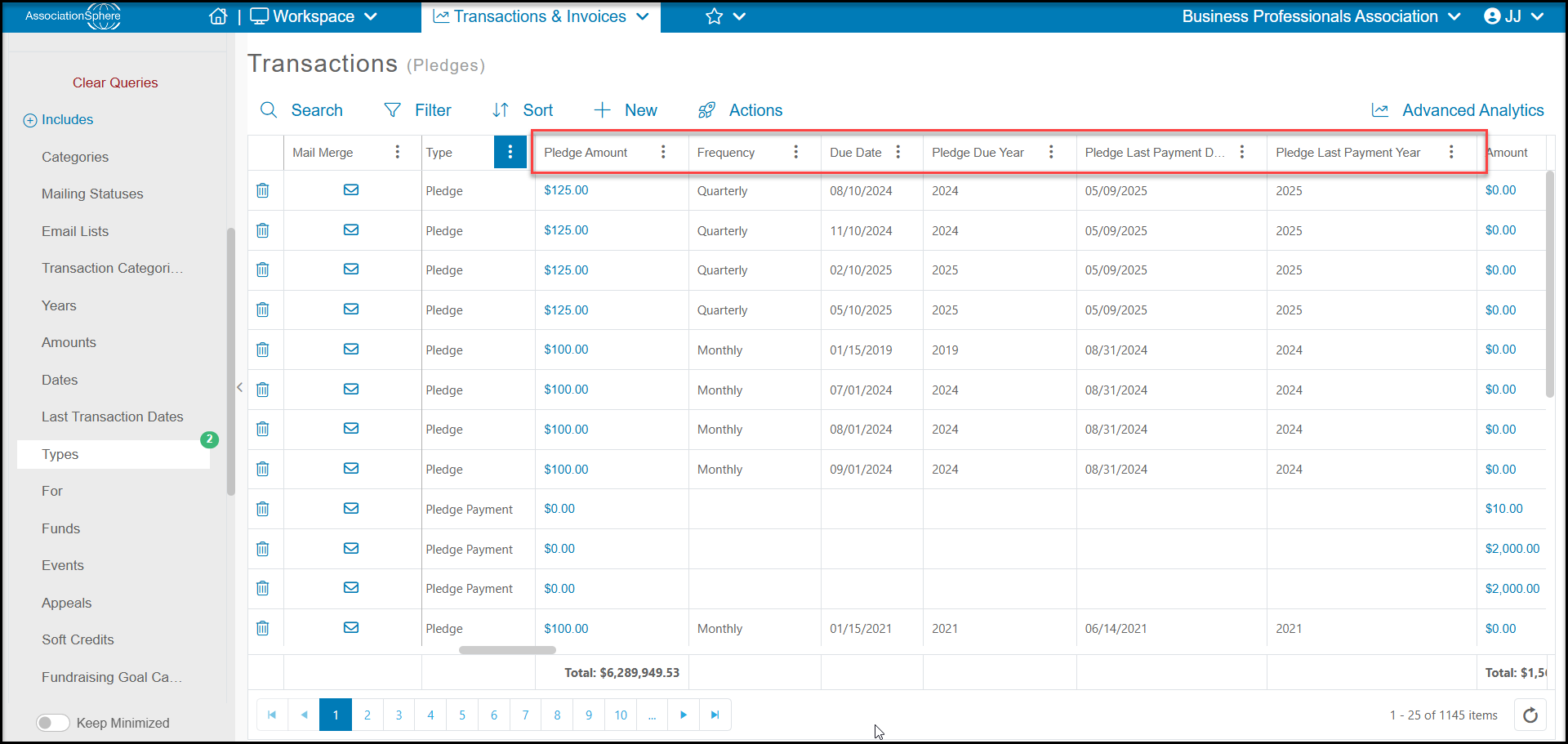
The grids will show:
- The **Date** the transaction was recorded.
- The **Amount**received for pledge payments only.
- The **Type** of transaction.
- The**Pledge Amount**for pledges and pledge write-offs, which is the individual amount due for each pledge payment or the amount that was written off for that pledge payment.
- **Frequency**- what the payment frequency will be
- **Due Date** - the due date for each pledge payment
- **Pledge Due Year** - the last year a payment is currently scheduled to be made
- **Pledge Last Payment Date** - if a payment has been received, it will show the last payment date
- **Pledge Last Payment Year** - will show the year the last payment was made.
You can use the Transactions grid for daily, weekly, monthly, and annual reporting of individual transaction that have been recorded.
**Example - Weekly revenue reports**
Each week you need to produce a report showing all revenue received for the week. You will:
- Filter the grid for the appropriate**Date**range using the Quick Queries menu.
- Depending on your financial reporting requirements, you may choose to include **Types**“Pledge” and “Pledge Write-off,” or you may choose to use the Quick Queries menu and use the**Excludes**feature for those types of transactions, since no actual revenue was received for those transactions.
- Use the**Actions** menu and select **Export to Excel** to send the report to Excel.
 **Pledge Reports from the Pledges Grid**
Detailed pledge information is found on the Pledges grid within the Transactions & Invoices module. The Pledges grid is only updated for pledge payments and write offs once per day, overnight. So if you just entered some pledge payments, you will not see the totals updated on the grid right away. The Transactions grid will always show the immediate transactions, but the Pledges grid will be refreshed overnight with recent payments and write offs to the pledges to update balances due and
payment history information.
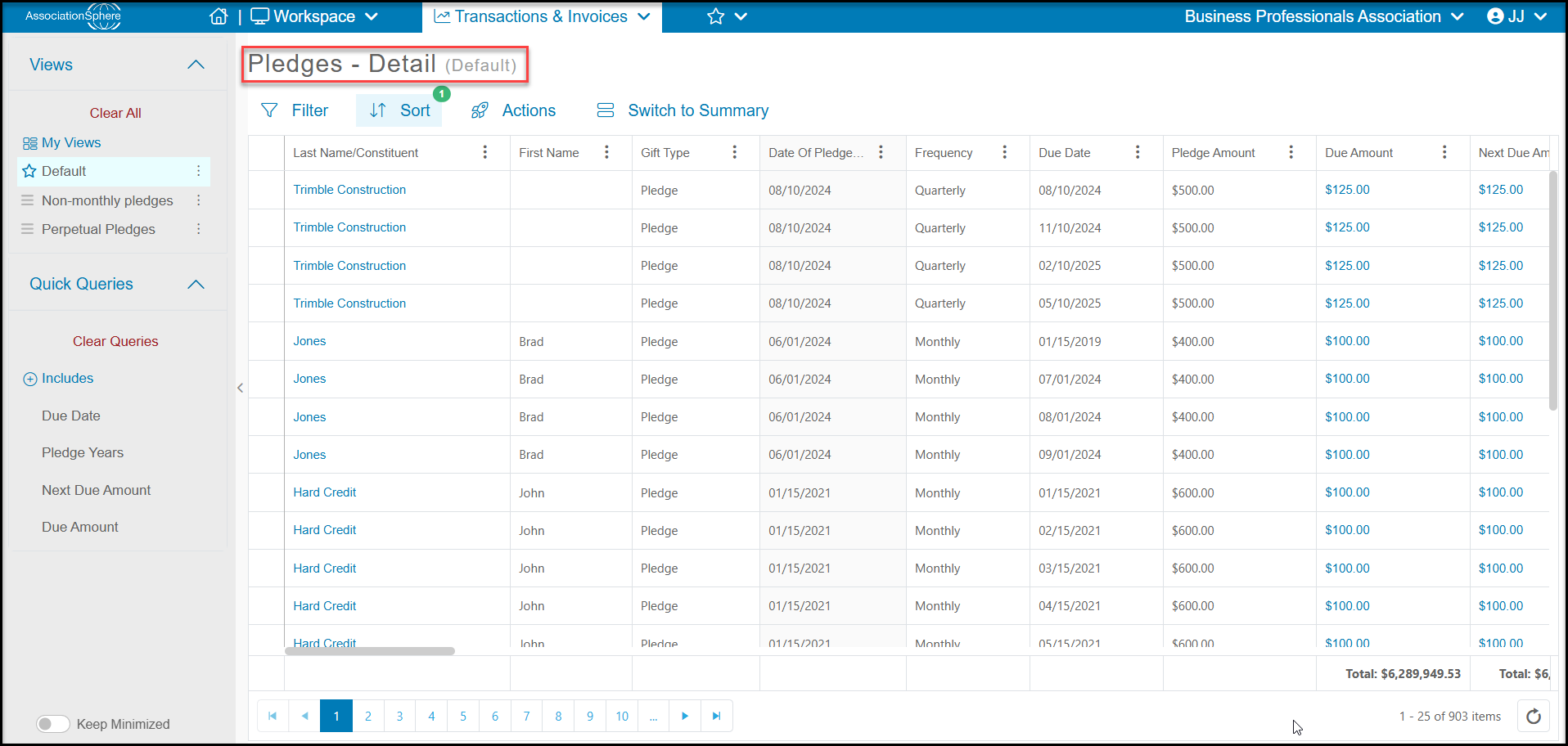
There are two views - the Detail view, which is what you see by default, and the Summary View.
**Detail View**
The Detail View shows each pledge payment that is associated with each pledge. Each pledge payment due is identified as a transaction type of "Pledge." There will be a row for every pledge payment that has been made or is due.
On the Pledges grid > Details, some of the helpful fields include:
- **Last name/Constituent** – to see person or organization who made the pledge
- **Date of Pledge** - date the pledge was created
- **Frequency –**for the frequency of the payments
- **Due Date** – the date for each Pledge (payment),
- **Pledge Amount**- how much that payment is
- **Due Amount** – on the Details view will also be the same as Pledge Amount. This field is included in the Quick Queries menu.
- **Amount Paid**- if any part of that pledge payment has already been made, it will be reflected under Amount Paid
- **Remaining Balance** – amount still to be paid on that particular pledge payment.
- **Next Due Amount** - will show the next pledge payment due. This field is also included in the Quick Queries menu.
- **Payment Method** - will show the credit card info for anyone who is set up for automatic payments. This field is blank if no credit card is set up for the pledge.
- **Year**– identifies the calendar pledge year that the pledge was initiated. This field is included in the Quick Queries menu as Pledge Years.
- **Pledge Due Year**- Shows the year that the specific payment is due in.
- **Pledge Last Payment Year**- Shows the year that the last payment will be due in.
**Pledge Reports from the Pledges Grid**
Detailed pledge information is found on the Pledges grid within the Transactions & Invoices module. The Pledges grid is only updated for pledge payments and write offs once per day, overnight. So if you just entered some pledge payments, you will not see the totals updated on the grid right away. The Transactions grid will always show the immediate transactions, but the Pledges grid will be refreshed overnight with recent payments and write offs to the pledges to update balances due and
payment history information.
There are two views - the Detail view, which is what you see by default, and the Summary View.
**Detail View**
The Detail View shows each pledge payment that is associated with each pledge. Each pledge payment due is identified as a transaction type of "Pledge." There will be a row for every pledge payment that has been made or is due.
On the Pledges grid > Details, some of the helpful fields include:
- **Last name/Constituent** – to see person or organization who made the pledge
- **Date of Pledge** - date the pledge was created
- **Frequency –**for the frequency of the payments
- **Due Date** – the date for each Pledge (payment),
- **Pledge Amount**- how much that payment is
- **Due Amount** – on the Details view will also be the same as Pledge Amount. This field is included in the Quick Queries menu.
- **Amount Paid**- if any part of that pledge payment has already been made, it will be reflected under Amount Paid
- **Remaining Balance** – amount still to be paid on that particular pledge payment.
- **Next Due Amount** - will show the next pledge payment due. This field is also included in the Quick Queries menu.
- **Payment Method** - will show the credit card info for anyone who is set up for automatic payments. This field is blank if no credit card is set up for the pledge.
- **Year**– identifies the calendar pledge year that the pledge was initiated. This field is included in the Quick Queries menu as Pledge Years.
- **Pledge Due Year**- Shows the year that the specific payment is due in.
- **Pledge Last Payment Year**- Shows the year that the last payment will be due in.
 **Pledges - Detail Grid Report Examples**
The Pledges- Detail grid is used for creating reports about specific payments.
**Example 1: Create a list of upcoming pledge payments that are due for non-credit card pledges**
1. First you will want to filter the grid for**Due Date**using the Quick Queries menu, for example next month.
**Pledges - Detail Grid Report Examples**
The Pledges- Detail grid is used for creating reports about specific payments.
**Example 1: Create a list of upcoming pledge payments that are due for non-credit card pledges**
1. First you will want to filter the grid for**Due Date**using the Quick Queries menu, for example next month.
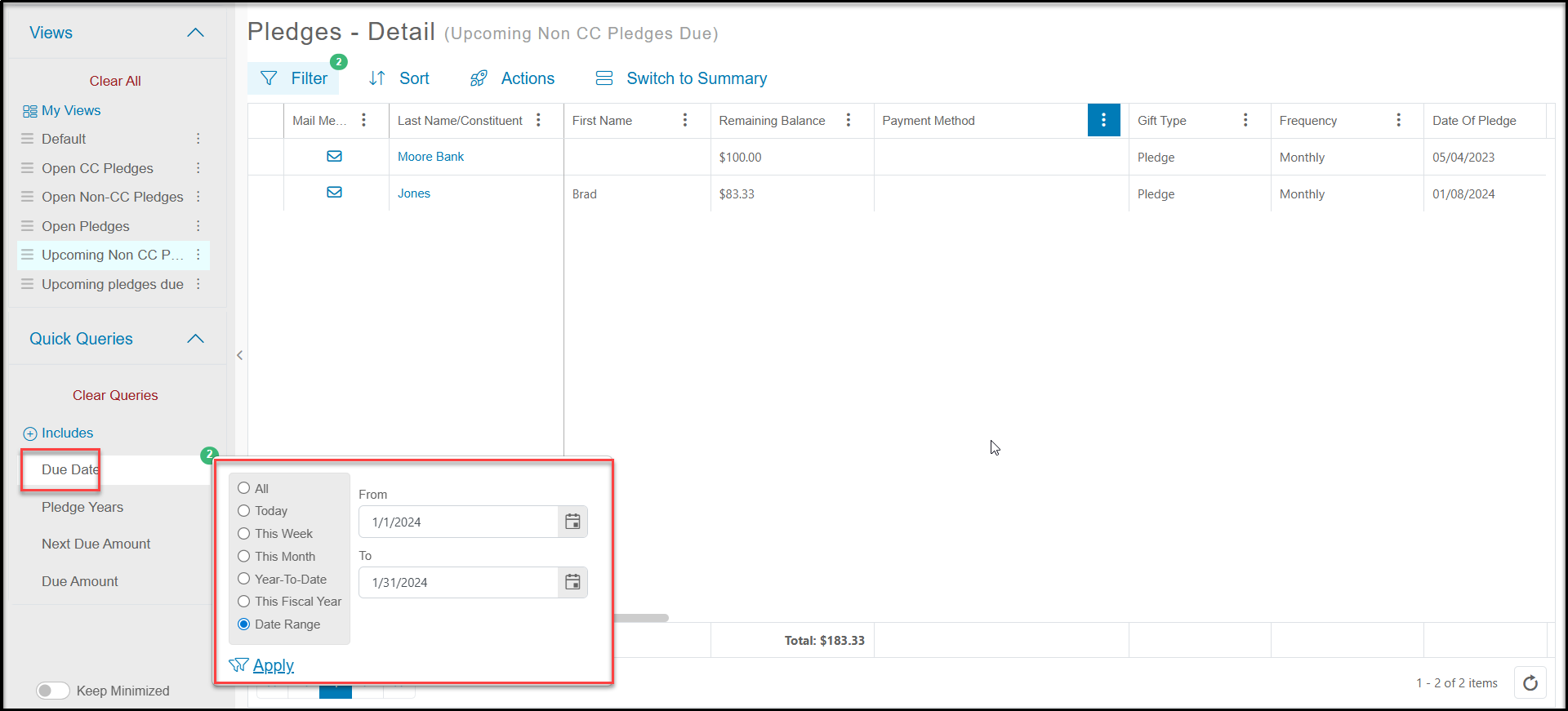 2. Next add a filter for either **Date Paid**“Is Empty” OR you could also choose the**Balance Due** is “Greater than or equal to” $1.00. Either option will produce a list of pledge payments that have not been made yet.
3. Then you will filter the grid for those pledges that are NOT set up to auto charge a credit card by choosing the filter “Is Empty” for the **Payment Method**field.
2. Next add a filter for either **Date Paid**“Is Empty” OR you could also choose the**Balance Due** is “Greater than or equal to” $1.00. Either option will produce a list of pledge payments that have not been made yet.
3. Then you will filter the grid for those pledges that are NOT set up to auto charge a credit card by choosing the filter “Is Empty” for the **Payment Method**field.
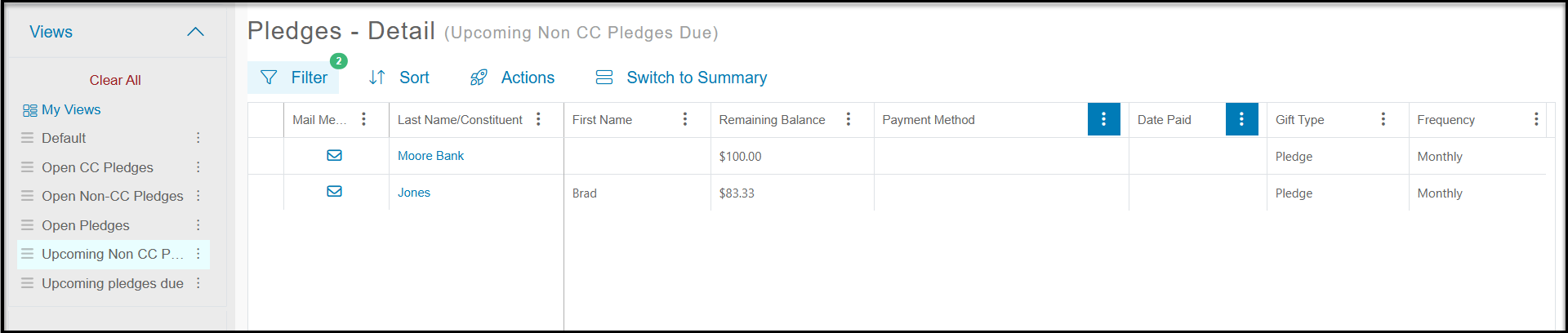
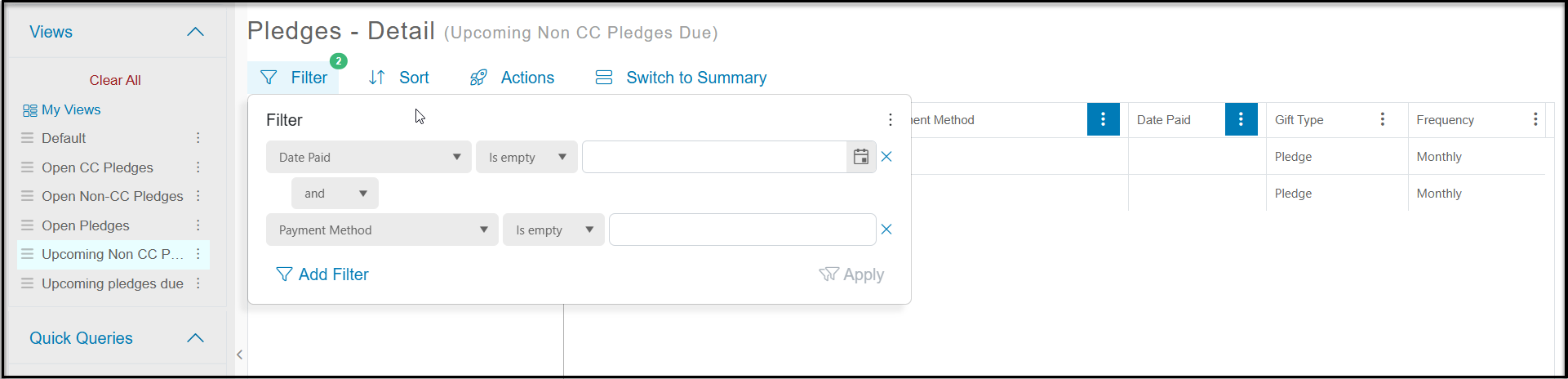 4. This will show you a list of pledge payments that are due but will not be auto-charged to a credit card.
5. You can use the **Actions**menu to select the **Print/Email Mail Merge** feature and email or mail them a reminder.
4. This will show you a list of pledge payments that are due but will not be auto-charged to a credit card.
5. You can use the **Actions**menu to select the **Print/Email Mail Merge** feature and email or mail them a reminder.
 **Example 2 - List of overdue pledge payments**
1. Similar to the way you produced the list of upcoming payments, you would filter the grid for**Due Date**using the Quick Queries menu, for example the last three months.
2. Next add a filter for either **Date Paid**“Is Empty” OR you could also choose the**Balance Due** is “Greater than or equal to” $1.00. Either option will produce a list of pledge payments that have not been made yet.
3. For this report, you may want to include pledges that were supposed to be paid by automatic credit card. This would provide a list of any constituents paying with a credit card, whose cards were not successfully charged. If you don't wish to include those types of pledges, you can the filter “Is Empty” for the **Payment Method**field.
4. This will show you a list of pledge payments that are overdue and should have been paid in the last three months.
5. You can use the **Actions**menu to select the **Print/Email Mail Merge** feature and email or mail them a reminder.
**Summary View**
Clicking the link Switch to Summary will take you to the summary list for pledges.
**Example 2 - List of overdue pledge payments**
1. Similar to the way you produced the list of upcoming payments, you would filter the grid for**Due Date**using the Quick Queries menu, for example the last three months.
2. Next add a filter for either **Date Paid**“Is Empty” OR you could also choose the**Balance Due** is “Greater than or equal to” $1.00. Either option will produce a list of pledge payments that have not been made yet.
3. For this report, you may want to include pledges that were supposed to be paid by automatic credit card. This would provide a list of any constituents paying with a credit card, whose cards were not successfully charged. If you don't wish to include those types of pledges, you can the filter “Is Empty” for the **Payment Method**field.
4. This will show you a list of pledge payments that are overdue and should have been paid in the last three months.
5. You can use the **Actions**menu to select the **Print/Email Mail Merge** feature and email or mail them a reminder.
**Summary View**
Clicking the link Switch to Summary will take you to the summary list for pledges.
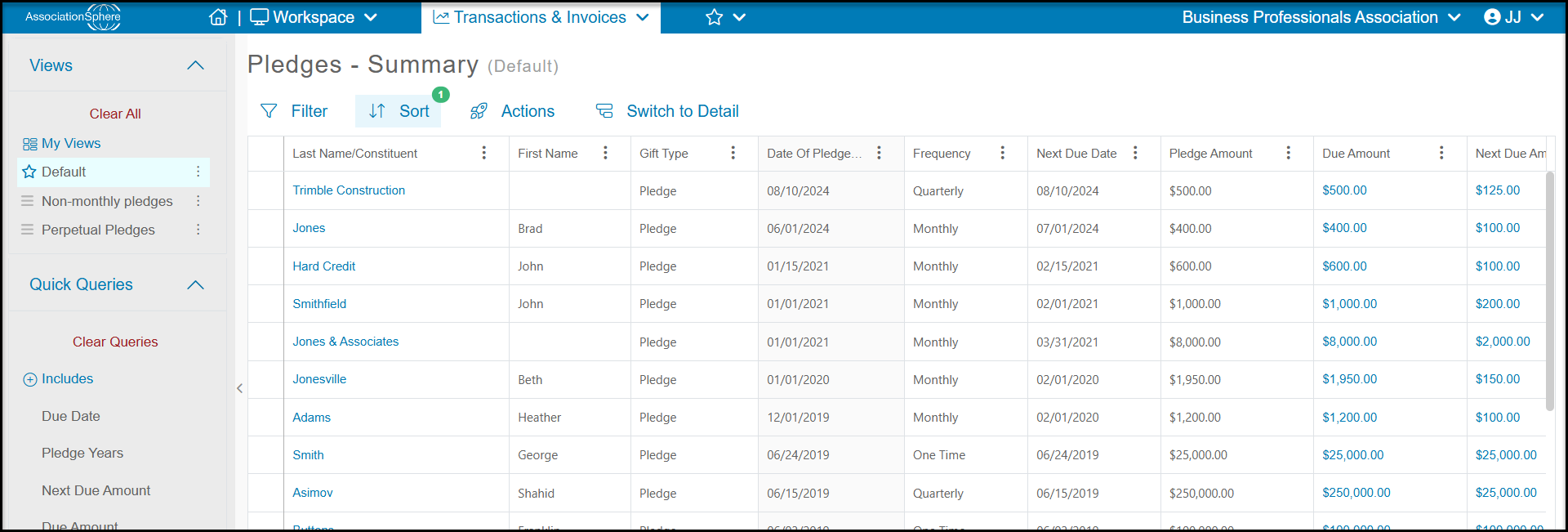
 The Pledges - Summary grid shows the totals for the entire pledge. There will only be one row for each pledge. If a donor has multiple pledges, their name can be shown several times, one row for each pledge.
The columns are still labeled the same, but they reflect the overall values.
- The **Pledge Amount**field becomes the entire pledge amount.
- **Due Amount** is also the entire pledge amount.
- The **Amount Paid** is now the total amount of payments that have been made against that pledge.
- **Remaining Balance** shows the total amount that is still unpaid on the pledge.
The Pledges - Summary grid shows the totals for the entire pledge. There will only be one row for each pledge. If a donor has multiple pledges, their name can be shown several times, one row for each pledge.
The columns are still labeled the same, but they reflect the overall values.
- The **Pledge Amount**field becomes the entire pledge amount.
- **Due Amount** is also the entire pledge amount.
- The **Amount Paid** is now the total amount of payments that have been made against that pledge.
- **Remaining Balance** shows the total amount that is still unpaid on the pledge.
 **Pledges - Summary Grid Report Examples**
The summary grid is used for showing total outstanding balances for pledges or total amount received for pledges.
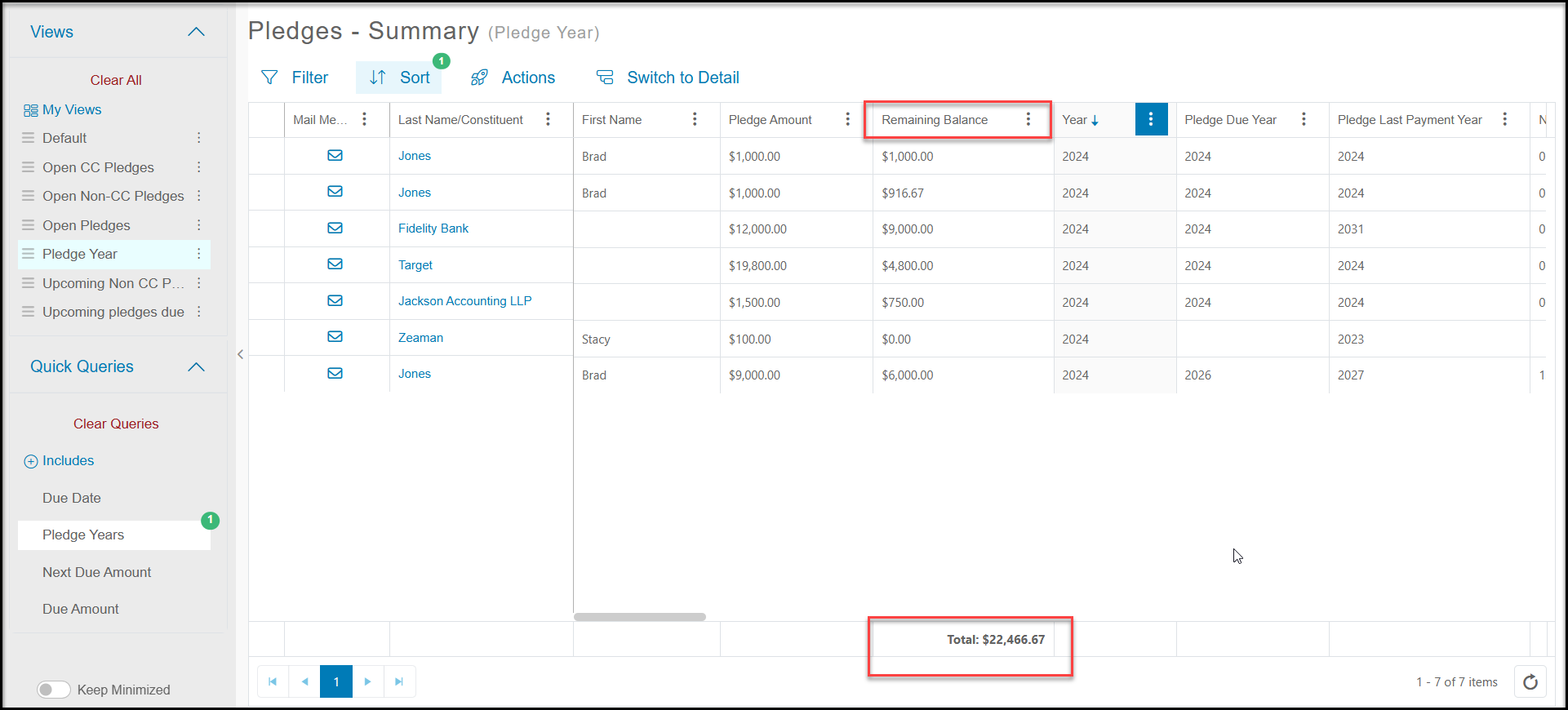
**Example 1 - Total balance due for a specific pledge year.**
1. If you are not already on the Summary page, click on**Switch to Summary.**
2. Find the column for **Year**and move it to a convenient location on your grid.
3. Using the Quick Queries menu on the grey side bar, click on**Pledge Years** and then select the year or years you wish to include in your report. **Click Apply** to update the grid.
**Pledges - Summary Grid Report Examples**
The summary grid is used for showing total outstanding balances for pledges or total amount received for pledges.
**Example 1 - Total balance due for a specific pledge year.**
1. If you are not already on the Summary page, click on**Switch to Summary.**
2. Find the column for **Year**and move it to a convenient location on your grid.
3. Using the Quick Queries menu on the grey side bar, click on**Pledge Years** and then select the year or years you wish to include in your report. **Click Apply** to update the grid.
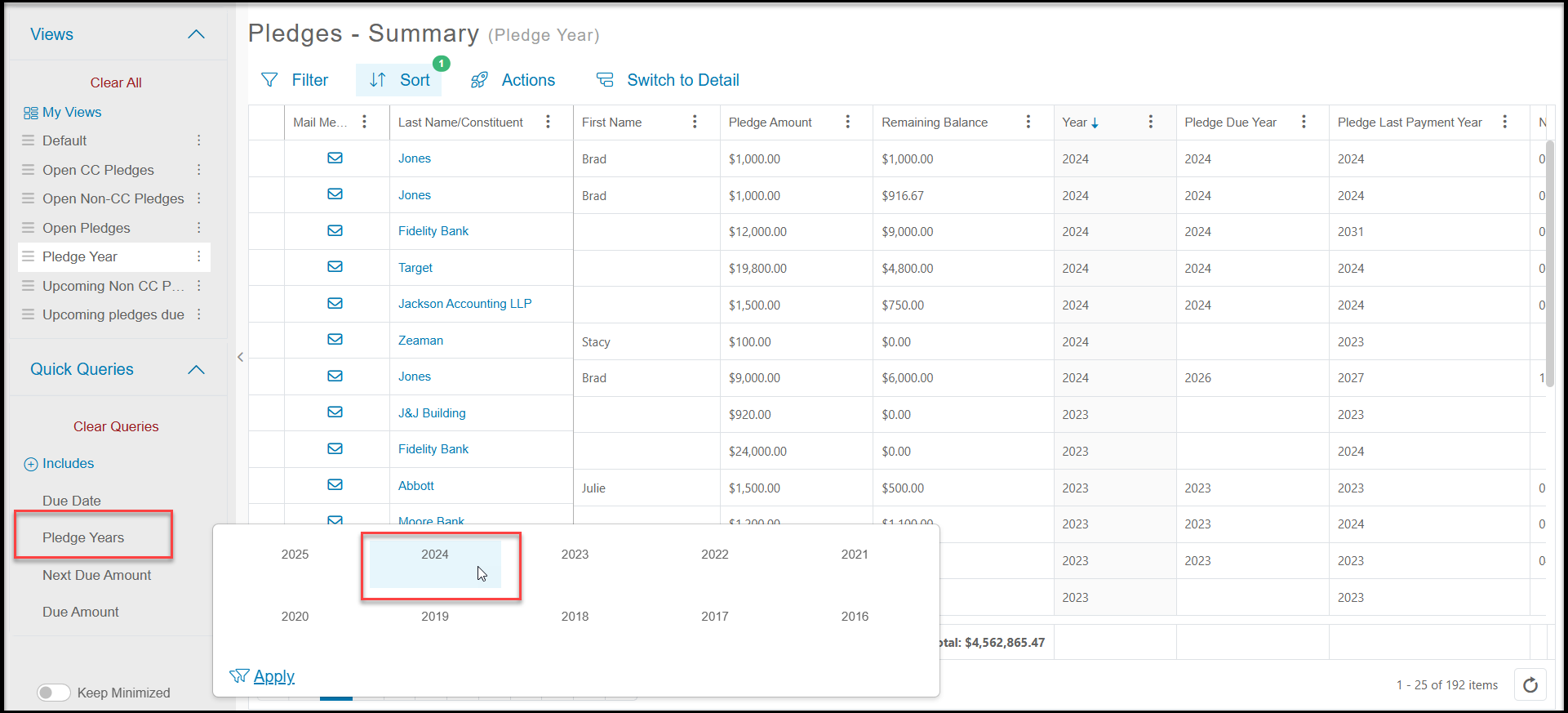 4. With the grid updated, you can see the total amount still due for the year(s) selected in the **Remaining Balance** column.
5. You can use the **Actions** menu to **Export to Excel.**
**
4. With the grid updated, you can see the total amount still due for the year(s) selected in the **Remaining Balance** column.
5. You can use the **Actions** menu to **Export to Excel.**
** **
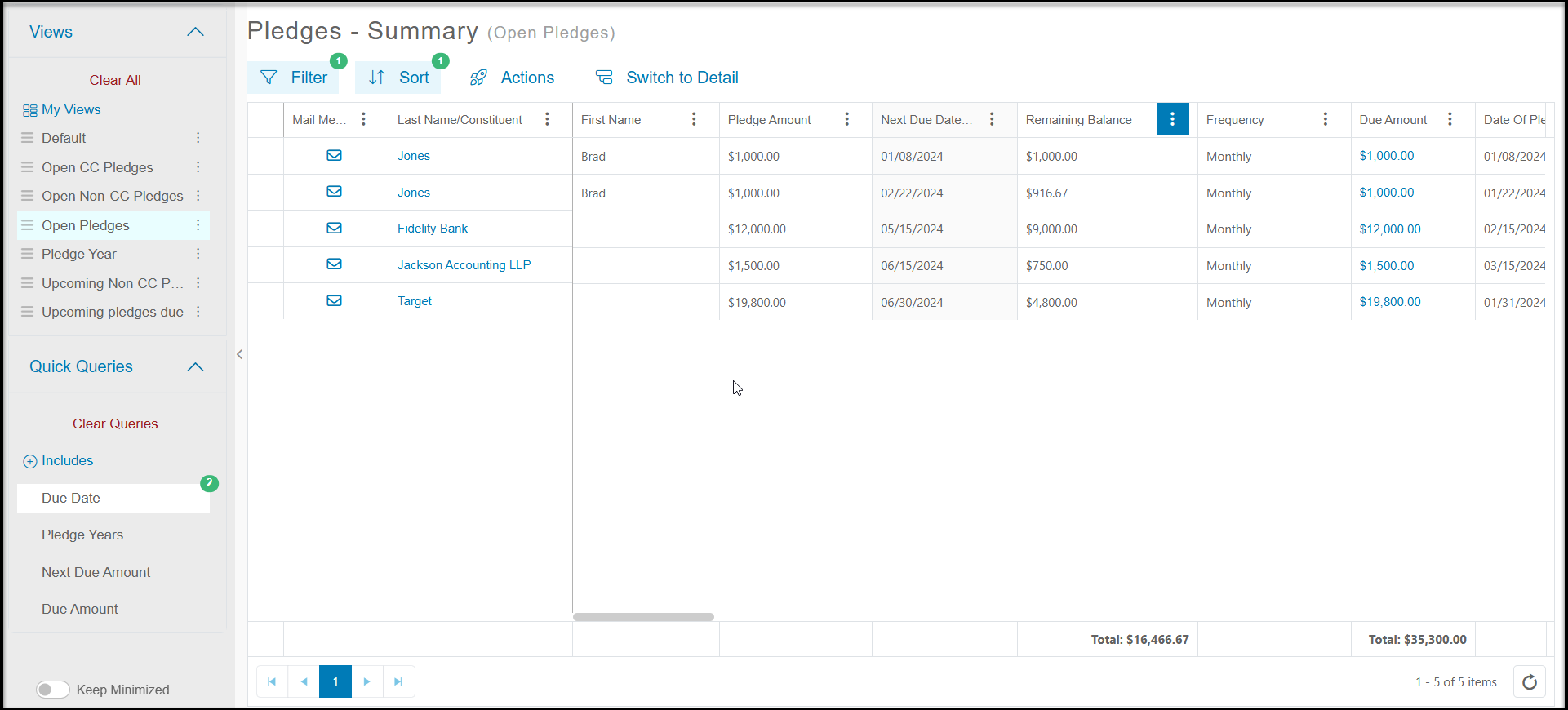
**Example 2 - Send reminder letters for total balance due for overdue pledges.**
1. If you need to remind constituents who have fallen behind in their payments of their commitment, the Pledges - Summary grid is the best place to generate the letter.
2. First add a filter to the Remaining Balance “Greater than or Equal to” $1.00
3. Then identify those pledges that are late by using the Quick Queries menu and entering the date range to include in **Due Date.** For example choosing dates from several months ago to last month to include only those who are quite late, not anyone who has not paid yet this month.
4. You list will now include any constituents who are more than a month overdue with their pledge payments. You can use the **Actions** menu then **Print/Email Mail Merge** to send them a friendly reminder.
**
**Example 2 - Send reminder letters for total balance due for overdue pledges.**
1. If you need to remind constituents who have fallen behind in their payments of their commitment, the Pledges - Summary grid is the best place to generate the letter.
2. First add a filter to the Remaining Balance “Greater than or Equal to” $1.00
3. Then identify those pledges that are late by using the Quick Queries menu and entering the date range to include in **Due Date.** For example choosing dates from several months ago to last month to include only those who are quite late, not anyone who has not paid yet this month.
4. You list will now include any constituents who are more than a month overdue with their pledge payments. You can use the **Actions** menu then **Print/Email Mail Merge** to send them a friendly reminder.
 **View Builder**
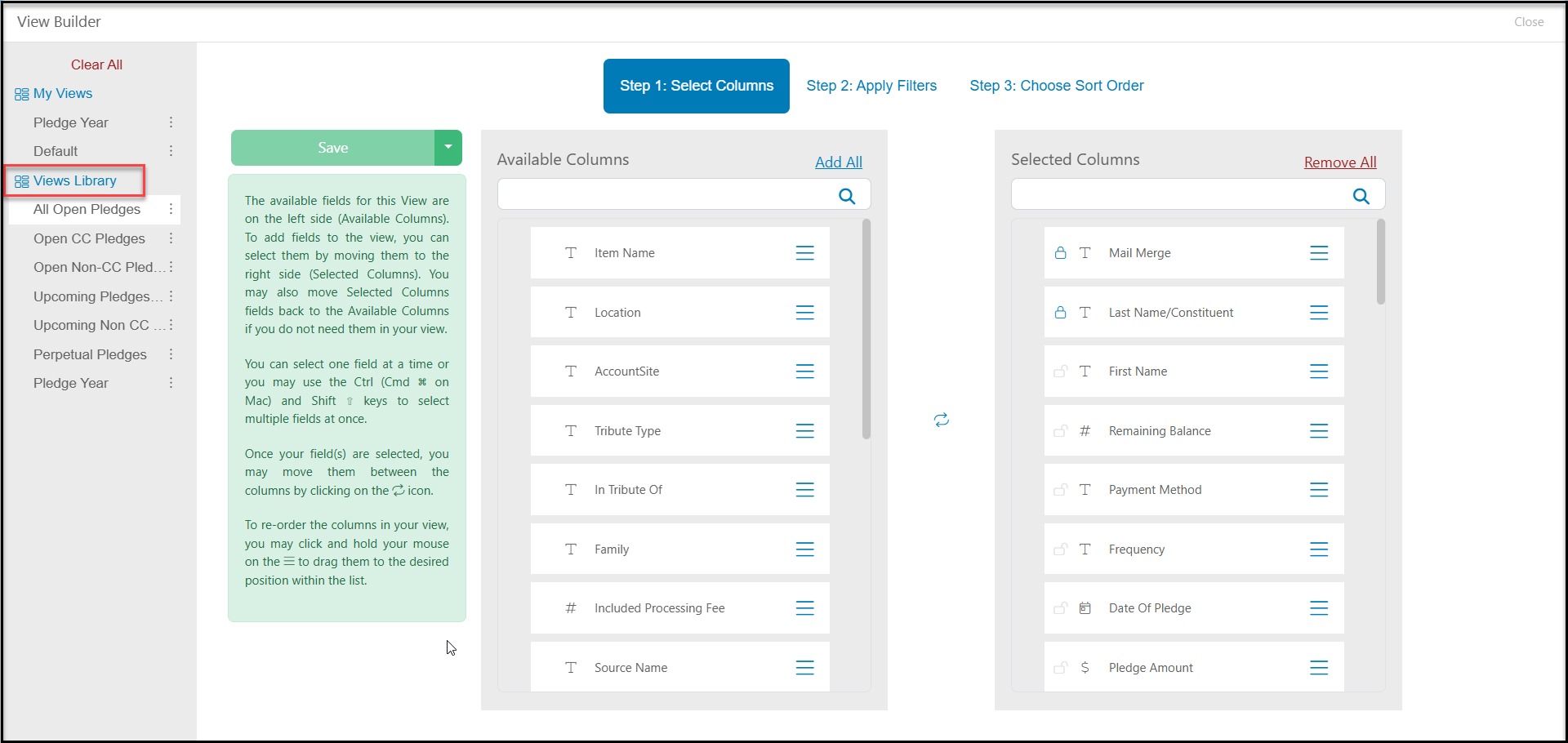
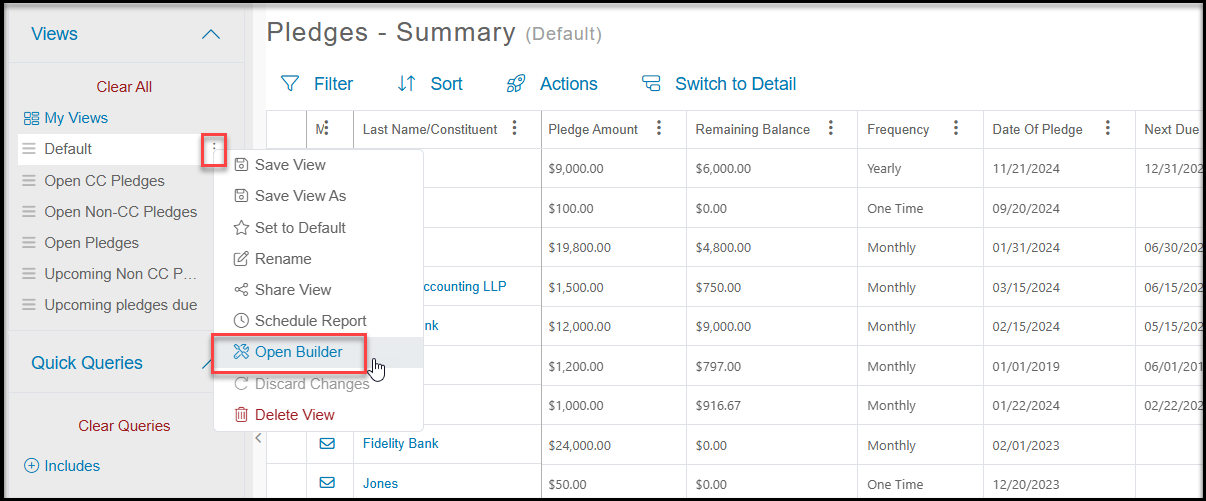
You can access the View Builder by clicking on the three dots next to any view under My Views. Select **View Builder** to open the builder.
**View Builder**
You can access the View Builder by clicking on the three dots next to any view under My Views. Select **View Builder** to open the builder.
 There are a few premade views you can use a starting place for your reports in the View Builder including:
- **All Open Pledges** - Which lists all pledges with a balance of $1.00 or greater.
- **Open CC** (credit card) Pledges - Which will show only pledges a credit card number in the Payment Method column
- **Open Non-CC Pledges** - Which will only show pledges without a cc in the Payment Method column
- **Upcoming Non CC Pledges** - Which shows payments due in the next month which do not have a credit card in the Payment Method column
- **Upcoming Pledges Due** - Which shows all payments due in the next month, including those with cc numbers
- **Perpetual Pledges** - Shows pledges which are marked as "perpetual."
- **Pledge Year**- Shows a list of all pledges with the Year columns prominently featured and sorted in descending order of Year.
There are a few premade views you can use a starting place for your reports in the View Builder including:
- **All Open Pledges** - Which lists all pledges with a balance of $1.00 or greater.
- **Open CC** (credit card) Pledges - Which will show only pledges a credit card number in the Payment Method column
- **Open Non-CC Pledges** - Which will only show pledges without a cc in the Payment Method column
- **Upcoming Non CC Pledges** - Which shows payments due in the next month which do not have a credit card in the Payment Method column
- **Upcoming Pledges Due** - Which shows all payments due in the next month, including those with cc numbers
- **Perpetual Pledges** - Shows pledges which are marked as "perpetual."
- **Pledge Year**- Shows a list of all pledges with the Year columns prominently featured and sorted in descending order of Year.