# Portal Feature for Manage Contacts
> Source: https://support.associationsphere.com/portal-feature-for-manage-contacts | Updated: 2026-06-05T16:28:41Z
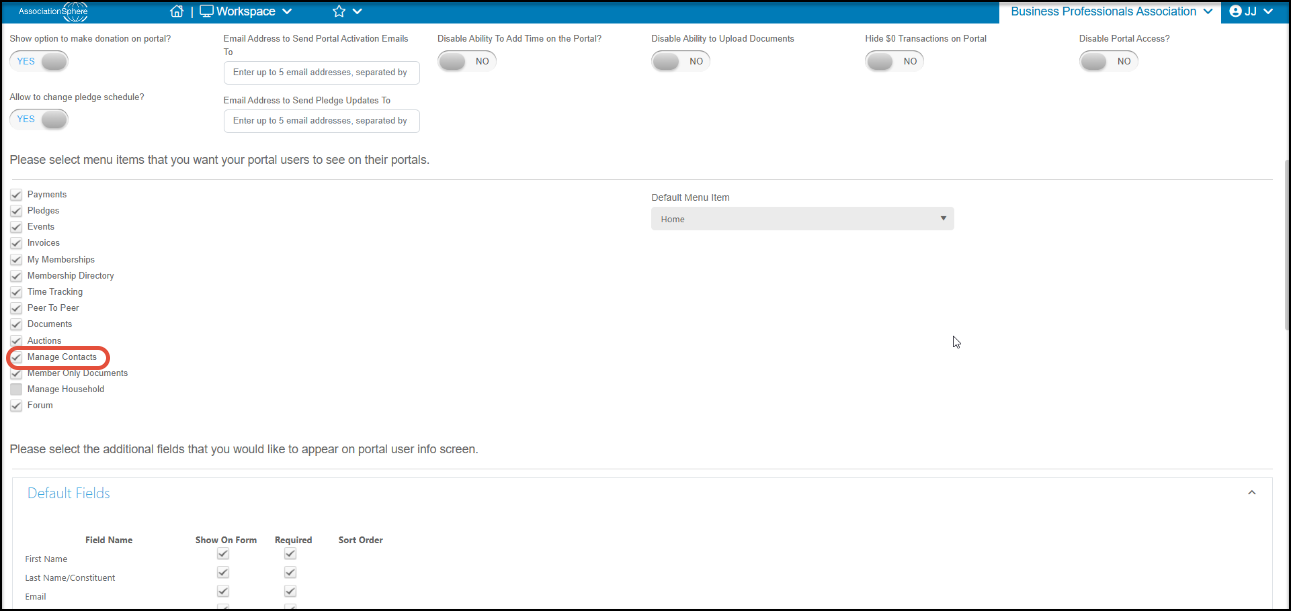
If you have the Advanced Portal activated and you have selected Manage Contacts from the list of options, your Company-type constituents can use the portal to see a list of all their company contacts and add new ones.
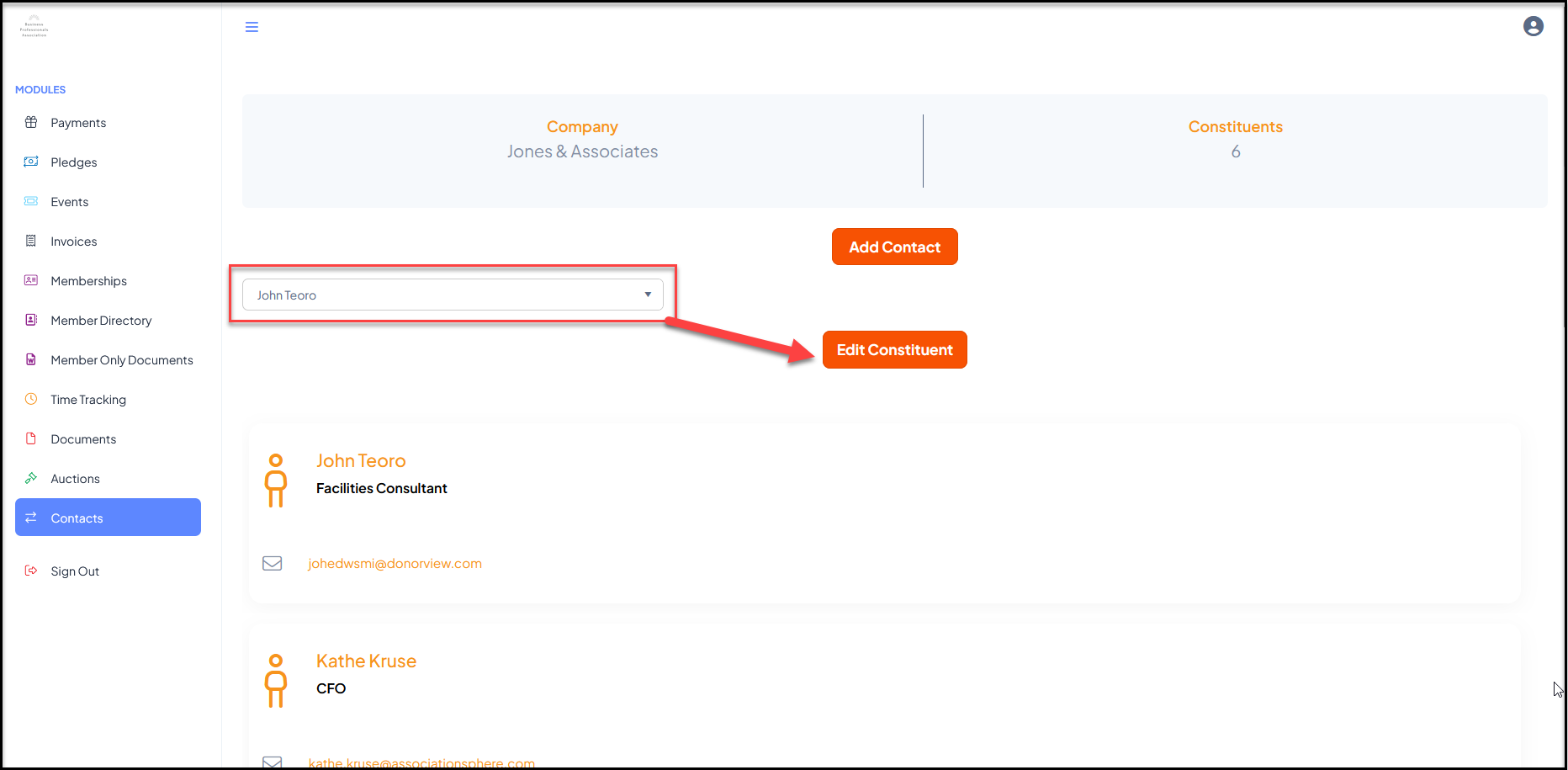
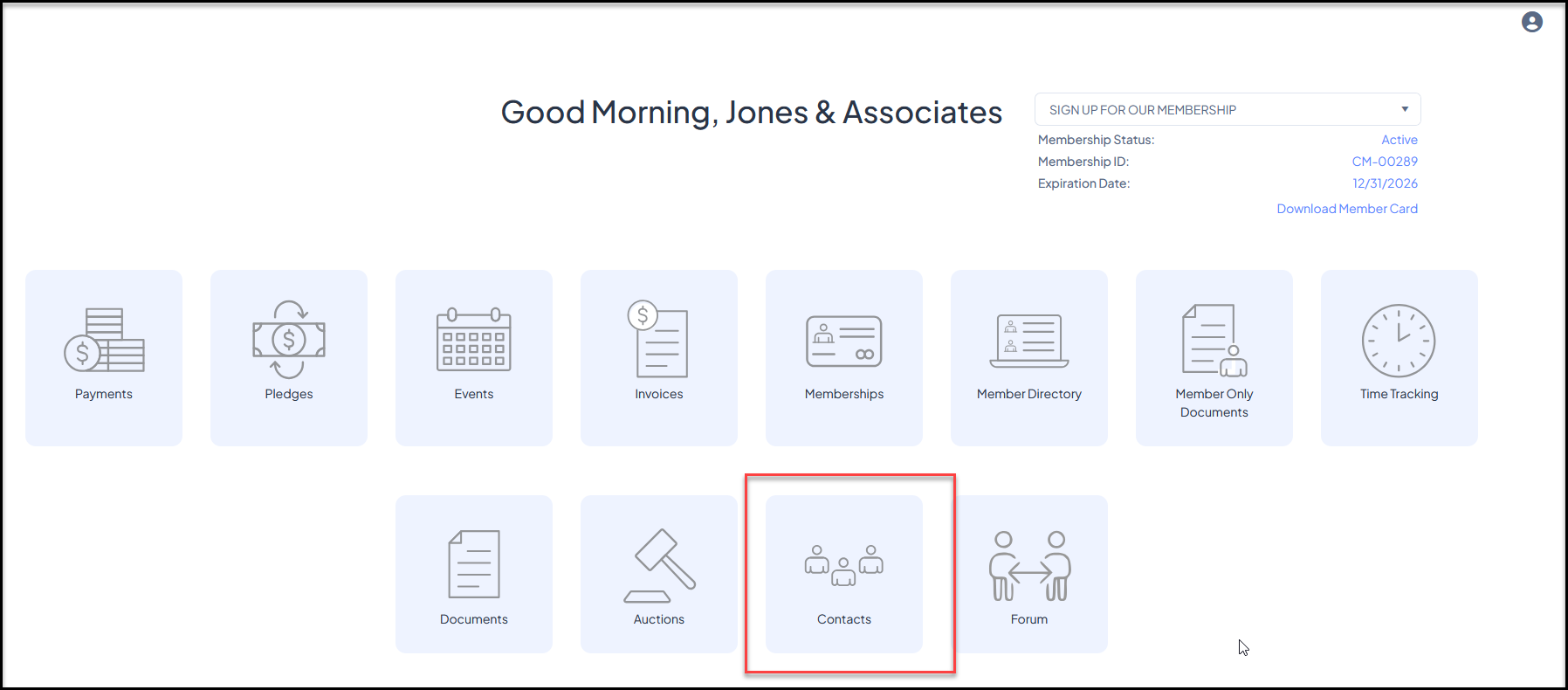 They can add a new contact by clicking Add Contact. With the specific contact's name selected in the dropdown list, clicking on **Edit Constituent**will allow you to update that company contact's information.
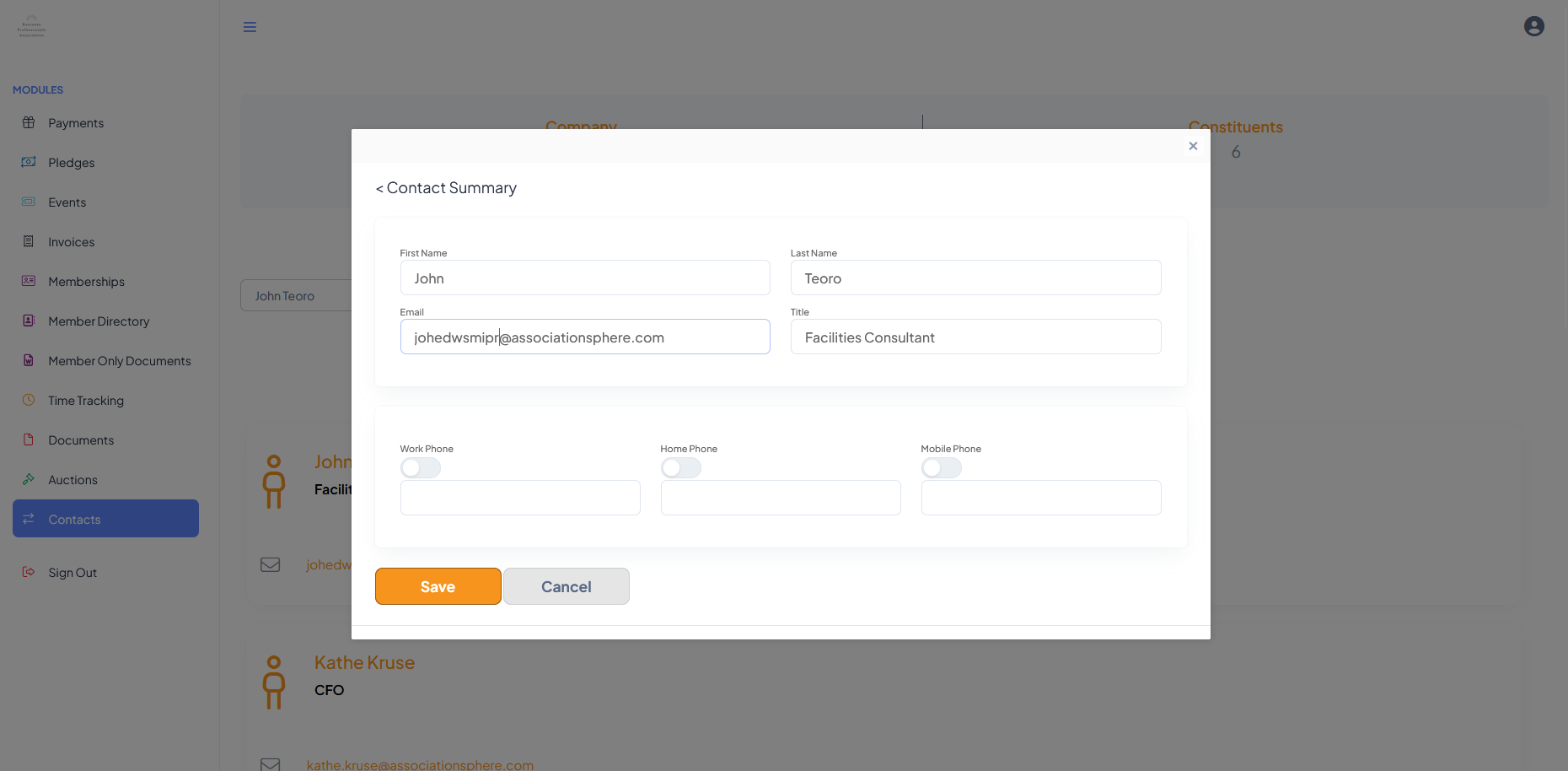
 Click **Save** to save the changes made or**Cancel**to to return to the previous page.
 The user can navigate to another module using the links on the left menu or go to the homepage by clicking on the organization's logo in the top left corner.