# Portal Features for Invoices
> Source: https://support.associationsphere.com/portal-features-for-invoices | Updated: 2026-06-05T15:15:33Z
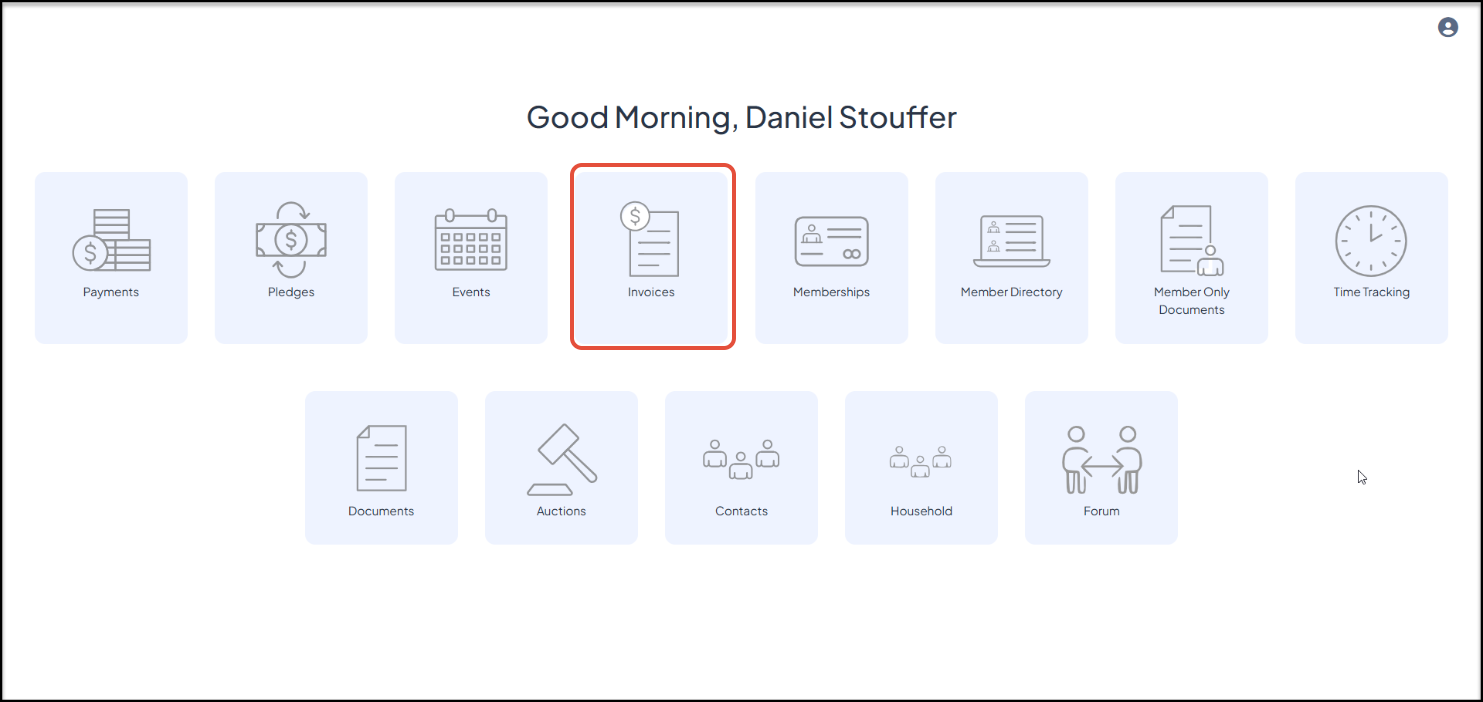
If you have the Basic or Advanced Portal activated and you have selected Invoices from the list of options, your constituents can use the portal to see a list of all their invoices and make payments using the **Invoices**icon.
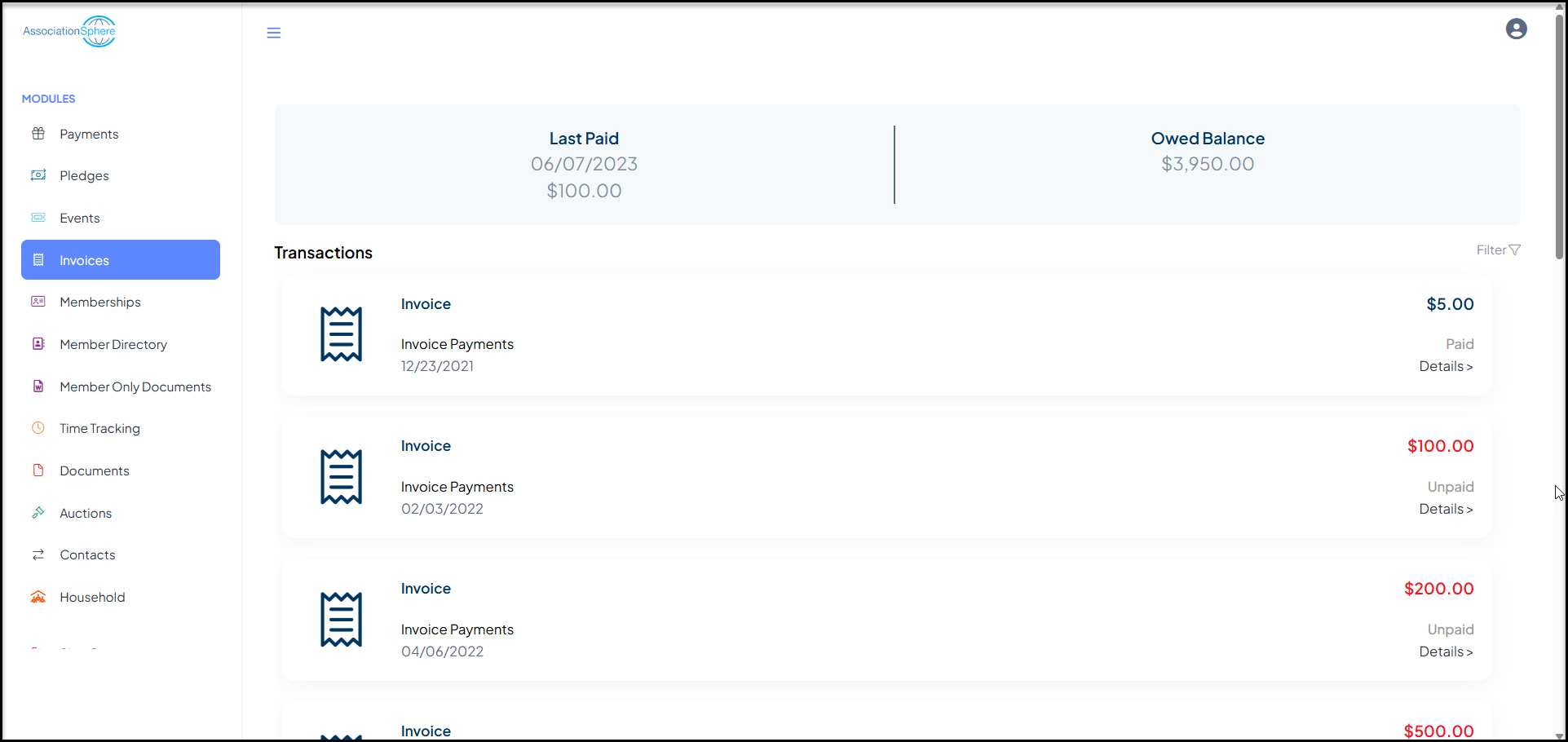
 Clicking on the **Details** link under each invoice amount will open a new window.
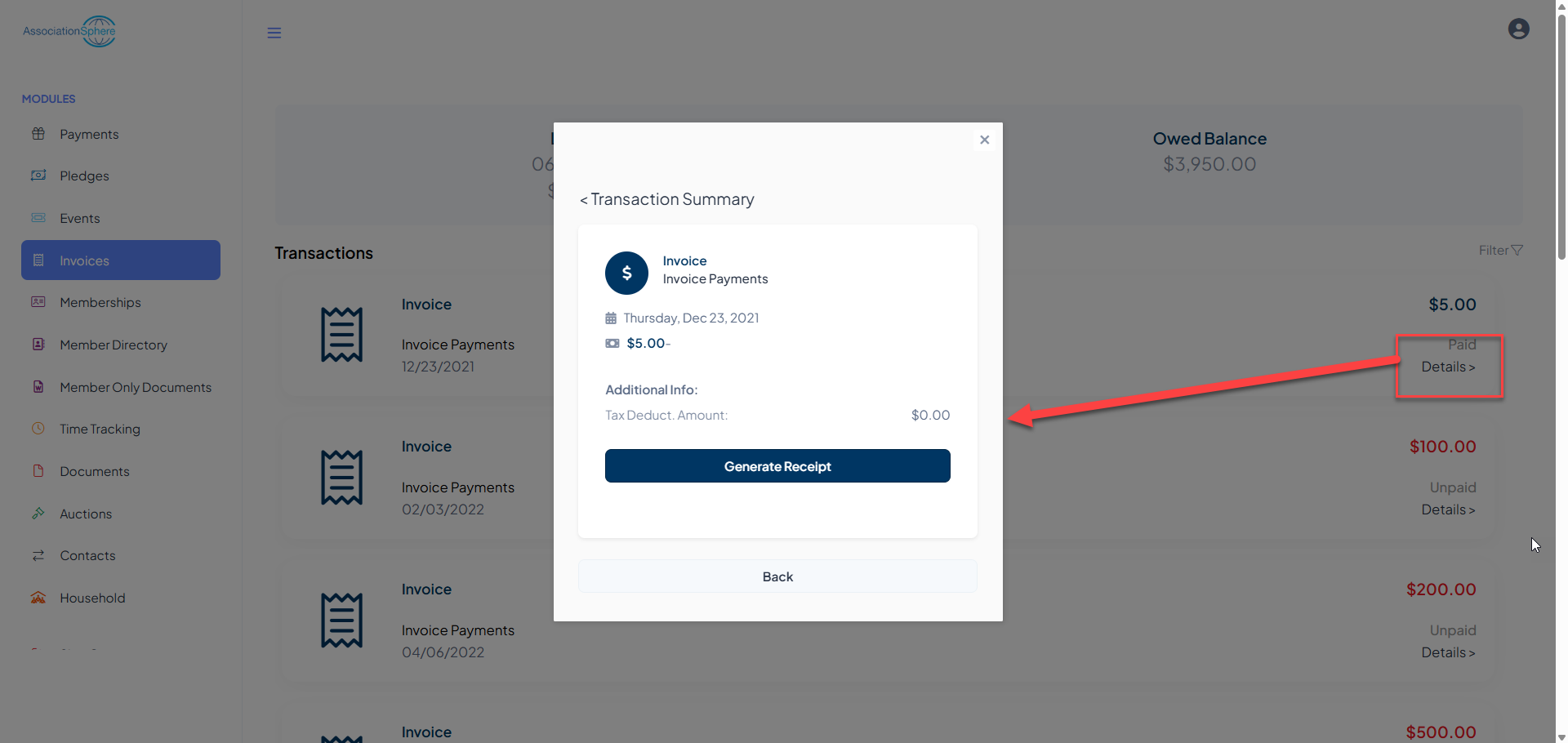
 For Paid invoices, they will see an option to **Generate Receipt**.
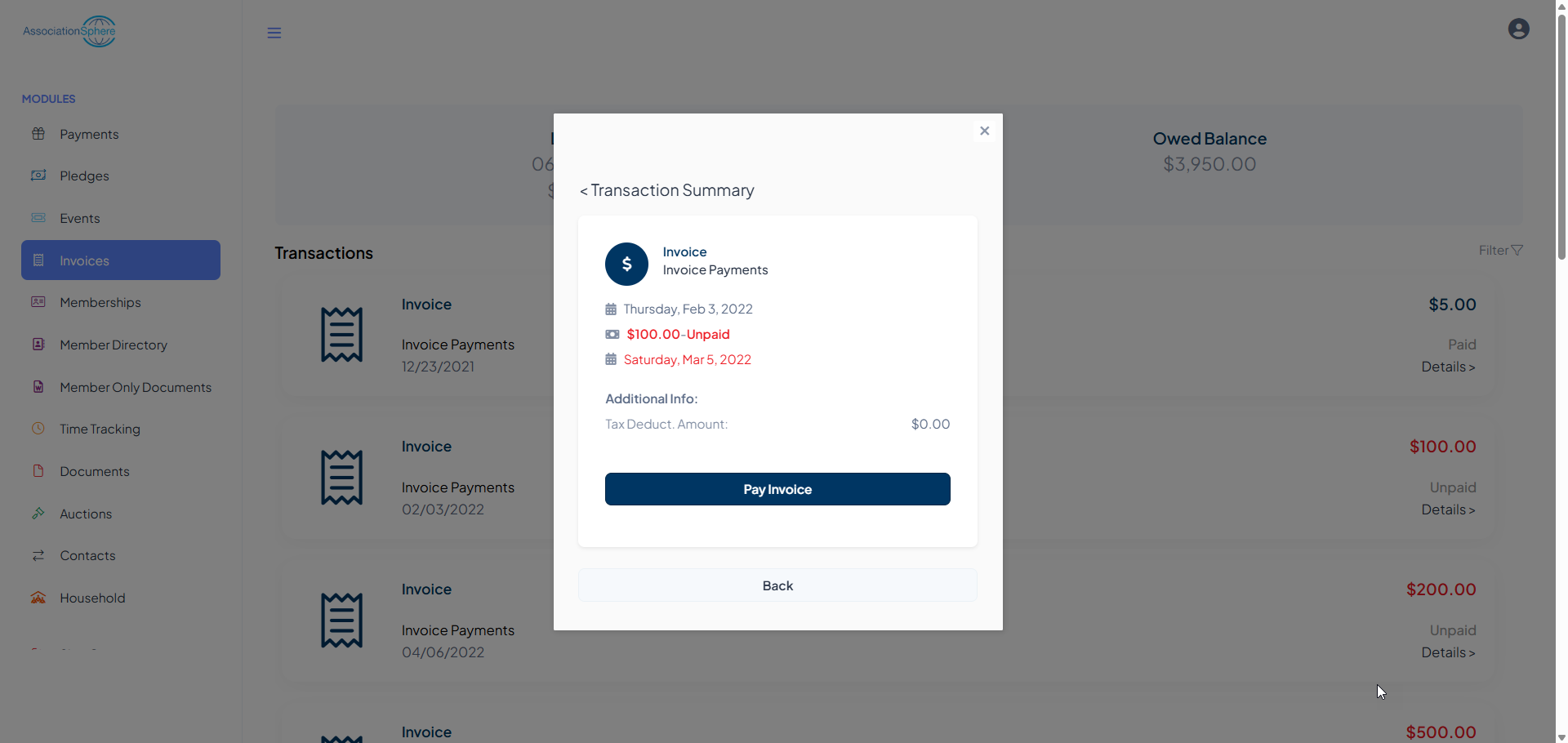
 For unpaid invoices, they can click on **Pay Invoice**to open the Invoice Payment Page URL in a new browser window and pay the invoice with a credit card or print invoice using their browser to mail in a payment.
 The user can navigate to another module using the links on the left menu or go to the homepage by clicking on the organization's logo in the top left corner.