# Starting an email marketing campaign from the Actions menu
> Source: https://support.associationsphere.com/starting-an-email-marketing-campaign-from-the-actions-menu | Updated: 2024-07-19T16:07:19Z
An email list must be created prior to creating an email marketing campaign from the Actions menu.
- First, filter your grid to show the constituents you wish to communicate with in this campaign.
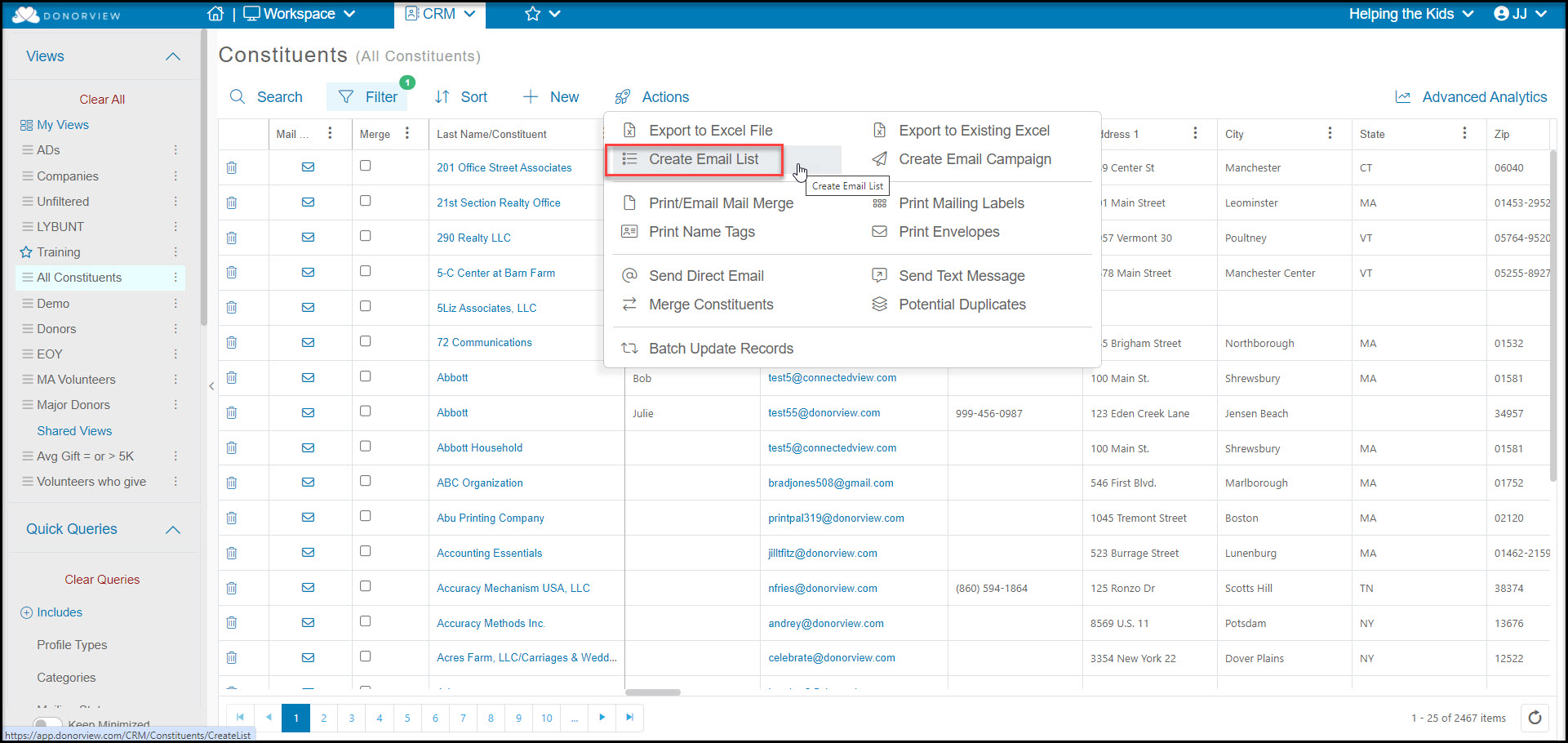
- Next, create a new email list or add the constituents showing on your grid to an existing list using the **Create Email List** function from the Actions menu.
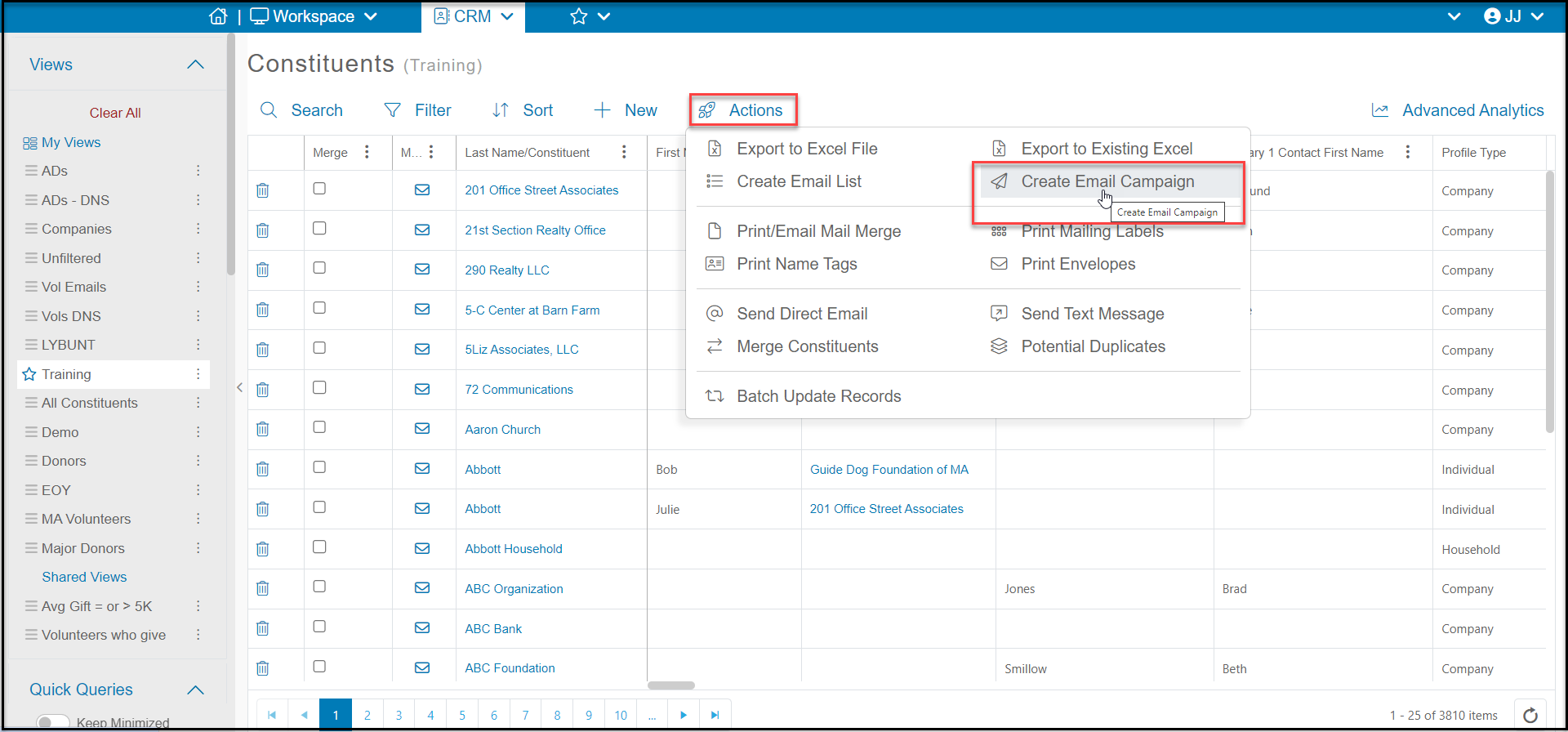
 - With the email list, you can now select **Create Email Campaign.**
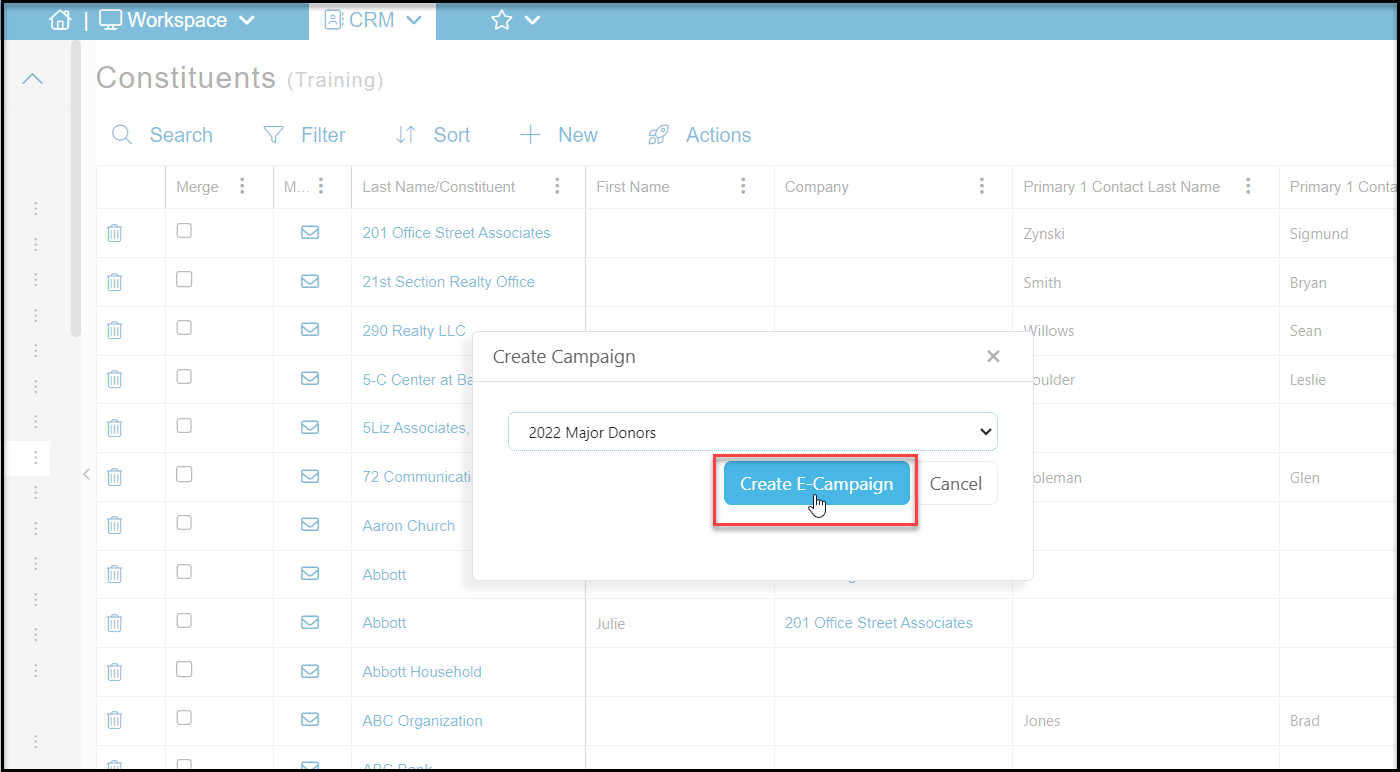
 - You will choose the appropriate email list, the click on **Create E-Campaign.**
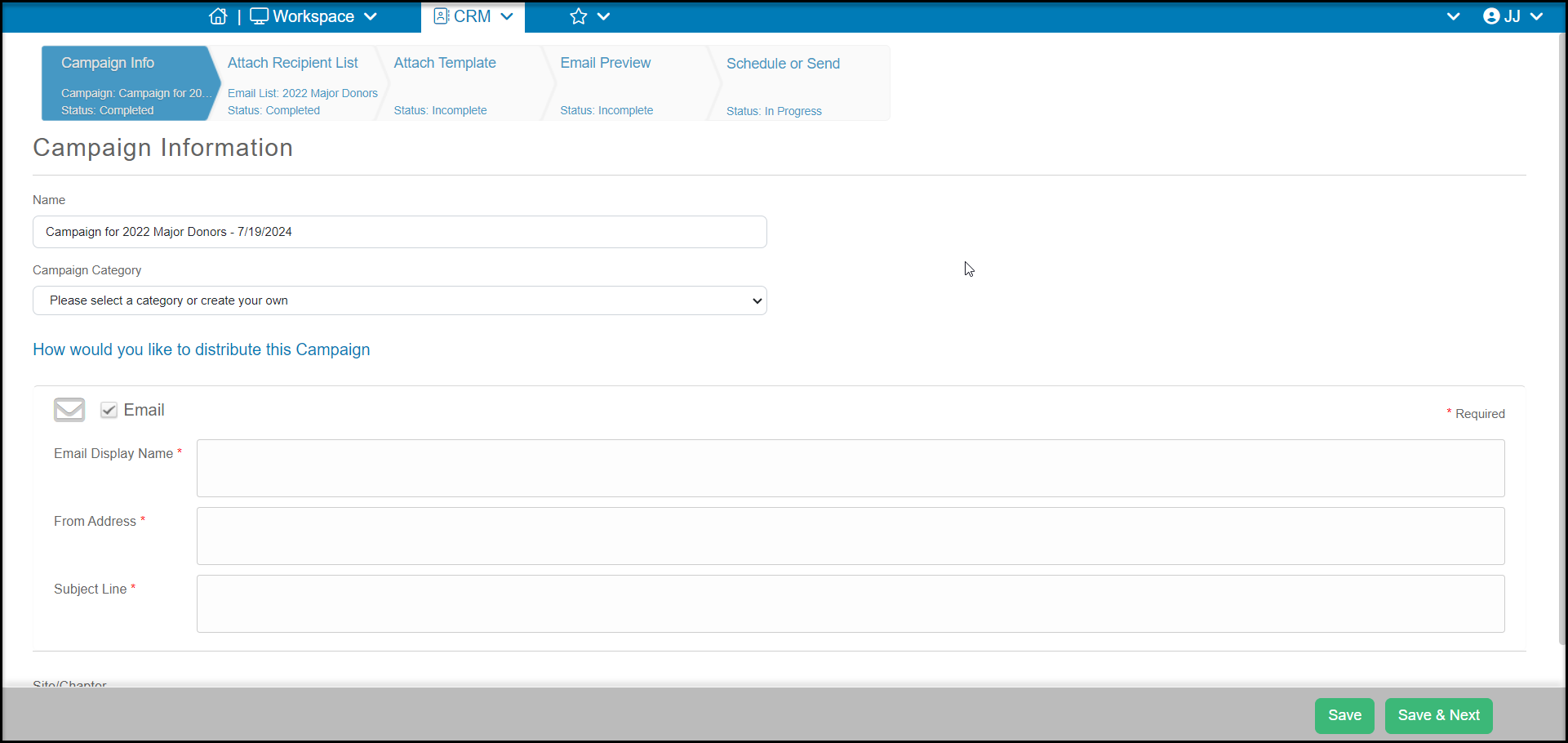
 This will take you to a page to set-up a new Email Marketing Campaign. You can learn more about email marketing campaigns in these articles: https://support.donorview.com/en/support/solutions/folders/9000130331