
Where can I view my weekly transaction statements?
Updated Sep 16, 2026·2 min read
Admin users can view the weekly transaction statements by first navigating to the organization's settings menu and selecting Billing.
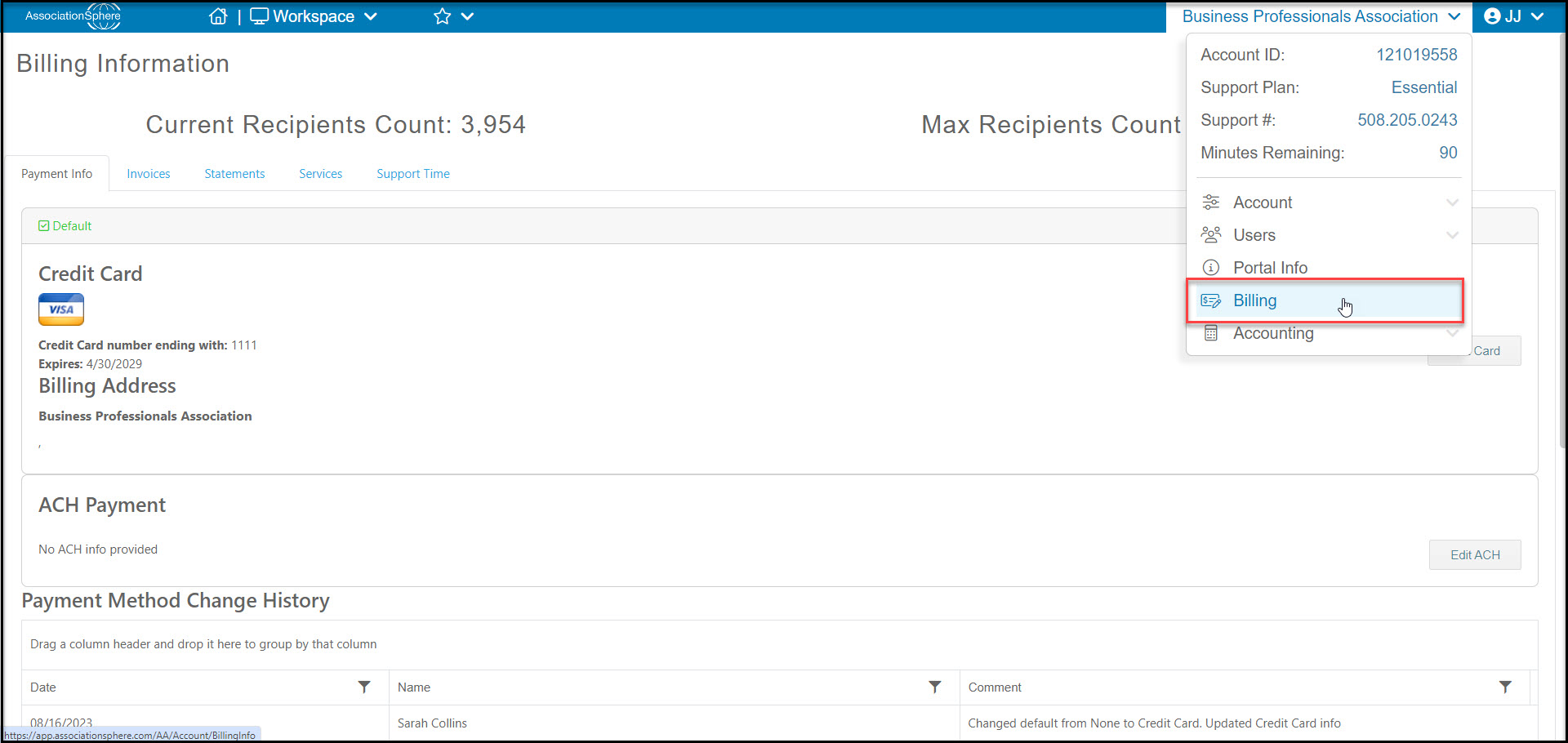
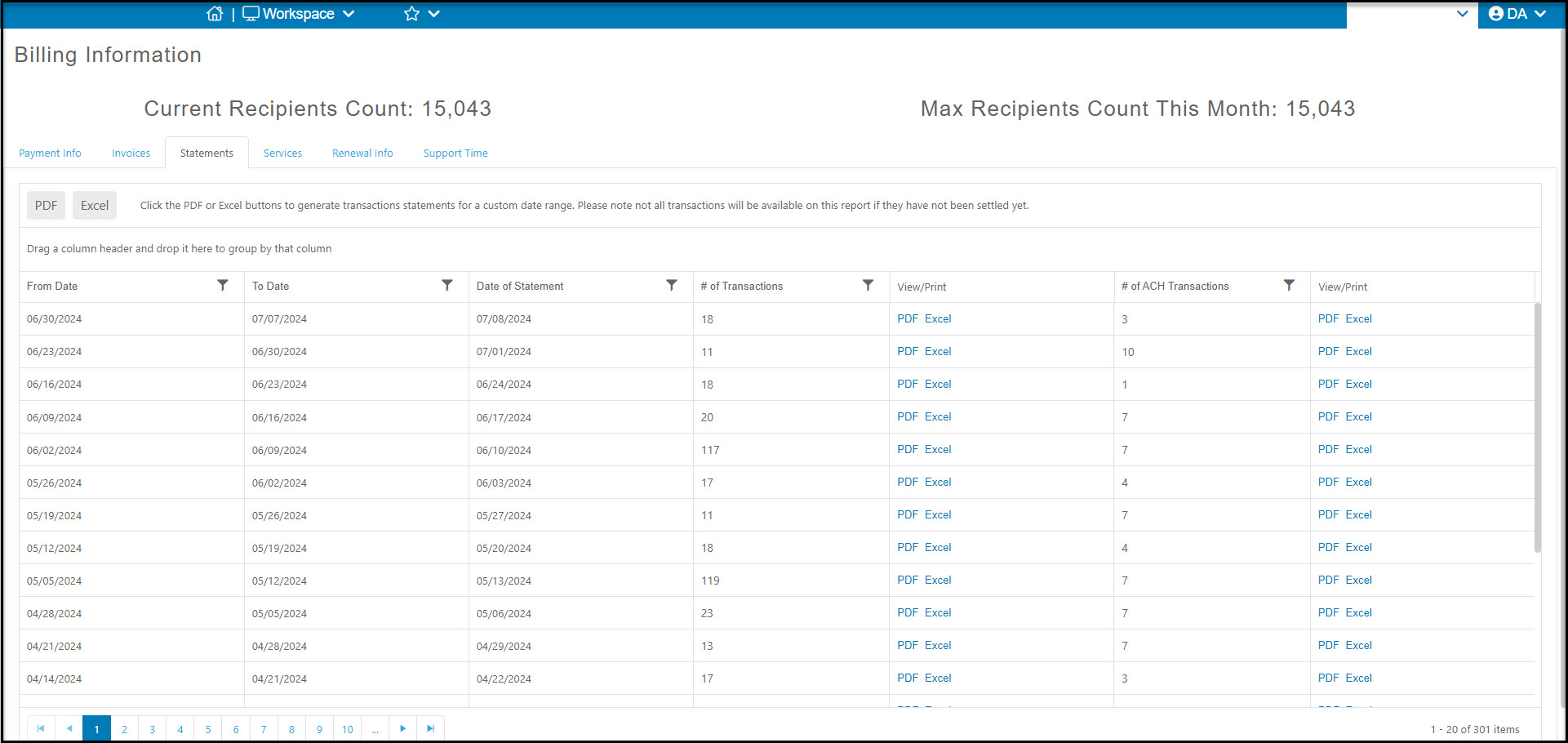
Click on the Statements Tab to see the weekly reports.
- The statements can be downloaded as a pdf file or editable Excel file.
- The credit card statements are shown first next to the # of Transactions column, and if ACH is activated, you can also find those statements in the last column on the grid next to # of ACH Transactions.
- The grid also allows you to filter the data, for example filtering the the Date of Statement for a specific date or date range.
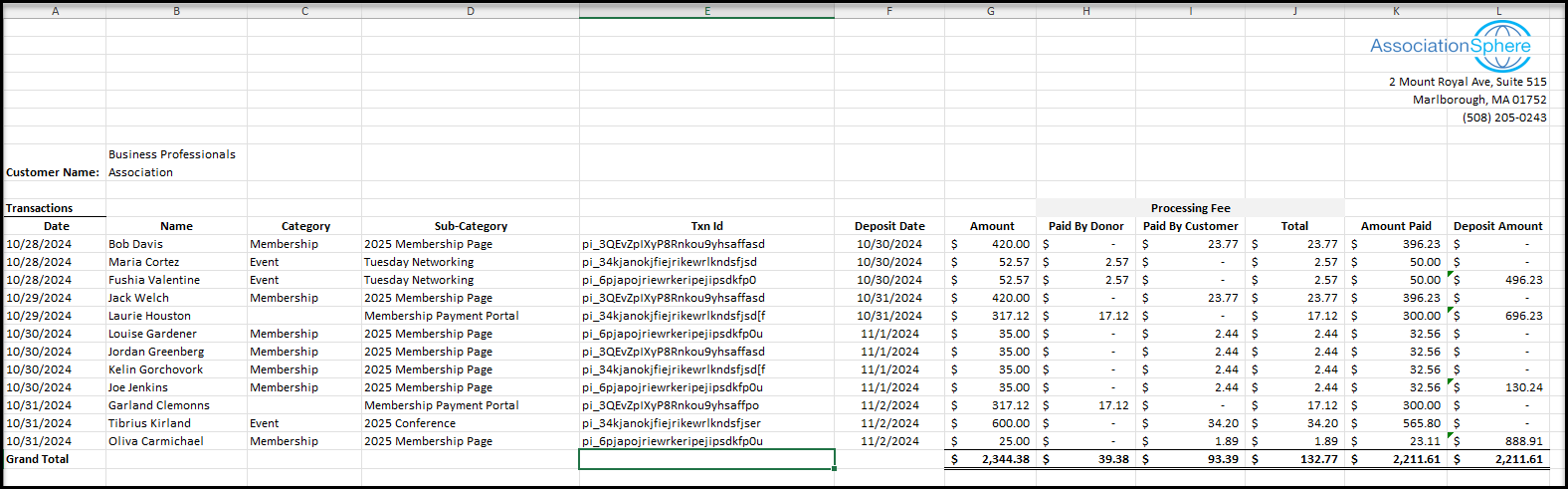
Your statement will provide information about each transaction from the previous week. The columns include:
- Date - The original date of the transaction. This will match the date you see on the Transactions grid in the software.
- Name - The name of the constituent. If there is a company associated with the name, it will be shown in parenthesis.
- Category - What kind of transaction it was, for example, Event, Membership, Donation or Auction.
- Sub Category - Which specific page the transactions was processed through.
- Txn ID - a unique alpha-numeric code assigned to this specific transaction.
- Deposit Date - The actual date the money was deposited into your bank account. This can be up to 72 hours after the original transaction Date due to weekends and holidays.
- Amount - the amount that was charged to the constituent's credit card.
- Processing Fee - Paid by Donor - if the constituent paid the processing fees, it will be listed in this column.
- Processing Fee - Paid by Customer - if the constituent's transaction did not include the processing fee, it will be paid by your organization and listed in this column.
- Processing Fee - Total - the total processing fees paid for this transaction.
- Amount Paid - this is the Amount minus the total processing fee. This is the actual amount that is deposited into your bank account.
- Deposited Amount - transactions that have the same Deposit Date are grouped together and deposited in a batch. The Deposited Amount shows the total amount deposited into your bank for all transactions with the same Deposit Date. This is used for your bank reconciliation.
Was this article helpful?