
Job Board Setup Overview
With the Job Board feature, organizations can accept job postings directly through a customizable application in the Constituent Portal. Job Listings can then be automatically displayed on your website using an easy-to-embed widget.
The Job Board module is available from the main Workspace menu and includes two submenu options: Setup and View Postings.
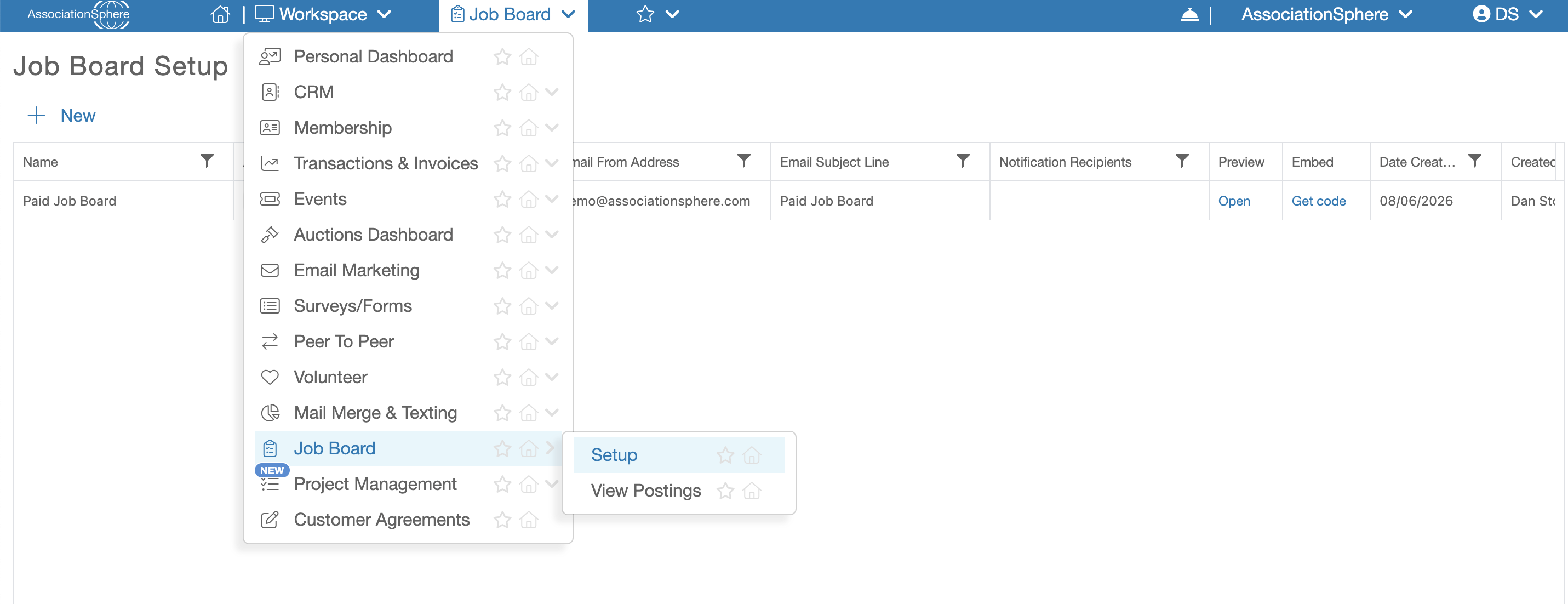
The Setup option allows you to create and configure your Job Board, including the application that constituents will use to submit job postings. The View Postings option allows you to view, review, and manage all job postings submitted through your application.
Selecting Setup will open the Job Board Setup grid, where any previously created Job Boards will be displayed. From this screen, you can create a new Job Board by clicking the + New button, or select an existing Job Board and click View/Edit to modify its settings.
The Job Board setup consists of two connected components. The first is the Job Posting Application, which allows Constituent Portal users to submit job postings. The second is the Job Board Widget, an embeddable component that displays approved job postings on your organization's website. Creating a Job Board in AssociationSphere automatically configures both components, allowing you to accept and display job postings with a single setup.
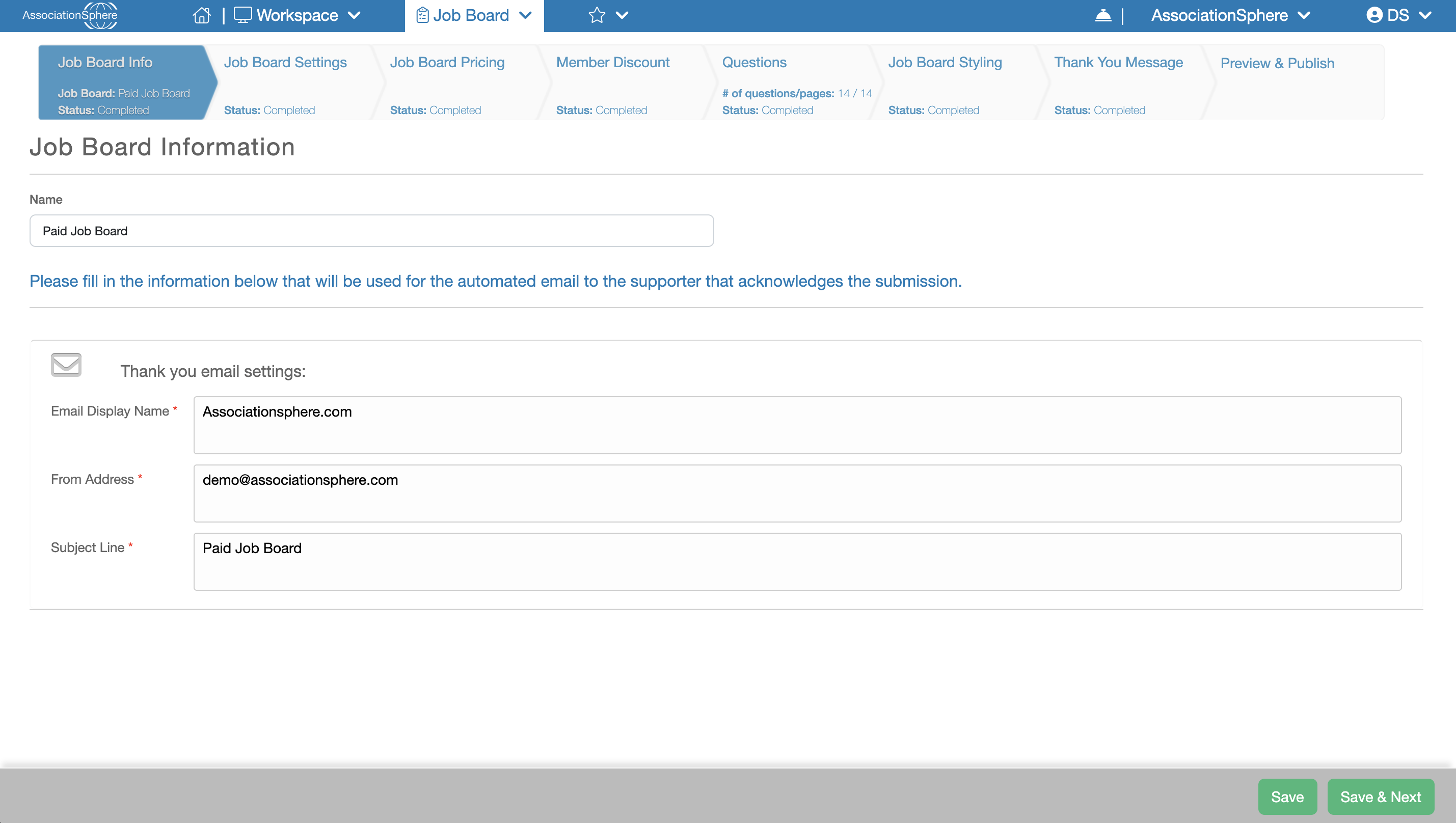
The setup of a Job Board includes the following tabs:
Job Board Info – Enter the name of the Job Board along with the sender name and email address that will be used for confirmation emails. Learn more.
Job Board Settings – Configure the Job Board by enabling or disabling it, specifying who should receive notifications for new postings or purchases, and customizing the messaging displayed throughout the application. Learn more.
Job Board Pricing – If you choose to charge for job postings, this tab will be available to create one or more posting levels, including their pricing, duration, and associated benefits. Learn more.
Member Discounts – If paid job postings are enabled, this tab allows you to create discounts for constituents with active memberships in your organization when they purchase a job posting. Learn more.
Questions – Create and manage the questions that will be displayed on the Job Posting application and completed by users when submitting a job posting. Learn more.
Job Board Styling – The software automatically generates a layout for your purchase form and Job Posting application, but you can customize the colors, fonts, and overall appearance to match your organization's branding. Learn more.
Thank You Message – Customize the confirmation and thank-you messages that are automatically sent to purchasers and job posters after a submission is completed. Learn more.
Preview & Publish – After completing the setup, the software generates the HTML embed code for your Job Board widget, which can be embedded on your website. You can also preview the Job Posting application before making it available to your constituents. Learn more.